Best Selling Products

Plugin Retouch4me
69 USD

Upgrade Duolingo Super
29 USD

Upgrade genuine Capture One account
120 USD

ChatGPT Plus Account (GPT-4)
16 USD

Windows 10 & 11 Pro Key
36 USD

Copyright Adobe Lightroom Account
59 USD

Adobe Photoshop Copyright - Full App
120 USD

MidJourney Account
29 USD

Genuine Cheap Canva Pro
39 USD

Genuine Adobe Illustrator account
99 USD

Upgrade Genuine Office 365
49 USD

Freepik Premium Account
59 USD

Capcut Pro 1 Year
39 USD

Autodesk All App Account Copyright
120 USD

Adobe Premiere Pro Account
99 USD
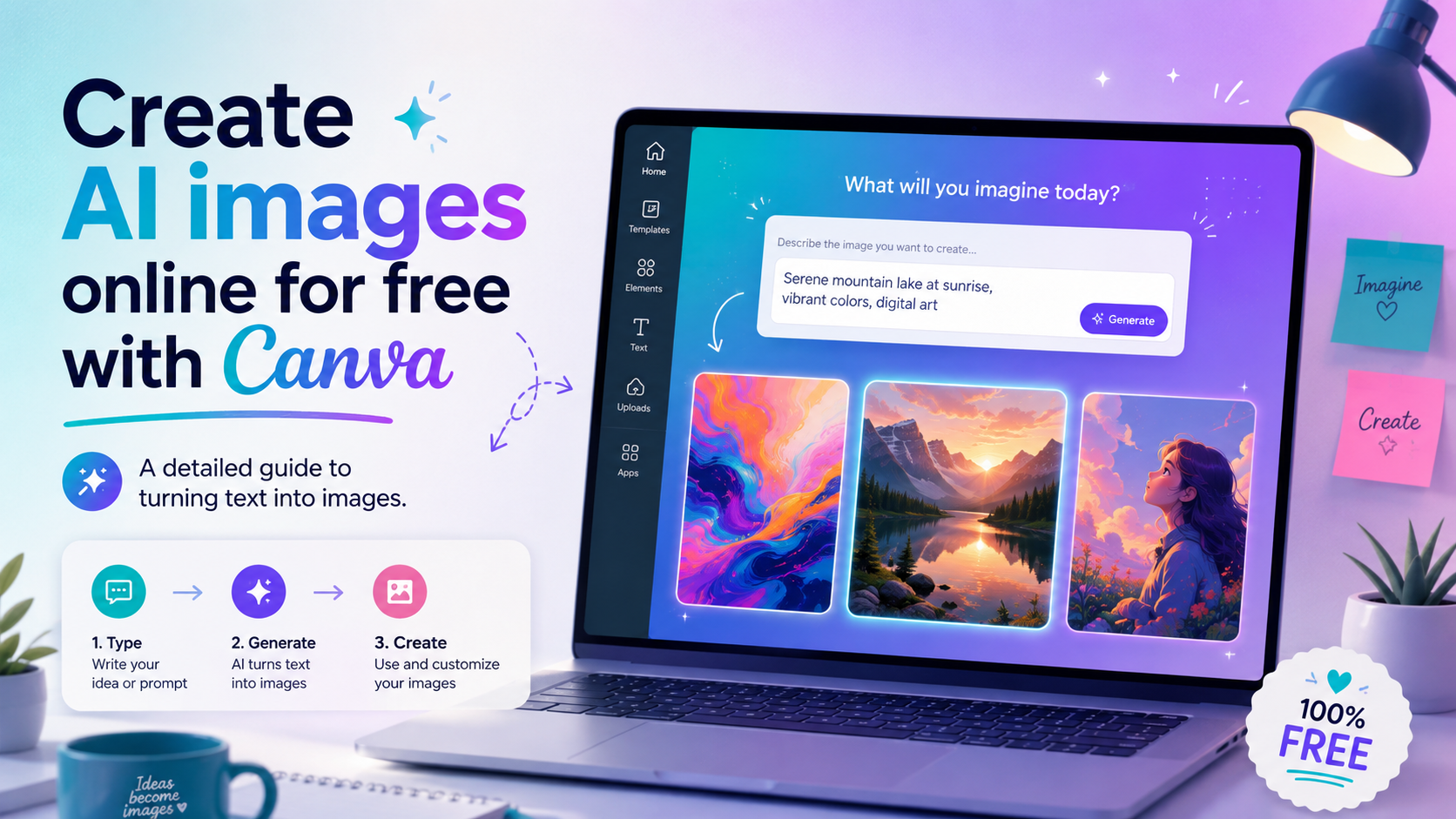
Create AI images online for free with Canva: A detailed guide to turning text into images.
Nội dung
- 1. What AI image creation tools does Canva offer?
- 2. Explore AI-powered image creation styles on Canva
- 3. Magic Media: Transforming ideas into images, graphics, and videos.
- 4. Detailed instructions on how to create AI images on Canva
- 5. Canva ensures a safe AI image creation process.
- 6. AI image creation tool suitable for everyone.
- 7. Conclusion
Want to create unique images without knowing design? Canva integrates powerful AI tools like Magic Media™, Dream Lab, OpenAI''s DALL·E, and Google Cloud''s Imagen, helping you turn any idea into a visual from just a few lines of description.
1. What AI image creation tools does Canva offer?
Canva doesn't just have a single AI image creation tool; it integrates multiple advanced AI models to meet diverse creative needs.
Magic Media™ is an AI tool developed directly within Canva, allowing users to input text descriptions to create images in various artistic styles. It's a suitable option for quickly creating illustrations, promotional images, or images for presentations.
Dream Lab is designed for those who want to create highly detailed images with a unique and creative style. Free Canva users can use Dream Lab up to 20 times per month, while Canva Pro accounts can use it up to 500 times per user per month.
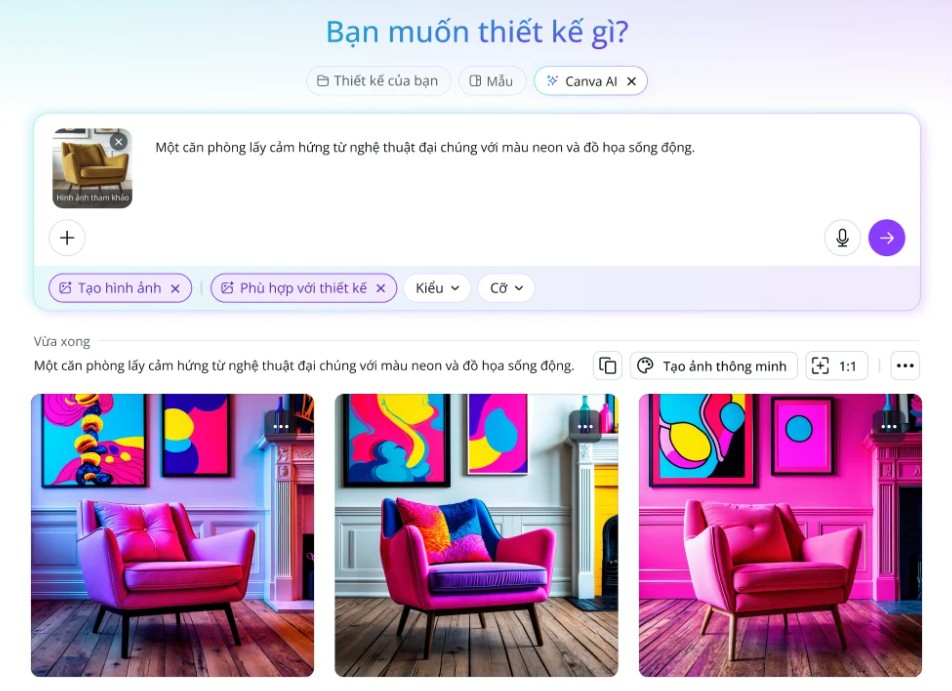
Additionally, Canva integrates OpenAI's DALL·E to create realistic images from text descriptions. With Canva Pro, users get 25 DALL·E image creations per month.
In addition, there's Google Cloud's Imagen, a well-known AI model capable of converting text into high-resolution, detailed images. Canva Pro users also get up to 25 uses per month.
By integrating multiple AI technologies on a single platform, Canva gives users the flexibility to choose the right tool for each design project.
2. Explore AI-powered image creation styles on Canva
One of Canva's biggest advantages is its ability to create images in many different styles, instead of just producing ordinary images.
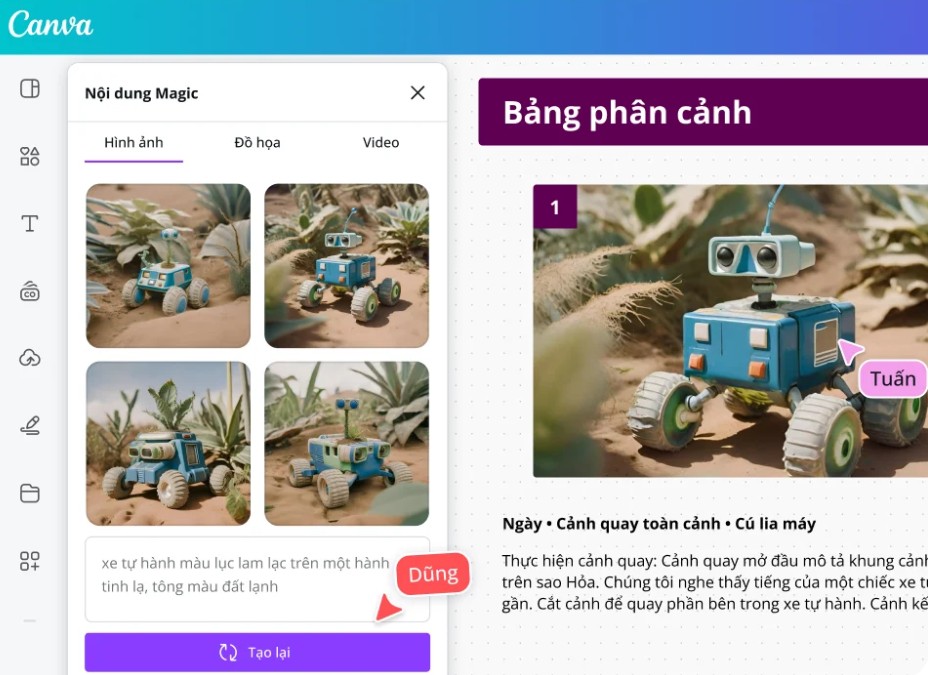
When using the Text to Image feature in Magic Media™, users can choose from a variety of art styles such as Watercolor, Cinematic, Neon, Colored Pencils, Retrowave, and many more.
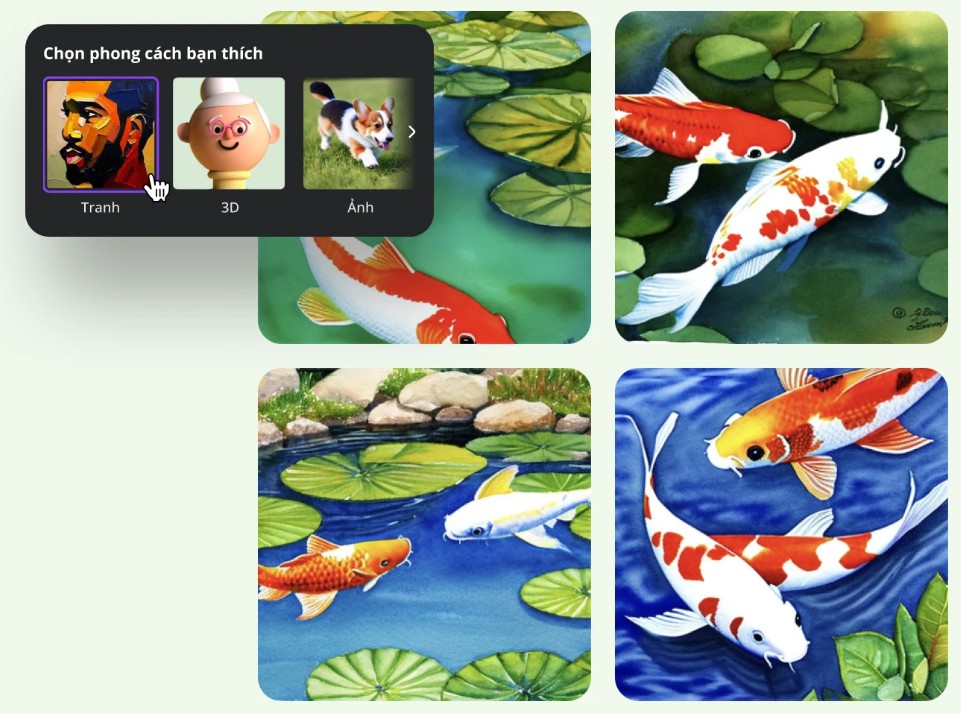
For example, if you want to create a watercolor-style landscape painting, simply describe the subject and select Watercolor before creating the image. If you need an image that resembles a scene from a movie, Cinematic would be a suitable choice. Meanwhile, Retrowave evokes a nostalgic feeling with the characteristic neon tones of the 1980s.
Canva also allows you to choose the aspect ratio that suits each purpose, such as square for Instagram, landscape for presentations, or portrait for Stories and Reels.
Free Canva accounts can use Text to Image up to 50 times, while Canva Pro, Teams, EDU, and NFP allow up to 500 uses per user per month.
3. Magic Media: Transforming ideas into images, graphics, and videos.
Magic Media not only supports AI image creation but also expands creative possibilities to many other types of content.
With the Text to Image feature , you simply type a few descriptive words like: "A panda riding a bike through the city with a depth effect," and Canva will generate several suitable images for you to choose from. Then, you can further edit using the filters, effects, or photo editing tools available in Canva.
If you need icons, stickers, or illustrations, Text to Graphic will help create entirely new graphics based on the description. This makes it easy for users to find images that match their brand style without spending a lot of time searching through the library.
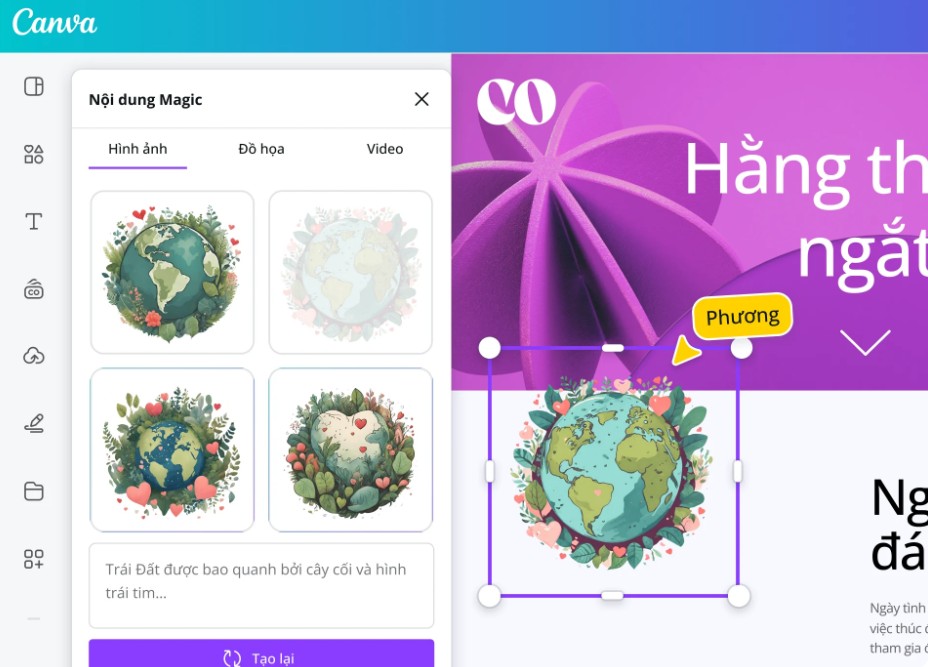
In addition to images and graphics, Canva also integrates Text to Video . Simply enter a brief description of the desired video, and the AI will generate a basic video clip for users to further edit with transition effects, filters, or sound directly within Canva.
Thanks to this combination, Canva becomes a comprehensive creative platform, supporting everything from images to videos without the need for multiple different software programs.
4. Detailed instructions on how to create AI images on Canva
Creating AI images on Canva is quite simple and only takes a few minutes to complete.
Step 1: Open Canva and select the AI tool.
Log in to your Canva account.
On the homepage, you can choose to create a new design using a blank page or use a pre-made template.
After entering the editor, look at the toolbar on the left and select Elements , then select Magic Media .
Alternatively, you can select the "Apps" option in the left sidebar and then choose another AI tool such as DALL·E (OpenAI) or Imagen (Google Cloud) depending on your needs.
Step 2: Enter the image description
In the content input box, describe it as detailed as possible.
For example, instead of just typing:
"Cat."
You should describe it in full, such as:
"A white cat sitting on a rooftop at sunset, cinematic style, warm yellow lighting, high detail."
The more specific the description, the closer the AI will be to creating an image that matches the desired outcome.
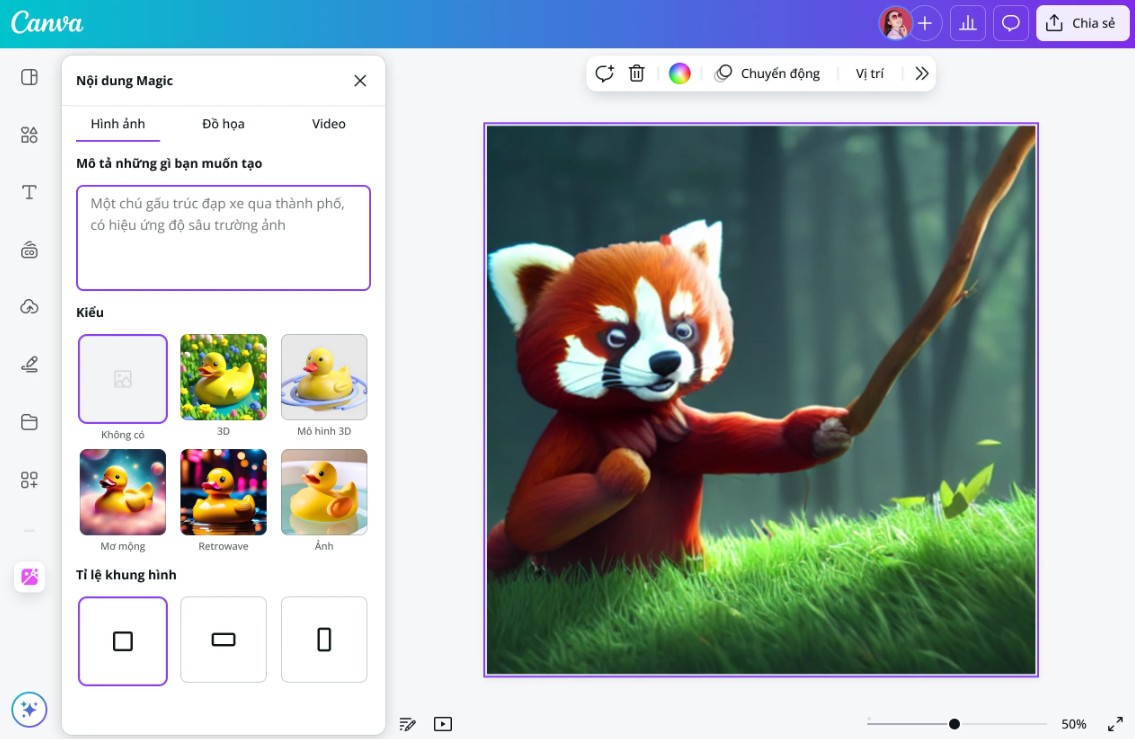
Step 3: Choose a style and create the image.
If you use Magic Media Text to Image, Canva will allow you to choose the image style.
You can choose Watercolor, Cinematic, Neon, Colored Pencils, or Retrowave.
Next, choose an aspect ratio that suits your project.
Then click Create Image to let the AI start creating the image.
Typically, Canva will return several different options for you to choose from within just a few seconds.
Step 4: Edit the AI image
Once created, click on the image to import it into the design.
You can continue editing using built-in tools such as cropping, resizing, adding effects, color filters, text, icons, or other design elements from the Canva library.
If you're not satisfied with the result, you can always edit the command or create additional versions.
Step 5: Download or share
Once you've finished the design, click Share or Download .
Canva supports exporting images in various formats such as PNG, JPG, or PDF.
You can also share your designs directly to Facebook, Instagram, LinkedIn, or other social media platforms without downloading them to your computer.
5. Canva ensures a safe AI image creation process.
Alongside the development of AI, Canva also focuses on the responsible use of AI.
The Text-to-Image system incorporates multiple layers of protection to detect inappropriate words or content as soon as the user enters a request. This helps to limit the creation of images that violate policies or have a negative impact.
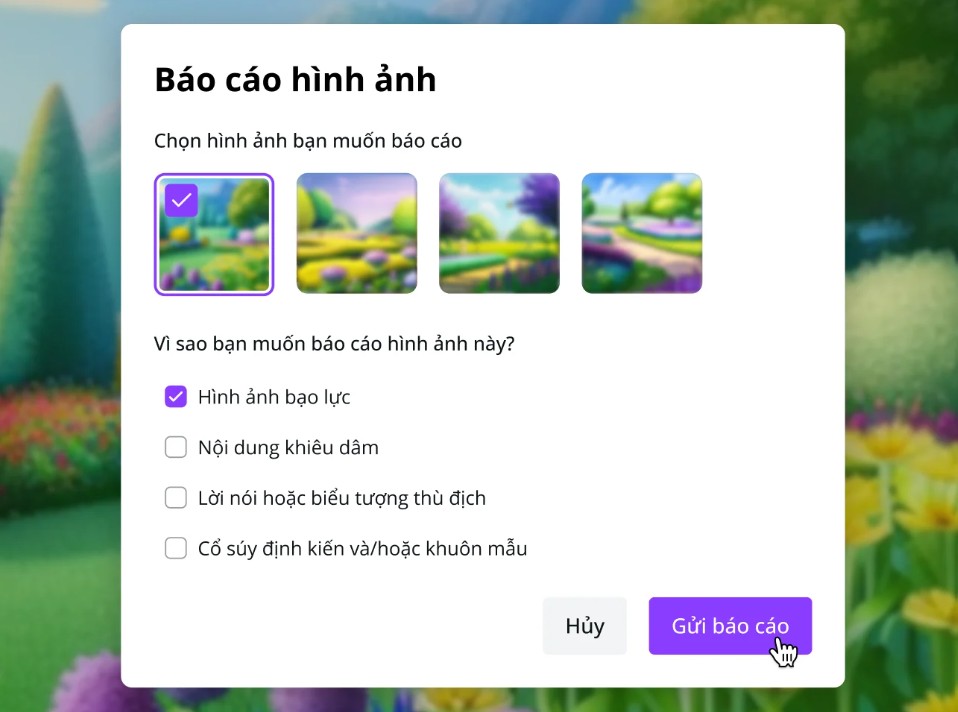
In case unsafe content or inappropriate images are detected, users can also report them directly to Canva so that the development team can continue to improve the AI system.
Thanks to these control mechanisms, Canva aims to build a safe, transparent, and suitable creative environment for all users.
6. AI image creation tool suitable for everyone.
Canva targets a wide range of user groups.
For content creators, AI helps generate unique visuals to enhance the appeal of videos, posts, and social media campaigns.
For business owners, this tool significantly reduces design costs by allowing them to quickly create banners, product illustrations, or advertising content without hiring a professional design team.
For creative enthusiasts, Canva AI is the ideal place to experiment with new ideas, explore different art styles, and find inspiration for personal projects.
7. Conclusion
Canva is making AI-powered image creation easier than ever. With just a few lines of description, users can create high-quality images using advanced AI technologies like Magic Media™, Dream Lab, OpenAI's DALL·E, or Google Cloud's Imagen. Combined with a powerful editing toolset, Canva not only helps create AI images but also supports the development of complete designs for learning, work, and content creation. Whether you're a beginner or a professional designer, Canva provides an intuitive, fast, and secure solution to turn any idea into a visual image in minutes.





















VIP Products








Best Selling Products
Plugin Retouch4me
69 USD
Upgrade Duolingo Super
29 USD
Upgrade genuine Capture One account
120 USD
ChatGPT Plus Account (GPT-4)
16 USD
Windows 10 & 11 Pro Key
36 USD
Copyright Adobe Lightroom Account
59 USD
Adobe Photoshop Copyright - Full App
120 USD
MidJourney Account
29 USD
Genuine Cheap Canva Pro
39 USD
Genuine Adobe Illustrator account
99 USD
Upgrade Genuine Office 365
49 USD
Freepik Premium Account
59 USD
Capcut Pro 1 Year
39 USD
Autodesk All App Account Copyright
120 USD
Adobe Premiere Pro Account
99 USD