Best Selling Products

Windows 10 & 11 Pro Key
36 USD

Freepik Premium Account
59 USD

Plugin Retouch4me
69 USD

Autodesk All App Account Copyright
120 USD

Capcut Pro 1 Year
39 USD

MidJourney Account
29 USD

Genuine Cheap Canva Pro
39 USD

Upgrade Genuine Office 365
49 USD

Upgrade Duolingo Super
29 USD

Copyright Adobe Lightroom Account
59 USD

Adobe Premiere Pro Account
99 USD

ChatGPT Plus Account (GPT-4)
16 USD

Genuine Adobe Illustrator account
99 USD

Upgrade genuine Capture One account
120 USD

Adobe Photoshop Copyright - Full App
120 USD
Edit videos online for free on Canva: A detailed, step-by-step guide for beginners.
Nội dung
- 1. A free video editor with a full range of professional tools.
- 2. Create videos faster with Canva's AI tools.
- 3. Extensive library of music and sound effects
- 4. Design videos in any style and for any purpose.
- 5. Add professional effects and animations.
- 6. Easily share and publish videos.
- 7. Detailed instructions on how to create and edit videos on Canva
- 8. Conclusion
Want to edit professional videos without installing complicated software? Canva offers a free online video editor with an intuitive drag-and-drop interface, a diverse template library, and a rich music library.
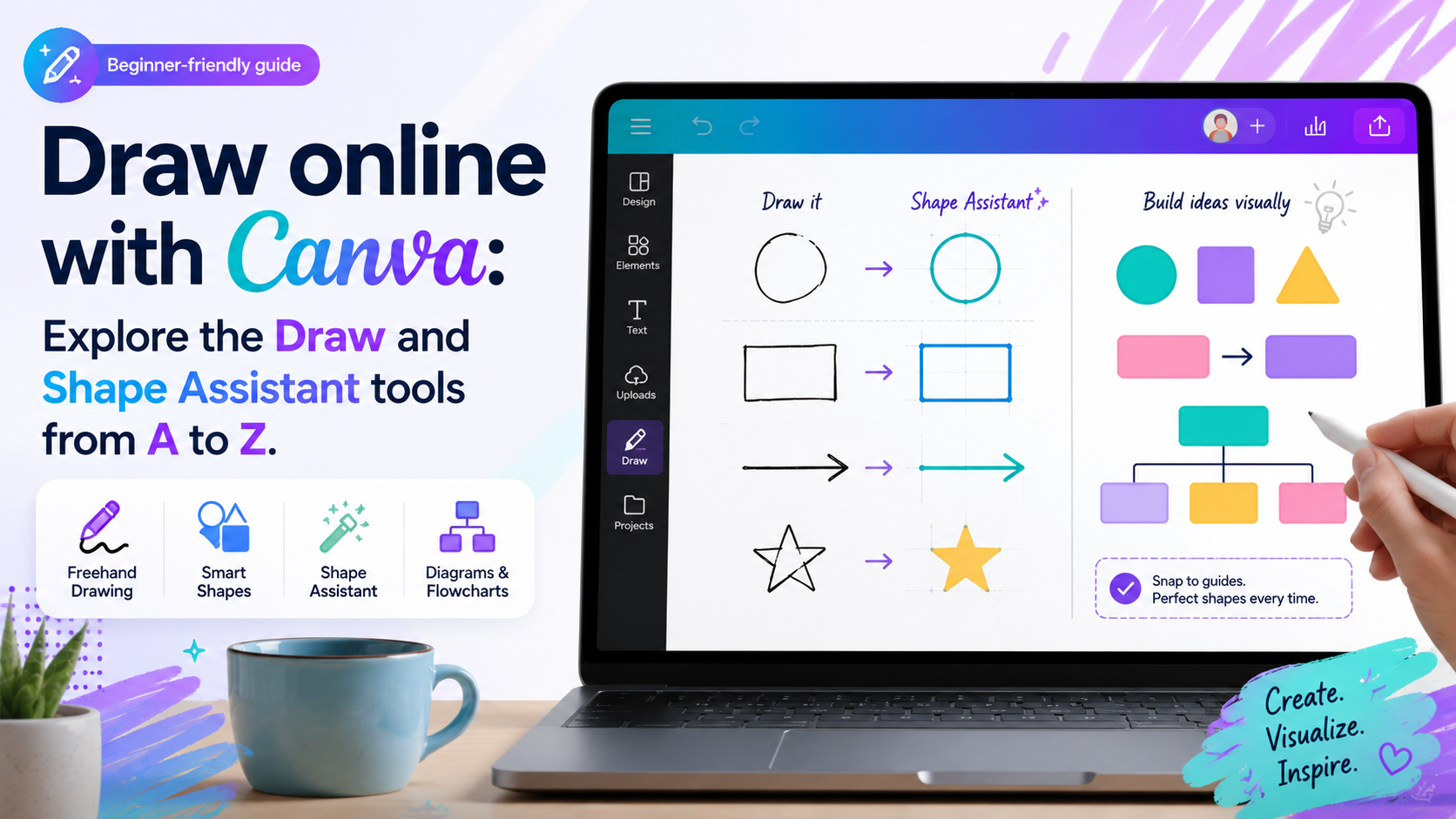
1. A free video editor with a full range of professional tools.
Canva integrates most of the necessary video editing tools into a single platform, allowing users to complete the entire process without switching between multiple software programs.
You can upload videos from your computer or phone to Canva, then drag and drop them directly onto the timeline. Here, Canva allows you to trim, split, change the position of video segments, adjust playback speed (faster or slower), rotate the video, and resize it to fit different platforms.
If you want a more professional-looking video, you can use the Captions tool . Canva will automatically recognize the speech in your video to create subtitles. Once created, you can edit the content, change the font, color, size, or export the subtitle file separately if needed.
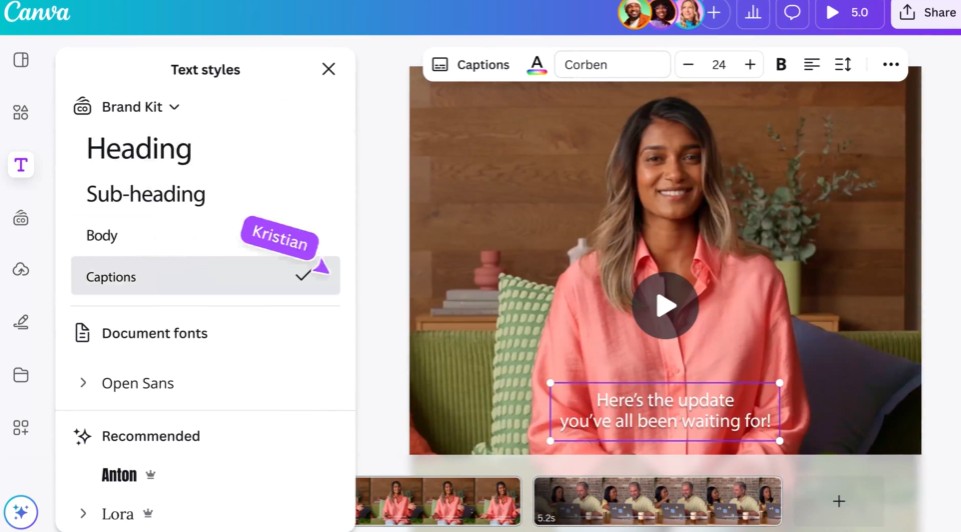
Another advantage is the ability to collaborate in real time. Multiple team members can work together on a video project, leaving comments or feedback directly on Canva. The project is synchronized across computers, phones, and tablets, allowing you to continue editing anywhere, even when switching between devices.
For audio, Canva also integrates an Audio Enhancement feature that reduces ambient noise, clarifies speech, and improves sound quality with just a few taps. This is especially useful when creating presentations, tutorials, or social media content.
2. Create videos faster with Canva's AI tools.
Canva not only supports manual editing but also applies artificial intelligence to significantly shorten video production time.
One of its standout tools is Magic Design™ for Video . AI automatically analyzes images and videos in your library, arranges footage in a logical sequence, adds transition effects, and selects suitable background music. This allows you to quickly create a complete video without editing each scene individually.
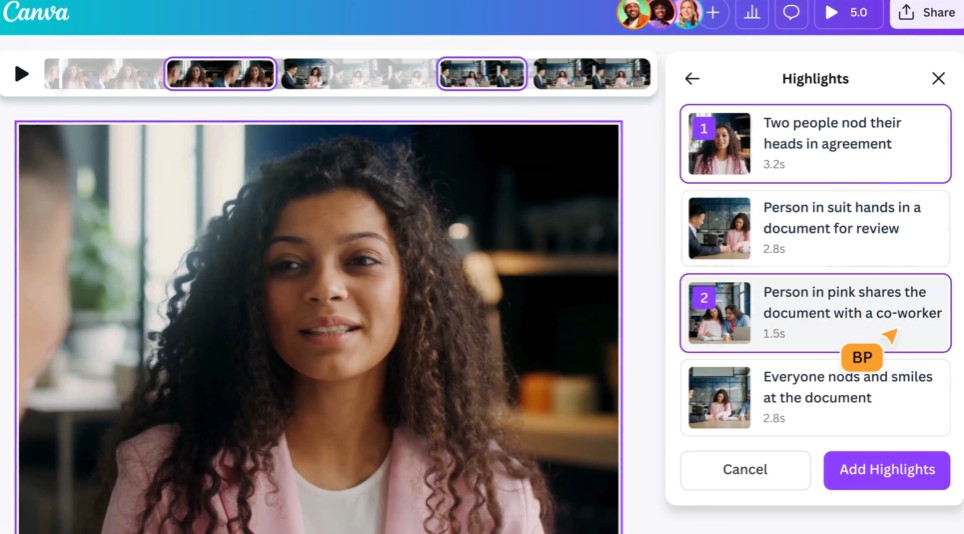
If you have a long video and want to find the standout moments, the Highlights feature will help. AI automatically identifies the most important scenes in just seconds, saving you time on manual editing.
Canva also integrates Magic Media to create videos from text. Simply enter a description of your idea, and the AI will generate a video that matches your desired content. This is an ideal solution when you don't have footage ready or want to quickly illustrate a creative idea.
3. Extensive library of music and sound effects
Sound is a crucial element in making videos more engaging. Canva offers a diverse library of background music and sound effects for users to easily choose from.
With a Canva Pro or Education account, users can access a wide range of popular music from partners such as Warner, Merlin, and Sony for personal use. Additionally, Canva boasts a library of thousands of free and licensed music tracks.
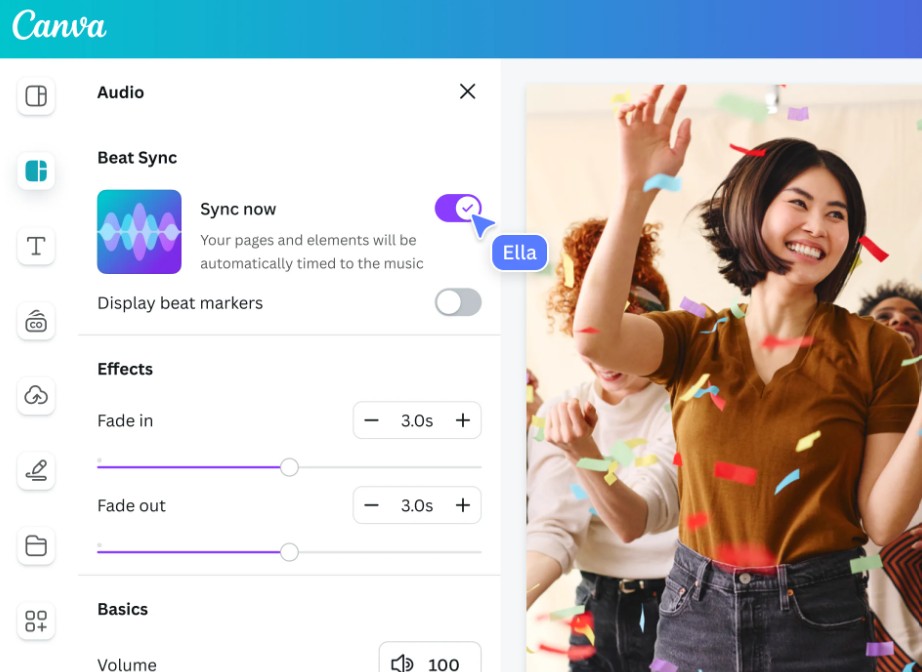
One very useful feature is Beat Sync . This tool automatically aligns footage with the rhythm of the song, creating videos with a smoother and more professional feel.
For Canva Pro users, the integrated Artlist library contains over 100,000 cinematic videos and approximately 15,000 royalty-free music tracks. In addition, the sound effects library enhances video realism through transition sounds, environmental noises, and special effects.
4. Design videos in any style and for any purpose.
Canva supports a wide variety of video formats for learning, work, and content creation.
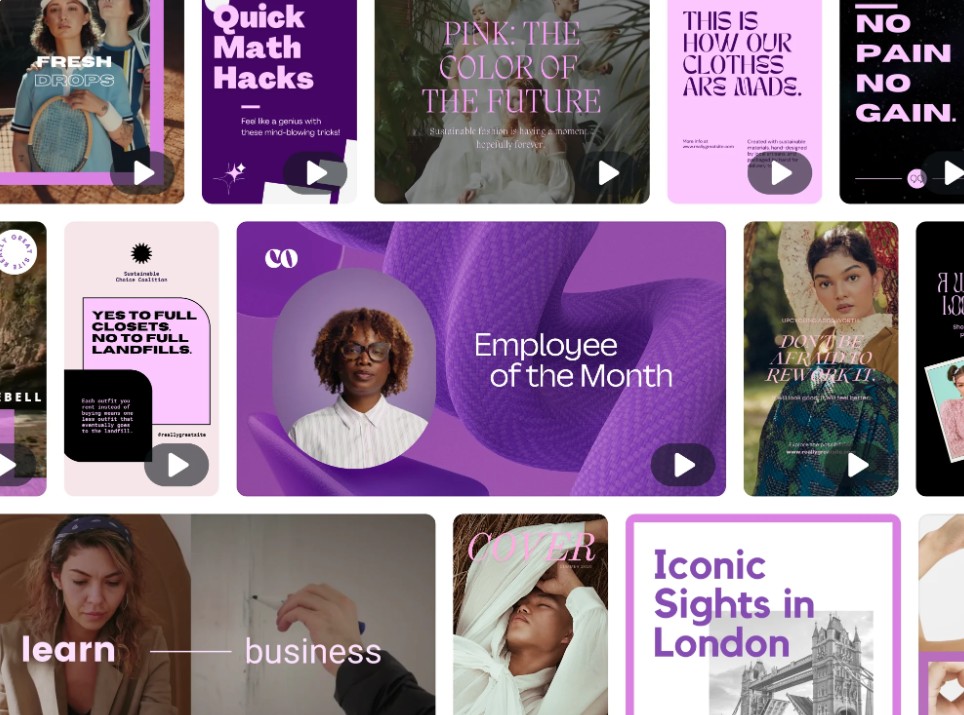
Users can choose from thousands of pre-designed templates across various fields such as education, marketing, real estate, fashion, travel, beauty, and food. Each template can be flexibly customized to suit a brand or personal style.
In addition, Canva offers pre-optimized sizes for TikTok, Instagram Reels, Facebook Stories, YouTube Shorts, advertising videos, slideshow videos, and many other platforms.
Canva's content library includes millions of licensed images, videos, icons, stickers, and graphics. Users can easily distinguish between free resources and resources for Canva Pro directly within the editor.
If you want to appear directly in the video, you can use Recording Studio . This feature allows you to record webcam footage, screen recording, or audio recording directly within Canva without needing to install any external software. After recording, the video will automatically be imported into your project for further editing.
5. Add professional effects and animations.
To make videos more dynamic, Canva offers a variety of tools for creating motion effects.
You can apply animation effects to images, text, and graphic elements with just a few clicks. If you're using Canva Pro, the Magic Animate feature will automatically create appropriate animation effects for your entire design, saving you a lot of time.
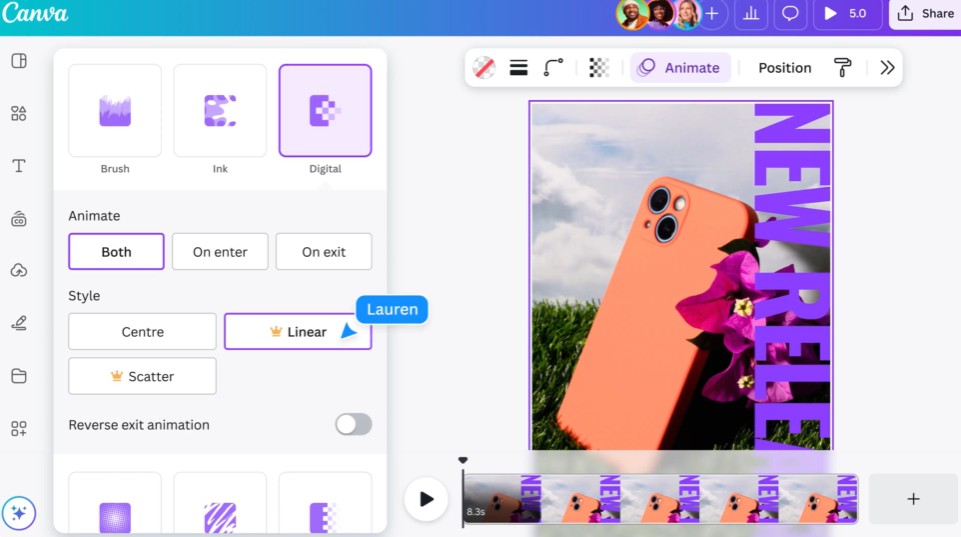
Another standout feature is Video Background Removal . With just one click, Canva will separate the subject from the background without the need for green screen or professional editing software. This is very useful when creating product introduction videos or promotional content.
Additionally, Motion Path allows you to design the movement trajectory of text, icons, or images yourself. This enables users to create flexible and creative motion effects according to their own ideas.
6. Easily share and publish videos.
After editing is complete, Canva supports multiple ways to share videos.
You can download the video in high-quality MP4 format, with subtitles if needed. All projects are securely stored in the cloud, so you can continue editing at any time.
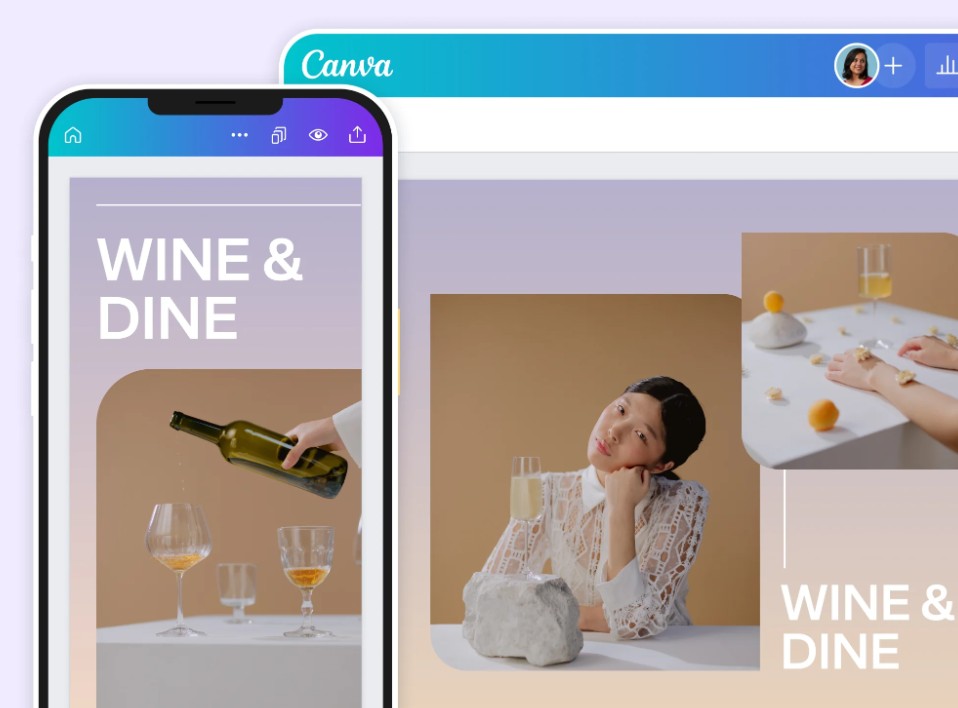
If you frequently post content on social media, Canva also integrates a Content Planner to schedule video posts to Instagram, Facebook, TikTok, and other platforms.
Additionally, users can share videos directly from Canva to Facebook, Instagram, TikTok, or LinkedIn without having to download the file to their computer first.
7. Detailed instructions on how to create and edit videos on Canva
To begin editing videos on Canva, follow these steps in order.
Step 1: Create a new video project
Log in to Canva and click Create Design .
Choose the appropriate video type such as TikTok Video, YouTube Video, Instagram Story, Facebook Reel, Slideshow Video, or select Create from Scratch if you want to design something entirely from scratch.
Canva will open the editing interface with the corresponding size.
Step 2: Choose a video template
Click on the Templates option in the left-hand toolbar.
Search for templates by topic such as marketing videos, educational videos, product review videos, business introduction videos, or vlogs.
Choose a suitable template to begin editing.
Step 3: Add content
Click Uploads to import videos, images, or logos from your computer into Canva.
Additionally, you can also use millions of videos, photos, and music tracks available in the Canva library.
Drag the files onto the timeline to arrange the order in which they appear.

Step 4: Edit the video
Use the tools on the Timeline to trim, split, merge, rotate, or change the playback speed.
If needed, add automatic subtitles, synchronize audio, adjust the duration of each scene, and apply transition effects between video segments.
Step 5: Personalize the design
Change the colors, fonts, background, and logo to match your brand identity.
Add text, icons, stickers, or animations to make your videos more lively.
You can also use Magic Animate or Motion Path to create professional-looking animations for elements in your video.
Step 6: Preview and export the video
After you've finished editing, press Play to preview the entire video.
Double-check the content, audio, subtitles, and effects.
Finally, tap Share or Download , select the desired MP4 format and quality.
You can save videos to your computer, create sharing links, or post them directly to Facebook, Instagram, TikTok, and LinkedIn right from Canva.
8. Conclusion
Canva is one of the most comprehensive free online video editing tools available today. With its user-friendly drag-and-drop interface, extensive template library, vast content library, and a host of AI features like Magic Design™, Highlights, and Magic Media, Canva makes it easy for anyone to create professional videos without any prior editing experience. Whether you're a content creator, business owner, teacher, or beginner, Canva offers a fast, flexible, and effective video editing solution to transform your ideas into stunning films.





















VIP Products








Best Selling Products
Windows 10 & 11 Pro Key
36 USD
Freepik Premium Account
59 USD
Plugin Retouch4me
69 USD
Autodesk All App Account Copyright
120 USD
Capcut Pro 1 Year
39 USD
MidJourney Account
29 USD
Genuine Cheap Canva Pro
39 USD
Upgrade Genuine Office 365
49 USD
Upgrade Duolingo Super
29 USD
Copyright Adobe Lightroom Account
59 USD
Adobe Premiere Pro Account
99 USD
ChatGPT Plus Account (GPT-4)
16 USD
Genuine Adobe Illustrator account
99 USD
Upgrade genuine Capture One account
120 USD
Adobe Photoshop Copyright - Full App
120 USD