
Best Selling Products

Windows 10 & 11 Pro Key
36 USD

Upgrade genuine Capture One account
120 USD

Copyright Adobe Lightroom Account
59 USD

Upgrade Genuine Office 365
49 USD

Genuine Cheap Canva Pro
39 USD

Adobe Photoshop Copyright - Full App
120 USD

Adobe Premiere Pro Account
99 USD

Genuine Adobe Illustrator account
99 USD

Capcut Pro 1 Year
39 USD

Plugin Retouch4me
69 USD

ChatGPT Plus Account (GPT-4)
16 USD

Upgrade Duolingo Super
29 USD

Autodesk All App Account Copyright
120 USD

MidJourney Account
29 USD

Freepik Premium Account
59 USD
5 Ways to Fix Google Chrome Using Too Much RAM Effectively
Nội dung
- 1. Why does Google Chrome use so much RAM?
- 1.1. Multi-process architecture
- 1.2. Opening too many tabs at once
- 1.3. Extensions that consume resources
- 1.4. Limited RAM capacity
- 2. Turn on Memory Saver to reduce RAM usage
- 3. Check which tabs use the most RAM with Chrome Task Manager
- 4. Turn off unnecessary extensions
- 5. Restart Chrome and optimize computer resources
A summary of common reasons why Chrome consumes memory resources, with step-by-step instructions to optimize browser performance.

1. Why does Google Chrome use so much RAM?
Before looking for a fix, users need to understand that Google Chrome's high RAM usage does not always come from a software error. In most cases, it relates to how the browser works, the number of open tabs, and the characteristics of the websites being visited.
1.1. Multi-process architecture
One of the key reasons Chrome uses a lot of memory is its multi-process architecture. Instead of handling all activity in a single process, the browser divides the work into many separate processes that serve tabs, extensions, and system components.
This design brings many benefits. When one web page runs into a problem, other tabs can usually keep working normally. Separating processes also improves isolation and helps the browser handle multiple tasks at the same time.
However, each process needs a certain amount of resources to run. As the number of tabs and extensions increases, the total amount of RAM used may increase as well.
1.2. Opening too many tabs at once
Many people have the habit of opening dozens of tabs to look up information, watch videos, read documents, or save web pages they need. Although this is convenient, each tab may contain many resource-consuming components such as images, videos, JavaScript code, and interactive content.
Websites with complex interfaces or online applications usually need more resources than pages containing only text. Therefore, opening many tabs does not mean that every tab consumes the same amount of RAM.
For designers, opening an image library, reference websites, a project management platform, and online work tools at the same time can significantly increase memory usage.
1.3. Extensions that consume resources
Chrome supports many extensions that boost productivity, from translation tools and password managers to ad blockers and work-support tools. However, some extensions need to run in the background or process data frequently, which increases RAM consumption.
In some cases, faulty or inefficient extensions may even cause memory to be used more than normal.
Therefore, users should review their installed extensions and remove those that are no longer needed.
Licensed software
1.4. Limited RAM capacity
Besides the browser itself, the computer's configuration also directly affects the user experience. If a computer has low RAM but has to run many applications at once, the system may not have enough available memory for new tasks.
When that happens, Windows or the operating system may have to use virtual memory on the disk for support. This can make the computer respond more slowly than when data is processed directly in RAM.
It should be noted that Chrome using a lot of RAM is not necessarily a problem. If the computer still runs smoothly, users do not need to reduce memory usage at all costs. What matters is determining whether resource usage actually affects performance.
2. Turn on Memory Saver to reduce RAM usage
Memory Saver is a built-in feature in Google Chrome that helps reduce the amount of RAM allocated to tabs that are not in use.
When this feature is active, Chrome can put inactive tabs to sleep to free up resources for the tabs being used. When the user returns, the web page may need to reload or restore its active state.
This is a suitable solution for people who often keep many tabs open but do not want to close them completely.
Instructions for turning on Memory Saver
Step 1: Open Google Chrome on your computer.
Step 2: Click the three-dot icon in the top right corner and select Settings.
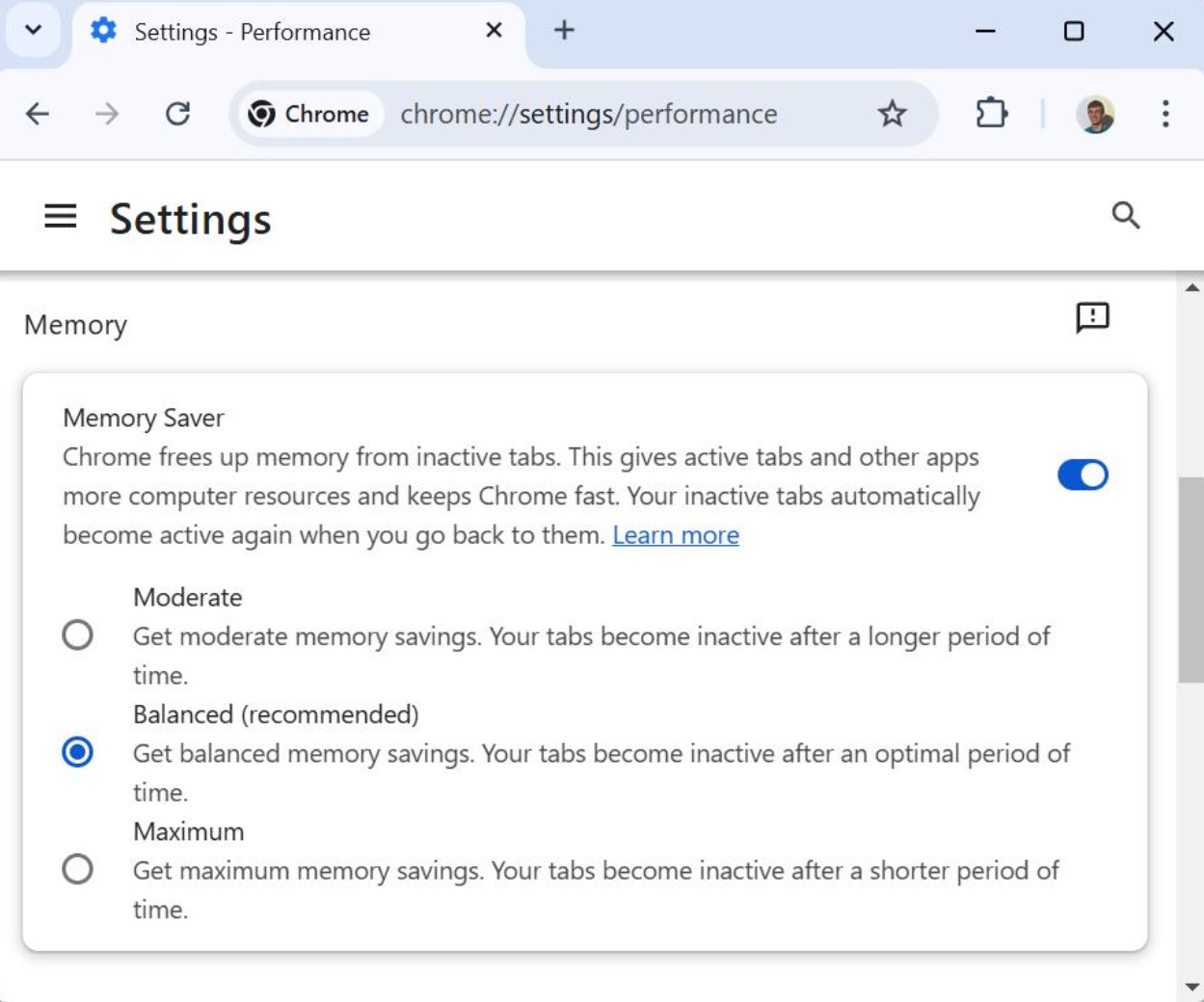
Step 3: In the settings menu, select Performance.
Step 4: Find the Memory Saver section and turn on the switch.
Step 5: Choose a memory saving level that suits your needs if the browser offers these options.
Alternatively, you can enter chrome://settings/performance directly into the address bar to open the performance settings page.
Chrome may provide modes such as Moderate, Balanced, and Maximum, depending on the version. Users should start with Balanced mode to keep things convenient during use. If you often open many tabs and want to prioritize freeing up RAM, you can try Maximum mode.
Note: Not every website is suitable for being put to sleep. For pages that need to stay active continuously, you should consider adding them to Memory Saver's exceptions list. Also, remember to save your data before switching between tabs to avoid losing unsaved content.
3. Check which tabs use the most RAM with Chrome Task Manager
If you have turned on Memory Saver but Chrome is still running slowly, the next step is to identify which tabs or processes are consuming the most resources.
Chrome has its own Task Manager, which allows users to monitor the memory usage of each tab, extension, and browser process.
How to check RAM usage
Step 1: Open Google Chrome.
Step 2: Press the Shift + Esc key combination to open Chrome's Task Manager.
Step 3: Look at the memory column, usually named Memory footprint or Memory, to see which processes are using the most RAM.
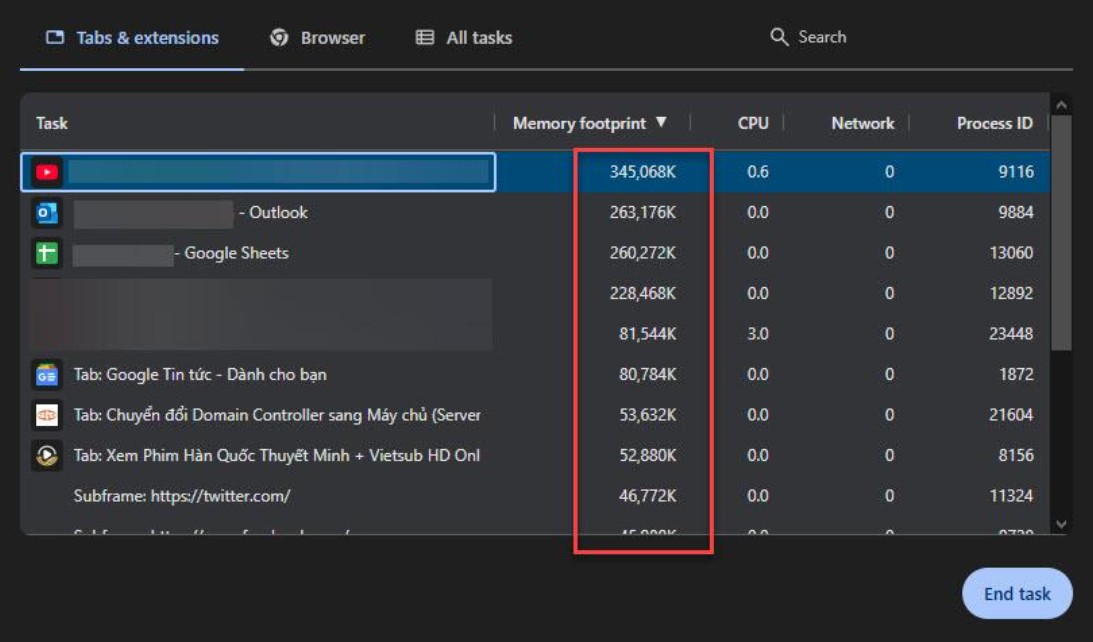
Step 4: Identify unnecessary tabs or processes with abnormal consumption.
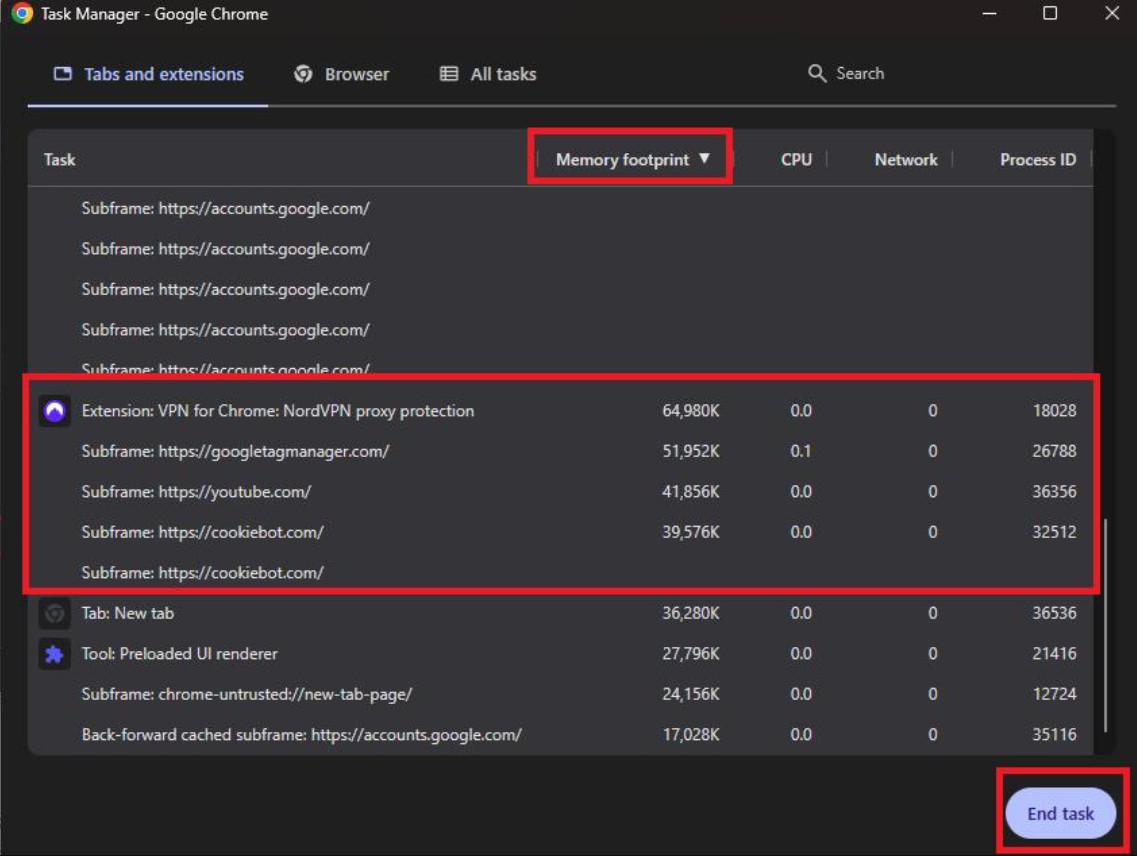
Step 5: If you want to close a process, select it and click End process.
This action can help free up resources, but it should be done with caution. If you close a tab that contains a form, document, or unsaved content, you may lose data.
In addition, you should not conclude that a tab has a problem just because it uses a lot of RAM. Complex online applications may need a lot of memory to operate normally. Prioritize checking processes with abnormal consumption or those that make the browser respond slowly.
4. Turn off unnecessary extensions
Another way to reduce RAM is to review the extensions currently installed in Chrome.
Many users install extensions for different needs but later stop using them. Keeping too many unnecessary extensions can increase resource usage and make the browser harder to manage.
Instructions for managing extensions
Step 1: Enter chrome://extensions/ in the Chrome address bar and press Enter.
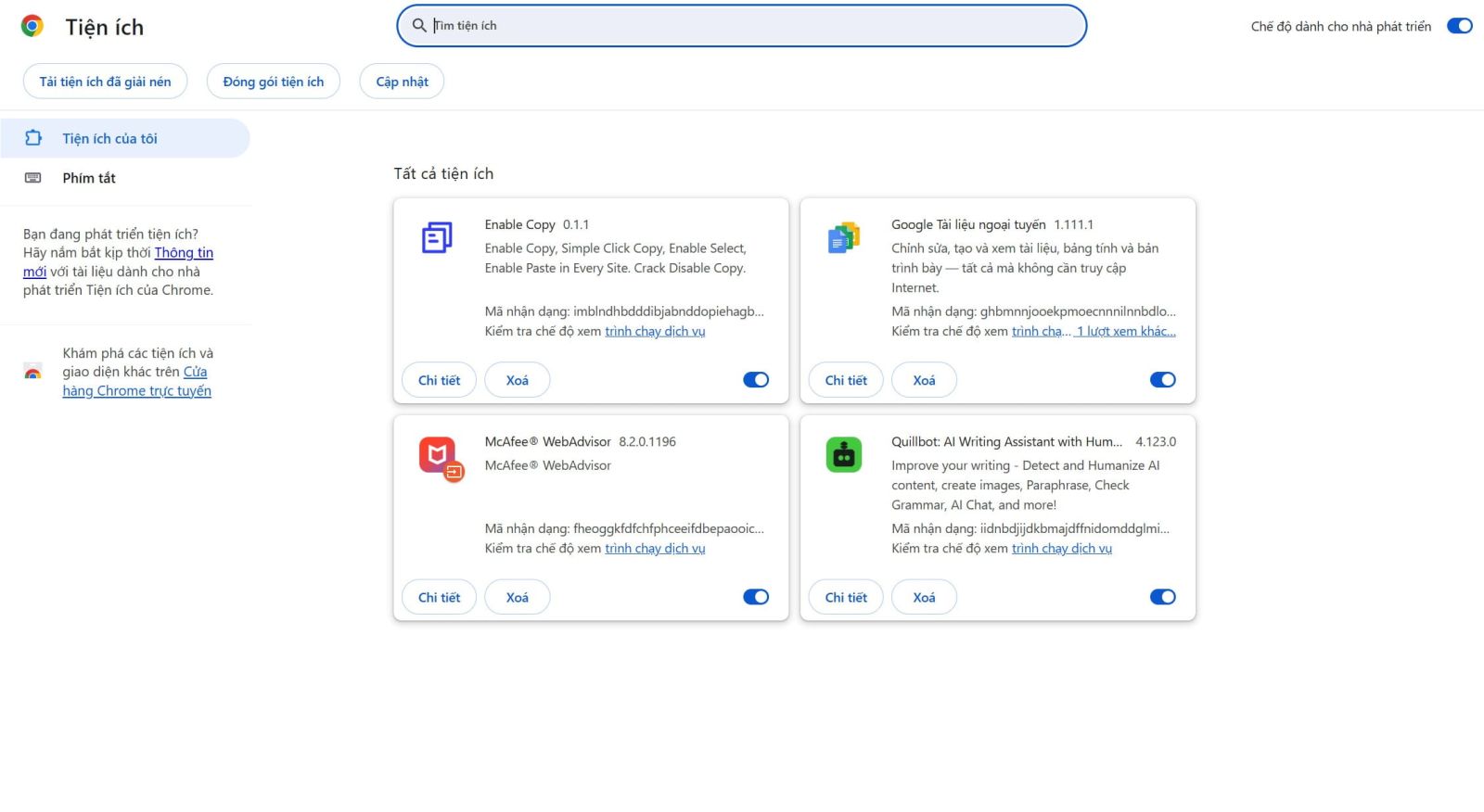
Step 2: View the list of installed extensions.
Step 3: Identify extensions that are rarely used or no longer serve your current needs.
Step 4: Turn off the switch of each extension to check whether browser performance improves.
Step 5: If you determine that an extension is no longer needed, click Remove to uninstall it.
SaDesign recommends that users check extensions one by one instead of turning them all off at once. This helps identify more precisely which component may be causing the problem, while limiting the impact on tools that are currently supporting your work.
In particular, only install extensions from trusted sources and review the permissions an extension requests before using it.
5. Restart Chrome and optimize computer resources
In some cases, Chrome may become less stable after a long period of use, especially when there are many tabs or processes running continuously. Restarting the browser is a simple way to refresh the active processes.
However, if the entire computer is slow, the cause may not lie only in Chrome but may also relate to RAM, CPU, disk, or other applications.
You can follow these steps:
Step 1: Save all documents and work in progress.
Step 2: Close unnecessary tabs.
Step 3: Exit Chrome completely, then reopen the browser.
Step 4: Open Windows Task Manager using the Ctrl + Shift + Esc key combination.
Step 5: Check RAM, CPU, and disk usage to identify which components are taking up the most resources.
Step 6: Close unnecessary applications and check the free space on the system drive.
If the slowness continues, check your Internet connection and update Chrome to the latest version via chrome://settings/help.
For people who frequently use graphics software, resource management is even more important. Applications such as Photoshop, Illustrator, or video editing tools may require a significant amount of RAM. When combined with dozens of Chrome tabs, the computer has to handle a larger workload.
If the computer constantly runs out of memory even after software optimization, upgrading the RAM, if the device supports it, may be a long-term solution worth considering.
SaDesign hopes the above instructions will help you optimize Google Chrome more effectively, improve computer performance, and maintain a smooth workflow. Don't forget to follow SaDesign for more technology knowledge, software tips, and useful solutions for creative design work.



















VIP Products







Best Selling Products
Windows 10 & 11 Pro Key
36 USD
Upgrade genuine Capture One account
120 USD
Copyright Adobe Lightroom Account
59 USD
Upgrade Genuine Office 365
49 USD
Genuine Cheap Canva Pro
39 USD
Adobe Photoshop Copyright - Full App
120 USD
Adobe Premiere Pro Account
99 USD
Genuine Adobe Illustrator account
99 USD
Capcut Pro 1 Year
39 USD
Plugin Retouch4me
69 USD
ChatGPT Plus Account (GPT-4)
16 USD
Upgrade Duolingo Super
29 USD
Autodesk All App Account Copyright
120 USD
MidJourney Account
29 USD
Freepik Premium Account
59 USD