Best Selling Products

Adobe Photoshop Copyright - Full App
120 USD

Upgrade genuine Capture One account
120 USD

Plugin Retouch4me
69 USD

Freepik Premium Account
59 USD

Upgrade Genuine Office 365
49 USD

Copyright Adobe Lightroom Account
59 USD

Autodesk All App Account Copyright
120 USD

Upgrade Duolingo Super
29 USD

ChatGPT Plus Account (GPT-4)
16 USD

Adobe Premiere Pro Account
99 USD

MidJourney Account
29 USD

Genuine Cheap Canva Pro
39 USD

Windows 10 & 11 Pro Key
36 USD

Genuine Adobe Illustrator account
99 USD

Capcut Pro 1 Year
39 USD
6 Lightroom Tricks to Speed Up Your Photo Editing Process
Nội dung
- 1. Using Lightroom Presets
- 1.1 Building a Simple Editing Process
- 1.2 Copy and Paste Settings
- 1.3 Edit Multiple Photos Simultaneously
- 1.4 Using Keyboard Shortcuts
- 1.5 Arrange Photos Before Editing
- 2. Building a Faster Lightroom Editing Process
- 2.1 Importing and Arranging Images
- 2.2 Remove Unnecessary Images
- 2.3 Applying Basic Adjustments
- 2.4 Synchronize Editing for Similar Photos
- 2.5 Finalizing the Revisions
- 3. Common Mistakes That Slow Down the Lightroom Editing Process
- 3.1 Edit Each Image from Scratch
- 3.2 Making Too Many Small Adjustments
- 3.3 Skip the Image Arrangement Step
- 3.4 Using Too Many Presets
- 4. Some Additional Tips to Save Time in Lightroom
- 4.1 Save Your Favorite Presets
- 4.2 Using Smart Collections
- 4.4 Learn How to Use Commonly Used Tools Proficiently
- 5. Frequently Asked Questions
Are you spending too much time editing each photo individually? These Lightroom tricks will help optimize every step of your post-processing workflow. With just a few clicks, you can process multiple photos quickly while maintaining quality.
1. Using Lightroom Presets
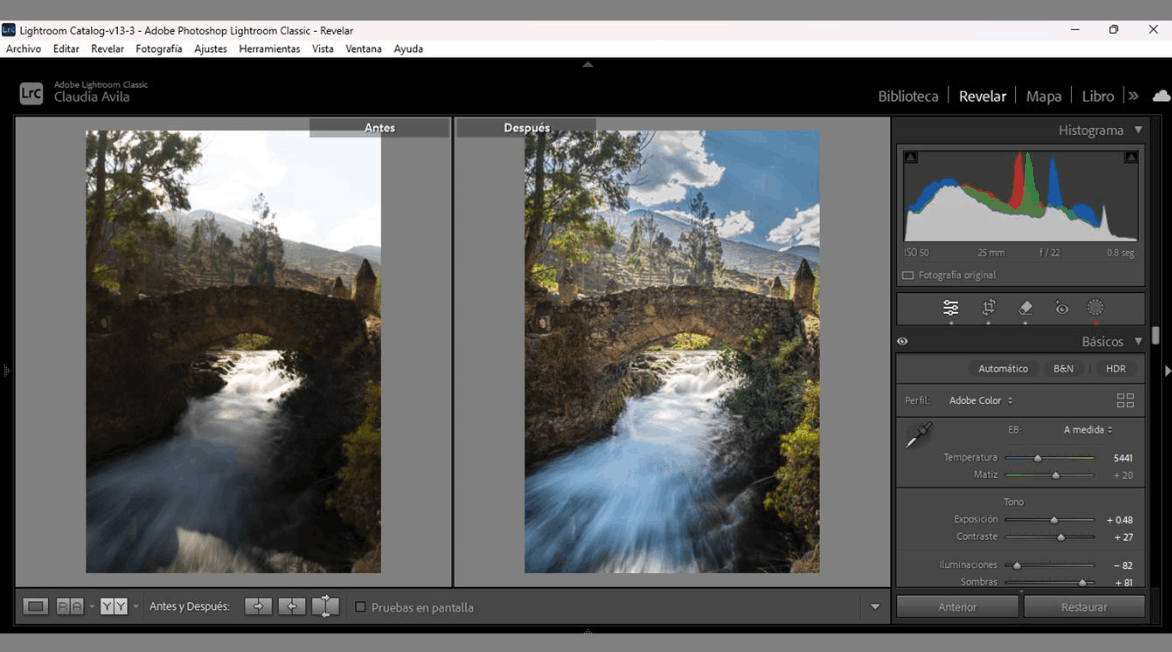
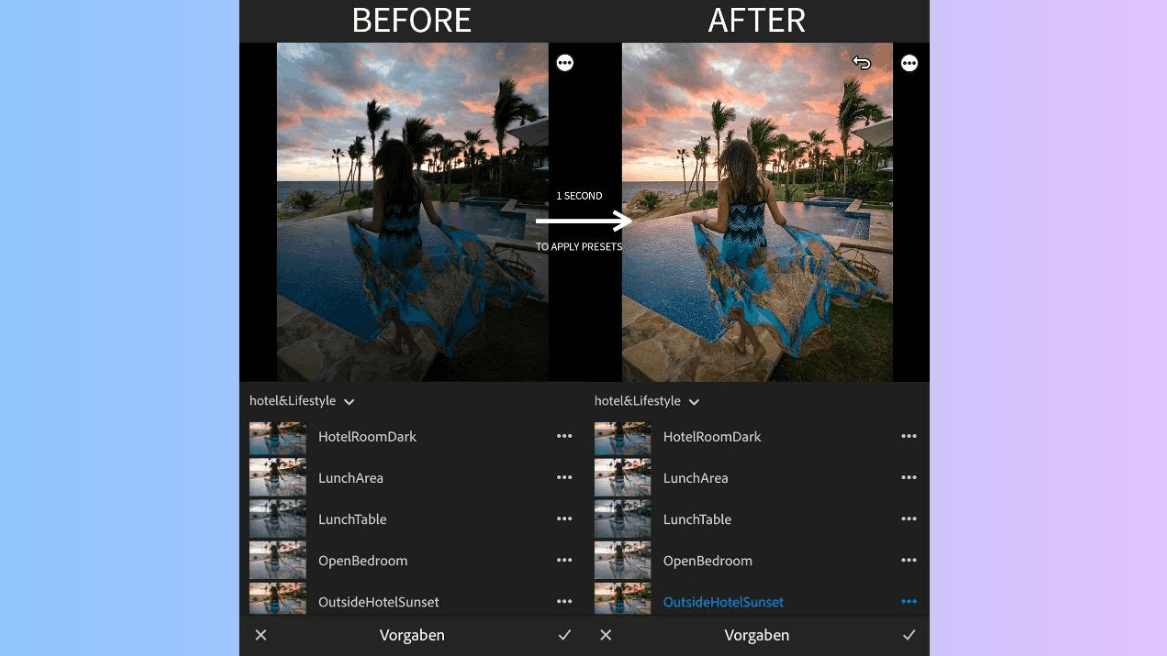
Presets are one of the most useful tools for saving time when working with Lightroom. Instead of manually adjusting each parameter such as exposure, contrast, tone, or saturation for each photo, users can simply apply a pre-set preset to get a suitable starting point. From there, the rest is just a matter of fine-tuning a few minor parameters to make the photo suitable for the actual lighting conditions and shooting context.
1.1 Building a Simple Editing Process
A simple, well-structured editing process will help users avoid randomly repeating steps. It's best to start by checking the overall image, then address exposure and primary tones, before moving on to color and finer details. Jumping back and forth between multiple tools without a specific purpose only makes the process more confusing and time-consuming. A fixed, frequently repeated sequence will gradually become a habit, eliminating the need to think about where to begin each time a new image is opened. This is especially helpful when working with a large number of images, as each image is processed using the same logic, saving decision-making time.
1.2 Copy and Paste Settings
The copy and paste function allows users to completely edit a profile picture and then apply all those settings to other pictures with similar lighting or background conditions.
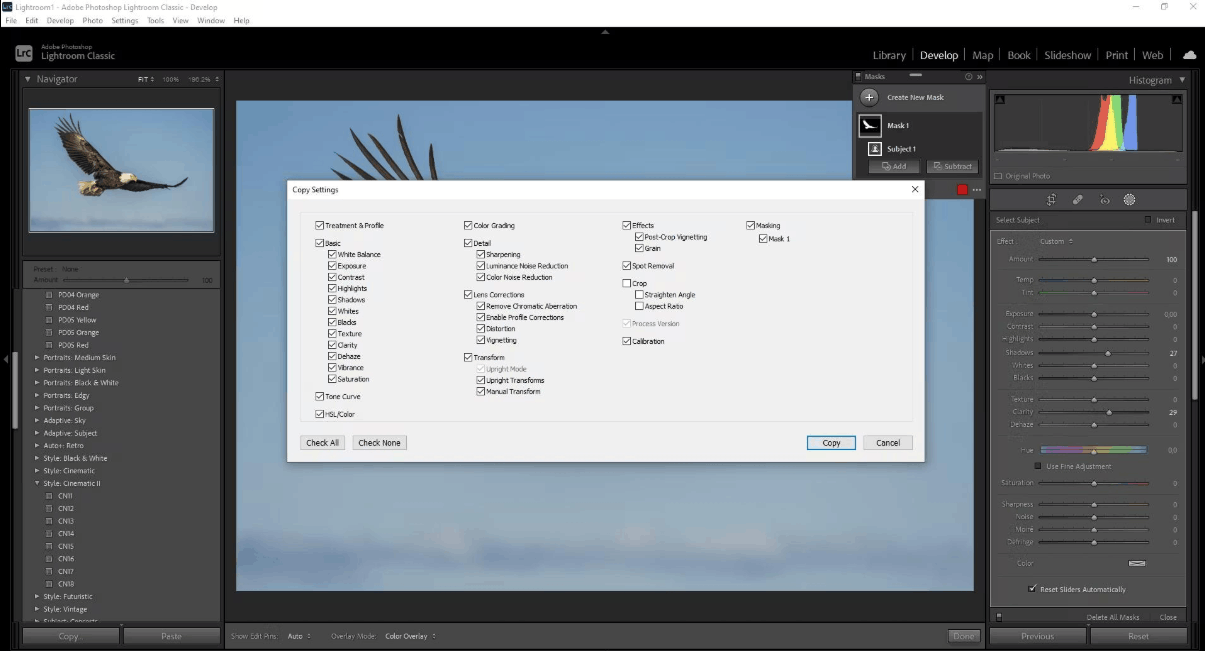
This method is particularly suitable for photo sets taken in the same location or at the same time of day, where the lighting and color tones don't differ significantly. After applying the settings, users should still check each photo individually as there may still be minor differences in exposure or color that need further adjustment. Overall, this is a method that saves a considerable amount of time while ensuring consistency across the entire photo set.
1.3 Edit Multiple Photos Simultaneously
When working with photo sets that have similar lighting conditions and shooting angles, the batch editing feature allows you to apply the same changes to multiple photos in a single operation.
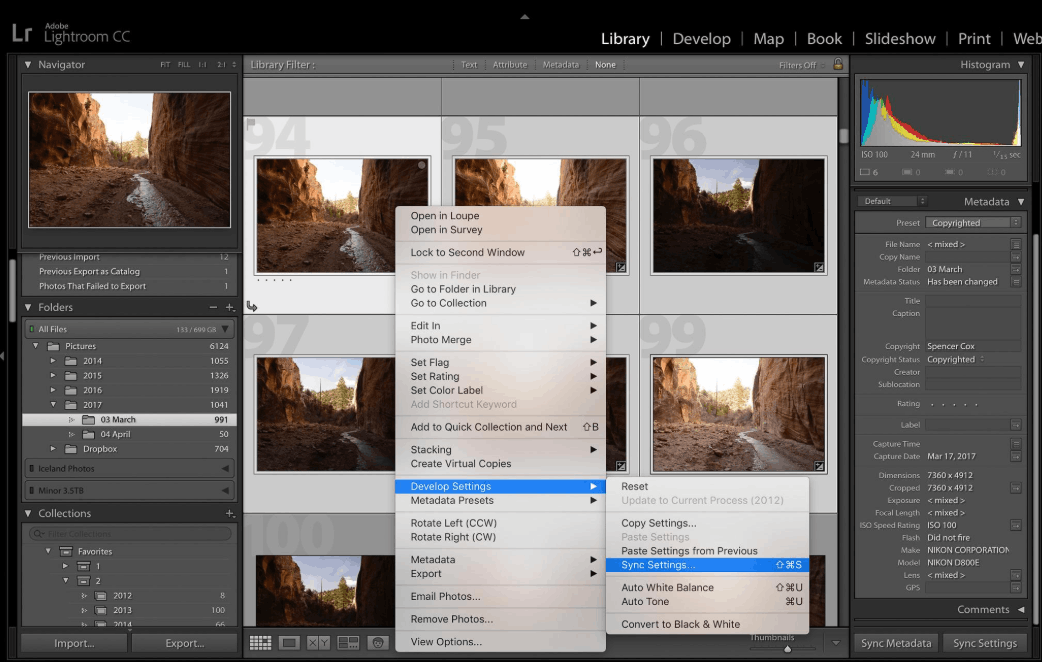
Users can combine this method with presets by applying the preset to the entire group of photos first, then making further necessary adjustments to the whole group. After batch editing, checking each photo individually is still essential because not every setting will perfectly suit all the photos in the group. This quick review process will help detect and correct any remaining discrepancies in a timely manner.
1.4 Using Keyboard Shortcuts
Keyboard shortcuts significantly reduce the number of mouse clicks, thereby shortening the time spent on frequently repeated actions during editing. Users don't need to memorize the entire list of shortcuts from the start; they should begin with the most frequently used ones in their daily work. Regular practice will help these actions become more natural, eliminating the need to pause to recall how to use them. A small list of important shortcuts, placed near the workspace, is also a helpful way to gradually get used to this new habit.
1.5 Arrange Photos Before Editing
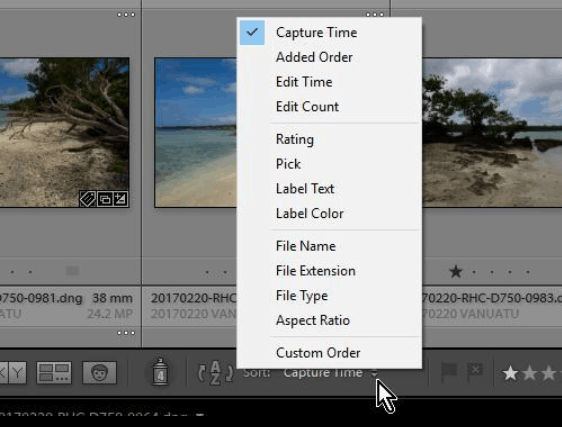
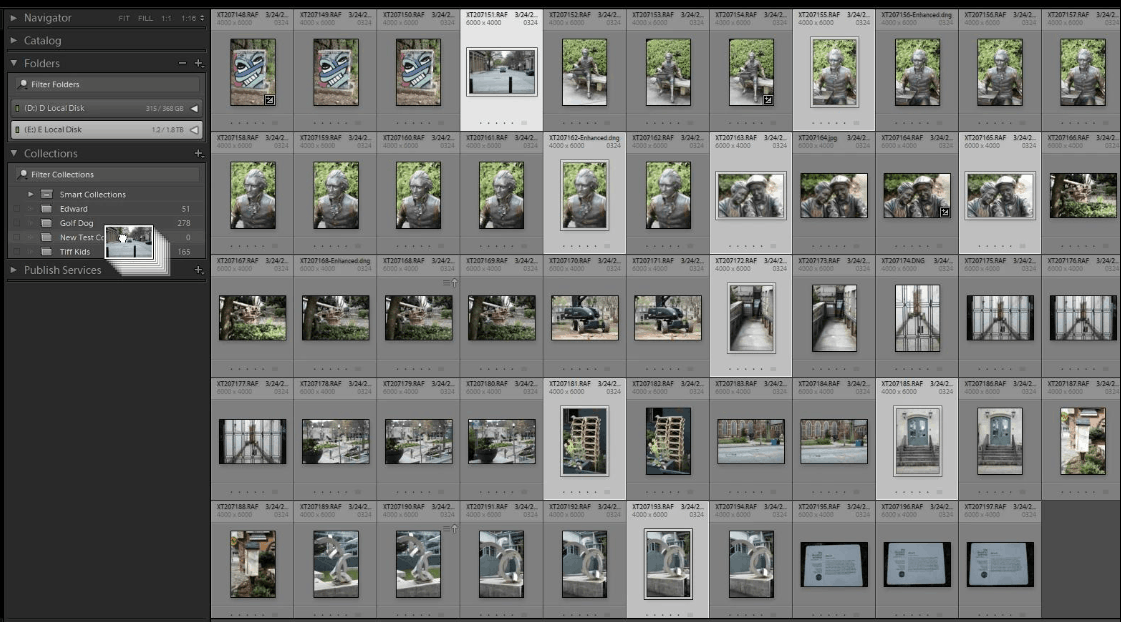
Organizing photos systematically before starting to edit significantly impacts overall workflow speed. If the photo library isn't well-organized, users will spend more time searching instead of focusing on editing. It's advisable to categorize photos by shoot or subject, and remove unnecessary images from the start to maintain a neat and manageable collection. This approach also greatly assists in batch editing and setup duplication, as similar images grouped together are easier to process simultaneously.
2. Building a Faster Lightroom Editing Process
A clear workflow will help users navigate through images without unnecessary work. This process should begin with organizing the images, then removing unnecessary ones, making basic adjustments, applying those adjustments uniformly to similar images, and finally completing with minor edits.
2.1 Importing and Arranging Images
The first step in the process is importing photos into Lightroom and organizing them into clearly named, easily recognizable folders or albums. Grouping photos from the same shoot together will make editing the entire set of photos smoother, eliminating the need to search for individual photos. A well-organized system right from the photo import stage is also a crucial foundation for the entire editing process that follows.
2.2 Remove Unnecessary Images
Before starting the editing process, users should review and remove blurry photos, poorly composed images, or those that are not needed. Keeping only the best photos will significantly reduce the number of images that need processing, allowing more time to focus on truly important photos. This simple filtering step has a major impact on the total time required to complete the entire photo set.
2.3 Applying Basic Adjustments
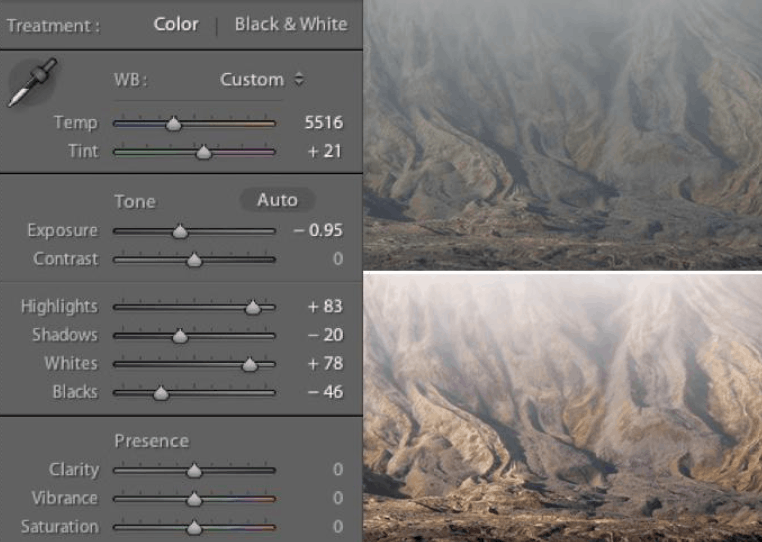
At this stage, users should focus on key adjustments such as exposure, white balance, and overall tone. The goal is to bring the image to a balanced state before delving into smaller details. Spending too much time on minor details right from the start often doesn't yield the desired results, while handling the foundation well will create a solid basis for subsequent editing steps.
2.4 Synchronize Editing for Similar Photos
Photos taken in the same scene often require similar editing. Users can fully edit one profile picture, then synchronize those settings to other photos with similar lighting and color conditions. This method saves a lot of repetitive effort; however, each photo should still be checked after synchronization as some may require additional minor adjustments.
2.5 Finalizing the Revisions
The final step is to refine each photo with minor adjustments to color, exposure, or any missing details. Before finishing, users should review the entire set of photos to ensure consistency in color and style. This overall review helps to promptly identify photos that need further editing, preventing the final set from being inconsistent.
3. Common Mistakes That Slow Down the Lightroom Editing Process
Many seemingly minor habits can cause the editing process in Lightroom to take longer than necessary. Identifying and correcting these habits will help users significantly shorten the time spent working on each photo.
3.1 Edit Each Image from Scratch
Starting each photo editing from scratch, instead of leveraging existing settings, is a common reason for lengthy workflows. Many photos from the same shoot often require similar editing, so creating a common base tone for the entire group and then refining each photo individually is far more logical than redoing the entire process for each photo.
3.2 Making Too Many Small Adjustments
Constantly adjusting numerous small sliders back and forth can unnecessarily prolong the editing process. Users should prioritize adjusting key settings such as exposure, white balance, and tone first, then stop once the image has achieved the desired balance. Continuing to add small adjustments after the image is already stable usually doesn't make a significant difference to the final result.
3.3 Skip the Image Arrangement Step
A disorganized photo library will cause users to waste a lot of time searching for photos instead of focusing on editing. Building a clear sorting system, using folders, albums, star ratings, or other labeling tools, will make searching and processing photos much faster.
3.4 Using Too Many Presets
Presets are a time-saving tool, but having a very large list of presets can lead to users spending more time choosing the right one for each photo. Maintaining a small set of presets that suit your personal editing style is far more efficient than experimenting with a multitude of different presets on the same image.
4. Some Additional Tips to Save Time in Lightroom
Besides the main methods mentioned, a few small changes in work habits can also help users complete tasks faster and more manageably.
4.1 Save Your Favorite Presets
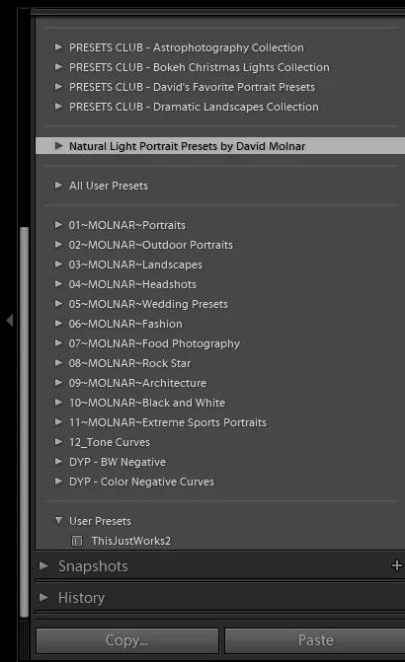
Saving and organizing frequently used presets into separate groups, such as portraits and outdoor photos, makes it easier for users to find and apply the right preset for each type of photo. A well-organized preset system will make the editing process faster and more structured.
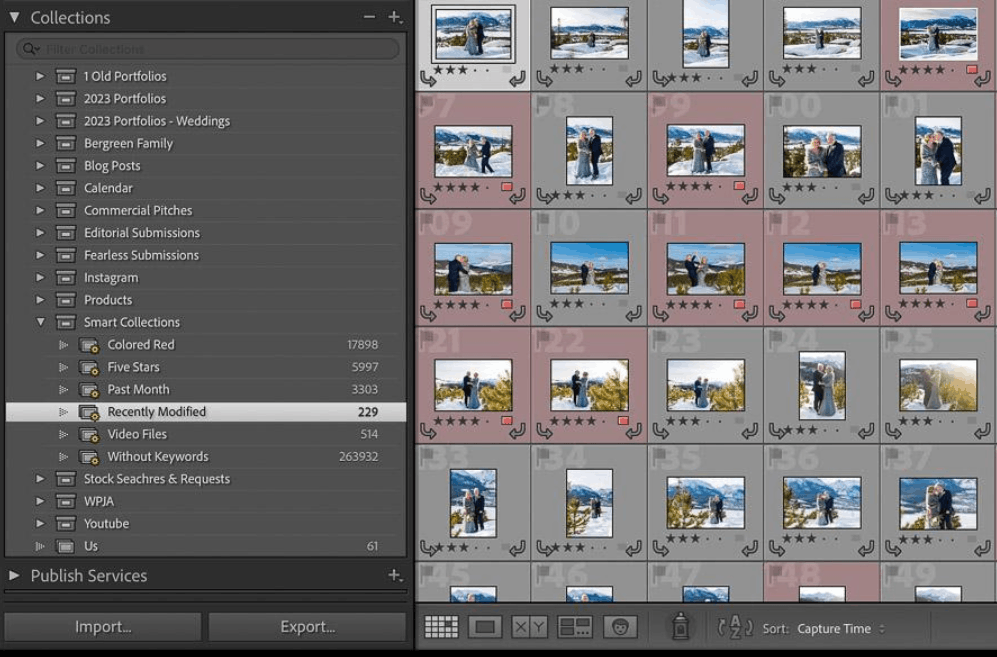
4.2 Using Smart Collections
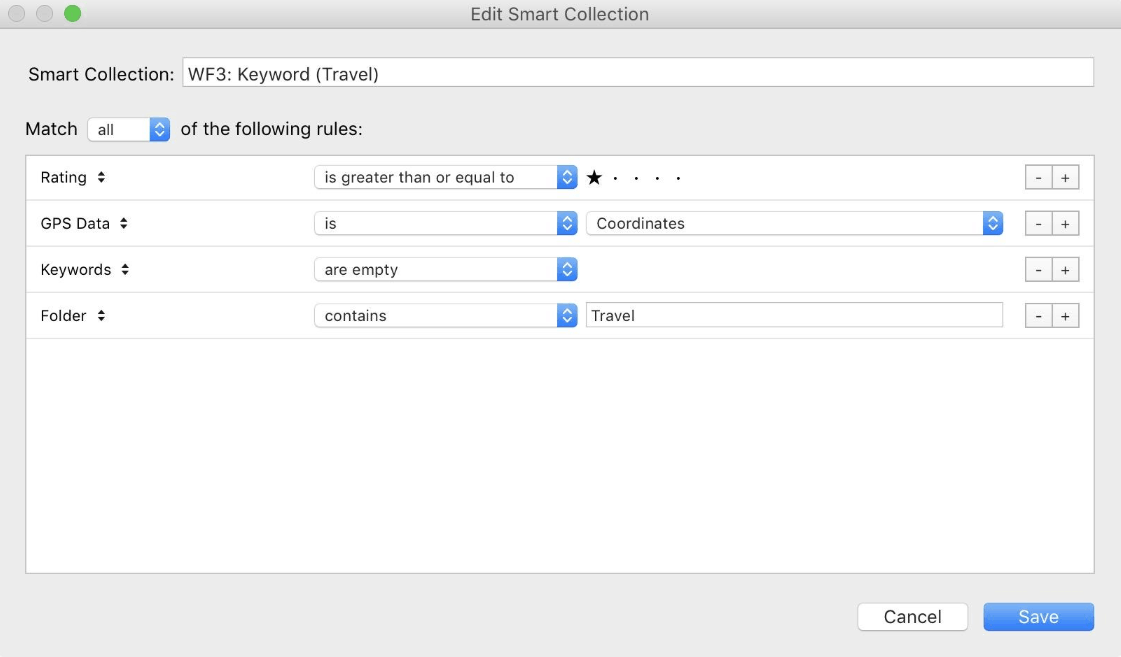
Smart Collections allows for automatic grouping of images based on predefined criteria, such as star ratings or keywords. This eliminates the need for users to manually move images into groups, significantly saving time in sorting and searching for images during workflow.
A well-organized catalog will help users find images more quickly. Clear folder naming, a simple file structure, and the inclusion of ratings, flags, and keywords throughout the workflow will reduce search time later on and facilitate smoother subsequent editing sessions.
4.4 Learn How to Use Commonly Used Tools Proficiently
Users should focus on learning the tools they use most frequently in their daily work, rather than trying to learn all of Lightroom's features at once. Mastering the tools and shortcuts related to frequently used editing tasks will allow users to perform their work with fewer steps, thus saving significant time in the long run.
5. Frequently Asked Questions
How can I edit photos faster in Lightroom?
Users should start by organizing photos before editing, then use presets, copy and paste settings, and combine them with batch editing for photos with similar conditions. Using keyboard shortcuts also helps reduce unnecessary steps during the workflow.
Are presets in Lightroom really useful for quick editing?
Presets allow you to apply multiple settings at once, creating a suitable starting point for your photo. From there, users only need to fine-tune any unsuitable parameters instead of having to set everything up again from scratch.
Is it possible to apply the same editing to multiple photos at the same time?
Absolutely. Lightroom allows batch editing to be applied to multiple photos, making it particularly suitable for photos with similar lighting, color, and shooting conditions.
How does copying settings save time?
Users can completely edit an image, then copy those settings and paste them onto similar images. This method avoids having to repeat all the adjustments from scratch for each image.
Is it necessary to arrange the photos before editing them?
Organizing images scientifically before editing is essential. It helps users easily find the images they need to process, and also greatly assists in grouping similar images for batch editing and copying settings.
Do keyboard shortcuts really help speed up editing in Lightroom?
Keyboard shortcuts significantly reduce the number of mouse clicks for frequently repeated actions. Users should start with the most frequently used shortcuts and practice them regularly during their daily editing sessions.
How can I avoid spending too much time on minor edits?
It's best to prioritize adjusting key settings like exposure, white balance, and tone first. Once the photo achieves the desired balance, users should stop there instead of continuing to experiment with more minor adjustments.
How many presets should I use in Lightroom?
You don't need a huge list of presets. A small set of presets, tailored to your personal editing style, will make selecting and applying presets quicker and easier.
How should an effective Lightroom editing process begin?
A logical process should begin with sorting and filtering images, then proceed with basic adjustments, synchronize editing for similar images, and conclude with final adjustments. Following a fixed sequence will help reduce decision-making time for each image.
Do Smart Collections help save time in Lightroom?
Smart Collections can automatically group photos according to predefined criteria, such as star ratings or keywords. This eliminates the need for manual photo categorization, significantly saving time in searching and organizing images.





















VIP Products








Best Selling Products
Adobe Photoshop Copyright - Full App
120 USD
Upgrade genuine Capture One account
120 USD
Plugin Retouch4me
69 USD
Freepik Premium Account
59 USD
Upgrade Genuine Office 365
49 USD
Copyright Adobe Lightroom Account
59 USD
Autodesk All App Account Copyright
120 USD
Upgrade Duolingo Super
29 USD
ChatGPT Plus Account (GPT-4)
16 USD
Adobe Premiere Pro Account
99 USD
MidJourney Account
29 USD
Genuine Cheap Canva Pro
39 USD
Windows 10 & 11 Pro Key
36 USD
Genuine Adobe Illustrator account
99 USD
Capcut Pro 1 Year
39 USD