Best Selling Products

Copyright Adobe Lightroom Account
59 USD

Capcut Pro 1 Year
39 USD

Windows 10 & 11 Pro Key
36 USD

Plugin Retouch4me
69 USD

Upgrade Duolingo Super
29 USD

Upgrade genuine Capture One account
120 USD

Genuine Cheap Canva Pro
39 USD

ChatGPT Plus Account (GPT-4)
16 USD

Autodesk All App Account Copyright
120 USD

Genuine Adobe Illustrator account
99 USD

Upgrade Genuine Office 365
49 USD

Freepik Premium Account
59 USD

Adobe Premiere Pro Account
99 USD

Adobe Photoshop Copyright - Full App
120 USD

MidJourney Account
29 USD
What is Photopea? A Guide to Using This Free Online Photo Editing Tool
Nội dung
- 1. What is Photopea? An introduction to this online photo editing tool.
- 2. Key features of Photopea
- 3. Instructions for using Photopea
- 4. Is Photopea free or paid?
- 5. Advantages and disadvantages of Photopea
- 6. Photopea vs. Other Options
- 6.1 Photoshop Online
- 6.2 GIMP
- 6.3 Canva Pro
- 6.4 Pixlr
- 7. Frequently Asked Questions about Photopea
If you''ve ever wanted to open a PSD file but your computer doesn''t have Photoshop installed, or needed to quickly edit an image without downloading any heavy software, then Photopea is a name you should know. It''s one of the most popular online photo editing tools worldwide, trusted for its ability to almost perfectly mimic the Photoshop experience without requiring any installation fees.
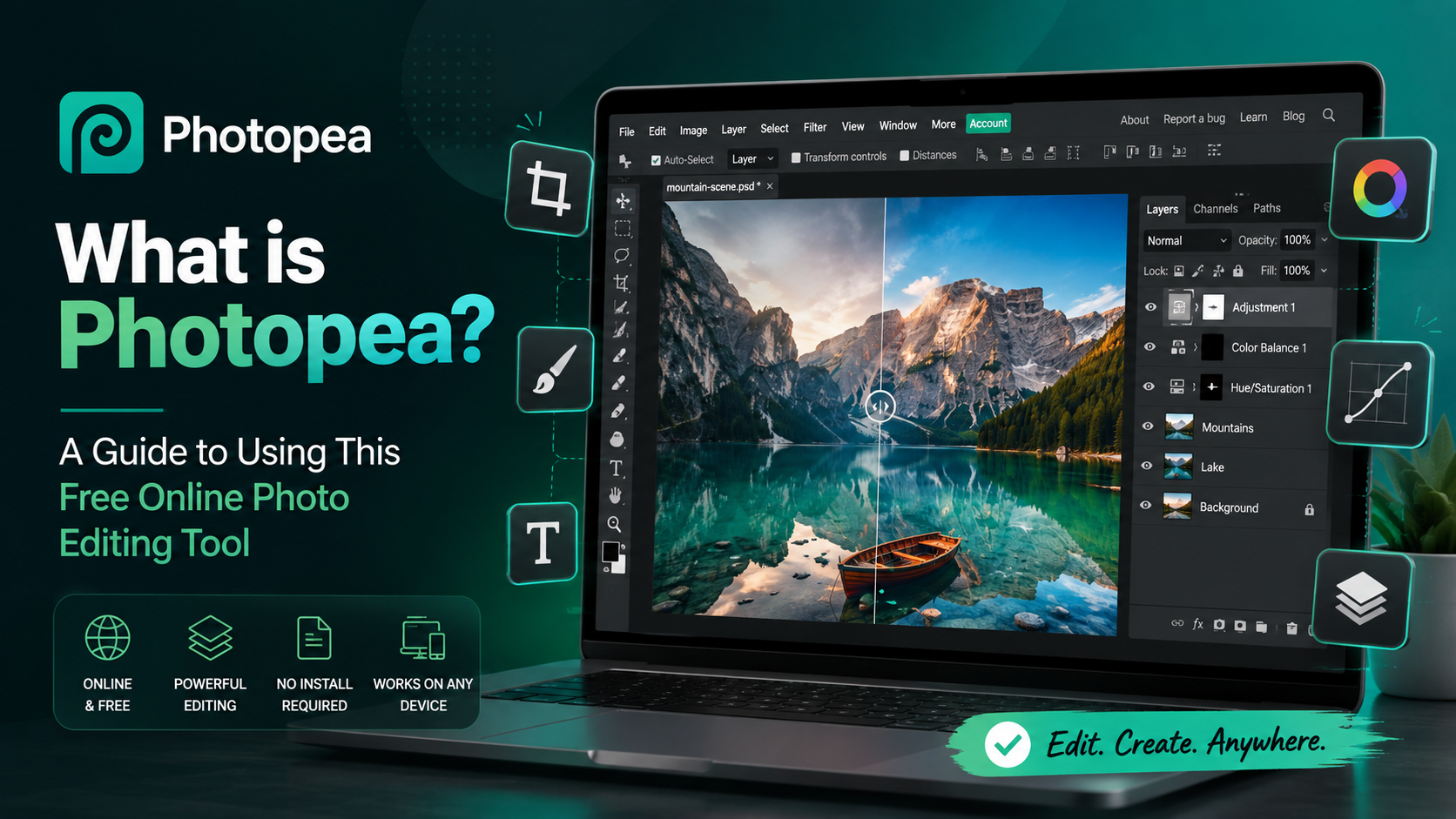
1. What is Photopea? An introduction to this online photo editing tool.
Photopea is a web-based photo editing platform developed by Czech programmer Ivan Kutskir. The most unique aspect of Photopea is that you don't need to download or install any software; all you need is a browser with an internet connection to start editing photos immediately, whether you're using Windows, macOS, Linux, or even a Chromebook.
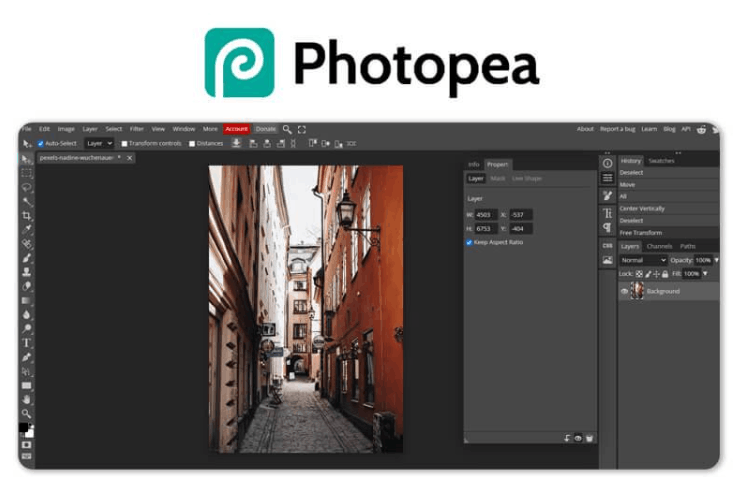
What sets Photopea apart from many other online photo editing tools is its wide file format compatibility. It can open, edit, and directly export PSD and PSB files, which are native Photoshop formats, and also supports many other specialized formats such as GIMP's XCF, CorelDRAW's CDR, Sketch's SKETCH, Adobe XD, along with popular image formats like JPG, PNG, GIF, SVG, WEBP, and TIFF.
Another major advantage is that Photopea's interface is designed almost identically to Photoshop, from the placement of the toolbar on the left and the layer panel on the right, to familiar menus like File, Edit, Image, and Layer. Therefore, if you've had even basic experience with Photoshop, you won't need much time to get used to Photopea. Conversely, if you later decide to switch to using Photoshop professionally, the skills you learned on Photopea will still be fully applicable.
2. Key features of Photopea
Photopea boasts a comprehensive set of photo editing tools, capable of meeting everything from basic editing needs to more complex design tasks.
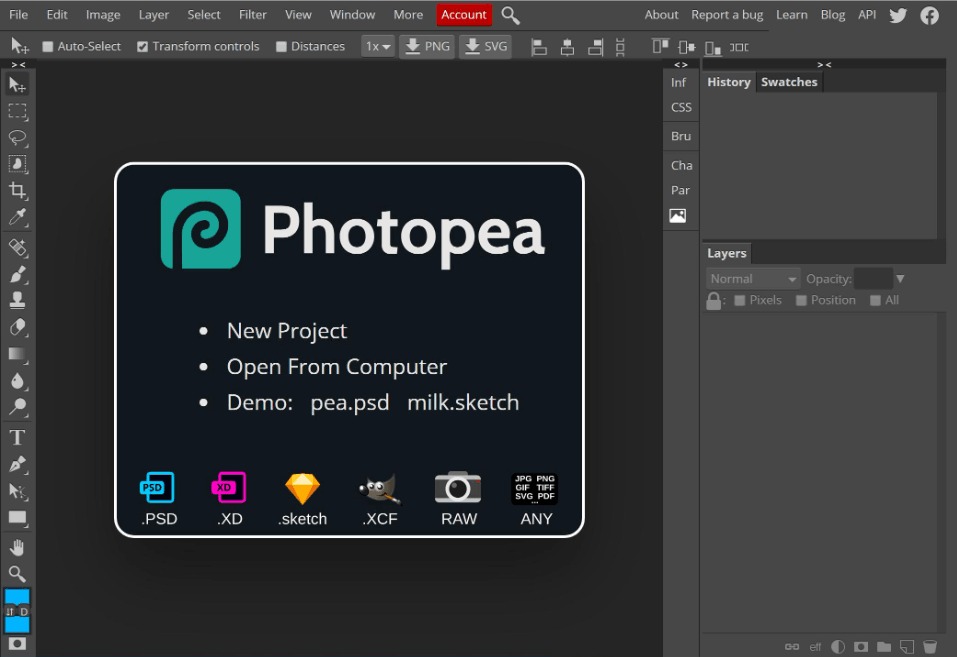
First, regarding file opening capabilities, Photopea allows users to directly open PSD, PSB, XCF, CDR, and SKETCH files in their browser without any intermediate software. This is especially useful when you receive design files from colleagues or clients but your computer doesn't have Photoshop installed.
In terms of drawing and selection tools, Photopea provides almost all the familiar tools in Photoshop, including the pen tool for creating precise paths, brushes with various customizations for hardness and opacity, the eraser tool, the lasso tool for freehand selection, and the magic wand tool for color selection.
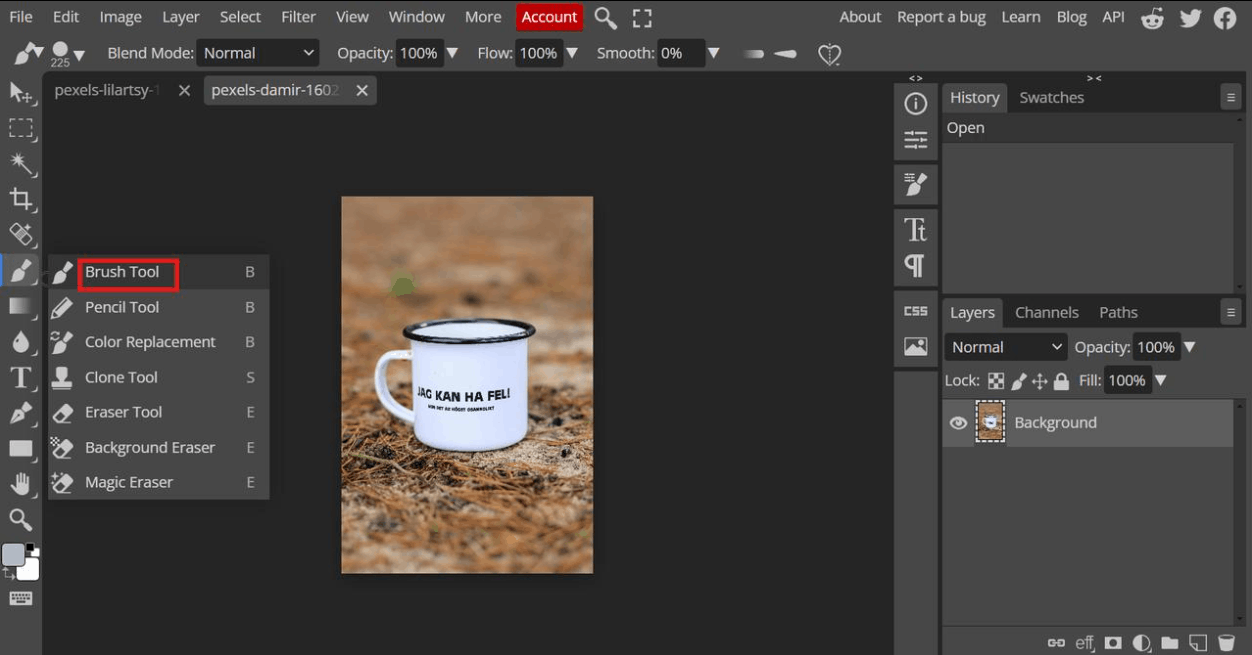
In terms of layer management, users can add, delete, and rearrange layers, adjust opacity, apply various blend modes, and use layer masks to hide or show parts of an image layer without losing original data.
In addition, Photopea also integrates a rich library of filters and effects such as blur, sharpen, distortion, and color adjustment tools like color balance, contrast, and saturation. The text insertion tool is also fully equipped with options for fonts, sizes, colors, and effects such as shadows and borders. Notably, Photopea also allows free access to a rich font library from Google Fonts directly within the editing interface.
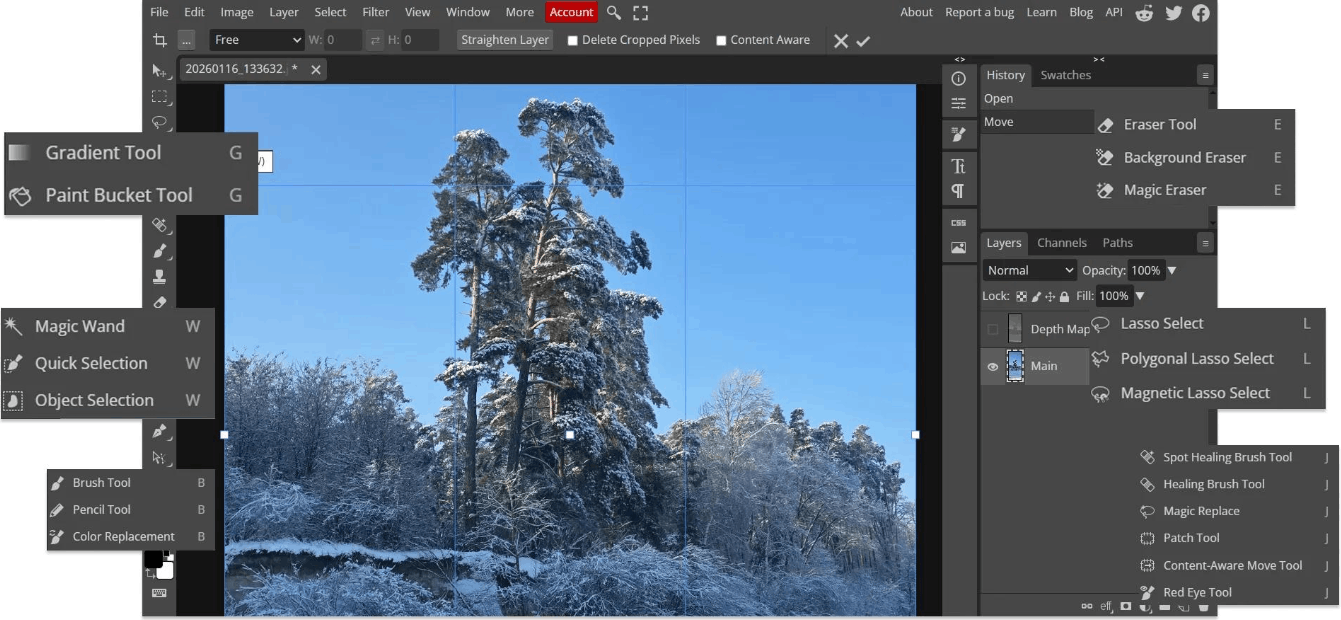
After completing the editing, you can export the file to various formats such as PNG, JPG, PSD, WEBP, or SVG depending on your needs. Notably, Photopea has also begun integrating some AI-powered features, such as removing unwanted objects from photos, providing an experience similar to the modern features found in the latest versions of Photoshop.
3. Instructions for using Photopea
Getting started with Photopea doesn't require any installation or account registration; you can use it right away after following these simple steps.
The first step is simply to open your browser and go to the Photopea homepage. As soon as the page loads, you'll see the editor interface appear with a familiar layout similar to Photoshop, ready to start working.
The second step is to create a new project. You can go to the File menu and select New to create a blank canvas with custom dimensions, or more simply, drag and drop an existing image file from your computer directly into the browser interface; Photopea will automatically open that file for you to edit.
The third step, if you need to open an existing PSD file, is to go to the File menu, select Open, then choose the file from your personal computer or connect directly to familiar cloud storage services such as Google Drive or Dropbox.
Fourth, you proceed to edit the image using the tools arranged in the left sidebar of the screen, combined with the layer panel, color palette, and advanced editing menus at the top and right of the interface.
The final step, after completing the editing process, is to go to the File menu and select Export As if you want to export to a standard image format like PNG or JPG, or select Download if you want to save it as a PSD file for further editing later.
One notable feature is that Photopea automatically saves your work after short intervals, providing peace of mind in case your browser crashes or closes unexpectedly. However, this auto-save feature is only temporary during your session, so to ensure long-term data storage, you should still proactively export or download files to your computer, or save them directly to your cloud service.
4. Is Photopea free or paid?
Photopea is offered on a hybrid model of free and paid options, allowing users to choose according to their needs and budget.
With the free version, users can utilize almost all photo editing features without functional limitations, from drawing tools and layer editing to filters and opening and saving PSD files. The only drawback of the free version is that when you export a file, the system will display a short advertisement, usually lasting a few seconds, before you can download the file. This is considered a reasonable business model to maintain a high-quality service while remaining completely free for the majority of ordinary users.
For users who frequently use the app or want an ad-free experience, Photopea offers a paid plan starting at just a few dollars per month for monthly subscriptions, or more affordable options for annual plans. Upgrading to the paid version completely removes ads during file export and provides earlier access to several advanced features currently under development, including those related to artificial intelligence.
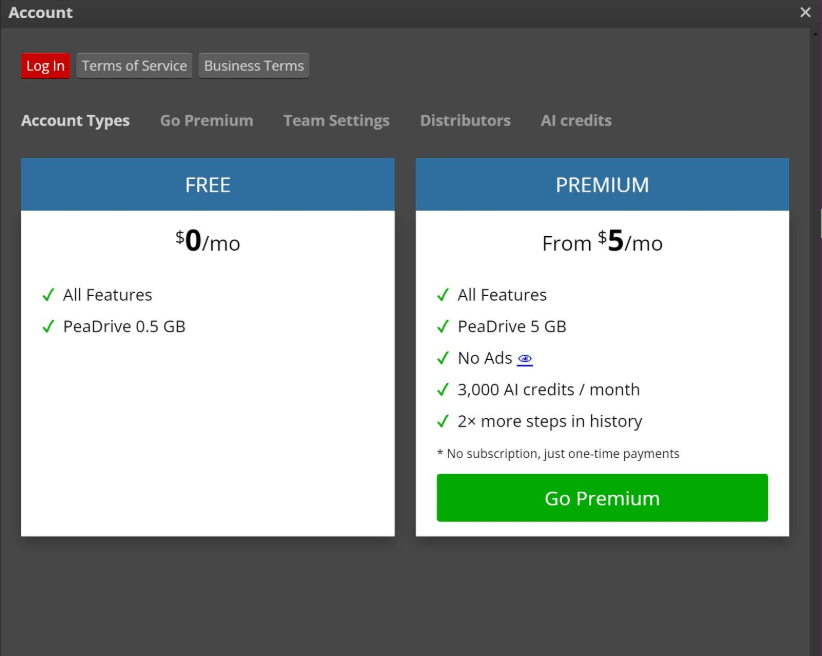
Overall, even with the free version, users can fully utilize Photopea's power for most common photo editing needs, from basic to fairly advanced, without encountering feature lockouts like many other free tools on the market.
5. Advantages and disadvantages of Photopea
In terms of advantages, first and foremost, Photopea operates entirely online, requiring no software installation, significantly saving storage space and system resources. Its interface closely resembles Photoshop, making it quick to learn even for those already experienced with professional photo editing software. Furthermore, its ability to open many specialized file formats such as PSD, PSB, XCF, and SKETCH is a major advantage, making Photopea a flexible bridge between various design software. The tool also fully supports advanced operations such as layers, masks, and blend modes, and importantly, all these features are available for free without limitations.
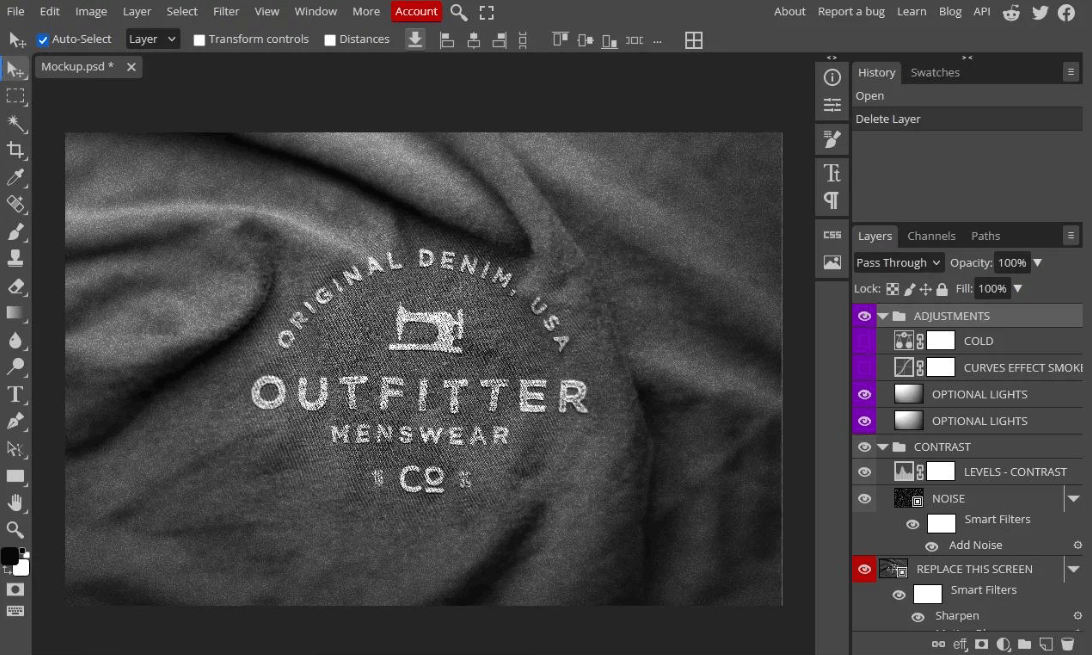
However, Photopea also has some limitations. As an online tool, it requires a stable internet connection throughout its use; a disconnection can lead to work interruptions. The free version still displays short advertisements every time a file is exported, which, while not overly annoying, can be bothersome for those who need to export files frequently. Furthermore, advanced AI features are still limited and primarily available to paid users. For very large PSD files or those containing many complex layers, Photopea's processing performance in a browser may be slower than when opened directly with Photoshop installed on a computer. Finally, users may occasionally encounter minor errors related to importing custom fonts from external sources into the tool.
6. Photopea vs. Other Options
Besides Photopea, the market currently offers quite a few other photo editing tools that users can consider, each with its own strengths and limitations.
6.1 Photoshop Online
Adobe itself offers a browser-based version of Photoshop through its cloud service. The advantage of this solution is that you get to use the original tool developed by Adobe, ensuring absolute compatibility with PSD files and advanced AI features like Generative Fill. However, to use Photoshop Online, you are required to subscribe to the Adobe Creative Cloud package, which has a relatively high monthly fee compared to the average. This leads many individual users or beginners to consider more cost-effective alternatives like Photopea.
6.2 GIMP
GIMP is an open-source, completely free image editing software that installs directly on your computer instead of running in a browser. GIMP's strengths lie in its powerful toolset, comparable to professional image editing software, along with a large user community and extensive documentation. However, GIMP's interface is quite different from Photoshop, meaning those already familiar with Photoshop may need more time to get used to it again. This is where Photopea has a clear advantage thanks to its interface that is almost identical to Photoshop.
6.3 Canva Pro
Canva is a very popular online design platform, particularly suitable for creating media publications based on pre-made templates such as social media posts, advertising banners, or invitations. Canva's strength lies in its huge library of design templates and extremely simple drag-and-drop functionality, making it suitable for those without advanced design skills. However, in terms of detailed pixel-level image editing, complex layer handling, or PSD file manipulation, Canva Pro is quite limited compared to Photopea, as Canva is inherently designed for pre-made template design rather than advanced image editing.
6.4 Pixlr
Pixlr is also a fairly popular online photo editing tool, offering a user-friendly interface and a number of basic to intermediate editing features. However, compared to Photopea, Pixlr generally has fewer advanced features, especially in handling specialized file formats and complex layer manipulation. If you need a quick, simple editing tool for basic needs, Pixlr is still a decent option, but if you need an experience closer to true Photoshop, Photopea is a more comprehensive choice.
Overall, if your goal is to find a tool that can open PSD files and provides an experience nearly identical to Photoshop, while being completely free to use, Photopea remains the best balance between cost, features, and usability.
7. Frequently Asked Questions about Photopea
Is Photopea safe to use? Photopea is generally considered safe for most common uses. It doesn't permanently store your files on its servers unless you actively save them to cloud services. However, if you work with documents containing sensitive or highly confidential data, you should carefully review the developer's privacy policy before uploading files to the platform.
Can Photopea be used without an internet connection? Essentially, Photopea is designed to work online and requires an internet connection throughout its use. While the developer also provides a separate desktop application, this version still requires a network connection, at least during the first launch. Therefore, Photopea isn't truly suitable for completely offline work.
Will my original PSD file be altered or lose data when opened with Photopea? When you open an existing PSD file on your computer with Photopea, the tool only reads and displays the file's content in the editing interface; it doesn't automatically overwrite or modify the original file. Your file will only be actually changed if you actively save or export it after you've finished editing.
How long does it usually take to export files on Photopea? The export time depends mainly on the size and complexity of the original file. For small files, the export process usually only takes a few seconds. For larger files or those containing many complex layers, the processing time may be longer, depending on your computer's configuration and your internet connection speed at the time of use.





















VIP Products








Best Selling Products
Copyright Adobe Lightroom Account
59 USD
Capcut Pro 1 Year
39 USD
Windows 10 & 11 Pro Key
36 USD
Plugin Retouch4me
69 USD
Upgrade Duolingo Super
29 USD
Upgrade genuine Capture One account
120 USD
Genuine Cheap Canva Pro
39 USD
ChatGPT Plus Account (GPT-4)
16 USD
Autodesk All App Account Copyright
120 USD
Genuine Adobe Illustrator account
99 USD
Upgrade Genuine Office 365
49 USD
Freepik Premium Account
59 USD
Adobe Premiere Pro Account
99 USD
Adobe Photoshop Copyright - Full App
120 USD
MidJourney Account
29 USD