Best Selling Products
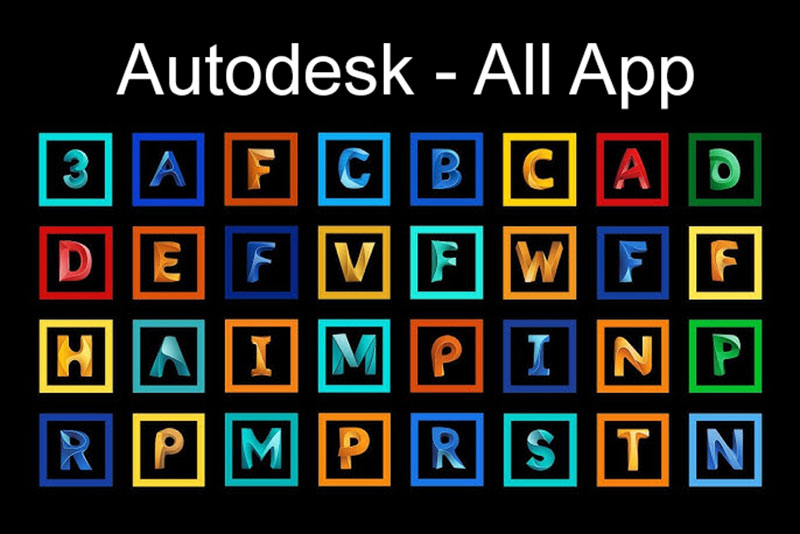
Autodesk All App Account Copyright
120 USD
Adobe Photoshop Copyright - Full App
120 USD
Adobe Premiere Pro Account
99 USD
Upgrade Genuine Office 365
49 USD
Plugin Retouch4me
69 USD
Upgrade genuine Capture One account
120 USD
Windows 10 & 11 Pro Key
36 USD

ChatGPT Plus Account (GPT-4)
16 USD
Upgrade Duolingo Super
29 USD

MidJourney Account
29 USD
Copyright Adobe Lightroom Account
59 USD
Genuine Cheap Canva Pro
39 USD
Freepik Premium Account
59 USD
Capcut Pro 1 Year
39 USD
Genuine Adobe Illustrator account
99 USD
7 Free Tools That Help Graphic Designers Work Faster and More Professionally
Nội dung
- 1. Photopea and the photo editor that runs right in the browser
- 2. Inkscape and the power of open-source vector graphics
- 3. Affinity by Canva and three professional tools in one application
- 4. Coolors and the art of finding a color palette with just the space bar
- 5. Realtime Colors and how to verify colors on a real interface
- 6. SnapMock and how to turn screenshots into professional presentations
- 7. unDraw and the open-source illustration library that can be recolored to match your brand
- 8. Conclusion
Not every design problem needs expensive software or a complicated artificial intelligence tool. Many small tasks, such as opening a PSD file on an unfamiliar computer, finding a color palette for a project, checking colors on a real interface, finding illustrations for a website or presenting a design in a device frame, can all be solved neatly with free tools. When chosen well, they save hours of work and work very effectively alongside Photoshop, Illustrator, Figma or any main software you are using. Below are seven tools worth putting in every designer''''s toolkit.
1. Photopea and the photo editor that runs right in the browser
Photopea is an online image editor developed by Czech programmer Ivan Kuckir and launched in 2013. What makes this tool famous is that its interface and way of operating are very close to Photoshop, but it runs entirely in the browser with no installation. You just open the website, drag in a file and start working.
Its ability to handle multi-layer files is Photopea's biggest strength. The tool can open and save the PSD format with all layers, masks, text and editable components intact, and also supports dozens of other formats such as AI, PDF, Sketch, GIMP's XCF, CorelDRAW's CDR, SVG, PNG, JPG, WEBP, HEIC and many RAW image formats. As a result, Photopea serves as a flexible converter and previewer for many different workflows. Its feature set includes layers, masks, blend modes, selection tools, brushes, filters, color adjustments and even the ability to work with vector graphics.
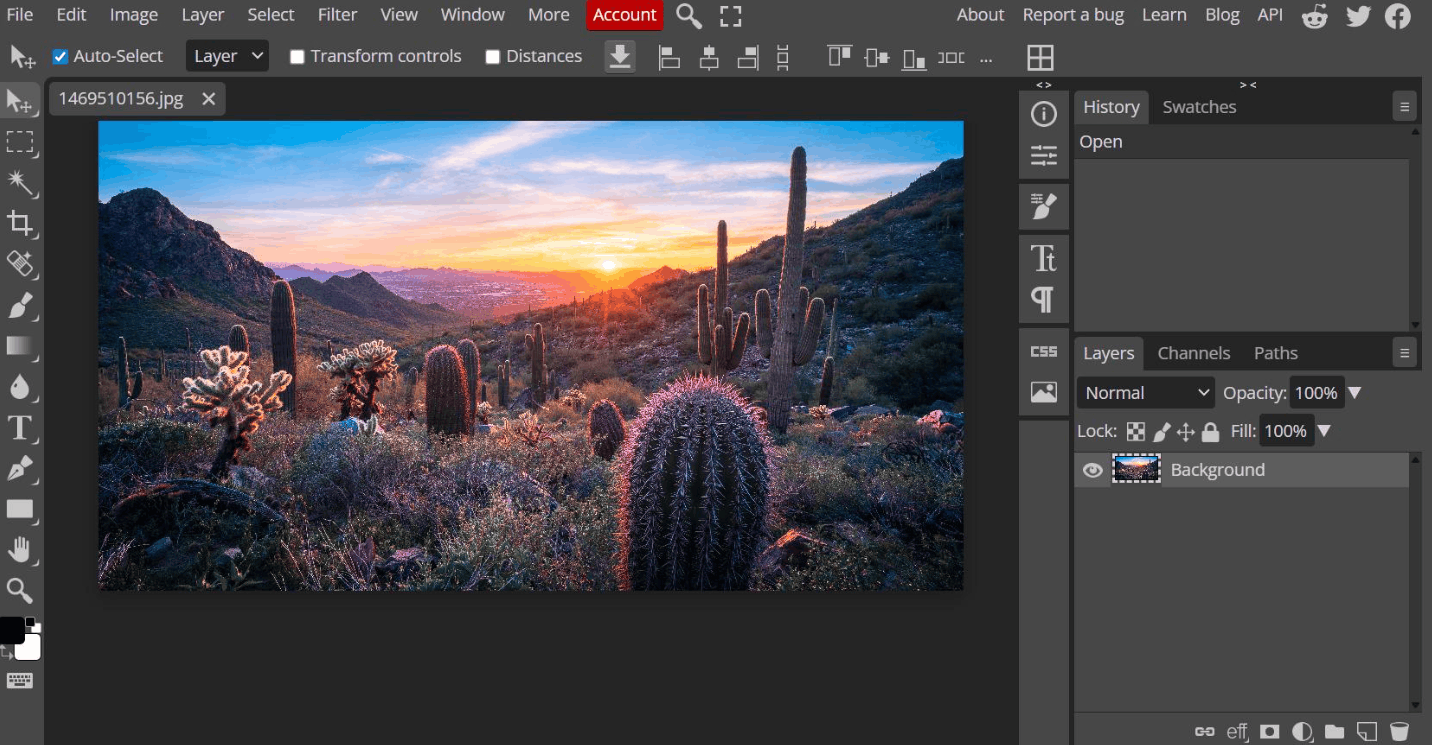
A notable point about privacy is that Photopea processes files right on your device using your machine's CPU and GPU, so files are not uploaded to a server. This gives peace of mind when working with client documents. The tool is free and ad-supported, while the paid plan removes ads and supports the developer. As for limitations, performance depends on your machine's configuration, and for very heavy professional projects or those needing in-depth features, Photoshop is still the stronger choice. Photopea is especially useful when you need to check or quickly edit a PSD file, work on a computer without your familiar software, or need a lightweight photo editing solution for social media graphics and web images.
2. Inkscape and the power of open-source vector graphics
Inkscape is a free, open-source vector graphics editor available on Windows, macOS and Linux. The tool uses the W3C-standard SVG format as its native format, so it is very suitable for designs that need to scale to many sizes while keeping their sharpness, such as logos, icons, illustrations and web graphics.
In practice, Inkscape meets most basic to intermediate vector needs well. You can draw and edit shapes with paths, work with layers, convert bitmap images to vector, create text effects and export files to many formats. Version 1.4 adds many worthwhile improvements such as a Filter Gallery dialog with previews, filter categorization and search, a modular grid that allows precise adjustment of sizes and spacing, a refreshed Swatches panel, a font browser with visual previews, customizable node handles and a Shape Builder tool that can be used to cut and separate areas on bitmap images. Notably, this version can also open Affinity Designer documents, making switching between software easier. Performance when opening and displaying complex files has also improved.
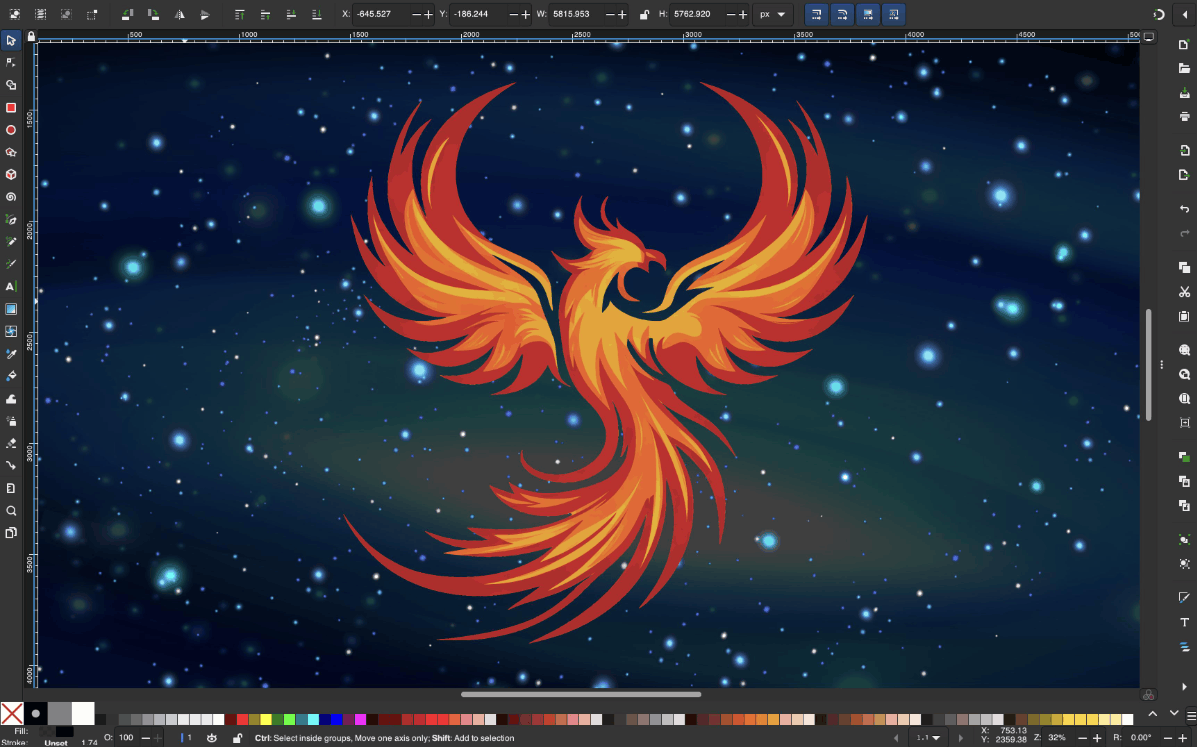
In exchange for being free, Inkscape's interface may require newcomers some time to get used to, and the experience is not as polished as commercial software. Even so, for designers who need a free and reliable alternative for tasks such as sketching logos, creating icons or preparing SVG files for websites, Inkscape is a very worthy choice. You should check the latest version on the official site because this project is updated regularly.
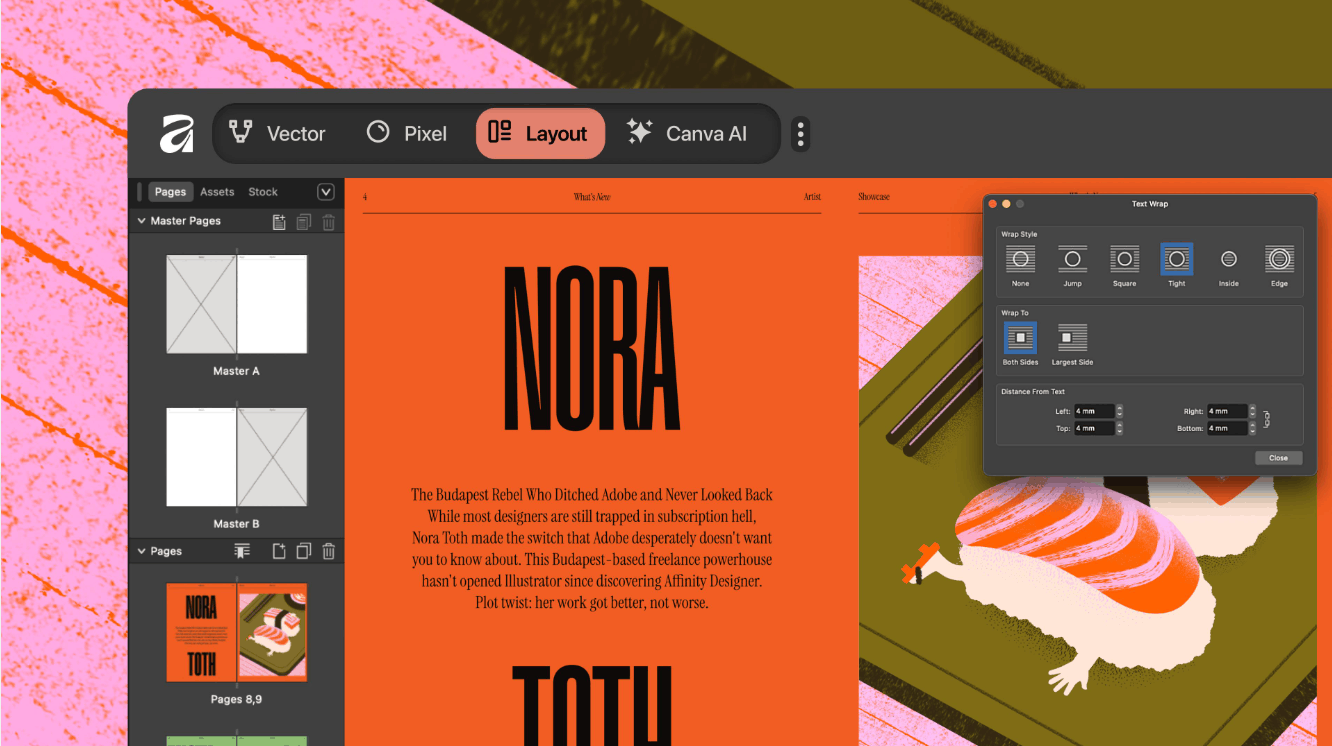
3. Affinity by Canva and three professional tools in one application
Affinity is the most noteworthy story in the design world recently. After Canva acquired Serif, the developer of the Affinity Designer, Affinity Photo and Affinity Publisher trio, in 2024, the company relaunched Affinity in late October 2026 as a single unified application and announced it as free for the long term. The earlier standalone applications no longer receive new updates.
The new application merges three areas of work into three studios in the same workspace. The Vector studio serves illustration and identity systems, the Pixel studio is for photo editing and processing, and the Layout studio supports page layout for publications. Interestingly, you can customize it to combine tools from the studios into a workspace that suits your habits, instead of having to switch back and forth between multiple programs. All core tools are free to use, with no time limit and no features locked in the basic design portion.
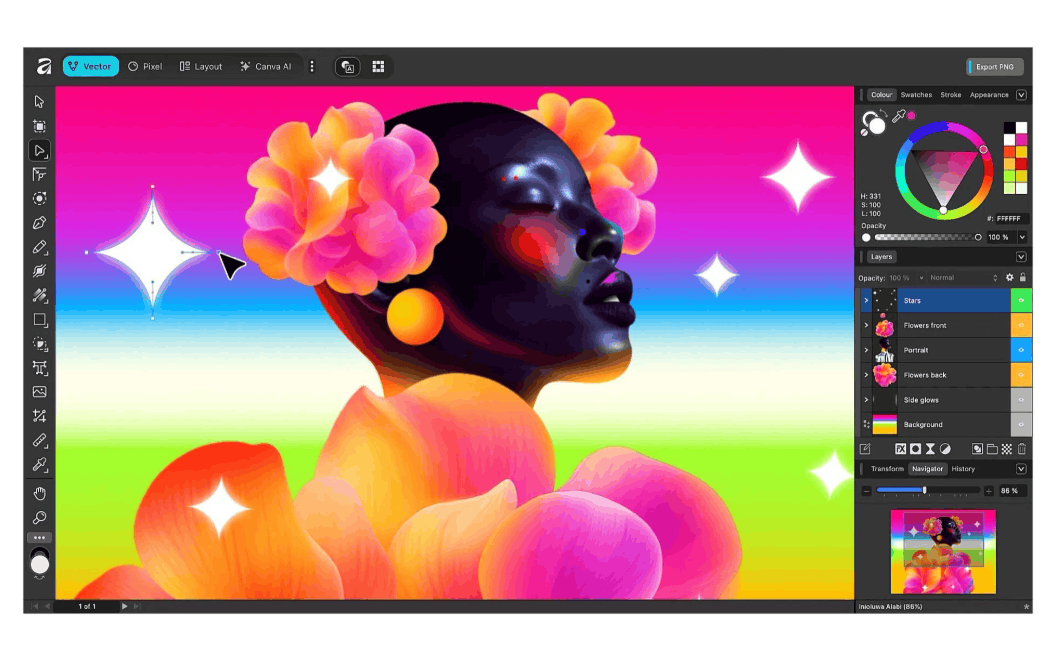
There are a few things to know before you start. You need a free Canva account to download and use Affinity. Artificial intelligence features such as Generative Fill, Expand and Edit or background removal through Canva AI Studio are only for users of paid Canva plans. Your work is saved locally on your device, and Canva states that it does not use content in Affinity to train AI. The application is available on Windows and macOS, while an iPad version is planned for later release, so check the latest status on the official site. The installation size is fairly large, about a few hundred megabytes. If you are looking for a more professional design environment than standalone online tools, especially for print, illustration and layout projects, Affinity is a name well worth trying.
4. Coolors and the art of finding a color palette with just the space bar
Choosing a harmonious color palette often takes more time than people think, especially when a project requires many colors that work well together. Coolors solves this problem with a surprisingly simple approach: every time you press the space bar, the tool generates a new five-color palette. You can lock the colors you like and keep exploring the remaining ones until you find the right combination.
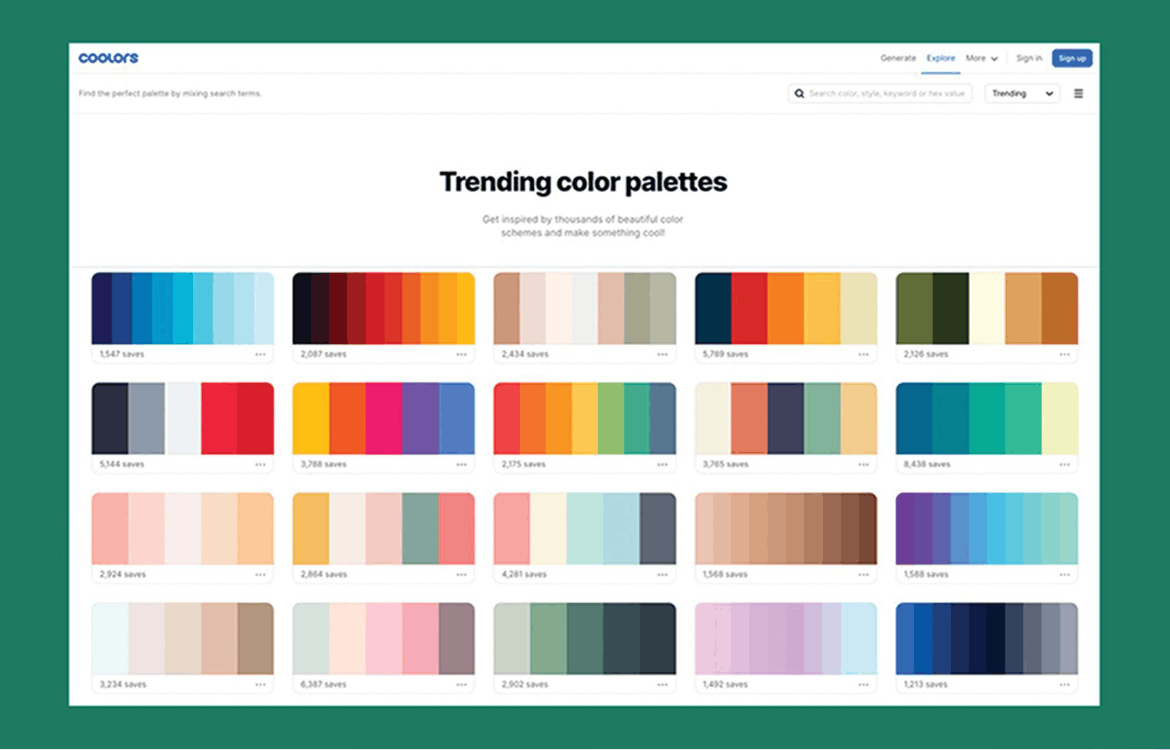
Besides the random color generator, Coolors also has a palette library to explore, the ability to extract a palette from a photo to make a moodboard, a contrast checker following WCAG standards to ensure readability, a previewer that shows palettes on interface, brand and typography templates, and a color code conversion function. Palettes can be exported to many formats such as PNG, PDF, SVG, CSS, SCSS or ASE, or shared via link, which is very convenient when moving to design software or handing off to developers.
The free version is enough for most needs, though there are some limits such as the number of palettes and projects that can be saved, or the limit of five colors per palette. The Pro plan, priced at a few USD per month, removes these limits and adds many advanced features. Coolors suits the start of brand projects, web design, illustration, social media and presentations, when you need to quickly get a color starting point and then refine it to your own direction.
5. Realtime Colors and how to verify colors on a real interface
A color palette that looks good as separate color swatches does not necessarily work well on a real interface. Realtime Colors was created to fill that gap. Instead of only displaying color patches, the tool applies the colors you choose to a complete sample web page with headings, paragraphs, buttons, content cards and familiar interface components, and you see the result change instantly as you adjust.
The tool's way of working is quite logical. You start with two neutral colors for text and background, then choose a primary color, a secondary color and an accent color. There is a random pick function for when you need suggestions, a contrast checker tells you which color pairs are hard to read, and you can preview in light or dark mode as well as try multiple font options for headings and body. When satisfied, you can export the result to formats such as CSS or SCSS, use the accompanying Figma plugin or share a link so clients and colleagues can view it directly. The tool is completely free, and according to the developer, the colors you create can be used for commercial purposes too.
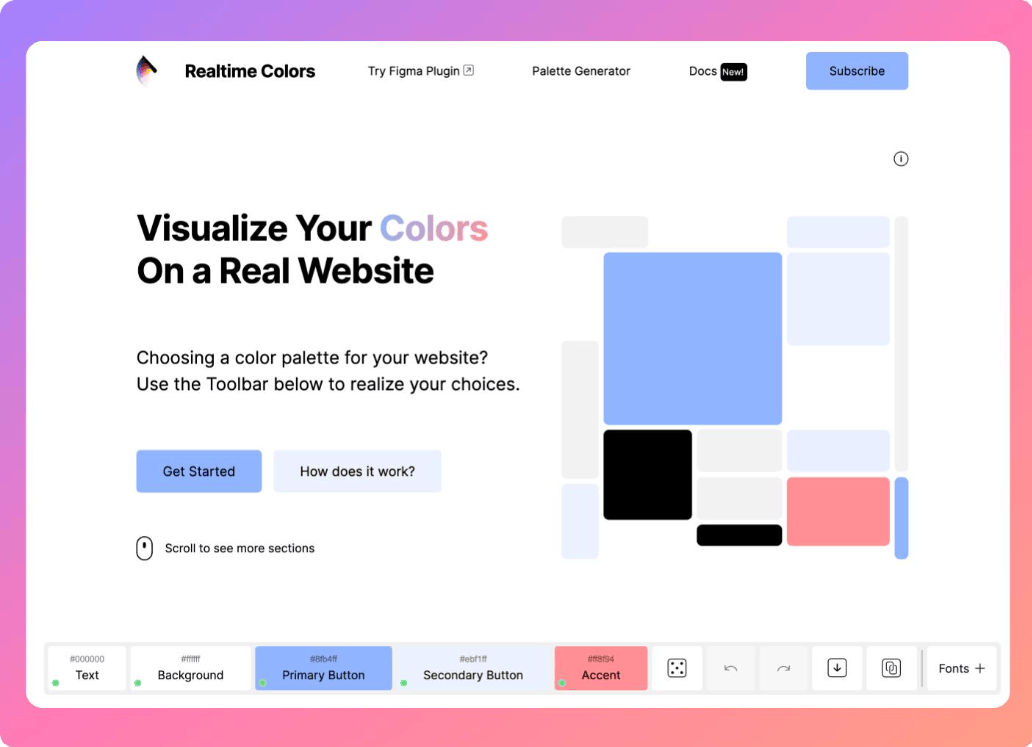
Note that Realtime Colors focuses on web design so it lacks in-depth color theory tools, and building a palette by hand color by color is slower than random generation tools. Therefore, an effective workflow is to use Coolors to find ideas, then bring the palette to Realtime Colors to verify on an interface. The recommended practical rule is that three colors, namely background, text and one accent color, are usually enough, and it is rarely advisable to exceed six colors on a platform, to maintain consistency.
6. SnapMock and how to turn screenshots into professional presentations
When presenting interface, app or landing page designs to clients, a flat screenshot often lacks persuasiveness. Placing the design in a realistic device frame helps viewers better picture how the product will look when in use. SnapMock targets this need by turning screenshots into device mockups with just a few steps right in the browser.
According to the tool's description, you can choose a device frame, add annotations and export high-quality images without a watermark. This approach saves considerable time compared with searching for PSD mockup files, opening heavy software and pasting the design into each smart object. It is especially handy when you need to quickly prepare a presentation for a web interface, mobile app, landing page or illustration for a portfolio.
This is a fairly new tool and small in scale compared with the other names on the list, so its features, limits and usage policies may change. Before using it for commercial projects, you should carefully check the current version. If you need more device options or higher rendering quality, you can still combine it with other mockup libraries. Even so, for quickly creating a neat and good-looking presentation, SnapMock is a useful helper.
7. unDraw and the open-source illustration library that can be recolored to match your brand
Illustration is a familiar component on landing pages, presentations, dashboards, articles and many other digital products. Drawing each image yourself for every project takes a lot of time and skill, while assembling illustration sets from many different sources often leaves the style inconsistent. unDraw, founded by illustrator Katerina Limpitsouni, solves this problem with a large library of SVG illustrations in one style, completely free and usable without attribution.
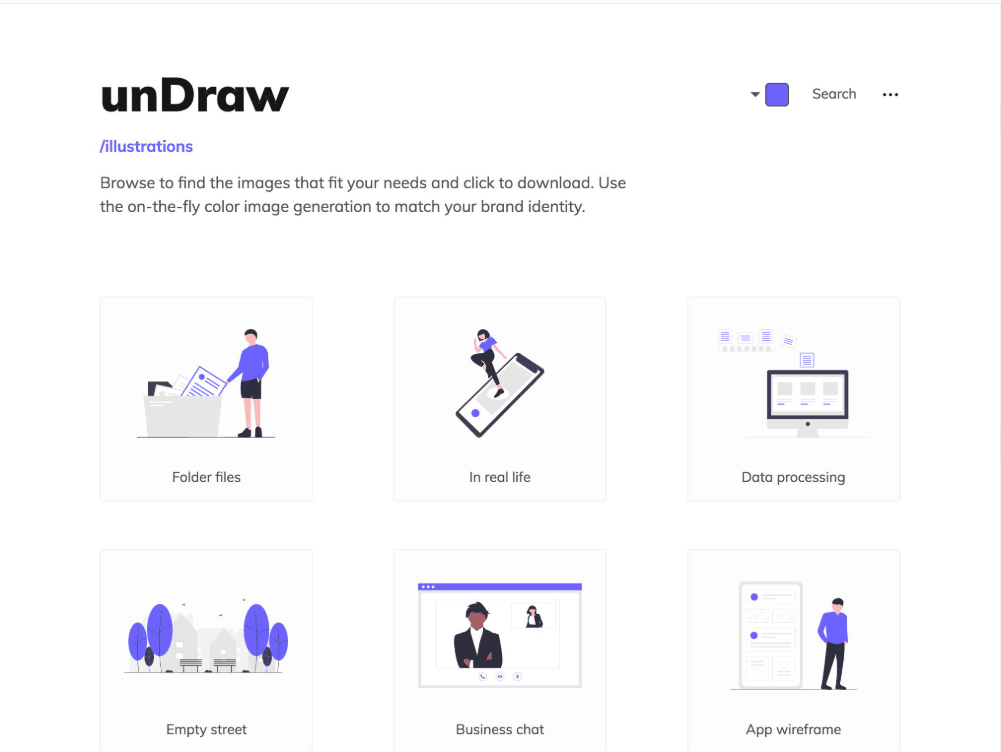
What makes unDraw appealing is its accent color picker. Just choose the brand's main color, and all the illustrations on the page update accordingly, helping you quickly get images that match the project's identity. The illustrations are in SVG format so they scale freely without losing quality, and can also be opened and further refined in Inkscape, Illustrator, Figma or Sketch. The library covers many topics, and the search tool helps you quickly find an image that fits the message you want to convey.
A few limitations should also be acknowledged. Because unDraw's flat, simple style is used very widely, your website may look like many other websites if you use the originals without editing. You do not have complex source files to intervene deeply, and this is not a place to commission custom illustrations. The effective way to use it is to treat unDraw as raw material, then adjust the layout, add details or combine it with the brand's own elements to create a distinctive mark. This tool is especially suitable for landing pages, presentations, web apps and digital projects that need a consistent visual language in a short time.
8. Conclusion
An effective design workflow does not necessarily rely on a great deal of expensive software, but on knowing how to use the right tool for the right job. Photopea helps you edit images and handle multi-layer files anywhere, Inkscape takes care of vector work, Affinity provides a complete professional environment, Coolors and Realtime Colors together solve the whole story of color, SnapMock makes presentations more persuasive, and unDraw provides consistent illustrations almost instantly.
Treat these tools as a complement to your current workflow rather than a complete replacement for professional software. For projects that demand in-depth features, you may still need advanced applications. In addition, the free policies, feature limits and terms of use of these tools may change over time, so check the current license before using them for commercial projects. When you smartly combine these tools with AI assistants for repetitive tasks, you will have more time for the most important part of design work, which is creative thinking and the quality of the final product.




VIP Products
Best Selling Products
Autodesk All App Account Copyright
120 USD
Adobe Photoshop Copyright - Full App
120 USD
Adobe Premiere Pro Account
99 USD
Upgrade Genuine Office 365
49 USD
Plugin Retouch4me
69 USD
Upgrade genuine Capture One account
120 USD
Windows 10 & 11 Pro Key
36 USD
ChatGPT Plus Account (GPT-4)
16 USD
Upgrade Duolingo Super
29 USD
MidJourney Account
29 USD
Copyright Adobe Lightroom Account
59 USD
Genuine Cheap Canva Pro
39 USD
Freepik Premium Account
59 USD
Capcut Pro 1 Year
39 USD
Genuine Adobe Illustrator account
99 USD