Best Selling Products

Autodesk All App Account Copyright
120 USD

Plugin Retouch4me
69 USD

Upgrade Genuine Office 365
49 USD

Capcut Pro 1 Year
39 USD

Adobe Premiere Pro Account
99 USD

Upgrade genuine Capture One account
120 USD

ChatGPT Plus Account (GPT-4)
16 USD

Freepik Premium Account
59 USD

Windows 10 & 11 Pro Key
36 USD

Adobe Photoshop Copyright - Full App
120 USD

Genuine Cheap Canva Pro
39 USD

Upgrade Duolingo Super
29 USD

Genuine Adobe Illustrator account
99 USD

MidJourney Account
29 USD

Copyright Adobe Lightroom Account
59 USD
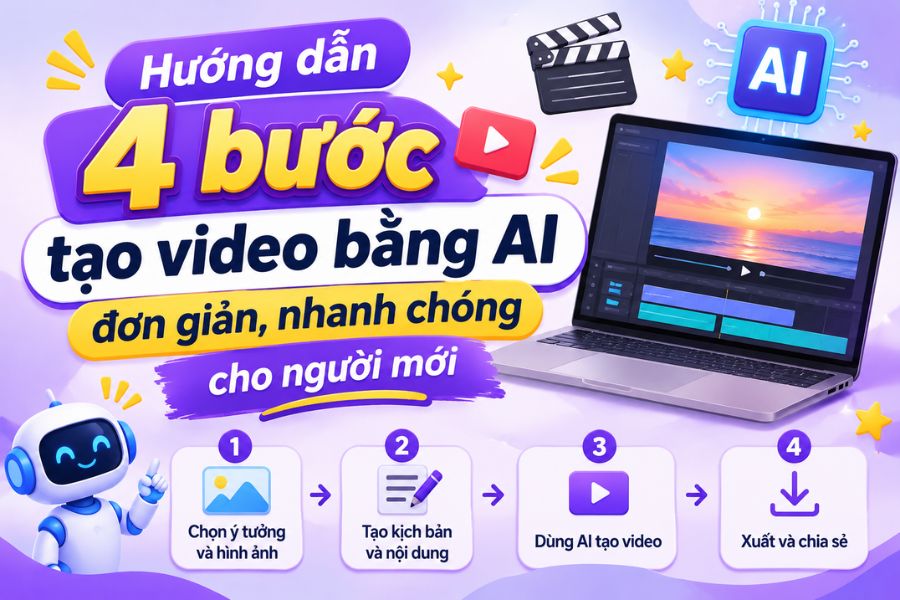
A 4-step guide to creating simple and quick videos using AI for beginners.
Nội dung
Creating videos has never been easier thanks to artificial intelligence (AI). Instead of mastering complex filming, staging, or editing skills, you can leverage AI tools to turn your ideas into videos with just a few taps. From scriptwriting and image creation to voiceover selection, editing, and publishing, many processes can be significantly automated. If you''re looking to create TikTok videos, YouTube Shorts, or promotional content but lack experience, let Sadesign guide you through these 4 steps to create videos using AI to get started more easily.
1. Step 1: Brainstorm and create a video script
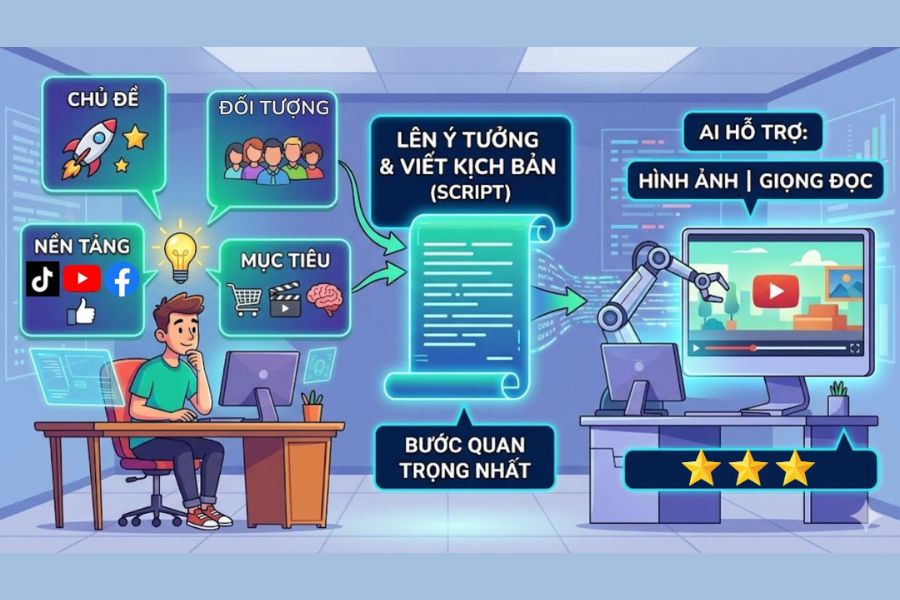
Before using any AI tools, you need to define the topic and goals of your video. This is a crucial step to ensure the content stays on track, avoiding situations where the visuals are beautiful but the message is disjointed and lacks focus. You can use AI to help develop ideas, write dialogue, or build a script based on your target audience. Especially for short videos posted on TikTok or Facebook Reels, the opening should create curiosity within the first 3 seconds to keep viewers engaged. Before writing the script, consider the following elements:
-
Video topic: Do you want to share knowledge, tell a story, introduce a product, or create entertainment content?
-
Target audience: Identify the age, interests, and needs of your target audience.
-
Upload platforms: TikTok, YouTube Shorts, Facebook Reels, or YouTube to choose the appropriate length and aspect ratio.
-
Content goals: Increase views, build personal brand, promote products, or provide useful information.
After identifying the above elements, you can use ChatGPT or Claude to assist in script writing. A short video typically has three main parts: an attention-grabbing opening (Hook), the main content, and a call to action (CTA).
To ensure the AI understands the request correctly, you should write a specific prompt using the following formula: Subject + Style + Background + Camera Angle + Lighting + Emotion.
Example prompt: "Create a 15-second cinematic video concept of a girl enjoying coffee in a modern cafe. The space should have warm yellow lighting, close-up shots of her face and coffee cup, gentle camera movements, and cinematic colors, creating a relaxing and sophisticated feel."
2. Step 2: Select the AI tool and import the data to create the video.
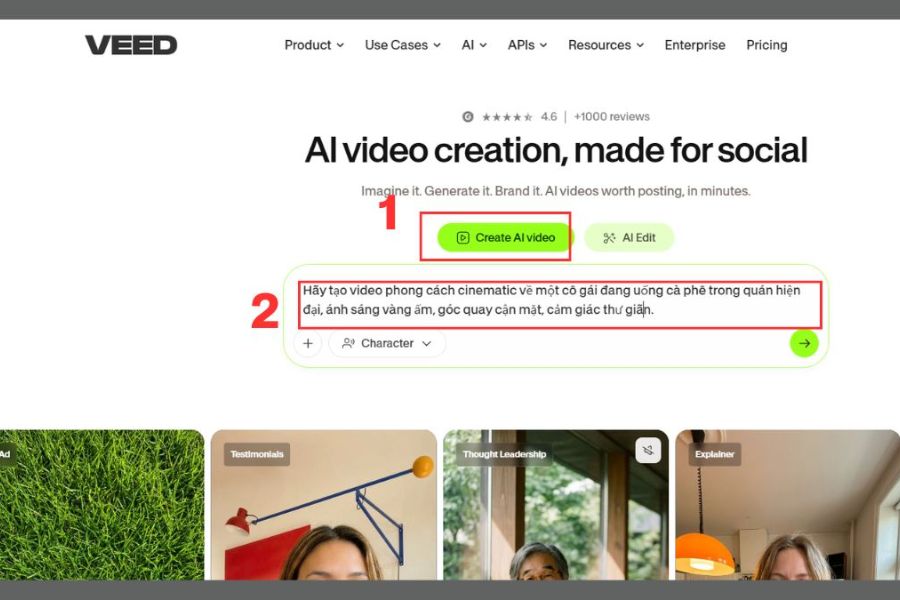
Once you have an idea and a script, you need to choose the right tool to turn that content into a video. Currently, many AI-integrated platforms allow you to create videos from text, images, or pre-existing scripts. Depending on your purpose, you can consider CapCut AI, VEED.IO, Hour One, DeepBrain, or Elai.io. Among these, VEED.IO is a worthwhile option thanks to its intuitive interface and features that support video creation and editing. Below are the basic operations when using this tool.
1. Access the AI video creation feature on VEED.IO
First, access the VEED.IO website and log in to your account. On the Dashboard interface, find and select the Create AI Video feature if available on your account. The system will then take you to the video creation area, where you can start entering content or setting parameters for your project. The interface may vary depending on the version and package of account you are using.
2. Import a script or prompt.
In the content input area, copy the script you prepared in the first step and paste it into the corresponding text box. Clearly describe the subject, context, visual style, and message you want to convey so that the AI has a basis for creating content that closely matches your wishes. If the video has many scenes, you should divide the script into short segments for easier review and editing.
3. Set the aspect ratio.
Next, find the Aspect Ratio section to choose the appropriate aspect ratio for your upload platform. For TikTok, Reels, or YouTube Shorts videos, a 9:16 ratio is a popular choice. Meanwhile, regular YouTube videos typically use a 16:9 ratio. Setting the correct dimensions from the start helps prevent images from being cropped, losing subjects, or having unnecessary empty space.
4. Create videos using AI
After completing the settings, review the content and then press the create video button as instructed on the interface. The tool will process the data and create the content based on the information provided. Completion time may vary depending on video length, complexity, and platform processing capabilities.
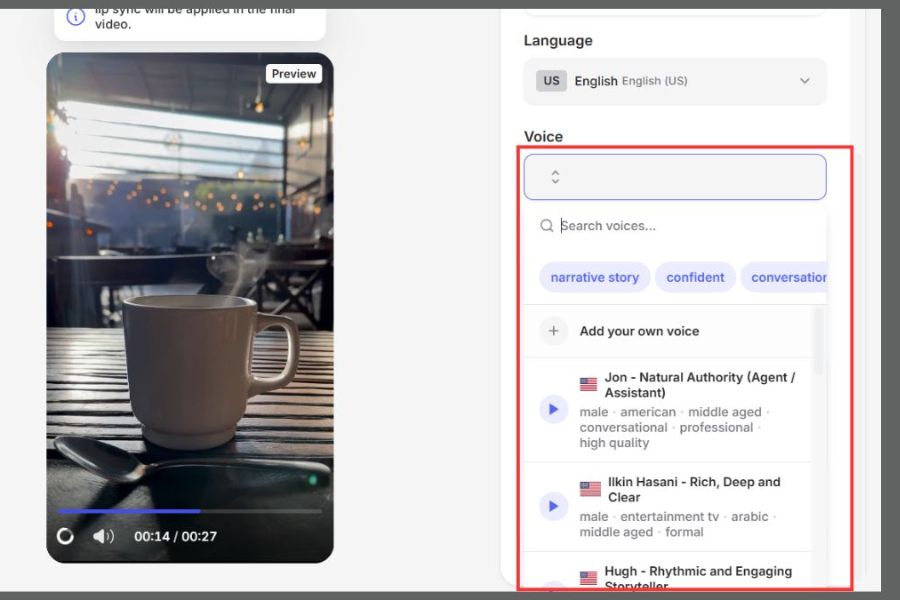
3. Step 3: Customize the voiceover, characters, and setting.
Automatically generated videos often require some adjustments to feel more natural and engaging. This is where you choose your voiceover, change characters, fine-tune the visuals, and add appropriate audio elements. Many AI tools now support Vietnamese voiceovers, virtual characters, lip-syncing, and background changes, making it easy for beginners to create content without appearing in front of the camera.
When using VEED.IO, you can refer to the following customizations:
-
Choosing an AI voice: Access the Voice section to select a male or female voice that suits the content. A clear, natural-sounding voice is preferred, avoiding a robotic tone.
-
Adjust the pace and emotion: Depending on the topic, you can choose a fast reading pace for entertaining videos or a slow pace for educational content.
-
Character customization: If the video uses AI avatars, choose characters with appearances and demeanors that resonate with your target audience.
-
Change the setting: Use appropriate background images or scenery to give the video depth and avoid a monotonous feel.
-
Add background music and effects: Choose sounds that suit the topic, and adjust the volume so that it doesn't overpower the narrator's voice.
Additionally, you should add subtitles to your videos so viewers can easily follow the content even without sound. For short-form video platforms, prioritize easy-to-read fonts, colors with good contrast, and smooth transitions. Avoid adding too many effects at once, as this can distract viewers from the main message.
4. Step 4: Edit and export the complete video
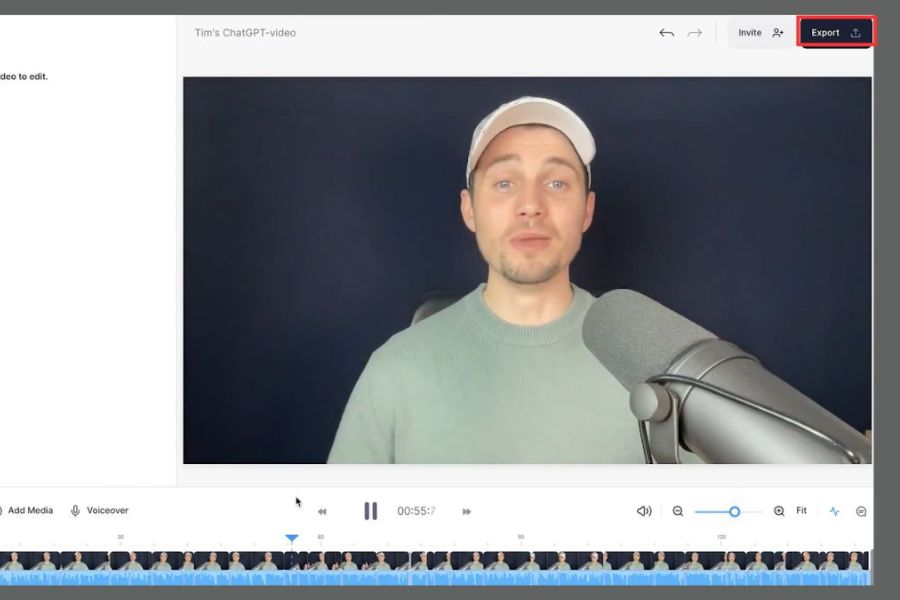
After the AI creates the video, you shouldn't export the file immediately. Instead, take the time to review the entire content. Although the tool can automatically handle many stages, the results may still contain image errors, unnatural motion, or voiceovers that don't match the context. Final editing will make the video more polished and minimize mistakes that affect the viewer's experience.
Before exporting the video, you should check the following:
-
Content: Ensure the script is complete, free from missing sentences, repetition, or inaccurate information.
-
Image: Examines faces, hands, movements, and details generated by AI to detect anomalies.
-
Subtitles: Review spelling, punctuation, and timing to ensure the content matches the dialogue.
-
Audio: Adjust the voiceover, background music, and effects to avoid the sound being too loud or distorted.
-
Scene transitions: Check the speed between segments to ensure the video is seamless, without stuttering or abrupt scene changes.
Once finished, select Export to export the video. For TikTok, Facebook Reels, and YouTube Shorts, a 9:16 aspect ratio with 1080p resolution is recommended for clear image display on your phone. If uploading to YouTube or using the video for a presentation, you can choose a higher resolution depending on your needs. Finally, save the file to your device, review it one more time, and upload it to your desired platform.
5. Some tips to make AI videos more engaging for viewers.
Besides following the correct procedures, you should also pay attention to how you build your content and present your visuals. A technically sound video may not be engaging if it lacks a clear message or fails to pique curiosity. To improve video quality, you can apply some of the following tips:
-
Focus on the first 3 seconds: Use a question, a surprising situation, or a striking image to pique curiosity.
-
Keep the content concise: Eliminate lengthy explanations and only include the essential information.
-
Maintain visual consistency: Consistency in color, characters, and presentation throughout the video ensures brand recognition.
-
Use highlighted subtitles: Choose an easy-to-read font, an appropriate size, and highlight important keywords.
-
Experiment with different versions: Change the opening sentence, images, or voiceover to find the best way to present the message to your audience.
-
Copyright check: Prioritize using images, background music, and materials that are legally permitted to minimize risks when uploading.
6. Conclusion
With the help of artificial intelligence, video creation is now simpler and more accessible, even for those without prior editing experience. In just four steps—from brainstorming ideas, choosing tools, customizing content, to editing and exporting—you can create a video for various purposes. Start with short content, experiment with different styles, and leverage AI effectively to create lively, professional videos with your own unique touch.





















VIP Products








Best Selling Products
Autodesk All App Account Copyright
120 USD
Plugin Retouch4me
69 USD
Upgrade Genuine Office 365
49 USD
Capcut Pro 1 Year
39 USD
Adobe Premiere Pro Account
99 USD
Upgrade genuine Capture One account
120 USD
ChatGPT Plus Account (GPT-4)
16 USD
Freepik Premium Account
59 USD
Windows 10 & 11 Pro Key
36 USD
Adobe Photoshop Copyright - Full App
120 USD
Genuine Cheap Canva Pro
39 USD
Upgrade Duolingo Super
29 USD
Genuine Adobe Illustrator account
99 USD
MidJourney Account
29 USD
Copyright Adobe Lightroom Account
59 USD