Best Selling Products

Adobe Premiere Pro Account
99 USD

Genuine Cheap Canva Pro
39 USD

Upgrade genuine Capture One account
120 USD

Upgrade Duolingo Super
29 USD

Genuine Adobe Illustrator account
99 USD

Capcut Pro 1 Year
39 USD

Copyright Adobe Lightroom Account
59 USD

Upgrade Genuine Office 365
49 USD

Autodesk All App Account Copyright
120 USD

Freepik Premium Account
59 USD

Plugin Retouch4me
69 USD

MidJourney Account
29 USD

ChatGPT Plus Account (GPT-4)
16 USD

Windows 10 & 11 Pro Key
36 USD

Adobe Photoshop Copyright - Full App
120 USD
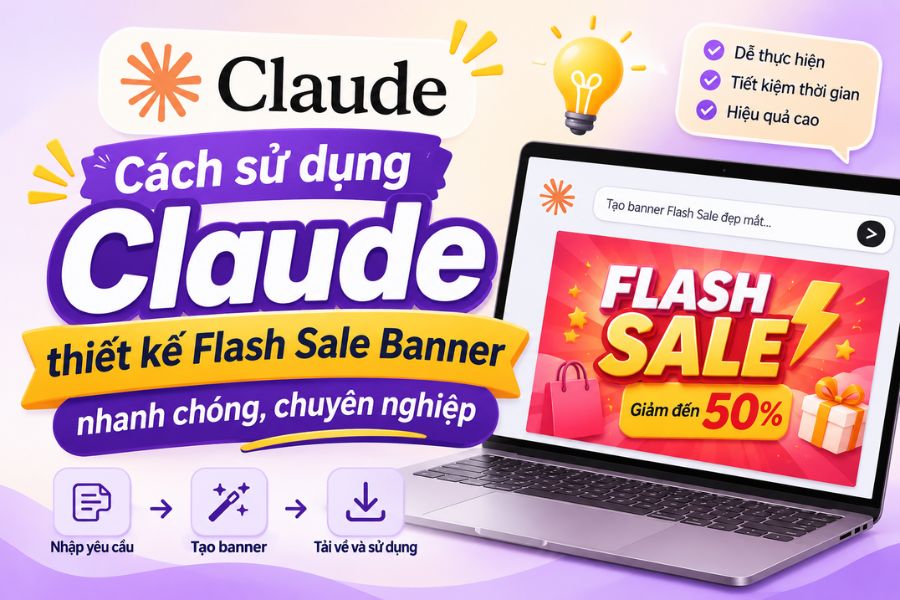
How to use Claude to design Flash Sale Banners quickly and professionally.
Nội dung
Flash Sale Banners are crucial for making promotional programs stand out and attract customer attention at first glance. A beautiful banner needs eye-catching colors, clear offer information, and a logical content arrangement to encourage viewers to be interested in the shopping program. Instead of spending a lot of time brainstorming and manually editing, you can leverage Claude in combination with Canva to simplify the design process. This combination helps you transform text descriptions into visual design ideas, saving time and easily completing banners for sales campaigns. Let''s explore this with Sadesign!
1. How can Claude assist with designing Flash Sale Banners?
Claude is an AI tool that assists in language processing, request analysis, and content creation. When integrated with Canva via the Canva Connector, Claude can help users search, create, and export designs using its built-in functions. This means you don't need to start from a blank design page; you can provide your requirements in natural language and let the AI assist in implementation.
For Flash Sale banners, Claude can help you develop ideas based on your product, target audience, and promotional message. Some tasks that can be accomplished using AI include:
-
Design concept: Suggest banner styles that are suitable for the industry, such as fashion, cosmetics, household goods, or accessories.
-
Content creation: Suggest headlines, advertising slogans, discount messages, and concise calls to action.
-
Layout guidelines: Suggestions for placing product images, discount levels, promotion duration, and the "Buy Now" button.
-
Color selection: Create striking color combinations that suit the vibrant atmosphere of a Flash Sale event.
-
Canva design support: Use authorized Canva Connector features to search, create, or export designs.
However, Claude doesn't completely replace the user's review and refinement process. You should still review the layout, images, fonts, and promotional information before using the official banner.
2. Instructions on how to use Claude in conjunction with Canva for design.
Integrating design tools directly into conversations with AI makes banner creation more convenient. Instead of constantly switching between multiple applications, you can submit requests and receive support directly within Claude. Below are the steps to connect and use the Canva Connector on the web version.
Step 1: Access and log in to Claude
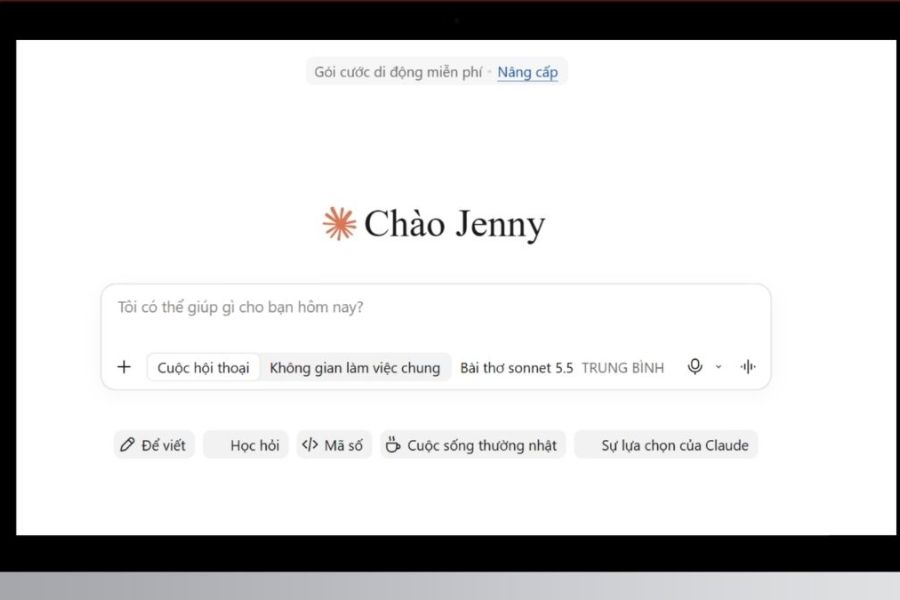
First, open your computer's browser and access the Claude website at Claude.ai. Log in with your personal account to access the chat interface. After successfully logging in, you will see the command input area and Claude's support functions. This is where you begin establishing a connection with Canva to prepare for banner design.
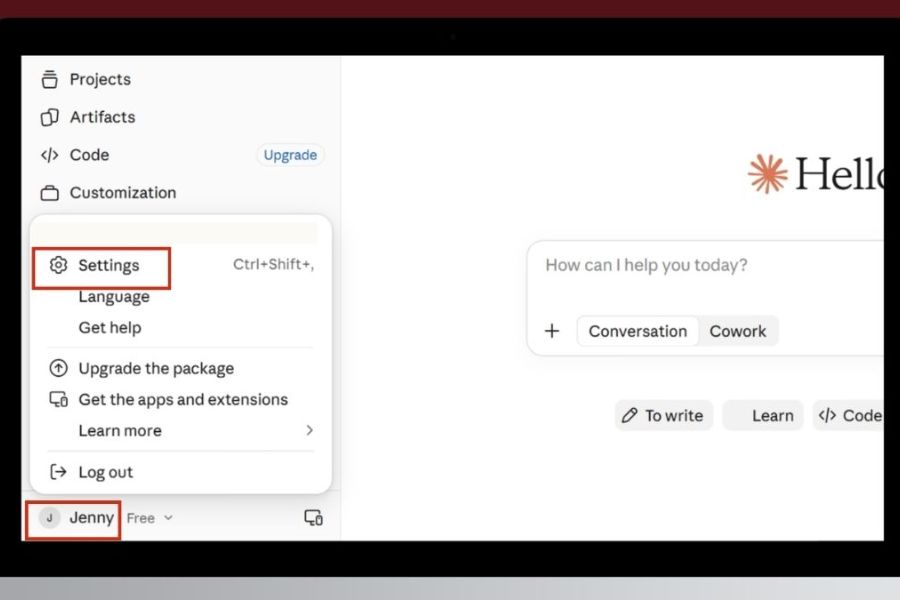
Step 2: Open account settings
On the main interface, tap your profile picture in the bottom left corner of the screen to open the list of options. Next, select Settings to access settings related to your account and the applications that can connect. Accessing the correct settings area will help you find the necessary integrated tools without wasting time searching in the chat interface.
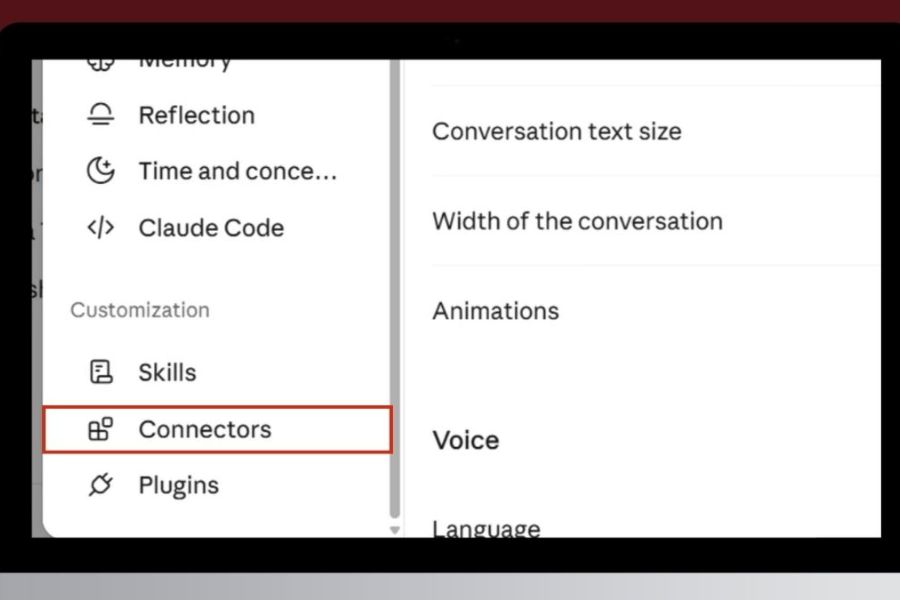
Step 3: Access the Connectors section.
In the settings menu, find and select Connectors. This is where you manage external applications that can link with Claude to extend its workflow capabilities. Through these connections, Claude can interact with several supported services instead of just responding with text as usual. Check the list of applications to prepare to add Canva to your account.
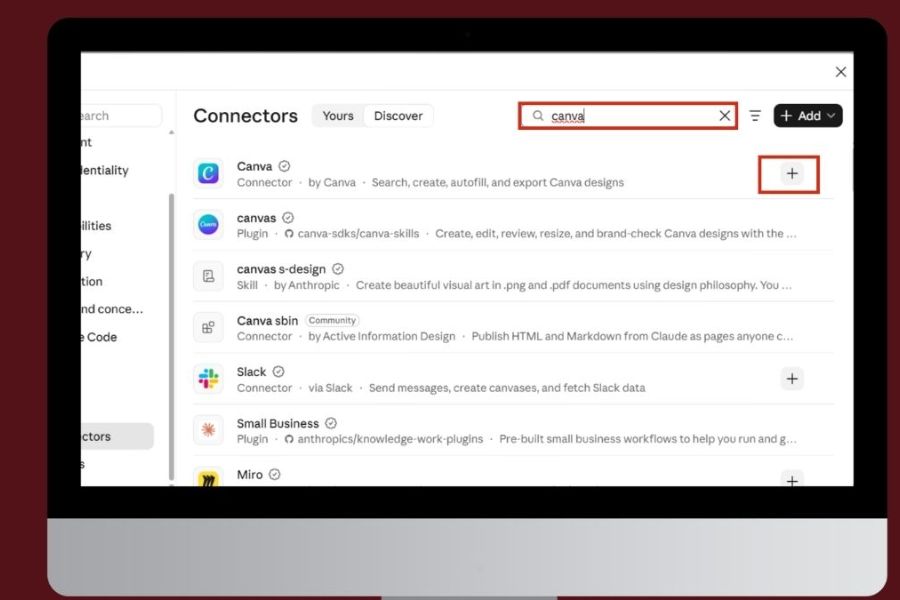
Step 4: Search for and select Canva
In the Connectors list, enter the keyword "Canva" in the search bar to identify the application you want to connect. When Canva appears, click the plus (+) icon or the corresponding connection option to begin the setup. This is an important step to help Claude identify the design service you want to use. If Canva is not found, check your account's support and connection status.
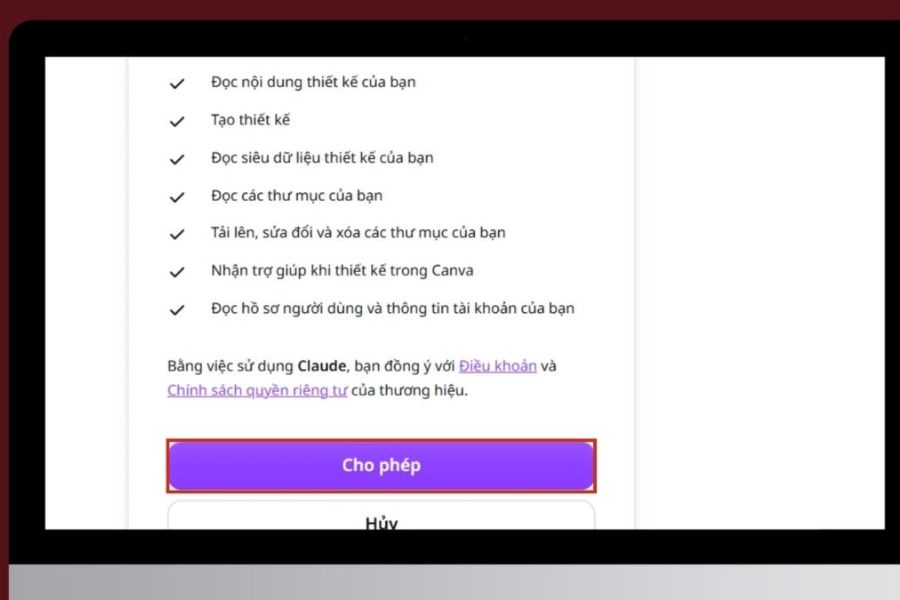
Step 5: Log in and grant permissions to Canva
After selecting Canva, the system will redirect you to the login page or request account verification. Log in with your current account, then read the access permission information and click Allow if you agree to the linking process. Once the verification is complete, Canva will be added to the list of connected applications. You should check the displayed status to ensure the integration was successful.
Step 6: Activate Canva in a new conversation.
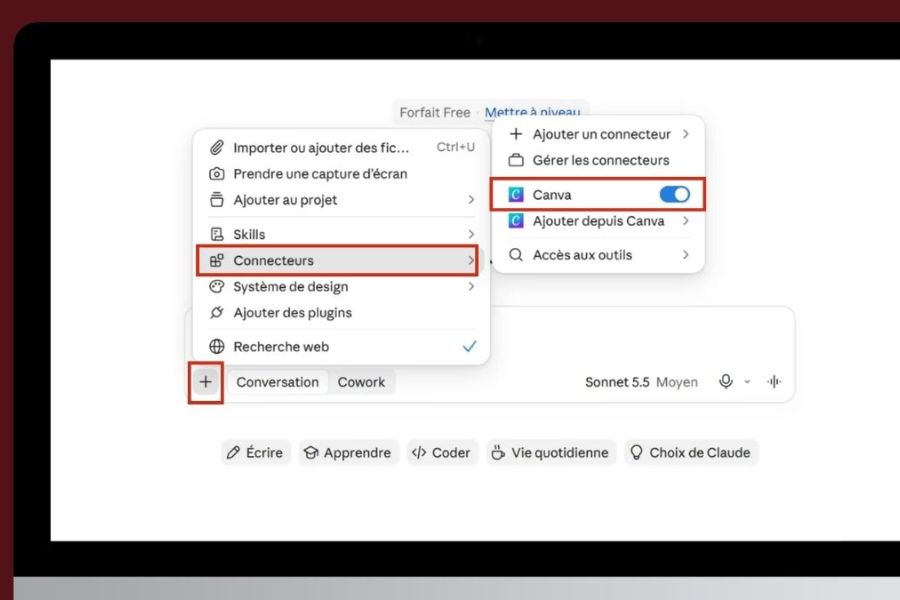
Next, return to the Claude interface and create a new chat. Open the chat's tool settings, find the Connectors section, and enable Canva to allow connection usage in the current session. This lets Claude know that you want to utilize Canva's features when processing your next request. Depending on the interface version, the name or location of the option may vary.
Step 7: Enter your Flash Sale Banner design requirements.
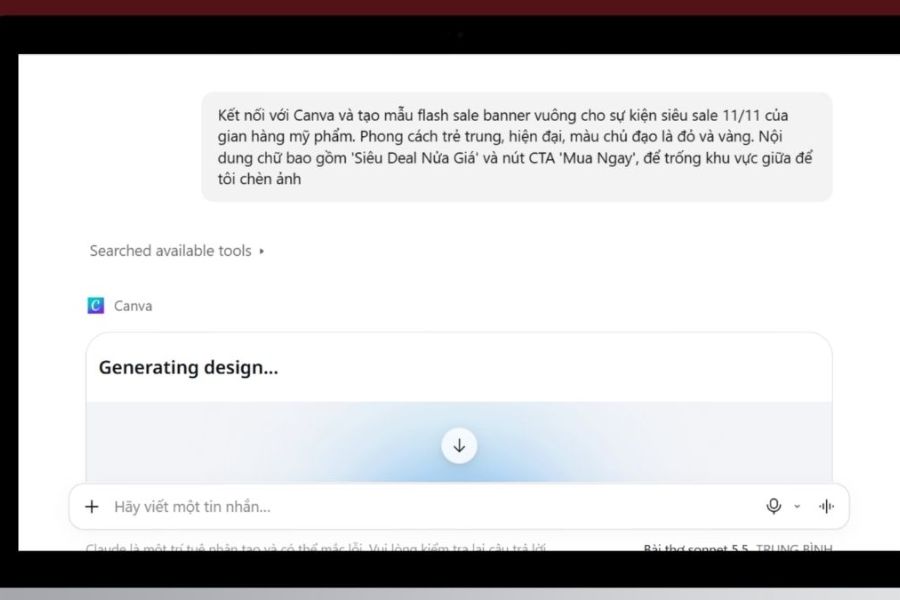
After establishing the connection, you can begin entering your design description into the chat box. Provide complete information about the product, discount level, promotion duration, main colors, and desired banner size. For example, you could ask Claude to create a Flash Sale banner for a 50% discount program with a youthful style, using red and yellow tones, with the product image placed in the center and the promotion information highlighted. Claude will use the supported Canva features to process your request. After receiving the design, open and review the content, adjust any unsuitable details, and then export the banner in the desired format.
3. Flash Sale Banner design prompt template using Claude.
To ensure the AI understands your requirements correctly, you should write specific prompts instead of just general requests like creating a beautiful promotional banner. A good prompt should clearly describe the purpose, style, colors, content, and arrangement of elements. You can refer to some examples below:
Template 1: Fashion Flash Sale Banner
"Create a Flash Sale banner for a women's fashion store, size 1200 x 600 px. Use pastel pink and white tones, a modern and youthful style. The main title is FLASH SALE, offering discounts up to 50%, valid from November 10th to November 12th. Arrange clothing images on the right, and promotional information on the left. The design needs to have a clear focal point, be easy to read, and create a desire to shop."
Template 2: Flash Sale Banner for Cosmetics
"Design a Flash Sale banner for a cosmetics store with a luxurious, minimalist style. Use white, pink, and a light gold tone. Highlight the message 'UP TO 40% OFF', and place images of the cosmetics in the center. The promotion period and offer information should be arranged logically, without using too many decorative details."
Template 3: Flash Sale Banner for Home Appliances
"Create a banner ad for a Flash Sale on household appliances, size 1200 x 600 px. Use orange and blue to create a dynamic feel. The large headline should read 'WEEKEND FLASH SALE, up to 60% off, offer limited to 48 hours.' Product images need to be clear, the layout spacious, and the content easy to view on both computers and mobile phones."
You can change the information in the prompt for each campaign to create multiple versions of the banner. If the results aren't what you want, keep asking Claude to adjust the colors, font size, image placement, or message prominence.
4. Things to note when using Claude to design Flash Sale Banners
AI can help shorten the brainstorming time, but an effective banner still needs to be thoroughly checked before publication. To ensure your publication is both visually appealing and conveys the right information, you should pay attention to the following issues:
-
Provide accurate information: Discount levels, promotion periods, terms and conditions, and product names should be clearly stated to avoid misleading customers.
-
Avoid using too many colors: Choose around 2 to 3 main colors to ensure the banner is consistent and not visually cluttered.
-
Prioritize important information: The Flash Sale title, discount level, and program duration should be placed in an easily visible location.
-
Use high-quality images: Product images need to be clear, accurately represent the product, and be appropriate for the items being sold.
-
Check visibility: Preview the banner on your phone and computer to ensure the text isn't too small or cut off.
-
Review the design before publishing: Check for spelling errors, spacing, fonts, and graphic details to avoid unnecessary mistakes.
5. Conclusion
Combining Claude with Canva is a useful way to simplify the brainstorming and design process for Flash Sale Banners. Simply describe your requirements, and you can leverage AI to build content, guide layout, and support faster design implementation. However, to make the banner truly engaging, you still need to carefully check the images, message, and promotional information before publishing. Try applying the guidelines above to create professional, eye-catching banners that are suitable for each sales campaign.





















VIP Products








Best Selling Products
Adobe Premiere Pro Account
99 USD
Genuine Cheap Canva Pro
39 USD
Upgrade genuine Capture One account
120 USD
Upgrade Duolingo Super
29 USD
Genuine Adobe Illustrator account
99 USD
Capcut Pro 1 Year
39 USD
Copyright Adobe Lightroom Account
59 USD
Upgrade Genuine Office 365
49 USD
Autodesk All App Account Copyright
120 USD
Freepik Premium Account
59 USD
Plugin Retouch4me
69 USD
MidJourney Account
29 USD
ChatGPT Plus Account (GPT-4)
16 USD
Windows 10 & 11 Pro Key
36 USD
Adobe Photoshop Copyright - Full App
120 USD