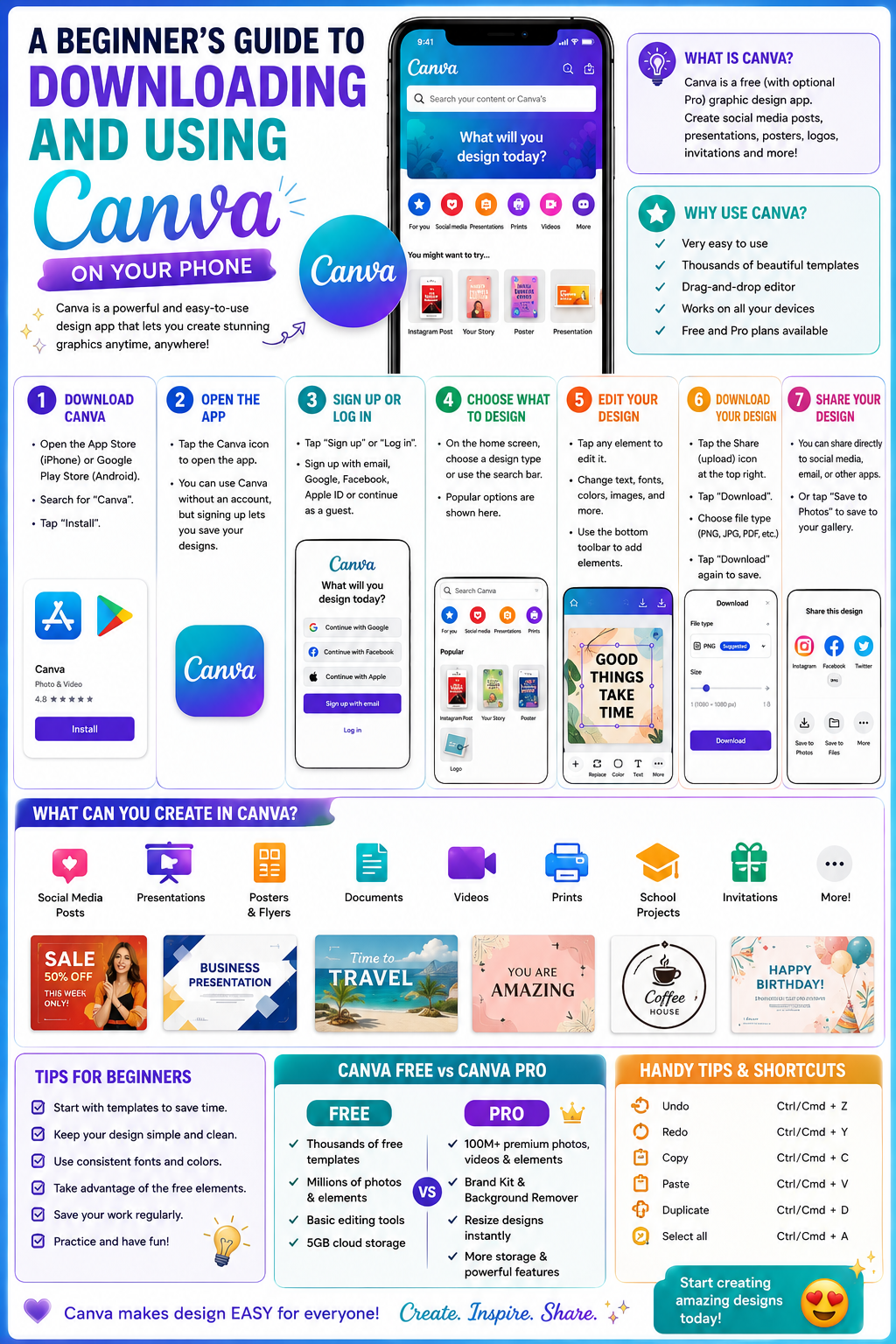
1. The outstanding benefits of using Canva on your phone.
The growing trend of mobile work demands that creative tools undergo a significant transformation. This mobile application offers tremendous advantages to busy users.

1.1. The ability to create and edit anytime, anywhere.
Having a mobile app frees you from being tied to a desk or a bulky computer. Users can edit banners, design Instagram stories, or update restaurant menu templates while commuting on the bus, sitting in a cafe, or waiting for a business partner.
1.2. Make the most of the photos and videos from your device's camera.
Designing becomes more seamless than ever when you can directly use photos you've just taken or videos you've just recorded from your phone. Users no longer need to waste time connecting cables, uploading data to the cloud, or sending files through intermediary applications to transfer files from phone to computer as before.
1.3. Interface perfectly optimized for touch and swipe gestures.
The development team has redesigned the entire display space to be fully compatible with touch screens. Drag-and-drop operations, zooming in and out with two fingers, and selecting color filters are all performed intuitively, smoothly, and are extremely user-friendly for everyday phone use.
2. Detailed instructions on how to download and install Canva on your phone.
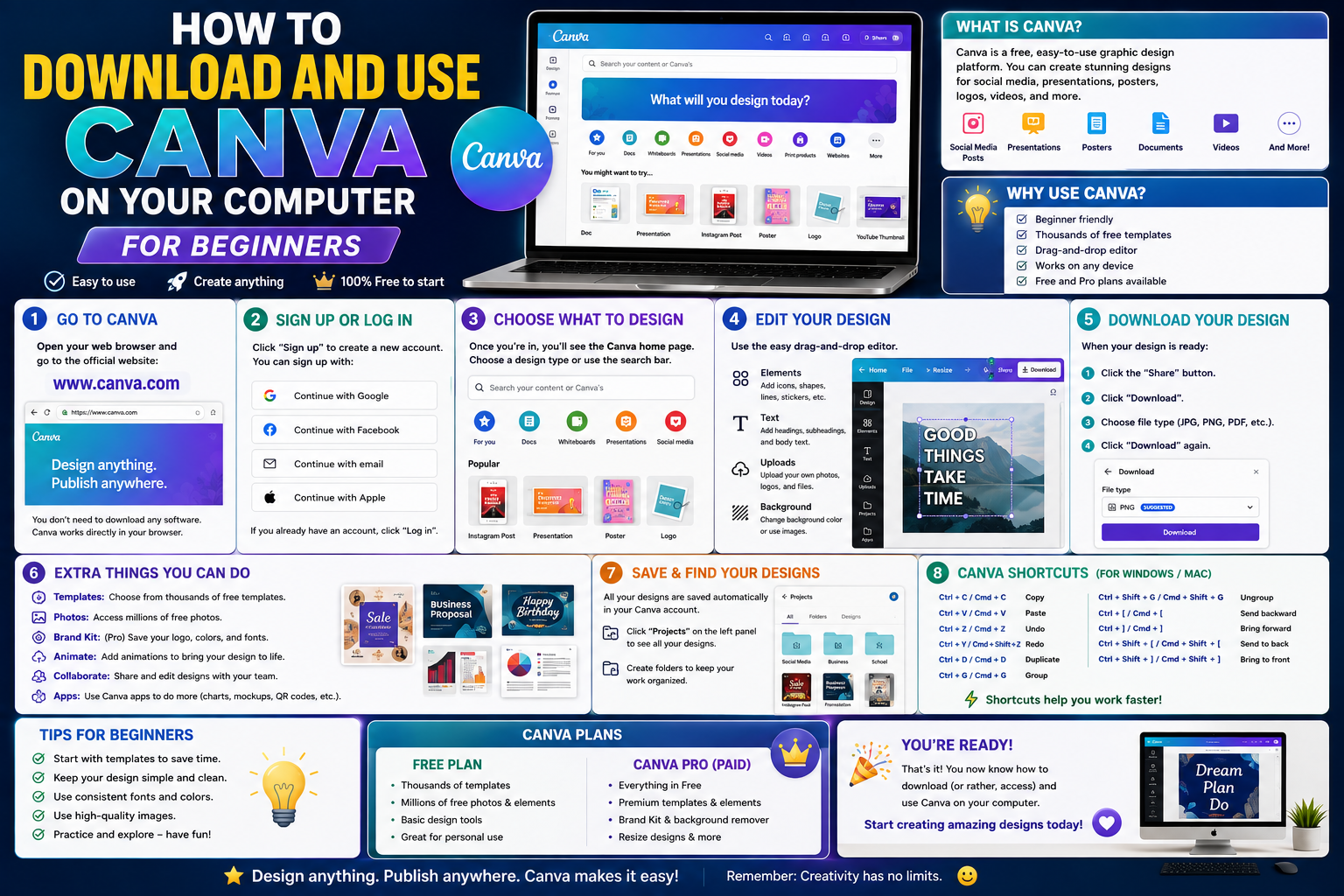
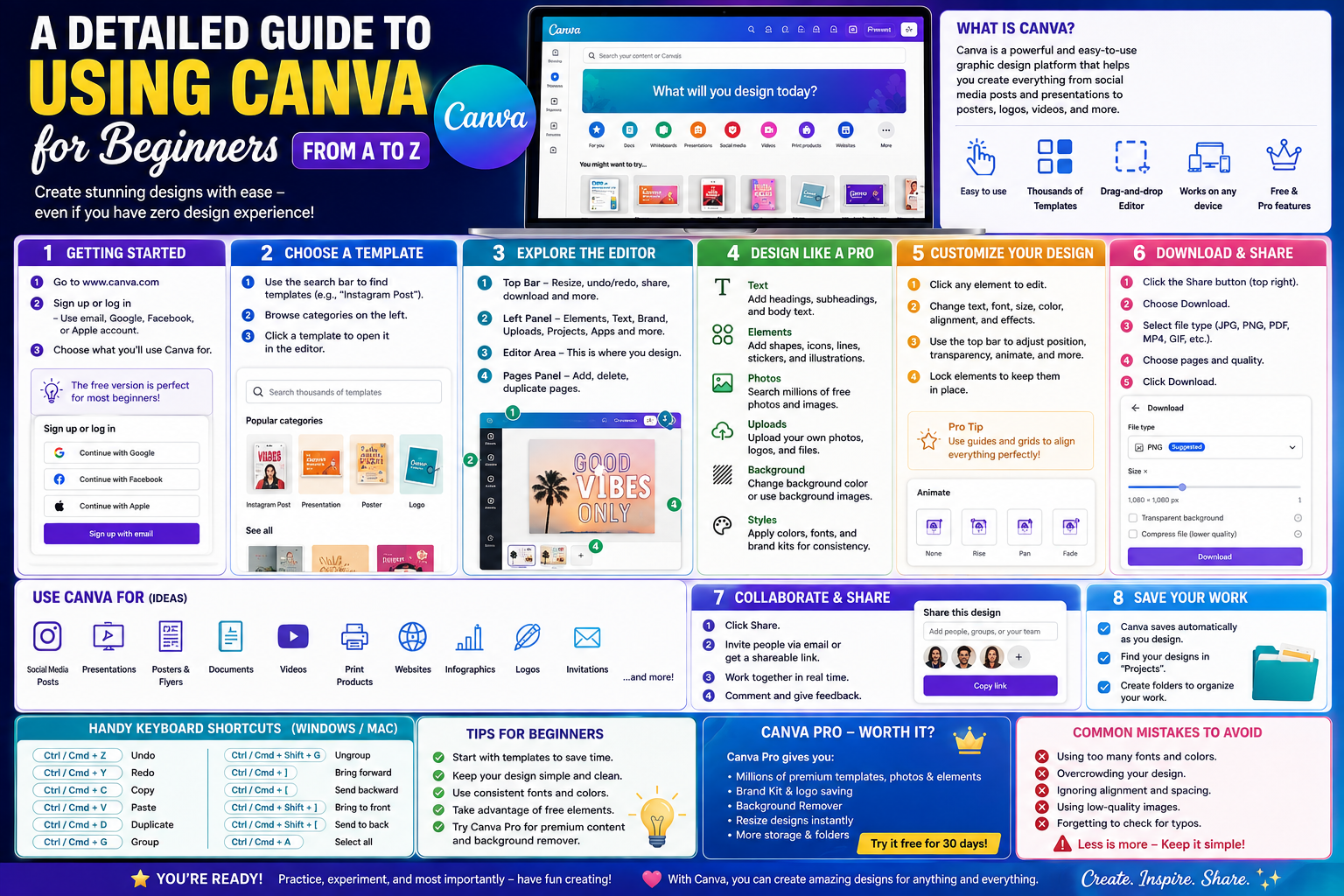
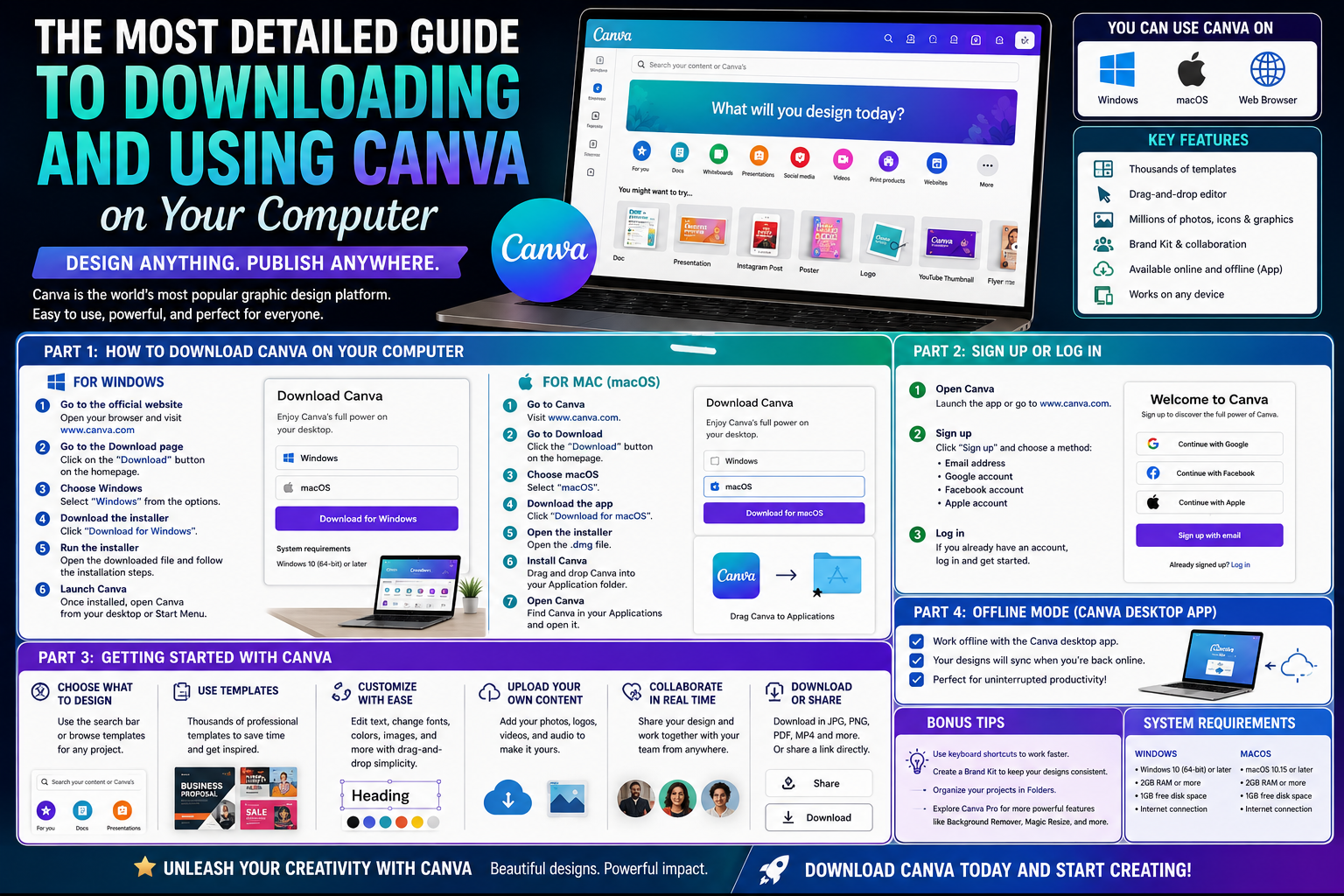
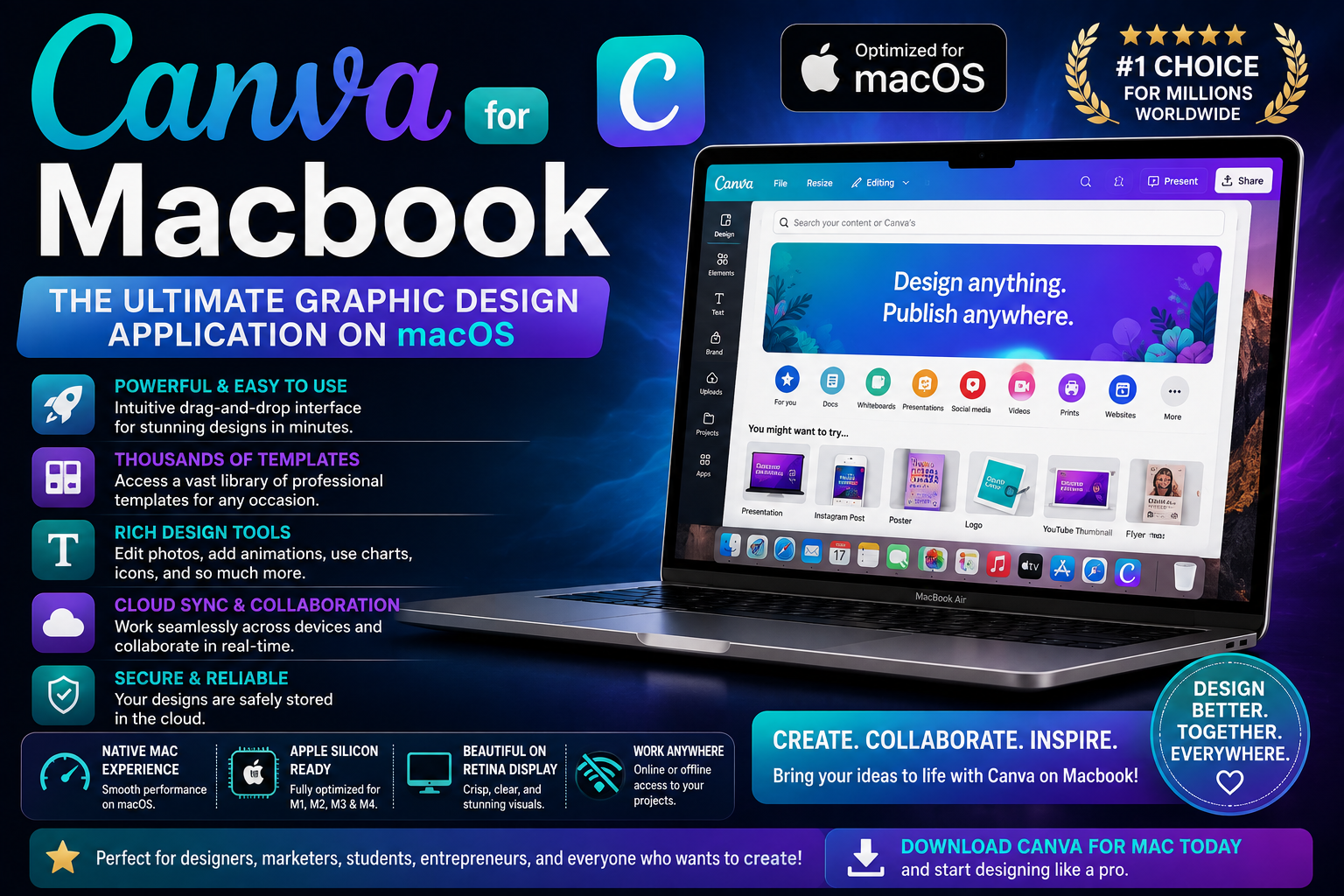
This platform is currently available completely free on the world's largest app stores. The initial setup process is extremely quick, requiring only a few basic steps.
2.1. Installation steps on Android phones
Users of devices such as Samsung, Xiaomi, Oppo, or Vivo can easily download the application by following these steps:
-
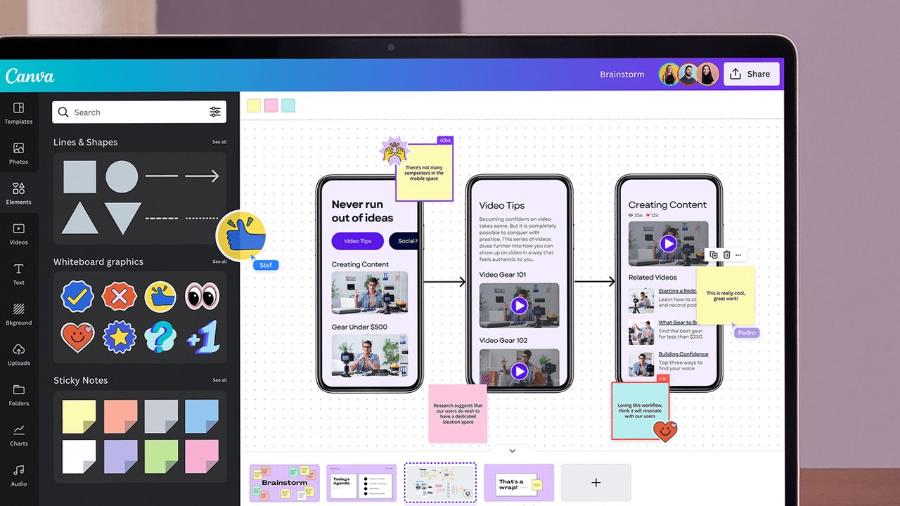
Step 1: Launch the Google Play Store (CH Play) app store, which is built into your phone's home screen.
-
Step 2: Enter the exact application name as a keyword into the search bar at the top of the interface.
-
Step 3: Select the correct publisher icon and click the "Install" button to allow the system to automatically download the software.
-
Step 4: Wait a few moments for the device to automatically extract the files, then press "Open" to begin experiencing the design space.
2.2. Installation steps on iOS (iPhone) devices
For those who own Apple phones, the download process will be done through the following steps:
-
Step 1: Access the App Store displayed on your personal device.
-
Step 2: Type the tool's name into the search bar and select the official application to ensure data security.
-
Step 3: Tap the "Get" button or the cloud icon, then verify your identity using Face ID, Touch ID, or your iCloud password.
-
Step 4: The system will complete the installation process after a few tens of seconds and display the application icon on the home screen.
3. Explore the overall mobile application interface.
Despite its small screen size, the phone's layout is incredibly well-organized, divided into separate functional areas to maximize efficiency.
3.1. Home tab and intelligent search system
The main screen greets you with a versatile search bar and a list of popular design categories. The system will proactively categorize standard sizes for social media posts, short videos, and invitations, saving users significant time in their initial banner search.
3.2. Project tab and storage folder management menu
This area stores all the products you've created or those you've shared editing rights with others. Users can create additional subfolders directly on their phones to categorize designs by client project, making data management more organized and efficient.
3.3. The purple plus sign - The gateway to a treasure trove of creative resources.
The powerful button located in the bottom corner of the screen is where all your design materials are stored. Tapping this icon will bring up a feature menu with a range of powerful options including Templates, Elements, Text, and an area to upload files from your device's memory.
4. The step-by-step process for designing a complete artwork on a phone.
Creating a visually appealing publication requires a clear implementation process, from the initial layout design to the final publication.
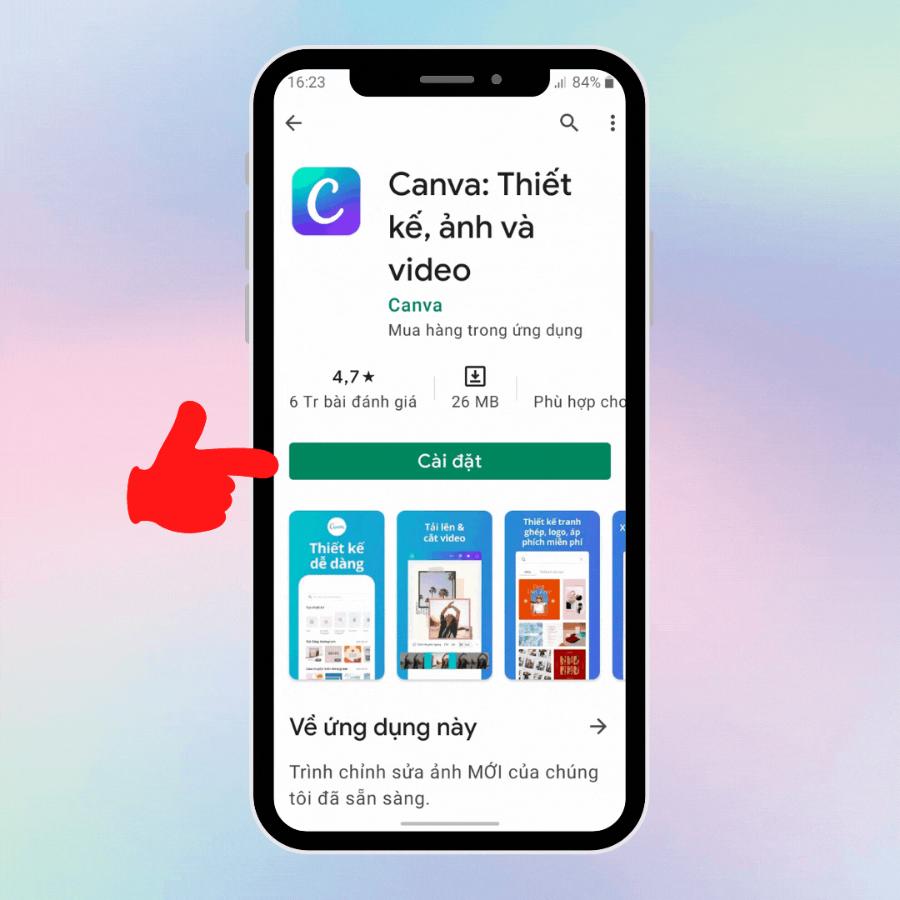
4.1. Choosing the background and determining the drawing size
Start a new project by choosing a suitable blank space size or using a pre-made template from the system. Choosing the right size from the beginning ensures that images display accurately, without cropping or blurring, when uploaded to online platforms.
4.2. Utilizing a library of ready-made design templates to optimize time.
Utilizing pre-made templates is the smartest approach for those without professional art skills. Simply apply filters based on your desired theme, choose your favorite template as a core foundation before delving into detailed editing.
4.3. Change the content, colors, and fonts as desired.
Tap directly on each element on the screen to customize it. The toolbar at the bottom will display features to change the font, adjust the size, recolor, or apply shadow effects to the text to enhance the message's appeal.
5. Advanced tips and tricks for using Canva on your phone.
Beyond the basics, applying the following tips will help you transform your phone into a truly professional design studio.
5.1. Techniques for locking objects to prevent unintended layout shifts
Manipulating a small touchscreen makes it easy for your fingers to accidentally shift the position of beautifully aligned elements. Select the object, swipe the bottom toolbar to the right, and tap the padlock icon to securely fix its position.
5.2. Utilizing the feature to collect color codes from real-world images.
Color harmony is a core element of beautiful design. When you add an image to your drawing, the application automatically analyzes and extracts a corresponding color palette from the image itself, making it easy for you to choose text colors that harmonize with the overall space.
5.3. Applying artificial intelligence to intelligent photo editing.
Leveraging the AI tools integrated directly into the mobile version delivers an incredibly amazing experience. You can easily remove unwanted objects, expand the frame using AI, or transform text into unique images with just a few short commands.
6. Appvip.ai - A reputable platform providing Canva Premium accounts and support tools.
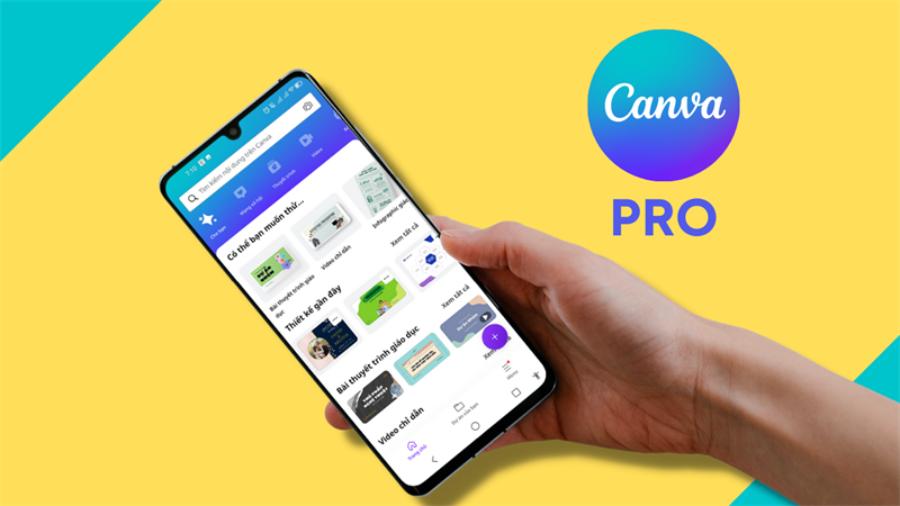
For content creators looking to push boundaries, appvip.ai is the ideal destination to upgrade their account to the Pro version at an incredibly affordable price. The website specializes in providing premium account solutions, allowing users to fully unlock millions of copyrighted images, exclusive fonts, and advanced image processing features powered by artificial intelligence, delivering the smoothest and most sophisticated design experience right on their mobile devices.
7. How to export and share high-quality designs from your phone.
The final step in the creative process is to save the work to the computer in the most suitable format for various uses.
7.1. Download photos to your device's album at maximum resolution.
The downward arrow icon in the upper right corner of the screen allows you to quickly save images to your device's memory. For advanced quality customization, users should select the "Download" option, choosing PNG format for high-resolution images or JPG if they want to save storage space.
7.2. Share directly to social media platforms
Direct links between the app and social networks allow you to upload products with just one tap. Designs can be sent directly to Facebook Stories, Instagram feeds, or directly via Zalo or Messenger for customer approval without the need for intermediate file storage.
8. Conclusion
The Canva mobile app has truly broken down traditional barriers, making graphic design more accessible and easier than ever before. With an optimized interface, a vast and constantly updated resource library, and powerful AI support, it's undoubtedly an indispensable tool for any salesperson, media professional, or student in the digital age. Mastering its use and making it your daily companion will help you improve your work efficiency and realize your unique and creative ideas quickly and effectively!