Best Selling Products

Adobe Photoshop Copyright - Full App
120 USD

ChatGPT Plus Account (GPT-4)
16 USD

MidJourney Account
29 USD

Upgrade genuine Capture One account
120 USD

Autodesk All App Account Copyright
120 USD

Plugin Retouch4me
69 USD

Copyright Adobe Lightroom Account
59 USD

Freepik Premium Account
59 USD

Windows 10 & 11 Pro Key
36 USD

Capcut Pro 1 Year
39 USD

Upgrade Genuine Office 365
49 USD

Upgrade Duolingo Super
29 USD

Genuine Adobe Illustrator account
99 USD

Genuine Cheap Canva Pro
39 USD

Adobe Premiere Pro Account
99 USD
A comprehensive guide to troubleshooting Microsoft 365 login errors on Windows.
Nội dung
- 1. Causes of Microsoft 365 login errors
- 2. Instructions for troubleshooting Microsoft 365 login issues using the Get Help app.
- Step 1: Open the Get Help app.
- Step 2: Launch the Microsoft 365 Troubleshooter
- Step 3: Wait for the system to perform the automatic check.
- Step 4: Implement the suggested fixes.
- 3. Additional troubleshooting steps if you are still unable to log in.
- 4. Tips to help reduce Microsoft 365 login errors
- 5. When should I contact Microsoft support?
- 6. Tips for a more stable Microsoft 365 login.
- 7. Conclusion
A Microsoft 365 login error on Windows can prevent you from using Word, Excel, PowerPoint, Outlook, or other Microsoft cloud services.
1. Causes of Microsoft 365 login errors
There are many reasons why users might be unable to log in to Microsoft 365, ranging from network connection issues to account configuration errors or Windows authentication system issues.
One of the most common causes is an unstable internet connection. When the network is interrupted, too slow, or blocked by firewalls, VPNs, or proxies from connecting to Microsoft servers, the authentication process cannot be completed.
Additionally, the authentication token may expire or become faulty after a period of use. In that case, Microsoft 365 will request re-authentication, but sometimes this process malfunctions, resulting in a login failure message or a continuous prompt to enter the password.
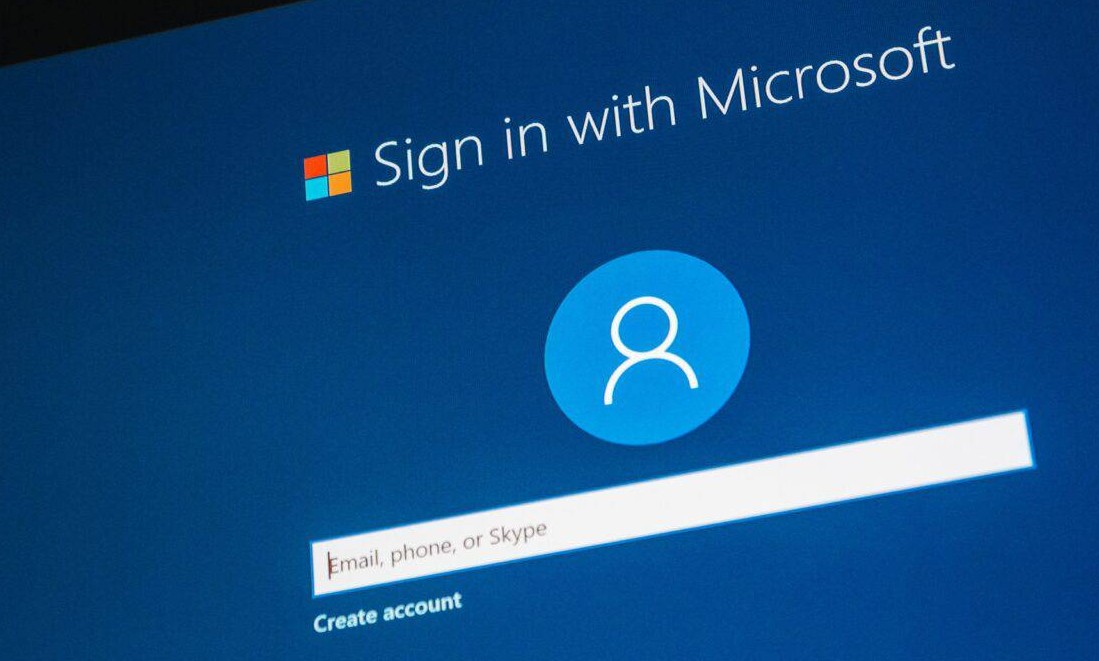
Other issues arise from account configurations on the computer no longer being synchronized with the Microsoft server. This often happens after users change their passwords, enable two-factor authentication (MFA), switch administrator accounts, or change the organization's security policies.
Credentials stored in Windows Credential Manager can also conflict if a user logs in with multiple Microsoft accounts on the same device. In that case, Office may use the wrong login credentials or be unable to identify the primary account.
In addition to the reasons above, login errors can also stem from an outdated version of Microsoft 365, faulty Office applications, incorrect system date and time, unactivated licenses, or temporary issues on Microsoft's servers.
Identifying the correct cause will help speed up the troubleshooting process and avoid unnecessary reinstallation of Microsoft 365.
2. Instructions for troubleshooting Microsoft 365 login issues using the Get Help app.
Microsoft has integrated the Get Help application into Windows 10 and Windows 11 to help users automatically diagnose and fix many common errors, including Microsoft 365 login issues. This tool helps check the system, verify account status, and suggest appropriate solutions without requiring much technical expertise.
Step 1: Open the Get Help app.
In the Windows search bar, type " Get Help " and then open the application.
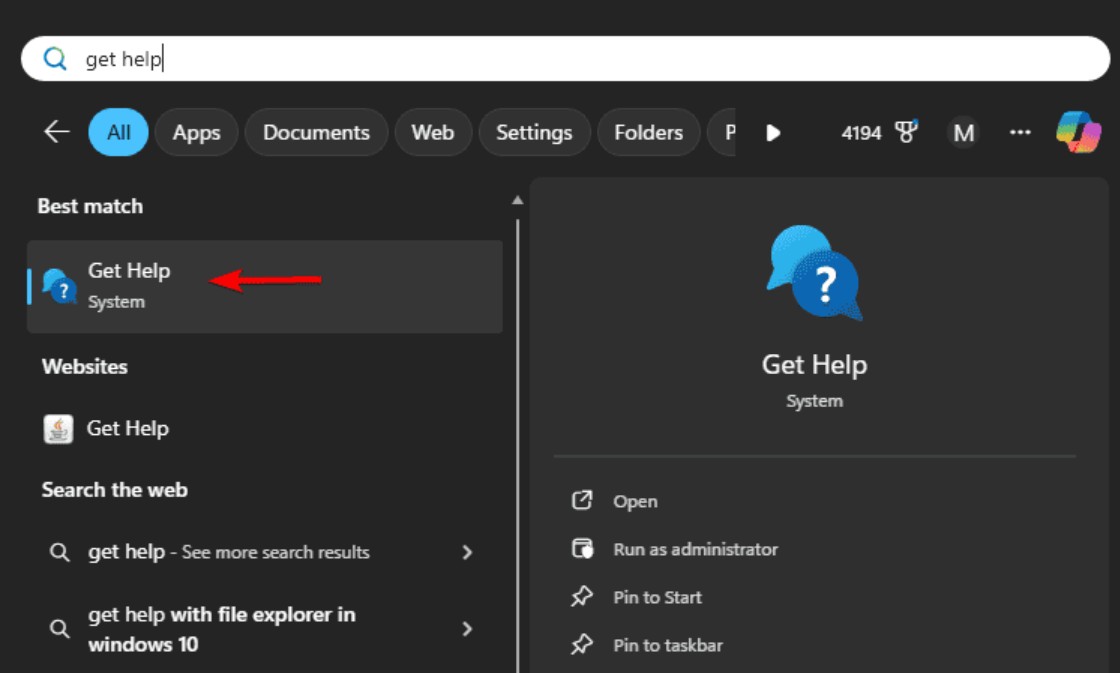
After launching, ensure your computer is connected to the internet so the tool can contact Microsoft support and download the latest diagnostic steps.
Step 2: Launch the Microsoft 365 Troubleshooter
In the search box of the Get Help app, type " Microsoft 365 sign-in " .
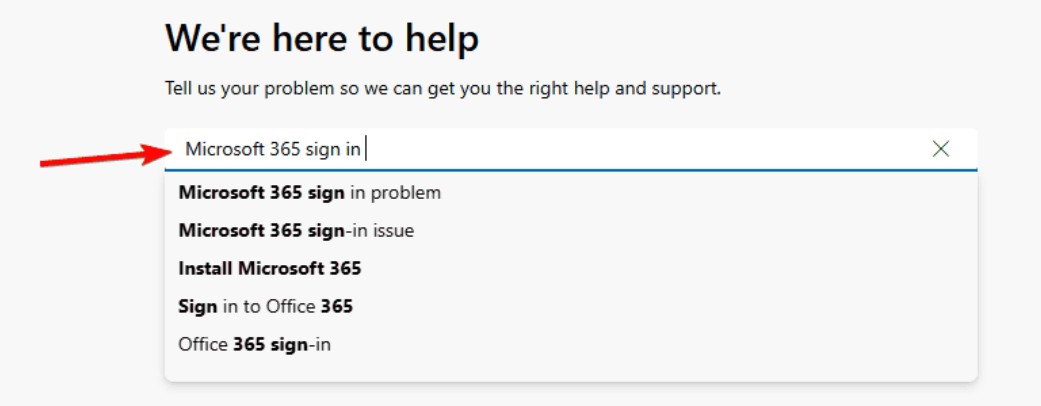
From the list of results, select Troubleshoot Microsoft 365 login issues to begin the automated checking process.
The tool will request certain necessary permissions to analyze system configuration and Microsoft account. Users simply need to confirm to continue.
Step 3: Wait for the system to perform the automatic check.
After starting, Get Help will perform a series of checks to identify the cause of the error.
First, the tool will check the internet connection to ensure the computer can connect to Microsoft's authentication servers.
Next, the system verifies the login status, checks the authentication token, Microsoft 365 license, and account access permissions.
If it detects Office activation errors, conflicts between multiple Microsoft accounts, or unusual background service activity, Get Help will automatically record these issues and suggest solutions.
In some cases, the tool will check the version of Office being used and suggest an update if it detects an outdated installation.
Step 4: Implement the suggested fixes.
After the analysis is complete, Get Help will display solutions corresponding to the detected errors.
Depending on the situation, the system may suggest resetting the login status, refreshing credentials, clearing login cache, fixing Microsoft 365 activation errors, or restarting related services.
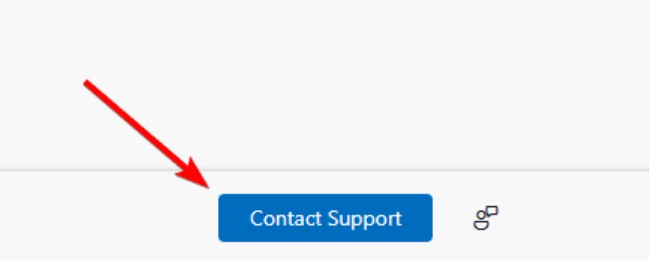
If the problem is more serious, users will be directed to the Microsoft Support and Recovery Assistant (SaRA) for a more in-depth repair process. This tool can automatically check the configuration of Office, Outlook, Teams, and many other Microsoft services to fix complex errors that Get Help cannot handle.
After completing the entire process, restart your computer and log back into Microsoft 365 to check the results.
3. Additional troubleshooting steps if you are still unable to log in.
If Get Help doesn't resolve the issue, you can try some other methods before reinstalling Microsoft 365.
First, completely log out of all Office applications such as Word, Excel, PowerPoint, Outlook, and Teams, then log back in using the correct authorized account.
Next, open Credential Manager on Windows and delete any saved Microsoft credentials if you suspect they are corrupted or conflicting.
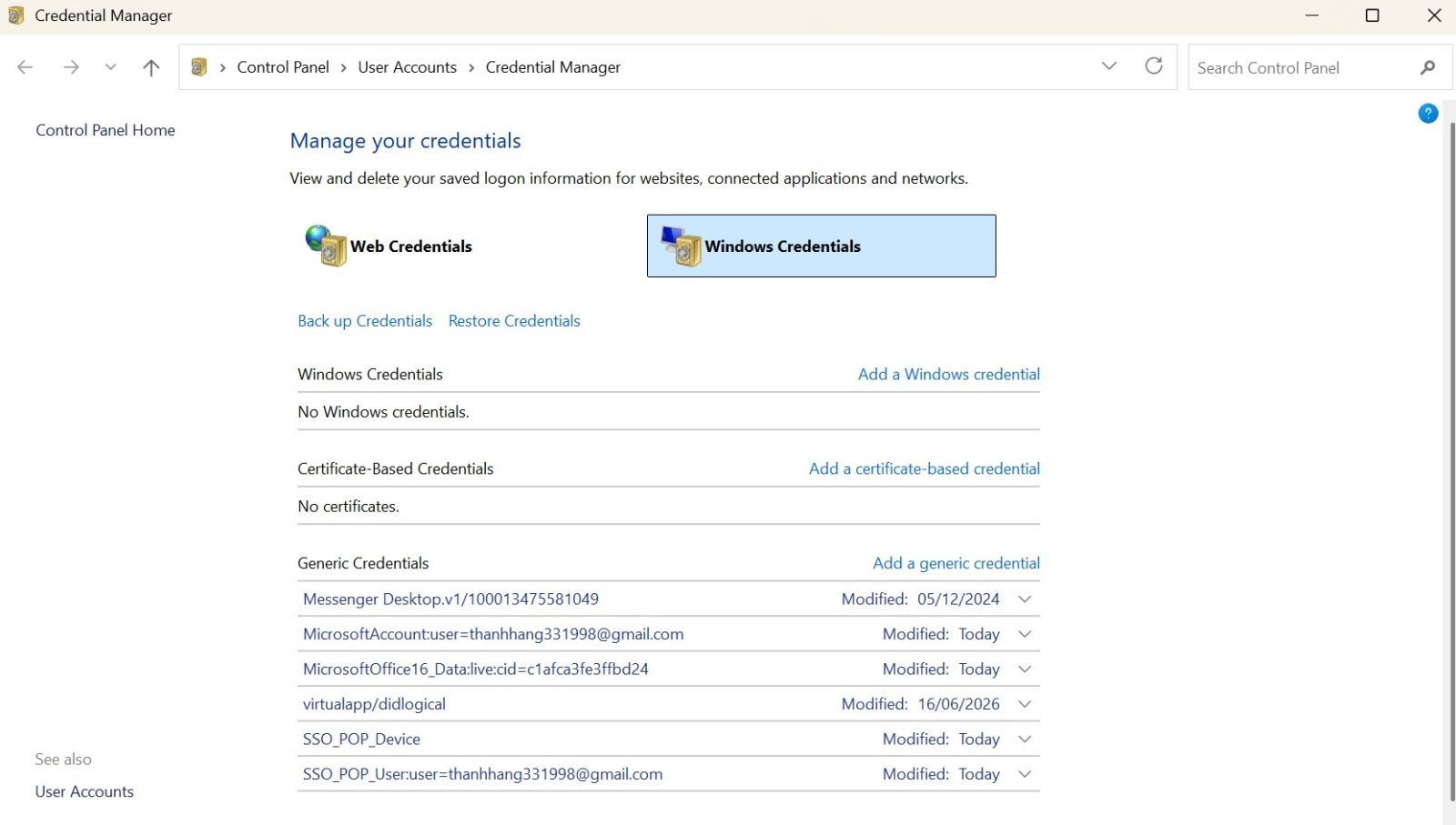
You should also update Microsoft 365 to the latest version through Office Update to ensure that all security patches and bug fixes are fully installed.
If using a business or school account, check if the account has been disabled by an administrator, requires multi-factor authentication (MFA), or has had its security policy changed.
If you're using a VPN or proxy, try temporarily disabling them and then logging back in to rule out the possibility of connecting to a blocked Microsoft server.
4. Tips to help reduce Microsoft 365 login errors
To reduce the risk of recurring login issues, users should regularly update Windows and Microsoft 365 to the latest versions. Updates not only add features but also fix many authentication and security vulnerabilities.
Additionally, check your computer's date, time, and time zone settings. Time discrepancies can render security certificates or authentication codes invalid, leading to login errors.
Users should also avoid logging in with too many Microsoft accounts simultaneously on the same device unless absolutely necessary. This helps reduce the risk of authentication conflicts between Office applications.

If using computers in a business environment, adhere to the organization's security policies and do not modify system configurations without instructions from an administrator.
5. When should I contact Microsoft support?
If you've tried all the above methods but still can't log in to Microsoft 365, the problem is most likely related to your account or the server system.
In this case, check if the Microsoft 365 service is experiencing widespread issues. Also, prepare information such as your account email address, the error message displayed, and the version of Windows and Microsoft 365 you are using to expedite the support process.

For business or school accounts, users should contact their organization's IT department or Microsoft 365 administrator to have their access rights checked and account configured.
6. Tips for a more stable Microsoft 365 login.
To ensure a stable experience with Microsoft 365, prioritize using a reliable internet connection and avoid logging in on too many devices simultaneously if unnecessary. This reduces the risk of login session conflicts or authentication errors when switching between devices.
At the same time, you should enable two-factor authentication (MFA) to enhance account security, store login information securely, and regularly check for security alerts from Microsoft. If you detect unusual login activity, change your password immediately and log out of devices you are no longer using.
You should also update Windows and Microsoft 365 to the latest versions to receive security patches and login bug fixes. Clearing the cache, regularly updating Office, and restarting your computer after major updates also helps to reduce many errors that occur during login and usage.
Additionally, regularly check your system's date, time, and time zone, as this information directly affects the Microsoft account authentication process. If using a VPN or proxy, ensure proper configuration or temporarily disable it if login errors occur to avoid disrupting your connection to Microsoft servers.
Finally, it's best to use one primary Microsoft account for all Microsoft 365 apps on the same device, and avoid saving too much outdated credentials in Windows Credential Manager.
7. Conclusion
Microsoft 365 login errors on Windows can stem from a variety of causes, ranging from network connectivity issues, authentication credentials, and account configuration to software or system errors. However, most problems can be resolved through the Get Help application , combined with troubleshooting steps recommended by Microsoft.
Proactively updating Windows and Microsoft 365, properly managing accounts, and implementing preventative measures will help ensure a more stable login process. If you encounter complex errors related to your business account or license, contact Microsoft support or your system administrator for prompt assistance to avoid work interruptions.





















VIP Products








Best Selling Products
Adobe Photoshop Copyright - Full App
120 USD
ChatGPT Plus Account (GPT-4)
16 USD
MidJourney Account
29 USD
Upgrade genuine Capture One account
120 USD
Autodesk All App Account Copyright
120 USD
Plugin Retouch4me
69 USD
Copyright Adobe Lightroom Account
59 USD
Freepik Premium Account
59 USD
Windows 10 & 11 Pro Key
36 USD
Capcut Pro 1 Year
39 USD
Upgrade Genuine Office 365
49 USD
Upgrade Duolingo Super
29 USD
Genuine Adobe Illustrator account
99 USD
Genuine Cheap Canva Pro
39 USD
Adobe Premiere Pro Account
99 USD