Best Selling Products

Adobe Photoshop Copyright - Full App
120 USD

Windows 10 & 11 Pro Key
36 USD

Upgrade Genuine Office 365
49 USD

Genuine Adobe Illustrator account
99 USD

Plugin Retouch4me
69 USD

Adobe Premiere Pro Account
99 USD

Upgrade Duolingo Super
29 USD

Capcut Pro 1 Year
39 USD

Autodesk All App Account Copyright
120 USD

Genuine Cheap Canva Pro
39 USD

MidJourney Account
29 USD

Copyright Adobe Lightroom Account
59 USD

Upgrade genuine Capture One account
120 USD

Freepik Premium Account
59 USD

ChatGPT Plus Account (GPT-4)
16 USD
A guide on how to easily and quickly change the language in Adobe Photoshop for all versions.
Nội dung
- 1. Information about Adobe Photoshop
- 2. Why do I need to change the language in Adobe Photoshop?
- 3. Instructions on how to easily change the language in Adobe Photoshop.
- Step 1: Open the Adobe Creative Cloud application on your computer.
- Step 2: Open Preferences
- Step 3: Select the Apps tab
- Step 4: Change the settings language.
- Step 5: Uninstall and reinstall Photoshop
- Step 6: Test the interface in Photoshop
- Step 7: Select the user interface language.
- Step 8: Restart Photoshop
- 4. Important notes when changing the language in Adobe Photoshop
- 5. Should I use English or Vietnamese?
- 6. Conclusion
Want to change the language in Adobe Photoshop to Vietnamese or English but don''t know where to start? This article will guide you step-by-step on how to change the language according to Adobe''s recommendations.
1. Information about Adobe Photoshop
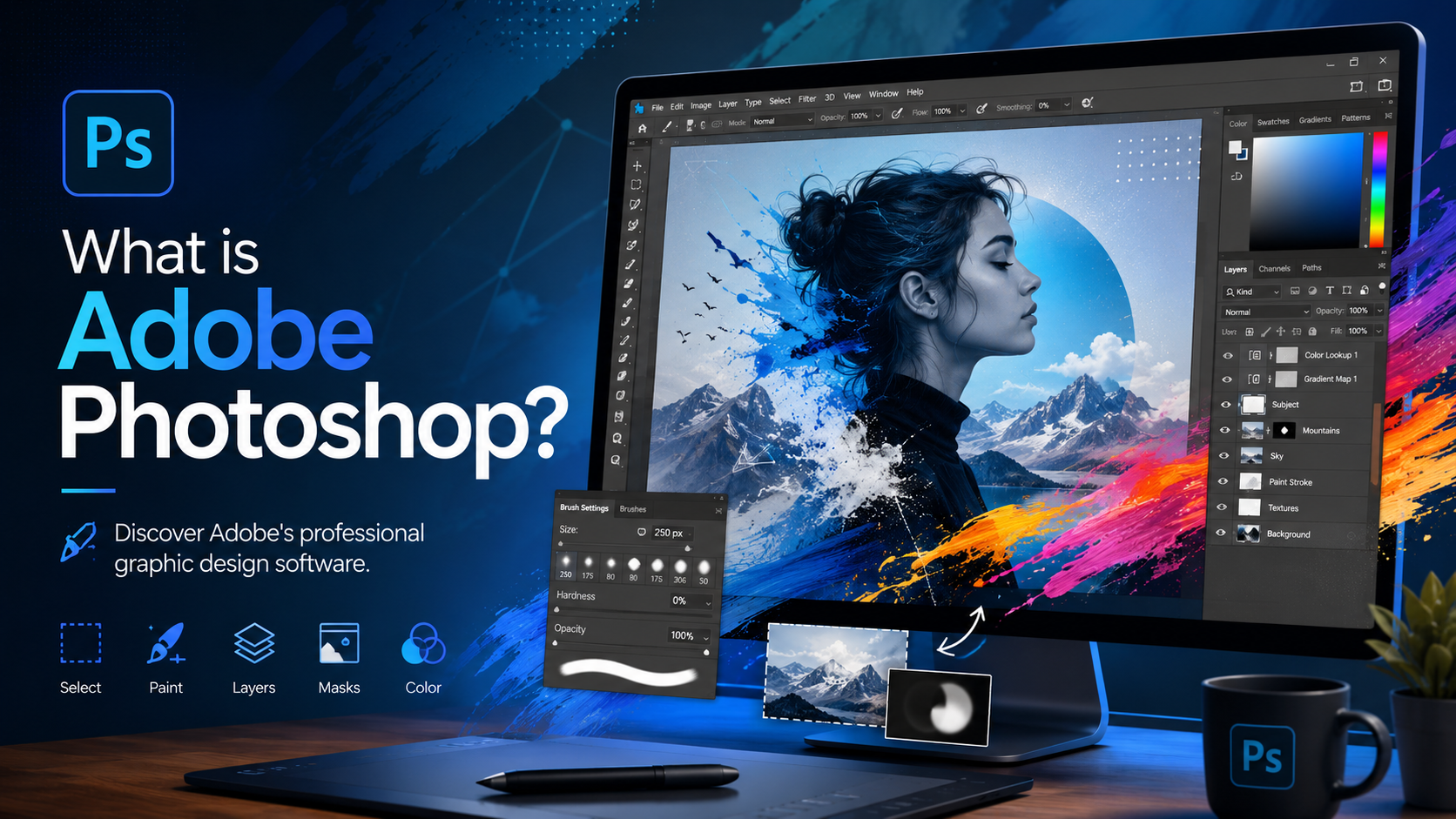
Adobe Photoshop is professional photo editing and graphic design software developed by Adobe . Launched in 1990, Photoshop has become the leading standard in image processing, widely used by photographers, designers, marketers, content creators, and businesses worldwide.
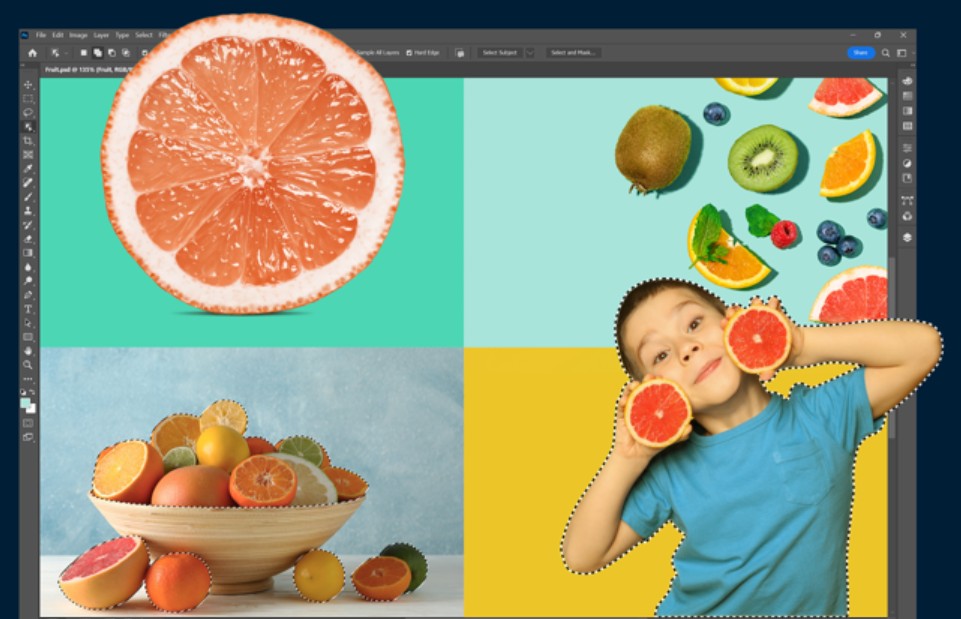
With Photoshop, users can perform a variety of tasks such as photo editing, image cropping and merging, banner, poster, logo, website interface design, digital illustration, old photo restoration, and creating professional media products. Adobe also continuously updates the software with new technologies, especially AI-powered features like Generative Fill, Remove Tool, Generative Expand, and Firefly, making the design process faster and more efficient.
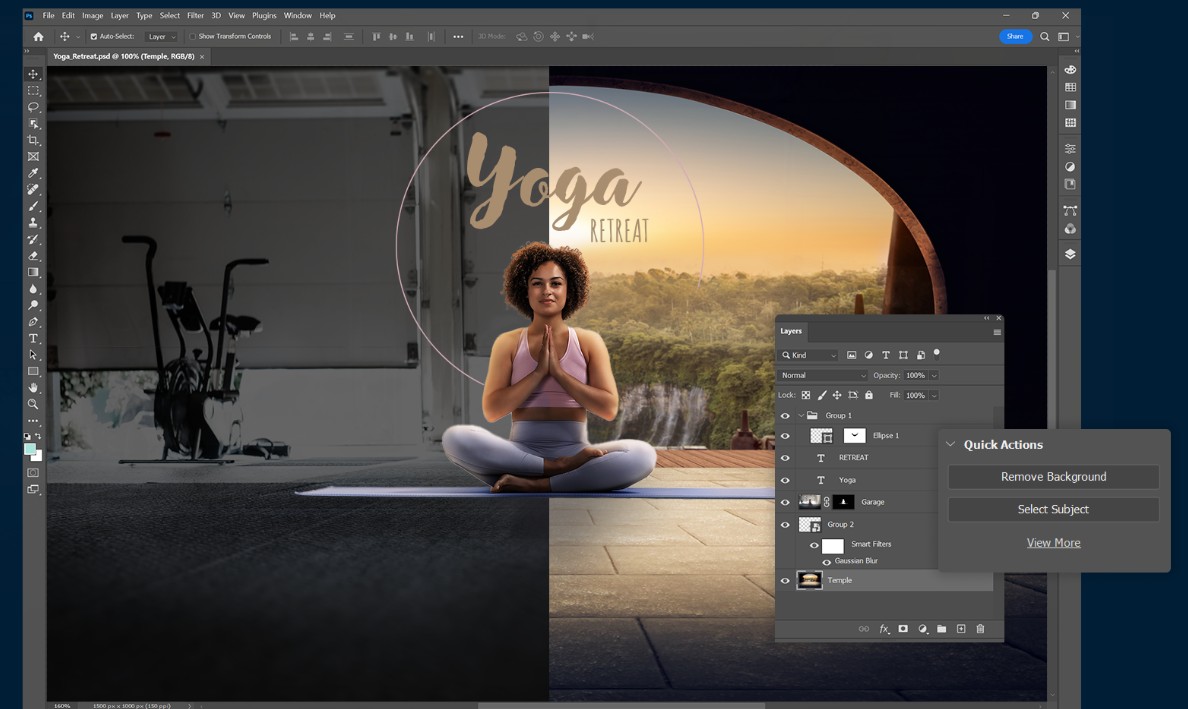
One of the standout advantages of Adobe Photoshop is its rich ecosystem with thousands of plugins, presets, actions, and design resources from the international community. In addition, Photoshop seamlessly integrates with other software in the Adobe Creative Cloud suite, such as Illustrator, Lightroom, Premiere Pro, After Effects, and Adobe Express, creating a seamless workflow for creative projects.
Currently, Adobe Photoshop supports many different languages, including English, and some versions support Vietnamese. Users can easily change the interface language to suit their learning, work, or technical terminology needs. Choosing the right language not only makes operation more convenient but also supports the process of learning Photoshop, searching for documentation, and using new features effectively.
2. Why do I need to change the language in Adobe Photoshop?
For those new to design, a Vietnamese interface can make getting familiar with the tools easier. When the names of each function are displayed in their native language, users can quickly understand the purpose of each tool without having to look it up too much.
However, the majority of professional designers, photographers, and creative professionals prefer using Photoshop in English. This stems from several practical benefits in both their studies and work.
First of all, English makes it easier to find tutorials. Most in-depth Photoshop courses, YouTube tutorials, experience-sharing articles, and official Adobe documentation use an English interface. When the software interface matches the documentation, you can easily follow each step without wasting time comparing tool names.
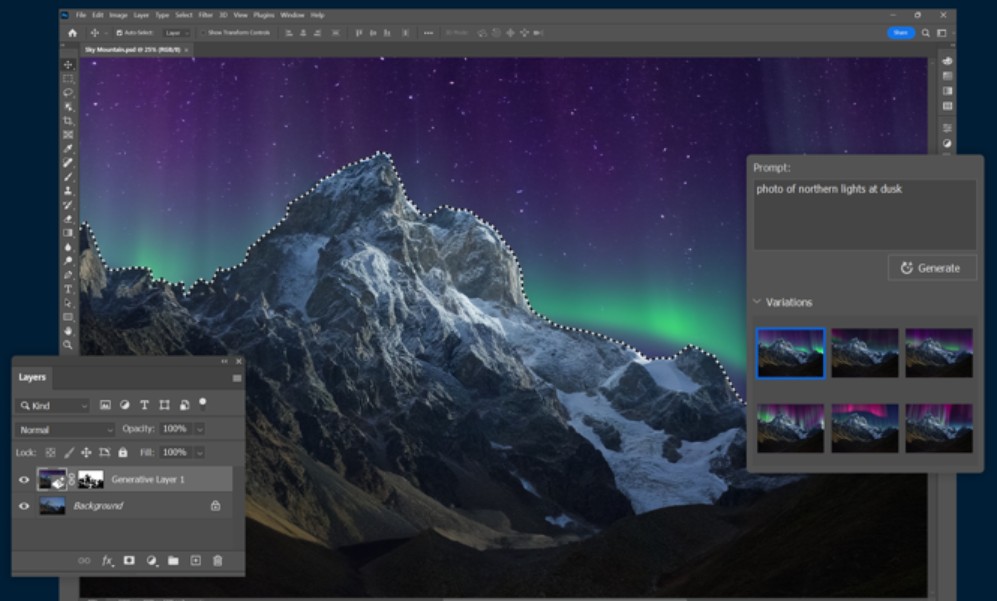
Furthermore, most plugins, presets, actions, and extensions for Photoshop are developed with an English interface. Using the English version will minimize display errors and make it easier to install and use extended tools from the international community.
Another benefit is software stability. Adobe typically releases new features first on the English interface. Especially with AI-powered tools like Generative Fill, Generative Expand, or Firefly features, the English version is usually optimized and updated sooner.
Furthermore, if you work for foreign companies or collaborate with international clients, English is almost the standard. Using an English interface facilitates smoother communication and avoids misunderstandings when providing instructions or sharing design processes.
3. Instructions on how to easily change the language in Adobe Photoshop.
Adobe recommends that users change the language through the Adobe Creative Cloud application. This is the official, secure method and ensures the software runs stably after the change.
Step 1: Open the Adobe Creative Cloud application on your computer.
First, open the Adobe Creative Cloud application installed on your computer. This is the central management hub for all Adobe software such as Photoshop, Illustrator, Premiere Pro, Lightroom, and many others.
If you're not already logged in, please use your Adobe account to sign in before continuing.
Step 2: Open Preferences
After successfully logging in, click on your profile icon in the upper right corner of the screen.
In the menu that appears, select "Preferences" to open the Adobe Creative Cloud settings window.
This is where you can change many general settings, including the language settings for Adobe applications.
Step 3: Select the Apps tab
In the Preferences window, find and click the "Apps" tab in the left-hand menu.
This section contains settings related to installing, updating, and managing the language of Adobe software.
Step 4: Change the settings language.
Under "Default install language" , you will see a list of languages supported by Adobe.
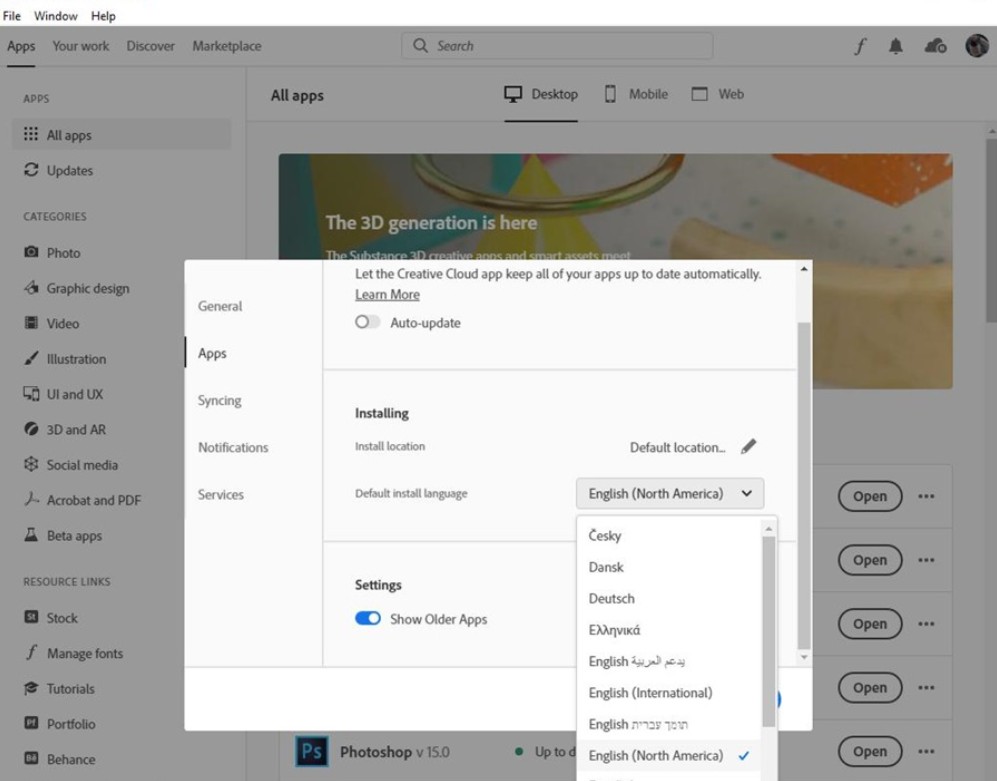
Choose the language you want to use, such as English or Vietnamese, if your version of Photoshop supports it.
Once you've made your selection, Adobe Creative Cloud will save the default language settings for the next installation.
Step 5: Uninstall and reinstall Photoshop
If Photoshop was previously installed on the computer, changing the language will not be applied automatically.
You need to complete the following two steps:
-
Uninstall your current Photoshop application.
-
Reinstall the software to apply the language change.
This is a mandatory step according to Adobe's guidelines to ensure the entire interface is converted correctly.
Step 6: Test the interface in Photoshop
After the installation process is complete, open Adobe Photoshop.
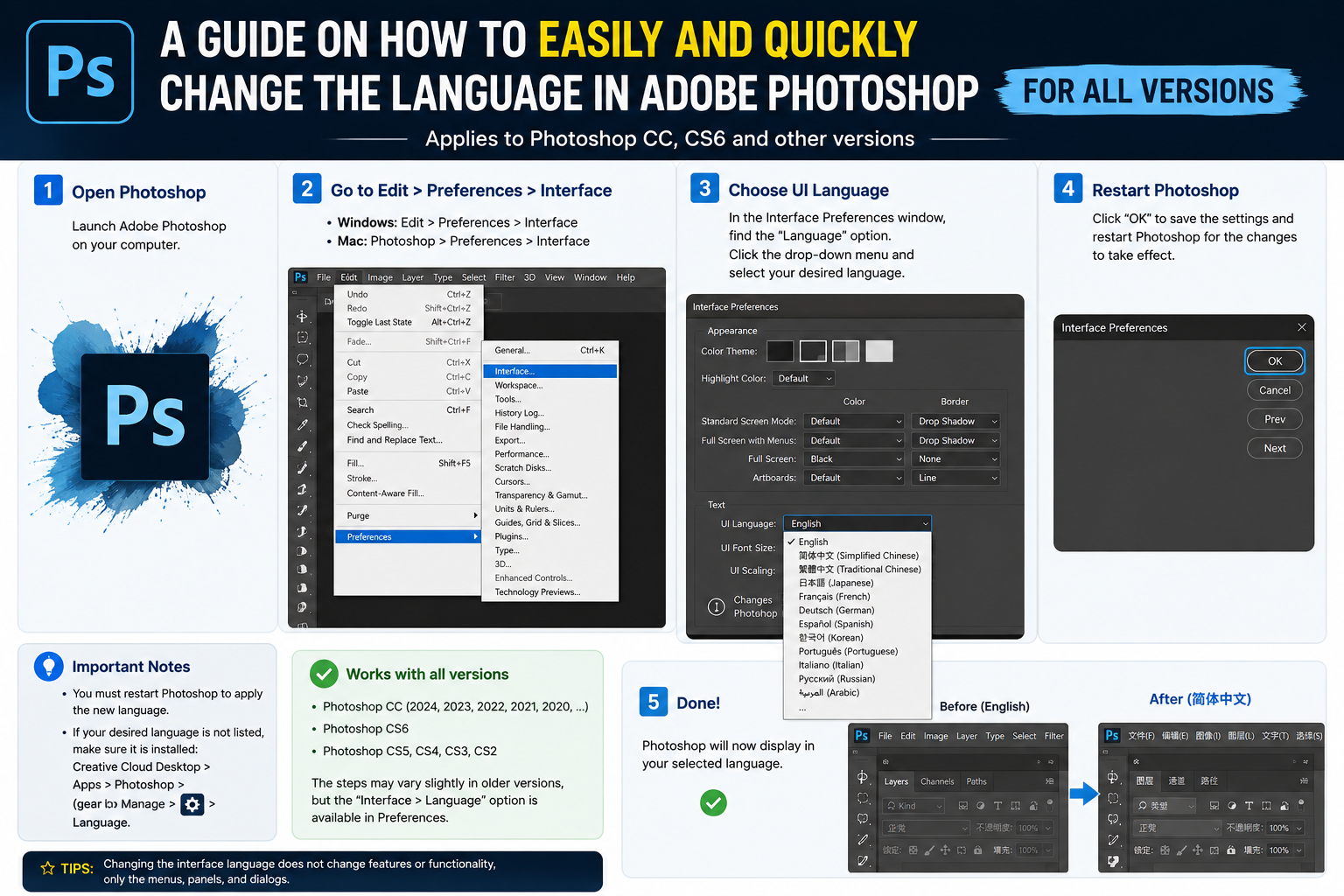
Next, navigate to the following path: Edit > Preferences > Interface
This is the interface management area of Photoshop.
Step 7: Select the user interface language.
In the Interface window, look for "User Interface Language" or "UI Language" depending on the version you are using.
Click on the dropdown menu and select your desired language.
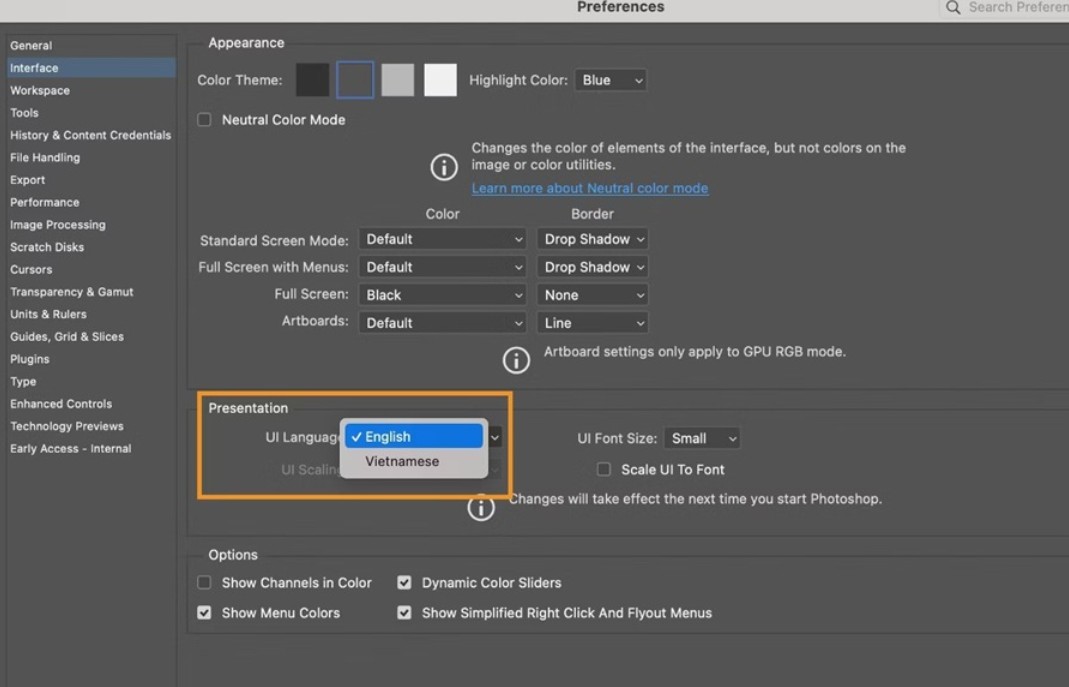
If your version of Photoshop supports multiple languages, the options will appear directly in this list.
Step 8: Restart Photoshop
After selecting your language, close Photoshop and restart the software.
When you reopen it, the entire interface will switch to the new language you have set.
Restarting is the final step to ensure the changes take full effect.
4. Important notes when changing the language in Adobe Photoshop
The language switching process is generally quite simple; however, there are some important points you should keep in mind to avoid errors during use.
First, not all versions of Photoshop support Vietnamese. Some older versions or portable versions may only offer certain languages. In that case, you won't see the Vietnamese option in the language list.
Additionally, when changing the interface language, some third-party plugins or extensions may display incorrectly or experience compatibility issues. If you frequently use specialized plugins, check compatibility before switching.
English remains Adobe's preferred language for support. It's also a common language in the global design community. Therefore, if your goal is in-depth learning, freelancing, or working with international clients, maintaining an English interface will offer many long-term benefits.
For new AI tools like Generative Fill, Firefly, and other AI-powered features, Adobe typically optimizes them for the English version first. Some features may be updated more slowly or may not fully function in other languages.
5. Should I use English or Vietnamese?
There is no one-size-fits-all approach. Whether to use English or Vietnamese will depend on individual proficiency, learning goals, and work environment.
If you're a beginner, the Vietnamese interface will make getting acquainted with Photoshop easier. You can quickly recognize the function of each tool, menu, and control panel without having to memorize too many technical terms right from the start.
However, after mastering the basic operations, you should gradually switch to the English interface. This helps you become familiar with international terminology, avoiding having to relearn tool names when consulting documentation or taking advanced courses.
For professional designers, English is almost the optimal choice. It's the most commonly used language in tutorials, design communities, plugins, presets, and international collaborative projects. If your computer is primarily used for work, using Photoshop in English will offer many long-term advantages.
6. Conclusion
Follow the instructions carefully to change the language through Adobe Creative Cloud to ensure a safe and stable transition. Once set up to suit your needs, you'll have a more efficient work experience and easier access to a wealth of design knowledge from the global community.





















VIP Products








Best Selling Products
Adobe Photoshop Copyright - Full App
120 USD
Windows 10 & 11 Pro Key
36 USD
Upgrade Genuine Office 365
49 USD
Genuine Adobe Illustrator account
99 USD
Plugin Retouch4me
69 USD
Adobe Premiere Pro Account
99 USD
Upgrade Duolingo Super
29 USD
Capcut Pro 1 Year
39 USD
Autodesk All App Account Copyright
120 USD
Genuine Cheap Canva Pro
39 USD
MidJourney Account
29 USD
Copyright Adobe Lightroom Account
59 USD
Upgrade genuine Capture One account
120 USD
Freepik Premium Account
59 USD
ChatGPT Plus Account (GPT-4)
16 USD