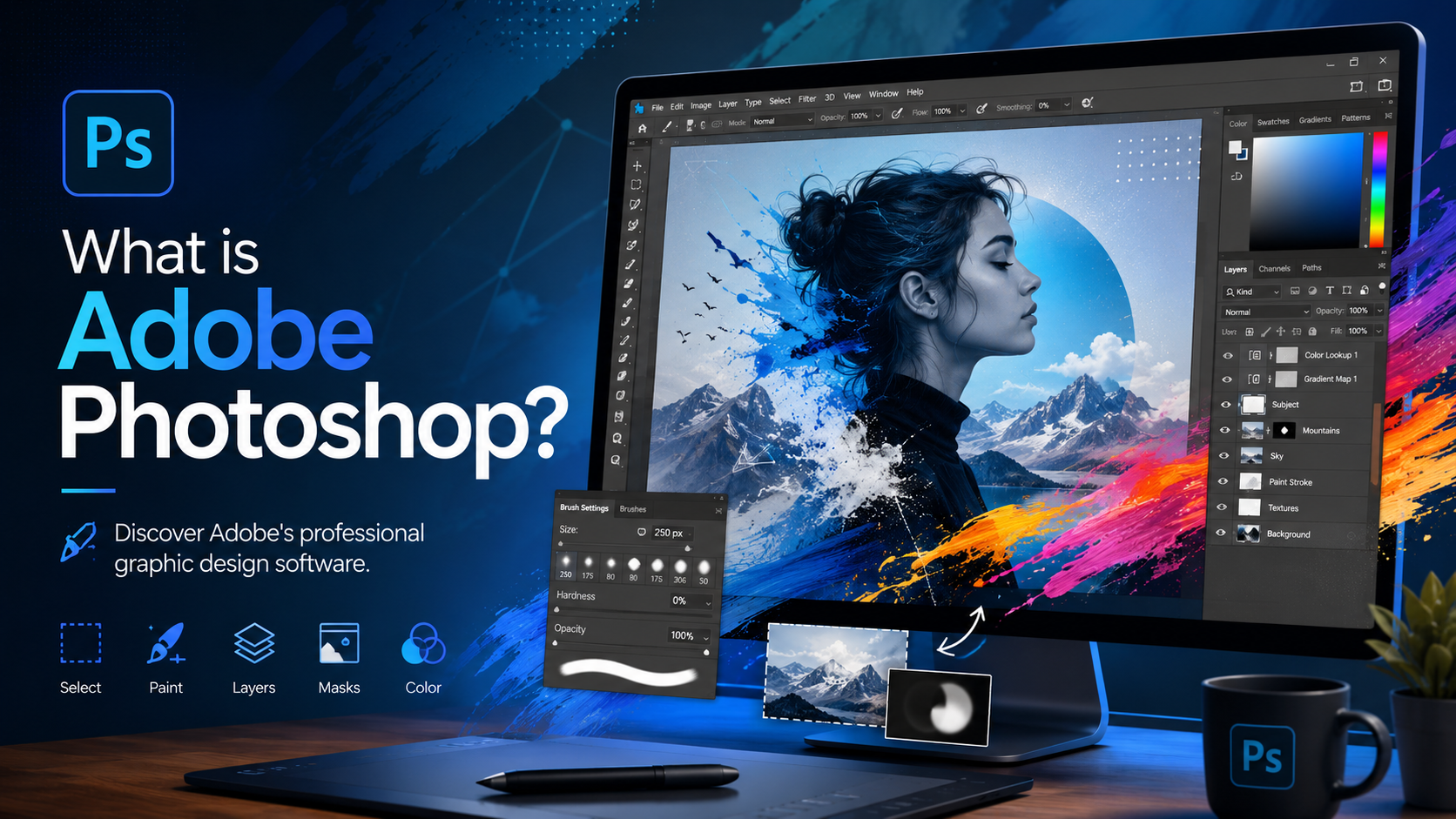
Best Selling Products

Genuine Cheap Canva Pro
39 USD

Upgrade genuine Capture One account
120 USD

Copyright Adobe Lightroom Account
59 USD

Freepik Premium Account
59 USD

Autodesk All App Account Copyright
120 USD

Adobe Photoshop Copyright - Full App
120 USD

ChatGPT Plus Account (GPT-4)
16 USD

Capcut Pro 1 Year
39 USD

Upgrade Duolingo Super
29 USD

Windows 10 & 11 Pro Key
36 USD

Adobe Premiere Pro Account
99 USD

Genuine Adobe Illustrator account
99 USD

Upgrade Genuine Office 365
49 USD

MidJourney Account
29 USD

Plugin Retouch4me
69 USD
Lightroom vs. Photoshop: Which software should you use for photo editing?
Nội dung
- 1. Overview of Lightroom and Photoshop Comparison
- 2. When should I use Lightroom?
- 2.1. Professional Photo Library Management
- 2.2. Quick and synchronized image editing
- 2.3. Non-destructive editing of data
- 3. When should you use Photoshop?
- 3.1. Retouching and In-depth Editing
- 3.2. Working with Layers
- 4. Can Lightroom and Photoshop be used together?
- 5. Should I choose Lightroom or Photoshop?
- 6. Conclusion
Adobe Lightroom and Adobe Photoshop are both powerful photo editing software, but each tool is designed for entirely different purposes.

1. Overview of Lightroom and Photoshop Comparison
Lightroom and Photoshop are both members of the Adobe Creative Cloud ecosystem, both using Adobe's leading image processing technology, but designed for different tasks.
Lightroom focuses on managing image libraries, batch processing, and color and lighting adjustments in a post-production workflow for photography. It's a tool that helps users work with large numbers of images scientifically and efficiently.
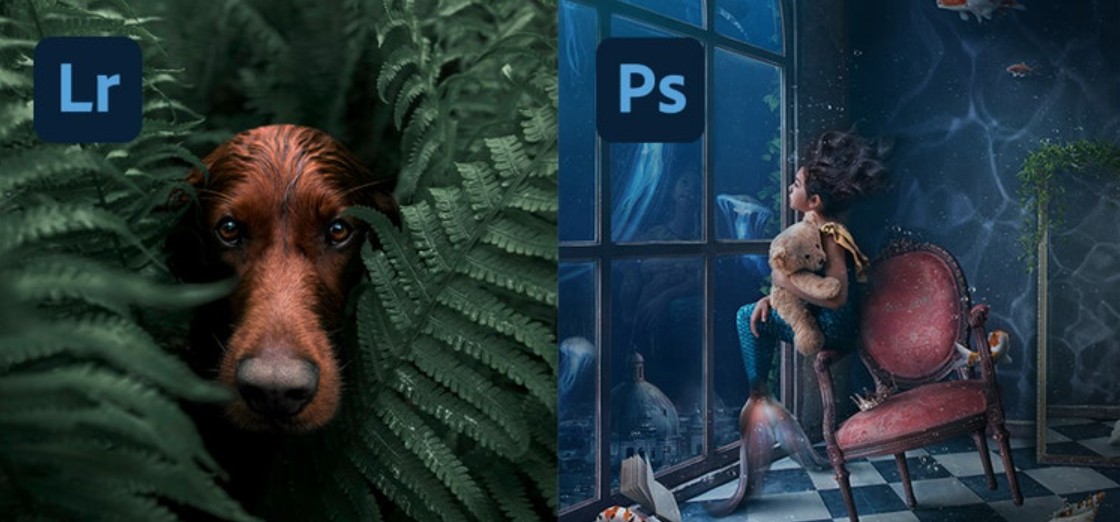
Meanwhile, Photoshop is advanced image editing software that allows direct manipulation of every pixel of an image. Beyond photo editing, Photoshop also supports graphic design, creating effects, image manipulation, digital illustration, and many other creative tasks.
While Lightroom optimizes the post-production image processing workflow, Photoshop transforms creative ideas into reality with its powerful editing tools. Therefore, many professionals often use both software programs on the same project instead of choosing just one.
2. When should I use Lightroom?
Lightroom can be considered the starting point in a professional photo post-processing workflow. The software was developed specifically for photographers with the goal of helping them manage, select, and edit large numbers of images quickly.
Adobe currently offers two versions: Lightroom and Lightroom Classic. Lightroom Classic runs on computers and stores data locally on a hard drive or external hard drive. Lightroom, on the other hand, uses a cloud storage platform, allowing for photo synchronization between computers, tablets, and phones, making it easy for users to continue working from anywhere.
Thanks to its flexible synchronization capabilities, Lightroom is suitable for people who frequently work on multiple devices or need to access their photo library from various locations.
2.1. Professional Photo Library Management
One of Lightroom's biggest advantages is its ability to manage photos.
For photographers, each photoshoot can produce hundreds or thousands of images. Without an efficient management system, searching for and selecting photos would be extremely time-consuming.
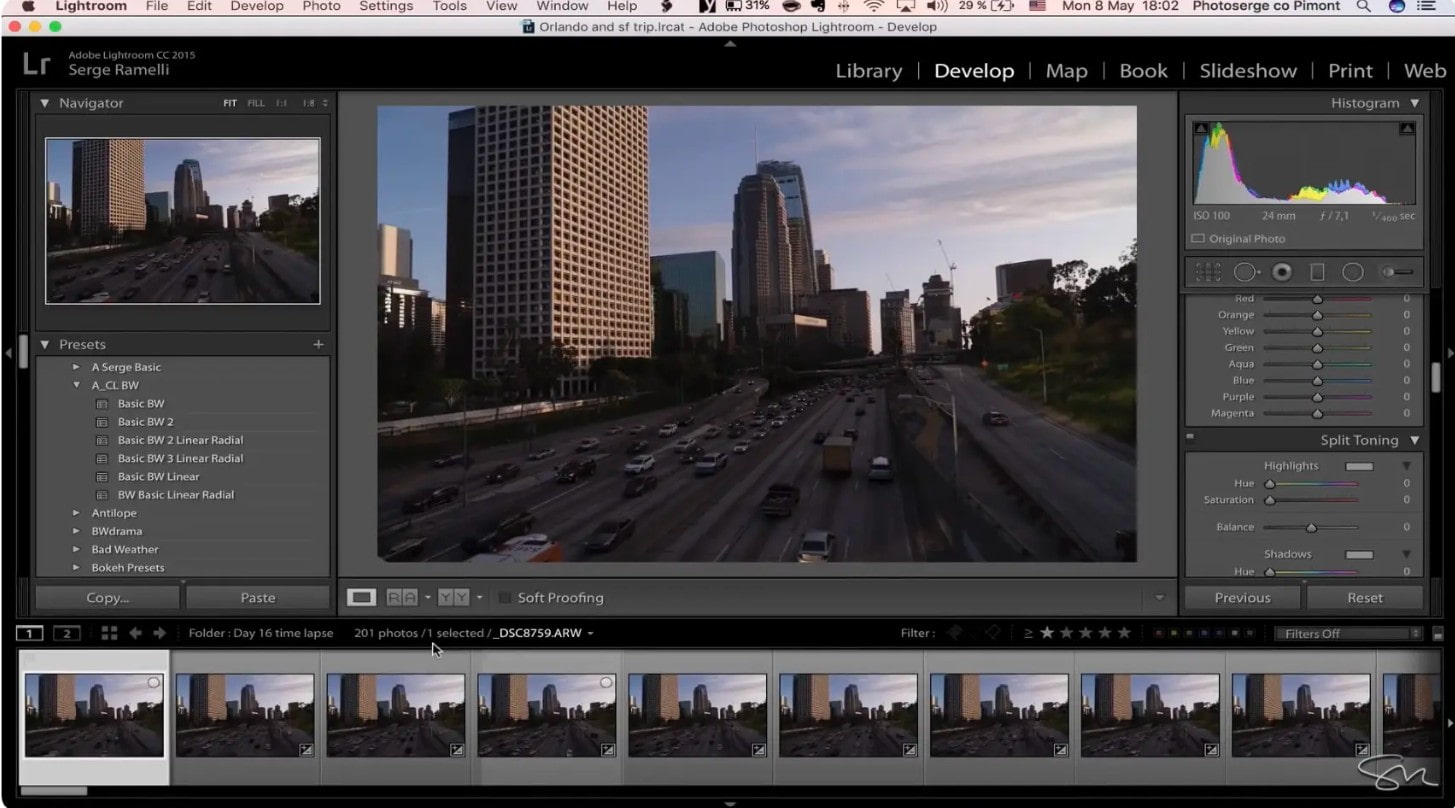
Lightroom addresses this problem with its Catalog system, which functions like a digital library. Users can import all their photos into the software and organize them into albums, collections, or individual projects.
In addition, Lightroom allows you to rate photos with stars, flag them, add keywords, and use a search tool to quickly identify the right photo for editing. This makes the workflow more efficient and saves considerable time.
For those who frequently shoot events, weddings, travel, or product photos, Lightroom's image management capabilities are virtually irreplaceable.
2.2. Quick and synchronized image editing
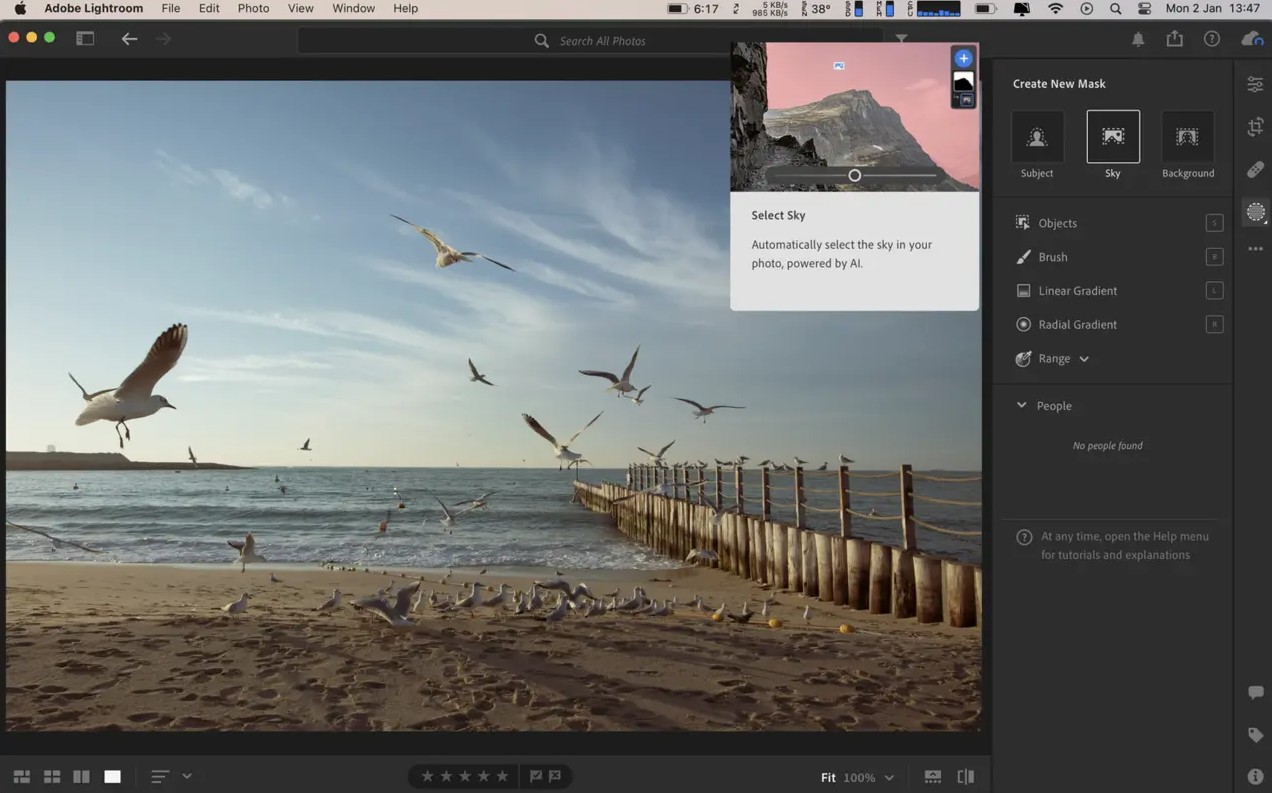
After importing photos into Lightroom, users can move to the Develop area to begin the post-processing stage.
Here, the software provides a full range of essential editing tools such as white balance, brightness adjustment, color, contrast, highlights, shadows, sharpness, noise reduction, perspective correction, and the addition of creative effects.
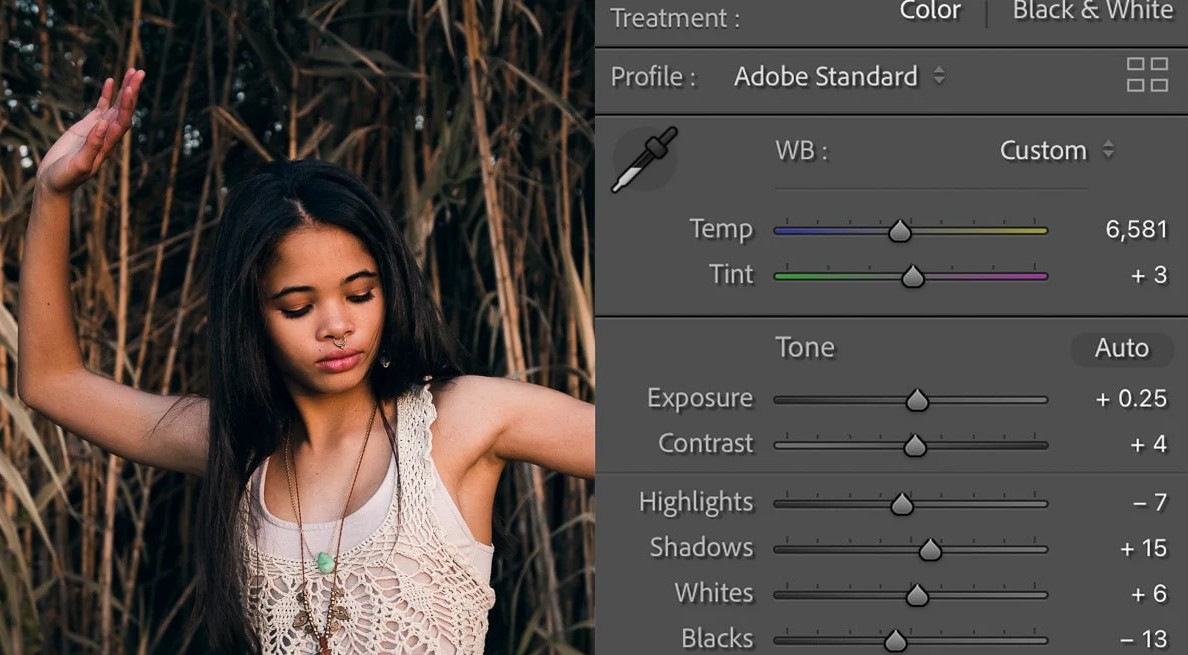
One of Lightroom's standout features is Presets. These are pre-saved editing settings that can be applied to one or more photos with just one click. Users can create their own presets or download them from the community to speed up the processing workflow.
Lightroom also supports batch editing, allowing you to apply the same set of settings to hundreds of photos. This feature is especially useful for wedding photos, events, or product photos that need to maintain consistency in color and style.
Additionally, Lightroom still offers many portrait editing tools such as teeth whitening, red-eye reduction, blemish removal, and the Healing Brush for handling fine details without having to switch to Photoshop.
2.3. Non-destructive editing of data
Another important advantage of Lightroom is its ability to perform non-destructive editing.
All changes are saved as parameters, while the original image remains unchanged. Users can go back to any point to adjust or restore the original image without losing quality.
Lightroom is especially effective when working with RAW images. This format contains more data than JPEG, allowing for the recovery of highlights and shadows and flexible color adjustments while maintaining image quality.
3. When should you use Photoshop?
Photoshop is the top choice when you need to delve deep into the details of an image or create entirely new works from various image sources. It's a tool widely used by retouching professionals, designers, digital artists, advertising professionals, and creative artists.
3.1. Retouching and In-depth Editing
Photoshop offers more powerful tools than Lightroom for changing the content and appearance of images.
You can remove unwanted objects using Content-Aware technology, replace the sky, combine multiple photos into a complete artwork, or create surreal images using compositing techniques.
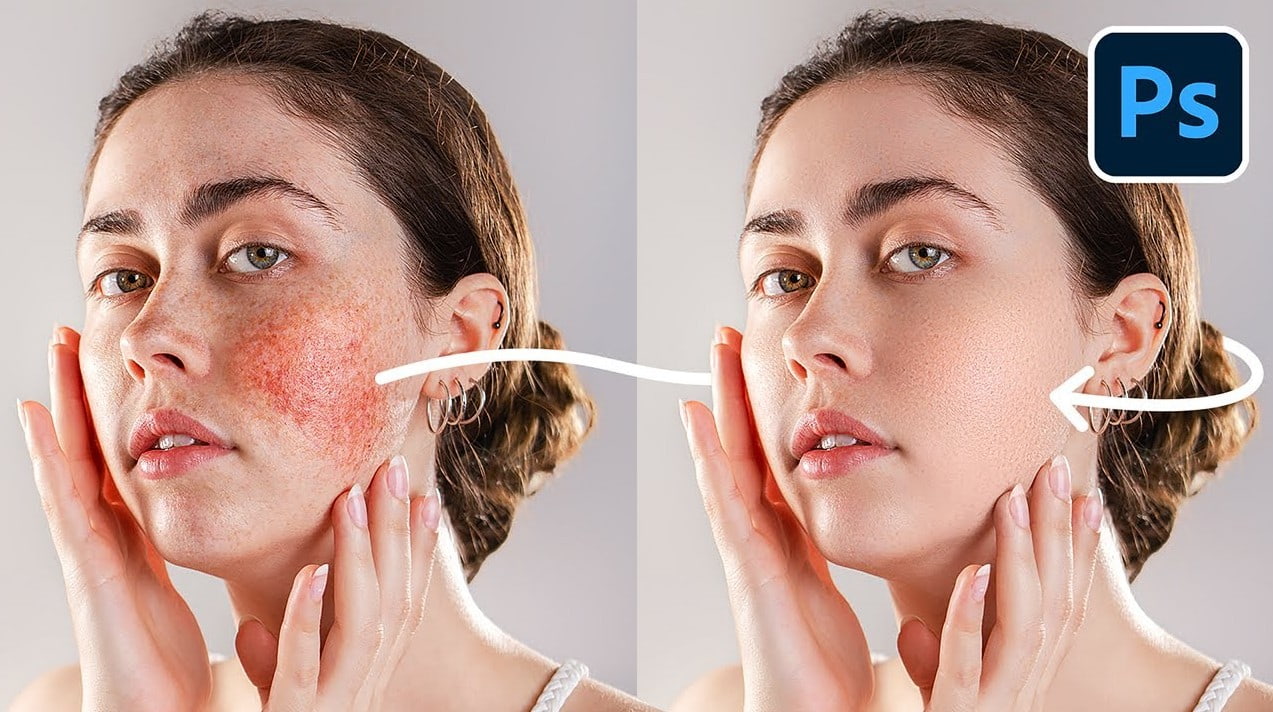
In addition, Photoshop allows you to combine images with text, vector graphics, and many other design elements. This is why the software is widely used in designing posters, banners, advertisements, and other media products.
Newer versions also integrate AI tools like Generative Fill and Generative Expand, making adding, deleting, or expanding image content faster than ever before.
3.2. Working with Layers
Layers are a crucial foundation that gives Photoshop its power.
Unlike Lightroom, which uses general adjustment sliders for the entire image, Photoshop allows you to divide an image into separate layers for independent editing.
Each layer can contain a different object, effect, or color adjustment. Users can use layer masks to control the display area, combine smart objects for non-destructive editing, and easily make changes as needed.
For example, you can create a layer to adjust the white balance, another layer to change the sky, add a layer for lighting effects, and many other additional layers while still preserving the original image data.
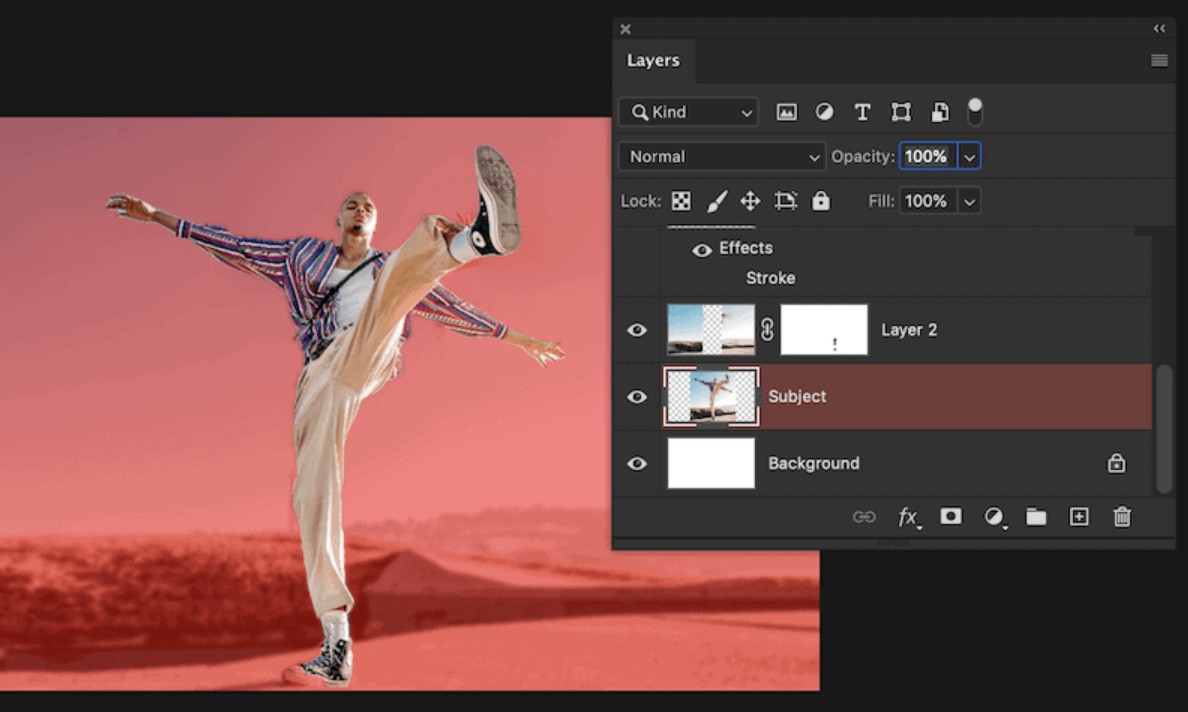
Although the Layer system requires some getting used to, it is an indispensable tool in any professional photo editing process.
4. Can Lightroom and Photoshop be used together?
The answer is yes, and this is also the process used by most professional photographers.
Typically, the workflow begins in Lightroom. Users import all their photos, organize them, evaluate them, select the best ones, and then perform basic edits such as white balance, lighting, color, and cropping.
Then, for photos requiring more in-depth processing, Lightroom allows direct transfer to Photoshop via the Edit in Photoshop command (or the keyboard shortcut Command + E on macOS, Control + E on Windows).
In Photoshop, users can continue retouching skin, removing objects, merging images, adding effects, or processing complex details. When saved, the file automatically returns to the Lightroom library for further management and publishing.
This process helps to maximize the strengths of both software programs, ensuring both processing speed and high image quality.
5. Should I choose Lightroom or Photoshop?
The choice depends on your career goals and creative style.
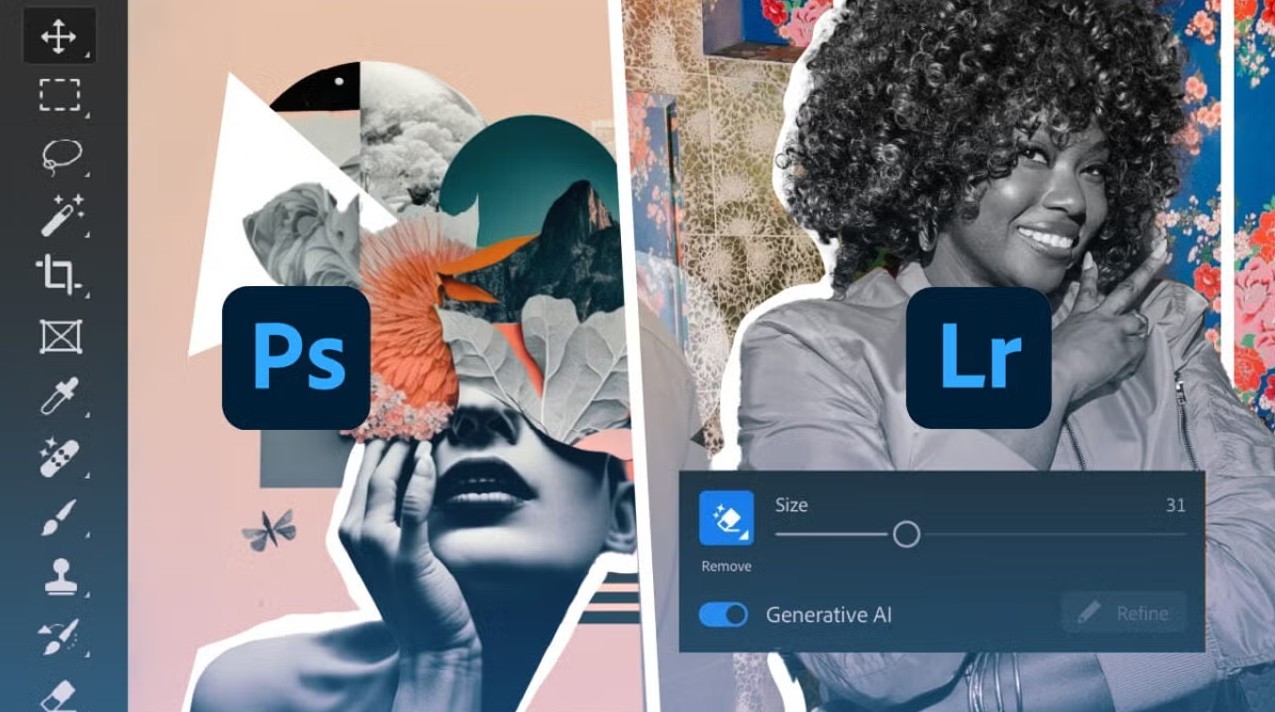
If you're a photographer who frequently handles large volumes of photos, Lightroom is a suitable choice thanks to its library management capabilities, batch editing, and synchronization across multiple devices.
If you are a designer, a retouching expert, or need to edit images at an advanced level, Photoshop will be a better fit with its Layers, Masks, Smart Objects, and powerful editing tools.
For beginners, Lightroom is often easier to learn thanks to its intuitive interface and simple editing workflow. Photoshop, on the other hand, has a higher learning curve but offers significantly more creative possibilities.
In fact, many content creators, photographers, and studios today use a combination of both Lightroom and Photoshop to build a complete post-production workflow.
6. Conclusion
Instead of viewing them as two alternatives, think of them as two links in the same workflow. Starting with Lightroom for basic organization and editing, then switching to Photoshop for more in-depth processing, will help you maximize the power of the Adobe ecosystem. By understanding the role of each software, you can easily choose the right tools and build a more efficient and professional photo editing workflow.





















VIP Products








Best Selling Products
Genuine Cheap Canva Pro
39 USD
Upgrade genuine Capture One account
120 USD
Copyright Adobe Lightroom Account
59 USD
Freepik Premium Account
59 USD
Autodesk All App Account Copyright
120 USD
Adobe Photoshop Copyright - Full App
120 USD
ChatGPT Plus Account (GPT-4)
16 USD
Capcut Pro 1 Year
39 USD
Upgrade Duolingo Super
29 USD
Windows 10 & 11 Pro Key
36 USD
Adobe Premiere Pro Account
99 USD
Genuine Adobe Illustrator account
99 USD
Upgrade Genuine Office 365
49 USD
MidJourney Account
29 USD
Plugin Retouch4me
69 USD