Best Selling Products

Adobe Premiere Pro Account
99 USD

Genuine Adobe Illustrator account
99 USD

Adobe Photoshop Copyright - Full App
120 USD

Genuine Cheap Canva Pro
39 USD

Upgrade genuine Capture One account
120 USD

Autodesk All App Account Copyright
120 USD

Freepik Premium Account
59 USD

Plugin Retouch4me
69 USD

Windows 10 & 11 Pro Key
36 USD

MidJourney Account
29 USD

Capcut Pro 1 Year
39 USD

Upgrade Genuine Office 365
49 USD

Upgrade Duolingo Super
29 USD

Copyright Adobe Lightroom Account
59 USD

ChatGPT Plus Account (GPT-4)
16 USD
A guide to creating beautiful event posters using AI with Canva Craft in just a few minutes.
Nội dung
- 1. What is an event poster created using AI with Canva Craft?
- 2. What preparations are needed before creating an event poster using AI with Canva Craft?
- 3. How to create event posters using AI with Canva Craft
- 4. Event poster creation prompt template using AI with Canva Craft
- 5. Things to note when creating event posters using AI with Canva Craft
- 6. Conclusion
A visually appealing poster not only makes an event look professional but also conveys a message and attracts attention. Instead of manually searching for images, coordinating colors, or designing every detail, you can now leverage artificial intelligence to transform your ideas into a visual publication in minutes. With Canva Craft, users can create images based on descriptions, proactively control the layout, and combine editing tools to perfect the design. This article from Sadesign will provide detailed instructions on how to create event posters using AI with Canva Craft, from preparation to final publication, even if you have little design experience.
1. What is an event poster created using AI with Canva Craft?
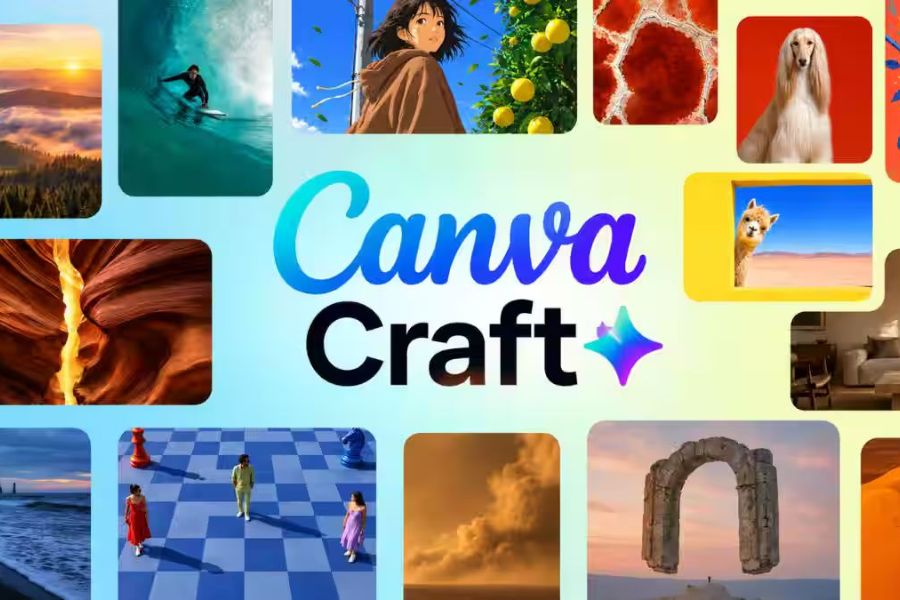
Canva Craft is an image creation tool integrated into Canva's Dream Lab, supporting users in building illustrations based on descriptive commands. Instead of designing everything from scratch, you can input ideas about the theme, colors, style, and object arrangement, and the AI will generate a suitable image.
The advantage of this method is its ability to separate the image and text content. AI handles the creation of the background, characters, and decorative details, while important information such as the program name, time, and location are added using Canva's editing tools. As a result, the poster is both creative and ensures accurate information.
Some advantages of using Canva Craft to design posters include:
-
Create visuals based on your ideas: Transform written descriptions into illustrations that are relevant to the event's theme.
-
Versatile styles: Easily experiment with minimalist, modern, artistic, cute, or elegant styles.
-
Proactive layout: You can instruct the AI to leave space to add titles, logos, and program information.
-
Easy to edit: Users can add, delete, or change text frames without having to recreate the background.
-
Save time: Shorten the process of searching for images and brainstorming design ideas.
-
Suitable for many purposes: Posters can be used for seminars, workshops, promotions, grand openings, school events, or community activities.
2. What preparations are needed before creating an event poster using AI with Canva Craft?
Before you begin, you should clearly define the purpose and the information that needs to appear on the poster. The more thorough the preparation, the smoother the AI image creation process will be, minimizing the need for multiple edits or unsuitable layouts.
Here are the things you need to prepare:
-
Canva account: Log in to your account and check your Dream Lab access and related AI features.
-
Event theme: Determine which program the poster will be for, who the attendees are, and the desired design style.
-
Main content: Prepare the event name, time, location, contact information, and registration link if available.
-
Main colors: Choose 2 to 3 colors that match the program's theme or brand identity.
-
Design dimensions: Determine the aspect ratio according to the publication location, such as 3:4 for vertical posters or 1:1 for square posts.
-
Logo and images: Prepare your logo, brand images, or other necessary resources to incorporate into the design.
3. How to create event posters using AI with Canva Craft
After completing the preparation, you can begin designing your poster step-by-step. The process below combines Canva Craft's image creation capabilities with manual editing tools to create a visually appealing, easy-to-read, and easily updateable publication.
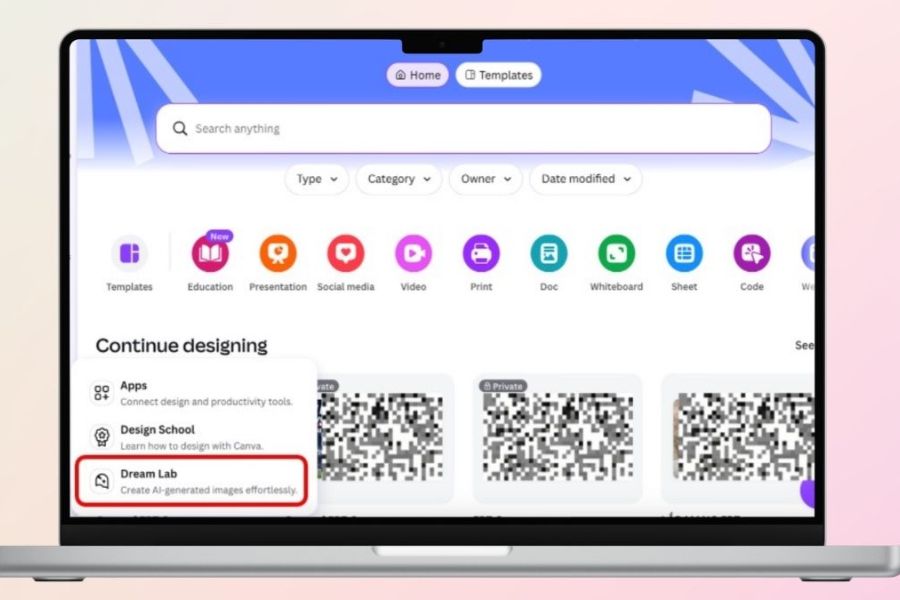
Step 1: Open the Craft tool in the Dream Lab space.
First, go to the Canva homepage and log in to your personal account. On the main interface, find the "More" section, then select "Dream Lab" to open the AI-powered image creation space. You can also access it directly at https://www.canva.com/dream-lab .
-
Check the list of image creation templates and select Craft if the feature has been granted permission.
-
Determine the appropriate aspect ratio for the poster, prioritizing 3:4 if you want a vertical design.
-
Prepare your ideas in advance for entering the command in the next step.
Step 2: Enter the prompt to create the poster background.
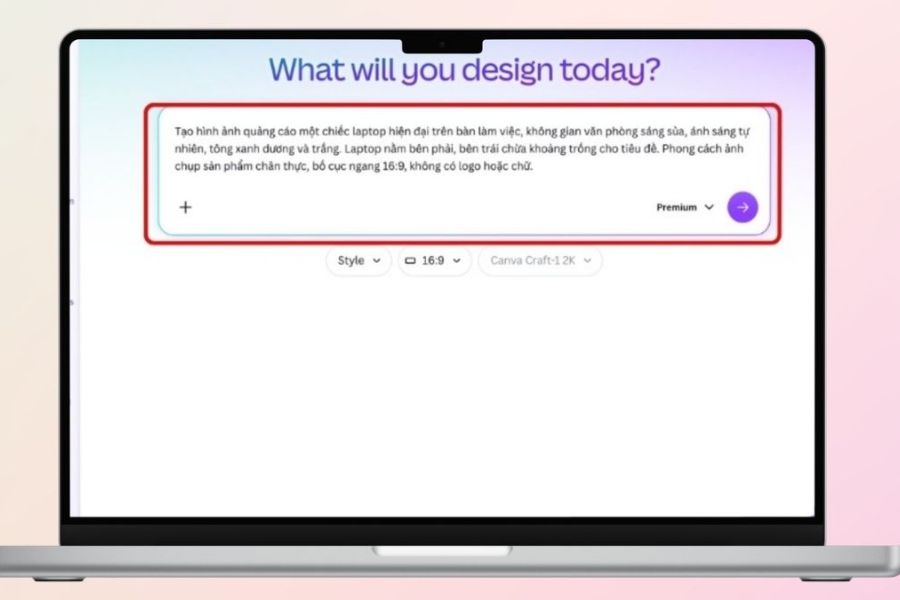
This is a crucial step that determines the overall style of the design. You need to clearly describe the event's theme, main target audience, colors, lighting, and how the details will be arranged. In particular, ask the AI to leave space in the areas where you plan to place the title and program information.
You can refer to the following prompt:
This creative workshop event poster design for young people features a modern and artistic style, using a combination of blue and white tones, with geometric decorative details and soft lighting. The layout is balanced, with the main image centered in the top half, leaving ample space in the bottom half for the title, time, and location. The image is sharp, professional, with a vertical 3:4 aspect ratio, and contains no text or logos.
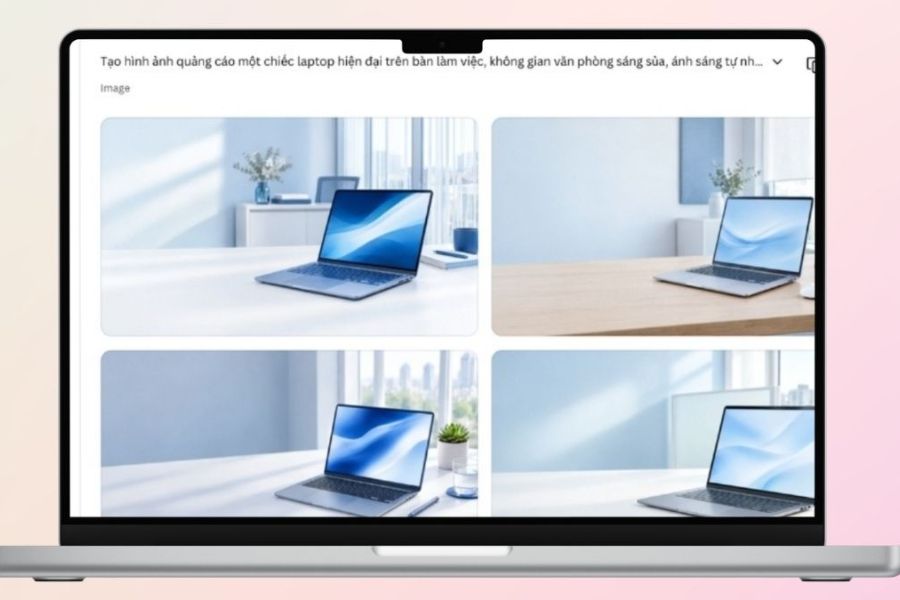
After entering the command, press create image and wait for the system to process. You should create several different options for easy comparison, then choose the image with the most harmonious and suitable composition.
Step 3: Select and refine the AI image.
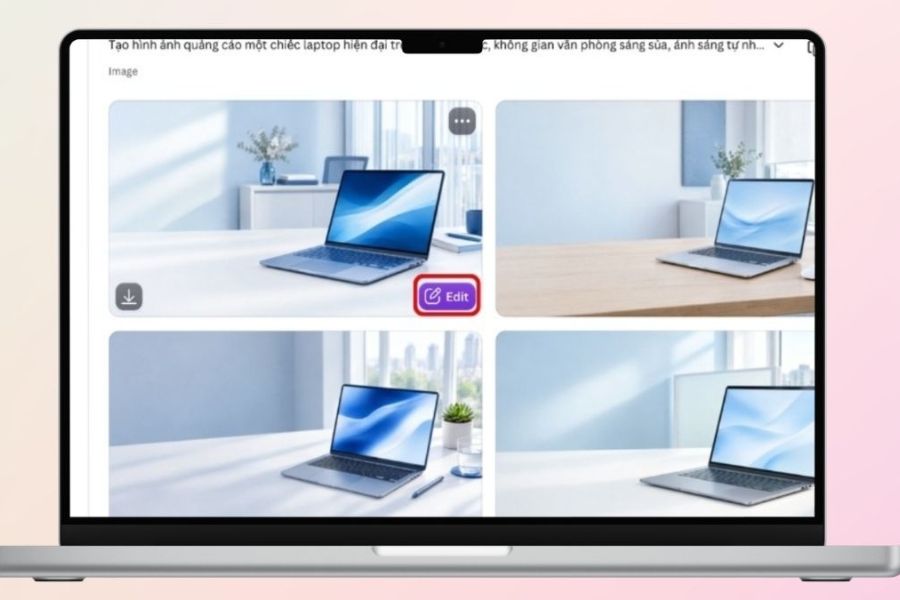
When Canva Craft returns options, take the time to examine each image instead of choosing the first result. A good wallpaper needs a clear focal point, consistent colors, and shouldn't contain too many distracting details.
Here are some criteria you should consider:
-
Do the images closely adhere to the event's theme?
-
Are the colors harmonious and appropriate for the target audience?
-
Are the decorative details distorted, warped, or overlapping?
-
Is there enough space for the title and body text?
-
Are the images of sufficient quality for use on online platforms?
If you're not satisfied, you can adjust the prompt, add a more specific description, and recreate it. It's best to prioritize background images without text to avoid spelling errors or incorrect characters generated by AI.
Step 4: Add the event title and information.
After selecting a background image, open the design in the Canva editor. Create a new design page with dimensions of 1080 x 1350 pixels, then upload the AI image and align it to fit the frame.
Next, use the Text tool to add the necessary content. You should divide the information into separate text boxes to easily change the size, color, and position.
The important information that should be included on the poster is:
-
Event name: Use a large, easy-to-read font to make an impression right from the start.
-
Main message: Add a brief introductory sentence about the program.
-
Time: Clearly state the date and time of the event so that viewers can easily follow along.
-
Location: Provide a specific address or online participation method.
-
Registration information: Add a link, QR code, or contact phone number if needed.
-
Organizer's logo: Placed in a suitable location to enhance brand recognition.
Step 5: Adjust the poster's color and layout.
Once you have all the content, you need to refine the elements to make the poster look more professional. Avoid using too many different fonts or colors, as this can easily make the design lose its unity.
Here are some tips to make your posters more attractive:
-
You should only use about 2 to 3 font styles.
-
The title should stand out more than the supplementary information.
-
Choose a font color that offers good contrast with the background.
-
Align the lettering frames along an axis to create a sense of balance.
-
Use symbols and decorative lines in moderation.
-
Maintain reasonable spacing between content to prevent the poster from looking cluttered.
Step 6: Create additional versions and export the poster.
After finalizing the main design, you can duplicate the poster to create additional versions for different media channels. For example, use the vertical 1080 x 1350 pixel version for social media posts and the square 1080 x 1080 pixel version for platforms that support this format.
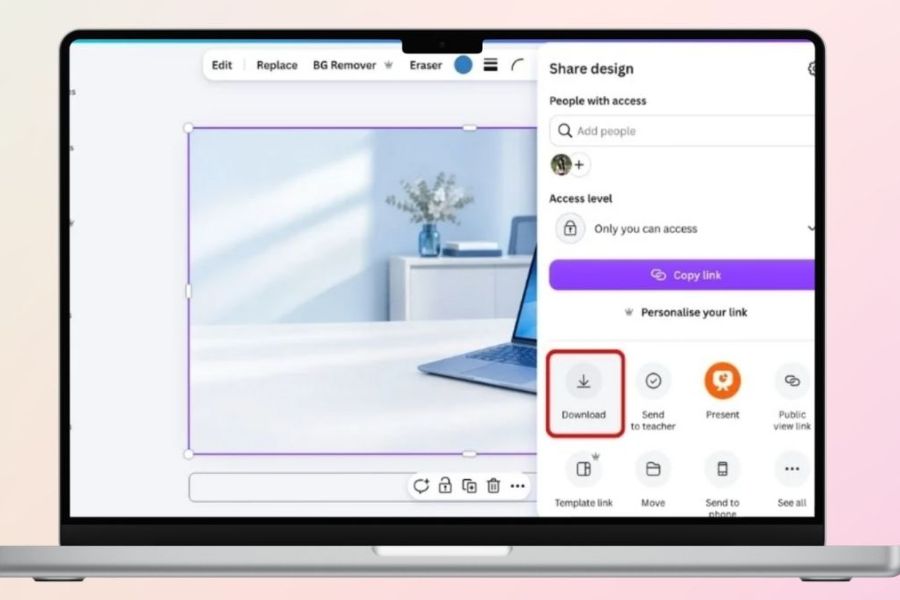
When resizing, double-check the image position, title, and information to avoid content being cropped or misaligned from the original layout. Finally, select Share, then Download, and choose the appropriate format.
-
PNG: Suitable for posters posted on social media, requiring sharp images.
-
JPG: Suitable for reducing file size for faster sharing.
-
PDF Print: Suitable for posters requiring printing, ensuring good display quality.
4. Event poster creation prompt template using AI with Canva Craft
If you're unsure how to write commands, you can refer to some of the prompts below and modify the content according to your needs. The more specific your description, the easier it will be for the AI to grasp your idea and create an image that is closer to your desired outcome.
Prompt 1: Professional seminar poster
This is a modern and professional-style background design for a technology conference poster. It features a navy blue and white color scheme, technology-related graphic details, subtle lighting, a balanced layout, and ample space at the top for the title and at the bottom for time and location information. It contains no text and has a vertical 3:4 aspect ratio.
Prompt 2: Creative Poster Workshop
Create a background poster for an art workshop for young people, with a dynamic style, soft pastel colors, and illustrations of paintbrushes, paper, and creative tools. The layout is youthful and lively but not cluttered, leaving space in the center for event content, without text or logos.
Prompt 3: Store Opening Poster
This poster design for a fashion store's grand opening is luxurious and modern. It uses cream, champagne gold, and light brown tones, with prominent lighting and subtle decorative details. The layout features a central focal point, leaving ample space for the store name, opening date, and special offers. No text is included.
Prompt 4: Music Event Poster
Create a youthful and stylish outdoor concert poster background. Use purple, neon green, and black, stage lighting effects, audience images, and a vibrant atmosphere. The layout is deep and spacious, leaving space at the bottom for program information, with a vertical 3:4 aspect ratio and no text.
5. Things to note when creating event posters using AI with Canva Craft
Although AI can assist in quickly creating images, you still need to check and refine the design before use. A good poster isn't simply about eye-catching images; it must also ensure clear information, a logical layout, and suitability for the communication purpose.
Here are some important notes:
-
Write a specific prompt: Clearly state the theme, style, colors, and placement of objects to avoid undesirable results.
-
Don't rely entirely on AI: It's best to manually add titles and content using text tools to minimize typos, incorrect dates, or inaccurate information.
-
Prioritize readability: Avoid placing too many decorative details near areas containing important content.
-
Ensure brand identity: Use colors, fonts, and logos that are consistent with the organization's image.
-
Choose the right size: Check the poster aspect ratio for each publishing channel or printing need.
-
Check the QR code: If a registration QR code is included, scan it on the exported file to ensure the link works correctly.
-
Copyright notice: Check the rights to use images, icons, and resources included in the design, especially for commercial programs.
-
Data protection: Avoid including personal information or unpublished internal content in image creation commands.
6. Conclusion
Creating event posters using AI with Canva Craft is a convenient way to turn your ideas into visually appealing designs without needing to be proficient in professional graphic design software. By combining AI-generated images with manually edited text, you can build beautiful, easy-to-read posters that are flexible in updating content. Try applying the instructions and sample prompts above to save time and create unique communication materials for your event.





















VIP Products








Best Selling Products
Adobe Premiere Pro Account
99 USD
Genuine Adobe Illustrator account
99 USD
Adobe Photoshop Copyright - Full App
120 USD
Genuine Cheap Canva Pro
39 USD
Upgrade genuine Capture One account
120 USD
Autodesk All App Account Copyright
120 USD
Freepik Premium Account
59 USD
Plugin Retouch4me
69 USD
Windows 10 & 11 Pro Key
36 USD
MidJourney Account
29 USD
Capcut Pro 1 Year
39 USD
Upgrade Genuine Office 365
49 USD
Upgrade Duolingo Super
29 USD
Copyright Adobe Lightroom Account
59 USD
ChatGPT Plus Account (GPT-4)
16 USD