Best Selling Products

Upgrade Genuine Office 365
49 USD

Windows 10 & 11 Pro Key
36 USD

Adobe Photoshop Copyright - Full App
120 USD

MidJourney Account
29 USD

Capcut Pro 1 Year
39 USD

Genuine Cheap Canva Pro
39 USD

Plugin Retouch4me
69 USD

Freepik Premium Account
59 USD

Copyright Adobe Lightroom Account
59 USD

Adobe Premiere Pro Account
99 USD

Genuine Adobe Illustrator account
99 USD

ChatGPT Plus Account (GPT-4)
16 USD

Upgrade Duolingo Super
29 USD

Upgrade genuine Capture One account
120 USD

Autodesk All App Account Copyright
120 USD
How to use Canva Grow to design professional ads in just a few steps.
Nội dung
- 1. What is AI-powered ad creation in Canva Grow?
- 2. What do I need to prepare before using Canva Grow?
- 3. How to use Canva Grow to design professional advertisements
- 3.1. Step 1: Access Canva Grow and enter your basic information.
- 3.2. Step 2: Let the AI analyze and select the images.
- 3.3. Step 3: Choosing an idea and creating an advertisement.
- 3.4. Step 4: Finalize the design using editing tools
- 3.5. Step 5: Upload and connect to advertising platforms
- 4. Notes on using Canva Grow to create ads with AI
- 5. Conclusion
In today''s booming online business environment, a visually appealing advertisement that effectively conveys the right message can help brands attract attention and reach more potential customers. However, not everyone possesses the design skills or the time to brainstorm, edit images, and create advertising content. This is why AI-powered tools are gaining increasing popularity. Canva Grow offers a new approach by combining AI with familiar design tools, simplifying the advertising content creation process. Instead of starting from a blank design page, users can provide business information, images, and their website, and the system will suggest suitable ideas. In this article, let''s explore with Sadesign how to use Canva Grow to design professional advertisements step-by-step, even if you have little design experience.
1. What is AI-powered ad creation in Canva Grow?
Canva Grow is a feature that supports marketing and advertising content creation using artificial intelligence. The tool helps users shorten the process of brainstorming, selecting images, and creating ad templates based on provided information. Instead of doing each step manually, you can leverage AI suggestions to quickly create a design that aligns with your communication goals.
Canva Grow's advantage lies in its ability to support multiple stages within a single process. Users can provide brand information, product images, and website links for the system to analyze and generate creative solutions. Even after creating an ad template, you can still further edit it using Canva's familiar design tools.
Some of the highlights of Canva Grow include:
-
Support in developing advertising ideas: Suggesting concepts based on business information and input images.
-
Creating visual content: Supporting the creation of advertising images for communication activities.
-
Saves time: Reduces manual design tasks, especially for those with little experience.
-
Easily customizable: Allows users to further edit the design to match their brand style.
-
Support for deployment process: Can connect with supported platforms to facilitate uploading and promotion.
Thanks to these features, Canva Grow is suitable for individual entrepreneurs, online shop owners, content creators, and businesses that want to proactively build their advertising image.
2. What do I need to prepare before using Canva Grow?
Before you begin designing, you should prepare some basic information so that the AI understands your brand and produces results that closely match your needs. The more specific the input data, the smoother the process of selecting ideas and finalizing the advertisement. Prior preparation also helps you minimize unnecessary revisions.
The resources that need to be prepared include:
-
Company information: Write a brief description of the company's industry, target customer group, products offered, and brand highlights.
-
Website URL: Prepare the URL of the website or landing page you want to show to customers.
-
Product images: Prioritize clear, well-lit photos that showcase the color, style, and key features.
-
Brand logo: Prepare a high-quality logo so it can be easily incorporated into the design if needed.
-
Advertising message: Define the main message you want to convey, such as introducing a new product, a special offer, or increasing brand awareness.
-
Social media accounts: If you want to deliver content directly on affiliate channels, prepare the corresponding accounts and check access permissions.
You should define the purpose of your advertisement beforehand, targeting a specific customer group and conveying a specific message. With a clear direction, choosing a concept and refining the design will become much easier.

3. How to use Canva Grow to design professional advertisements
The process of creating ads using Canva Grow is designed to be relatively intuitive, making it easy for users even without prior graphic design experience. You simply provide the information, select suitable images and concepts, and then refine the design before publishing. Below is a detailed step-by-step guide.
3.1. Step 1: Access Canva Grow and enter your basic information.
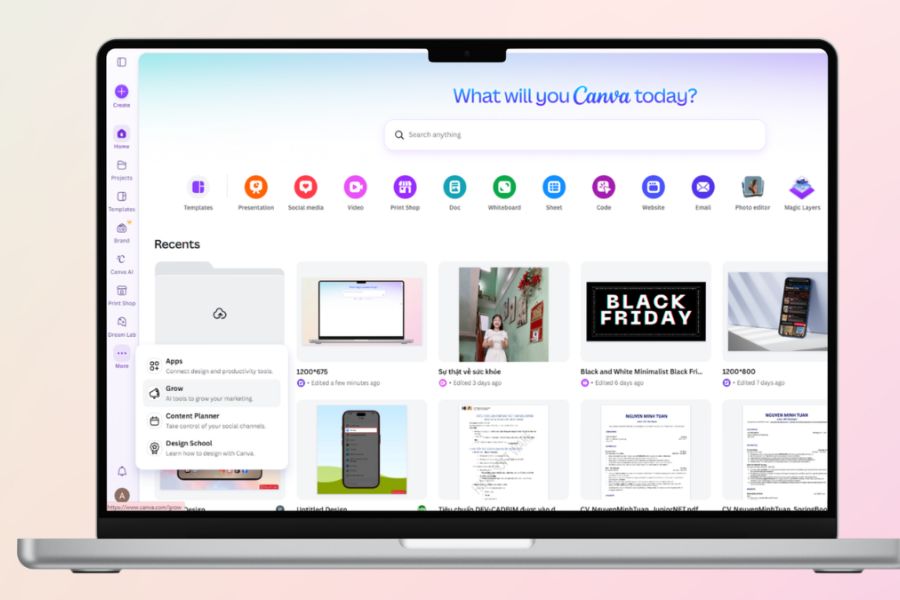
First, access Canva and log in to your personal account. On the main interface, click the three-dot icon to find the "Grow" option in the list of displayed features. After successfully accessing it, the system will take you to the ad creation interface. Here, enter the required information such as your website address, business description, business sector, and upload product images or other available creative resources. You should describe your brand as specifically as possible so that the AI understands your advertising style and goals, and can provide more suitable suggestions.
3.2. Step 2: Let the AI analyze and select the images.
After receiving input information, Canva Grow will analyze the data and suggest images suitable for the advertisement. You can review the suggested options and then choose the images that best showcase your brand or product. If you are not satisfied with the results, you can discard unsuitable images and upload your own. When selecting images, prioritize high-resolution images with good lighting, harmonious colors, and clear representation of the product. This is a crucial factor in making the advertisement look professional and creating a positive first impression on customers.

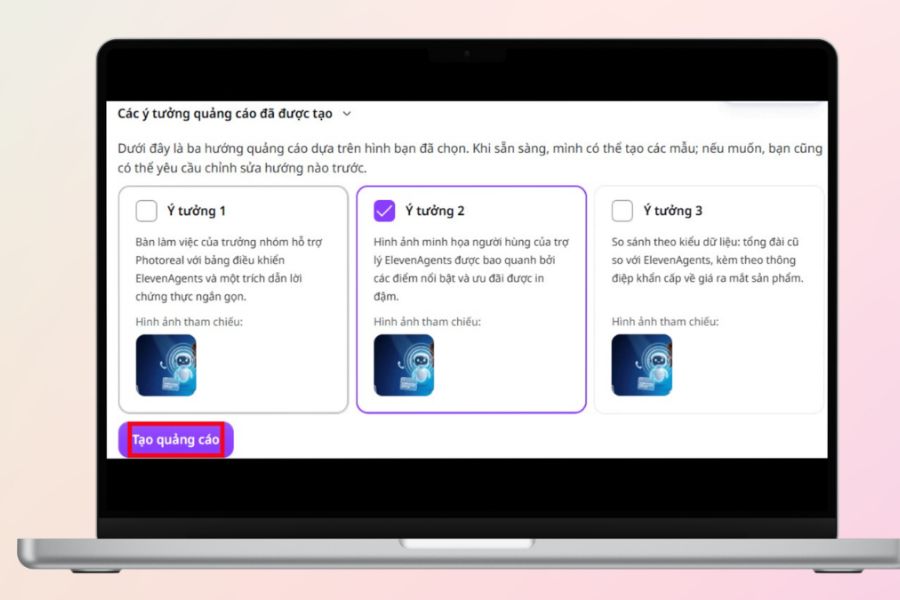
3.3. Step 3: Choosing an idea and creating an advertisement.
Based on the selected image, artificial intelligence will generate several advertising ideas with different styles and layouts. Preview each concept, considering its suitability for your brand and communication goals before making a choice. Once you've found a satisfactory option, click the " Create Ad" button to begin processing. If the preview doesn't meet your expectations, you can select "Edit," click on the details you want to change, or enter your requests directly in the chat box. For example, you can request a change to the background color, highlight the product, adjust the layout, or switch the design to a more minimalist, modern style.
3.4. Step 4: Finalize the design using editing tools
After Canva Grow finishes processing, the new ad template will appear for you to preview and evaluate. If you are relatively satisfied with the result, click Edit to move the design to the familiar Canva workspace. Here, you can change the font, colors, image size, logo position, and display content to match your brand identity. Don't forget to carefully check the headline, price, offer information, and call to action before finalizing. A good design needs a balanced layout, easy-to-read content, and should highlight the main message your business wants to convey.

3.5. Step 5: Upload and connect to advertising platforms
Once you've finalized your design, click the Publish button to begin the content publishing process. Depending on the platforms supported by Canva Grow, you can choose the social media channel or advertising system you want to connect to. Next, follow the on-screen instructions to grant access and complete the setup. Before publishing, you should review the size, aspect ratio of images, and content displayed in each ad to avoid text being cut off or important information being difficult to read. If you don't want to publish immediately, you can also save the design to continue editing and use it at a more suitable time.

4. Notes on using Canva Grow to create ads with AI
Although Canva Grow simplifies the content creation process, you still need to proactively test and adjust the results before using them. AI can generate eye-catching ideas, but they may not accurately reflect your brand information or align with your business goals. Therefore, pay attention to the following:
-
Check the free usage scope: Find out which features are offered for free, usage limits, and account terms and conditions before you begin.
-
Review AI-generated information: Check product names, prices, discounts, validity periods, and offer conditions to avoid providing misleading information.
-
Maintain brand consistency in content: Keep the colors, fonts, logo, and messaging consistent across all advertisements.
-
Pay attention to image usage rights: Ensure that images, videos, music, and other graphic resources are used with appropriate permissions, especially for commercial purposes.
-
Protecting personal data: Only provide information necessary for the design process, avoiding the inclusion of unauthorized customer data or internal documents into the system.
-
Adherence to advertising policies: Compare the content with the regulations of the platform where it is intended to be posted, especially claims about benefits, effectiveness, and promotional offers.
-
Test the design across multiple devices: Preview the ad on your phone and computer to ensure that images, text, and important information are displayed correctly.
-
Experiment with different versions: Create several different versions of the image, headline, or call to action to find the one that best suits your target audience.
An important note is that AI-generated ad templates are not guaranteed to be approved by the platform. You still need to review the content and adjust it to the specific guidelines of each channel before launching your actual campaign.
5. Conclusion
Canva Grow is a useful option that simplifies the process of brainstorming and designing advertisements using artificial intelligence. With an intuitive workflow, from entering information and selecting images to creating concepts and finalizing designs, users can save time while still creating eye-catching marketing materials. Hopefully, the above guide will help you learn how to use Canva Grow to design professional advertisements and effectively utilize AI features in your business and marketing activities.





















VIP Products








Best Selling Products
Upgrade Genuine Office 365
49 USD
Windows 10 & 11 Pro Key
36 USD
Adobe Photoshop Copyright - Full App
120 USD
MidJourney Account
29 USD
Capcut Pro 1 Year
39 USD
Genuine Cheap Canva Pro
39 USD
Plugin Retouch4me
69 USD
Freepik Premium Account
59 USD
Copyright Adobe Lightroom Account
59 USD
Adobe Premiere Pro Account
99 USD
Genuine Adobe Illustrator account
99 USD
ChatGPT Plus Account (GPT-4)
16 USD
Upgrade Duolingo Super
29 USD
Upgrade genuine Capture One account
120 USD
Autodesk All App Account Copyright
120 USD