Best Selling Products

ChatGPT Plus Account (GPT-4)
16 USD

Copyright Adobe Lightroom Account
59 USD

Upgrade Genuine Office 365
49 USD

Genuine Adobe Illustrator account
99 USD

Windows 10 & 11 Pro Key
36 USD

Freepik Premium Account
59 USD

MidJourney Account
29 USD

Adobe Photoshop Copyright - Full App
120 USD

Capcut Pro 1 Year
39 USD

Upgrade genuine Capture One account
120 USD

Genuine Cheap Canva Pro
39 USD

Plugin Retouch4me
69 USD

Autodesk All App Account Copyright
120 USD

Adobe Premiere Pro Account
99 USD

Upgrade Duolingo Super
29 USD
A guide to easily converting Canva to PowerPoint while preserving your design.
Nội dung
- 1. Why should you convert Canva to PowerPoint?
- 2. Instructions on converting Canva to PowerPoint directly on your computer.
- 3. How to convert Canva to PowerPoint using a PDF file
- Step 1: Download the Canva design as a PDF.
- Step 2: Convert the PDF file to PowerPoint
- Step 3: Download the PowerPoint file to your computer.
- 4. How to convert Canva to PowerPoint without losing effects
- 5. Instructions on converting Canva to PowerPoint on your phone.
- 6. Important notes when converting Canva to PowerPoint
- 7. How to fix common errors when converting Canva to PowerPoint
- 8. Tips for converting Canva to PowerPoint while preserving the best design.
- 9. Conclusion
Canva is a familiar tool for creating beautiful presentation slides without spending too much time on design. However, in many cases, you still need to transfer your presentation from Canva to PowerPoint for editing, offline presentation, or to integrate it with Microsoft Office features. So how do you transfer Canva to PowerPoint quickly and minimize font, image, or effect errors? Below are some simple methods you can apply right away. Let''s explore them with Sadesign!
1. Why should you convert Canva to PowerPoint?
Transferring Canva designs to PowerPoint offers many advantages, especially for those who frequently create presentations for academic or professional purposes. Instead of relying entirely on Canva, you can continue editing, adding content, and presenting your presentation directly within PowerPoint.
Some reasons why many people choose to convert Canva to PowerPoint include:
-
Easy content editing: After switching to PowerPoint, you can change the text, layout, or add information directly on your computer without necessarily having to access Canva.
-
Convenient offline working: PowerPoint files can be saved directly on the device, ideal for presentations in locations with unstable internet connections.
-
Take advantage of PowerPoint's features: PowerPoint supports a wide range of editing tools, slide transition effects, charts, and advanced presentation capabilities.
-
Integrated with Microsoft Office: You can easily use data from Word, Excel, or OneDrive to complete your presentations.
-
Convenient for sending files: The PPTX format is commonly used in education, work, and presentations.
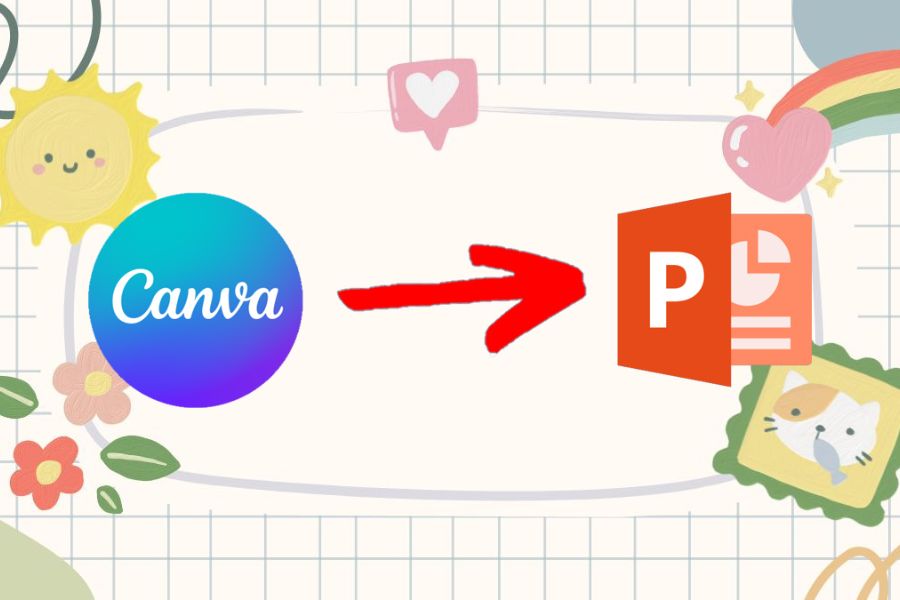
2. Instructions on converting Canva to PowerPoint directly on your computer.
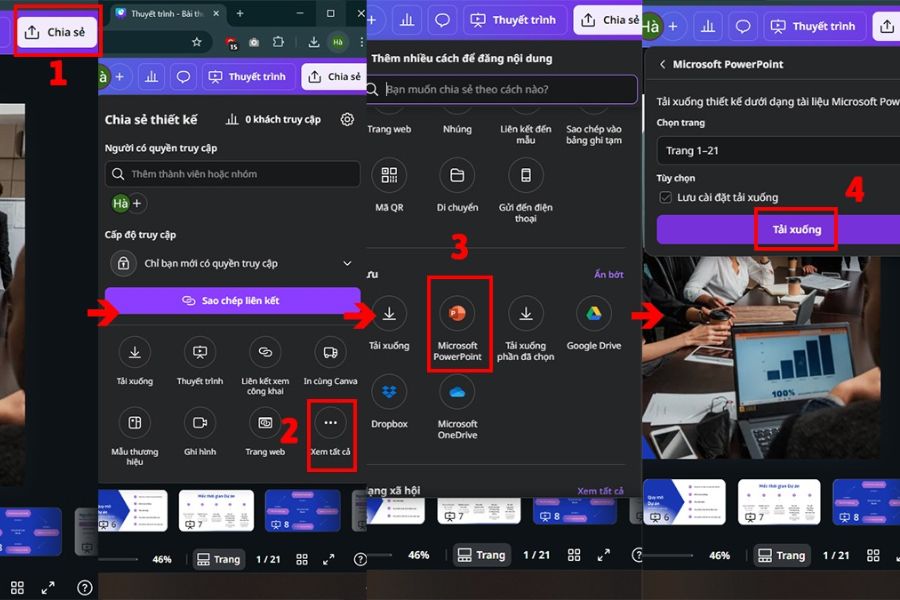
This is the simplest method if your design mainly consists of text, images, and basic elements. Canva supports exporting designs directly to PowerPoint files, so you don't need to use any external conversion tools.
Here are the steps to convert Canva to PowerPoint directly:
-
Step 1: Open Canva in your browser and access the design you want to transfer to PowerPoint.
-
Step 2: Tap Share in the upper right corner of the screen.
-
Step 3: Select View all to expand the list of sharing and downloading options.
-
Step 4: Find and select Microsoft PowerPoint from the list of formats.
-
Step 5: Check which pages you want to export if Canva displays the option to select pages.
-
Step 6: Click Download and wait for Canva to process the design.
-
Step 7: Open the downloaded PPTX file using PowerPoint to check the layout, fonts, images, and other elements on each slide.
The advantage of this method lies in its speed and simplicity. With just a few steps, you can convert your Canva design into a PowerPoint file for further editing. However, if the design uses many special fonts, effects, or dynamic elements, the converted result may not be exactly the same as the original.
3. How to convert Canva to PowerPoint using a PDF file
If direct export doesn't yield the desired results, you can use PDF as an intermediate format. This method is suitable when you prioritize maintaining the image and slide layout, then use a PDF to PPTX converter to create the PowerPoint file.
Step 1: Download the Canva design as a PDF.
-
Open the Canva design that needs converting.
-
Tap Share in the upper right corner.
-
Select Download .
-
In the File Type section , select Standard PDF .
-
Select the pages you want to export if you don't need to download the entire design.
-
Click Download to save the PDF file to your computer.
Step 2: Convert the PDF file to PowerPoint
Once you have the PDF file, you can use tools to convert PDF to PPTX. Several popular online services offer this feature, such as Smallpdf, Adobe Acrobat, or iLovePDF.
-
Open the PDF to PowerPoint converter tool you want to use.
-
Select the PDF to PowerPoint conversion option .
-
Click the Select file button or the corresponding upload file button.
-
Select the PDF file you just exported from Canva.
-
Wait for the tool to load and process the document.
Step 3: Download the PowerPoint file to your computer.
-
After the PDF file has finished uploading, select the PowerPoint/PPTX format .
-
Press Toggle to begin the processing.
-
Wait for the system to complete the conversion.
-
Select Download to save the PowerPoint file.
-
Open the file in PowerPoint and review each slide.
This method can help preserve the image layout relatively well, but the ability to edit individual elements may be more limited compared to exporting directly from Canva. In particular, video, audio, and animation effects in the original design may not be retained when converted to PDF format.
Upgrade to official Canva software at a low price.
4. How to convert Canva to PowerPoint without losing effects
One common problem when converting Canva to PowerPoint is that the animation effects aren't preserved. Instead of trying to convert all the effects to PPTX format, you can export the pages with effects separately as videos and insert them directly into PowerPoint.
This is the appropriate approach when there are a few specific slides that need to maintain their motion:
-
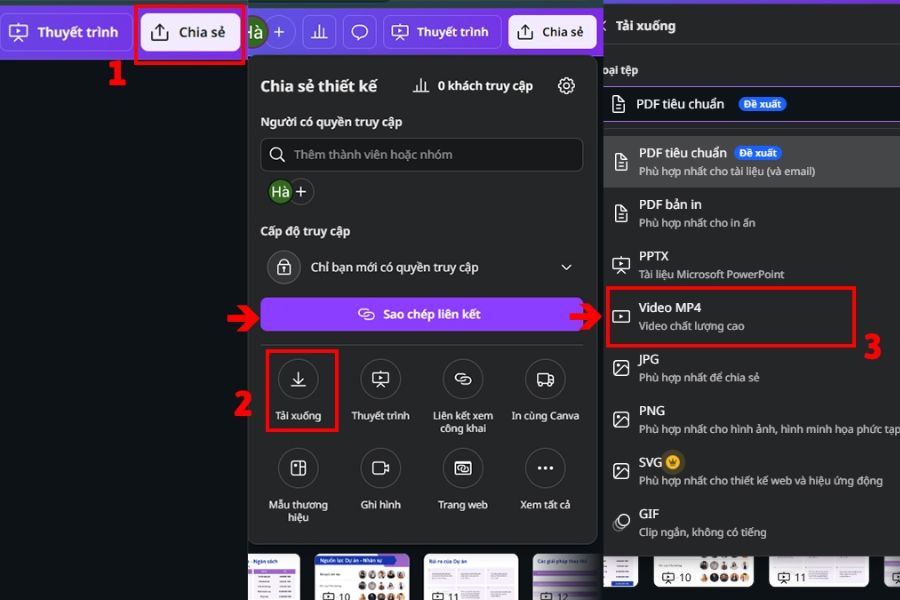
Step 1: Open the design you want to convert in Canva.
-
Step 2: Tap Share , then select Download .
-
Step 3: In the File Type section , select MP4 Video .
-
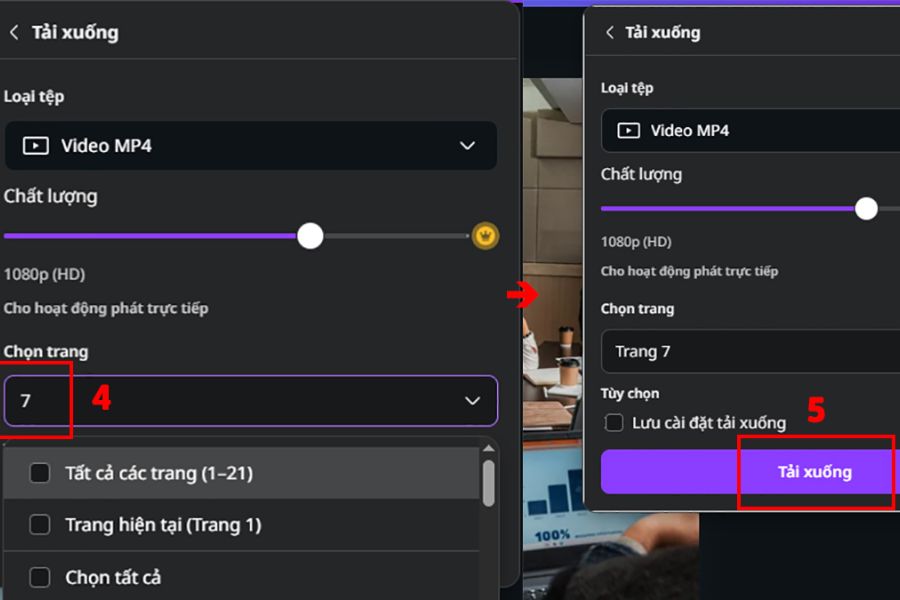
Step 4: In the slide selection section, choose only the slides with the effects you want to keep.
-
Step 5: Click Download to save the video to your device.
-
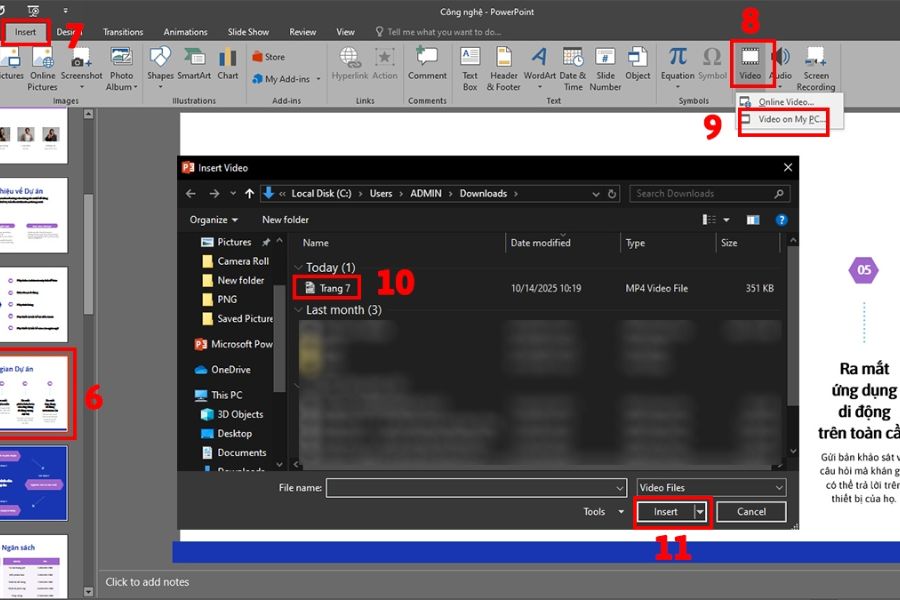
Step 6: Open the PowerPoint file that you converted from Canva.
-
Step 7: Select the slide you want to apply the effect to.
-
Step 8: Click Insert on the PowerPoint toolbar.
-
Step 9: Select Video , then select Video on my PC .
-
Step 10: Locate the video you just downloaded from Canva and click Insert .
-
Step 11: Adjust the video size to cover the entire slide area.
-
Step 12: Run a test of the slideshow to check if the video plays at the correct time.
This method allows motion effects, animations, or visual content from Canva to continue appearing during a PowerPoint presentation. However, the inserted video cannot be edited individually, such as text, images, or the original effects from Canva.
5. Instructions on converting Canva to PowerPoint on your phone.
You don't necessarily need a computer to transfer your Canva design to PowerPoint. If you're working on your phone, the Canva app also supports exporting designs to Microsoft PowerPoint format so you can save them directly to your device.
The steps are quite quick:
-
Step 1: Open the Canva app on your phone.
-
Step 2: Log in to your account and open the design you want to transfer to PowerPoint.
-
Step 3: Click the Share icon on the design interface.
-
Step 4: Select Other to see more export and sharing options.
-
Step 5: Find and select Microsoft PowerPoint .
-
Step 6: Select Download to begin exporting the file.
-
Step 7: Wait for Canva to process the design and save the PowerPoint file to your phone.
-
Step 8: Open the file using PowerPoint or share it to your computer to continue editing.
This method is particularly useful when you need to quickly retrieve a presentation file but don't have a computer nearby. However, for presentations with many pages or complex designs, a computer is still more convenient for checking and editing after conversion.
6. Important notes when converting Canva to PowerPoint
Not every element in Canva can be perfectly transferred to PowerPoint. Some fonts, effects, animations, or special elements may change after exporting the file. Therefore, reviewing the design after conversion is a crucial step to avoid problems during the presentation.
Please note the following points:
-
Avoid using overly special effects: Effects designed specifically for Canva may not be fully compatible with PowerPoint.
-
Prioritize common fonts: If you use a font that is too unfamiliar, PowerPoint on other devices may not recognize it and automatically replace it with a different font.
-
Check the layout of each slide: After conversion, some text or images may shift slightly.
-
Check the images: Zoom in on each slide to detect any resizing or mispositioning of the images.
-
Check video and audio: Multimedia content is often the most problematic component during conversion.
-
Test the entire presentation: Don't just check the first few slides. Show it from beginning to end to detect errors before using it.
-
Save the original Canva design: Do not delete the Canva design after exporting it to PowerPoint so you can go back and edit it if needed.
-
Rename files clearly: If there are multiple versions, name them by date or content to avoid confusion.
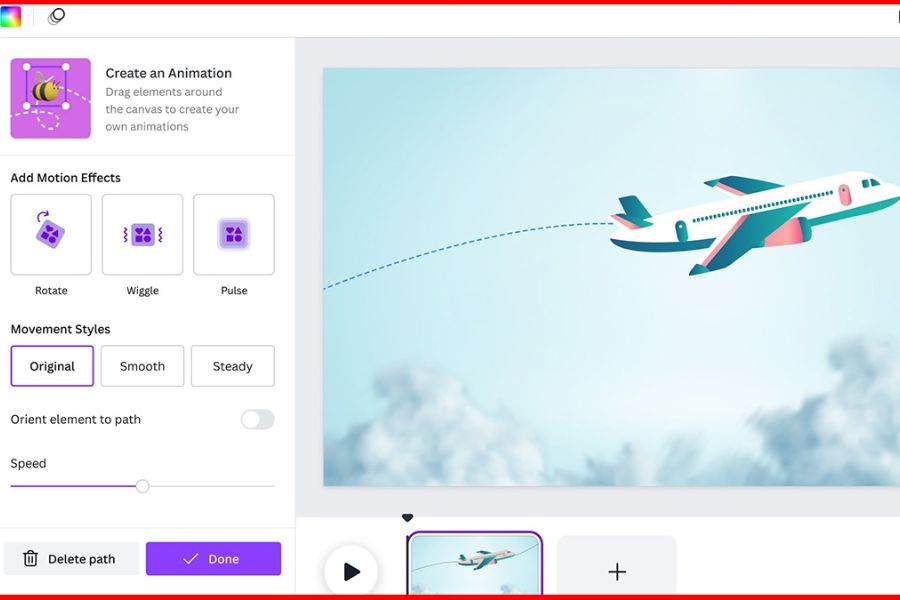
7. How to fix common errors when converting Canva to PowerPoint
During the conversion process, the PowerPoint file may sometimes not perfectly match the original design. Most errors relate to fonts, layout, effects, or multimedia elements. You can check each case individually for quicker resolution.
-
Font error: Replace the unsupported font with a commonly available font in PowerPoint. If you want to keep the original font style, check and install the corresponding font on your computer.
-
Layout misalignment: Open each slide and readjust the position of the text, images, or other elements that have shifted.
-
Loss of effect: For important effects, export the slide as an MP4 video from Canva and then insert the video into PowerPoint.
-
Missing video or audio: Check the multimedia file again and insert it directly into PowerPoint if necessary.
-
Image altered: Check the image size and aspect ratio after conversion. If necessary, you can replace the image from the original file.
-
File won't open: Check the download process and try opening it with a compatible version of PowerPoint. If the file is corrupted, re-export it from Canva.
Upgrade to official Canva software at a low price.
8. Tips for converting Canva to PowerPoint while preserving the best design.
To ensure your presentation retains its original aesthetic when converted to PowerPoint, you should prepare it right from the design stage in Canva. The simpler the file, the more common elements it uses, and the fewer special effects it has, the higher the chances of a stable conversion.
A few simple tips can help you significantly reduce errors:
-
Choose a popular font right from the start.
-
Limit the use of Canva's signature animation effects.
-
Avoid overusing dynamic elements if the bài must be converted to PPTX.
-
Check the slide dimensions before designing.
-
For slides with important effects, consider exporting them as separate videos .
-
Always keep the original Canva design file .
-
After converting, try opening it using PowerPoint on the device you intend to use for the presentation .
-
If you're sending a file to someone else, you should check beforehand to see if the fonts and multimedia elements will work correctly on the receiving device.
9. Conclusion
Converting Canva to PowerPoint is a fairly simple process and can be done directly on a computer or phone. Depending on your needs, you can export the design directly to PPTX, use PDF as an intermediate format, or export slides with effects separately as videos to insert into PowerPoint. Each method has its own advantages, so choose the one that best suits the content of your presentation. Most importantly, after conversion, don't forget to check the fonts, images, layout, effects, and videos before presenting. Just a few minutes of review will help you avoid unexpected errors and ensure your PowerPoint presentation remains visually appealing and clear, just like the original design.





















VIP Products








Best Selling Products
ChatGPT Plus Account (GPT-4)
16 USD
Copyright Adobe Lightroom Account
59 USD
Upgrade Genuine Office 365
49 USD
Genuine Adobe Illustrator account
99 USD
Windows 10 & 11 Pro Key
36 USD
Freepik Premium Account
59 USD
MidJourney Account
29 USD
Adobe Photoshop Copyright - Full App
120 USD
Capcut Pro 1 Year
39 USD
Upgrade genuine Capture One account
120 USD
Genuine Cheap Canva Pro
39 USD
Plugin Retouch4me
69 USD
Autodesk All App Account Copyright
120 USD
Adobe Premiere Pro Account
99 USD
Upgrade Duolingo Super
29 USD