Best Selling Products

Windows 10 & 11 Pro Key
36 USD

Plugin Retouch4me
69 USD

Adobe Photoshop Copyright - Full App
120 USD

Copyright Adobe Lightroom Account
59 USD

Upgrade Duolingo Super
29 USD

Autodesk All App Account Copyright
120 USD

Adobe Premiere Pro Account
99 USD

Freepik Premium Account
59 USD

Genuine Cheap Canva Pro
39 USD

ChatGPT Plus Account (GPT-4)
16 USD

Upgrade Genuine Office 365
49 USD

Upgrade genuine Capture One account
120 USD

Genuine Adobe Illustrator account
99 USD

MidJourney Account
29 USD

Capcut Pro 1 Year
39 USD
How to use Canva AI to create beautiful flashcards for studying and reviewing.
Nội dung
- 1. What are flashcards in Canva AI?
- 2. Why should you create flashcards on Canva AI?
- 3. Detailed instructions on creating flashcards in Canva AI
- Step 1: Open the AI Flashcard Maker tool in Canva.
- Step 2: Choose how to create the design
- Step 3: Choose the appropriate type of flashcard.
- Step 4: Enter the topic and content you want to study.
- Step 5: Let Canva AI create the flashcards.
- Step 6: Edit the flashcards as desired.
- Step 7: Add flashcards to the design and save.
- 4. Tips for creating more beautiful and memorable flashcards in Canva AI
- 5. How to use flashcards for effective study
- 6. Conclusion
Have you ever spent hours creating flashcards but still struggled with every line of text, image, and color? Adjusting the layout slightly can make it look messy, adding more images can clutter the space, and even after completion, the flashcards still don''t quite meet your expectations. If you''re experiencing this, Canva AI can significantly shorten your design time. With just a few simple steps, the tool can help you create visually appealing, easy-to-read flashcards suitable for various learning needs. Let''s explore how to create flashcards on Canva AI with Sadesign to make studying easier and more enjoyable!
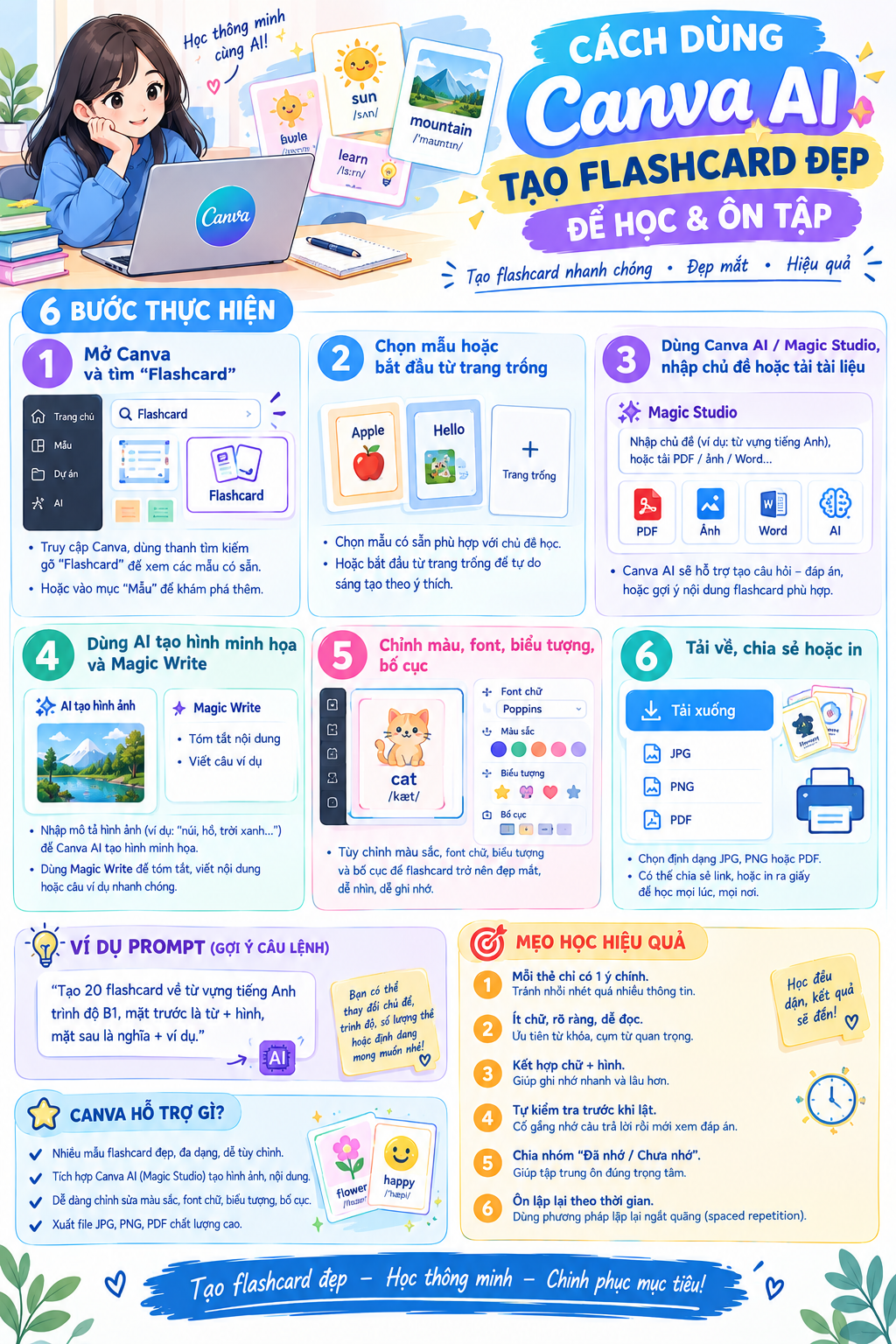
1. What are flashcards in Canva AI?
Flashcards are memory cards designed with concise content, usually consisting of a question, keyword, or image on one side and the answer, definition, or explanation on the other. This learning method helps users actively recall knowledge instead of just rereading material. When combined with Canva AI, the flashcard creation process is simplified thanks to its ability to support quick design and content arrangement. Canva AI provides the AI Flashcard Maker tool , which helps users start a set of flashcards based on a given topic or content. Instead of building each card from scratch, you can let the AI assist in creating the layout, presenting information, and suggesting suitable images. The entire design can then be edited to suit your learning style or personal preferences.
A set of flashcards created with Canva AI can be used for many purposes, such as:
-
Learn English and foreign language vocabulary.
-
Memorize the formulas for Math, Physics, and Chemistry.
-
Review your knowledge of Biology, History, and Geography.
-
Prepare questions and answers for the lessons.
-
Systematize your knowledge before the test.
-
Create visually appealing learning materials for students.
-
Design your own set of flashcards for studying at home or in the classroom.
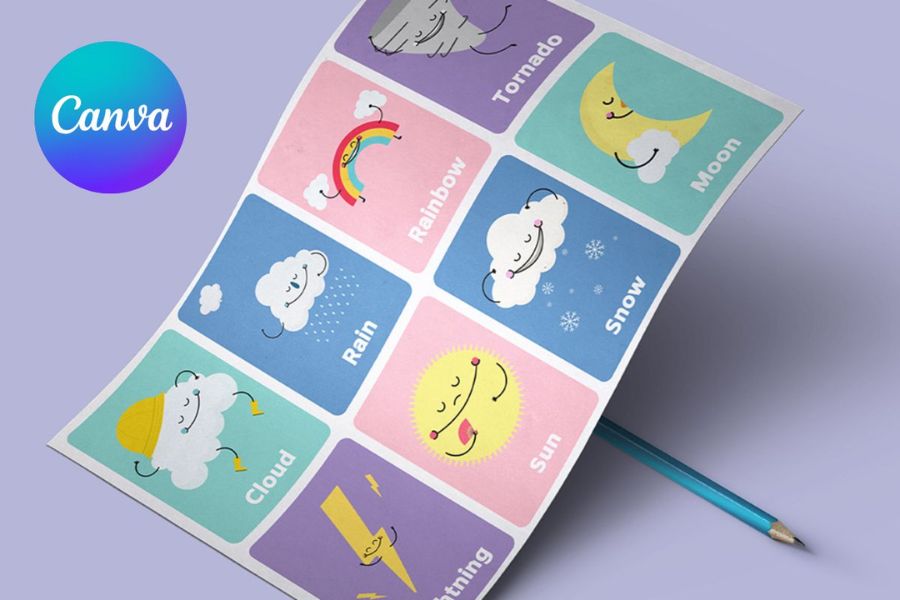
2. Why should you create flashcards on Canva AI?
The appeal of Canva AI lies in its ability to transform a time-consuming task into a simpler process. You don't need to be a skilled designer to create a beautiful set of flashcards. Simply prepare clear content, choose a suitable design style, and make a few adjustments, and you'll have a neatly organized set of flashcards. Beyond aesthetics, flashcards also foster a more proactive approach to learning. Instead of opening long pages of material and trying to memorize every section, learners can break down information into shorter questions or keywords. When combined with Canva's intuitive design, studying can become more engaging and less tedious.
Some notable benefits of creating flashcards on Canva AI include:
-
Save time: AI assists in creating designs instead of having to make each card manually.
-
Easy to use: Even beginners can operate it quite quickly.
-
Intuitive interface: Content is presented in separate tabs, making it convenient for learning.
-
Easily customizable: You can change the colors, fonts, images, and layout.
-
Diverse topics: Can be used for foreign languages, natural sciences, social sciences, or skills.
-
Convenient to use: Once completed, flashcards can be saved, shared, or downloaded as needed.
-
Suitable for a wide range of users: Students, teachers, and self-learners can all take advantage of it.
3. Detailed instructions on creating flashcards in Canva AI
Creating flashcards using Canva AI isn't too complicated. You just need to prepare the topic you want to study beforehand, then follow the steps in Canva. Below is a detailed guide from finding the right tool to creating a complete set of flashcards.
Step 1: Open the AI Flashcard Maker tool in Canva.
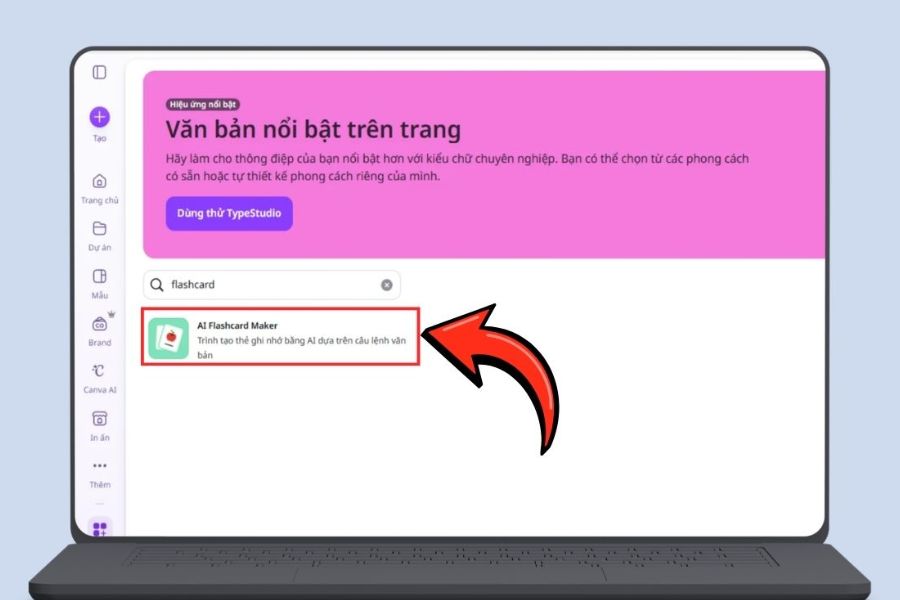
First, log in to your Canva account on your computer and access the working interface. In the tools area, find the Applications section to open the application store provided by Canva. This is where you can find many design support features, including the AI-powered flashcard creation tool.
In the search box, type the keyword "Flashcard" and press Enter. Canva will display tools related to flashcards. Find and select AI Flashcard Maker to begin. Finding the right tool from the start will allow you to go straight into the card creation process instead of having to design each page yourself.
Step 2: Choose how to create the design
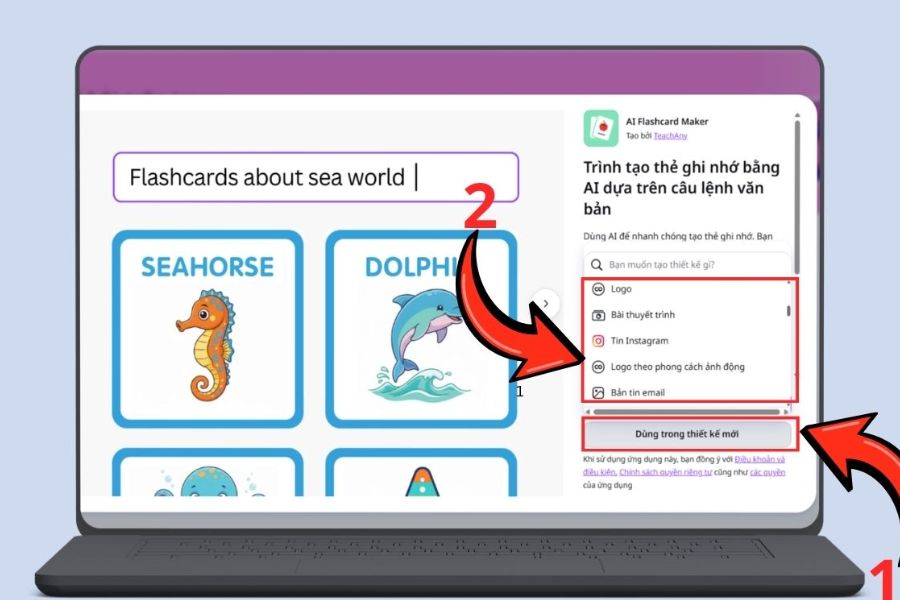
After opening AI Flashcard Maker, Canva may offer you the choice between creating flashcards in a new design or integrating them into an existing design. If you want to build a completely unique set of cards for studying, choosing the new design would be more suitable.
If you already have a lecture, study material, or project in Canva, you can choose to add flashcards to that design. This allows you to leverage existing content and avoid switching back and forth between different projects.
Step 3: Choose the appropriate type of flashcard.
Canva AI can support the creation of flashcards based on text or images. For topics such as vocabulary, definitions, formulas, or question-and-answer sessions, text-based flashcards are often a convenient choice because the information is displayed directly on the card.
Meanwhile, flashcards with visual elements are suitable for content that requires visual memorization. For example, when learning new foreign language vocabulary, you can combine vocabulary with illustrations. For subjects like Biology or Geography, images can also help learners associate knowledge more quickly.
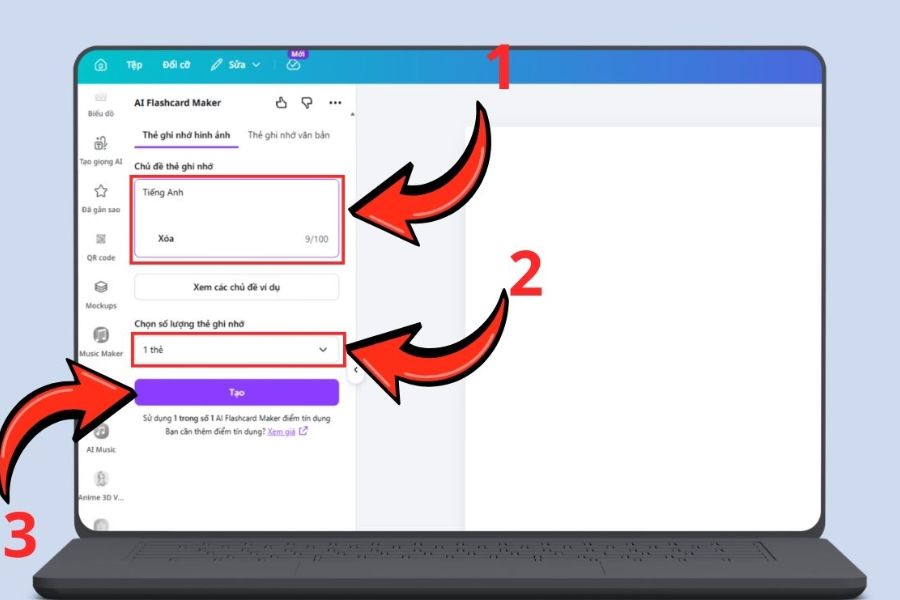
Step 4: Enter the topic and content you want to study.
This is a crucial step because the quality of the input directly affects the content of the flashcards created. Enter a clear topic, such as "English vocabulary on the topic of travel," "Physics formulas for grade 12," or "milestones in Vietnamese history." If you already have specific content, you can also provide the information you want to include in the flashcard set.
You should also determine the number of flashcards you want to create so that the set isn't too long or too short. For a large topic, instead of including all the knowledge at once, you can divide it into smaller groups. For example, English vocabulary can be separated into topics such as school, family, travel, and work. This division helps to keep the flashcards focused and makes reviewing more convenient.
Step 5: Let Canva AI create the flashcards.
After completing the content, review the information and then select Create to let Canva AI begin processing. The system will need a short time to create the cards based on the data you provided. During this time, you just need to wait for the process to complete instead of having to manually arrange each element.
When the results appear, take some time to review all the flashcards. Don't rush to use the AI-generated cards immediately. Some content may need adjustments in wording, imagery, or layout to better suit your learning goals.
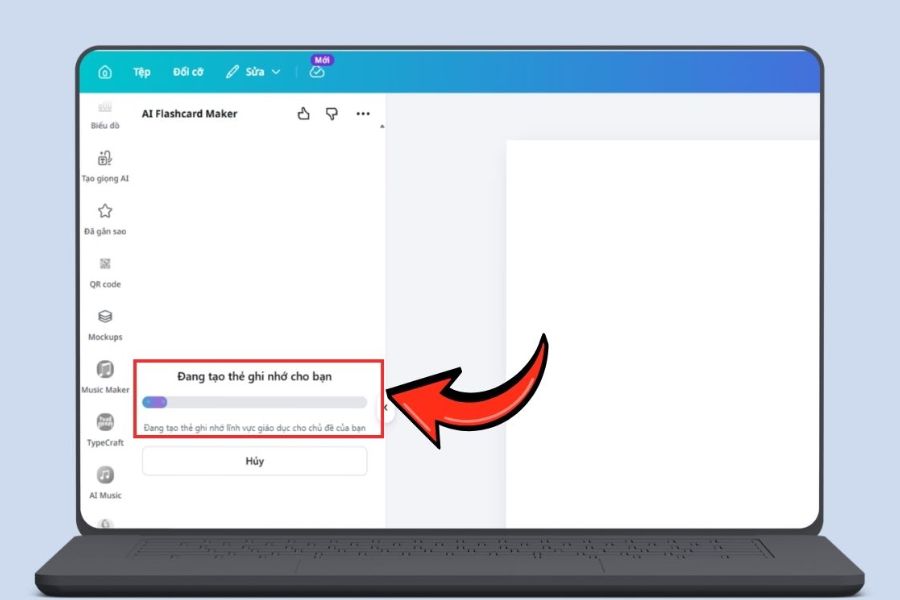
Step 6: Edit the flashcards as desired.
Once Canva AI is complete, you can continue editing each card just like you would with regular designs in Canva. Prioritize changes that make the content easier to read and remember, such as increasing keyword size, adjusting line spacing, or changing the color of key elements.
If you want your flashcard set to have its own unique style, you can also maintain a consistent style throughout. For example, use one main color for the questions, one font for the answers, and one group of illustrations consistently. This consistency makes the flashcards look neater and creates a sense of familiarity when switching from one card to another.
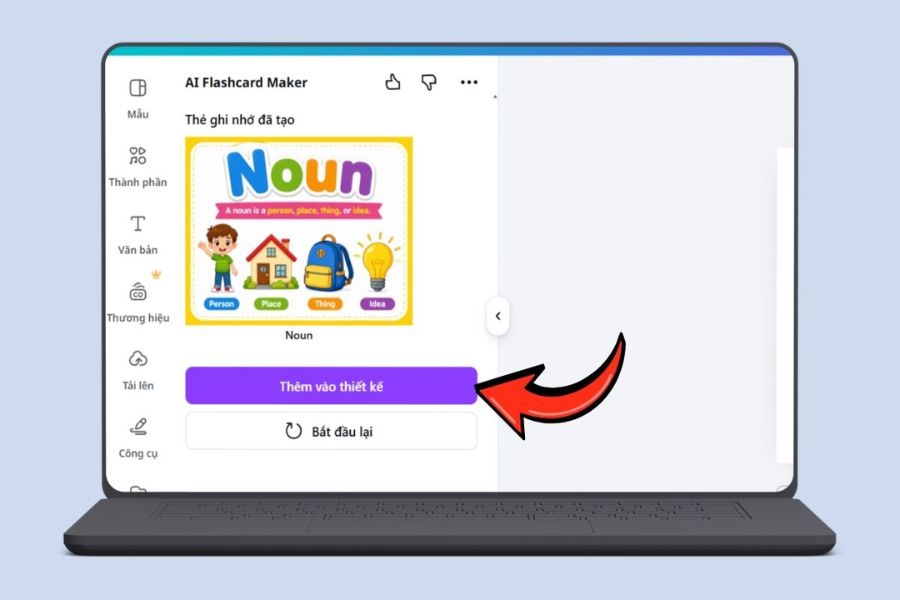
Step 7: Add flashcards to the design and save.
Once you're satisfied with the content, select Add to Design to import the entire flashcard into your Canva project. From here, you can continue to resize, position, or edit individual elements as needed.
Finally, save the design or download it as needed. You can keep the flashcards on your device for online learning, share them with friends, use them in class, or print them as physical cards. This way, a set of AI-generated flashcards can become a reusable study resource.
4. Tips for creating more beautiful and memorable flashcards in Canva AI
A beautiful set of flashcards isn't necessarily an effective one. The most important goal is to help you quickly identify the information you need to remember by looking at the cards. Therefore, instead of cramming too many details onto a single card, prioritize a concise presentation with key points and appropriate spacing. You can apply some of the tips below to make your flashcards both visually appealing and more effective for learning:
-
Each flashcard should focus on one main point , avoiding cramming too much information.
-
Highlight keywords , especially important terms, formulas, or answers.
-
Choose easy-to-read fonts and avoid using too many different font styles within the same set.
-
By using color intentionally , each knowledge area can be assigned a distinct color.
-
Add images only when absolutely necessary , avoiding excessive decoration that distracts from the content.
-
Maintain a consistent layout across the cards to make it easier for learners to get used to them.
-
Prioritize short questions , allowing learners to answer them themselves before looking at the answers.
-
Break down large amounts of knowledge into smaller sections to make reviewing easier.
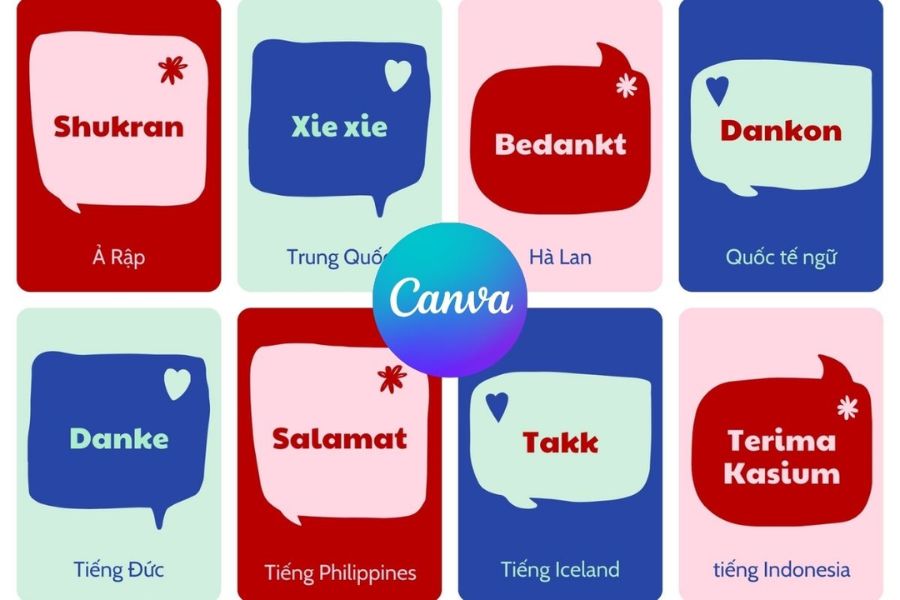
5. How to use flashcards for effective study
Having a nice set of flashcards is just the beginning. The effectiveness of your learning depends on how you use them. Instead of looking at the questions one by one and immediately checking the answers, try to mentally answer them first. The moment you try to recall the information is when your knowledge is most clearly reinforced. You can also categorize the cards by memorization level. Questions you've answered correctly can be grouped separately, while those you frequently forget should be reviewed more often. By maintaining this habit, you'll easily identify areas where you're weak and focus your time there instead of relearning everything.
Here are a few ways you can use flashcards:
-
Review quickly for 5 to 10 minutes before starting the lesson.
-
Test your knowledge after each chapter.
-
Use flashcards to review vocabulary every day.
-
Divide the flashcards into easy, medium, and difficult groups.
-
Review the answer cards that you answered incorrectly multiple times.
-
Combine flashcards with notes or mind maps.
-
Use illustrations to enhance the ability to make associations.
6. Conclusion
Creating flashcards on Canva AI is a simple way to transform dry study material into visually appealing, easy-to-follow, and convenient memo cards. Instead of spending time meticulously adjusting every detail, you can let the AI assist with the design, then proactively edit the content, colors, and layout to your needs. In just a few steps—from opening AI Flashcard Maker , choosing a design style, entering a topic, creating cards, to editing and saving—you can build your own set of flashcards. Start with a small topic, design concise cards, and maintain a regular review routine. When used correctly, Canva AI not only makes flashcards more attractive but also makes the learning process more proactive and enjoyable.





















VIP Products








Best Selling Products
Windows 10 & 11 Pro Key
36 USD
Plugin Retouch4me
69 USD
Adobe Photoshop Copyright - Full App
120 USD
Copyright Adobe Lightroom Account
59 USD
Upgrade Duolingo Super
29 USD
Autodesk All App Account Copyright
120 USD
Adobe Premiere Pro Account
99 USD
Freepik Premium Account
59 USD
Genuine Cheap Canva Pro
39 USD
ChatGPT Plus Account (GPT-4)
16 USD
Upgrade Genuine Office 365
49 USD
Upgrade genuine Capture One account
120 USD
Genuine Adobe Illustrator account
99 USD
MidJourney Account
29 USD
Capcut Pro 1 Year
39 USD