Best Selling Products

Plugin Retouch4me
69 USD

Adobe Photoshop Copyright - Full App
120 USD

ChatGPT Plus Account (GPT-4)
16 USD

Adobe Premiere Pro Account
99 USD

MidJourney Account
29 USD

Upgrade Genuine Office 365
49 USD

Genuine Adobe Illustrator account
99 USD

Windows 10 & 11 Pro Key
36 USD

Copyright Adobe Lightroom Account
59 USD

Capcut Pro 1 Year
39 USD

Autodesk All App Account Copyright
120 USD

Freepik Premium Account
59 USD

Upgrade genuine Capture One account
120 USD

Upgrade Duolingo Super
29 USD

Genuine Cheap Canva Pro
39 USD
YouTube has no sound on my phone? What are the causes and how to fix it?
Nội dung
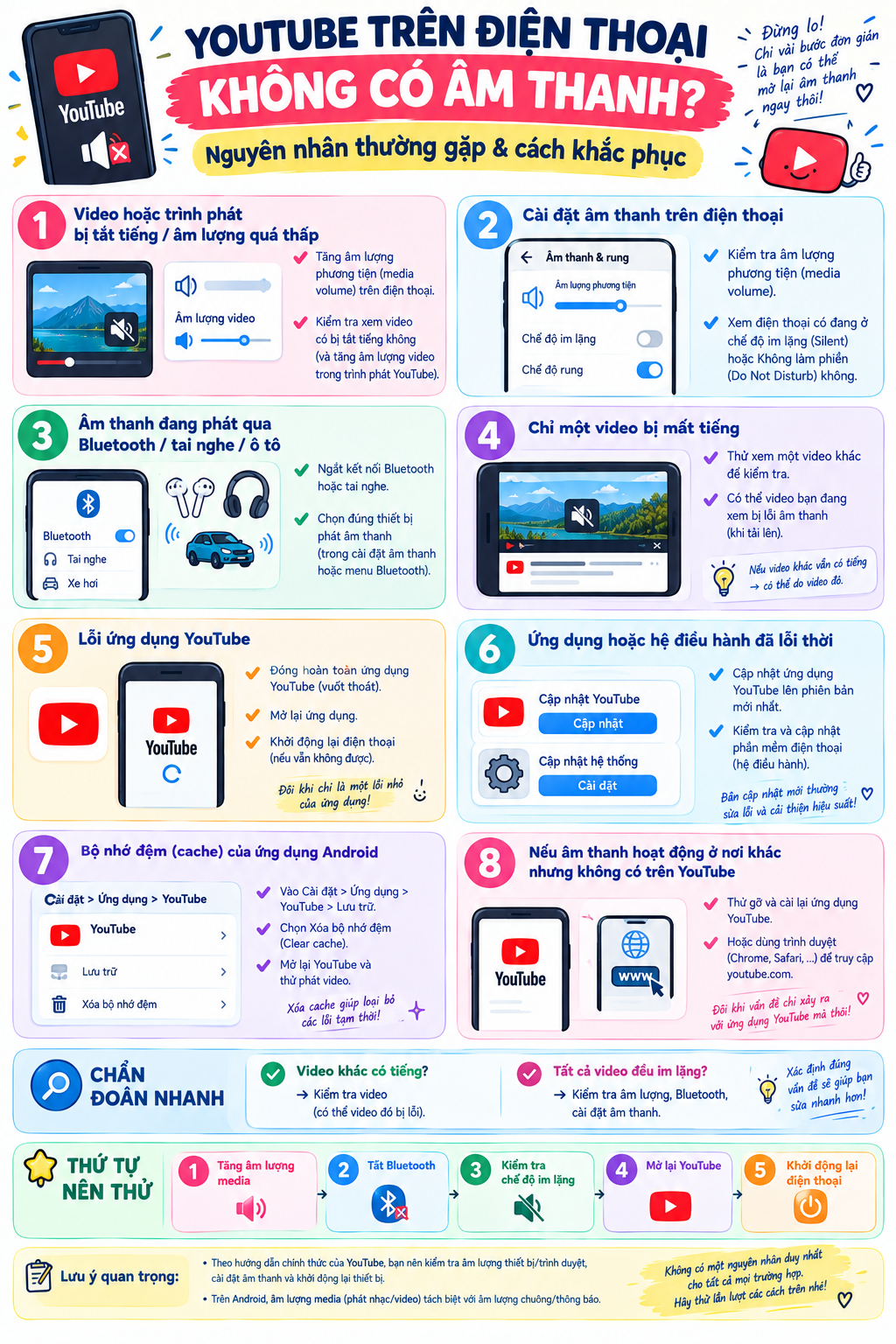
- 1. Reasons why YouTube loses sound on my phone.
- 2. How to fix YouTube with no sound on your phone
- 2.1. Check and increase media volume.
- 2.2. Restart your phone
- 2.3. Clear YouTube's cache.
- 2.4. Update YouTube to the latest version.
- 2.5. Check your internet connection.
- 2.6. Check your Bluetooth headphones and speakers.
- 2.7. Uninstall and reinstall YouTube
- 2.8. Check your phone's speaker.
- 3. What should I do if YouTube only loses sound when I plug in headphones?
- 4. Conclusion
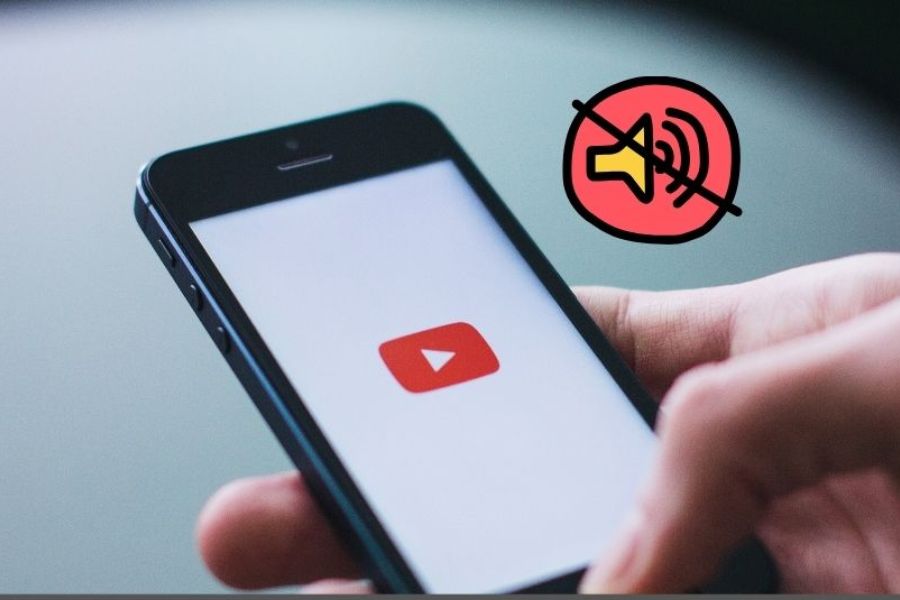
Watching YouTube smoothly, but suddenly only the video plays, and the sound disappears? This is a fairly common problem for both Android and iPhone users. The annoying thing is that the screen still plays the video normally, the progress bar still runs, but no matter how many times you adjust the volume, you can''t hear any sound. The loss of sound on YouTube can stem from very simple reasons such as media volume being at 0, the video being accidentally muted, or the phone being connected to Bluetooth headphones. However, the error could also be related to the cache, YouTube version, internet connection, or even the speaker system.
1. Reasons why YouTube loses sound on my phone.
Before attempting to fix the problem, you should identify where the issue lies. YouTube losing sound doesn't always mean the app is malfunctioning. Sometimes, an unintentional change in sound settings is enough to cause a video you're watching to go silent.
Some common causes include:
-
Media volume is too low or zero: Your phone has multiple volume settings, so the ringtone volume is normal, but the video volume is muted.
-
YouTube video is muted: You may have accidentally tapped the speaker icon while interacting with the screen.
-
YouTube is experiencing a temporary glitch: The app occasionally malfunctions, causing the video to play but the sound to stop working.
-
Cache error: Temporarily stored data over extended periods can cause YouTube to malfunction.
-
YouTube has not been updated: The old version may have compatibility issues with the operating system or device.
-
Audio is being diverted to another device: Wired headphones, Bluetooth headphones, or wireless speakers may be receiving audio instead of the phone's speaker.
-
Unstable network connection: A fluctuating internet connection can affect the download and playback of content.
-
The phone system is malfunctioning: Several software glitches can affect the ability to play audio.
-
Speaker or headphone issue: If other apps also have no sound, the problem may lie in the hardware.
2. How to fix YouTube with no sound on your phone
2.1. Check and increase media volume.
This is the simplest method, but it's also a step many people easily overlook. Phones usually separate the volume for ringtones, notifications, calls, and media. Therefore, just because the ringtone is still on doesn't mean YouTube is muted. Open any video on YouTube and check the volume while the video is playing. Do this in order:
-
Step 1: Open the YouTube app and select any video to play as a test.
-
Step 2: Press the Volume Up button on the side of the phone.
-
Step 3: Observe the volume bar displayed on the screen and ensure that the Media setting is not at 0.
-
Step 4: Check the speaker icon on the video interface to make sure the video is not muted.
-
Step 5: Play back the video and check if the sound has returned to normal.
If the problem is simply that the media volume has dropped to zero, you don't need to delete data or reinstall the app. This is also a good first step to try before moving on to more complex solutions.
2.2. Restart your phone
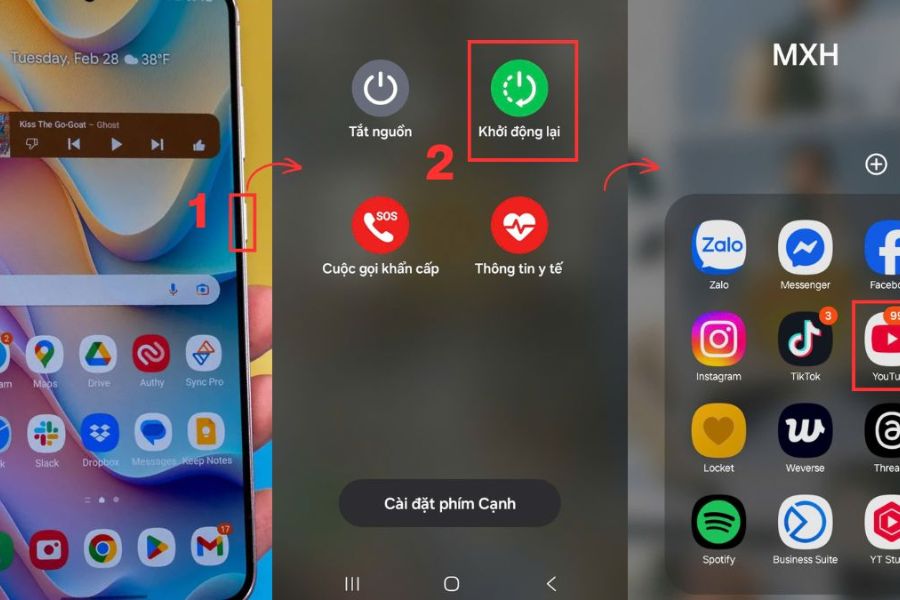
If the volume is turned up but YouTube is still silent, try restarting your phone. Some software errors only appear temporarily after the device runs many apps, switches between audio devices, or operates continuously for a long time. Restarting helps the system refresh running processes and may restore audio functionality to normal. You can do this as follows:
-
Step 1: Press and hold the Power button on your phone.
-
Step 2: When the options menu appears, select Restart .
-
Step 3: Wait for the phone to complete the boot process.
-
Step 4: Reopen the YouTube app after your device is working normally.
-
Step 5: Choose any video and check the audio again.
If YouTube is now playing sound again, it's highly likely the previous error was just a temporary system issue. This method is quick, safe, and has virtually no impact on personal data on your phone.
2.3. Clear YouTube's cache.
If you're using an Android phone, YouTube's cache is also something you should check if the app is behaving unusually. The cache stores temporary data to make the app run faster, but if this data is corrupted, YouTube can experience unpredictable problems, including loss of sound. Clearing the cache is quick and doesn't require you to uninstall the app. Follow the steps below:
-
Step 1: Open Settings on your Android phone.
-
Step 2: Select Applications or Application Management , depending on your device's interface.
-
Step 3: Find and select YouTube .
-
Step 4: Select the Storage or Memory option .
-
Step 5: Click Clear Cache .
-
Step 6: Reopen YouTube and play a video to test the audio.
Note that iPhones don't offer a direct YouTube cache clear button like Android. If you need to refresh app data on your iPhone, you can try uninstalling and reinstalling YouTube.
2.4. Update YouTube to the latest version.
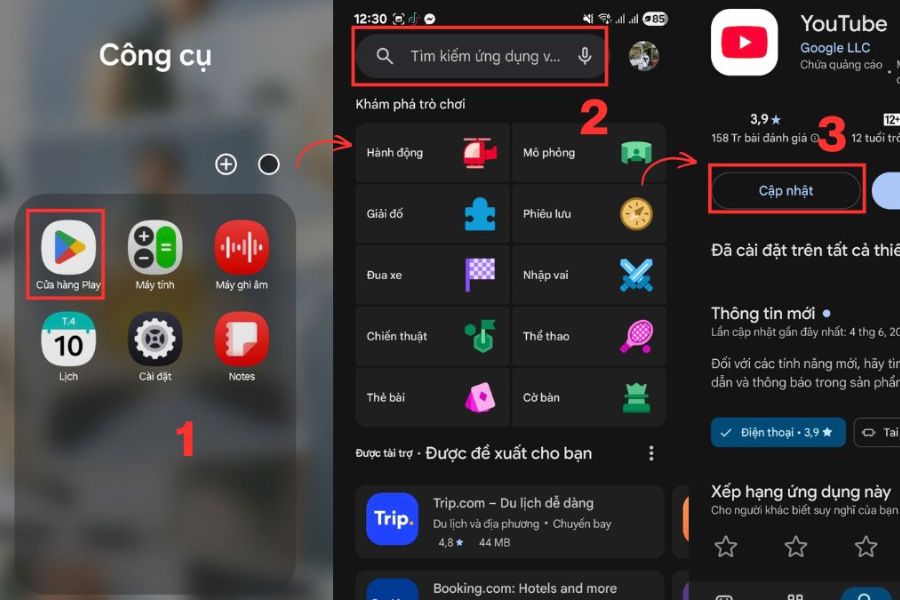
An outdated version of YouTube may sometimes not work properly on a new operating system. If it's been a while since you updated the app, check your app store to see if there's a new version of YouTube available. It only takes a few minutes to update, but this can fix bugs from the previous version. The process is quite simple:
-
Step 1: Open Google Play Store on Android or the App Store on iPhone.
-
Step 2: Enter the keyword "YouTube" into the search box.
-
Step 3: Select the official YouTube app from the list of results.
-
Step 4: Click Update if a new version is available.
-
Step 5: Wait for the update process to complete, then reopen YouTube.
-
Step 6: Play a video to test if the sound is working.
If the button displayed is Open instead of Update , the app may already be the latest version for your device. In that case, you should continue checking for other possible causes.
2.5. Check your internet connection.
Not all YouTube playback issues stem from audio problems. An unstable internet connection can also cause video playback to be inconsistent. If your network is weak, try changing your connection to see if that improves the situation.
You can quickly check using the following methods:
-
Step 1: If you are using Wi-Fi, try switching to mobile data .
-
Step 2: If you are using mobile data, try connecting to a stable Wi-Fi network .
-
Step 3: Turn on airplane mode for a few seconds, then turn it off to refresh the network connection.
-
Step 4: If using home Wi-Fi, try restarting your modem .
-
Step 5: Reopen YouTube and play the video once your internet connection is stable.
You can also try opening another app that plays audio or video. If multiple apps are experiencing intermittent issues, the problem might be with your internet connection rather than YouTube itself.
2.6. Check your Bluetooth headphones and speakers.
One situation where users easily "look for the problem" is when the phone is playing audio to another device. You might think the YouTube sound is cut out, but in reality, the audio is being streamed to headphones or Bluetooth speakers that were previously connected.
Please double-check the audio devices currently paired with your phone:
-
Step 1: Open Settings on your phone.
-
Step 2: Select the Bluetooth option and check the list of connected devices.
-
Step 3: If your phone is currently connected to Bluetooth headphones or speakers, try disconnecting them .
-
Step 4: Turn off Bluetooth for a few seconds and then turn it back on if needed.
-
Step 5: If you are using wired headphones, unplug them and plug them back in securely.
-
Step 6: Open YouTube and test playing a video using your external speaker.
If YouTube plays normally after disconnecting Bluetooth, the problem might lie with the audio device or the audio output switching process. With wireless headphones, you should also check the battery level and try pairing again if necessary.
2.7. Uninstall and reinstall YouTube
If you've tried many things and YouTube still won't play sound, reinstalling the app is a worthwhile option. This refreshes the app's components and removes any data that may have become corrupted during use.
On an iPhone, you can do this quite quickly:
-
Step 1: Tap and hold the YouTube icon on the screen.
-
Step 2: Select "Delete app" and then confirm uninstalling the app.
-
Step 3: Open the App Store on your iPhone.
-
Step 4: Type YouTube into the search box.
-
Step 5: Select the official YouTube app.
-
Step 6: Tap Get/Install and wait for the app to download.
-
Step 7: Open YouTube, log in to your account if necessary, and then play a video.
On some Android phones, YouTube is built into the system and cannot be completely uninstalled like a regular app. In that case, you can try turning off the app , uninstalling updates , or clearing the cache, then updating YouTube again from the Play Store.
2.8. Check your phone's speaker.
If YouTube has no sound and the above methods don't work, don't rule out the possibility that your phone's speaker is malfunctioning. Especially if other apps also have no sound, the problem may not be solely with YouTube.
You can quickly check by following these steps:
-
Step 1: Open a song or video in another app.
-
Step 2: Increase the media volume to a moderate level.
-
Step 3: Check if the speaker is covered by a case, dust, or any other obstruction.
-
Step 4: Try disconnecting all connected Bluetooth headphones and speakers.
-
Step 5: If possible, try playing the audio using a different pair of headphones.
-
Step 6: If all apps have no sound, consider taking your phone to a reputable repair shop for inspection.
Do not use sharp objects to poke deep into the speaker holes to remove dust, as this can damage the internal components. If your phone has been dropped, bumped, or exposed to water before the sound issue appeared, you should have it checked as soon as possible.
3. What should I do if YouTube only loses sound when I plug in headphones?
If YouTube plays sound through the external speaker but loses sound when using headphones, it's usually related to the connection or audio output. With wired headphones, a loose or poor-contact plug can cause the phone to not fully recognize the headphones. Meanwhile, Bluetooth headphones may experience pairing errors or be connected but not receiving audio from YouTube.
You can try the following methods in order:
-
Unplug the wired headphones and then plug them back in securely .
-
Try a different pair of headphones to test.
-
Turn Bluetooth off and then back on if you're using wireless headphones.
-
Disconnect the headphones and pair them again from scratch .
-
Check the media volume on your phone.
-
Check the volume directly on the headphones if the device has a separate volume control button.
-
Restart your phone and then try connecting the headphones again.
-
Update YouTube and your operating system if your device is using an outdated version.
If only one earpiece is malfunctioning while the others are working normally, check that specific earpiece. Conversely, if all earpieces are faulty and the external speaker is also unreliable, you should check your phone's software and hardware.
4. Conclusion
Losing sound on YouTube on your phone can instantly ruin a seamless video viewing experience. However, in most cases, the problem can be solved with simple steps such as increasing media volume, restarting your phone, clearing the cache, updating YouTube, or checking your Bluetooth connection. If you've tried all of these methods and YouTube still has no sound, try checking other apps. If your phone also loses sound across multiple apps or the speaker shows signs of malfunction, checking the hardware will help pinpoint the exact cause and avoid wasting time trying too many ineffective solutions.





















VIP Products








Best Selling Products
Plugin Retouch4me
69 USD
Adobe Photoshop Copyright - Full App
120 USD
ChatGPT Plus Account (GPT-4)
16 USD
Adobe Premiere Pro Account
99 USD
MidJourney Account
29 USD
Upgrade Genuine Office 365
49 USD
Genuine Adobe Illustrator account
99 USD
Windows 10 & 11 Pro Key
36 USD
Copyright Adobe Lightroom Account
59 USD
Capcut Pro 1 Year
39 USD
Autodesk All App Account Copyright
120 USD
Freepik Premium Account
59 USD
Upgrade genuine Capture One account
120 USD
Upgrade Duolingo Super
29 USD
Genuine Cheap Canva Pro
39 USD