Best Selling Products

ChatGPT Plus Account (GPT-4)
16 USD

Upgrade genuine Capture One account
120 USD

Upgrade Duolingo Super
29 USD

Genuine Adobe Illustrator account
99 USD

Copyright Adobe Lightroom Account
59 USD

Windows 10 & 11 Pro Key
36 USD

Capcut Pro 1 Year
39 USD

Autodesk All App Account Copyright
120 USD

Plugin Retouch4me
69 USD

MidJourney Account
29 USD

Adobe Premiere Pro Account
99 USD

Genuine Cheap Canva Pro
39 USD

Adobe Photoshop Copyright - Full App
120 USD

Freepik Premium Account
59 USD

Upgrade Genuine Office 365
49 USD
A simple guide to creating lively, unique, and engaging GIFs on ChatGPT for beginners.
Nội dung
- 1. What are GIF images on ChatGPT?
- 2. What do I need to prepare before creating a GIF on ChatGPT?
- 3. 5-Step Guide to Creating GIF Images on ChatGPT
- 3.1. Step 1: Describe the idea and create an image using ChatGPT
- 3.2. Step 2: Create motion for the image
- 3.3. Step 3: Preview and test the motion
- 3.4. Step 4: Convert the content to GIF format
- 3.5. Step 5: Finalize and save the GIF image to your device.
- 4. How to turn existing images into animated GIFs on ChatGPT
- 5. Compilation of prompts for creating beautiful and impressive GIFs on ChatGPT
- 6. Some tips to help create better GIFs on ChatGPT
- 7. Conclusion
GIFs are a familiar image format, often appearing in social media posts, messages, advertising content, and creative videos. Short, continuously repeating movements make images more dynamic and convey emotions better than static images. Instead of spending time using multiple editing software programs, you can now leverage artificial intelligence to transform your ideas into engaging visual content. With its ability to create and edit images using AI, ChatGPT offers a simpler approach for users who want to experiment with creative content. You can start with a descriptive command, use existing images, or ask the AI to adjust details you''re not satisfied with. In this article, let''s explore with Sadesign how to create GIFs on ChatGPT, the specific steps involved, and useful prompts to achieve beautiful results.
1. What are GIF images on ChatGPT?
GIF (Graphics Interchange Format) is an image format that supports multiple consecutive frames, creating the illusion of movement when played. Unlike static images that only show a single moment, GIFs can simulate actions such as blinking, waving, dancing, or the movement of objects in the scene.
When using ChatGPT, users can leverage its image creation and animation capabilities to build GIF ideas. Instead of designing each frame individually, you can describe the desired action and the AI will assist in creating the visual content.
Some notable benefits of using ChatGPT include:
-
Simple operation: Just enter your request using natural language; no in-depth design knowledge is required.
-
Creative flexibility: A wide range of ideas can be developed, from cartoon characters and pets to advertising imagery.
-
Leverage existing images: Use personal photos as reference material to develop new content.
-
Easy to edit: Continue interacting with the AI to adjust colors, expressions, layout, and movement.
-
Save time: Minimize manual operations when developing visual ideas.
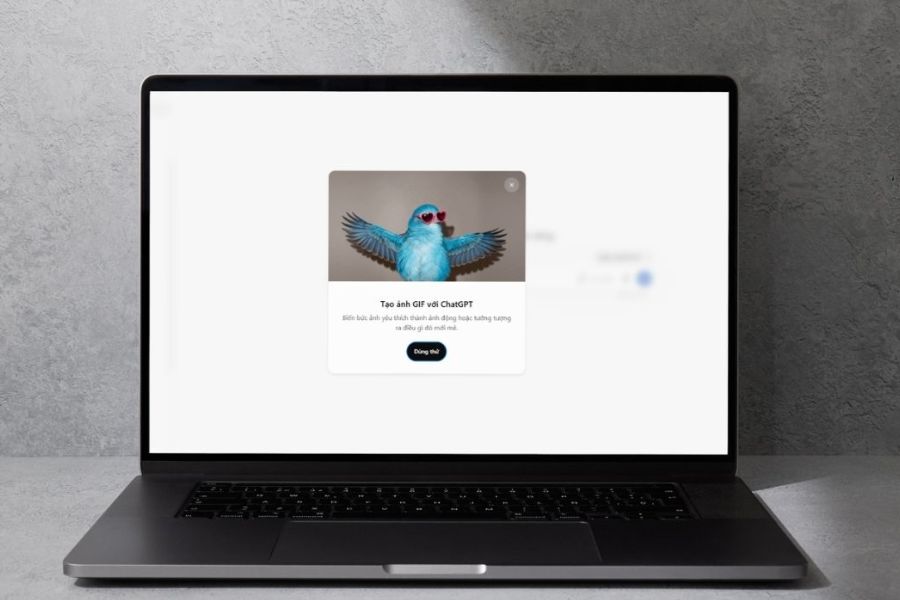
Note that the ability to create images and animated GIFs are two different functions. ChatGPT may support creating images or animated content depending on the tools provided in your account. Not all interfaces directly export GIF files. If the result is a video or animated image in a different format, you may need to convert it to GIF using a suitable tool.
2. What do I need to prepare before creating a GIF on ChatGPT?
Before you begin, you should clearly define the content you want to convey to ensure a smooth image creation process. Preparing ideas, reference images, and specific commands will help the AI understand your requirements correctly, minimizing the chances of unexpected results.
Some of the things that need to be prepared include:
-
ChatGPT Account: Access ChatGPT using your personal account. Access to image creation features may vary depending on your service plan and usage limits.
-
Creative idea: Define the characters, actions, setting, and visual style you want to express.
-
Reference image: If you want to transform still images into moving content, prepare high-quality images with clear subjects.
-
Prompt details: Write specific commands for the AI to capture the movement and identify features that need to be preserved.
-
Devices used: You can access ChatGPT on your computer or phone via supported browsers and applications.
In particular, keep in mind that the clearer the prompt, the easier it is for the AI to understand your creative intent. You don't need to use complex technical jargon; just express exactly what you want.
3. 5-Step Guide to Creating GIF Images on ChatGPT
ChatGPT helps users access the image creation process with easy-to-understand commands. You can start with a completely new idea or utilize existing images to develop content. Below are the basic steps.
3.1. Step 1: Describe the idea and create an image using ChatGPT
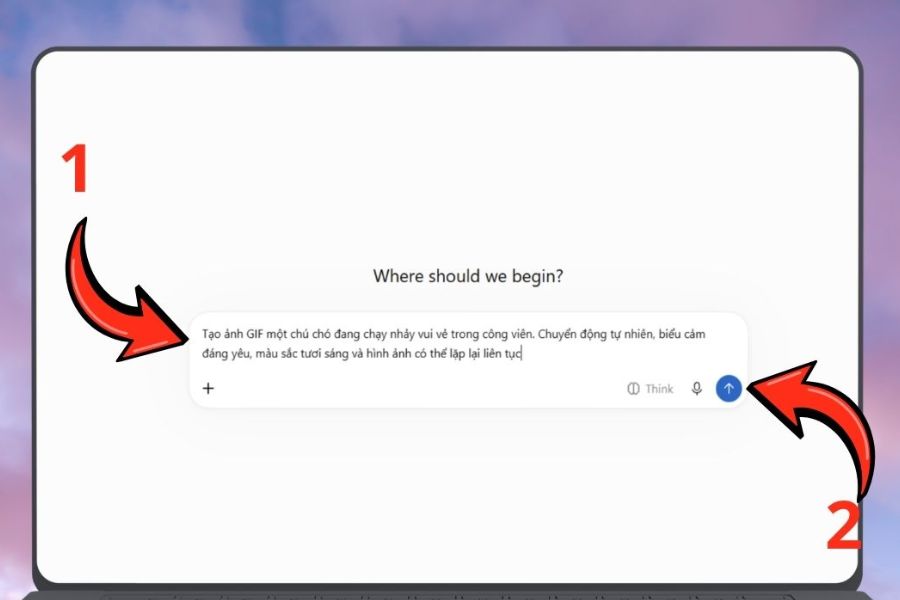
First, access ChatGPT and open a new chat. In the input field, describe the image you want to create, including the character, action, background, and style.
You should prioritize simple movements that are easy for the AI to process and maintain consistency across frames. For example, a dog running and jumping, a cartoon character waving, or a flower slowly blooming are all suitable ideas to start with.
Reference prompt:
"Create an image of a small dog happily running and jumping in the park. The 3D animation style is adorable, with bright colors, natural lighting, and a green background. The character design is clear and well-proportioned, giving the impression of being ready to be animated into a GIF."
After submitting your request, click submit and wait for ChatGPT to process it. If the image is not to your liking, you can request further changes before moving on to the animation creation step.
3.2. Step 2: Create motion for the image
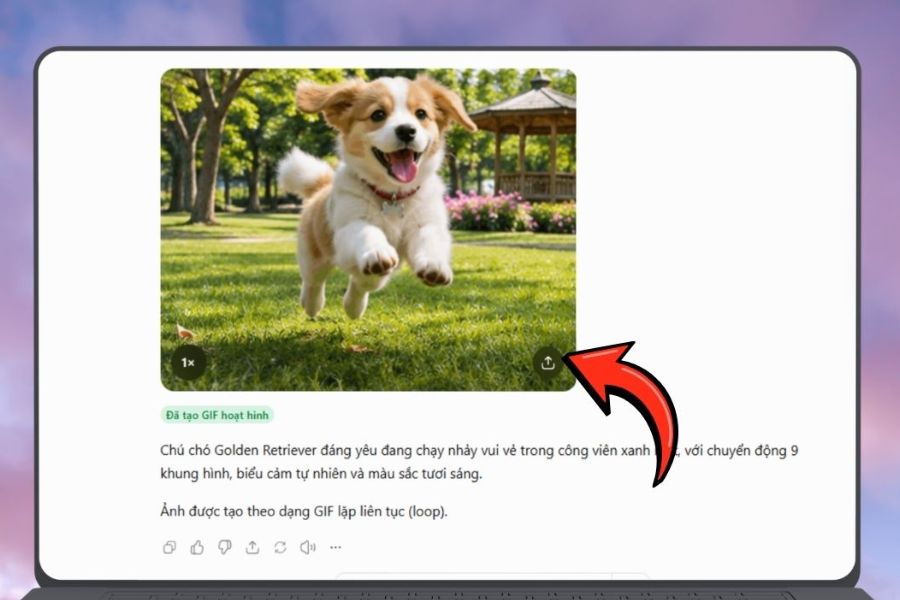
Once you have the right image, use the video creation or animation tool if your account supports it. Enter the motion request based on the image you just created so the AI understands the action to perform.
For example, with the dog above, you could instruct the character to run forward, its tail wagging continuously, and maintain a cheerful expression throughout.
Reference prompt:
"Create movement for the dog character in the image. The dog should run gently forward, its tail wagging continuously, and its ears moving naturally with each step. Maintain the original fur color, facial features, body proportions, and animation style. The movement should be smooth and not distort the character."
After sending the command, wait for the AI to generate the result. Depending on the tool used, the output may be a short video or animated visual content.
3.3. Step 3: Preview and test the motion
This is an important step to help you assess the quality of the content before saving it to your device. Open the result and observe all the movement to detect any inconsistencies.
Some factors to check include:
-
Smoothness: Actions should transition naturally, avoiding any jerky or abrupt movements.
-
Character appearance: Face, hairstyle, clothing, and color scheme need to be consistent.
-
Background: Limit unnecessary changes to the background.
-
Expression: The character should display emotions that match their actions.
-
Duration: The animation shouldn't be too long if the goal is to create a short GIF to share.
If you find an error, you can continue to enter your edit request within the same chat. ChatGPT will assist in reprocessing the content based on the additional information.
3.4. Step 4: Convert the content to GIF format
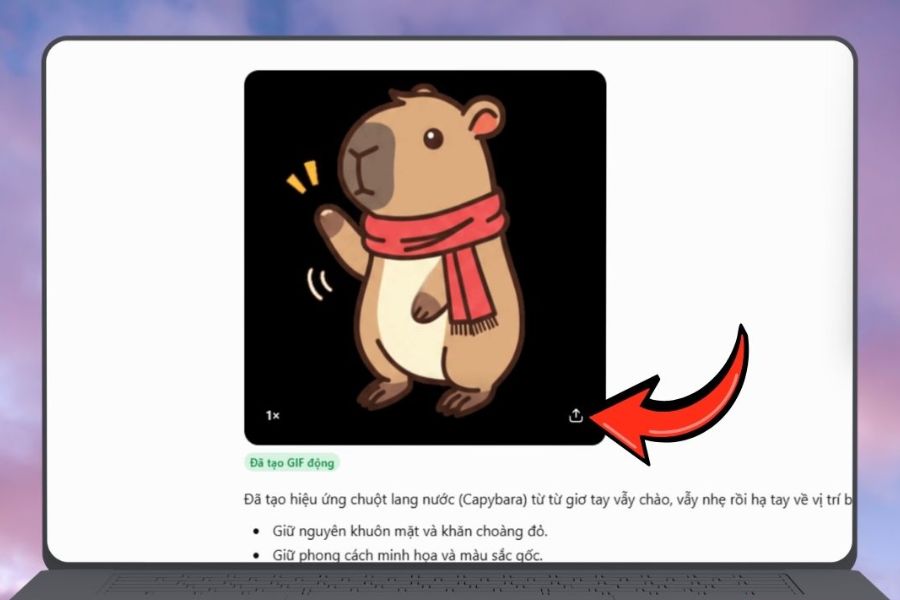
If ChatGPT returns a video instead of a GIF file, you need to convert the content to your desired format. Download the video to your device, then use a suitable video-to-GIF converter.
During the conversion process, you should pay attention to a few parameters:
-
Duration: Prioritize short motion sequences, focusing on the main action.
-
Frame rate: Adjust appropriately so the GIF doesn't stutter or have an excessively large file size.
-
Size: Choose a resolution suitable for your uploading purposes.
-
Loop mode: Set the playback to loop continuously if you want the image to move without stopping.
-
File size: Optimized file size for easy sending via messaging or posting on social media.
Once complete, open the GIF file to check if the image plays as intended.
3.5. Step 5: Finalize and save the GIF image to your device.
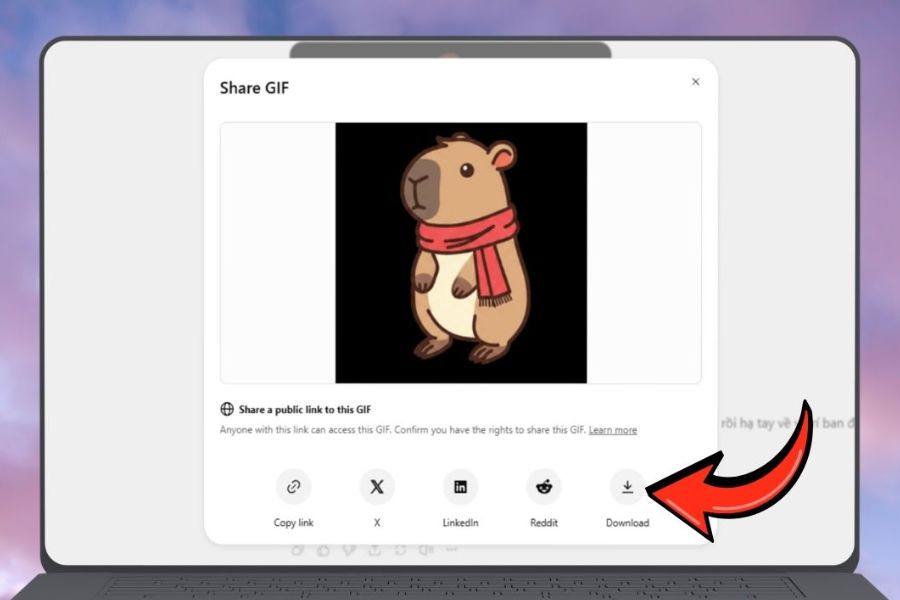
After conversion, check the overall quality of the GIF image. If the image meets your requirements, you can save the file to your computer or phone for use.
For content intended for social media, be sure to check the aspect ratio and file size to minimize the risk of images being cropped or losing quality.
Some things to keep in mind when finishing:
-
Give your files easily recognizable names for convenient searching.
-
Check if the file format is indeed GIF.
-
Test on multiple devices to ensure stable image display.
-
Keep the original version if you want to edit or convert it later.
-
Only use images with appropriate licensing rights when posting commercial content.
4. How to turn existing images into animated GIFs on ChatGPT
Besides creating images from scratch, you can also utilize photos from your personal library to develop animation ideas. This method is suitable for creating GIFs from pet photos, portraits, illustrations, or memorable moments.
The steps are as follows:
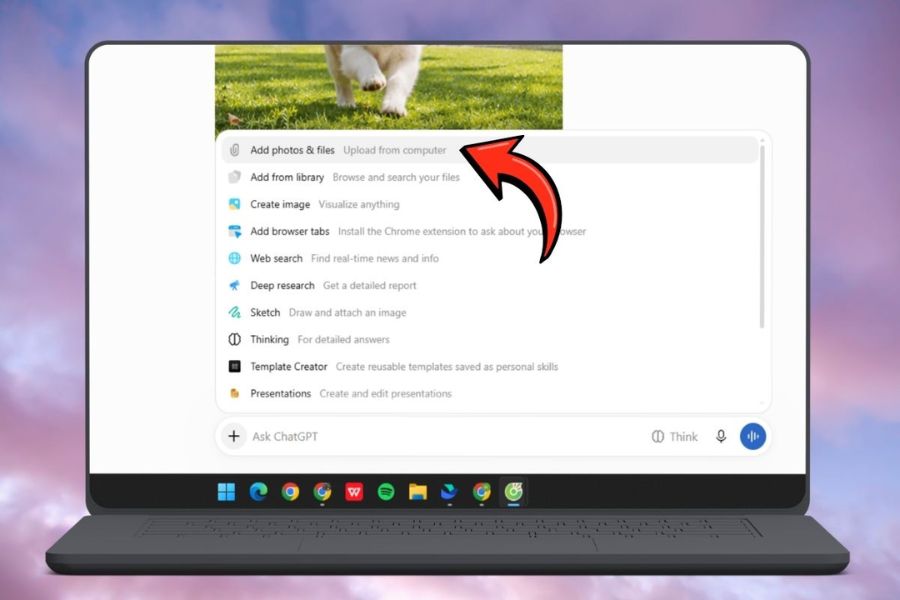
Step 1: Open ChatGPT, tap the plus icon in the chat window, and upload the image you want to use.
Step 2: Enter the description of the action you want to add to the image. Specify which characters are moving and which details should remain unchanged.
Step 3: Use the supported video or animation creation feature to create motion from the reference image.
Step 4: Preview the results and ask the AI to make adjustments if the character's appearance is altered or their movements are unnatural.
Step 5: Save the result and convert it to GIF if the output is not already in this format.
You can refer to the following prompt:
"Transform the uploaded image into a short animated clip. Keep the original face, hairstyle, clothing, and background intact. The character slowly raises their hand to wave, smiling naturally. The movement should be smooth and seamless, without altering any identifying features or image composition."
With this method, you can leverage your personal photos to create unique content without having to design each animation yourself. However, the results depend on the quality of the input images and the processing capabilities of the tool.
5. Compilation of prompts for creating beautiful and impressive GIFs on ChatGPT
One of the key factors determining the quality of animation is the input command. If you're unsure where to start, you can refer to the prompts below and adjust them to your own ideas.
Prompt 1: Create a cute cartoon character GIF
"Create a short animation featuring a little cat character winking and waving. The movements should be natural, the expressions adorable, and the colors bright, maintaining the character's design throughout the process."
Prompt 2: Create a blooming flower GIF
"Create the motion of a flower slowly unfolding in the morning sunlight. The petals open gently, dew drops glisten, and the background is a refreshing green. The movement is soft and can be repeated naturally."
Prompt 3: Improve motion smoothness
"Optimize motion in animated content to make actions more continuous and natural. Minimize stuttering and abrupt movements while maintaining the original visual style."
Prompt 4: Keep the character's appearance consistent.
"Maintain all of the character's features, including face, hairstyle, clothing, color, and body proportions. Do not change the character's design between frames."
Prompt 5: Create a natural-looking repetition effect
"Adjust the movement so that the starting and ending points are seamlessly connected. Create a continuous looping effect, without abrupt pauses or unusual changes in composition."
Prompt 6: Adjust the movement speed
"Adjust the movement slightly to be slower, focusing on the main action. Details need to be clearly shown, with smooth transitions and without altering the character's appearance."
You can combine multiple requests in a single command to better control the results. However, it's advisable to break down complex edits into smaller requests for easier evaluation and to prevent the AI from misinterpreting your ideas.
6. Some tips to help create better GIFs on ChatGPT
To achieve high-quality animated content, you shouldn't just focus on the initial image creation command. Selecting reference images, defining the animation, and testing the output also significantly impact the result.
Here are some helpful tips:
-
Describe the movement in detail: Instead of writing generally like "create a beautiful animation," specify what action the character is performing, how fast or slow it is, and in what direction.
-
It doesn't require too much action: A GIF should focus on one or two main movements to avoid the image becoming cluttered.
-
Prioritize clear input images: Images with prominent subjects and good lighting will help the AI easily recognize details.
-
Maintain a consistent style: If you want to create animated GIFs, request that the animation style be maintained throughout.
-
Copyright check: Do not use other people's images for commercial purposes without proper authorization.
-
Optimize file size: Overly large GIFs can make uploading and sharing inconvenient.
Additionally, you need to differentiate between image creation, video creation, and GIF export capabilities. ChatGPT doesn't always directly provide GIF files in every interface. Therefore, check the output format before proceeding with the next steps.
7. Conclusion
Creating GIFs on ChatGPT is a fun way to turn creative ideas into vibrant visual content. With just a few descriptive commands, you can build images, develop animations, and edit many details as desired. Although you may need to use conversion tools if ChatGPT doesn't directly export GIF format, this process still saves considerable time compared to doing it manually. Experiment with different prompts to create unique animations for entertainment, learning, and content creation.





















VIP Products








Best Selling Products
ChatGPT Plus Account (GPT-4)
16 USD
Upgrade genuine Capture One account
120 USD
Upgrade Duolingo Super
29 USD
Genuine Adobe Illustrator account
99 USD
Copyright Adobe Lightroom Account
59 USD
Windows 10 & 11 Pro Key
36 USD
Capcut Pro 1 Year
39 USD
Autodesk All App Account Copyright
120 USD
Plugin Retouch4me
69 USD
MidJourney Account
29 USD
Adobe Premiere Pro Account
99 USD
Genuine Cheap Canva Pro
39 USD
Adobe Photoshop Copyright - Full App
120 USD
Freepik Premium Account
59 USD
Upgrade Genuine Office 365
49 USD