Best Selling Products

Capcut Pro 1 Year
39 USD

Freepik Premium Account
59 USD

Copyright Adobe Lightroom Account
59 USD

Adobe Premiere Pro Account
99 USD

ChatGPT Plus Account (GPT-4)
16 USD

MidJourney Account
29 USD

Upgrade Duolingo Super
29 USD

Plugin Retouch4me
69 USD

Windows 10 & 11 Pro Key
36 USD

Genuine Cheap Canva Pro
39 USD

Adobe Photoshop Copyright - Full App
120 USD

Autodesk All App Account Copyright
120 USD

Upgrade genuine Capture One account
120 USD

Genuine Adobe Illustrator account
99 USD

Upgrade Genuine Office 365
49 USD
A Simple Guide to Remotely Logging Out of ChatGPT on Any Device 09/14/2026
Nội dung
- 1. When should you remotely log out of ChatGPT?
- 2. How to remotely log out of ChatGPT on a phone
- 3. How to remotely log out of ChatGPT on a computer
- 4. Should you log out of each device individually or all at once?
- 5. Does remotely logging out of ChatGPT delete your chat history?
- 6. Important notes when remotely logging out of ChatGPT
- 7. How to keep your ChatGPT account more secure
- 8. Conclusion
Logging into ChatGPT on multiple devices makes it easier to work and look things up, but it can also lead to situations where you forget to log out. This is especially true if you''''ve used your account on a public computer, someone else''''s phone, or a device you no longer use — leaving an active session running can make you worry about your privacy and personal data. Fortunately, ChatGPT supports session management, allowing users to proactively check and remotely log out. In this article, Appvip will walk you through exactly how to remotely log out of ChatGPT on both phone and computer, and share important tips to help you better protect your account.
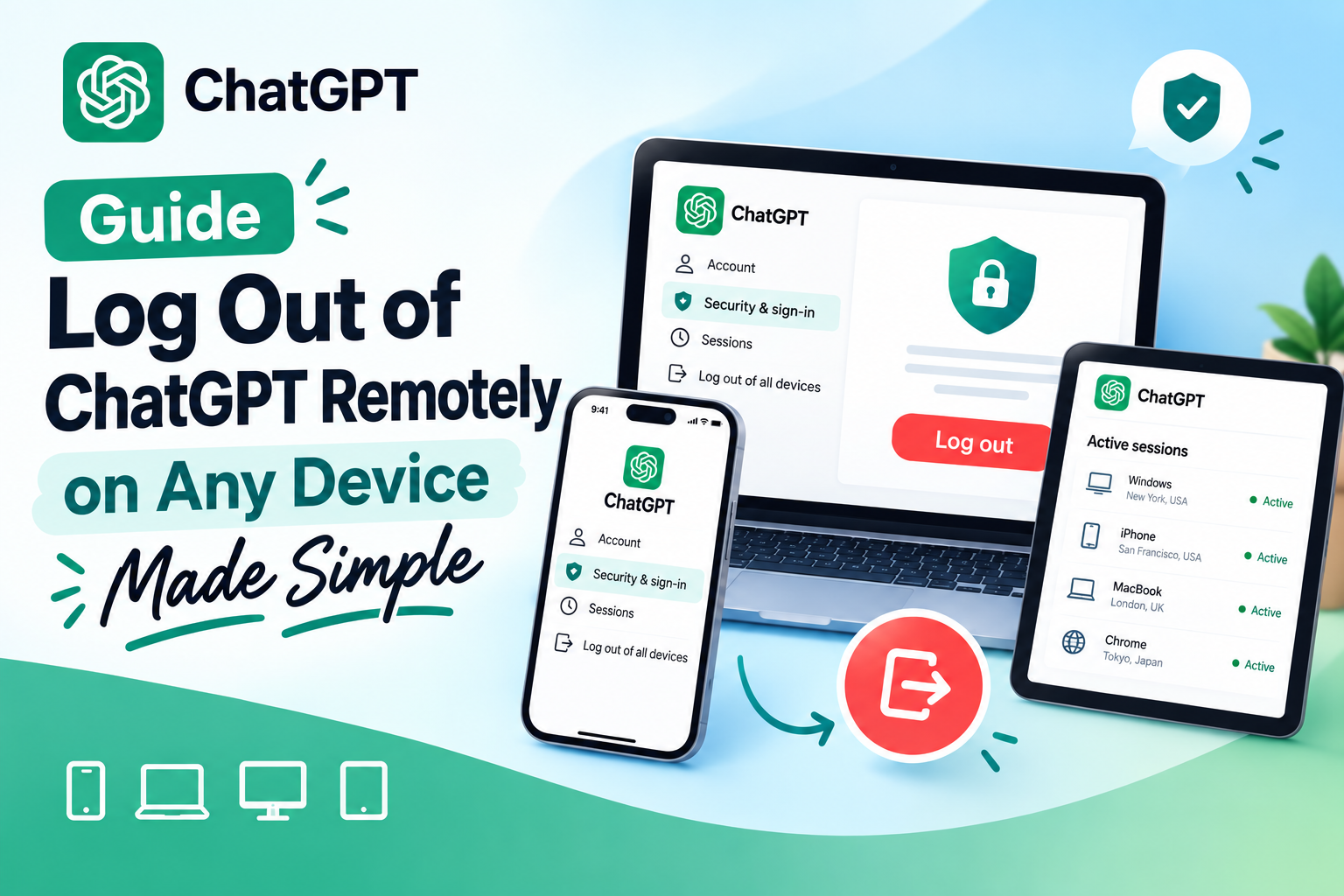
1. When should you remotely log out of ChatGPT?
Remotely logging out of ChatGPT is especially useful when you no longer have access to a device you previously logged into. For example, you may have logged in on an office computer, a friend's borrowed device, or a public device and forgotten to sign out. Instead of having to track down that device again, you can proactively manage your login sessions from a different device.
Besides the case of forgetting to log out, you should also check your active sessions if you notice anything unusual. A device or session that you don't recognize is reason enough to review your account, log out of the suspicious session, and consider changing your password. This is a simple habit, but it helps reduce the risk of someone else continuing to access your chat history and other account-related information.
2. How to remotely log out of ChatGPT on a phone
Step 1: Open your ChatGPT account
First, open the ChatGPT app on your phone and log into the account you want to manage. On the main screen, tap the menu icon in the top-left corner to open the navigation bar.
When the menu appears, look for your avatar or account area at the bottom of the screen and tap it. This is where your personal information, account options, and settings related to using ChatGPT are gathered.
.png)
Step 2: Go to the security and login section
After opening the account page, scroll down to find the settings options. Depending on the interface language, this section may be displayed in Vietnamese or English. Look for the section related to Security and login to continue managing your access sessions.
In the security area, find the Sessions section and open Active sessions. Here, ChatGPT may display the login sessions associated with your account, helping you check each device and determine which sessions should be kept and which should be logged out.
.png) Step 3: Select the device you want to log out
Step 3: Select the device you want to log out
When the list of sessions appears, carefully check the information provided, such as device, operating system, time, or location of login, if available. This information helps you identify which session belongs to you and which might be an old or no longer used device.
Once you've identified the device to sign out, tap the Log out button or icon corresponding to that session. A confirmation window may appear — simply select Log out to complete the process. After this action, the selected session will no longer be able to access the account as before.
.png)
Step 4: Log out of ChatGPT on all devices
If you don't want to check each device individually, or if you've discovered a suspicious login session, you can use the Log out of all devices option. This option is usually located at the bottom of the session management area and is useful when you want to quickly revoke access across all devices.
After selecting it, confirm the logout request. Note that this action may also log you out of the very phone you're currently using. So make sure you remember your login information or have an appropriate way to log back in before doing this.
.png)
3. How to remotely log out of ChatGPT on a computer
Step 1: Open ChatGPT and go to Settings
On your computer, open your browser and go to ChatGPT. After logging into the account you want to manage, look for your name or avatar in the bottom-left corner of the interface. Click that area to open the account menu.
From the list of options that appears, select Settings. This is the area containing settings related to your account, interface, security, and various other ChatGPT features. If the interface is set to Vietnamese, the section name may be displayed accordingly in that language.
.jpg)
Step 2: Open Security and login
In the Settings window, look at the list of options on the left and find the Security and login section. This is the area you need to access to check your security information and login sessions.
Next, find the Sessions section and open Active sessions. The list of active sessions will help you check which devices or browsers are currently associated with your account. Take a few seconds to review the information carefully before logging out, to avoid accidentally signing out of the session you're currently using.
(1).jpg)
Step 3: Log out of a specific device
In the Active sessions list, look for the device you no longer use or don't recognize. Check the device name, operating system, and related information to make sure you're selecting the correct session.
Once you've identified it, click Log out on the right side of that session. When the confirmation dialog appears, select Log out and remove if it's shown. This action disconnects the selected session and removes it from the management list according to ChatGPT's system.
.jpg)
Step 4: Log out of all devices
If you want to quickly revoke access across all devices, scroll to the bottom of the session list and find the Log out all option. This is a useful choice if you've just changed your password, noticed unusual activity, or simply want to reset your login status across your devices.
Then, select Log out of all devices to confirm. ChatGPT will proceed to log the account out of all associated devices, including the current one. So after doing this, you may need to log back in on the devices you actually want to keep using.
.jpg)
4. Should you log out of each device individually or all at once?
The choice of logout method depends on your specific situation. If you simply forgot to log out on an old device and are certain that all the remaining sessions belong to you, logging out of that single device is the reasonable option. This approach helps minimize disruption to your ongoing use of ChatGPT on the phone, computer, or browser you still use regularly.
On the other hand, if you're not sure where your account is logged in, or you've spotted an unfamiliar access session, logging out of all devices will be faster and safer. Afterward, you can log back in on the personal devices you need to use. In particular, if there are signs that someone else has accessed your account, don't stop at just logging out — you should also review and strengthen your account security.
5. Does remotely logging out of ChatGPT delete your chat history?
One thing that worries many people is whether logging out remotely will cause them to lose their chat history or data in their account. In essence, logging out only terminates the access session on the selected device. It is not an action that deletes the account or the chat history.
Therefore, whether you log out of one device or all devices, the content saved in your account remains intact according to the account's status. When you log back in with the correct account, you can continue using the content and settings that were saved. However, if you want to delete your chat history, that is a separate action that needs to be done in the account's data management section.
6. Important notes when remotely logging out of ChatGPT
Before selecting Log out of all devices, keep in mind that this action may also log out the device you're currently using. So make sure you'll still be able to log back into your account afterward. If you're using ChatGPT across multiple devices for work, logging out of all of them may also require you to log back in everywhere.
In addition, if you discover a device or login session you don't recognize at all, treat this as a sign that you need to review your security. Logging out of the unfamiliar session is the initial step, but changing your password and reviewing your login methods is also very important. You should also avoid logging into your account on public devices and always make a habit of logging out after you're done using it.
7. How to keep your ChatGPT account more secure
Logging out remotely is a helpful solution when you forget to sign out, but the best approach is still to build good security habits from the start. When using ChatGPT on someone else's computer or a public device, remember to log out after you finish your work. If your browser asks whether you want to save your login information, think carefully before agreeing.
In addition, you should use a strong enough password and avoid using the same password for multiple services. When you notice unusual login activity, address it promptly instead of continuing to use the account as normal. Regularly checking your active sessions also helps you quickly spot devices that are no longer needed and proactively revoke their access.
8. Conclusion
The process of remotely logging out of ChatGPT isn't complicated and can be done right on your phone or computer. You can choose to log out of a specific session when you know exactly which device needs to be signed out, or use the log out of all devices option if you want to quickly regain control of your entire account. In particular, if you've ever logged into ChatGPT on an unfamiliar device or noticed an unfamiliar access session, address it as soon as possible. Combining remote logout, reviewing account activity, and strengthening security will help give you greater peace of mind while using ChatGPT. Hopefully this guide has helped you easily handle situations where you forgot to log out and take charge of protecting your account.





















VIP Products








Best Selling Products
Capcut Pro 1 Year
39 USD
Freepik Premium Account
59 USD
Copyright Adobe Lightroom Account
59 USD
Adobe Premiere Pro Account
99 USD
ChatGPT Plus Account (GPT-4)
16 USD
MidJourney Account
29 USD
Upgrade Duolingo Super
29 USD
Plugin Retouch4me
69 USD
Windows 10 & 11 Pro Key
36 USD
Genuine Cheap Canva Pro
39 USD
Adobe Photoshop Copyright - Full App
120 USD
Autodesk All App Account Copyright
120 USD
Upgrade genuine Capture One account
120 USD
Genuine Adobe Illustrator account
99 USD
Upgrade Genuine Office 365
49 USD