Best Selling Products

Adobe Photoshop Copyright - Full App
120 USD

Autodesk All App Account Copyright
120 USD

Genuine Adobe Illustrator account
99 USD

MidJourney Account
29 USD

Windows 10 & 11 Pro Key
36 USD

ChatGPT Plus Account (GPT-4)
16 USD

Genuine Cheap Canva Pro
39 USD

Capcut Pro 1 Year
39 USD

Adobe Premiere Pro Account
99 USD

Upgrade Duolingo Super
29 USD

Copyright Adobe Lightroom Account
59 USD

Freepik Premium Account
59 USD

Upgrade genuine Capture One account
120 USD

Plugin Retouch4me
69 USD

Upgrade Genuine Office 365
49 USD
AI Generative Expand: Smart Image Expansion Technology in Photoshop
Nội dung
- 1.1 Imagine, describe, and contemplate the result.
- 1.2 Zooming in on images is like magic.
- 1.3 Creating scenes using text commands
- 1.4 Refining the work after expansion
- 2. How to use AI to enlarge images in Photoshop
- 2.1 Start with the Cutting Tool
- 2.2 Create a new background
- 2.3 Using commands to customize results
- 3. Why is it necessary to expand the background of an image?
- 3.1 Create a broader context for the story.
- 3.2 Creating a background based on your idea
- 3.3 Converting Aspect Ratio
- 3.4 Create more space for design
Generative Expand is an AI technology that helps users expand image frames naturally. AI analyzes the image content and creates new background areas that fit the context. This enables content creators to edit photos faster and more efficiently.
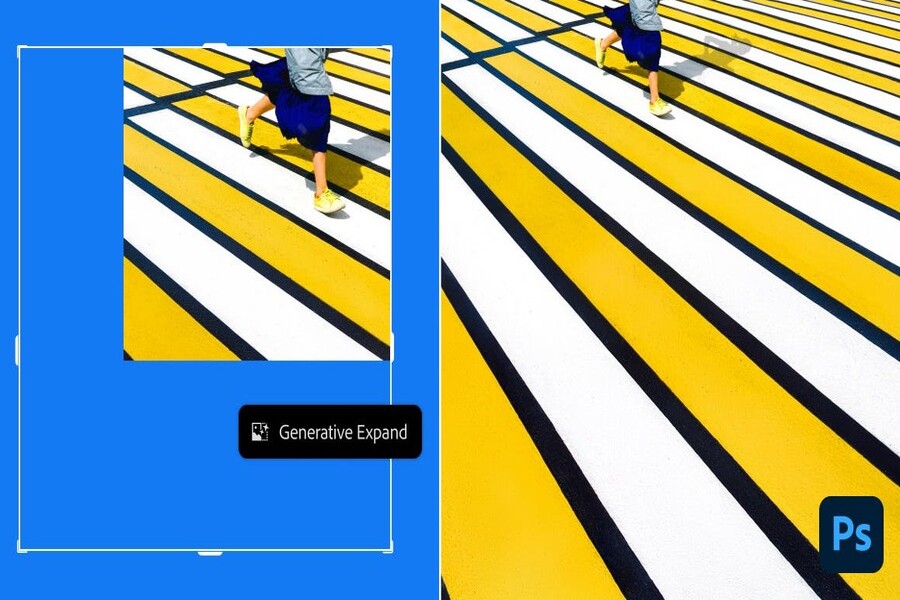
1. How do AI-powered image enlargement tools work?
1.1 Imagine, describe, and contemplate the result.
Cropping is commonly understood as the process of reducing or removing unnecessary parts of an image. However, with the help of AI, modern cropping tools are not limited to reducing size but can also expand the frame.
When using the Crop tool in Photoshop in combination with the expand creation feature, users can drag the cropping frame beyond the boundaries of the original image. This creates a new blank area in the canvas. The AI then analyzes the existing image content and creates a new background that matches the style, lighting, and composition of the original image.
This process is similar to imagining a part of a picture that doesn't yet exist. The AI will predict the most logical details to add to the blank space. For example, if your photo is of a beach, the AI might add sand, waves, or the sky. If it's a city photo, the system might expand the buildings, streets, or city lights.
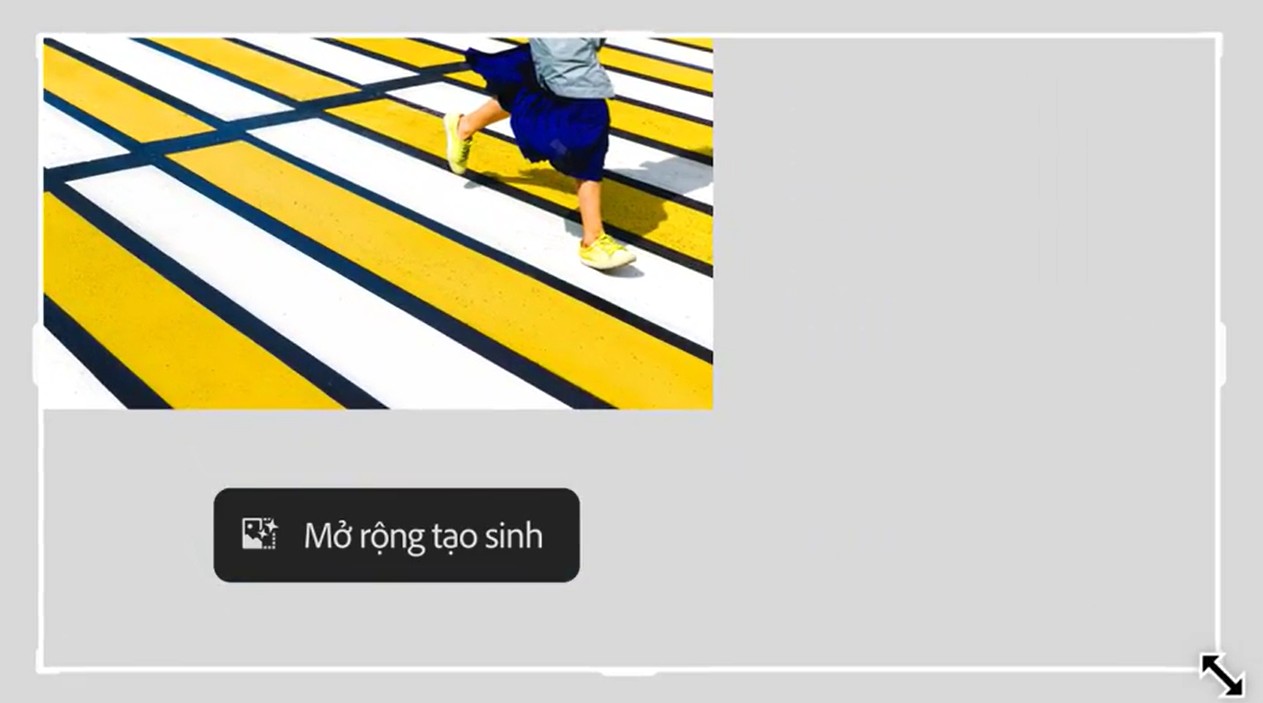
The unique aspect of this technology is its ability to produce very natural-looking results. AI not only replicates existing details but also creates entirely new content that blends seamlessly with the context of the photograph.
1.2 Zooming in on images is like magic.
After you expand the cropping frame to your desired size, Photoshop will allow you to create new content for the empty canvas. Simply press the create button, and the AI system will begin the generation process.
Within seconds, the empty space will be filled with new, high-resolution content. This new background is designed to blend seamlessly with the original image, making it difficult for viewers to distinguish between the original image and the added content.
This capability is like zooming in on the world within a photograph. Details that didn't exist before are now logically and convincingly brought to life.
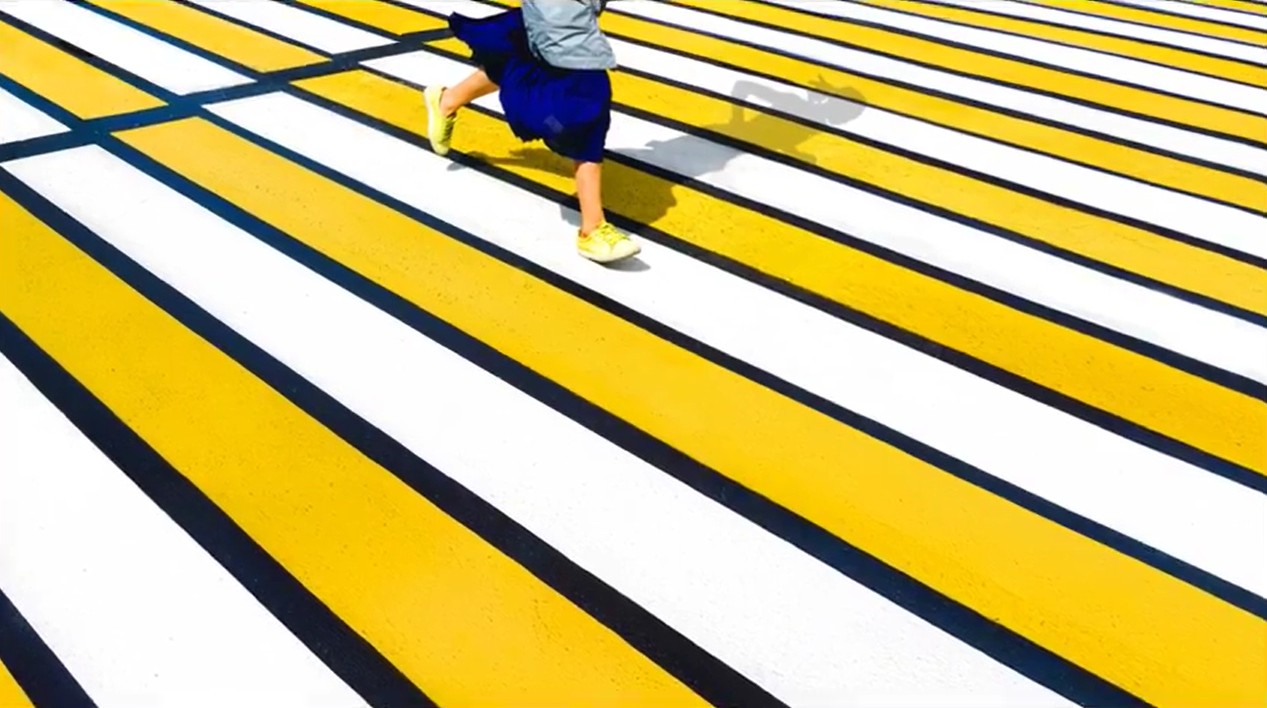
This is especially useful in many real-world situations. For example, you have a beautiful photo but the composition is too cramped. Instead of having to retake the photo or make complex manual edits, you can simply expand the frame and let the AI create the new background.
1.3 Creating scenes using text commands
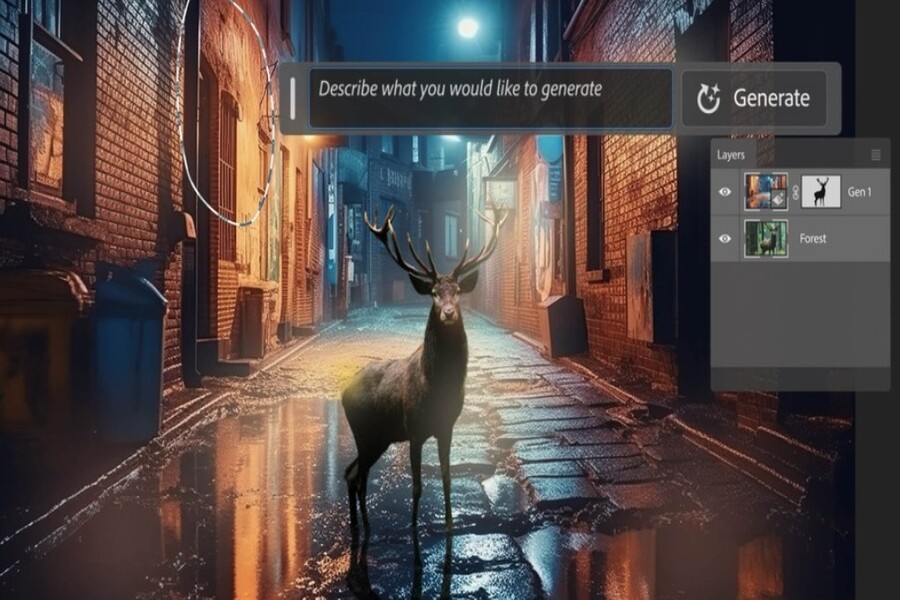
One of the strongest points of AI-powered image enlargement technology is its ability to use text commands to control the results.
Users can enter a simple description of the desired content. The AI will use this information to create a suitable background.
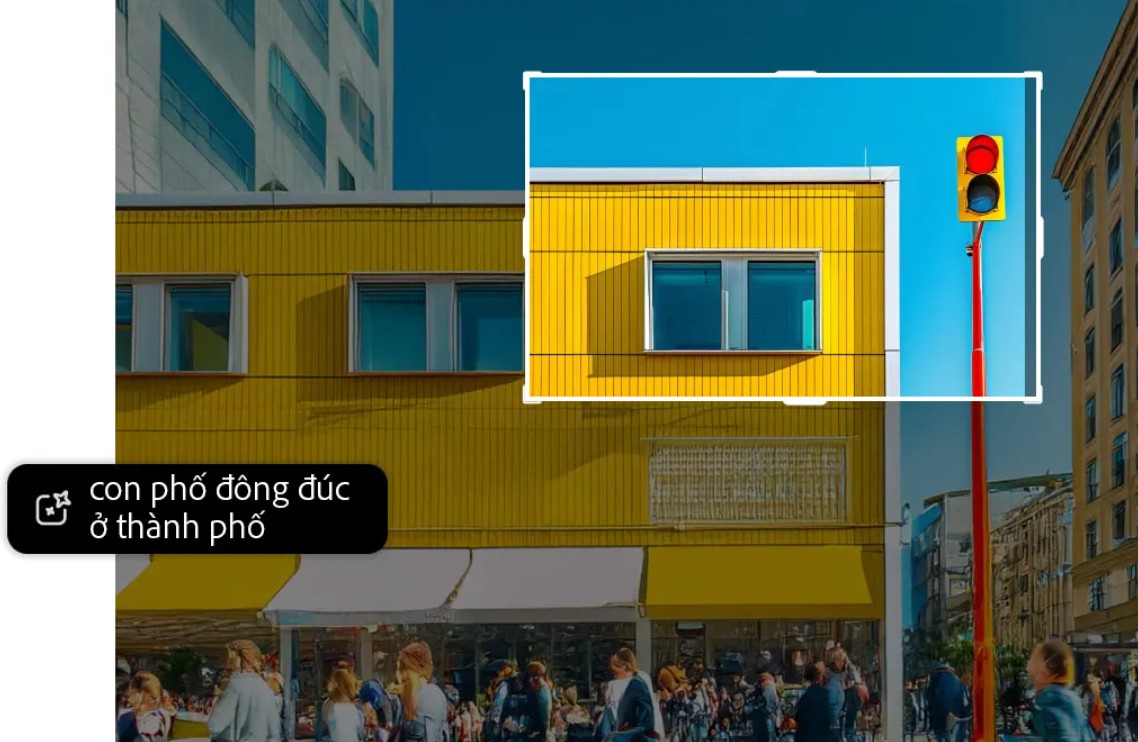
For example, you might ask: A busy street in the morning
Thanks to its ability to understand natural language, AI can transform these descriptions into realistic images. This gives users better control over the creative process and allows them to create scenes that match their ideas.
1.4 Refining the work after expansion
After the AI creates the new background, users can still continue editing the photo using powerful tools in Photoshop.
The tools for editing color, light, effects, and blending modes help perfect your work. You can change brightness, increase contrast, apply gradient effects, or add other graphic elements.
Additionally, other AI tools in Photoshop can be used to add or remove fine details without affecting the original image.
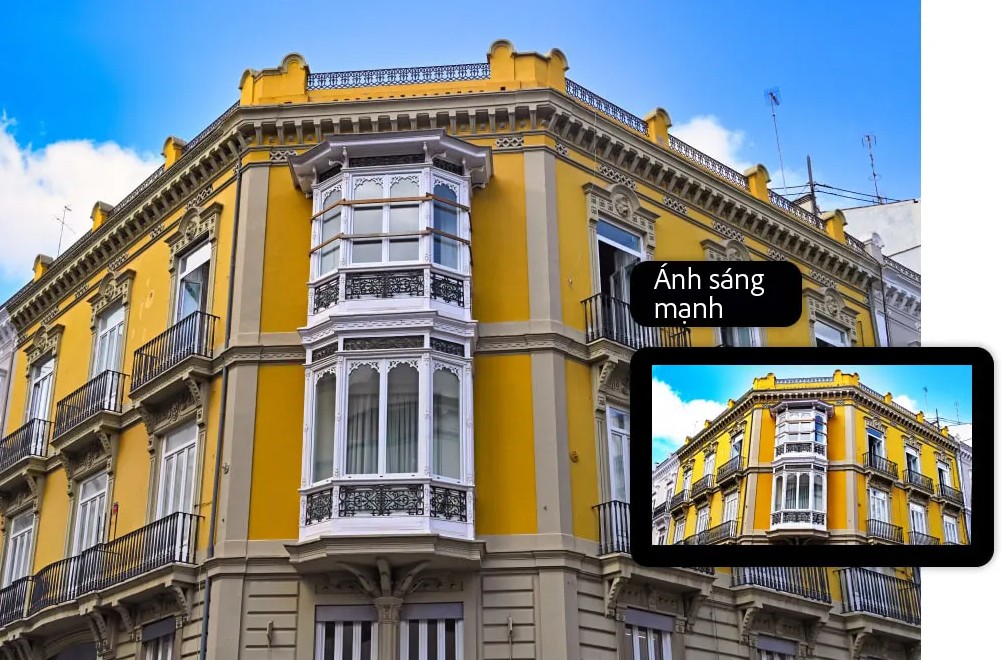
As a result, the creative process becomes more flexible, and users can achieve the precise results they desire.
2. How to use AI to enlarge images in Photoshop
2.1 Start with the Cutting Tool
To use the AI-powered image enlargement feature, the first step is to open the image in Photoshop. Then, select the Crop tool from the toolbar.
This tool allows you to adjust the size of the canvas by dragging the handles on the cropping edge. When you drag the frame beyond the boundaries of the photo, you create a new, empty canvas area.
Photoshop also provides several popular aspect ratios in the contextual taskbar. This makes it easy to switch between ratios such as 1:1, 4:3, or 16:9 depending on your needs.
2.2 Create a new background
After expanding the canvas, the next step is to create new content for the background.
Users simply click the create button in the taskbar. The AI will automatically analyze the image and generate suitable content for the empty area.
During this process, the system will provide several different versions of the new background. Users can preview these versions and choose the one that best suits the layout of the photo.
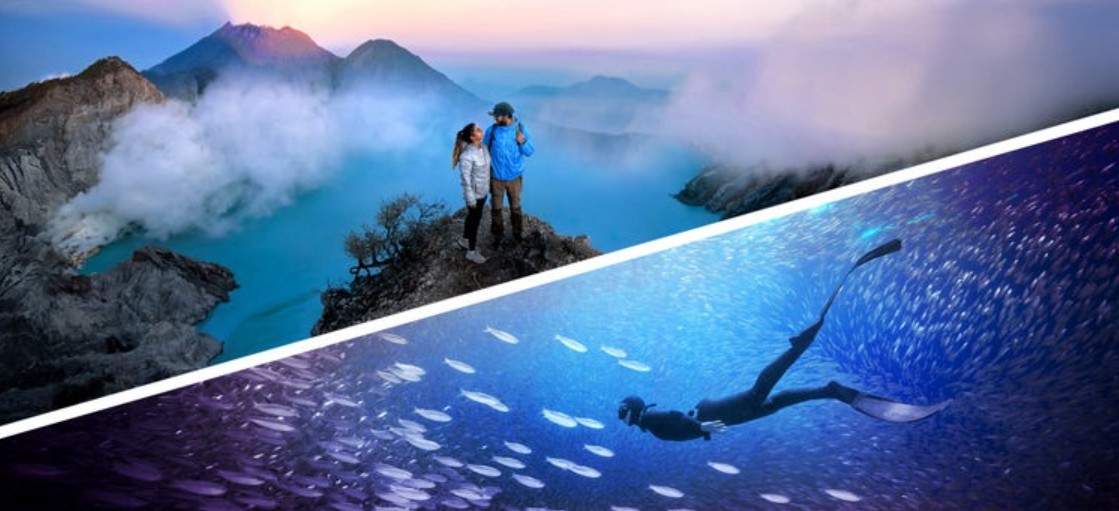
If you're not satisfied with the results, you can recreate the process to get more options.
2.3 Using commands to customize results
For more accurate results, users can enter a description into the command box in the taskbar.
For example, if you want to enlarge a photo of the sea, you can enter a description like this:
sunny tropical beach
The AI will use this description to create a background that matches the desired content.
This feature allows users to better control the creative process and produce photos with their own unique style.
3. Why is it necessary to expand the background of an image?
3.1 Create a broader context for the story.
A beautiful photograph depends not only on the subject but also on the surrounding context. Sometimes, a photograph may lack the space to fully convey its story.
Expanding the background adds detail to the scene and creates a sense of spaciousness. This makes the photograph more vibrant and engaging.
3.2 Creating a background based on your idea
In many cases, content creators want to change or expand the background to suit their design concept.
For example, you might want to create a bustling city scene, a starry sky, or a mystical forest. With AI, creating these backgrounds becomes quick and easy.
3.3 Converting Aspect Ratio
Each media platform has different image size requirements.
Images used for websites may need a landscape aspect ratio.
Images used for social media platforms like Instagram or TikTok typically need a portrait aspect ratio.
Advertising images may require specific dimensions.
Thanks to AI-powered image enlargement tools, you can easily switch between aspect ratios without cropping out important parts of the photo.
3.4 Create more space for design
In graphic design and marketing, having extra space in images is crucial. This extra space can be used to place headlines, slogans, or other graphic elements.
Instead of redesigning the entire image, you simply expand the background and let the AI create the appropriate space.
This saves time and preserves the aesthetic quality of the photo.
Thanks to the support of modern AI models, the newly created background can blend naturally with the original image. This helps maintain image quality while opening up many creative possibilities.
The Crop and Expand tool in Photoshop is a prime example of the integration of artificial intelligence and graphic design. It allows users to quickly imagine, describe, and create new scenes.





















VIP Products








Best Selling Products
Adobe Photoshop Copyright - Full App
120 USD
Autodesk All App Account Copyright
120 USD
Genuine Adobe Illustrator account
99 USD
MidJourney Account
29 USD
Windows 10 & 11 Pro Key
36 USD
ChatGPT Plus Account (GPT-4)
16 USD
Genuine Cheap Canva Pro
39 USD
Capcut Pro 1 Year
39 USD
Adobe Premiere Pro Account
99 USD
Upgrade Duolingo Super
29 USD
Copyright Adobe Lightroom Account
59 USD
Freepik Premium Account
59 USD
Upgrade genuine Capture One account
120 USD
Plugin Retouch4me
69 USD
Upgrade Genuine Office 365
49 USD