Best Selling Products

Copyright Adobe Lightroom Account
59 USD

Upgrade genuine Capture One account
120 USD

Capcut Pro 1 Year
39 USD

Upgrade Duolingo Super
29 USD

Plugin Retouch4me
69 USD

MidJourney Account
29 USD

Upgrade Genuine Office 365
49 USD

ChatGPT Plus Account (GPT-4)
16 USD

Adobe Premiere Pro Account
99 USD

Genuine Adobe Illustrator account
99 USD

Freepik Premium Account
59 USD

Genuine Cheap Canva Pro
39 USD

Windows 10 & 11 Pro Key
36 USD

Autodesk All App Account Copyright
120 USD

Adobe Photoshop Copyright - Full App
120 USD
Discover the power of AI in Photoshop: Create images with just a few clicks.
Nội dung
- 1. Get creative in entirely new ways with AI in Photoshop.
- 1.1 AI generation opens a new chapter for Photoshop
- 1.2 From small photos to big works of art
- 1.3 Overcoming the limitations of the frame
- 1.4 Change the background in just seconds.
- 1.5 Remove distracting elements from the image.
- 1.6 Transform text into images
- 1.7 AI-generated workspace
- 1.8 Quickly delete and replace content
- 2. How to use AI in Photoshop
- 2.1 Open or download Photoshop
- 2.2 Importing Images
- 2.3 Adding and Deleting Content
- 2.4 Create a new background image
- 2.5 Enlarge the image
- 2.6 Export and Share
- 3. Other AI tools in Photoshop
Photoshop is entering a new era with AI-powered technologies from Adobe Firefly. Users can remove unwanted details, add new content, or change scenes in just seconds. These intelligent tools help create more realistic and creative images than ever before.
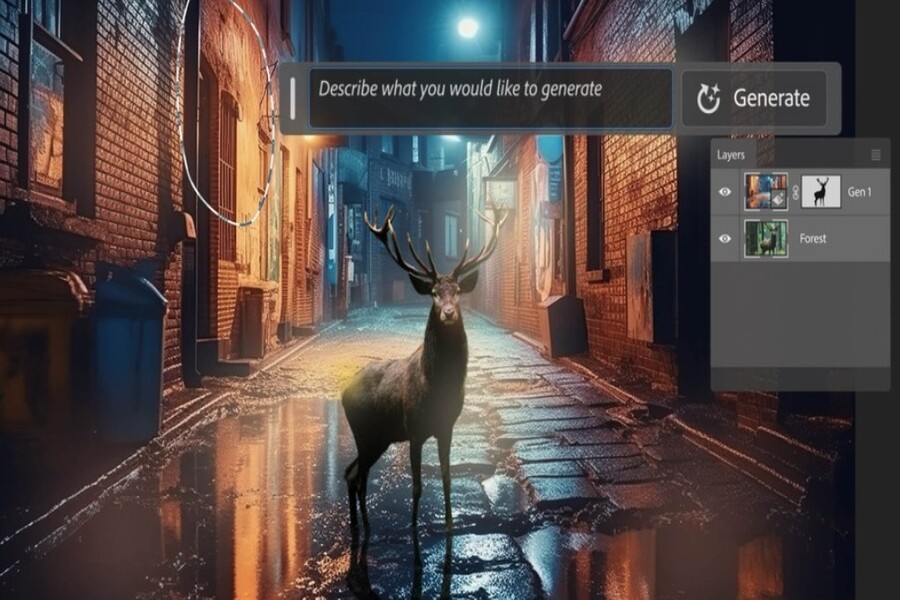
1. Get creative in entirely new ways with AI in Photoshop.
1.1 AI generation opens a new chapter for Photoshop
AI generation is completely changing the way people create visual content. Instead of having to go through complex step-by-step editing processes, users can now use artificial intelligence to quickly transform ideas into images.
In Photoshop, AI-generated imagery is integrated directly into the user interface, allowing users to easily access and utilize these features. Simply enter a text description, and the system will automatically generate content that matches the context of the image.
The unique aspect of this technology is its ability to retain complete control for the creator. AI only acts as an intelligent assistant, providing suggestions and generating different versions of the image for the user to choose from.
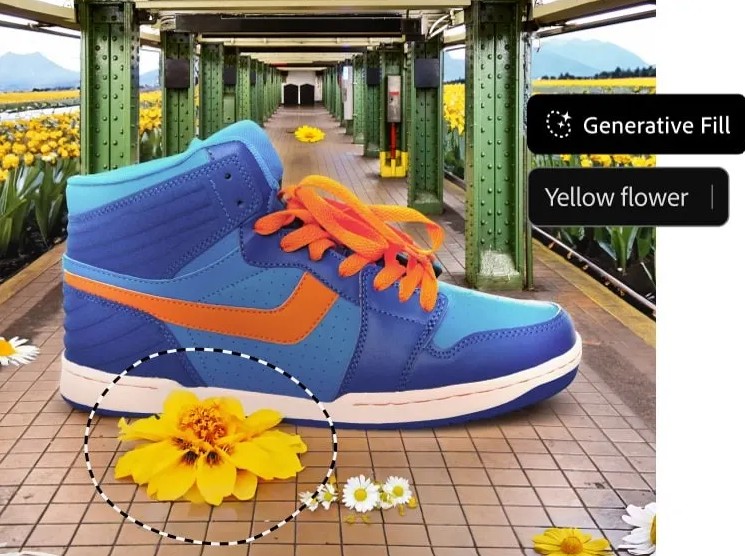
As a result, the creative process becomes more flexible, and users can experiment with many new ideas that were previously difficult to implement.
1.2 From small photos to big works of art
One of the biggest benefits of AI in Photoshop is its ability to help users quickly develop ideas from a simple image into a complete artwork.
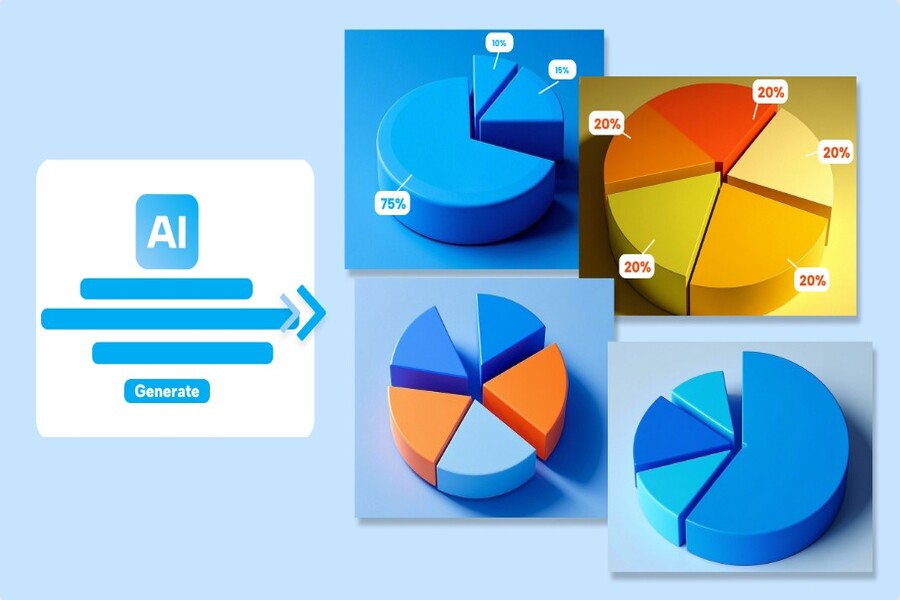
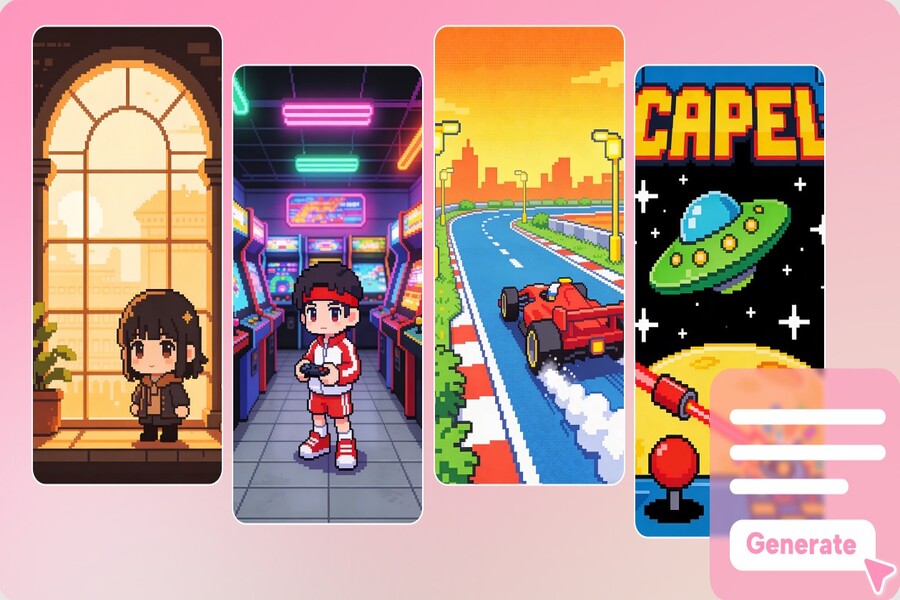
The image generation feature allows you to create multiple variations of an image in just seconds. This is especially useful when users want to experiment with different styles or look for new ideas.
Additionally, the "create similar" feature allows you to generate different versions of a previously created image. Users can select a version they like and request the system to create additional similar variations for them to choose from.
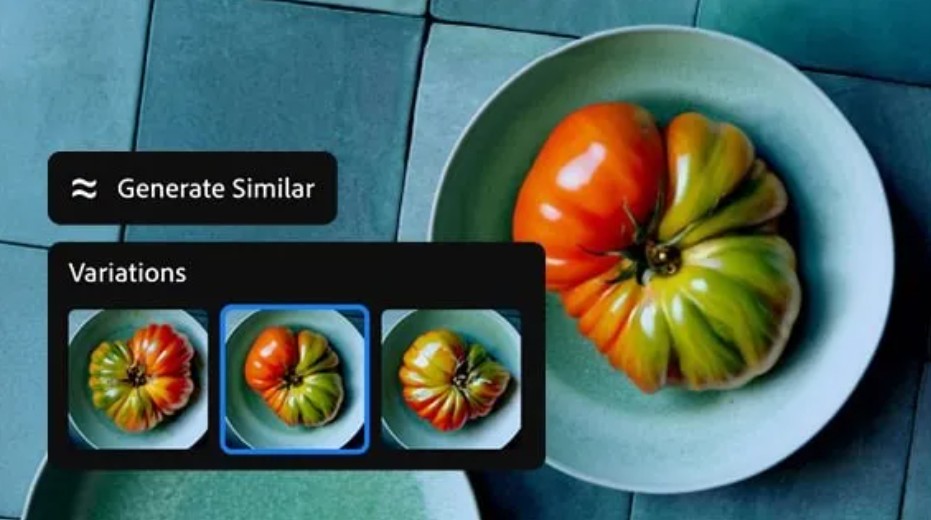
Another interesting feature is the ability to use reference images. Users can upload a sample image to guide the AI in creating results that closely resemble the desired style. This is very useful when you want to recreate a specific artistic style or lighting pattern.
1.3 Overcoming the limitations of the frame
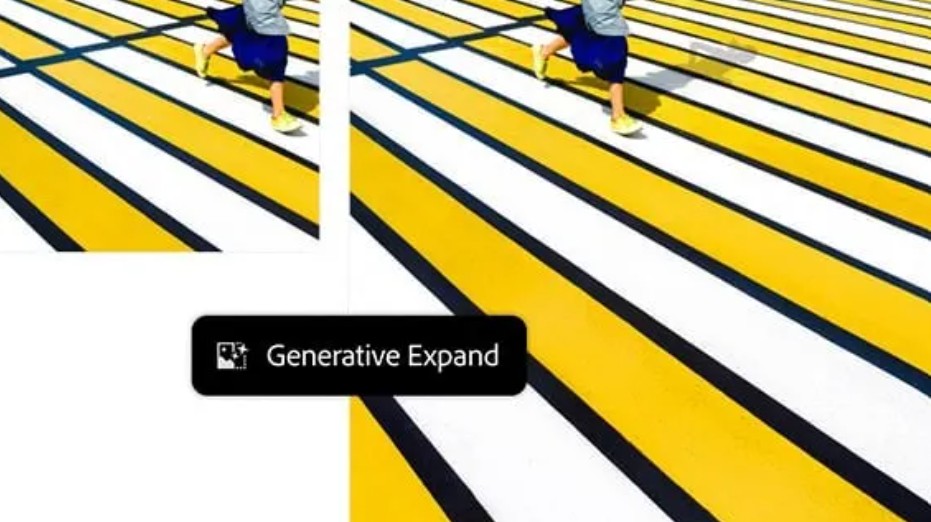
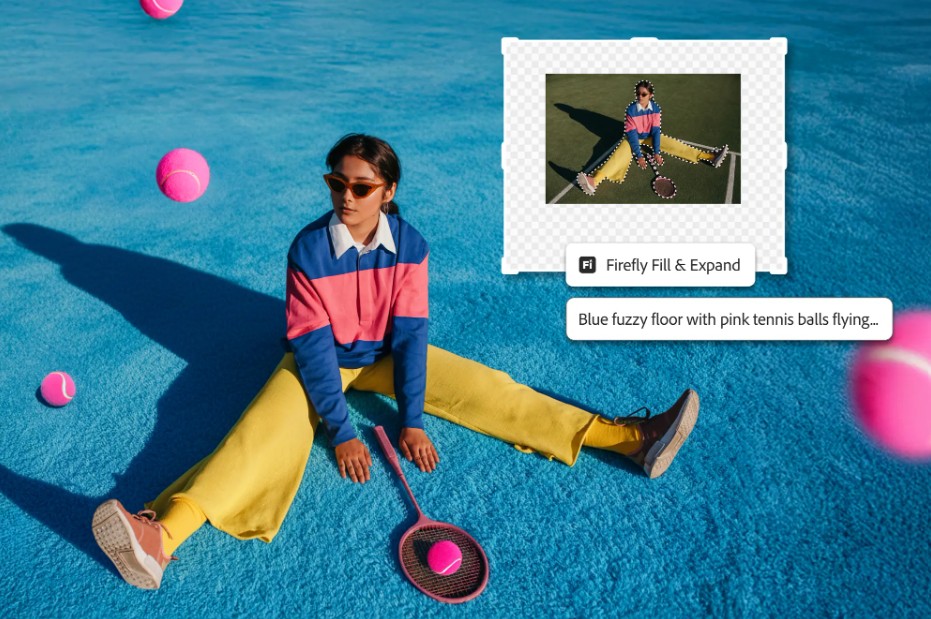
In design and photography, sometimes a beautiful image is limited by its small frame size. AI in Photoshop helps solve this problem with its scaling feature.
Users simply use the cropping tool to drag the frame beyond the original boundaries of the photo. Then, the AI system automatically creates new content to fill the expanded canvas.
This new content was created based on a detailed analysis of the original image, including color, lighting, texture, and overall composition. As a result, the new background blends naturally with the original image.
This feature is especially useful when you need to change the aspect ratio for different platforms or when you need more space for design content.
1.4 Change the background in just seconds.
One of the most impressive features of AI in Photoshop is its ability to change the background of an image.
Users can separate the subject from its original background and place it in a completely new setting with just a few taps. The AI will automatically adjust the lighting, shadows, and perspective to ensure that the subject blends seamlessly into the new environment.
For example, you could place a person standing on the street into a tropical beach, a mystical forest, or a modern city.
This capability opens up many creative opportunities for designers and photographers, making it easier for them to create unique images.
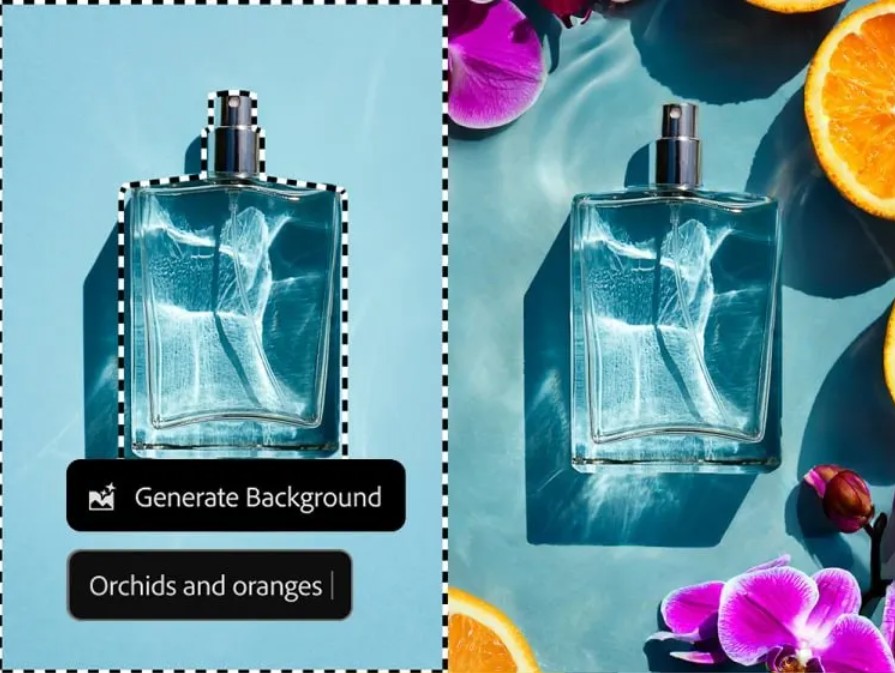
1.5 Remove distracting elements from the image.
In many photographs, there are unwanted elements that detract from the overall image quality. These could be power lines, road signs, or people walking across the frame.
With its deconstructor tool, Photoshop can automatically detect and remove these unwanted elements with just one click.
After deletion, the AI will automatically fill in that area with content that matches the surrounding environment, making the photo cleaner and more professional.
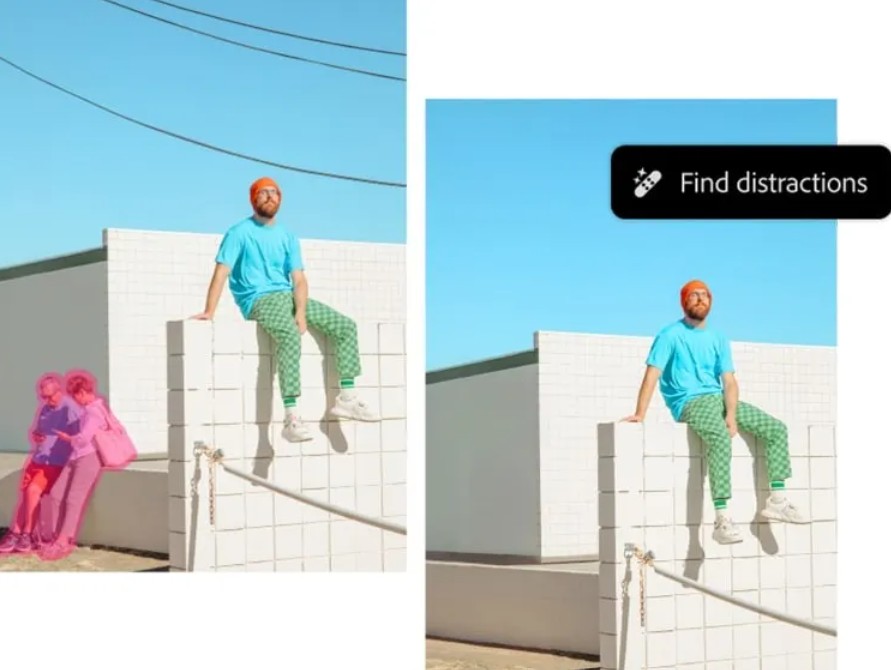
1.6 Transform text into images
The text-to-image feature allows users to create new images from text descriptions.
You can enter a description of a scene, a character, or any idea in your head. Photoshop will use AI to create an image that matches that description.
This makes the brainstorming process faster and more intuitive.
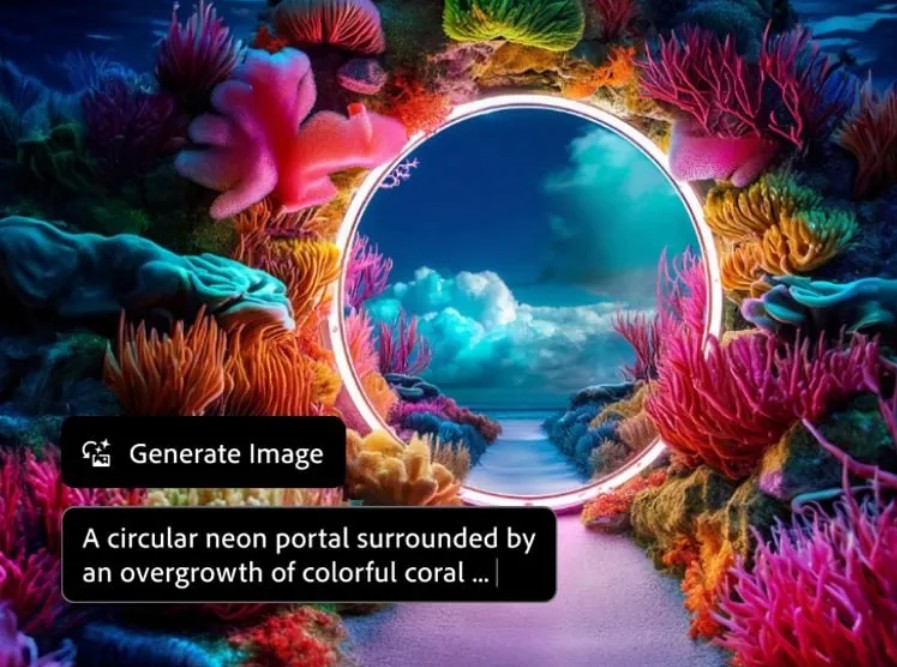
1.7 AI-generated workspace
Photoshop also provides an AI-generated workspace that allows users to experiment with multiple ideas simultaneously.
In this space, you can create multiple variations of the image and compare them to choose the best result.
This saves time and increases creative efficiency.
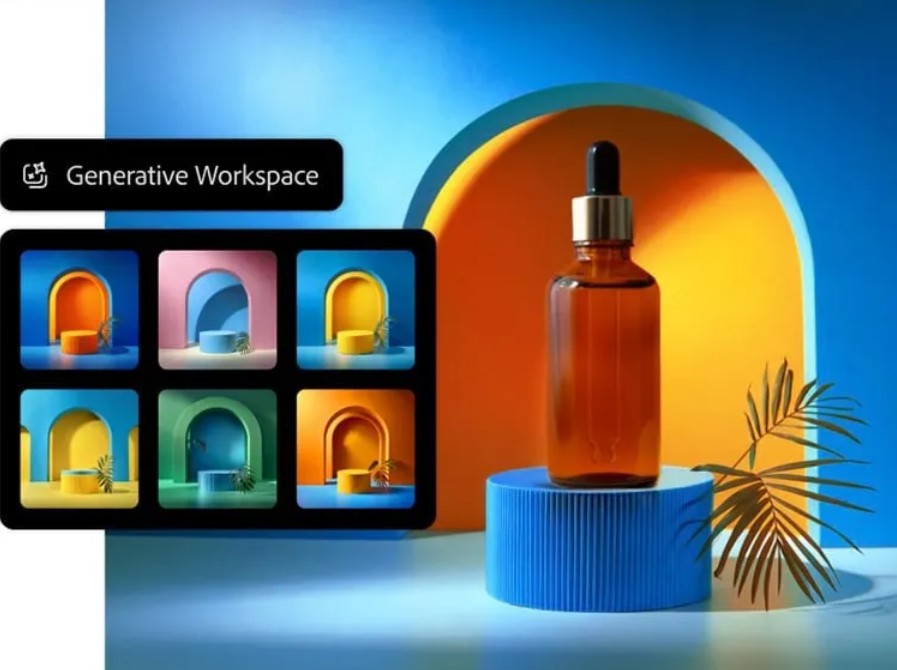
1.8 Quickly delete and replace content
In addition to removing unwanted elements, AI in Photoshop also allows for replacing content within images.
Users simply select the object they want to change and enter a description for the new content. The system will then generate a new version of the image with the replaced content.
This process happens quickly, and the results are usually very natural.
2. How to use AI in Photoshop
2.1 Open or download Photoshop
To begin using AI features, users need to open the Photoshop application and ensure that the version being used is the latest version.
If you haven't installed Photoshop yet, you can download it from the Creative Cloud platform and try the trial version.
2.2 Importing Images
After opening the application, the next step is to import images into the workspace.
Users can choose to open an existing image file or create a new project. Once the image has been imported, you can begin using AI tools to edit and create.
2.3 Adding and Deleting Content
To add new content to your photos, you can use the photo generation feature.
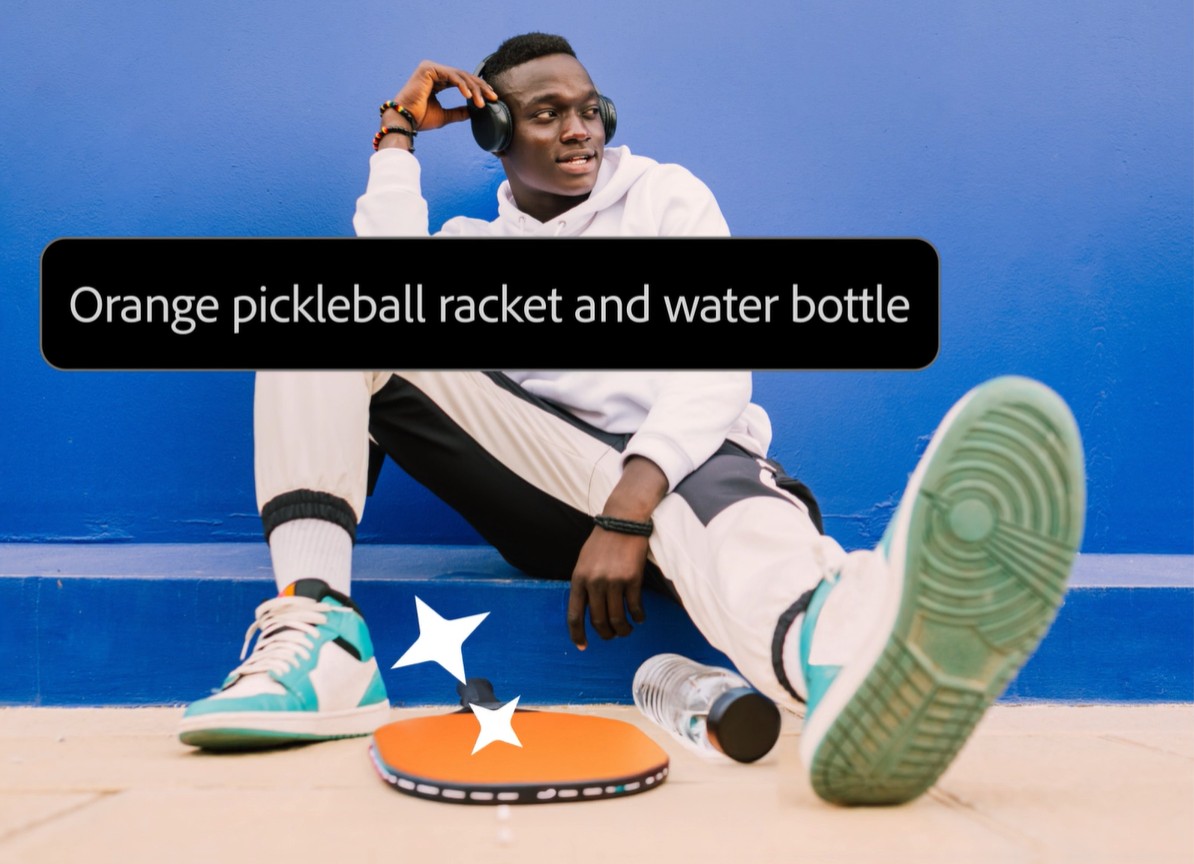
Simply select the area you want to edit, enter a description of the desired content, and press create. The AI will generate different versions for you to choose from.
To remove content, simply select the object and ask the system to remove it. The AI will automatically fill in the background.
2.4 Create a new background image
If you want to change the entire background, you can select the subject and invert the selection.
Next, enter a description of the new background and let the AI generate different versions. Users can choose the version that best suits their idea.
2.5 Enlarge the image
The expandable feature helps to enlarge the frame of the image.
Simply drag the cropping tool to expand the canvas and press create. The AI will fill in the empty space with new content that fits the original image.
2.6 Export and Share
After completing the editing, users can export the image in various formats.
The images can be used for websites, social media, advertising, or any other purpose.
3. Other AI tools in Photoshop
In addition to its generative features, Photoshop also has many AI tools that help optimize the photo editing process.
The eraser tool allows for quick removal of unwanted areas. The fine-tip pen tool helps draw smooth curves and is easy to edit.
The font matching feature helps identify and find fonts similar to those in an image.
The "Retain Detail 2.0" feature allows for image resizing without losing important details.
The sky replacement feature allows you to change the sky in your photos in just seconds with natural-looking results.
Additionally, neural network filters utilize machine learning technology to perform complex adjustments with just a few simple steps.
Artificial intelligence is ushering in a new era for the field of design and image editing. With the support of advanced AI technologies, Photoshop is not just a traditional image editing tool but has become a powerful creative platform.
Features such as generative image creation, generative expansion, background changing, and text-to-image conversion help users realize their ideas faster and more efficiently.





















VIP Products








Best Selling Products
Copyright Adobe Lightroom Account
59 USD
Upgrade genuine Capture One account
120 USD
Capcut Pro 1 Year
39 USD
Upgrade Duolingo Super
29 USD
Plugin Retouch4me
69 USD
MidJourney Account
29 USD
Upgrade Genuine Office 365
49 USD
ChatGPT Plus Account (GPT-4)
16 USD
Adobe Premiere Pro Account
99 USD
Genuine Adobe Illustrator account
99 USD
Freepik Premium Account
59 USD
Genuine Cheap Canva Pro
39 USD
Windows 10 & 11 Pro Key
36 USD
Autodesk All App Account Copyright
120 USD
Adobe Photoshop Copyright - Full App
120 USD