Best Selling Products

Capcut Pro 1 Year
39 USD

MidJourney Account
29 USD

Plugin Retouch4me
69 USD

Copyright Adobe Lightroom Account
59 USD

Adobe Premiere Pro Account
99 USD

Genuine Cheap Canva Pro
39 USD

Windows 10 & 11 Pro Key
36 USD

Genuine Adobe Illustrator account
99 USD

Adobe Photoshop Copyright - Full App
120 USD

Upgrade Genuine Office 365
49 USD

Upgrade genuine Capture One account
120 USD

Autodesk All App Account Copyright
120 USD

Freepik Premium Account
59 USD

ChatGPT Plus Account (GPT-4)
16 USD

Upgrade Duolingo Super
29 USD
Autodesk Inventor Professional 2019: What makes this professional 3D design tool stand out?
Nội dung
- 1. What is Autodesk Inventor Professional 2019?
- 2. What are the standout features of Autodesk Inventor Professional 2019?
- 3. Who is Autodesk Inventor 2019 suitable for?
- 4. What are the requirements for Autodesk Inventor Professional 2019?
- 5. Things to note before installing Autodesk Inventor 2019
- 6. Respect copyright when using Autodesk Inventor.
- 7. Instructions for installing Autodesk Inventor Professional 2019
- Step 1: Extract the Autodesk Inventor 2019 installer.
- Step 2: Start the installer
- Step 3: Begin the installation process.
- Step 4: Select Install
- Step 5: Accept the terms of use
- Step 6: Set up the necessary options
- Step 7: Proceed with installation
- Step 8: Wait for the installation process to complete.
- Step 9: Complete the installation
- 8. Conclusion
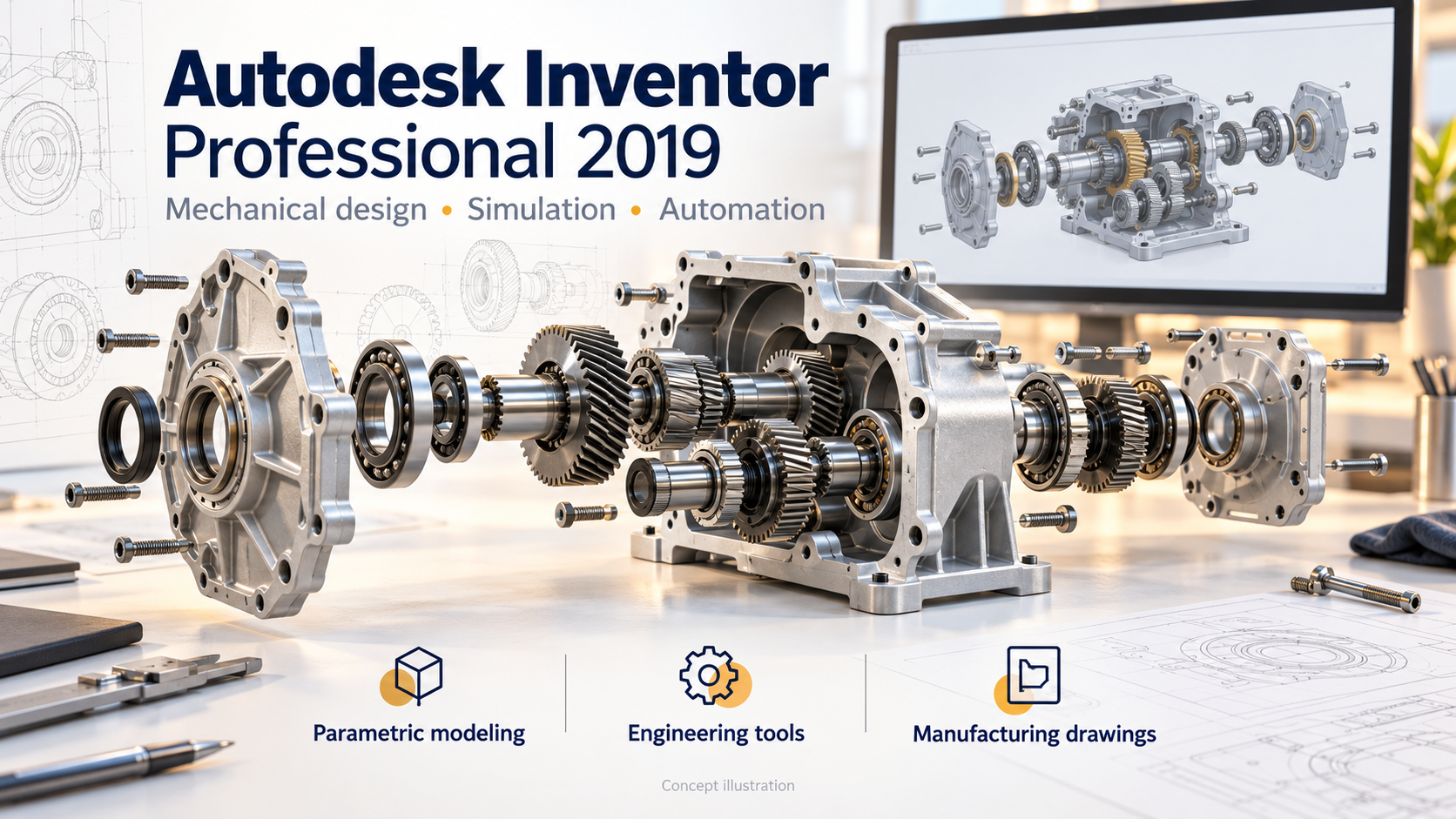
Autodesk Inventor Professional 2019 was developed with that in mind, providing a professional 3D design environment for mechanical and manufacturing engineering. With a system of tools ranging from detailed modeling and assembly to technical drawing creation, simulation, and data management, Autodesk Inventor Professional 2019 can handle a wide range of tasks within a design process.
1. What is Autodesk Inventor Professional 2019?
Autodesk Inventor Professional 2019 is Autodesk's 3D CAD software, focusing on mechanical design, product development, and engineering simulation. The software allows users to start with a simple idea, build it into detailed 3D models, assemble them into a complete system, and create engineering drawings for manufacturing. Notably, Inventor doesn't just create product models. Users can check how parts fit together, evaluate movement, and adjust the design directly within the digital environment. This allows for the detection of many issues before the actual product is manufactured.
-
3D modeling design: Creating mechanical parts with shapes ranging from simple to complex.
-
Assembly design: Combining multiple parts into a complete machine or product.
-
Create technical drawings: Convert a 3D model into a 2D drawing with the necessary dimensions and information.
-
Motion simulation: Examining how parts interact during operation.
-
Parametric design: Change the size or design parameters without rebuilding the entire model.
-
Design data management: Supports control over project components and changes.
-
Interoperability with AutoCAD: Allows for the integration of 2D and 3D design workflows.
2. What are the standout features of Autodesk Inventor Professional 2019?
Inventor's value lies in how it connects multiple design processes within a single environment. Once a model is created, it can be used for assembly, drawing, and simulation instead of starting from scratch. This is particularly useful for projects with many details or those requiring frequent size adjustments. Beyond its modeling capabilities, Inventor's interface and toolset are designed for a realistic mechanical design process. Users can work with individual components before assembling them, allowing for easy control over the overall product structure.
-
Parametric modeling: When a parameter changes, the related components can be updated according to the established relationship.
-
Assembly design: Suitable for products consisting of multiple interconnected parts.
-
Mechanism simulation: Assists in checking the movement and relationships between parts.
-
Creating manufacturing drawings: Helps convert 3D models into technical documents that are easy to use in manufacturing.
-
Product design via process: Users can build products from individual components to complete systems.
-
Autodesk ecosystem compatibility: Convenient when a project needs to integrate with other Autodesk software.
3. Who is Autodesk Inventor 2019 suitable for?
Not all CAD software serves the same user group. With its focus on mechanical and manufacturing engineering, Inventor 2019 is particularly well-suited for tasks requiring precise modeling, structural verification, and pre-production technical documentation. This is also why the software is used in many product design exercises, projects, and processes. Depending on the purpose, users can utilize Autodesk Inventor Professional 2019 for a variety of different needs:
-
Mechanical engineering students: Practice 3D modeling, detailed design, and assembly design.
-
Mechanical Engineer: Product development, machine design, and pre-production testing.
-
Product Designer: Creates and refines product ideas in 3D.
-
Manufacturing businesses: Prepare models and technical drawings for the manufacturing process.
-
R&D Department: Tests multiple design options before selecting the most suitable one for development.
-
CAD professionals: Combine 2D and 3D design within the same workflow.
4. What are the requirements for Autodesk Inventor Professional 2019?
Professional 3D design software typically requires relatively stable hardware for smooth modeling and rotation. With Autodesk Inventor 2019, the actual configuration needed depends on the complexity of the project. A small assembly will have different requirements than a model containing hundreds or thousands of parts.
-
Operating system: Windows 8.1 or Windows 10 version 1607 or later.
-
CPU: Minimum of approximately 2.5 GHz.
-
RAM: 8 GB for assemblies with fewer than 500 parts.
-
Hard drive: Approximately 15 GB of free space is required for the installation process.
-
GPU: The GPU has approximately 2 GB of VRAM and supports DirectX 11.
-
Resolution: 1280 x 1024 or higher.
-
.NET platform: .NET Framework 4.7 or later.
If you frequently work with large models, using a machine with higher RAM, a more powerful CPU, and a suitable graphics card will provide a better experience. Especially when working with complex assemblies, powerful hardware will help reduce lag during rotation, zooming, or editing of the model.
5. Things to note before installing Autodesk Inventor 2019
Before beginning the installation, users should check their operating system, disk space, and necessary components. Thorough preparation from the start helps minimize installation interruptions or software instability after completion.
-
Check if Windows meets the requirements of Inventor 2019.
-
Make sure the installation drive has enough space.
-
Back up your important data before installation.
-
Download the installer from the official source or a source authorized by Autodesk.
-
Close unnecessary applications during the installation process.
-
Make sure the Windows account has permission to install the software.
-
Update your graphics drivers if necessary.
-
Do not use installations from unknown sources as they may pose a risk of malware or data loss.
6. Respect copyright when using Autodesk Inventor.
Autodesk Inventor is commercial software developed for professional engineering design environments. Therefore, when using it for personal work, study, or business, users should choose a licensing method that suits their needs. This also helps to minimize risks related to security, data, and software usage rights. Legitimate licenses also offer long-term benefits. When encountering errors or needing support, users can seek assistance from official channels instead of dealing with issues arising from installations of unknown origin. Some benefits of using legitimate software include:
-
Ensure you have a reliable installation source.
-
Reduce the risk of malware and unwanted software.
-
Having access to appropriate support channels.
-
Easier license management in a business environment.
-
Better protection of design data.
-
Complies with copyright requirements within businesses and organizations.
7. Instructions for installing Autodesk Inventor Professional 2019
Step 1: Extract the Autodesk Inventor 2019 installer.
If the installer is provided as a compressed file, first extract all the data to a separate folder. Do not run the installer directly from the compressed file, as some components may not be fully accessible by the system. After extraction, check the installer folder to ensure all necessary files are intact. Preparing a separate folder also makes the installation process easier to manage and convenient for checking files when needed.
Step 2: Start the installer
Open the extracted folder and locate the Autodesk Inventor 2019 installation file. Right-click the installation file and select "Run as administrator" if the system requires administrator privileges. Windows may display a permission confirmation window. Double-check the application name before confirming to ensure you are launching the correct Autodesk Inventor 2019 installer.
Step 3: Begin the installation process.
When the installer appears, the interface will provide options related to the setup process. Check the displayed information and select OK or the corresponding confirmation button to continue. At this step, if the computer displays a warning about missing system requirements or components, you should address that issue before continuing. This helps to minimize errors in subsequent steps.
Step 4: Select Install
Next, select Install to begin setting up Autodesk Inventor 2019 on your computer. The installer will then proceed to set up the necessary software components. Depending on your computer's speed and system configuration, the processing time may vary. During this time, avoid shutting down your computer or closing the installer abruptly to prevent interruptions.
Step 5: Accept the terms of use
Read the license terms displayed on the screen. If you agree to the terms of use, select I Accept and then press Next to continue. This is an important step when installing licensed software. Users should carefully read the terms to understand the scope of use, licensing rights, and regulations related to the product.
Step 6: Set up the necessary options
After confirming the terms, the installer will take you to the section for selecting components and installation locations. Review the suggested settings and adjust them if necessary. Unless otherwise specified, you can use the default configuration provided by the installer. Once you've checked everything, click Next to proceed to the next step.
Step 7: Proceed with installation
Once all settings are ready, select Install to begin the official installation process. Autodesk Inventor 2019 will sequentially copy and install the necessary components onto your computer. During this process, you simply need to wait for the software to complete. Installation time depends on hard drive speed, CPU, and system condition.
Step 8: Wait for the installation process to complete.
The progress bar will show the current installation status. Do not shut down or restart your computer while the software is still performing the setup steps. When the process is complete, the installer will display the corresponding status. Please check for any warnings or errors before closing the installation window.
Step 9: Complete the installation
Once Autodesk Inventor 2019 has been successfully installed, click Finish to close the installer. You can find the software in the Start Menu or the location you selected during setup. On the first launch, the software may take some time to prepare the working environment. After the main interface appears, you can log in to your Autodesk account and activate a valid license to begin using it.
8. Conclusion
Autodesk Inventor Professional 2019 is a 3D CAD solution geared towards mechanical design and product development, notable for its ability to combine modeling, assembly, drawing, and simulation in a single process. Instead of simply creating visual 3D images, the software helps users build a model with technical information that can be used further in product development. If you are considering Autodesk Inventor Professional 2019 , you should carefully check your computer's specifications, ensure you have sufficient storage space, and use an installer from a reliable source.





















VIP Products








Best Selling Products
Capcut Pro 1 Year
39 USD
MidJourney Account
29 USD
Plugin Retouch4me
69 USD
Copyright Adobe Lightroom Account
59 USD
Adobe Premiere Pro Account
99 USD
Genuine Cheap Canva Pro
39 USD
Windows 10 & 11 Pro Key
36 USD
Genuine Adobe Illustrator account
99 USD
Adobe Photoshop Copyright - Full App
120 USD
Upgrade Genuine Office 365
49 USD
Upgrade genuine Capture One account
120 USD
Autodesk All App Account Copyright
120 USD
Freepik Premium Account
59 USD
ChatGPT Plus Account (GPT-4)
16 USD
Upgrade Duolingo Super
29 USD