1. Overview of the Canva ecosystem and the power of drag-and-drop design
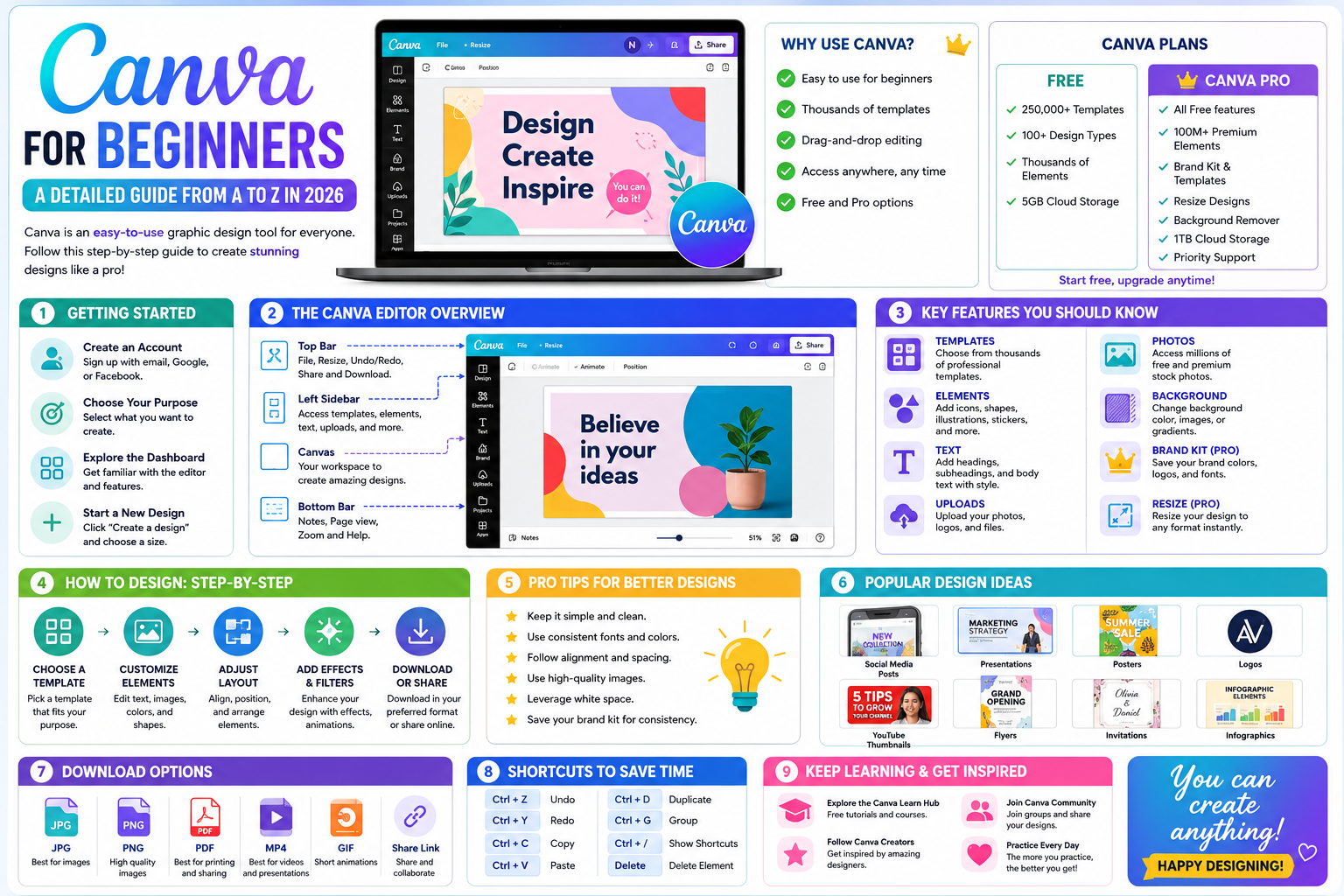
Canva is more than just a photo editing website; it's a comprehensive design ecosystem built on a cloud-based platform. For newcomers, its greatest strength lies in its simplicity yet exceptional effectiveness in creating multimedia content.

1.1. Intuitive interface designed for non-experts.
The scientifically organized toolbar system makes it easy for users to find necessary features such as text, graphic elements, or sample image libraries. All operations are simplified through drag-and-drop functionality, completely eliminating the complex concepts of layers or vectors often found in specialized software.
1.2. A huge and diverse library of sample templates on various topics.
One of the reasons Canva is so popular is its millions of ready-made design templates created by top graphic design experts. From social media posts and presentations to print designs, you simply choose a template you like and modify the information to suit your personal needs.
2. Steps to set up an account and familiarize yourself with the control panel
Before starting the creative process, optimizing the initial workspace will help the subsequent design process flow more smoothly and quickly.
2.1. Register and choose the appropriate account type.
Users can start with the free version to familiarize themselves with the platform's basic features. However, if their work demands a higher level of professionalism, paid packages will unlock access to advanced resources and powerful AI tools.

2.2. Exploring the functional areas on the homepage
The central area displays trending design suggestions, while the left sidebar is where you manage projects, the trash can, and your brand identity. Knowing the location of these folders will help you manage your design resources efficiently, preventing data loss over time.
3. A 5-step process for creating a perfect first design.
To create a beautiful product, beginners should follow a standard process to ensure both aesthetic appeal and the message conveyed.
3.1. Determine the size and purpose of the design.
Canva provides standard sizes for each platform such as Facebook, Instagram, or LinkedIn. Choosing the right size from the start helps prevent images from becoming blurry or losing detail when uploaded to social media sites.
3.2. Selecting basic graphic elements and color schemes
Color plays a crucial role in influencing the viewer's emotions towards a design. Beginners should prioritize using the pre-set color palettes in the "Style" section to ensure harmony between elements on the same workspace.
3.3. Optimizing fonts and text layout
Using too many different fonts in a design often leads to visual clutter. The golden rule for beginners is to use a maximum of two to three different fonts to maintain professionalism and clarity in the content.
3.4. Thinking about using Frames and Grids in Presentations
For beginners, aligning images for optimal balance is often a major challenge. Canva's grid and frame system helps you professionally position images without manual measurements. When you drag an image into a frame, the software automatically crops it to fit the desired shape, such as a circle, hexagon, or abstract shapes. Mastering the grid will help you create well-structured photo collages or magazine pages that are visually appealing at first glance.

3.5. Layers and how to manage complex objects
Although Canva simplifies the concept of layers, layer management becomes crucial when a design has many overlapping elements. Users should utilize the "Position" panel to arrange the order of objects. This technique makes it easy to select smaller details at the bottom without disrupting larger elements at the top. Grouping related objects together is also a useful trick to move and resize entire content clusters without disrupting the overall structure.
4. AppVip.ai - A solution for upgrading professional design tools.
During the learning and practice process, the need for advanced features is inevitable to enhance the product. Appvip.ai proudly offers reliable account upgrade solutions, helping users access the full power of leading design tools at optimal cost. Here, you will find creative support service packages that transform simple drafts into polished works of art. Partnering with a trustworthy service provider ensures your learning and work process remains stable and highly effective.
5. Discover groundbreaking AI-powered tools on Canva
2026 marks the explosion of artificial intelligence deeply integrated into design processes, helping newcomers save significant creative work time.
5.1. Magic Edit and the ability to replace smart objects
With just a few scans and selections, AI will help you change or add details to your images in the most natural way. This feature completely eliminates the time-consuming manual cropping and pasting that was previously required.
5.2. Converting text into unique images
By entering a brief description, the AI system will automatically generate unique illustrations based on your requirements. This is a powerful tool for beginners who lack the ability to draw by hand or find suitable source material.
5.3. Magic Write – Instant Text Content Creation Assistant
Beyond just images, the 2026 version of Canva integrates intelligent text editing tools to help beginners overcome the "idea block" problem. Magic Write can automatically generate catchy headlines, write product descriptions, or summarize presentation content from just a few suggested keywords. The ability to customize the tone from formal to humorous ensures your designs are not only visually appealing but also insightful in content, creating consistency for your communication campaign.
6. Common mistakes and how to fix them for beginners
Making mistakes is inevitable in the early days of graphic design, but you can shorten this gap by paying attention to the following points.

6.1. The error of overusing visual effects.
The excitement of seeing a wide variety of effects often leads users to cram too many things into one frame. Remember the philosophy "Less is More" – simplicity is the ultimate sophistication in modern design.
6.2. Whitespace in design and its importance
White space isn't superfluous; it's space that allows the viewer's eye to rest. Cramming information into every nook and cranny will diminish the value of the main message you want to convey.
6.3. Control the number of fonts and the main color palette.
Consistency is key to building professionalism in the eyes of your audience. Beginners should limit their designs to two fonts and three main color tones. Overusing different typefaces will disrupt cohesion and make the product look cluttered and unpolished.
7. Tips for managing and publishing the highest quality product.
After completing the design, the final step is to save and share your work with the world.
7.1. Choosing the right file format for each need
For images posted online, JPG or PNG formats are the best choice for balancing quality and file size. Meanwhile, if you need to print posters or business cards, prioritize PDF format for the highest sharpness!
7.2. Utilize teamwork features to optimize ideas.
Canva allows you to share design links so that friends or colleagues can edit and provide feedback directly. This is a great way for beginners to learn from real-world feedback and refine their aesthetic sense.
8. Conclusion
The journey of learning and practicing graphic design has now become smoother and more inspiring thanks to the support of smart platforms. Mastering this tool is not just about creating a few beautiful images, but also opens up new career opportunities in the digital age.