1. The operating mechanism of surface processing algorithms in intelligent graphics
Before implementing these techniques, designers need to understand how software recognizes and processes image data layers. Modern intelligent applications not only blur objects but also perform sophisticated data restructuring.
1.1. Algorithm for separating and reconstructing skin and object textures
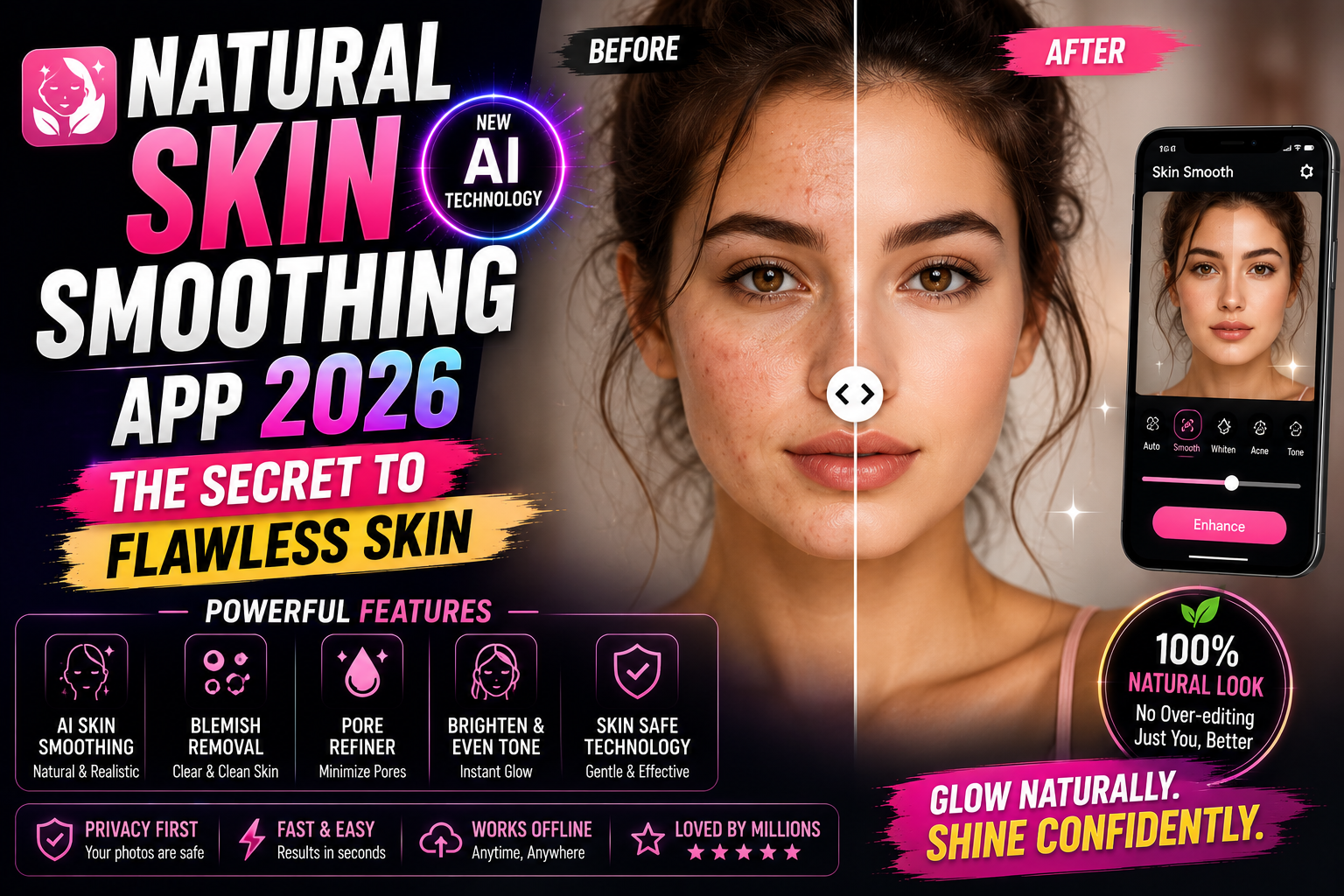
Advances in artificial intelligence (AI) have elevated text removal tools to a new level. These systems typically utilize frequency separation technology to divide images into color and texture layers. This allows for smoother text removal in Photoshop by processing ink marks on the color layer while preserving surface details such as pores, grains of sand, or fabric textures on the texture layer, ensuring maximum realism.
1.2. Automatic defect identification and compensation
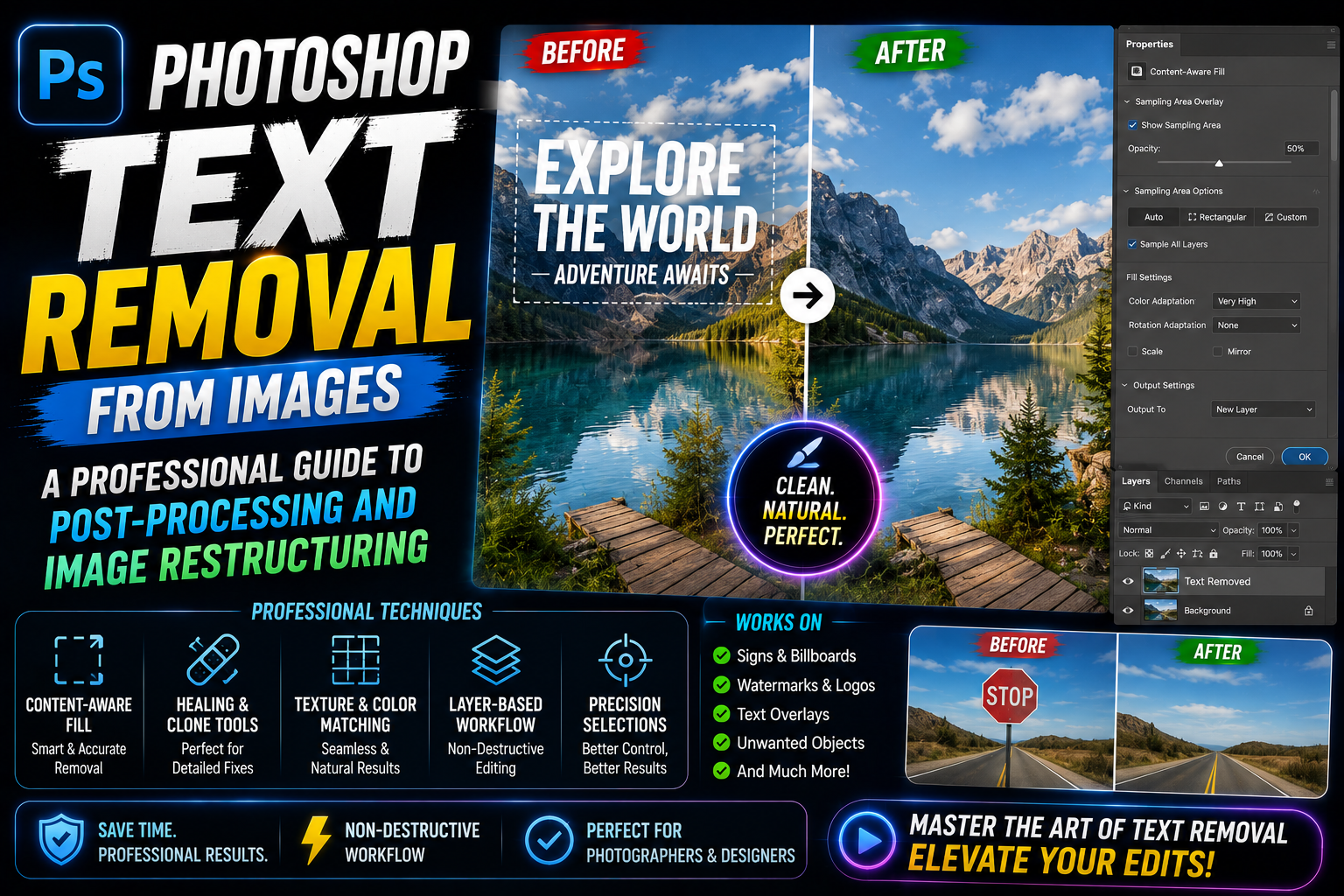
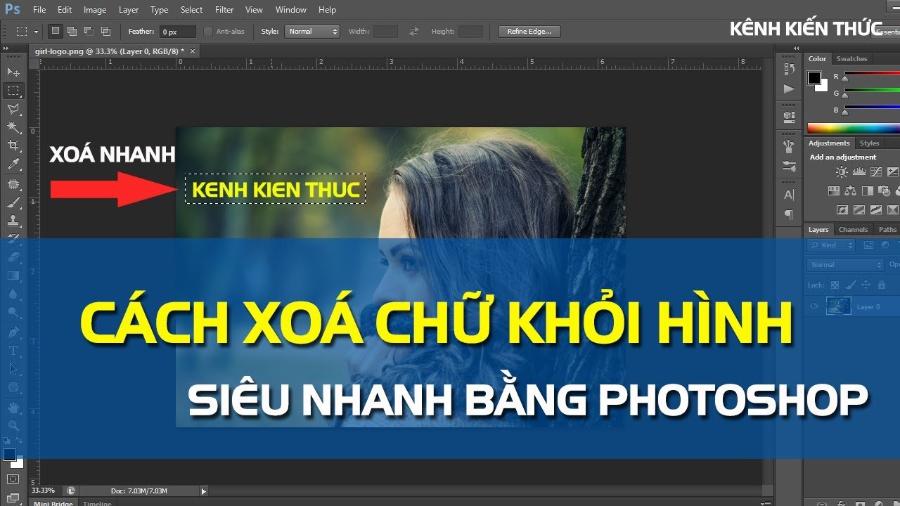
AI is capable of analyzing millions of pixels surrounding a text area to determine the underlying background structure. After identifying the text to be removed, the application cleverly uses nearby healthy data to fill the gap. This process is completely automated, removing rigid lines of text and replacing them with a uniform background image with just a few mouse clicks.
1.3. Grid and Layer Systems in Post-Processing
In professional design, layer management is crucial. When using Photoshop to remove text from an image, each manipulation should be performed on a separate layer to avoid damaging the original data. Applying a grid system helps designers align the lines of objects covered by text, ensuring that after removal, the lines and shapes remain coherent.
2. Photoshop tools for removing text from images , from basic to advanced.
Depending on the complexity of the image background, we will choose the appropriate tools to achieve the best results.
2.1. The Power of Content-Aware Fill
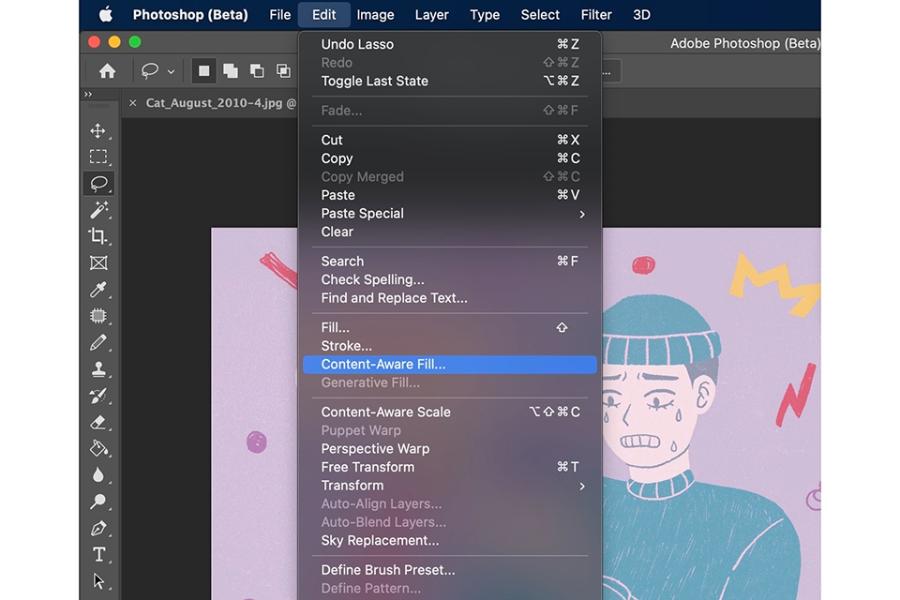
This is the most "magical" tool in modern versions of Photoshop. Content-Aware Fill allows you to select the text you want to remove and let the software automatically calculate surrounding data to fill in the empty area. This tool is especially effective with repetitive backgrounds such as grass, sky, or brick walls, where AI can easily find similar pixel patterns.
2.2. Clone Stamp Tool Technique for High Precision
The Clone Stamp is a traditional yet incredibly powerful tool. It allows you to directly "copy" a beautiful area of an image and "stamp" it over the text. When using Photoshop to remove text from images in areas with intricate details or sharp edges, adjusting the hardness and opacity of the Clone Stamp brush will help you manually recreate the lost details with incredible precision.
2.3. Applications of the Healing Brush and Patch Tool
While Clone Stamp preserves 100% of the original data, Healing Brush is smarter, knowing how to blend the light and texture of the copied area into the target area. Patch Tool allows you to drag the selected text to a clean background so the software automatically performs color blending calculations. These are excellent options for processing text on human skin or smooth, glossy surfaces.
3. Detailed procedure for removing text from different types of image backgrounds.
Each photo has its own unique characteristics, so the process of Photoshopping to remove text from photos also needs to be adapted flexibly.
3.1. Text processing on monochrome or gradient backgrounds
This is the easiest case. You just need to use the Eyedropper tool to get the exact color code and use the Brush Tool to paint over it. For gradient backgrounds, creating a mask and using the Gradient Tool will help the erased area completely blend into the original background without leaving any boundaries.
3.2. Remove text overlapping intricate details and patterns.
When text overlaps intricate patterns such as lace, wood grain, or architectural designs, you need to combine the Pen Tool to create a sharp selection and the Clone Stamp to reconnect broken lines. This technique requires patience and an aesthetic eye to ensure that the restored patterns look natural and are not geometrically distorted.
3.3. Noise Reduction and Sharpness Synchronization
A common mistake when Photoshopping to remove text from an image is that the removed area looks too "clean" compared to the rest of the image, which has natural noise. Adding a little Add Noise or Grain effect after processing will help the new area blend seamlessly into the overall image, tricking the viewer into thinking the image has never been altered.
4. The importance of image processing in digital media
In today's visual world, having clean, professional-looking photos is crucial to the success of marketing campaigns.
4.1. Enhancing the aesthetic appeal of advertising materials.
A beautiful photo that is marred by unnecessary text or watermarks from other companies can diminish brand value. Photoshop techniques to remove text from images help you maximize your image resources, transforming raw photos into high-quality advertising materials that focus entirely on your business's core message.
4.2. Protecting visual identity and creative copyright
Removing unwanted elements from images frees up space for designers to insert new messages and logos. This optimizes the content production process, allowing for the efficient and flexible reuse of image archives in various contexts.
5. Enhance your graphics experience with solutions at Appvip.ai
To smoothly execute complex post-production tasks, owning a set of licensed tools is essential. Appvip.ai proudly stands as a leading provider of graphic design accounts, design software, and advanced AI-powered tools. Here, Photoshop enthusiasts who want to remove text from images can find optimal solutions to own genuine Adobe Creative Cloud software along with many powerful AI-supported plugins. With its rich resource library and dedicated support services, this platform helps designers save maximum processing time, allowing them to focus on inspiring creativity and creating works of the highest artistic value.
6. Important notes for the best text removal results.
Experts have shown that the difference between an amateur and a professional photograph lies in the smallest details.

6.1. Always use Layer Masks instead of deleting directly.
Using masks helps ensure that the process of removing text from an image in Photoshop is always "non-destructive." You can easily recover areas that were accidentally removed by changing the brush color, making the editing process safer and more professional.
6.2. Controlling the direction of light and shadows of objects
When removing large text, pay attention to whether the text leaves shadows or reflects light onto the object's surface. Simply removing the text without addressing the shadows will result in an artificial-looking image. Recreating consistent lighting is key to creating excellent post-processing.
6.3. Consider the resolution and output file format.
After completing the Photoshop process to remove text from an image, exporting the file in a high-quality format such as PNG or TIFF will help retain all the restored details. Avoid exporting the file too many times in JPEG format because each compression will introduce new noise at the edges, easily revealing the edits.
7. Conclusion
Mastering Photoshop techniques for removing text from images is a crucial step on the journey to becoming a professional graphic designer. While AI technology is rapidly developing, human aesthetic sense and meticulousness remain key to creating truly emotionally resonant works. The seamless integration of traditional tools and modern technology not only helps you solve image-related problems quickly but also opens up limitless creative possibilities. Always view each image you need to process as a challenge to hone your eye and hand dexterity. With the support of quality resources and continuous effort, you will surely create perfect works, blurring the lines between fiction and reality in every pixel.