Best Selling Products

Genuine Cheap Canva Pro
39 USD

Genuine Adobe Illustrator account
99 USD

Autodesk All App Account Copyright
120 USD

MidJourney Account
29 USD

Copyright Adobe Lightroom Account
59 USD

Plugin Retouch4me
69 USD

Capcut Pro 1 Year
39 USD

Adobe Photoshop Copyright - Full App
120 USD

Upgrade Genuine Office 365
49 USD

ChatGPT Plus Account (GPT-4)
16 USD

Windows 10 & 11 Pro Key
36 USD

Adobe Premiere Pro Account
99 USD

Freepik Premium Account
59 USD

Upgrade Duolingo Super
29 USD

Upgrade genuine Capture One account
120 USD
Common mistakes that cause SSDs to reach their lifespan limit quickly.
Nội dung
- 1. Avoid writing too much data.
- 1.1. How SSDs store data and why writing data makes them "age"
- 1.2. TBW
- 1.3. Use SSDs for their intended purpose to extend their lifespan.
- 2. Keep your SSD cool.
- 2.1. Why do high temperatures cause SSDs to degrade quickly?
- 2.2. SSDs that slow down automatically are not necessarily safe.
- 2.3. How to effectively control SSD temperature
- 3. Reduce unnecessary stress on the SSD.
- 3.1. Limit unnecessary background activities.
- 3.2. Power supply settings also affect SSDs.
- 3.3. Always leave some reserve space free.
Each SSD has a certain write/erase limit. Exceeding this limit significantly increases the risk of failure. Typical users often overlook this during daily use.
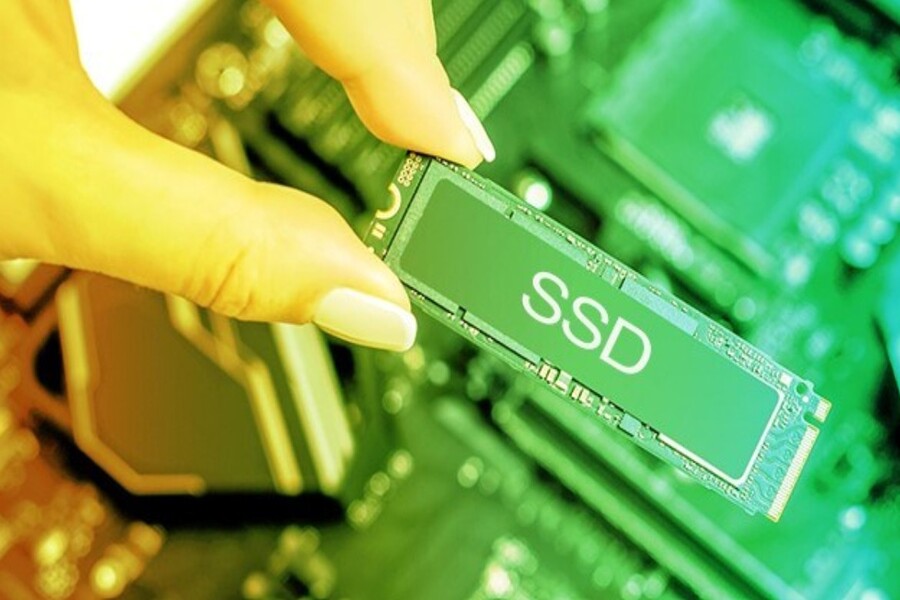
Common mistakes that cause SSDs to reach their lifespan limit quickly.
Each SSD has a certain write/erase limit. Exceeding this limit significantly increases the risk of failure. Typical users often overlook this during daily use.
SSDs are one of the most misunderstood components in modern computers. At one time, SSDs were considered "fragile," "prone to failure," and unsuitable for long-term use. However, after more than a decade of widespread adoption, SSDs have proven otherwise: they are far more durable, stable, and reliable than initially feared.
Many users today are still using early-generation SSDs, some even over 10 years old, that still function stably without data errors or significant performance degradation. This shows that SSD technology itself is not as "weak" as many people once thought. However, just like laptop batteries or CPUs, the lifespan of an SSD depends heavily on how the user uses it daily.
There are seemingly harmless, even "normal," habits that silently reduce the lifespan of SSDs over time. These habits don't cause SSDs to fail immediately, but when accumulated over a long period, they weaken the memory cells, reduce performance, and shorten the lifespan of this crucial storage device.
Buy Genuine Licensed Software at Affordable Prices
Before delving into specific habits, it's important to clarify one crucial fact: SSDs aren't immortal, but they're not indestructible either. Each SSD has clear physical limits, determined by its memory cell structure and the number of write-erase cycles it can withstand.
Unlike traditional HDDs that store data using mechanically rotating magnetic disks, SSDs store data using electrical charges in semiconductor memory cells. This makes SSDs faster, quieter, and less susceptible to physical impact. However, this electrical storage mechanism also makes SSDs sensitive to factors such as the number of write cycles, temperature, and how the operating system interacts with the drive.
The key point is that SSDs "wear out" in a very different way than HDDs. HDDs usually fail due to mechanical reasons (motor, read head), while SSDs degrade gradually as memory cells lose their ability to hold a charge after many write-erase cycles. Therefore, improper use of an SSD will accelerate this wear process, even if the drive appears to be functioning normally.
1. Avoid writing too much data.
One of the most harmful habits for SSDs, yet often overlooked, is writing data excessively and without control. To understand why this is dangerous, we need to look deeper into how SSDs store data.
1.1. How SSDs store data and why writing data makes them "age"
Inside each SSD are millions, even billions, of memory cells. Each memory cell stores data by holding a certain electrical charge, corresponding to binary values. Every time data is written or erased, the voltage in the memory cell changes. This change, over time, weakens the insulation layer inside the memory cell.
In SSDs using single-level memory (SLC), each cell stores only 1 bit of data. Distinguishing between the two voltage states (0 and 1) is relatively easy, resulting in high durability. However, SLC is expensive to manufacture, so it is rarely found in mainstream SSDs.
Most SSDs today use multi-level memory types such as MLC, TLC, or QLC, where each memory cell stores 2 to 4 bits of data. This means each cell must distinguish between many very closely spaced voltage levels. When memory cells are written and erased many times, the boundaries between these voltage levels become blurred, increasing the risk of data errors and reducing lifespan.
.jpg)
1.2. TBW
To help users estimate durability, SSD manufacturers often publish the Terabytes Written (TBW) rating. This is the total amount of data that the SSD is designed to write throughout its lifespan. Exceeding this number doesn't necessarily mean the SSD will fail immediately, but the risk of failure and performance degradation increases significantly.
The problem is that many users unknowingly burn through their TBW very quickly. Tasks such as video rendering, editing large RAW images, continuous system logging, or using the SSD as a temporary drive for heavy software all generate a huge amount of data write activity.
1.3. Use SSDs for their intended purpose to extend their lifespan.
For those working in video editing, 3D graphics, or handling large datasets, using a cheap MLC or TLC SSD as the primary drive is a common mistake. In this case, the smart solution is to use a secondary SSD, even treating it as a "consumable" drive, dedicated to temporary data.
Conversely, for gaming or general software use, MLC or TLC SSDs are very suitable. After installing a game, data writing activity decreases significantly, with most of the activity being reading. This makes the SSD "less busy" and significantly extends its lifespan.
2. Keep your SSD cool.
If we had to choose the most dangerous factor for SSDs besides the number of write cycles, it would be temperature. Many people think that only CPUs and GPUs need to worry about temperature, while SSDs are "fine." This is a serious misconception.
.jpg)
2.1. Why do high temperatures cause SSDs to degrade quickly?
At high temperatures, electrons in semiconductor memory cells become less stable. They easily “leak” out of their storage state, weakening the memory cell’s ability to hold a charge. When this happens repeatedly, data can become corrupted, and the memory cells will be marked as unusable.
SSD manufacturers test their products under specific temperature conditions when announcing their durability. If users consistently operate SSDs at temperatures higher than these thresholds, the aging process will occur faster than expected.
2.2. SSDs that slow down automatically are not necessarily safe.
Many modern SSDs, especially NVMe SSDs, have a mechanism that automatically slows down (thermal throttling) when the temperature exceeds a safe threshold, usually around 70°C. This helps prevent immediate failure, but it doesn't mean the SSD is immune to damage.
If an SSD frequently operates in a hot state, even after slowing it down, the internal components will still be subjected to prolonged thermal stress. In the long run, this directly affects its durability.
2.3. How to effectively control SSD temperature
Users can monitor SSD temperatures using tools like HWMonitor or specialized software from the manufacturer. Ideally, the maximum temperature of an SSD under heavy load should be kept below 60°C. This is a safe level that balances performance and durability.
For desktop computers, adding a heatsink to an NVMe SSD is a worthwhile investment. Even a simple heatsink can significantly reduce temperature. Additionally, ensuring good airflow within the case, with at least one intake and one exhaust fan, will help keep the SSD and the entire system cooler.
.jpg)
With laptops, ensuring the SSD makes good contact with the integrated cooling system is crucial. Avoid placing the laptop on soft surfaces that hinder heat dissipation, and regularly clean dust and debris to ensure efficient cooling.
3. Reduce unnecessary stress on the SSD.
In the early years of SSDs, users were often advised to make significant adjustments to their operating system to "protect" the drive. Today, modern operating systems like Windows, macOS, and Linux are very well optimized for SSDs. This means you don't need to make such deep adjustments.
However, "not needing to go too deep" doesn't mean neglecting it completely. There are still reasonable adjustments that can help reduce unnecessary load on the SSD.
3.1. Limit unnecessary background activities.
A prime example is indexing. For SSDs containing infrequently changing data, such as game drives or temporary drives, persistent indexing is unnecessary. Disabling this feature on non-critical drives can significantly reduce the number of write cycles.
3.2. Power supply settings also affect SSDs.
Constantly keeping the machine in high-performance mode causes the CPU, chipset, and SSD to work harder than necessary. Meanwhile, balanced or power-saving mode is sufficient for most daily use, while also reducing temperature and stress on the SSD.
.jpg)
3.3. Always leave some reserve space free.
One of the most important but often overlooked principles is to avoid letting your SSD fill up completely. When there's too little free space, the SSD has to work harder to write new data, as it needs to move and rearrange old data. This not only reduces performance but also increases the number of write-erase cycles.
Keeping approximately 10–20% of SSD capacity free is ideal for efficient memory management. This is also why many SSDs have a lower actual capacity than advertised, in order to reserve space for internal management.
SSDs have proven to be far more reliable than initially feared. However, that durability isn't guaranteed if users maintain poor habits over the long term.
Avoiding excessive and uncontrolled data writing, keeping the SSD cool, and minimizing unnecessary stress on the system are three core principles for protecting your SSD. These aren't complicated or expensive changes, but rather adjustments to your daily usage.
Buy Genuine Licensed Software at Affordable Prices





















VIP Products








Best Selling Products
Genuine Cheap Canva Pro
39 USD
Genuine Adobe Illustrator account
99 USD
Autodesk All App Account Copyright
120 USD
MidJourney Account
29 USD
Copyright Adobe Lightroom Account
59 USD
Plugin Retouch4me
69 USD
Capcut Pro 1 Year
39 USD
Adobe Photoshop Copyright - Full App
120 USD
Upgrade Genuine Office 365
49 USD
ChatGPT Plus Account (GPT-4)
16 USD
Windows 10 & 11 Pro Key
36 USD
Adobe Premiere Pro Account
99 USD
Freepik Premium Account
59 USD
Upgrade Duolingo Super
29 USD
Upgrade genuine Capture One account
120 USD