Best Selling Products

Genuine Adobe Illustrator account
99 USD

Plugin Retouch4me
69 USD

Windows 10 & 11 Pro Key
36 USD

Genuine Cheap Canva Pro
39 USD

Upgrade Duolingo Super
29 USD

Freepik Premium Account
59 USD

Upgrade genuine Capture One account
120 USD

Autodesk All App Account Copyright
120 USD

Adobe Photoshop Copyright - Full App
120 USD

ChatGPT Plus Account (GPT-4)
16 USD

Capcut Pro 1 Year
39 USD

Upgrade Genuine Office 365
49 USD

Adobe Premiere Pro Account
99 USD

Copyright Adobe Lightroom Account
59 USD

MidJourney Account
29 USD
How can you use an SSD to make it fast, durable, and avoid upgrading later?
Nội dung
SSDs offer superior speed, but improper use can quickly degrade performance and lifespan. This article helps you balance SSD performance and longevity without investing in additional hardware.
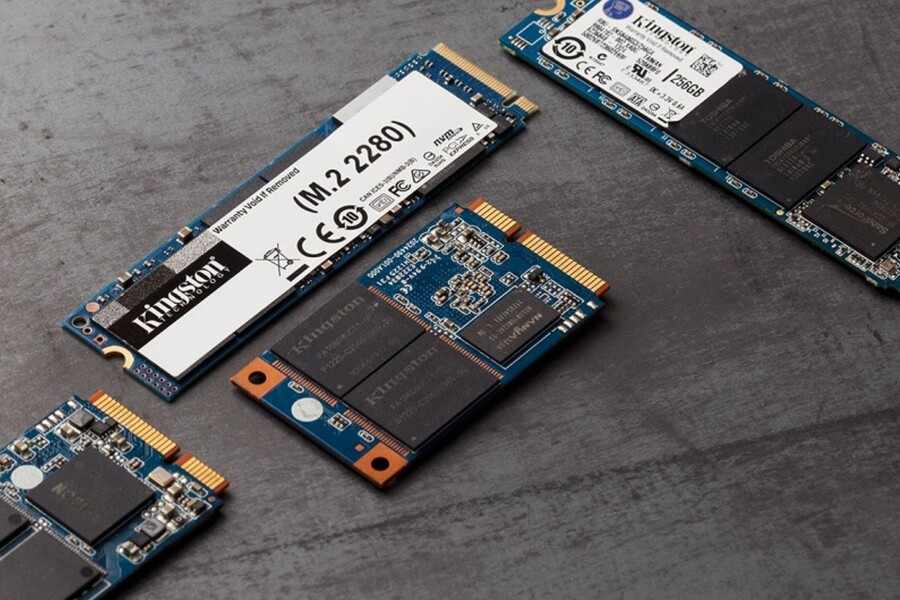
Solid State Drives (SSDs) have become one of the most significant advancements in the computer hardware industry. From being expensive components found only in high-end workstations, SSDs are now the default standard on laptops, office PCs, gaming computers, and even professional content creation systems. Operating system boot times are measured in seconds, software opening times are near-instantaneous, and the ability to load large projects is many times faster than with traditional HDDs.
However, precisely because SSDs operate so quietly and stably, many users gradually come to view them as permanent components, installing them and then forgetting about them. Unlike HDDs, which make clicking noises signaling degradation, SSDs often fail silently. When a problem occurs, users only realize that their data has disappeared or the system can no longer access the drive.
Essentially, SSDs use NAND flash memory – a type of memory with a finite number of program/erase cycles (P/E). Each time data is written or overwritten, the memory cells in the NAND wear down slightly. While modern technology has significantly improved SSD lifespan through wear leveling, over-provisioning, and intelligent controllers, the laws of physics remain unchanged: the more data is written to an SSD, the shorter its lifespan.
In reality, most users will replace their SSDs due to increased storage needs or system upgrades before the drive reaches its theoretical limit. However, improper use can cause even a new SSD, only a few years old, to degrade significantly, with noticeable performance declines or sudden failures. For designers, video editors, gamers, or freelancers who rely heavily on digital data, this is a risk that cannot be ignored. Understanding how to properly use an SSD not only helps your computer run smoother but also protects your data, workflow, and hardware investment. And thankfully, most factors affecting SSD lifespan stem from daily usage habits.
1. Do not fill up the SSD storage space.
One of the most common mistakes SSD users make is trying to "squeeze" every gigabyte of storage space. Driven by a desire to save money, many people tend to fill their drives with software, games, projects, videos, and personal data until only a few percent of the drive's capacity remains free. On traditional HDDs, this primarily affects access speeds due to data fragmentation. But with SSDs, the consequences are far more serious.
SSDs operate most efficiently when their capacity usage does not exceed approximately 70–80%. The remaining space is not only for storing new data, but also plays a crucial role in internal algorithms such as wear leveling and garbage collection. When an SSD has sufficient free space, the controller can distribute write data evenly across memory cells, reducing local wear and maintaining stable performance.
Conversely, when an SSD is nearly full, the controller is forced to continuously overwrite data on used memory areas, increasing the number of write/erase cycles on the same group of cells. This not only causes a sharp decrease in write speed but also shortens the SSD's lifespan faster than expected. In fact, many users notice their computers starting to slow down unusually even with unchanged configurations, the cause of which is a full SSD.
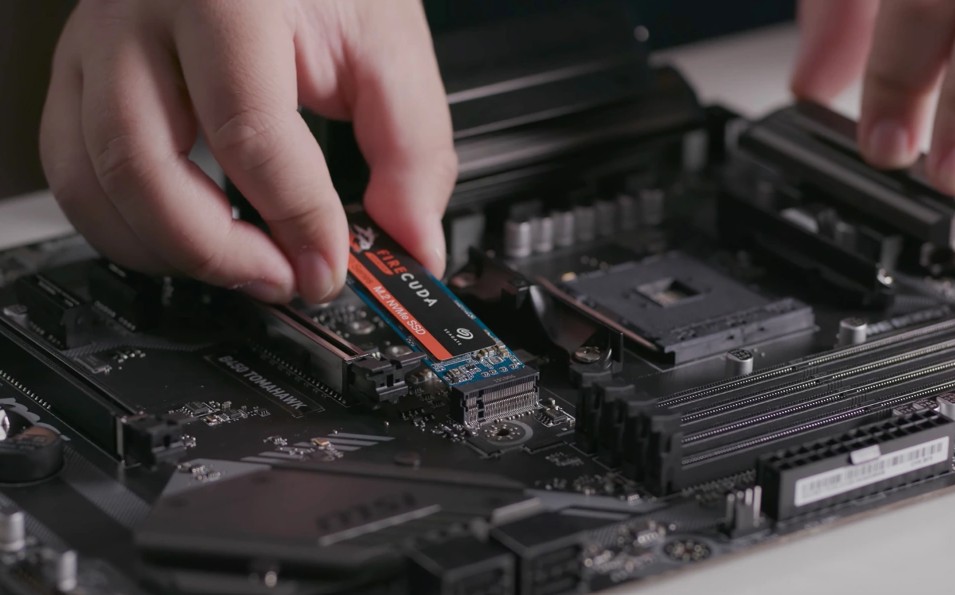
In demanding tasks like gaming or graphic design, this issue becomes even more apparent. Users may experience prolonged loading screens, longer map loading times, and even errors when loading game worlds or large projects. The system interface may become laggy and unresponsive, giving the impression that the machine is "weakening over time."
The solution isn't about constantly cleaning up in a piecemeal fashion, but about building good storage management habits from the start. If your primary SSD is only used for the operating system and software, limit storing large amounts of data on it. For gamers or designers, investing in a second SSD or combining an SSD for the operating system and an HDD for long-term storage is a more sensible approach in the long run.
2. Keep the SSD temperature stable.
Temperature is the silent but dangerous enemy of all electronic components, and SSDs are no exception. In recent years, the popularity of NVMe SSDs, especially PCIe Gen 4 and Gen 5 standards, has pushed performance to very high levels, but this has also resulted in significantly more heat generation compared to traditional SATA SSDs.
When operating at high intensity, such as copying large amounts of data, rendering videos, loading demanding games, or compiling projects, NVMe SSDs can quickly reach high temperatures. To protect itself, the SSD controller activates thermal throttling, automatically reducing read/write speeds to prevent hardware damage. This is why many people feel their SSDs "slow down" after a period of continuous use, even though the specifications on paper are very impressive.
Prolonged high temperatures not only affect immediate performance but also reduce the lifespan of NAND memory and related components. This is especially true for mini PCs, thin and light laptops, or poorly ventilated computer cases, where SSDs often operate in less-than-ideal thermal environments.
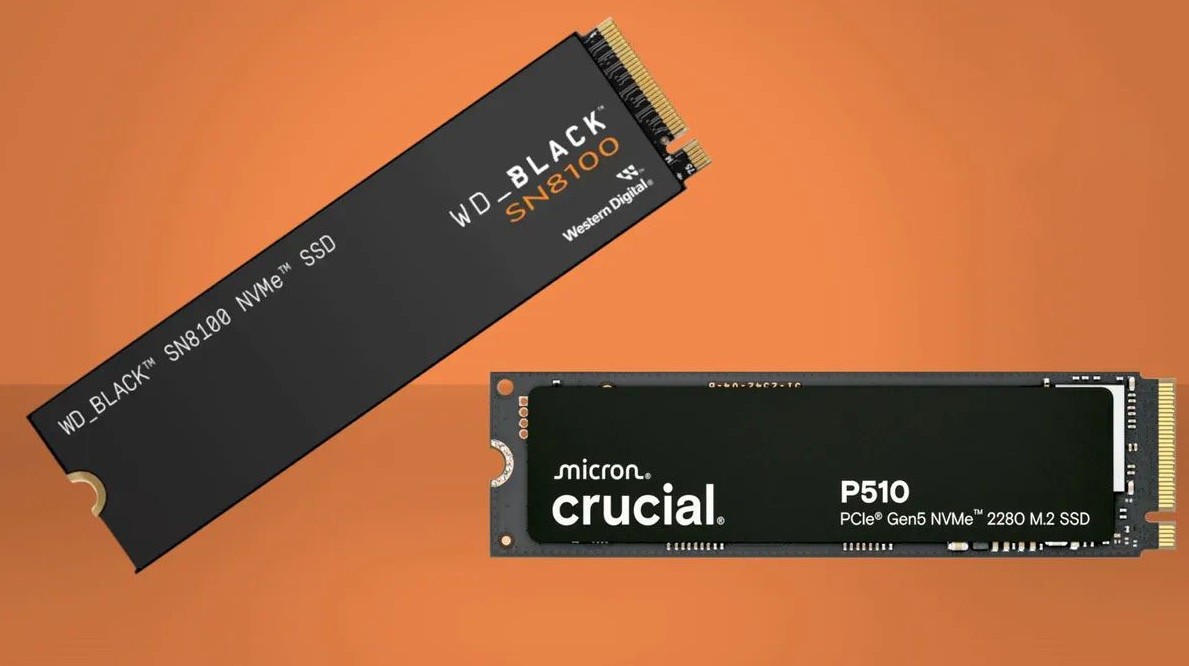
To maintain stable SSD temperatures, the most important thing is to ensure proper airflow within the case. A system with properly positioned intake and exhaust fans will prevent heat buildup. With NVMe SSDs, using a dedicated heatsink is no longer a luxury option, but almost a mandatory requirement if you frequently perform heavy workloads.
Many modern motherboards have integrated heatsinks for the M.2 slot. If your SSD doesn't have its own heatsink, utilizing these slots will significantly reduce heat. In the case of laptops, users should pay attention to cleaning the cooling system regularly and avoid using the machine on surfaces that obstruct airflow, such as blankets or mattresses.
3. Avoid using an SSD for too many tasks simultaneously.
Another mistake comes from "cramming everything onto a single SSD." Thinking that the faster the SSD, the better it should be for everything, many people use one SSD to install the operating system, play games, save projects, render videos, and even as a scratch disk for graphics software. In the short term, everything works fine. But in the long run, the performance and durability of the SSD will be affected.
Each task generates different read/write requests. When multiple heavy applications run simultaneously on a single drive, the SSD controller has to handle a large volume of random accesses, increasing latency and reducing overall speed. For creative tasks such as graphic design, video editing, or 3D modeling, SSD I/O overload can significantly disrupt workflows.
A more efficient solution is to assign specific roles to each drive. A dedicated SSD for the operating system and software will ensure a consistently responsive system. Another SSD or separate hard drive can handle storing projects, games, or large amounts of data. This approach not only improves performance but also reduces the constant write/erase stress on a single drive, thus extending its overall lifespan.
For professional designers, separating the scratch disk for Photoshop, After Effects, or Premiere is also a good practice. When data is temporarily written to a separate drive, the system SSD will experience less wear and tear, and the risk of errors when working with large files will be reduced.
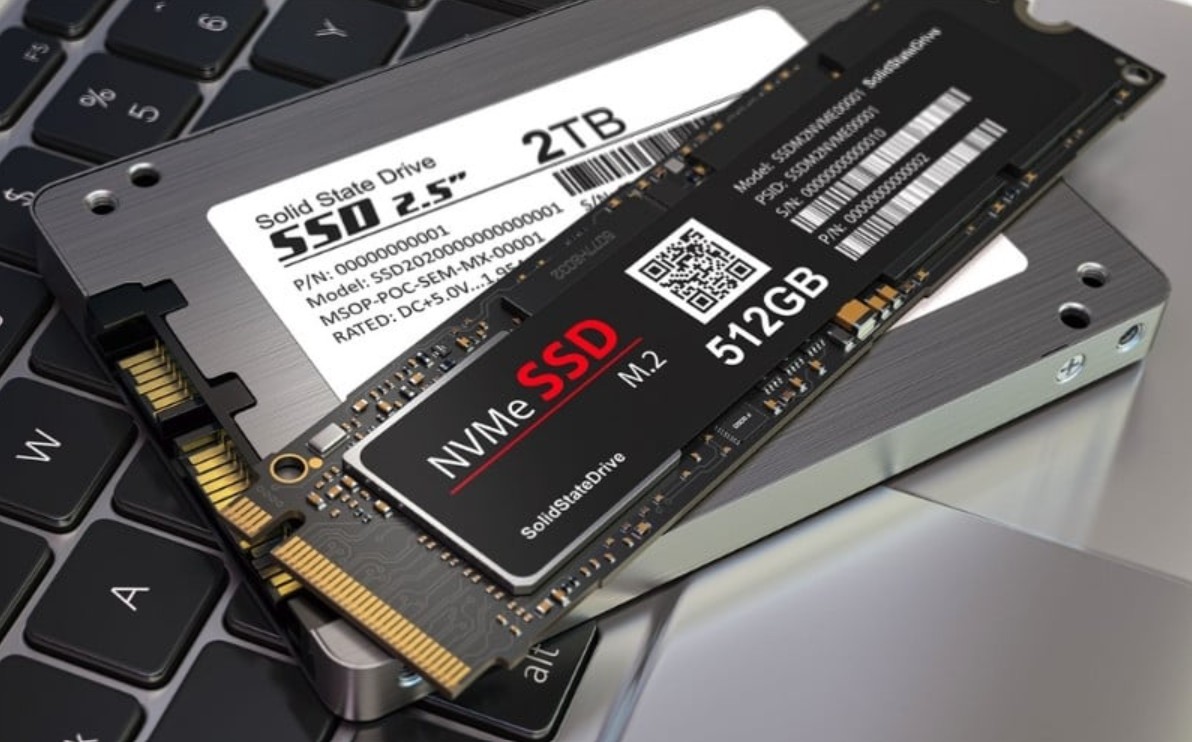
4. Ensure your computer has enough RAM.
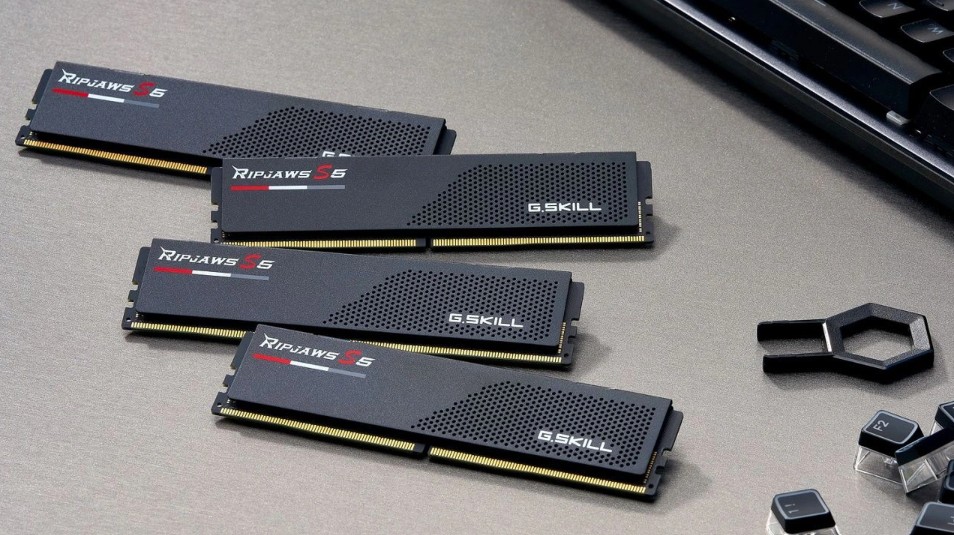
RAM and SSDs are more closely related than many people realize. When a computer lacks RAM, the operating system will use the SSD as virtual memory via paging files. Technically, this prevents the system from crashing, but in terms of performance and durability, this is far from ideal.
Each time the system reads or writes data to the paging file, the SSD undergoes an additional write cycle. Under conditions of prolonged RAM shortage, especially when running many demanding applications, the SSD will be constantly written to at high intensity. This not only significantly slows down the system but also rapidly reduces the SSD's lifespan.
For gamers or graphic designers, insufficient RAM can cause lag, slow texture loading, and software crashes. Many people mistakenly believe this is a graphics card or CPU issue, while the root cause lies in the memory and storage.
The ideal solution is still to equip your computer with enough RAM for your actual needs. However, with RAM prices fluctuating wildly, not everyone can upgrade immediately. In that case, limiting multitasking, closing unnecessary applications, and optimizing workflows are ways to reduce the load on both RAM and SSD.
5. Identify SSD problems early.
One of the downsides of SSDs is that failures often don't show obvious signs like HDDs. However, that doesn't mean problems can't be detected early. Symptoms such as slower-than-normal boot times, extended application loading times, or random lag in games could be signs that your SSD is having problems.
It's crucial that users don't overlook these small changes. Monitoring SSD health through specialized tools can help detect errors early and proactively back up data. When an SSD starts showing bad blocks or read/write errors, continuing to use it without a backup plan is extremely risky.
For designers, the risk isn't just about losing current files, but also about losing resources accumulated over years of work. Fonts, presets, templates, unfinished projects, and client data can all disappear in a single incident. Early problem identification and regular backups are not just technical habits, but a strategy for protecting one's career.
SSDs have been and continue to be the heart of modern computer systems. But like any other component, they have limitations and need to be used properly. Extending the lifespan of an SSD doesn't require complex knowledge or significant expense; it mainly comes down to changes in daily usage habits.
Avoiding full capacity, maintaining stable temperatures, proper task allocation, ensuring sufficient RAM, and early detection of abnormalities are key factors in ensuring SSDs last longer. For average users, this saves on upgrade costs. For designers, freelancers, and gamers, it's a way to protect data, performance, and professional reputation.
SSDs offer speed, but it's ultimately human effort that determines their longevity. By understanding and respecting hardware limitations, you not only extend the lifespan of your drive but also build a stable, secure, and reliable system for years to come.





















VIP Products








Best Selling Products
Genuine Adobe Illustrator account
99 USD
Plugin Retouch4me
69 USD
Windows 10 & 11 Pro Key
36 USD
Genuine Cheap Canva Pro
39 USD
Upgrade Duolingo Super
29 USD
Freepik Premium Account
59 USD
Upgrade genuine Capture One account
120 USD
Autodesk All App Account Copyright
120 USD
Adobe Photoshop Copyright - Full App
120 USD
ChatGPT Plus Account (GPT-4)
16 USD
Capcut Pro 1 Year
39 USD
Upgrade Genuine Office 365
49 USD
Adobe Premiere Pro Account
99 USD
Copyright Adobe Lightroom Account
59 USD
MidJourney Account
29 USD