Best Selling Products

Plugin Retouch4me
69 USD

Capcut Pro 1 Year
39 USD

ChatGPT Plus Account (GPT-4)
16 USD

Upgrade genuine Capture One account
120 USD

Windows 10 & 11 Pro Key
36 USD

MidJourney Account
29 USD

Upgrade Genuine Office 365
49 USD

Genuine Cheap Canva Pro
39 USD

Adobe Premiere Pro Account
99 USD

Upgrade Duolingo Super
29 USD

Copyright Adobe Lightroom Account
59 USD

Genuine Adobe Illustrator account
99 USD

Freepik Premium Account
59 USD

Adobe Photoshop Copyright - Full App
120 USD

Autodesk All App Account Copyright
120 USD
Couldn't join the Teams meeting? 6 easy ways to handle it.
Nội dung
- 1.7 Ways to Fix the Error of Not Being Able to Join a Teams Meeting
- When encountering an error preventing them from joining a Teams meeting, many people's first reaction is to close and reopen the application, or repeatedly click the meeting link hoping the system will fix the error. However, this approach is often ineffective if you don't identify the root cause. Below are some proven troubleshooting methods, arranged in order of priority from simple to complex.
- 1.1. Check your network connection.
- 1.2. Use Teams Web instead of the application.
- 1.3. Double-check the invitation link and meeting code.
- 1.4. Clear the cache of Microsoft Teams
- 1.5. Check Teams meeting access permissions
- 1.6. Update or reinstall Microsoft Teams
- 1.7. Troubleshooting Microsoft systems
- 2. Some tips to avoid errors during future Teams meetings.
With just a few simple steps, you can fix most common Teams errors yourself.
1.7 Ways to Fix the Error of Not Being Able to Join a Teams Meeting
When encountering an error preventing them from joining a Teams meeting, many people's first reaction is to close and reopen the application, or repeatedly click the meeting link hoping the system will fix the error. However, this approach is often ineffective if you don't identify the root cause. Below are some proven troubleshooting methods, arranged in order of priority from simple to complex.
1.1. Check your network connection.
The internet is the core foundation of all online meetings. Microsoft Teams requires not only a network connection for video and audio transmission, but also a stable connection for account authentication, loading meeting configurations, and maintaining a continuous session with the server. Even a few seconds of network disruption can interrupt the meeting.
When encountering an error preventing you from joining a Teams meeting, the first thing you should do is check your network connection. Try turning your Wi-Fi off and on again to refresh the connection. Then, access any website like Google or YouTube to check the loading speed. If the website loads slowly, freezes, or displays errors, the problem is most likely with your internet connection.
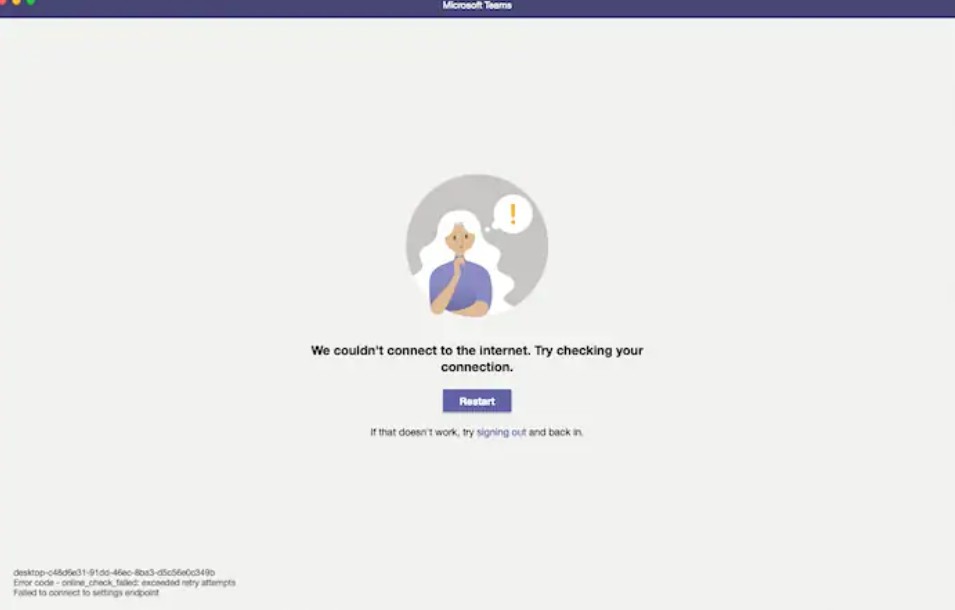
In case of a weak network connection, you should temporarily close applications that are using a lot of bandwidth, such as video players, file downloaders, or streaming services. If possible, switching to a LAN cable instead of Wi-Fi will significantly improve the connection stability, especially during important meetings.
1.2. Use Teams Web instead of the application.
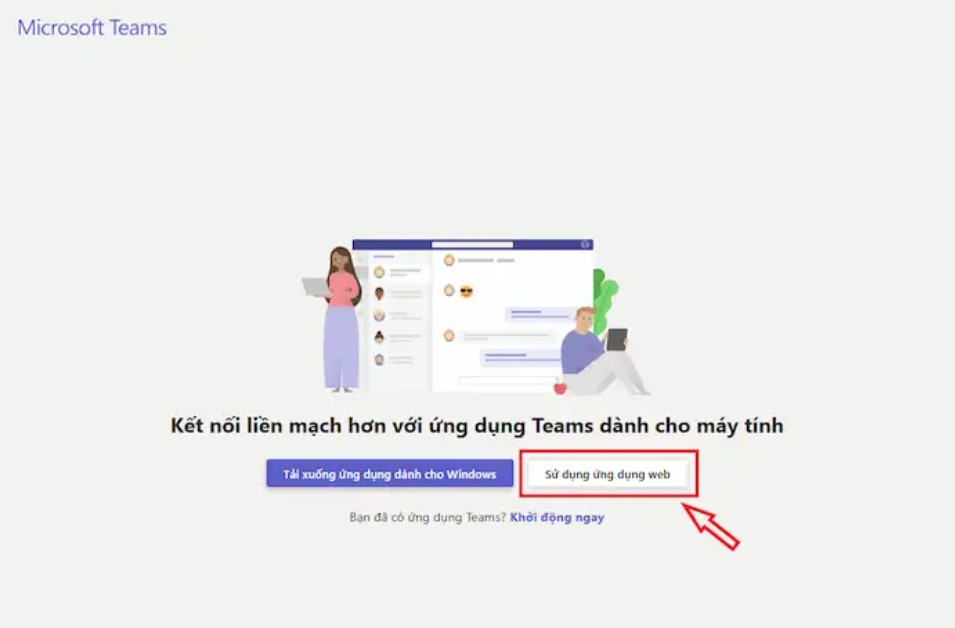
The Microsoft Teams desktop application offers many benefits, but it's also prone to software conflicts, especially when the operating system hasn't been updated in a long time or the cache is corrupted. In urgent situations, when you need to join a meeting immediately, Teams Web is an extremely effective alternative.
The process is quite simple. Just copy the meeting link, open a web browser like Microsoft Edge or Google Chrome, and paste the link into the address bar. When the system asks if you want to open it with the Teams app, choose cancel and continue with the web version. In just a few seconds, you can log in and join the meeting without installing any additional software.
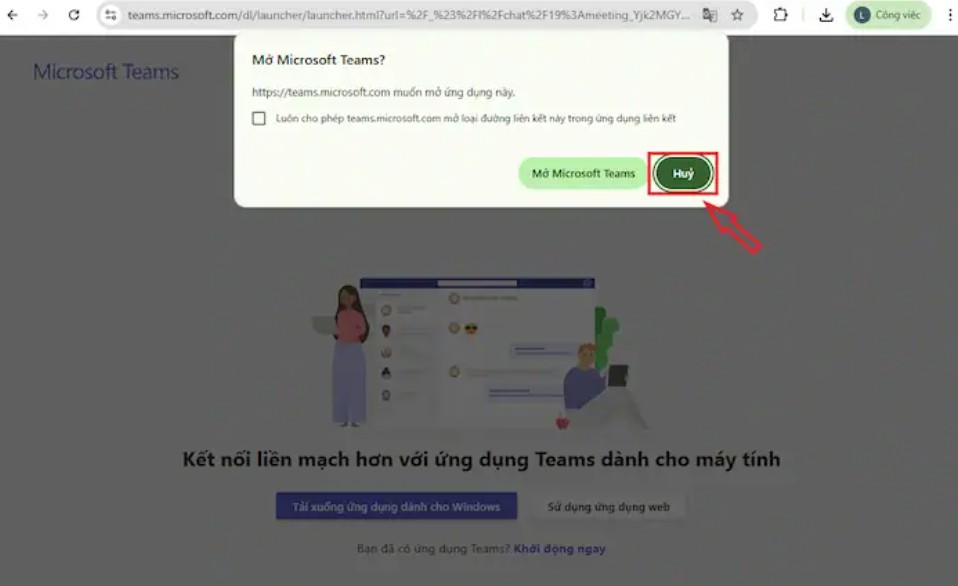
Importantly, Teams Web now supports almost all the basic features such as listening, speaking, chatting, and screen sharing. While the experience may not be as smooth as the desktop application, in case the application malfunctions, it's a "lifesaver" that helps you avoid missing meetings.
1.3. Double-check the invitation link and meeting code.
A fairly common but often overlooked reason is that the meeting link is broken or has expired. In a busy work environment, the organizer may change the meeting schedule, create a new room, or cancel an old meeting, and not everyone has time to update the information.
Therefore, if you can't join a Teams meeting, you should check your email or calendar to see if you're using the most recent invitation link. Be especially careful with links shared by multiple people, as even a single missing character can render the link invalid.
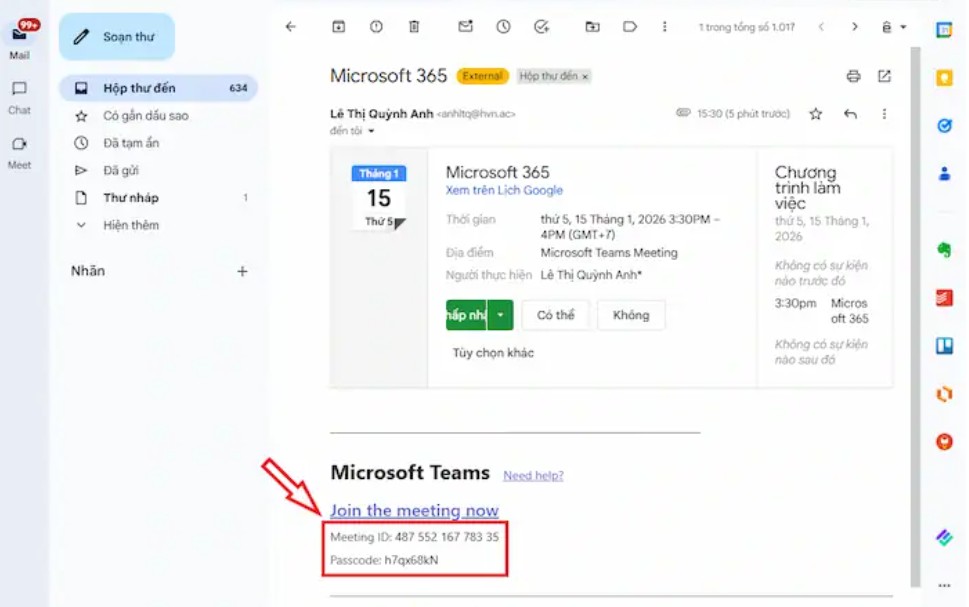
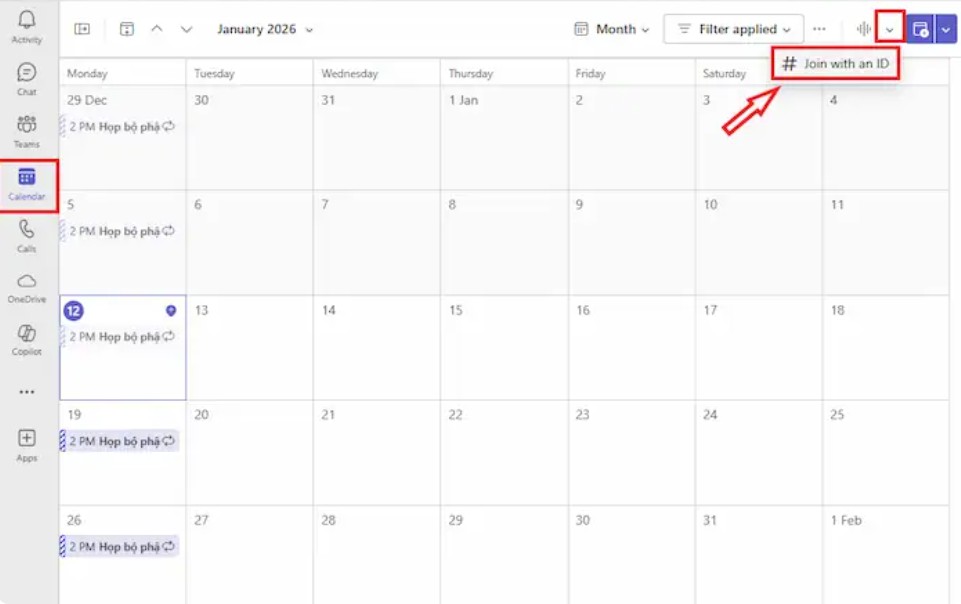
If the link doesn't work, you can use the Meeting ID and Passcode. This information is usually located right below the invitation link in the email. In the Teams app, simply go to Calendar, select Join with an ID, and then enter the exact meeting ID and password. This allows you to access the meeting room directly without relying on the link.
1.4. Clear the cache of Microsoft Teams
Caching helps the Teams application run faster by saving temporary data. However, when these cache files become corrupted or accumulate too much, they can cause a range of problems such as the inability to click the Join button, application crashes, or failure to load the meeting interface.
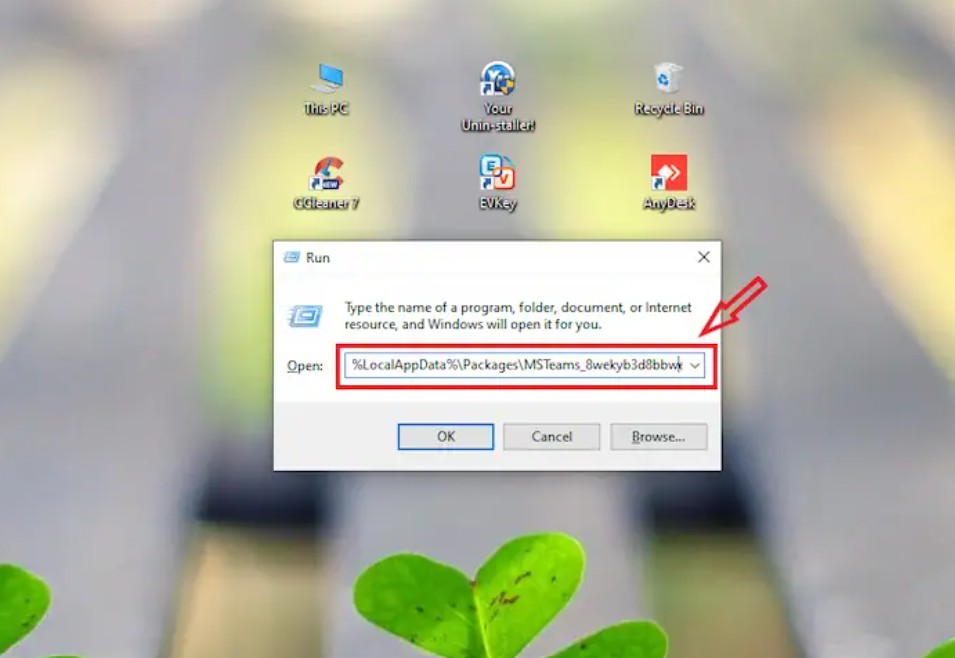
Clearing the cache will bring Microsoft Teams to a cleaner state without losing your account data. After completely closing the Teams application, you can use the Windows + R key combination to open the Run dialog box, enter the cache folder path: %LocalAppData%\Packages\MSTeams_8wekyb3d8bbwe\LocalCache > press Enter.
When the folder appears, press Ctrl + A to select all files and folders inside, then press Delete to remove them.
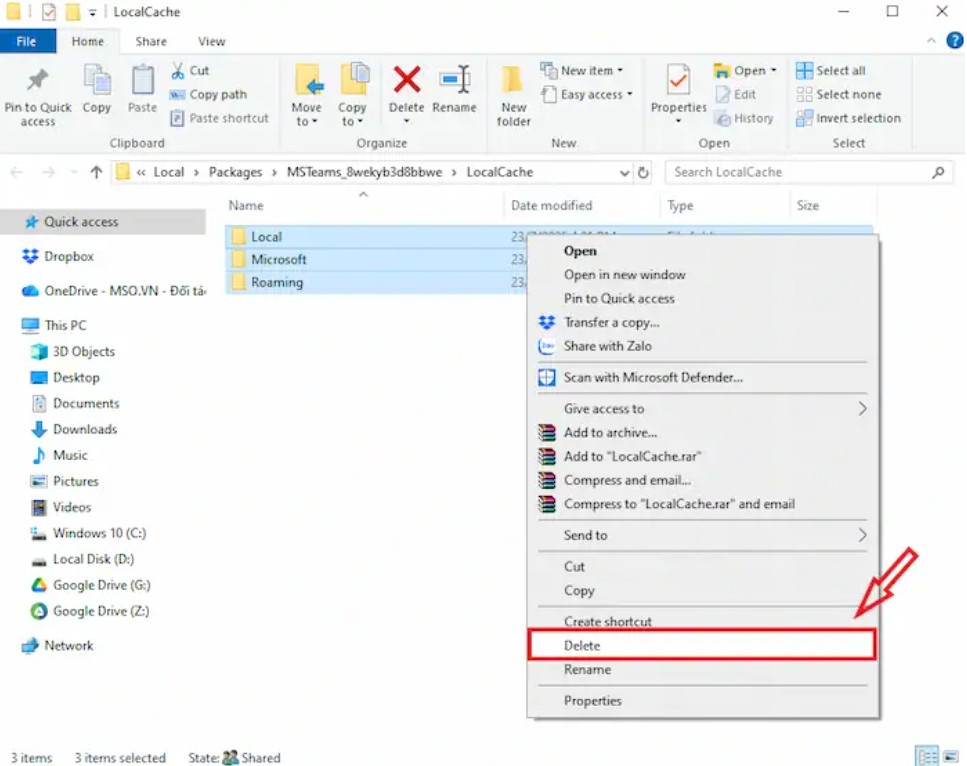
This is a simple yet highly effective operation, especially for those who use Teams daily for extended periods.
1.5. Check Teams meeting access permissions
The problem isn't always with your device. In many cases, you might be unable to join a Teams meeting due to security settings from the organizer or organizational policies. For example, the host might restrict participation to only people within the same organization, while you're using a guest account. Or the meeting might have been locked to prevent latecomers.
When faced with this situation, you should double-check that you are logged in with the correct email account that was used for the invitation. Also, if you are stuck in the waiting room, proactively contact the organizer through other channels to get them to accept your participation request.
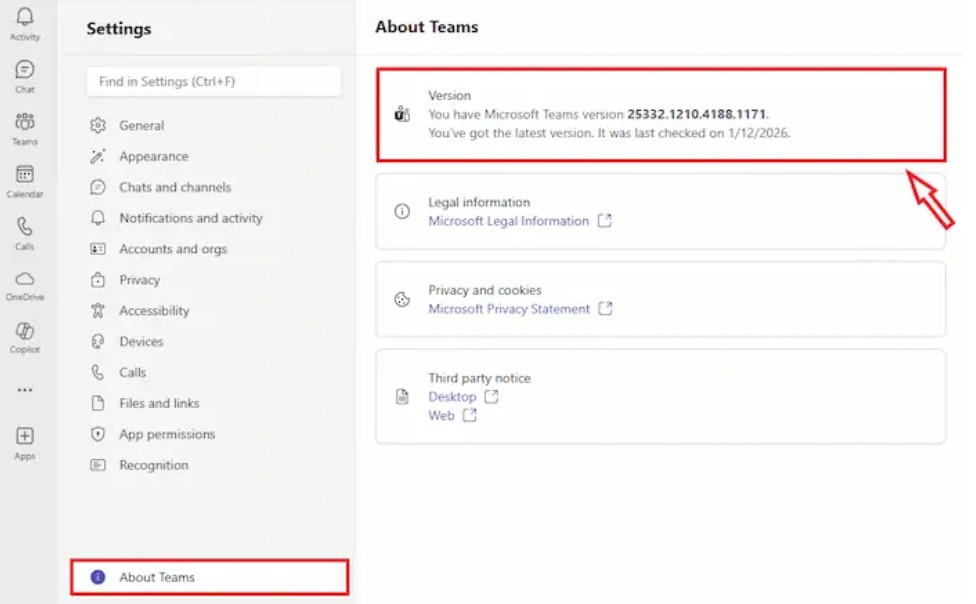
Additionally, checking your Teams version is crucial. Some newer versions of Teams automatically update to comply with new security policies. If you're using an older version, updating can fix bugs immediately.
1.6. Update or reinstall Microsoft Teams
An outdated version of Teams may no longer be compatible with Microsoft's new security protocols or features. This can prevent the application from connecting to meeting rooms configured with the new standards.
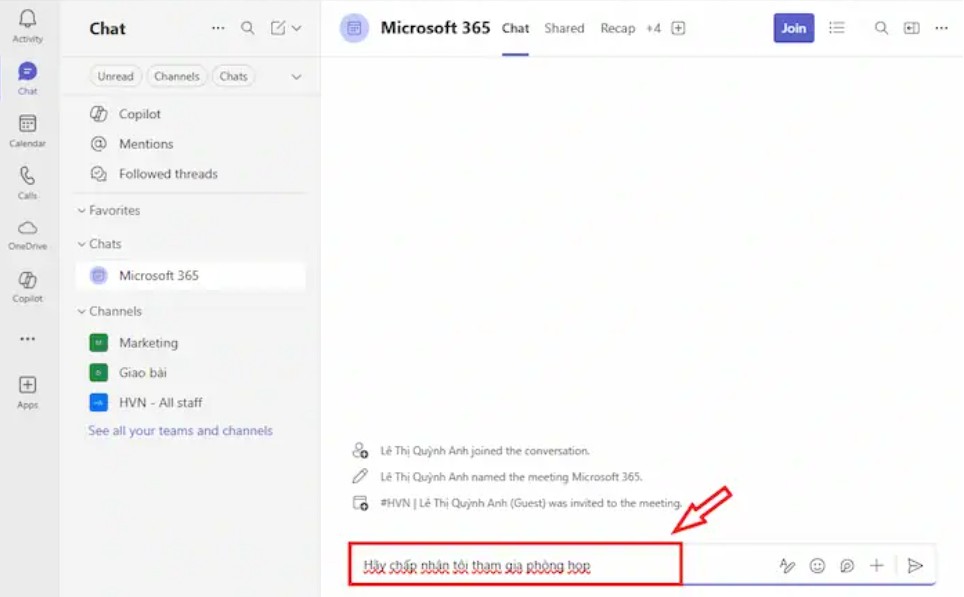
If you've tried the above methods but still can't join the meeting, you should consider updating Teams to the latest version or uninstalling and reinstalling it from scratch. This process helps completely remove any remaining corrupted files and ensures the application runs more stably.
1.7. Troubleshooting Microsoft systems
In rare cases, the inability to join a Teams meeting is not due to a user error but rather a global Microsoft system issue. This usually happens on peak days or when Microsoft is rolling out major updates.
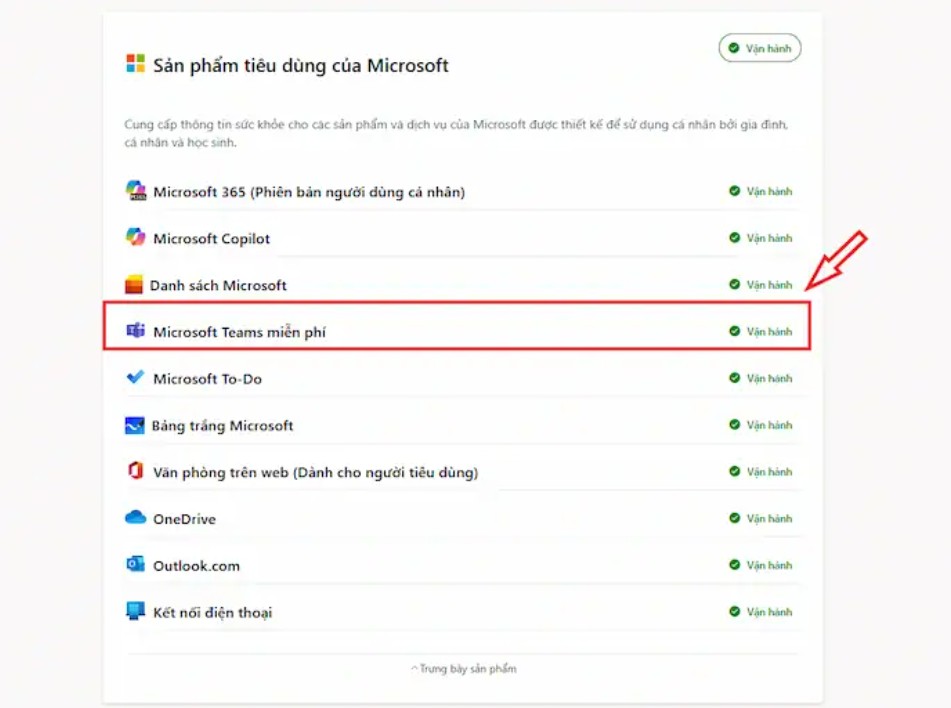
You can visit the Microsoft 365 Service Health page to check the status of your Teams service. If the system is experiencing issues, the only option is to wait for Microsoft to fix them. In the meantime, repeatedly trying to log in will usually not work.
2. Some tips to avoid errors during future Teams meetings.
After resolving the error, it's even more important to prevent it from happening again in future meetings. First, always check your credentials before joining a meeting, ensuring you're logged in with the correct email address you received the invitation with. Using a personal account instead of a company account is a very common cause of access denied errors.
Joining the meeting a few minutes early is also a good habit. This allows you to check your equipment, audio, and camera, and address any issues promptly. At the same time, prioritize network bandwidth for Teams by limiting heavy load activities during the meeting.
Regularly updating the app and clearing the cache once a month will help Teams run more smoothly. Additionally, always have a backup plan on your mobile phone so you can join meetings even if your computer experiences unexpected problems.
Finally, don't forget to check your operating system's privacy settings to ensure Teams is allowed to use your microphone and camera. This is a small detail, but it can significantly impact your online meeting experience.
The inability to join a Teams meeting is a common problem, but it's not insurmountable. Understanding the cause and applying the right methods will allow you to resolve the issue quickly and proactively. More importantly, having a solid foundation of knowledge will help you avoid similar problems in the future, especially in today's digital work environment that relies heavily on online platforms.





















VIP Products








Best Selling Products
Plugin Retouch4me
69 USD
Capcut Pro 1 Year
39 USD
ChatGPT Plus Account (GPT-4)
16 USD
Upgrade genuine Capture One account
120 USD
Windows 10 & 11 Pro Key
36 USD
MidJourney Account
29 USD
Upgrade Genuine Office 365
49 USD
Genuine Cheap Canva Pro
39 USD
Adobe Premiere Pro Account
99 USD
Upgrade Duolingo Super
29 USD
Copyright Adobe Lightroom Account
59 USD
Genuine Adobe Illustrator account
99 USD
Freepik Premium Account
59 USD
Adobe Photoshop Copyright - Full App
120 USD
Autodesk All App Account Copyright
120 USD