Best Selling Products

ChatGPT Plus Account (GPT-4)
16 USD

Capcut Pro 1 Year
39 USD

Upgrade Duolingo Super
29 USD

Copyright Adobe Lightroom Account
59 USD

Genuine Cheap Canva Pro
39 USD

MidJourney Account
29 USD

Upgrade genuine Capture One account
120 USD

Adobe Premiere Pro Account
99 USD

Windows 10 & 11 Pro Key
36 USD

Adobe Photoshop Copyright - Full App
120 USD

Autodesk All App Account Copyright
120 USD

Plugin Retouch4me
69 USD

Freepik Premium Account
59 USD

Genuine Adobe Illustrator account
99 USD

Upgrade Genuine Office 365
49 USD
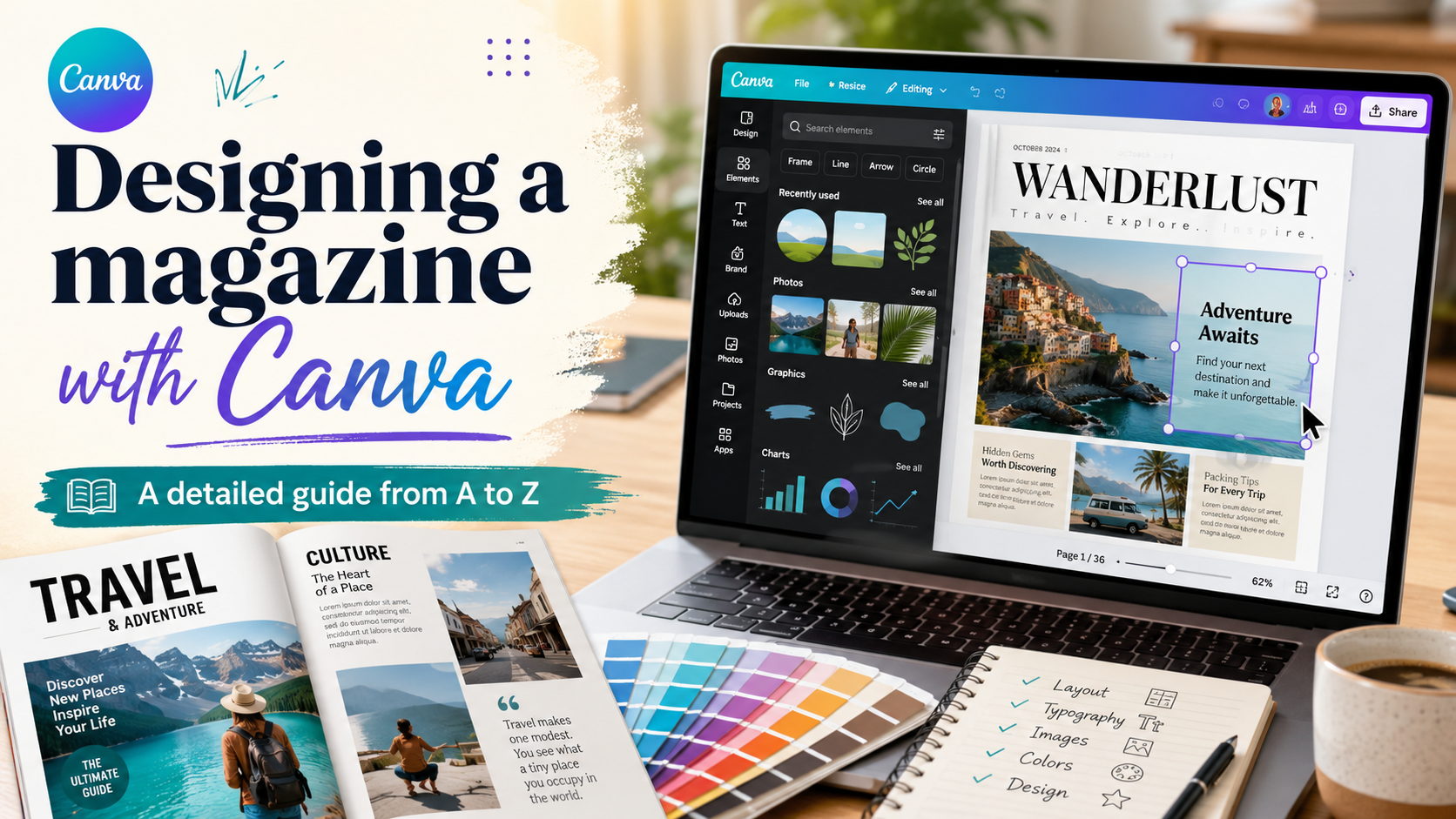
Designing a magazine with Canva: A detailed guide from A to Z.
Nội dung
- 1. Canva and its printing features
- 1.1. Brand Set
- 1.2. Magic Transformation
- 1.3. Automatic error checking
- 2. Choose a template or design your own.
- Step 1: Choose a template or design your own.
- Step 2: Add content
- Step 3: Customize the layout
- Step 4: Review and refine
- Step 5: Save and export the file
- 3. Choose paper for the magazine.
- 4. How many pages should the magazine have?
- 5. Differentiate between magazines and brochures.
Designing magazines with Canva makes it easy for businesses, schools, and individuals to transform content into a visually appealing, professional publication without requiring extensive design experience.
1. Canva and its printing features
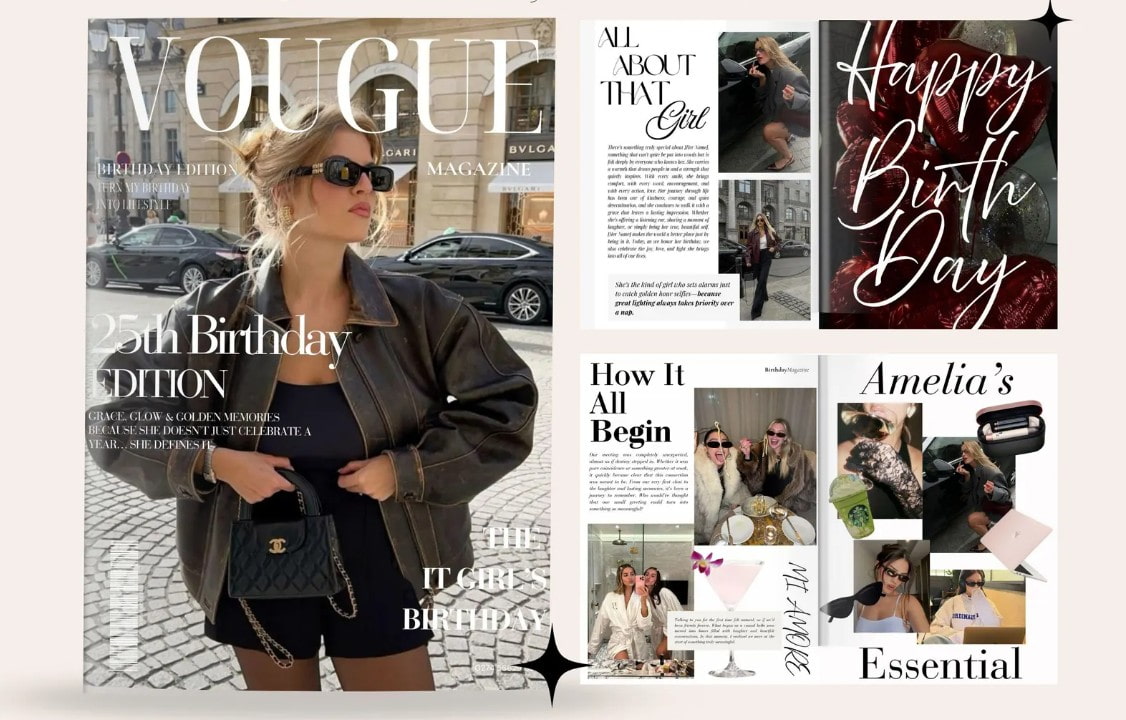
One of the highlights of designing magazines with Canva is that users don't necessarily have to start with a blank page. The platform offers thousands of editable design templates, significantly saving time in layout development.
The drag-and-drop tool allows users to change the position of images, text, icons, and graphic elements directly on the page. Beginners can choose a template that suits their theme and then replace the content with their own information.
Canva also offers options related to printing and delivery. Depending on the region and available services, users can choose standard delivery, express delivery, or in-store pickup.
In addition, Canva aims for a convenient printing experience with a satisfaction guarantee policy. In case users are not satisfied with their order, depending on the applicable conditions, the product may be refunded or reprinted.
1.1. Brand Set
If using Canva Pro, the Brand Kit is a useful feature when designing corporate magazines. Users can upload their logo, brand colors, and fonts once, and then access and use them in multiple different designs.
This helps the pages in the magazine maintain a consistent brand identity. When designing multiple issues, having brand elements readily available also reduces search time and minimizes the use of incorrect colors or fonts.
1.2. Magic Transformation
With Canva Pro, Magic Conversion can help resize designs for use in other products. A magazine design or its contents can be developed into a poster, flyer, sticker, or other suitable formats.
This feature is particularly useful when a marketing campaign needs to be deployed across multiple types of publications.
1.3. Automatic error checking
Before exporting or printing, the proofreading feature can help users check for several design-related issues, such as font size, element placement, cropping area, and resolution.
This is a helpful step to reduce the risk of technical errors before sending the product for printing.
2. Choose a template or design your own.
The magazine design process on Canva can start with a pre-made template or a completely new design. The choice of which option to use depends on your experience, time, and the style you want to create.
Step 1: Choose a template or design your own.
First, search for "Magazine" or "Journal" templates on Canva. The platform will provide many pre-designed templates with different styles and layouts.
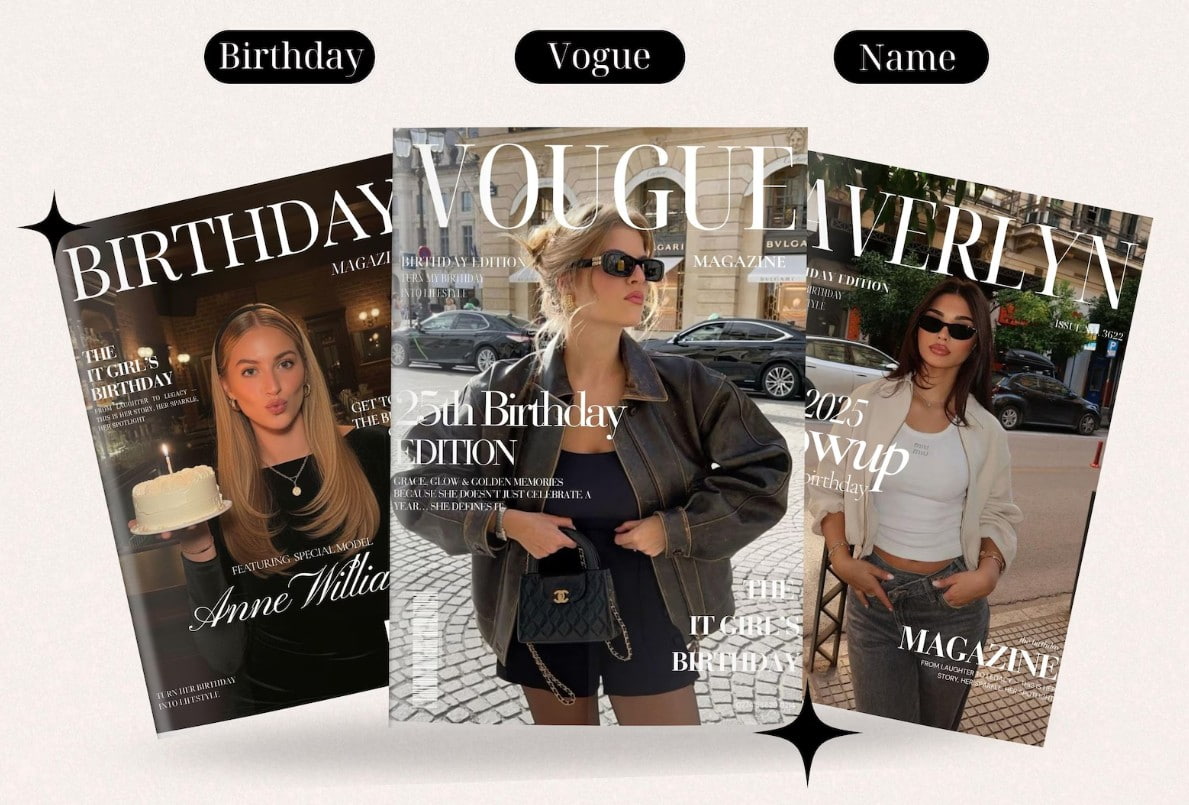
You can choose a template based on the theme. Fashion magazines might prioritize large images and a modern layout, while school magazines might use a more colorful, approachable, and youthful design.
If you don't want to use a template, start with a blank design. This option allows you to control the entire layout, from page size and image placement to how the content is organized.
Step 2: Add content
After selecting a template, replace the existing content with your own.
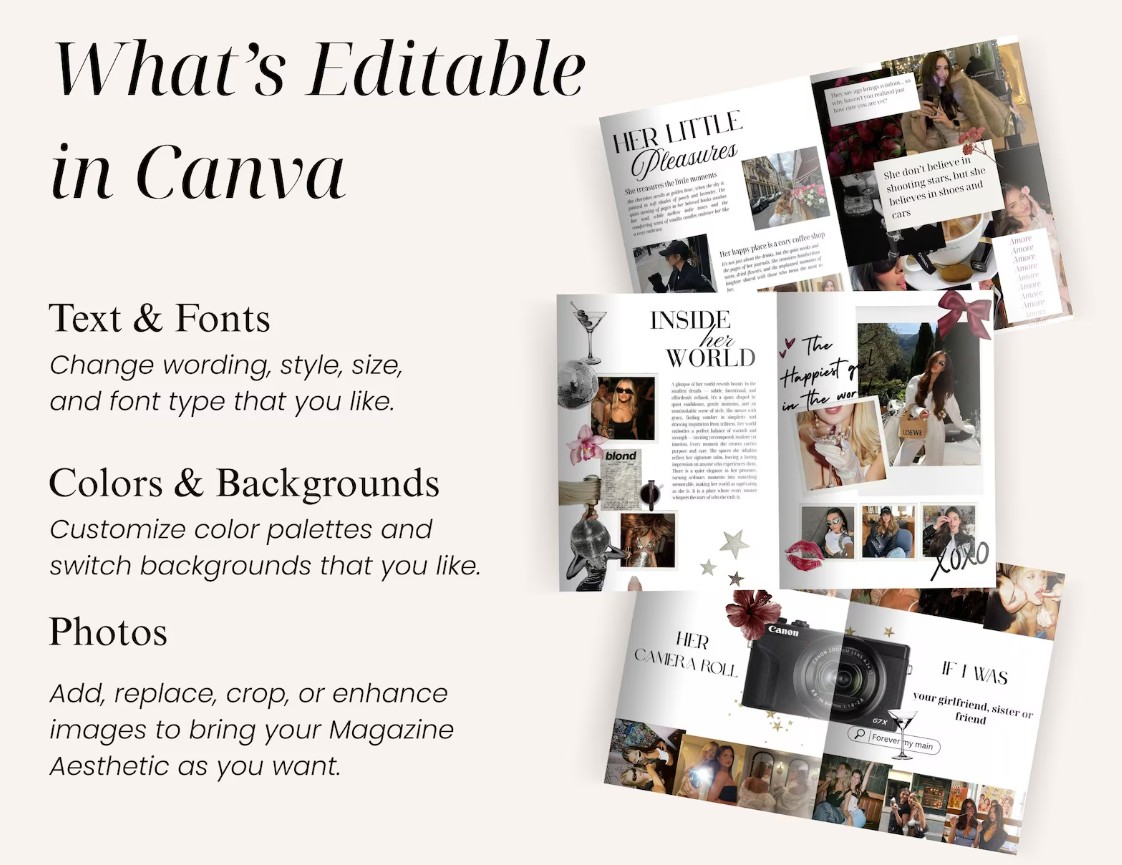
You can upload photos to Canva, insert your logo, add text and other branding elements if you have any. Next, change the font, font size, and color to match the theme.
At this stage, the typography system should be clearly defined. The main title should stand out, the subtitles should be easily recognizable, and the body of the text should be clear enough to read at length.
For multi-page magazines, a consistent typography style should be maintained. Using too many different fonts should be avoided as it can make the overall design look cluttered.
Step 3: Customize the layout
After adding the content, adjust the layout of each page.
Canva allows you to add images, textures, icons, stickers, and graphic elements to make content more lively. However, these elements need to be used in moderation so as not to detract from readability.
The cover page is especially important because it's the first thing readers see. You can use a large image as a focal point, clearly state the magazine's name, and arrange prominent headlines to introduce the content inside.
If the theme is appropriate, canvas prints or illustrations can be used as part of the cover. Canvas prints can also be interspersed within the content to create visual rhythm.
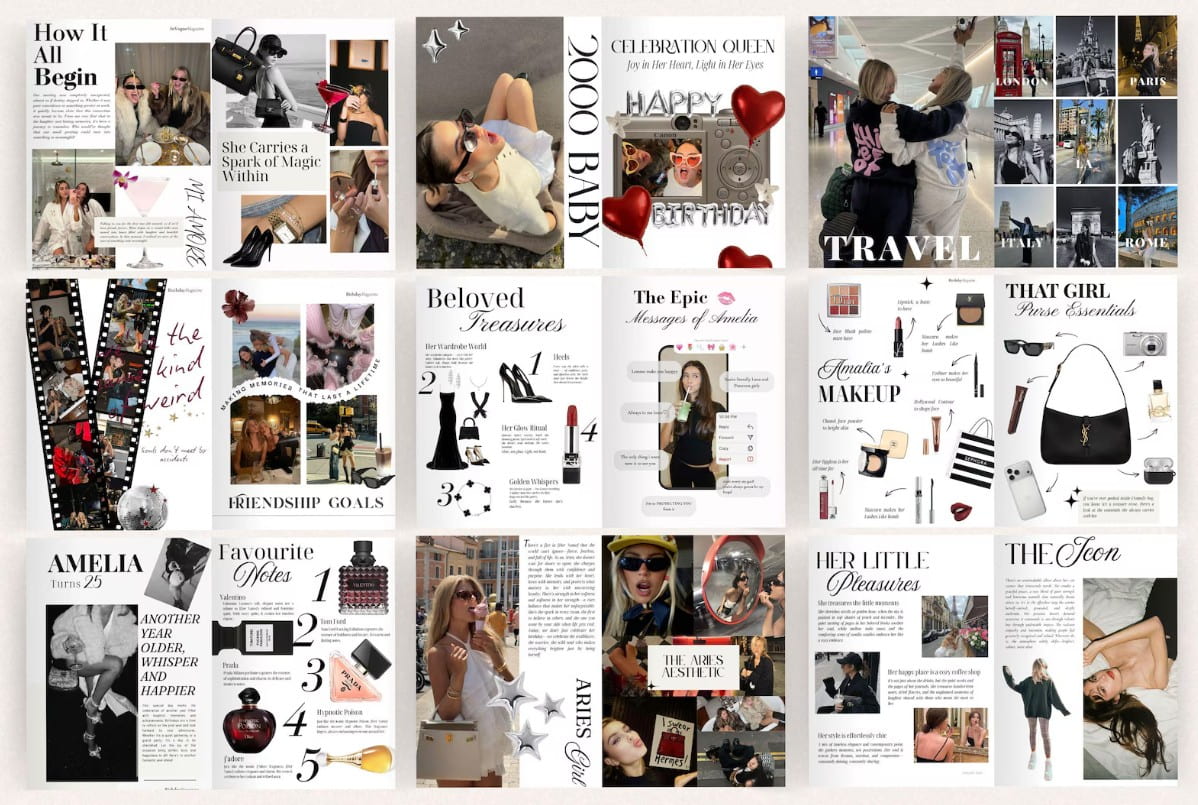
A professional magazine doesn't necessarily need to make every page look the same. Instead, create consistency in style but flexibility in layout so that each section has its own unique character.
Step 4: Review and refine
Once you've finished the pages, review the entire journal from beginning to end.
Check if the layout between pages is logical, if images are misaligned or cropped incorrectly, if the headings are prominent enough, and if the content is easy to read.
Canva also allows you to share your designs with friends or colleagues to get feedback. You can send a link to your edits so others can view and provide direct comments.
This is a helpful step, especially when the magazine is designed as a team. Another person can spot errors that the original designer might have overlooked after working on the same document for a long time.
Step 5: Save and export the file
Before exporting the file, carefully check the markings and language of the entire document. Small errors in spelling, proper phrasing, titles, or contact information can affect the quality of the entire publication.
If the magazine is to be sent to print, further checks are needed regarding dimensions, cut-off areas, images, and other technical requirements related to the print file.
Once completed, save the design and export the file in a format suitable for your intended use.
3. Choose paper for the magazine.
The paper material significantly impacts the overall feel of a magazine. If you want images to appear vibrant, sharp, and visually appealing, glossy paper of the appropriate thickness is a worthwhile option.
Paper with a glossy, smooth surface often helps images and colors stand out more. This is especially useful for magazines with many product photos, fashion, travel, or visual content.
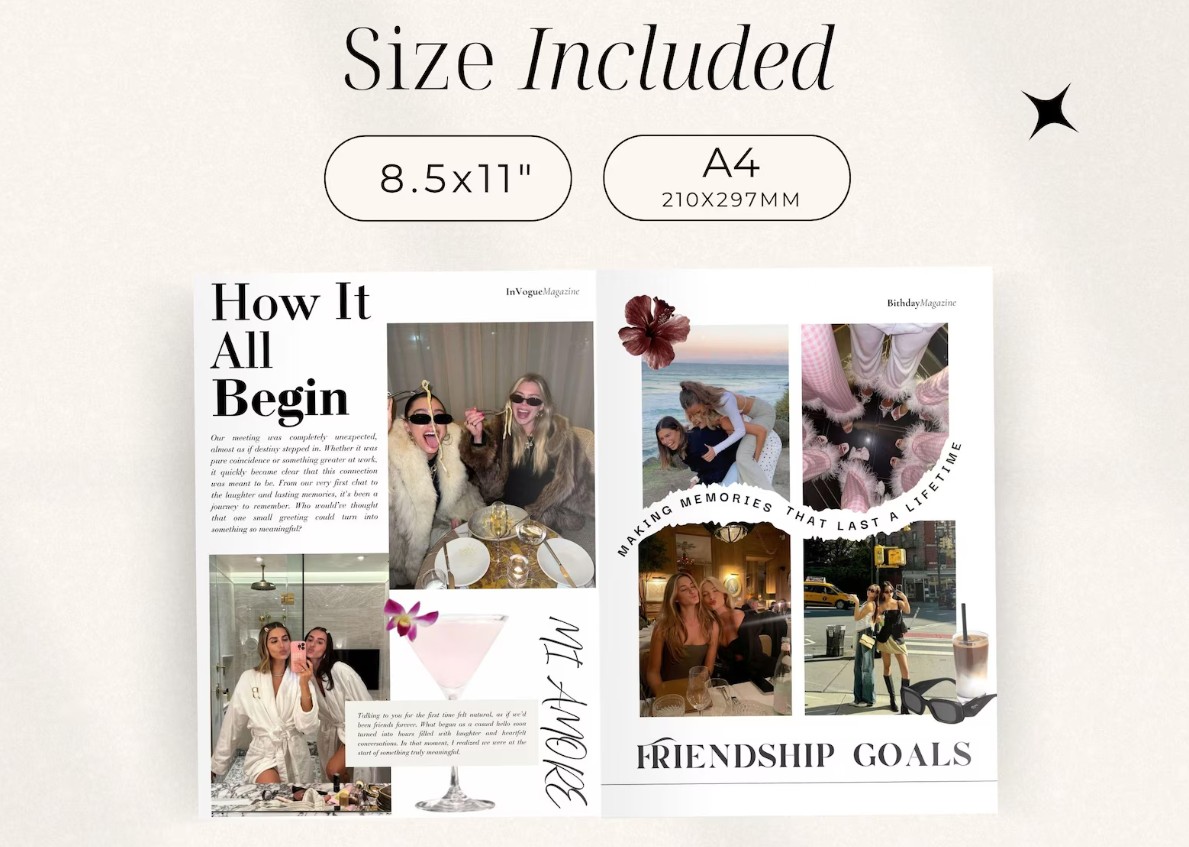
Canva offers a range of paper options for printing, focusing on quality and environmental friendliness, depending on the product and service area.
When choosing paper, it's not just about glossiness; you also need to consider thickness, feel, and intended use. A high-end business magazine might require a different type of paper than an internal school publication.
4. How many pages should the magazine have?
The number of pages depends on the amount of content, budget, and binding method.
According to the service information mentioned, Canva uses thermal glue binding to create a square spine, giving the magazine a professional appearance.
The minimum number of pages is 20 , including 10 pages of content and a cover page. The maximum number of pages is 200 , including 100 pages of content and a cover page.
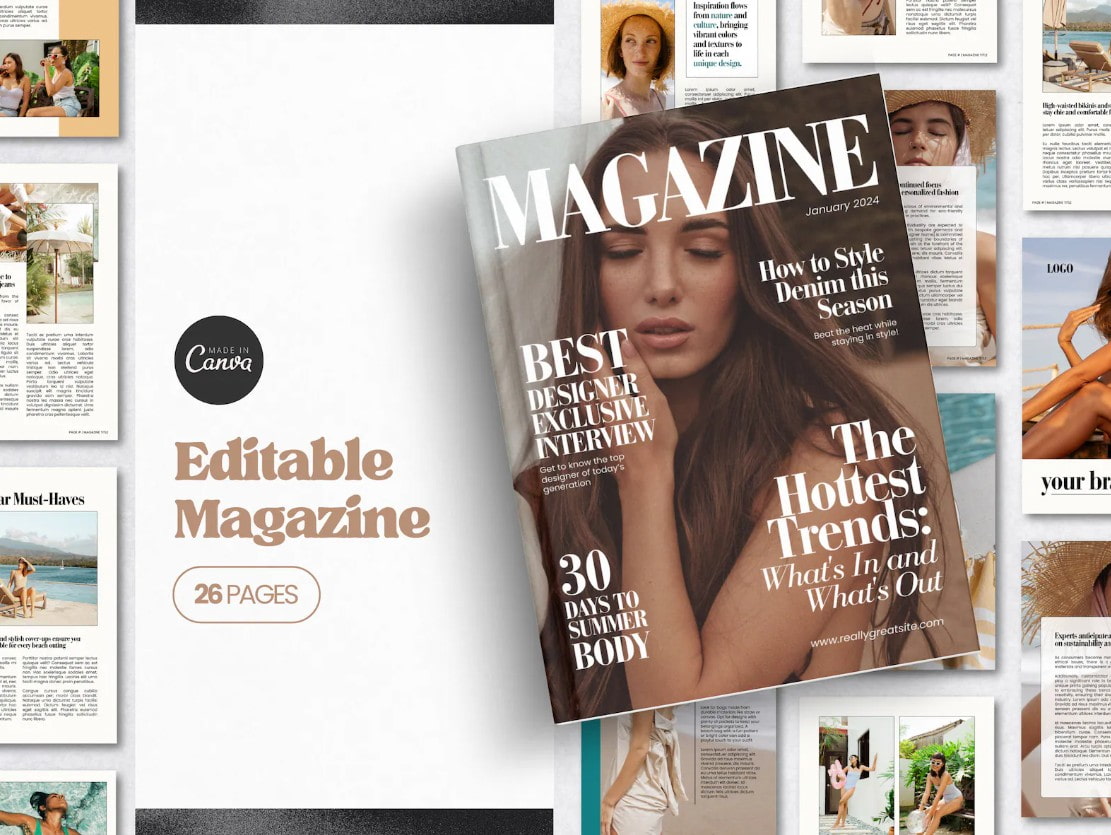
A square spine gives the magazine the appearance of a professional publication. For business magazines, brand brochures, or internal publications with a lot of content, this format can create a more solid and premium feel.
However, one shouldn't try to increase the number of pages simply to make the magazine thicker. The content needs to be valuable and well-distributed. A magazine with a clear layout, quality content, and an appropriate number of pages will be more effective than a long publication lacking focus.
5. Differentiate between magazines and brochures.
Magazines and brochures are both forms of media, but they have quite different purposes and presentation styles.
Magazines typically have more pages and contain a wider variety of content. Some magazines may include news, feature articles, interviews, photos, advertisements, branding content, or recurring columns.
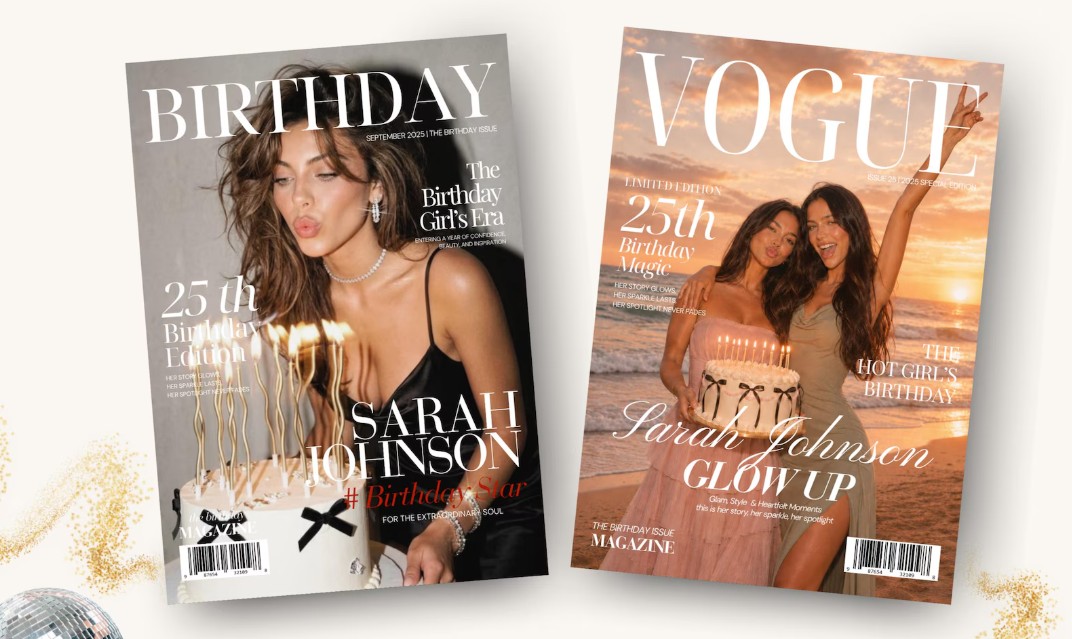
Magazines are typically designed with diverse layouts and may use a square binding format. The content is divided into many pages, giving readers an experience similar to a complete published work.
In contrast, brochures are typically thinner and focus on a specific purpose. Brochures can introduce products, services, businesses, or events. Instead of providing numerous articles and sections, brochures usually direct the reader to a specific piece of information or call to action.
Brochures are also often designed to be folded into multiple sections, while magazines may have many pages and be bound.
The choice between the two depends on the communication goals. If you need a publication with a lot of content, a recurring theme, or want to present a wide range of topics, a magazine is the right choice. If you need to quickly introduce a product, service, or event, a brochure may be more effective.
Most importantly, build your magazine around its content and target audience. When layout, images, typography, and printing materials are coordinated effectively, Canva can become a powerful tool for transforming professional articles and information into visually appealing, engaging, and highly functional publications.





















VIP Products








Best Selling Products
ChatGPT Plus Account (GPT-4)
16 USD
Capcut Pro 1 Year
39 USD
Upgrade Duolingo Super
29 USD
Copyright Adobe Lightroom Account
59 USD
Genuine Cheap Canva Pro
39 USD
MidJourney Account
29 USD
Upgrade genuine Capture One account
120 USD
Adobe Premiere Pro Account
99 USD
Windows 10 & 11 Pro Key
36 USD
Adobe Photoshop Copyright - Full App
120 USD
Autodesk All App Account Copyright
120 USD
Plugin Retouch4me
69 USD
Freepik Premium Account
59 USD
Genuine Adobe Illustrator account
99 USD
Upgrade Genuine Office 365
49 USD