Best Selling Products

Upgrade genuine Capture One account
120 USD

Windows 10 & 11 Pro Key
36 USD

ChatGPT Plus Account (GPT-4)
16 USD

Freepik Premium Account
59 USD

Autodesk All App Account Copyright
120 USD

Upgrade Duolingo Super
29 USD

Genuine Cheap Canva Pro
39 USD

Upgrade Genuine Office 365
49 USD

Adobe Photoshop Copyright - Full App
120 USD

Copyright Adobe Lightroom Account
59 USD

Capcut Pro 1 Year
39 USD

Adobe Premiere Pro Account
99 USD

MidJourney Account
29 USD

Plugin Retouch4me
69 USD

Genuine Adobe Illustrator account
99 USD
Detailed guide on how to use Google Veo 3 to create AI videos in minutes.
Nội dung
- 1. Learn about Google Veo 3
- 2. 3 ways to use Google Veo 3 for free
- 2.1. Using Veo 3 via Gemini
- 2.2. Steps to create videos using Gemini Pro
- 2.3. Using Veo 3 with Google Labs
- 2.4. Use Veo 3 for free via Google AI Studio
- 3. Effective prompt structure in Veo 3
- 3.1. Key components of a good prompt
- 3.2. Four stages to unlock the full power of Veo 3 AI
- 3.3. Suggested prompt templates by category
With just a brief description, you can have videos of cinematic quality.
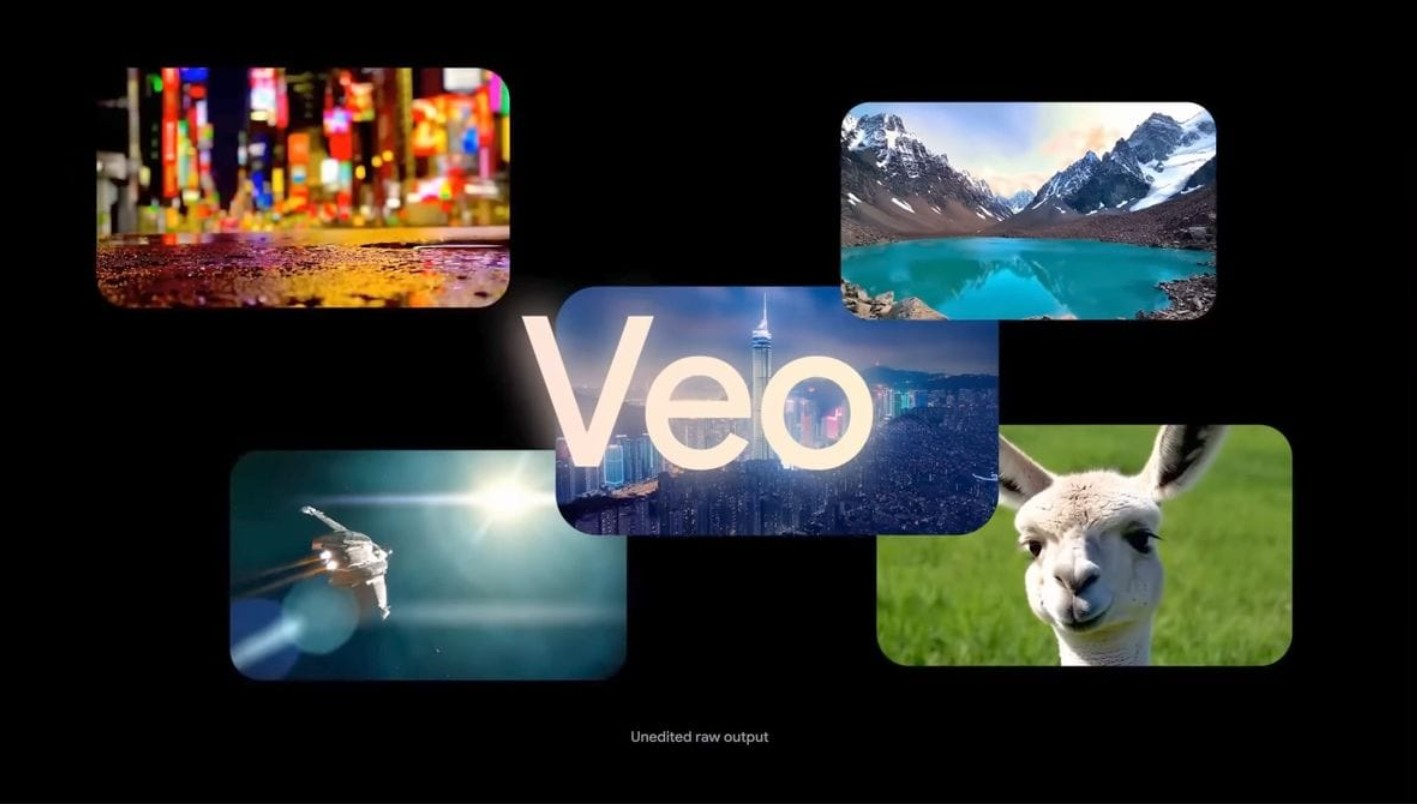
Google Veo 3 was announced as a crucial part of Google's AI ecosystem, directly competing with tools like Runway Gen-3 and Pika Labs . However, what makes Veo 3 special is not just its image quality or processing speed, but also its ability to understand context and recreate footage in a near-cinematic way. For content creators, filmmakers, marketers, and designers, this is truly a revolutionary tool, opening up the possibility of producing professional videos with just… a few lines of description.
In this article, we will explore in detail what Google Veo 3 is , how to use it for free through Google's various AI platforms , and how to build effective prompts to create the most impressive videos . This article will provide you with all the information you need to master this tool, even if you don't have in-depth experience with AI or video editing.
1. Learn about Google Veo 3
Google Veo 3 is Google's latest generation text-to-video (TEO) AI tool, introduced in 2024 as a breakthrough in AI-powered content creation. Compared to previous versions, Veo 3 can create videos with image quality up to 1080p or even 4K, smooth frame rates, and, most importantly, a deeper understanding of context in prompts than ever before.
Veo 3 operates on a diffusion AI model combined with Google Gemini's advanced natural language processing system. When a user enters a prompt, Veo 3 analyzes the content, determines the scene layout, visual style, lighting, and subject movement, and creates a complete video corresponding to that request.
One of Veo 3's standout strengths is its ability to recreate cinematic effects. Beyond simply displaying moving images, Veo 3 can simulate filming techniques such as dolly zoom, pan shot, tracking shot, slow motion, and natural lighting effects.
Additionally, Google has integrated Veo 3 with the Gemini AI ecosystem, Google Labs, and Google AI Studio, allowing users to experience free trial versions. This expands accessibility for the creative community, from students and individual content creators to small businesses.
2. 3 ways to use Google Veo 3 for free
Although Veo 3 is a high-end tool in Google's AI product suite, users can experience it completely free through three official channels that Google provides: Gemini, Google Labs, and Google AI Studio. Each platform offers different access methods and experiences, suitable for different user groups.
2.1. Using Veo 3 via Gemini
Gemini is Google's most powerful integrated artificial intelligence model currently available, playing a similar role to OpenAI's ChatGPT. Within the Gemini ecosystem, Veo 3 is integrated as an extension tool specializing in video creation. Users can access Gemini at gemini.google.com and log in with their Google account to use it.
When accessing the Gemini interface, you can enter a prompt describing the desired video, for example:
“Create a cinematic video of a mountain landscape at sunrise, with soft fog and flying birds.”
Gemini will automatically forward this request to Veo 3 and display the video results within minutes. Users can adjust the video style, length, or add specific details such as lighting, color, and emotion to fine-tune the final product.
In this way, Veo 3 operates smoothly and almost automatically, making it easy for beginners to get started without needing complex installation or technical knowledge.
2.2. Steps to create videos using Gemini Pro
If you want to use Veo 3 at a more advanced level, Gemini Pro is the optimal choice. This version allows access to advanced AI features and more detailed control during the video creation process.
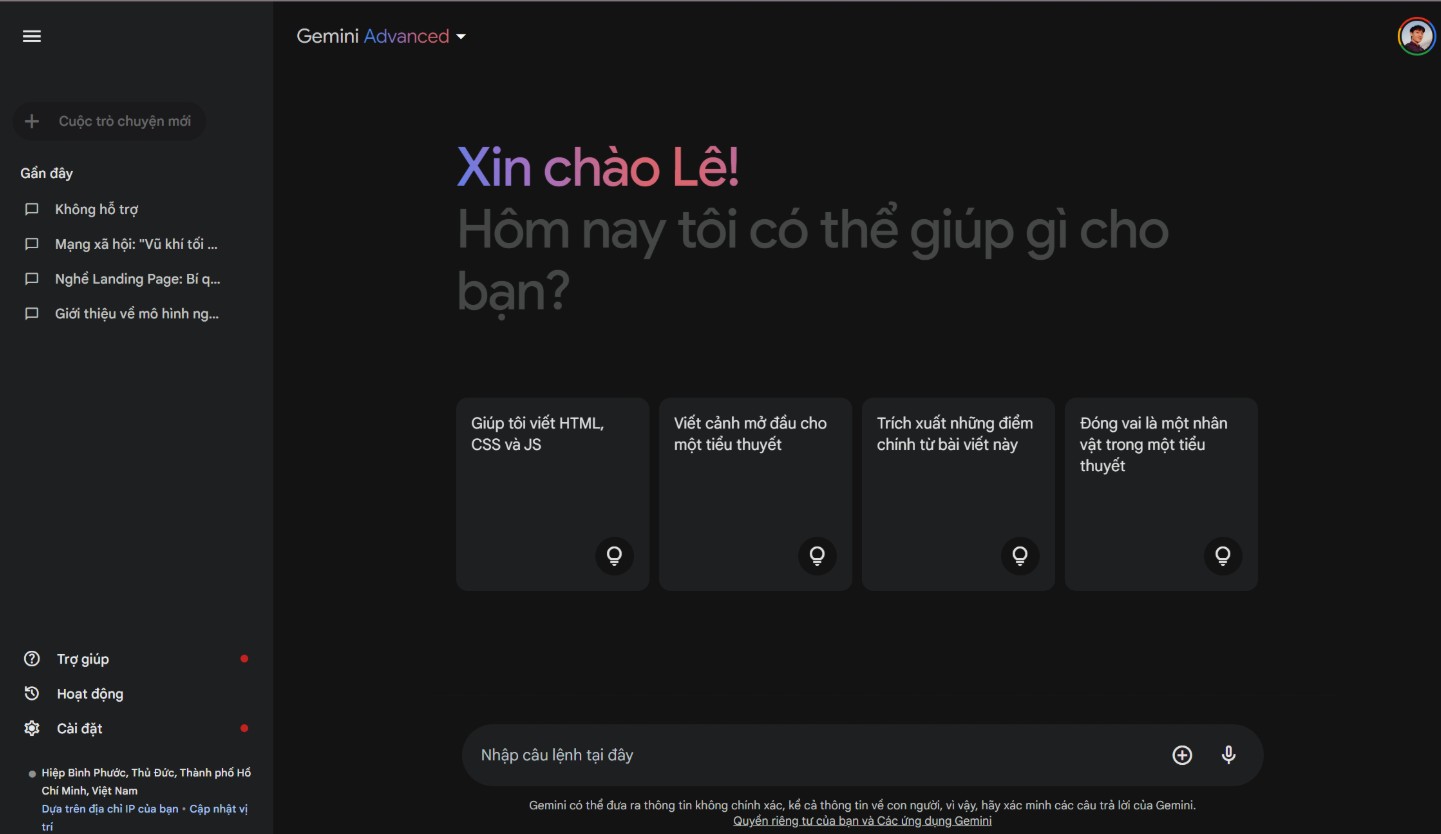
The process can be summarized as follows:
First, users need to log into their Gemini Pro account. On the main interface, you enter the description of the video you want to create. The system will suggest a series of options related to the topic, camera angle, length, and image style. Then, you select Veo 3 as the main video generation tool. Gemini Pro will process your description and display a preview.
At this stage, you can refine the prompt: add descriptions of your desired color, motion, or cinematic style. Once confirmed, Veo 3 will create the complete video, and you can download or share it directly.
The biggest advantage of this approach is the ability to control the output quality, adjust the level of detail, and ensure the video aligns with specific creative goals. For professional content creators, this is an effective way to leverage the full power of Veo 3.
2.3. Using Veo 3 with Google Labs
Google Labs is a testing space where Google provides early access to new AI tools, including Veo 3. Here, users can register to join a waiting list and use a free trial.
To use Veo 3 in Google Labs, users log in to their Google account and access Labs → Veo . The Labs interface is designed to be minimalist and intuitive, allowing users to focus entirely on writing their prompts. After entering the description, you can choose the video length, image style, and click “Generate”.
Google Labs also offers a Creative Preview feature, allowing users to preview results in real time. This is very useful for those who want to fine-tune the prompt to achieve their desired outcome. Although it's a preview version, the video quality is still very impressive and perfectly suitable for personal projects, research, or social media content.
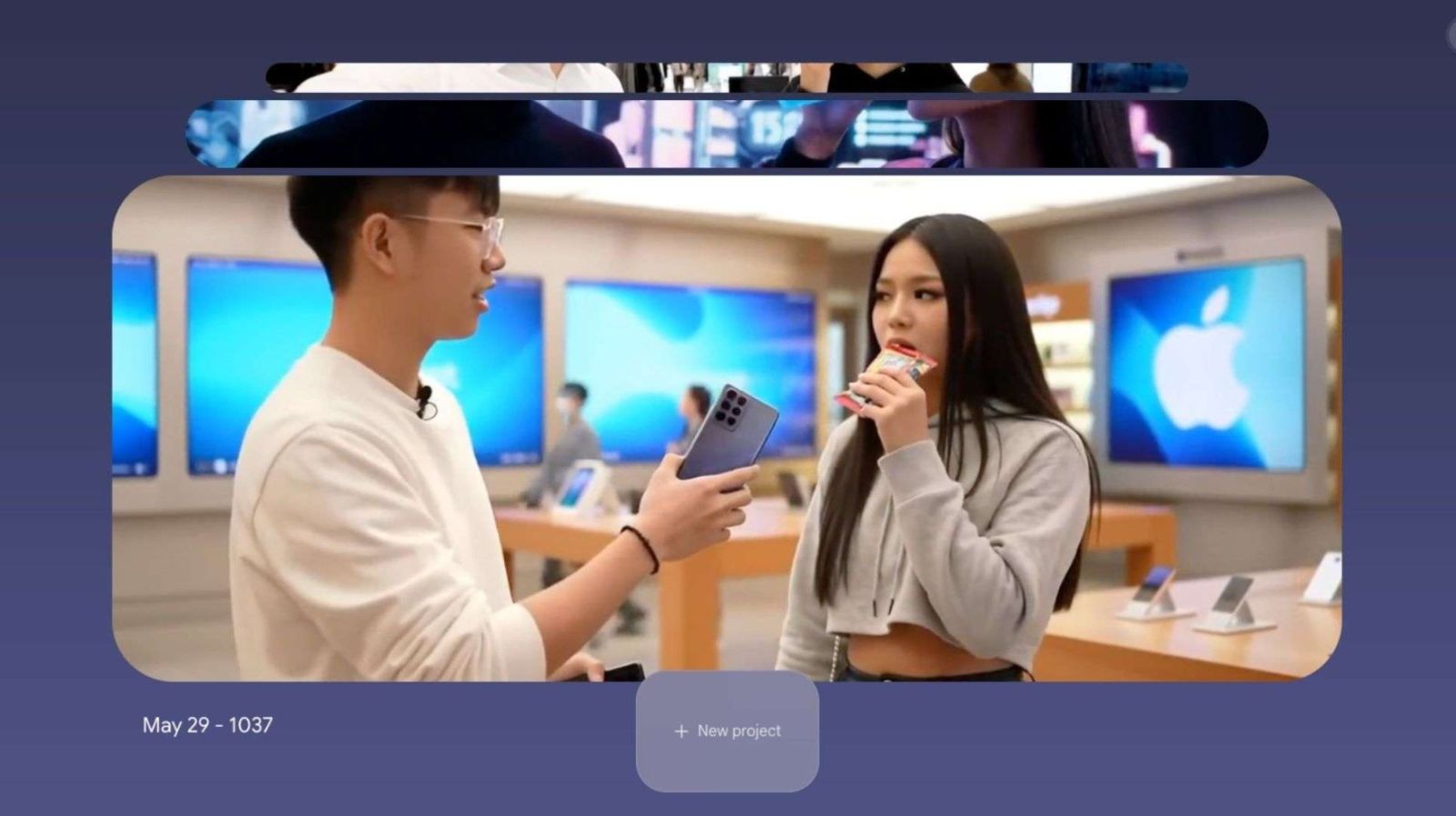
2.4. Use Veo 3 for free via Google AI Studio
Google AI Studio is a platform for developers and AI professionals who want to delve deeper into Google's artificial intelligence models. Veo 3 is integrated here as an API, allowing users to create videos via code or a web interface.
To use it for free, you can register an AI Studio account, select the Veo API option, enter the prompt, and press "Run." The system will process the request and display the resulting video. For professional content creators, AI Studio offers more options such as adjusting detailed parameters, exporting video in the required format, and combining it with other models like Imagen or AudioLM to create videos with accompanying sound.
3. Effective prompt structure in Veo 3
Creating videos with AI sounds simple, but to achieve truly impressive results, users need to understand how to build a well-structured prompt. In Veo 3, the prompt isn't just a descriptive command, but a "short script" that helps the AI understand your idea and recreate it as accurately as possible.
An effective prompt should typically ensure three elements: clear description, emotional impact, and technical guidance. This helps the AI correctly identify the context, style, and visual composition within the video.
3.1. Key components of a good prompt
An effective prompt typically includes four basic parts:
First, a description of the subject or main content of the video, for example: “a young woman walking through a neon-lit city at night.”
Second, a description of the setting and time , such as “during a light rain, reflections on the street create a cinematic atmosphere.”
Third, adding visual style or emotion , for example: “in a Blade Runner-inspired cyberpunk style, with soft blue and pink lighting.”
Finally, specifying the format and motion , such as “smooth camera tracking from left to right, slow motion at the end.”
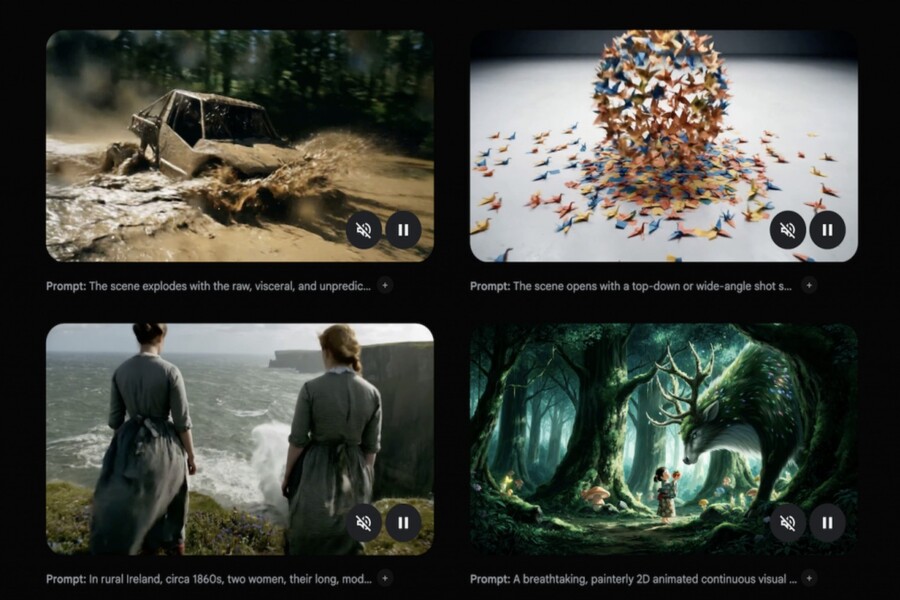
The optimal combination of these elements allows Veo 3 to accurately understand user needs, creating videos with greater artistic merit and visual depth.
3.2. Four stages to unlock the full power of Veo 3 AI
The Veo 3 development process can be divided into four main stages.
The first stage is idea sketching. Users need to define the video's goal: storytelling, advertising, product illustration, or conveying emotion. Clear direction will help you write a more accurate prompt.
The second stage involves creating a detailed prompt, where you should clearly describe the setting, characters, color scheme, lighting, and movement. Veo 3 is capable of understanding cinematic language, so detailed descriptions will help achieve the highest video quality.
The third stage is testing and refinement. After the first video is ready, you should review and adjust the prompt accordingly. This is similar to how a director refines a film script.
Finally, the fourth stage is publishing and optimizing the output. Once the video is complete, users can download it, do some light editing in other software, or post it directly to a sharing platform.
3.3. Suggested prompt templates by category
To help users visualize, Veo 3 prompts can be divided into three main groups: landscape videos, character videos, and commercial videos.
For landscape videos, the prompt should focus on describing the environment and lighting, for example:
“Aerial cinematic video of a vast desert at sunrise, soft golden light, dust particles floating, calm music atmosphere.”
For character videos, it should describe expressions, actions, and the setting:
“A close-up of a smiling woman turning her head under the city lights, slow motion, shallow depth of field.”
And for commercials, the prompt needs to clearly showcase the product and evoke positive emotions:
“A stylish watch placed on a marble table, golden sunlight reflecting through the glass, luxury cinematic tone.”
These examples demonstrate that the power of Veo 3 lies not only in its technology, but also in how users control the tool using creative language.
Google Veo 3 marks a major turning point in the field of AI-powered video creation. With its deep natural language understanding, cinematic effect simulation, and integration into the Google ecosystem, this tool is not just a means of creating videos, but also a new creative platform for all fields.





















VIP Products








Best Selling Products
Upgrade genuine Capture One account
120 USD
Windows 10 & 11 Pro Key
36 USD
ChatGPT Plus Account (GPT-4)
16 USD
Freepik Premium Account
59 USD
Autodesk All App Account Copyright
120 USD
Upgrade Duolingo Super
29 USD
Genuine Cheap Canva Pro
39 USD
Upgrade Genuine Office 365
49 USD
Adobe Photoshop Copyright - Full App
120 USD
Copyright Adobe Lightroom Account
59 USD
Capcut Pro 1 Year
39 USD
Adobe Premiere Pro Account
99 USD
MidJourney Account
29 USD
Plugin Retouch4me
69 USD
Genuine Adobe Illustrator account
99 USD