Best Selling Products

ChatGPT Plus Account (GPT-4)
16 USD

Upgrade Genuine Office 365
49 USD

Upgrade Duolingo Super
29 USD

Genuine Cheap Canva Pro
39 USD

Windows 10 & 11 Pro Key
36 USD

Autodesk All App Account Copyright
120 USD

MidJourney Account
29 USD

Capcut Pro 1 Year
39 USD

Plugin Retouch4me
69 USD

Adobe Premiere Pro Account
99 USD

Copyright Adobe Lightroom Account
59 USD

Adobe Photoshop Copyright - Full App
120 USD

Freepik Premium Account
59 USD

Genuine Adobe Illustrator account
99 USD

Upgrade genuine Capture One account
120 USD
Discord consumes too much RAM while gaming? Here's how to fix it effectively.
Nội dung
- 1. Why can Discord consume so much RAM when playing games?
- 2. Turn off the Overlay feature in the game to reduce RAM consumption.
- 3. Turn off autoplay of GIFs and stickers in Discord.
- 4. Manage and reduce the number of participating Discord servers.
- 5. Refresh the Discord app to free up memory.
- 6. Optimize your computer system when playing games and using Discord.
Many people experience lag when using Discord while playing games. This is often due to the application using a lot of system resources. This article will suggest simple ways to reduce Discord's RAM consumption.

1. Why can Discord consume so much RAM when playing games?
To understand how to reduce Discord's RAM usage, it's first necessary to understand why this application can consume so much system memory. Discord is not just a simple chat application; it's a complex communication platform with many features running simultaneously. When users use Discord, the application has to process various types of data such as text messages, images, videos, audio, and interface effects. All of these elements need to be temporarily stored in RAM so they can be displayed and processed quickly.
One common reason Discord consumes a lot of RAM is joining multiple servers simultaneously. Each Discord server can contain hundreds of chat channels, thousands of messages, and various multimedia content. When a user opens Discord, the application has to load data from these servers to display the content. If a user joins too many servers or operates in multiple chat channels, the amount of data that needs to be loaded and stored in memory increases significantly.

Additionally, Discord offers many advanced features such as in-game overlays, animated GIFs and stickers, screen sharing, and live streaming. While these features enhance the user experience, they also consume more resources. For example, when GIFs or stickers are played automatically, Discord has to process and display the animations continuously, which can increase RAM usage.
Another factor is Discord's background processes. To ensure a stable connection to the server and support features like notifications or overlays, Discord often runs many background processes. These processes help the application run more smoothly but also contribute to increased RAM consumption. When all these factors combine, especially when users are playing games while using Discord, the amount of RAM occupied can become significant.
2. Turn off the Overlay feature in the game to reduce RAM consumption.
One of the most effective ways to reduce Discord's RAM usage is to disable the In-Game Overlay feature. This feature allows users to view Discord information, friend lists, or messages directly on the screen while playing games. This is very convenient because players don't need to exit the game to check messages or join a chat.
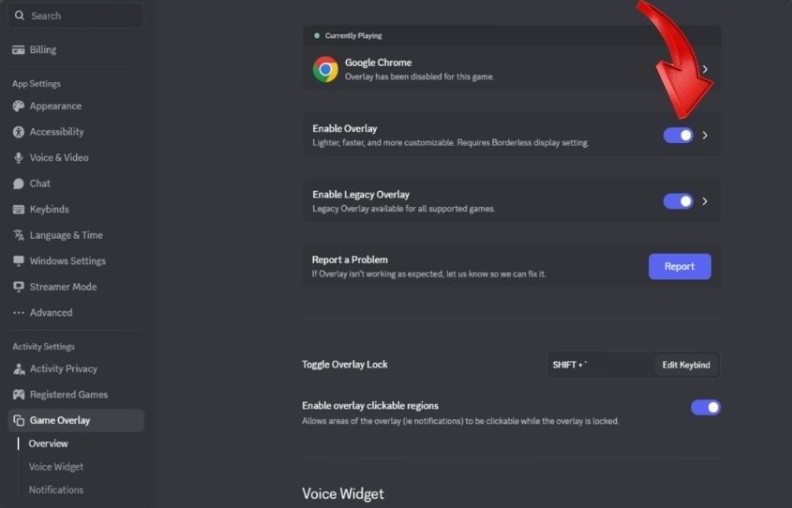
However, to display an in-game overlay, Discord must constantly monitor and connect to the running game. This requires the application to use additional system resources to process data and display the extra interface. In many cases, enabling overlays can significantly increase RAM and CPU usage, especially when playing demanding games.
When overlays are enabled, Discord creates additional processes to display in-game interface windows. These processes run in parallel with the game and can affect overall system performance. Therefore, if users don't really need to use overlays, disabling this feature can significantly reduce RAM consumption.
To disable overlays, users simply need to open Discord, go to user settings, find the Game Overlay section, and turn off the option to enable overlays in games. After disabling this feature, Discord will no longer run processes related to overlays, and the system will free up some RAM. This can help improve game performance, especially for computers with average or low specifications.
3. Turn off autoplay of GIFs and stickers in Discord.
Discord supports various types of multimedia content such as GIFs, animated stickers, and animated emojis. These elements make conversations more lively and engaging, especially in gaming communities where users frequently share images and memes. However, automatically playing these animated elements can also cause Discord to consume more system resources.
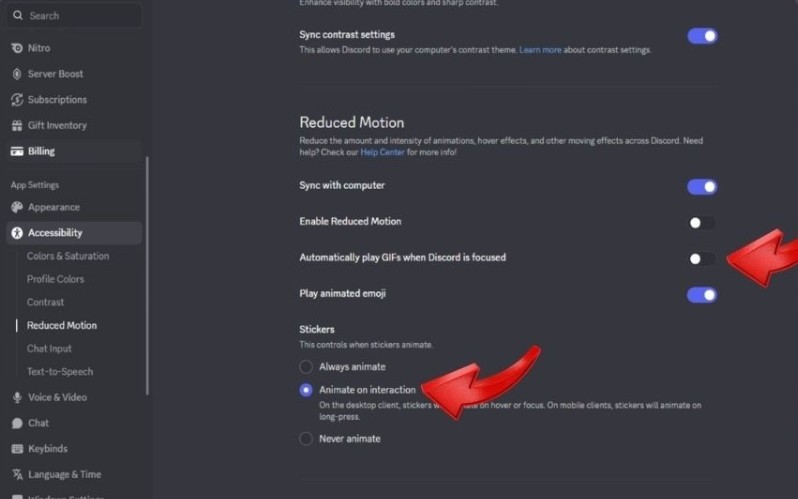
When autoplay is enabled, Discord loads and displays animations as soon as they appear in the chat channel. To ensure smooth display, the application typically stores GIF and sticker data in RAM. If there is a lot of animated content in the chat channels users participate in, the amount of RAM used can increase significantly over time.
Turning off auto-play for GIFs and stickers can help reduce the amount of data that needs to be processed and stored in memory. When this feature is turned off, dynamic content will only be displayed when the user clicks on it instead of playing automatically. This reduces the load on the system and helps Discord run more smoothly.
Users can disable this feature by accessing Discord's settings and finding the Accessibility or Text & Images section. Here, the option to automatically play GIFs and stickers can be turned off. After making this change, the amount of RAM Discord uses may decrease significantly, especially for those who frequently join servers with a lot of multimedia content.
4. Manage and reduce the number of participating Discord servers.
Another factor affecting Discord's RAM usage is the number of servers a user joins. Each server in Discord is like a separate community with multiple chat channels, content, and data. When a user joins multiple servers, Discord has to load data from all of these servers to display information and update messages.
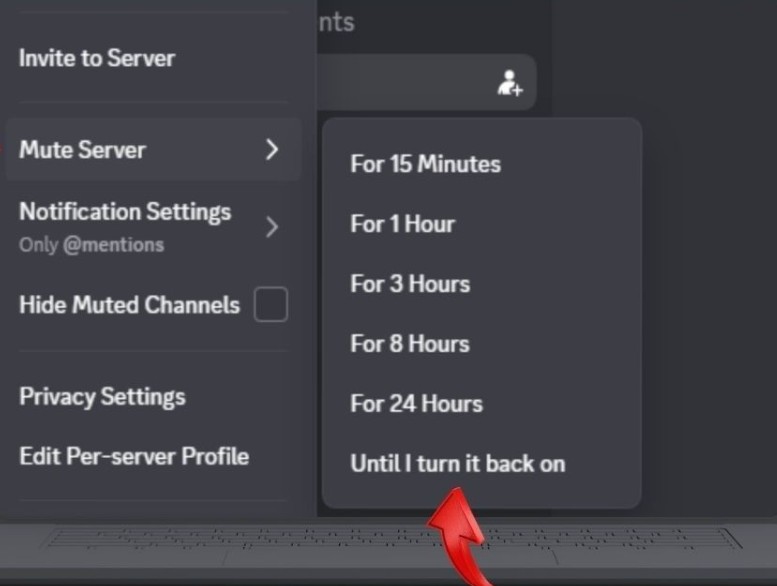
If you join too many servers, especially large servers with thousands of members, the amount of data to process can be enormous. This forces Discord to use more RAM to store and process data. Additionally, constant notifications from multiple servers can cause the application to run more in the background.
To reduce RAM usage, users should review their list of servers they are currently joining and leave those they no longer use. Keeping only the truly necessary servers not only reduces RAM consumption but also makes the Discord interface cleaner and easier to manage.
Additionally, users can also turn off notifications or mute less important servers. This reduces the amount of data Discord needs to process in the background and helps the application run more smoothly.
5. Refresh the Discord app to free up memory.
A simple but effective method to reduce Discord's RAM usage is to refresh the application. When Discord runs for extended periods, temporary data and background processes can accumulate in memory, causing the application to consume more RAM.

Refreshing the application will clear temporary data and restart Discord processes. This can free up some RAM and help the application run more smoothly. Users can refresh Discord by using the keyboard shortcut Ctrl + R. After performing this action, Discord will reload the interface and free up some of the memory it is using.
This is a very simple method, but it can be quite effective, especially when Discord starts to slow down after prolonged use. Refreshing the app can also help fix some minor issues such as frozen interfaces or messages not displaying correctly.
6. Optimize your computer system when playing games and using Discord.
In addition to adjusting Discord settings, optimizing your computer system is also crucial in reducing RAM usage while gaming. One of the simplest ways is to close unnecessary applications running in the background. When multiple programs are running simultaneously, they compete for system resources and cause more RAM to be used.
Users can open Task Manager to check running applications and close unnecessary programs. This helps free up RAM for games and Discord, thereby improving overall system performance.
Additionally, closing unnecessary browser tabs helps reduce RAM usage. Modern browsers can consume a lot of RAM when multiple tabs are open simultaneously. Therefore, before playing games, users should close unnecessary tabs to ensure the system has sufficient resources.
If your computer frequently runs out of RAM, you might consider upgrading your hardware, such as increasing RAM capacity or using an SSD, to improve system performance.
By applying these methods, users can significantly reduce the amount of resources Discord uses and help their computers run more smoothly while gaming. Properly managing system resources not only improves the gaming experience but also extends the lifespan of the computer and maximizes hardware performance.





















VIP Products








Best Selling Products
ChatGPT Plus Account (GPT-4)
16 USD
Upgrade Genuine Office 365
49 USD
Upgrade Duolingo Super
29 USD
Genuine Cheap Canva Pro
39 USD
Windows 10 & 11 Pro Key
36 USD
Autodesk All App Account Copyright
120 USD
MidJourney Account
29 USD
Capcut Pro 1 Year
39 USD
Plugin Retouch4me
69 USD
Adobe Premiere Pro Account
99 USD
Copyright Adobe Lightroom Account
59 USD
Adobe Photoshop Copyright - Full App
120 USD
Freepik Premium Account
59 USD
Genuine Adobe Illustrator account
99 USD
Upgrade genuine Capture One account
120 USD