Best Selling Products

Plugin Retouch4me
69 USD

Adobe Photoshop Copyright - Full App
120 USD

Genuine Adobe Illustrator account
99 USD

Upgrade Genuine Office 365
49 USD

MidJourney Account
29 USD

Adobe Premiere Pro Account
99 USD

ChatGPT Plus Account (GPT-4)
16 USD

Capcut Pro 1 Year
39 USD

Upgrade Duolingo Super
29 USD

Genuine Cheap Canva Pro
39 USD

Windows 10 & 11 Pro Key
36 USD

Autodesk All App Account Copyright
120 USD

Copyright Adobe Lightroom Account
59 USD

Freepik Premium Account
59 USD

Upgrade genuine Capture One account
120 USD
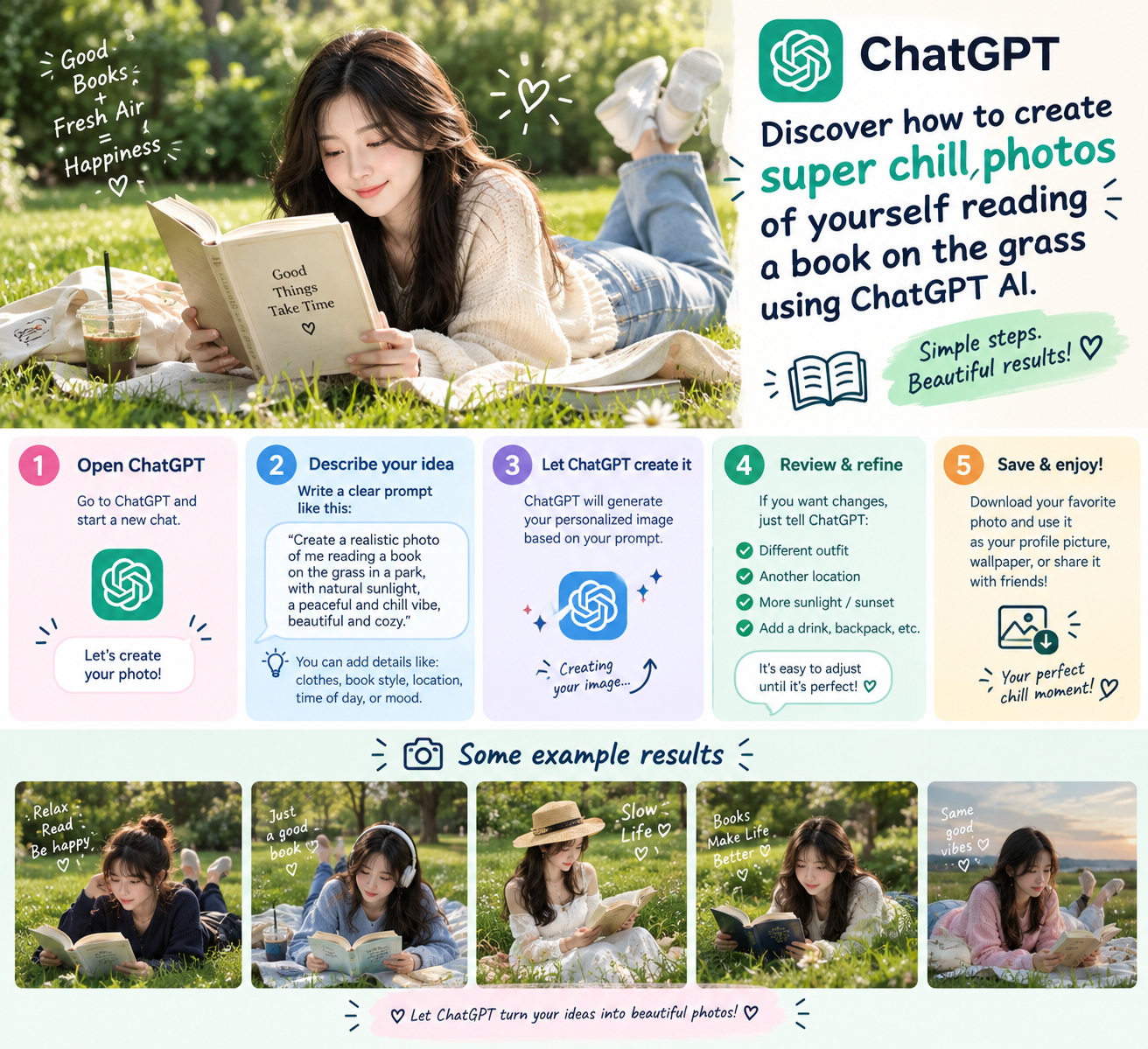
Discover how to create super chill photos of yourself reading a book on the grass using ChatGPT AI.
Nội dung
- 1. The trend of creating photos of people sitting and reading on the grass using AI.
- 2. Why should you create images of people reading in nature using ChatGPT?
- 3. Prompt creates an image of someone sitting on the grass reading a book using ChatGPT.
- 4. Instructions on creating an image of someone sitting and reading on the grass using ChatGPT on your phone.
- Step 1: Open ChatGPT and create a new conversation.
- Step 2: Upload the reference image to ChatGPT
- Step 3: Enter the prompt and ask ChatGPT to create the image.
- Step 4: Edit the image directly if you are not satisfied.
- Step 5: Save the image to your phone.
- 5. How to create a picture of someone reading on the grass using ChatGPT on a laptop.
- Step 1: Access ChatGPT on your computer.
- Step 2: Upload images and enter your requirements.
- Step 3: Review and request revisions
- Step 4: Save the image to your computer.
- 6. Tips to make AI photos of someone sitting and reading look more natural.
- 7. Conclusion
Amidst countless photo editing trends on social media, images that evoke a sense of peace and tranquility always hold a special appeal. A person sitting on a green lawn, leisurely reading a book, surrounded by trees and soft light, creates an incredibly relaxing scene. The interesting thing is that you don''t need to find a beautiful location, prepare a camera, or wait for the right weather to achieve this concept. With ChatGPT AI, you only need a reference photo and a description of your desired effect. The AI can assist in changing the background, pose, lighting, and many other details while still preserving the person''s recognizable features. If you''re looking to join the trend of photos of people reading books in nature, let Sadesign guide you through the process below.
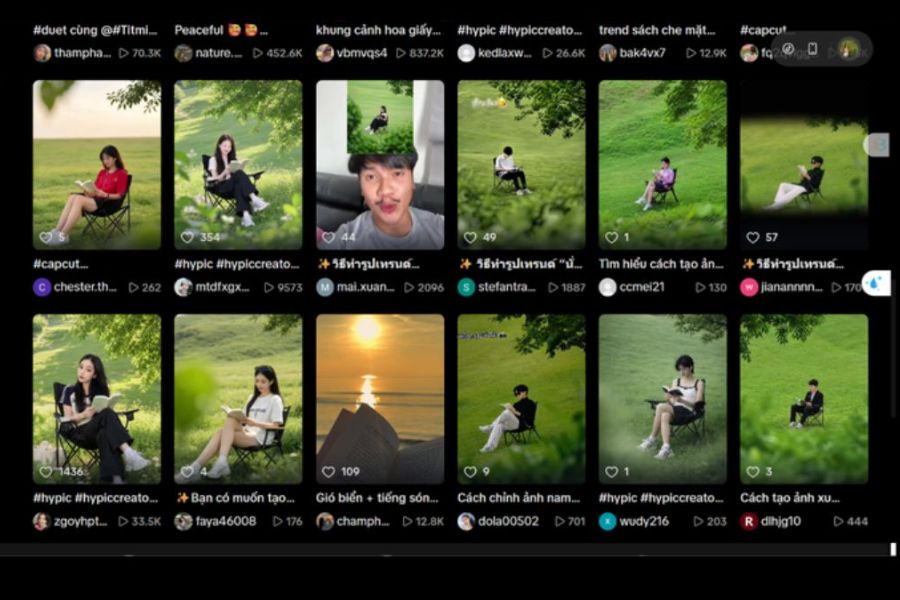
1. The trend of creating photos of people sitting and reading on the grass using AI.
Photographs of people reading books in nature often impress with their very ordinary yet cinematic feel. The subject doesn't need elaborate poses; they simply sit on a camping chair, open a book, and focus on their activity. The expansive background with green grass, trees, gentle hills, or soft lighting helps create a serene and profound overall effect.
This is also why this concept is popular for creating photos for TikTok, Instagram, or Facebook. Instead of having to find a suitable patch of grass, then spending time preparing outfits, props, and taking dozens of pictures, AI can help you experiment with ideas from a single existing photo. By simply changing the prompt, you can even transform the same original photo into many different styles such as vintage, cinematic, minimalist, or travel-inspired.
2. Why should you create images of people reading in nature using ChatGPT?
The most appealing aspect of this method lies in its simplicity. You don't need to know Photoshop or other professional image editing software. ChatGPT can receive a reference image along with a description in natural language, then generate an image based on your requirements. For beginners, this is a very intuitive way to turn an image idea into a finished product.
Another advantage is that you can continuously request edits if the initial result isn't what you want. For example, you might want the subject to sit further away, the grass wider, the lighting warmer, or to keep the original outfit. Instead of having to start over, you can continue to describe the changes needed. This method is especially useful when you want to create a photo with a natural, emotional feel rather than simply superimposing a person onto a new background.
3. Prompt creates an image of someone sitting on the grass reading a book using ChatGPT.
The more specific the prompt, the more information the AI has to visualize the composition. With this concept, you should clearly describe the characters, clothing, poses, props, camera distance, background, lighting, and colors. If you want to maintain the appearance of the original image, specify that the face, hairstyle, and key identifying features need to be preserved.
You can use the English prompt below as a base, then change details such as gender, attire, chair color, or time of day to your liking:
Create a realistic photo of the person from the reference image while preserving the facial features, hairstyle, and overall identity. Place the person sitting comfortably on a black folding camping chair in the middle of a wide green meadow, reading an open novel. Keep the same outfit as the reference image. The person wears white sneakers and white wireless earbuds. The posture is relaxed and natural, with the person appearing completely focused on reading.
Use a long-shot composition, photographed from a distance behind some grass or bushes. Add a soft green foreground bokeh effect to create depth. Include natural plants in the foreground and a tree branch with green leaves in the upper right corner, creating a subtle natural frame around the subject. Make the person appear relatively small compared with the wide landscape to emphasize peaceful solitude.
The background features a gentle green hill or sloping meadow with fresh, evenly colored grass. The atmosphere is calm, quiet, refreshing and slightly cinematic. Use soft afternoon light with gentle shadows and no harsh contrast. The dominant colors should be natural dark green and light green. Keep the image photorealistic, detailed and aesthetically pleasing. Avoid distorted hands, extra fingers, unnatural body proportions, duplicated objects, distorted facial features and artificial-looking skin. Aspect ratio 3:4.
When using the prompt, you don't necessarily have to keep the entire content as is. If you want the photo to have a more personal touch, add specific details such as "morning sunlight," "slightly cloudy sky," "film style," "back view," or "grass on a hill." These small details can significantly change the atmosphere of the photo.
4. Instructions on creating an image of someone sitting and reading on the grass using ChatGPT on your phone.
Step 1: Open ChatGPT and create a new conversation.
First, open the ChatGPT app on your phone and log in to your account. On the main interface, create a new chat to begin the image creation process. Using a private chat also makes it easier to track the prompt and the versions of the images you've created.
Next, prepare a relatively good quality photo. Choose an image that clearly shows your face, hair, and clothing, and avoid blurry or obscured images. If the goal is to create an image that looks like you, the clearer the reference image, the more data the AI will have to process facial features.
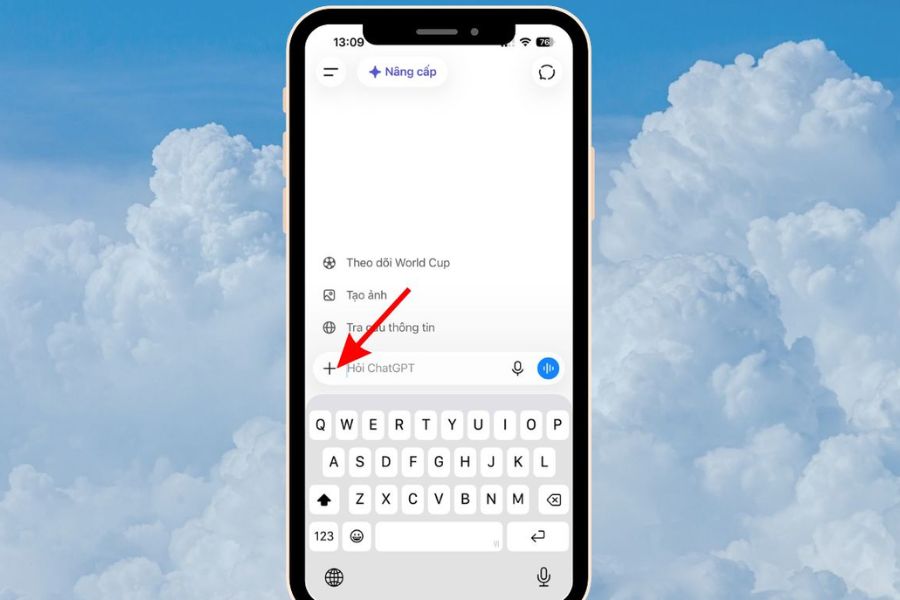
Step 2: Upload the reference image to ChatGPT
In the message input field, tap the " +" icon to open the attachment options. Next, select " Photos" or the corresponding option to upload an image from your device. Choose the photo you want to use as a reference and add it to the conversation.
After the image appears in the chat window, double-check that it's the image you want to use. This is a crucial step because the entire layout will then be built by the AI based on the image and prompt you provided. If the original image includes clothing you want to keep, emphasize this request in the prompt.
Step 3: Enter the prompt and ask ChatGPT to create the image.
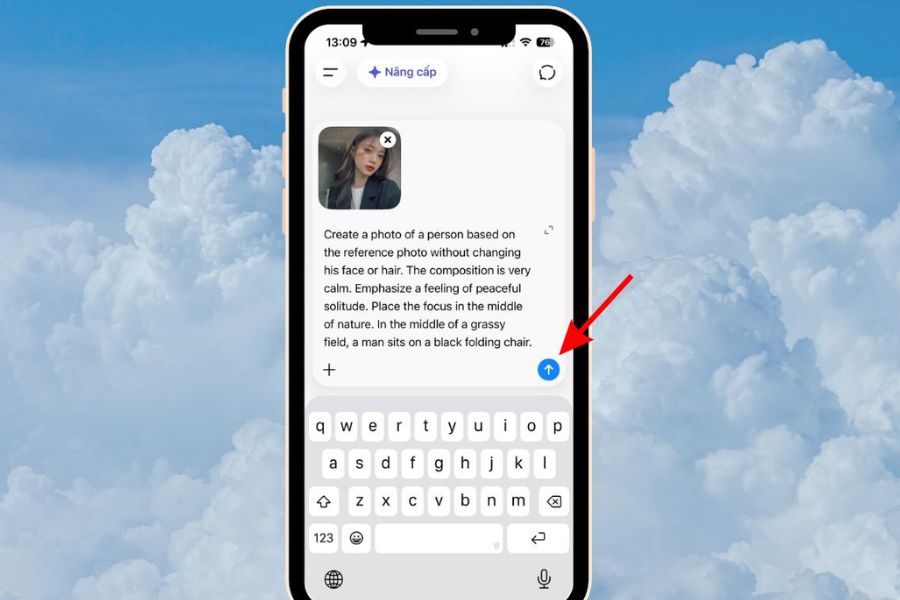
Next, copy the prompt from above and paste it into the chat box. You can keep the prompt as is if you want to create the exact concept of a reading lawn, or you can edit a few details to suit your personal taste.
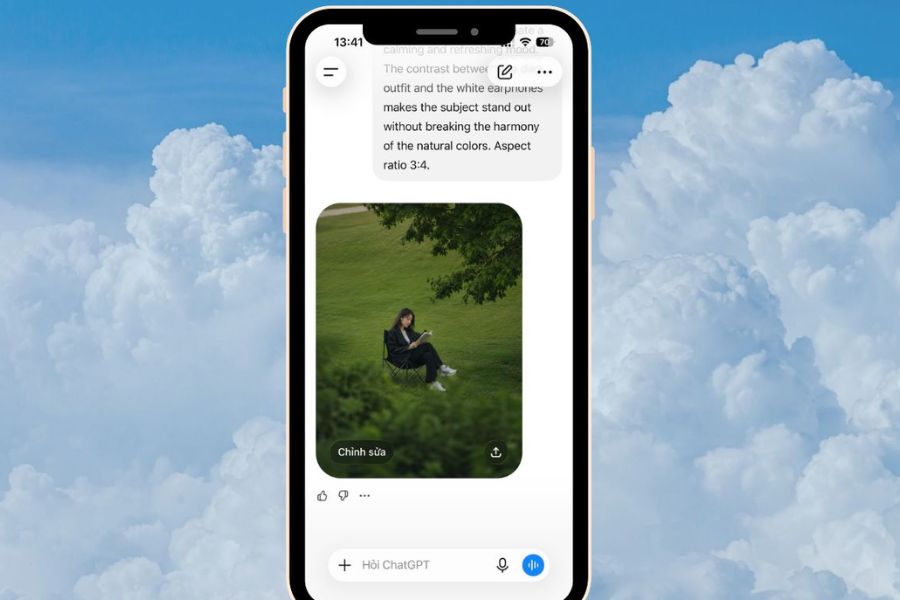
After reviewing the content, press the submit button and wait for ChatGPT to process it. The image creation process may take some time depending on the system and the complexity of the request. Once the image is created, carefully observe the face, hands, posture, book, clothing, and surrounding objects to see if the result looks natural.
Step 4: Edit the image directly if you are not satisfied.
If the initial result isn't right, you don't need to rewrite the entire prompt. Just state directly what you want to change, such as "keep the face the same but move the character further away," "make the lawn wider," or "change the current lighting to a softer afternoon sun."
Requesting edits in stages gives you better control over the image and prevents the AI from changing too many details at once. Once you have a suitable version, you can request further refinements to color, realism, composition, or cinematic feel to achieve the desired style.
Step 5: Save the image to your phone.
Once you're satisfied with the result, open the created image and find the save image option on the interface. On your phone, the specific steps may vary depending on the app version and operating system you're using.
After saving, you should open your photo library to check the quality before posting it on social media. If using the image as a profile picture, post, or short video, consider the size and aspect ratio so that the image doesn't crop out the subject or important details.
5. How to create a picture of someone reading on the grass using ChatGPT on a laptop.
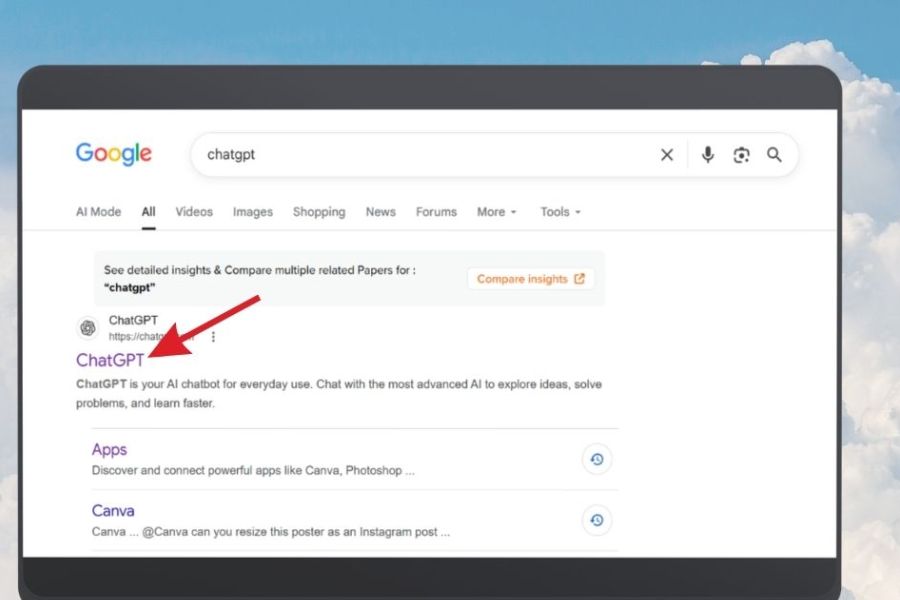
Step 1: Access ChatGPT on your computer.
On your laptop or desktop computer, open your browser and access ChatGPT. After logging in, start a new chat. The large screen interface will make it easy to view the reference image, read the prompt, and check the results after the AI finishes.
Before you begin, prepare the original image in an easily accessible folder. You should prioritize images with good resolution, stable lighting, and an unobstructed subject. A clear image will make the process of creating a reference image easier.
Step 2: Upload images and enter your requirements.
In the message input area, select the file or image upload icon and add the reference image to the chat. Then paste the prepared prompt and press Enter to send the request.
If you want to personalize the results, you can edit the prompt before submitting. For example, replace “afternoon light” with “warm morning sunlight” if you want a brighter image. You can also add requests for clothing, location, camera angle, or color style so the AI can better understand the image you're aiming for.
Step 3: Review and request revisions
After the image appears, check the overall picture first before evaluating the details. In particular, pay attention to whether the face retains its resemblance, whether the hands are distorted, whether the book is in the correct position, and whether the sitting posture is natural.
If you spot an error, continue the conversation and describe precisely what needs fixing. For example: “Keep the current composition, just adjust the hand to look more natural” or “Keep the subject and clothing the same, increase the camera distance to show more of the grass.” Specific requests are often easier to manage than simply saying “recreate the photo to make it look better.”
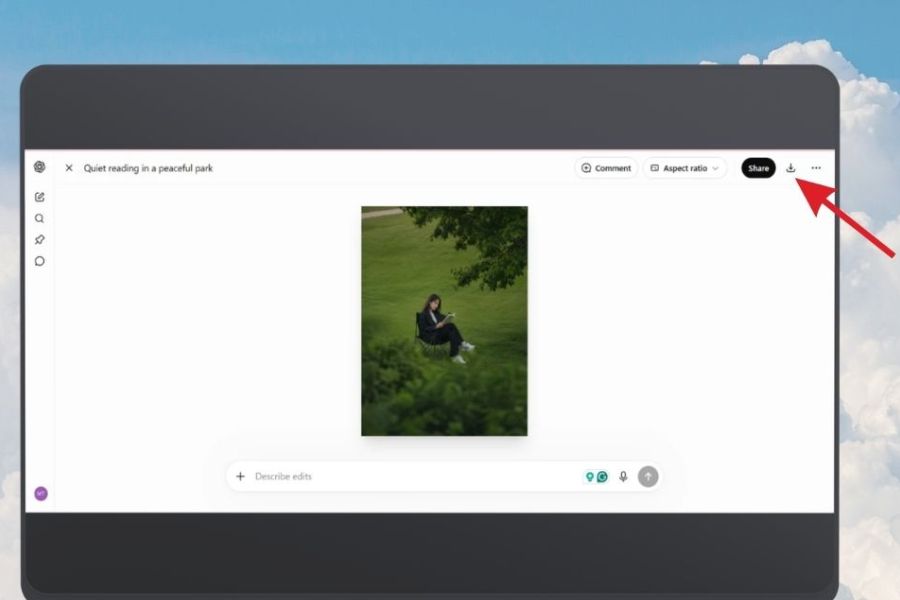
Step 4: Save the image to your computer.
Once you have the final version, select the option to download or save the image on the interface. Check the file after downloading to ensure the image is saved completely and without quality issues.
If you want to use the image for TikTok, Instagram, or Facebook, you can further edit it using post-processing tools to balance brightness, slightly increase contrast, or re-crop the composition. However, you should keep the editing level moderate so that the image still maintains its natural feel.
6. Tips to make AI photos of someone sitting and reading look more natural.
One common mistake when creating images using AI is the distortion of hands, fingers, or small details on the book. To minimize this, clearly depict the subject's pose and avoid requiring too many complex actions within the same frame. With a remote shooting concept, you can also have the subject occupy a smaller area in the image, thereby reducing attention to difficult-to-process details.
Lighting also plays a huge role in the realism of a photograph. If you want a gentle feel, use descriptions like soft natural light , warm afternoon light , gentle shadows , or cinematic lighting . In addition, it's important to maintain a consistent style from the start. A vintage outfit will suit a lawn, books, and warm lighting better than combining too many contrasting styles.
7. Conclusion
Creating photos of someone sitting and reading on the grass using ChatGPT AI isn't actually that complicated. With just a reference photo, a sufficiently detailed prompt, and a few taps on your phone or laptop, you can create a concept photo with a gentle, relaxing feel without needing elaborate background preparation. If the first result isn't perfect, don't rush to start over. Take advantage of ChatGPT's direct editing capabilities to adjust details like lighting, pose, clothing, camera angle, and background. Once you're familiar with writing prompts, you can customize the concept to your own style and create a whole set of AI photos with your personal touch.





















VIP Products








Best Selling Products
Plugin Retouch4me
69 USD
Adobe Photoshop Copyright - Full App
120 USD
Genuine Adobe Illustrator account
99 USD
Upgrade Genuine Office 365
49 USD
MidJourney Account
29 USD
Adobe Premiere Pro Account
99 USD
ChatGPT Plus Account (GPT-4)
16 USD
Capcut Pro 1 Year
39 USD
Upgrade Duolingo Super
29 USD
Genuine Cheap Canva Pro
39 USD
Windows 10 & 11 Pro Key
36 USD
Autodesk All App Account Copyright
120 USD
Copyright Adobe Lightroom Account
59 USD
Freepik Premium Account
59 USD
Upgrade genuine Capture One account
120 USD