Best Selling Products

Adobe Photoshop Copyright - Full App
120 USD

Capcut Pro 1 Year
39 USD

Windows 10 & 11 Pro Key
36 USD

Freepik Premium Account
59 USD

Upgrade genuine Capture One account
120 USD

Plugin Retouch4me
69 USD

Copyright Adobe Lightroom Account
59 USD

Autodesk All App Account Copyright
120 USD

Upgrade Duolingo Super
29 USD

Adobe Premiere Pro Account
99 USD

Genuine Cheap Canva Pro
39 USD

MidJourney Account
29 USD

Upgrade Genuine Office 365
49 USD

ChatGPT Plus Account (GPT-4)
16 USD

Genuine Adobe Illustrator account
99 USD
How to change outfits in photos using ChatGPT quickly, beautifully, and easily.
Nội dung
- 1. What's so interesting about replacing the outfit in the photo using ChatGPT?
- 2. What should I prepare before changing clothes using ChatGPT?
- 3. Prompt changes outfits using ChatGPT, which is both beautiful and accurate.
- 4. Instructions on how to change outfits in photos using ChatGPT
- Step 1: Prepare and upload images to ChatGPT
- Step 2: Enter the prompt and ask ChatGPT to change your outfit.
- Step 3: Review the results and request revisions if necessary.
- Step 4: Save the image to your device.
- 5. Tips for changing outfits naturally and with fewer errors using ChatGPT.
- 6. Common mistakes when changing outfits using ChatGPT
- 7. Conclusion
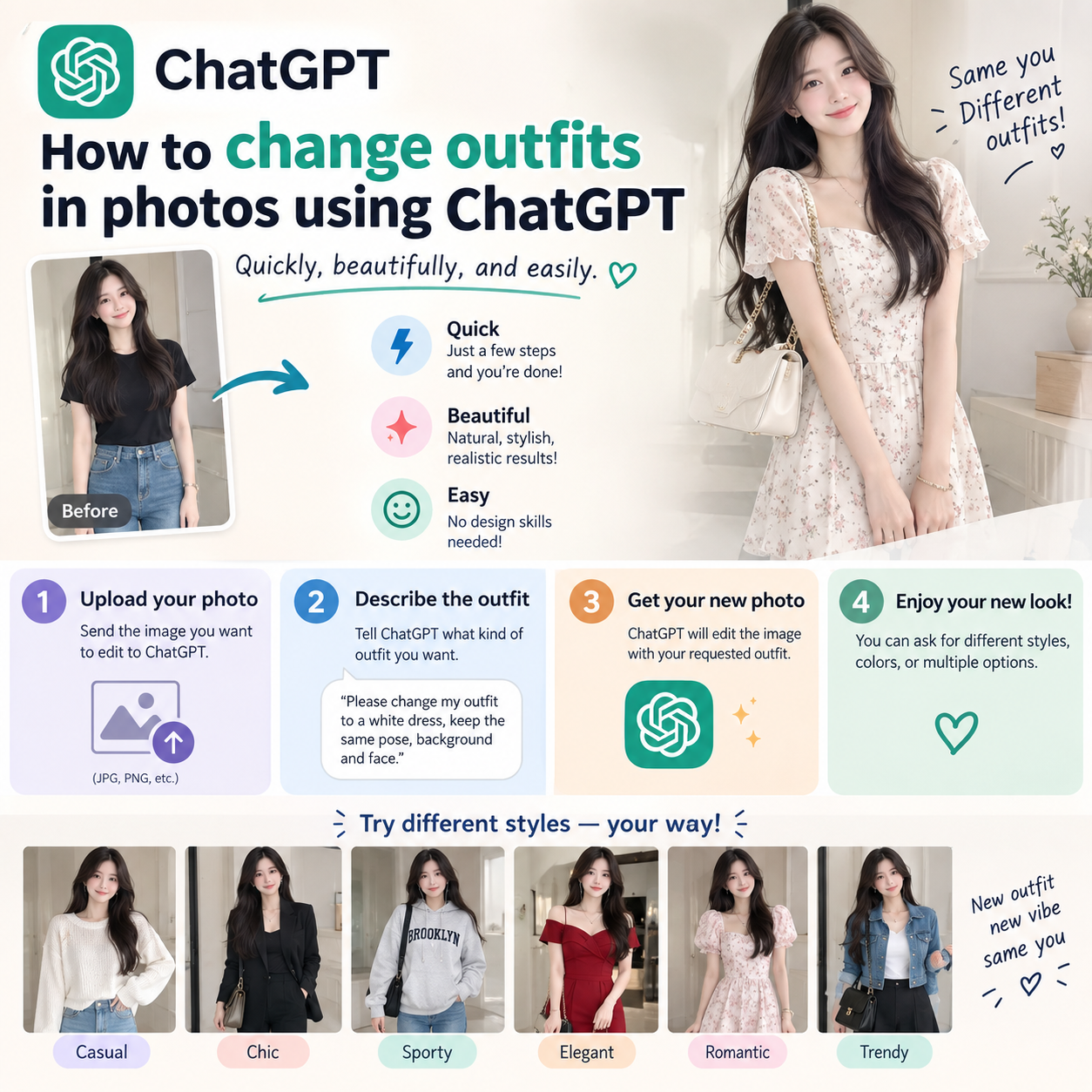
Want to try on a trendy dress, switch to an elegant office style, or simply see how you''d look in a favorite outfit? Previously, changing outfits in photos often required professional editing software and considerable time to process each detail. Now, ChatGPT can assist with this directly from the images you provide, making the outfit change process quicker and more accessible. The interesting thing is that you can include your personal photos and sample outfit photos in the same chat, then clearly describe your wishes using commands. The AI will use the images and requests to create a new version, while trying to retain the important features of the original photo.
1. What's so interesting about replacing the outfit in the photo using ChatGPT?
Change your outfit with ChatGPT, suitable for a variety of needs, from trying on clothes before shopping and brainstorming outfit ideas to creating a new personal style. Instead of manually cutting and pasting shirts, dresses, or pants onto photos using editing tools, you only need to prepare the image and clearly state your requirements. This makes it easy for even those without photo editing experience to experiment with different outfits.
Another advantage is that you can continue to communicate with ChatGPT if the initial result isn't to your liking. For example, if the sleeves don't match the sample, the color is slightly off, or the garment's form isn't natural, you can request adjustments to that detail. This makes the image creation process more flexible and avoids having to start over from scratch.
2. What should I prepare before changing clothes using ChatGPT?
To achieve beautiful and desired results, image preparation is crucial. A well-lit personal photo that clearly shows your face and figure will provide the AI with more information for processing. Similarly, reference outfit photos should relatively fully showcase the design, color, material, and distinctive features of the clothing. You should also avoid using photos that are too blurry, obscured, or have too many distracting details.
In addition to the image, prepare a specific command beforehand. The clearer the prompt, the easier it will be for ChatGPT to understand which is the original image, which is the reference image of the outfit, and which features need to be preserved. In particular, if you want the face, hair, pose, or background to remain unchanged, you should include these requirements directly in the prompt instead of simply saying "change clothes."
3. Prompt changes outfits using ChatGPT, which is both beautiful and accurate.
A good prompt should focus on three main elements: clearly identifying the two images, accurately describing the outfit to be changed, and specifying the details that must remain unchanged. You can refer to the command below and customize it to suit your specific case:
“Replace the character's clothing in the first image with the clothing in the second image. Maintain the style, color, material, pattern, and distinctive details of the reference clothing. Adjust the clothing to fit the figure and have a natural drape. Keep the face, hairstyle, expression, body proportions, posture, camera angle, lighting, and background of the original image unchanged. Do not alter identifying features or distort the face, body, hands, or feet. The new clothing should harmonize with the lighting and camera angle, creating a realistic feel similar to a real photograph.”
For even more accurate results, you can add specific details of the outfit such as collar, dress length, sleeve style, fabric, pattern, or accessories. For outfits with complex designs, describing each characteristic detail in detail will reduce the likelihood of the AI missing any information.
4. Instructions on how to change outfits in photos using ChatGPT
Step 1: Prepare and upload images to ChatGPT
First, choose a personal photo of yourself in the outfit you want to change into. Prioritize a high-resolution photo with relatively stable lighting, and ensure your body isn't obscured by other people or objects. If the photo clearly shows you standing or sitting, the AI will find it easier to identify the clothing placement. Next, prepare another photo of the outfit you want to use as a model.
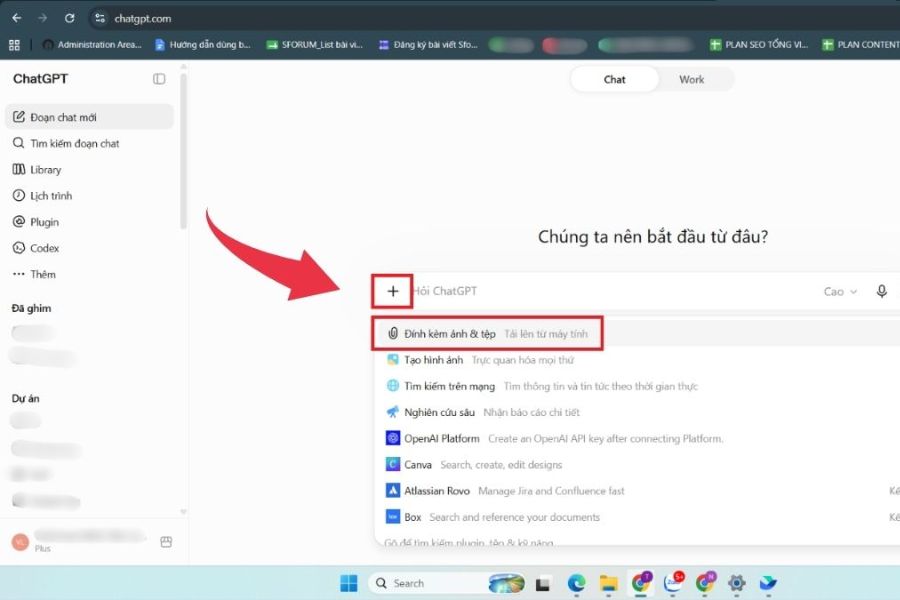
Open ChatGPT and create a new conversation. In the message input area, select the plus icon or the option to add images and files, then upload both images. You should clearly label the first image as the character and the second as the reference costume image. This distinction helps prevent the AI from misinterpreting the image needing editing or extracting incorrect details from the reference image.
Step 2: Enter the prompt and ask ChatGPT to change your outfit.
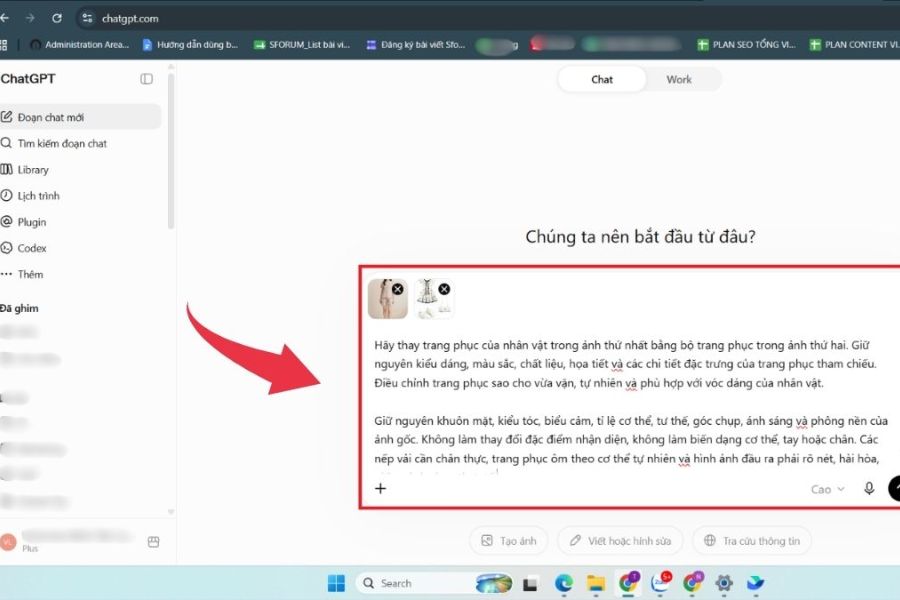
After successfully uploading the image, enter the prompt to change the prepared outfit. In the command, don't just ask to "change clothes," but specify which image you want to use the design from and apply it to which character. Also, emphasize the features you want to keep unchanged, such as face, hair, body shape, pose, lighting, and background.
When reviewing the prompt, you can add requirements regarding the naturalness of the clothing. For example, require the clothes to fit the body in the correct proportions, the fabric folds to match the pose, and the shadows to be consistent with the lighting in the original image. Then submit the request and wait for ChatGPT to process it. Depending on the image and its complexity, the image creation process may take some time to complete.
Step 3: Review the results and request revisions if necessary.
When the image is newly created, carefully examine the entire outfit instead of just looking at the overall picture. Pay attention to the face, hands, collar, sleeves, garment edges, patterns, and body proportions. These are areas where inaccuracies can sometimes appear when AI reconstructs the image, especially with outfits that have many details or complex poses.
If the result isn't entirely satisfactory, you can continue to request ChatGPT to make adjustments directly in the conversation. For example, you could write, "Keep the image as it was just created, adjust the sleeves to resemble the reference image more closely" or "Keep the face and background the same, make the dress look more natural according to the character's pose." Making specific requests is more effective than asking the AI to recreate the entire image in a general way.
Step 4: Save the image to your device.
Once you have a suitable outfit version, double-check it one last time before using it. Especially if the image is for a personal profile, social media, fashion content, or commercial purposes, you should carefully review the small details to ensure the image meets the desired quality.
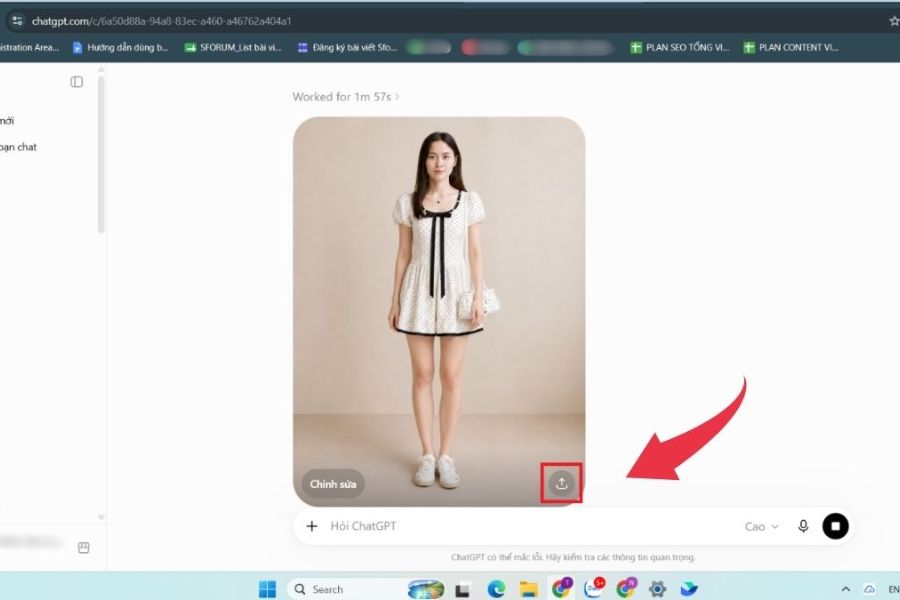
Once you're satisfied, you can use the save or download option from ChatGPT's image interface to save the image to your device. If you want to create more styles, you can continue to add other outfit images to the chat and request that the character remain the same but with a different outfit. This way, one original image can become the foundation for experimenting with many different styles.
5. Tips for changing outfits naturally and with fewer errors using ChatGPT.
Uploading photos doesn't guarantee perfect results on the first try. The quality of the input image, the shooting angle, and the way you write the prompt all significantly affect the final outcome. If you want your new outfit to look like it's actually being worn instead of like a photoshopped image, you can try some of the tips below:
-
Choose clear personal photos: Prioritize photos with relatively clear faces and bodies, free from hair, hands, or other objects obscuring the view. Stable lighting also helps the AI recognize features and create more accurate shadows on clothing.
-
Use high-quality outfit photos: The clearer the reference photo, the easier it is to identify details such as color, pattern, collar, sleeves, and style. If possible, choose a photo that shows most or all of the outfit.
-
Prioritize two photos with similar angles: If the personal photo is taken from a frontal angle but the outfit photo is taken from a strong oblique angle, accurate reconstruction may be more difficult. Images with similar poses and angles usually produce more harmonious results.
-
Clearly define the role of each image: In the prompt, identify the first image as the character to be edited and the second image as a reference costume. This is a simple detail but very useful when you upload multiple images at once.
-
Describe the key details: If the outfit has a logo, pattern, distinctive collar, straps, bow, or prominent cuts, mention them directly in the prompt. These features help the AI focus on the part you really want to keep.
-
Request to preserve identifying features: If you want the edited photo to still resemble the person in the original photo, request that their face, hairstyle, expression, physique, posture, and body proportions be kept the same.
-
Don't adjust too many things at once: On the first creation, focus on changing the outfit. Once you have a stable result, then you can continue adjusting accessories, colors, or other details.
-
Use a supplementary prompt when the result isn't right: Instead of re-uploading the image multiple times, clearly state what's wrong and how you want it fixed. For example: "Keep the current image, only adjust the collar to match the reference image and don't change the face."
-
Carefully examine the hands and face: These are areas that should be thoroughly reviewed after the AI creates the image. If you detect any unusual details, you can request adjustments to each part individually.
6. Common mistakes when changing outfits using ChatGPT
One common mistake is that the outfit after the change doesn't perfectly match the reference image. The color might be slightly altered, a pattern might be missing, or the style might not match the original sample. This is often due to an unclear reference image or a prompt that doesn't specifically describe the key features. In this case, add more information instead of simply repeating the old command.
Another problem is that the AI inadvertently alters the character's face, hair, posture, or body proportions. You can mitigate this by including a requirement to maintain these features in the prompt from the start. If discrepancies still occur, request adjustments for each part individually, emphasizing that areas unrelated to clothing must remain unchanged.

7. Conclusion
Changing outfits in photos using ChatGPT is a simple option for those who want to try out new clothes without complex photo editing. With just a personal photo, a reference outfit image, and a suitable prompt, you can create a new version of your image in your preferred style. For a more beautiful and natural look, start with high-quality images, clearly describe the role of each image, and specify which details need to be kept. If the result isn't perfect, you can continue to discuss and request adjustments to individual parts. After a few tries, you'll quickly find the right way to write prompts to transform your outfit ideas into visual images right on ChatGPT





















VIP Products








Best Selling Products
Adobe Photoshop Copyright - Full App
120 USD
Capcut Pro 1 Year
39 USD
Windows 10 & 11 Pro Key
36 USD
Freepik Premium Account
59 USD
Upgrade genuine Capture One account
120 USD
Plugin Retouch4me
69 USD
Copyright Adobe Lightroom Account
59 USD
Autodesk All App Account Copyright
120 USD
Upgrade Duolingo Super
29 USD
Adobe Premiere Pro Account
99 USD
Genuine Cheap Canva Pro
39 USD
MidJourney Account
29 USD
Upgrade Genuine Office 365
49 USD
ChatGPT Plus Account (GPT-4)
16 USD
Genuine Adobe Illustrator account
99 USD