Best Selling Products

Adobe Photoshop Copyright - Full App
120 USD

ChatGPT Plus Account (GPT-4)
16 USD

Capcut Pro 1 Year
39 USD

Plugin Retouch4me
69 USD

Adobe Premiere Pro Account
99 USD

Autodesk All App Account Copyright
120 USD

Windows 10 & 11 Pro Key
36 USD

Genuine Adobe Illustrator account
99 USD

Upgrade Duolingo Super
29 USD

MidJourney Account
29 USD

Upgrade genuine Capture One account
120 USD

Copyright Adobe Lightroom Account
59 USD

Upgrade Genuine Office 365
49 USD

Genuine Cheap Canva Pro
39 USD

Freepik Premium Account
59 USD
No Adobe Needed: Here''''''''s How to Sign a PDF Document Right on ChatGPT
Nội dung
- 2. What do you need to prepare before signing a PDF document on ChatGPT?
- 3. How to sign a PDF document right on ChatGPT
- 3.1. Step 1: Upload the PDF file and signature image to ChatGPT
- 3.2. Step 2: Send a prompt asking ChatGPT to insert the signature
- 3.3. Step 3: Wait for ChatGPT to process the document
- 3.4. Step 4: Receive and check the signed PDF file
- 4. Tips for making the signature on the PDF look nicer and more natural
- 5. How to ask ChatGPT to fix a misaligned signature
- 6. Things to note when signing PDF documents with ChatGPT
- 7. When should you use ChatGPT to help sign a PDF?
- 8. Conclusion
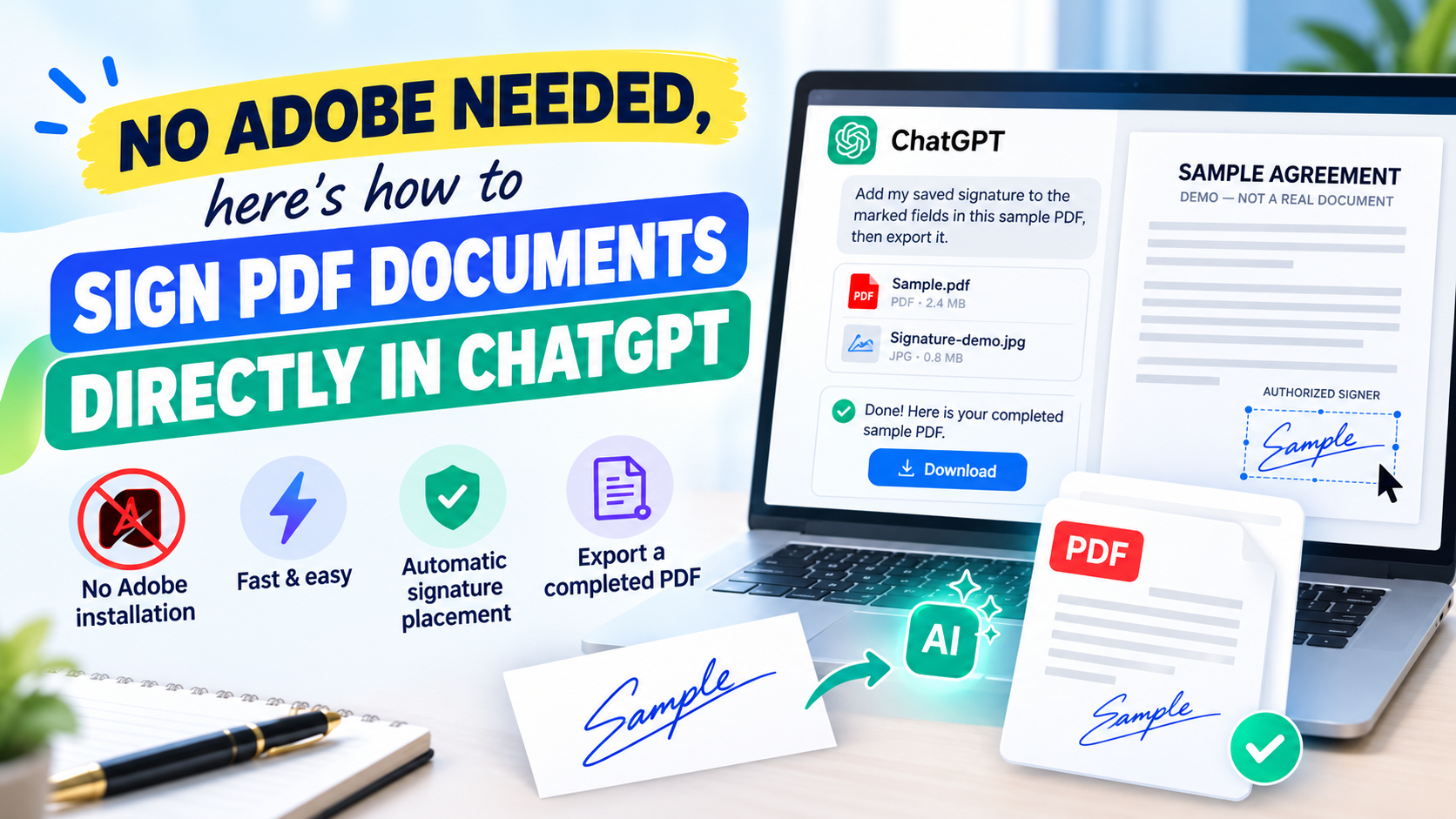
If a document has many pages or multiple places that need signing, these small tasks make the job even more time-consuming. Instead of having to install Adobe or use extra PDF editing tools, you can take advantage of ChatGPT to help carry out most of the process right within a single conversation. Just upload the PDF file along with an image of your signature, then give a specific request, and ChatGPT can help process the signature''''''''s background, identify the areas that need signing, and insert the signature into the document. This approach is especially useful when you need to finish paperwork quickly but don''''''''t want to spend time getting familiar with specialized software. Let''''''''s explore it together with Appvip!
1. Why sign PDF documents right on ChatGPT?
The convenience of this approach lies in being able to combine many document-processing steps into a single workflow. Instead of having to open one tool to remove the signature's background, another program to edit the PDF, and then continuing to align things manually, you can describe the entire request to ChatGPT and let the AI help handle it. For people who regularly work with contracts, quotes, minutes, forms, or paperwork that needs signing, cutting down on these repetitive steps can save a significant amount of time.
No need to install extra software: You can carry out the process right within ChatGPT instead of having to download and install a separate PDF editing application on your computer.
Fewer manual steps: Tasks like processing the signature image, removing the white background, or inserting the image into the document can all be requested in a single go.
Easy to describe the position that needs signing: If you know exactly which page or area the signature should go on, you can include that information directly in the prompt so the result matches what you want more closely.
Saves time: For simple documents, you can significantly shorten the processing time compared to opening each tool and adjusting each step by hand.
Convenient for remote work: As long as you have the PDF file and the signature image, you can carry out the task on any device that can access ChatGPT, without needing to bring along specialized PDF editing software.
.jpg)
2. What do you need to prepare before signing a PDF document on ChatGPT?
Before you begin, have the PDF file that needs signing and your signature image ready. The signature image should be written on white paper using blue or black ink, photographed clearly and with enough light so the recognition process is easier. If possible, photograph the paper straight-on, avoiding shadows or extra details appearing around the signature. At the same time, check the document beforehand to know exactly which page needs signing and which position is reserved for the signature, especially for files with many pages.
The PDF file to be signed: You should use the correct, final version of the document to avoid discovering after signing that the content hadn't been updated.
Signature image: The clearer the signature and the cleaner the background, the smoother the processing and background removal will be.
Signing-position information: If the document has multiple signature boxes, note down the page numbers, section names, or corresponding positions so you can give ChatGPT a more precise request.
A device with an internet connection: You need to access ChatGPT and upload the files to the conversation to begin processing.
3. How to sign a PDF document right on ChatGPT
Once you have all the necessary files, you can begin the PDF-signing process. The steps aren't too complicated, but it's important to describe your request clearly enough for ChatGPT to understand how you want the signature processed and where it should be placed. If the document has only one place to sign, you can make a fairly simple request; conversely, for multi-page files, you should specify each page to reduce confusion.
3.1. Step 1: Upload the PDF file and signature image to ChatGPT
First, open ChatGPT and start a new conversation if you want to keep the document-processing task separate. In the content input area, select the file upload icon and then add the PDF file that needs signing along with the signature image. You can upload both files at the same time so ChatGPT has all the necessary data. Before sending, double-check the file name and image to make sure you've selected the correct document.
For the signature image, prioritize a good-resolution image with a signature that has clear lines and sits on a white paper background. You don't necessarily need to remove the background yourself beforehand, since you can ask ChatGPT to handle that part in the prompt. If the image has a lot of white space around the signature, that isn't necessarily a problem, as long as the signature itself is clear enough to be recognized. After uploading successfully, check that both the PDF file and the signature image have appeared in the conversation.
.jpg)
3.2. Step 2: Send a prompt asking ChatGPT to insert the signature
After uploading the files, this is when you make your specific request. Instead of just writing "please sign this PDF file," you should clearly describe the steps you want ChatGPT to carry out. The more complete the prompt, the more the AI has to go on to handle the request correctly, especially when the document has multiple signing positions or the signature needs to be resized.
You can use the following prompt:
"I have uploaded a PDF file and an image of my signature signed on white paper. Please use the appropriate tool to remove the white background from the signature image, keep the signature strokes, and create a transparent background. Then, insert the signature into all the positions requiring a signature in the PDF document. If you can identify the boxes or areas that need signing, place the signature precisely into each corresponding position. If needed, I will provide the specific page numbers and positions. Please make sure the signature has a natural size, is neatly aligned, and does not cover any important content. Once finished, please export the new PDF file with the signature inserted for me."
If you want more precise control over the position, you can add this directly into the prompt, for example: "Place the signature on page 3, in the Signer area at the bottom of the page" or "Only insert the signature on page 2 and page 5." For documents with multiple signatures, describing things page by page will help prevent the AI from placing a signature in the wrong area that wasn't requested.
.png)
3.3. Step 3: Wait for ChatGPT to process the document
After receiving the request, ChatGPT will analyze the provided files and process them according to what you described. If the request includes removing the background from the signature image, the white background will be processed so the signature can be placed onto the document without forming an unnatural-looking white rectangle. At the same time, ChatGPT will rely on the content and your request to determine where the signature needs to be inserted.
If the document has a complex layout, you shouldn't worry too much if the initial result isn't entirely accurate. Check the file and reply with a specific request such as "the signature is too large, please shrink it," "move the signature to the right," or "only keep the signature on page 4." Making adjustments through short, clear requests is usually much more convenient than having to realign the entire document by hand from scratch.
.png)
3.4. Step 4: Receive and check the signed PDF file
Once processing is complete, ChatGPT can provide the new PDF file for you to open and check. This is a step you shouldn't skip, even if the document appears to have been processed correctly. Open the file and go through each page in turn, especially pages with signature areas or dense layouts. Check whether the signature sits in the right position, has the right size, and doesn't cover any text.
If the document has multiple signing positions, check each one instead of just looking at the first page. In addition, zoom into the signature area to see whether the background has been cleanly removed and whether the signature strokes are distorted or missing detail. Only once you're sure everything looks correct should you use the file for work or send it to the recipient.
4. Tips for making the signature on the PDF look nicer and more natural
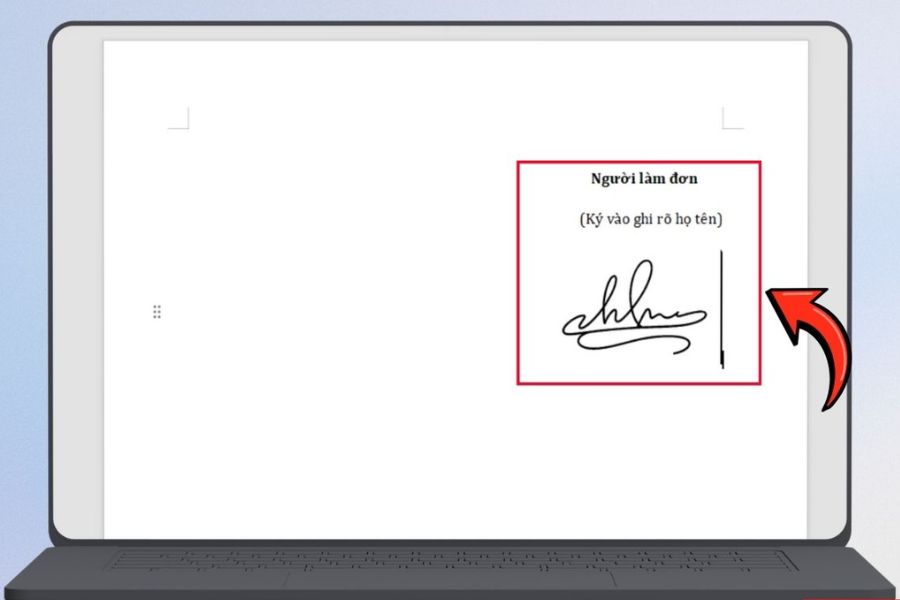
A signature that looks good once placed into a PDF isn't simply an image placed in the right spot. If the original image is low quality, blurry, or unevenly lit, the result after processing may not turn out as desired. So, take a bit of time to prepare the signature image from the start. A clear photo, a clean white background, and a signature with good contrast will make the processing go much more smoothly.
Photograph the signature in a well-lit place: Even lighting makes the signature's lines stand out and reduces dark areas or shadows that make background removal harder.
Use white paper: The simpler the background, the easier it is to separate from the signature, and the cleaner the final result looks once placed on the PDF.
Don't take an angled photo: Hold the phone roughly parallel to the paper's surface so the signature isn't distorted by the shooting angle.
Preserve the signature's strokes: Don't edit too heavily, or the signature may lose detail, especially in thin sections or long trailing strokes.
Choose an appropriate size: A signature that's too large will make the document look unnatural, while one that's too small will be hard to see and won't look balanced within the signing area.
5. How to ask ChatGPT to fix a misaligned signature
During processing, the signature sometimes may not end up exactly where you wanted it. This often happens with documents that have many tables, blank boxes, or signature sections that aren't laid out consistently. Instead of re-uploading the whole file and starting over, you can reply directly in the conversation to request an adjustment.
You should describe the error as specifically as possible. For instance, instead of saying "the signature is wrong," write "the signature on page 4 is sitting lower than the signature line, please move it up and center it in the box." If the size isn't right, you can ask to shrink or enlarge it. With multiple signing positions, clearly note which page needs adjusting so you don't affect the positions that are already correct.
6. Things to note when signing PDF documents with ChatGPT
Before applying this method to important paperwork, you need to understand that inserting a signature image into a PDF file is different from using an electronic signature or a digital signature. ChatGPT can help process images and documents according to your request, but having a signature image appear on a PDF doesn't mean the document now carries a digital signature or automatically meets every legal requirement.
Check the file after processing: Always reopen the finished PDF to make sure the signature is in the correct position and the document's content hasn't been changed in unwanted ways.
Don't overlook security: For documents containing personal information, financial data, contracts, or internal information, think carefully before uploading them to an online service.
Distinguish between an image signature and a digital signature: If the receiving party requires a digital signature or a specific electronic authentication method, you need to use the exact solution required.
Keep the original: You should save an unsigned PDF copy so you can compare or reprocess it later if needed.
Check the document's integrity: After signing, make sure the content, page count, tables, and other important information have all been preserved.
.jpg)
7. When should you use ChatGPT to help sign a PDF?
Using ChatGPT to sign PDFs is most suitable when you need to quickly process ordinary documents and want to reduce manual editing steps. For example, you receive a form that needs signing, a quote that needs confirming, or an internal document that needs a signature inserted before being sent out. In these cases, uploading the file, providing the signature image, and describing the position that needs signing can help make the process much smoother.
This method is especially useful for people who don't regularly use PDF editing software. Instead of having to learn a whole range of tools and functions, you just need to describe things in natural language. However, if the document requires a high level of legal authenticity or requires the use of a digital signature, prioritize a dedicated solution rather than just inserting a signature image.
8. Conclusion
Without having to open Adobe or go through a series of manual editing steps, you can still take advantage of ChatGPT to help process signatures on PDF documents. Starting from a signature image on white paper, you can ask the AI to process the background, insert the signature into the necessary areas, and regenerate the file for you to check. The most important thing is preparing a clear signature image, giving a specific prompt, and precisely identifying the position that needs signing. Convenient as it is, you should still treat ChatGPT as a supporting tool for document processing rather than automatically assuming that a signature image is a legally valid electronic signature in every case. For important documents, carefully check the final file and choose the signing method that matches the receiving party's requirements. If you just need to quickly finish off ordinary PDF documents, this is definitely a method worth trying to significantly cut down on processing time.





















VIP Products








Best Selling Products
Adobe Photoshop Copyright - Full App
120 USD
ChatGPT Plus Account (GPT-4)
16 USD
Capcut Pro 1 Year
39 USD
Plugin Retouch4me
69 USD
Adobe Premiere Pro Account
99 USD
Autodesk All App Account Copyright
120 USD
Windows 10 & 11 Pro Key
36 USD
Genuine Adobe Illustrator account
99 USD
Upgrade Duolingo Super
29 USD
MidJourney Account
29 USD
Upgrade genuine Capture One account
120 USD
Copyright Adobe Lightroom Account
59 USD
Upgrade Genuine Office 365
49 USD
Genuine Cheap Canva Pro
39 USD
Freepik Premium Account
59 USD