Best Selling Products

Freepik Premium Account
59 USD

ChatGPT Plus Account (GPT-4)
16 USD

Adobe Photoshop Copyright - Full App
120 USD

Upgrade genuine Capture One account
120 USD

Upgrade Genuine Office 365
49 USD

Plugin Retouch4me
69 USD

Windows 10 & 11 Pro Key
36 USD

Adobe Premiere Pro Account
99 USD

Upgrade Duolingo Super
29 USD

Capcut Pro 1 Year
39 USD

Copyright Adobe Lightroom Account
59 USD

Autodesk All App Account Copyright
120 USD

MidJourney Account
29 USD

Genuine Adobe Illustrator account
99 USD

Genuine Cheap Canva Pro
39 USD
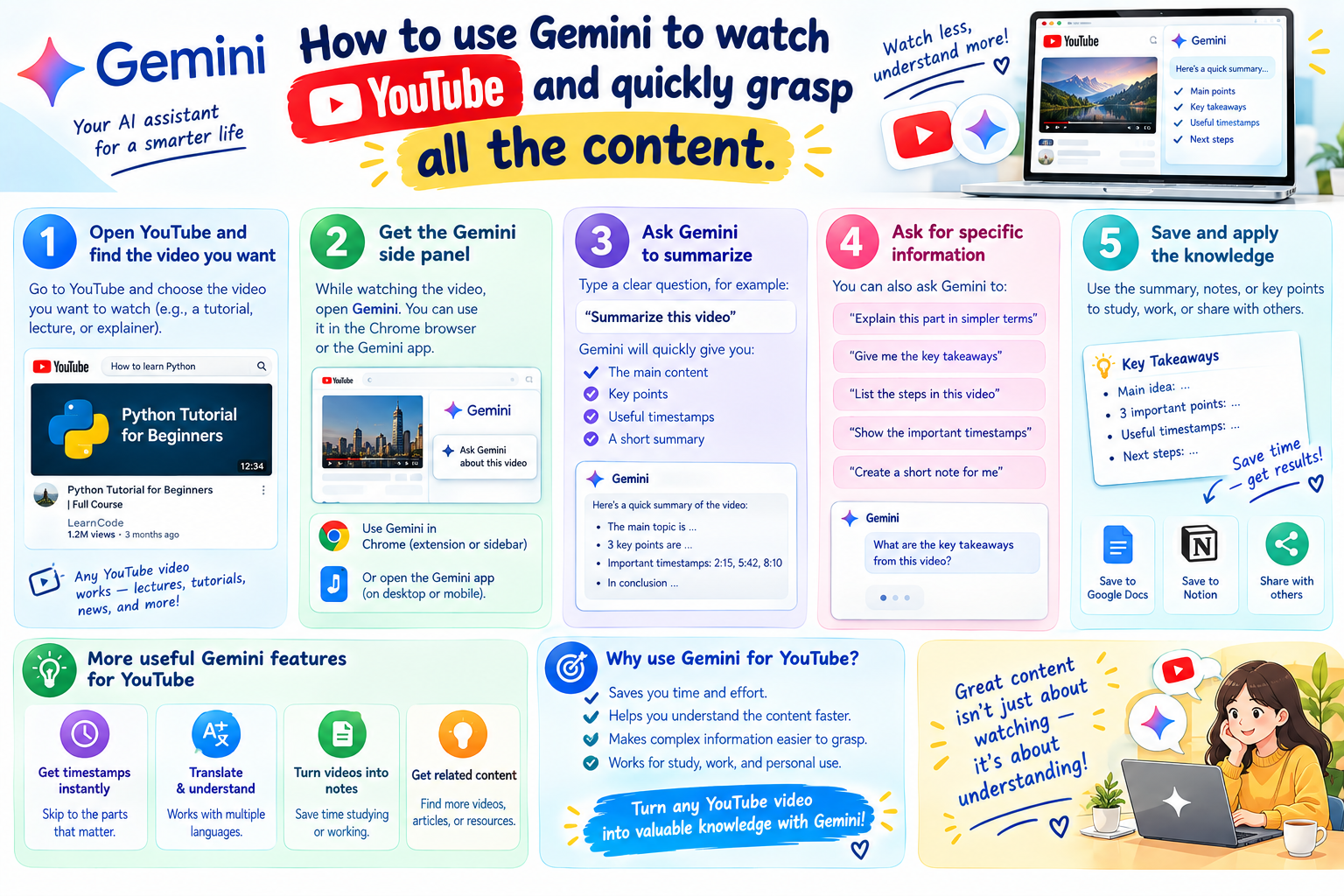
Discover how to use Gemini to watch YouTube and quickly grasp all the content.
Nội dung
- 1. What is Ask YouTube?
- 2. Benefits of using Gemini AI to watch YouTube videos
- 2.1 Summarize a long video in a few seconds
- 2.2 Answer the question that interests you.
- 2.3 Find the correct segment to watch
- 2.4 Convert content to text
- 2.5 Supports more convenient viewing of cooking videos.
- 3. How to use Gemini AI to watch YouTube videos
- 3.1 Step 1: Log in to your Google account
- 3.2 Step 2: Open the video you want to analyze
- 3.3 Step 3: Enter the question using natural language
- 3.4 Step 4: View results and access the correct segment
- 4. Tips for formulating commands so Gemini correctly understands the video content.
- 5. Conclusion
YouTube has millions of videos on a wide range of topics, from learning and technology to cooking, podcasts, product reviews, and knowledge sharing. However, you don''t always have the time to watch an entire video for tens of minutes just to find a small piece of information. This is where the Gemini AI comes into play, as it can help analyze content, summarize key points, and quickly find the information you''re interested in. With just a few simple commands, Gemini can help you quickly understand a video without having to rewind or fast-forward multiple times. You can ask what the video is about, what the important content is, where the information you''re looking for is located, or request a summary of the content in text format.
1. What is Ask YouTube?
Ask YouTube is a feature that utilizes Gemini technology to help users interact directly with video content. When a video and account are supported, an Ask button can appear in the YouTube interface, allowing you to ask questions related to the video instead of having to watch it from beginning to end.
The interesting part lies in how you interact with the AI. Instead of using complex commands, users can ask questions in natural language, just like in a normal conversation. For example, you can ask: "What is this video about?", "Summarize the main points for me," or "At what minute does the tutorial appear?". Gemini will then use the content it can analyze to provide a suitable answer.
For longer videos, this is a convenient way to quickly determine if the content truly suits your needs. You can also use the AI's response as a preview before deciding to spend time watching the entire video.
2. Benefits of using Gemini AI to watch YouTube videos
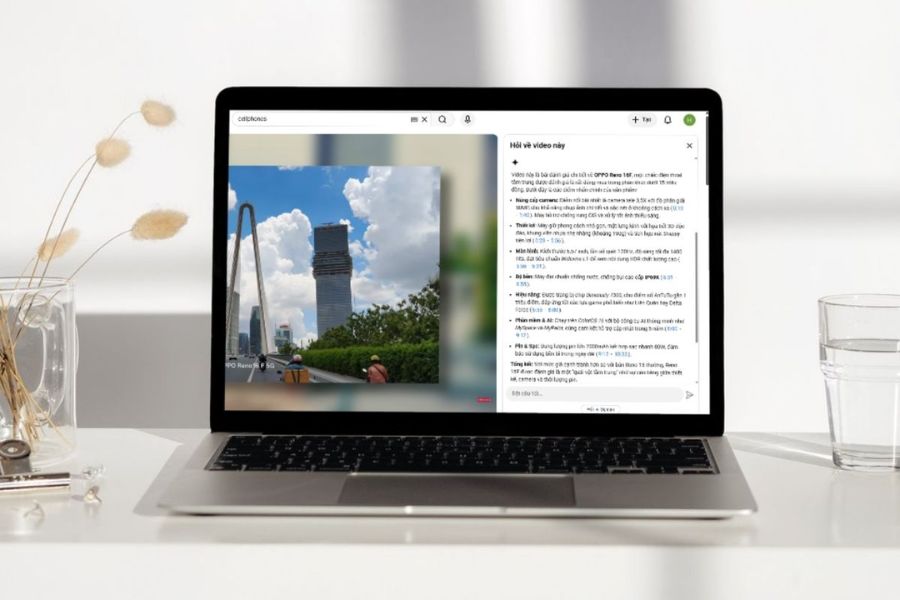
Gemini doesn't simply help you "watch videos using AI," but more importantly, it transforms long videos into more accessible information. Instead of manually fast-forwarding, taking notes, and searching, you can give specific requests for the AI to help process the content you're interested in.
2.1 Summarize a long video in a few seconds
Videos such as podcasts, lectures, webinars, or knowledge-sharing videos are often quite long. If you only want to get an overview, watching every minute can be very time-consuming. Gemini can help condense the important content into concise summaries, allowing you to quickly grasp the main topic of the video.
This is especially helpful when you're looking for study materials or researching a new topic. After watching the summary, you can decide whether to watch the entire video or focus only on the parts directly relevant to your needs.
2.2 Answer the question that interests you.
Viewers don't always need the entire video content. Sometimes you just want to find very specific information, such as which products have good reviews, where prices are mentioned, or what conclusions the presenter draws. Instead of scrolling through the timeline and searching through each segment, you can directly ask Gemini your question to shorten the search process.
-
Find specific information: You can ask the AI to find content related to a product, character, feature, or topic that appears in the video. Asking directly helps you quickly narrow down the information you need to see.
-
Clarifying difficult-to-understand content: For videos with a lot of technical jargon, you can ask for a simpler explanation of the main points. This is quite useful when using YouTube to learn technology, foreign languages, or new topics.
-
Verify the information mentioned: If the video includes many numbers, lists, or comments, you can ask Gemini to compile them for easier tracking and comparison with the original content.
-
Find the conclusion: With long videos, the important answer is sometimes at the end. Instead of watching the whole thing, you can ask the AI about the conclusion or main point the presenter makes.
2.3 Find the correct segment to watch
A 30-minute video isn't necessarily something you need to watch all 30 minutes of. The part you're interested in might only appear in a few minutes in the middle, but manually searching for it can sometimes take more time than actually watching the content. Gemini can help identify the relevant section of the video, allowing you to access the right part.
Especially with tutorial videos, product reviews, or online lessons, the ability to find the right segment makes the viewing experience more proactive. You no longer have to constantly fast-forward and rewind to guess where the information you need is located.
2.4 Convert content to text
Many videos contain a large amount of information, such as lists of tools, product names, recipes, step-by-step instructions, or key points to remember. If you try to write everything down yourself, it can be time-consuming and you might miss some important information. Gemini can help summarize important content into text format for easy reading and saving.
-
Compilation of lists: For videos like "Top 10," "5 Must-Use Tools," or "Notable Products," you can ask the AI to list the mentioned items for easier tracking.
-
Record the instructions: If the video tutorial has many steps, Gemini can help you organize them into a list for easier following.
-
Note-taking support: Instead of pausing and watching the video to take notes, you can use the summary as a basis for personal notes and then review the important information in the original video.
-
Easy to share content: Content presented in text format is more convenient when you want to save it to a note-taking app or share it with others.
2.5 Supports more convenient viewing of cooking videos.
YouTube is a huge repository of recipes, but learning to cook through videos can sometimes be inconvenient. You might have to rewind multiple times just to see the ingredients, measurements, or a step you missed. Gemini can help summarize the important information to make it easier for you to prepare before you start cooking.
For example, you can request a list of ingredients, a summary of the cooking steps, or a video showing the cooking time. This way, instead of constantly scrolling through videos on your phone while cooking, you can prepare the necessary information beforehand and focus more on the dish.
3. How to use Gemini AI to watch YouTube videos
3.1 Step 1: Log in to your Google account
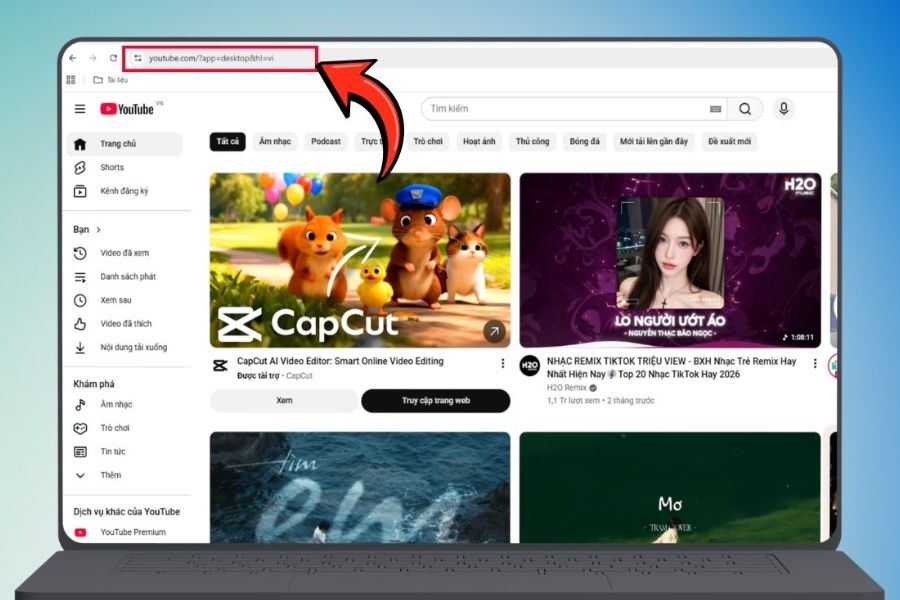
First, open YouTube on your browser or compatible app and sign in with your Google account. Signing in helps YouTube identify your account and provide features tailored to that account. However, not all videos or accounts will necessarily have the same interface and AI features.
After logging in, you can find a video you want to analyze. Prioritize videos with relatively clear content, such as tutorials, podcasts, educational videos, or reviews. If the Ask feature is supported, depending on the YouTube interface, this option will appear in the video interaction area.
3.2 Step 2: Open the video you want to analyze
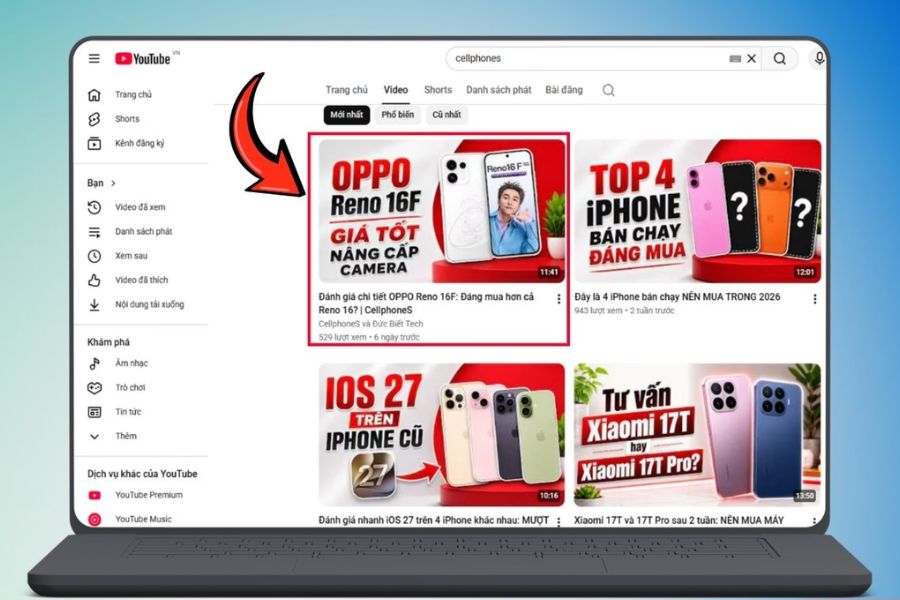
Next, find and open the video you want Gemini to analyze. You don't necessarily have to play the entire video before asking a question. Check the area below or around the player to see if the Ask option appears.
If you see the "Ask" button, you can tap it to open the chat area with the AI. This is where you can submit requests related to the video content. If you don't see this option, it may be because the feature isn't supported for your video, account, region, or the interface you're using.
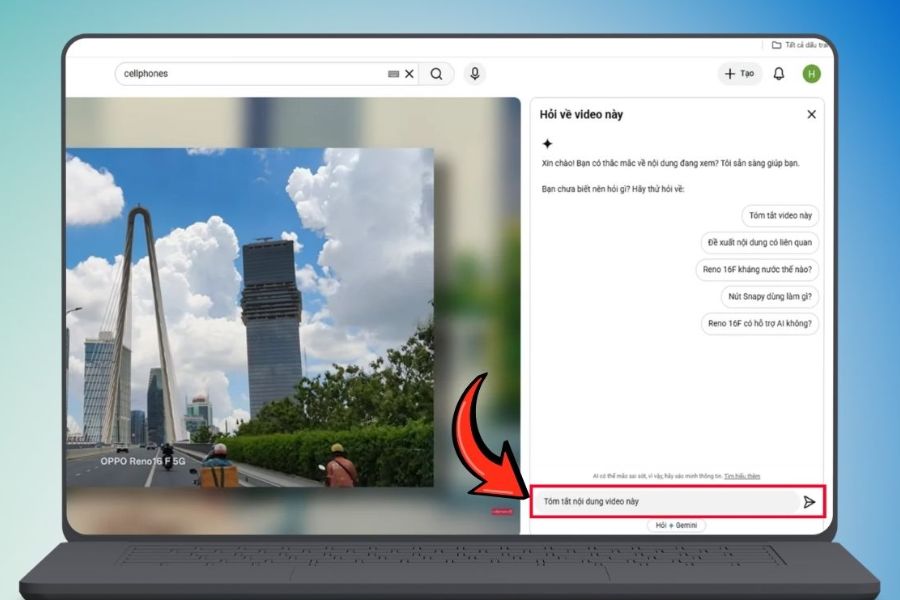
3.3 Step 3: Enter the question using natural language
After opening Ask, you can start asking Gemini questions. There's no need to write your questions in a rigid, formulaic way. Just express exactly what you want to know, the more specific the better. For example, instead of asking "What does the video say?", you could write "Summarize the video's content into 5 main points, skipping the introduction."
Some useful commands you can try include:
-
"Summarize the main points of this video."
-
"What issue is the video trying to explain?"
-
"List the products mentioned in the video."
-
"Find the segment that talks about the camera and tell me when it appears."
-
"This video summarizes all the steps in the instructions."
-
"What is the host's main conclusion?"
-
"Explain the video content in an easy-to-understand way for beginners."
-
"What are the most important things to remember from the video?"
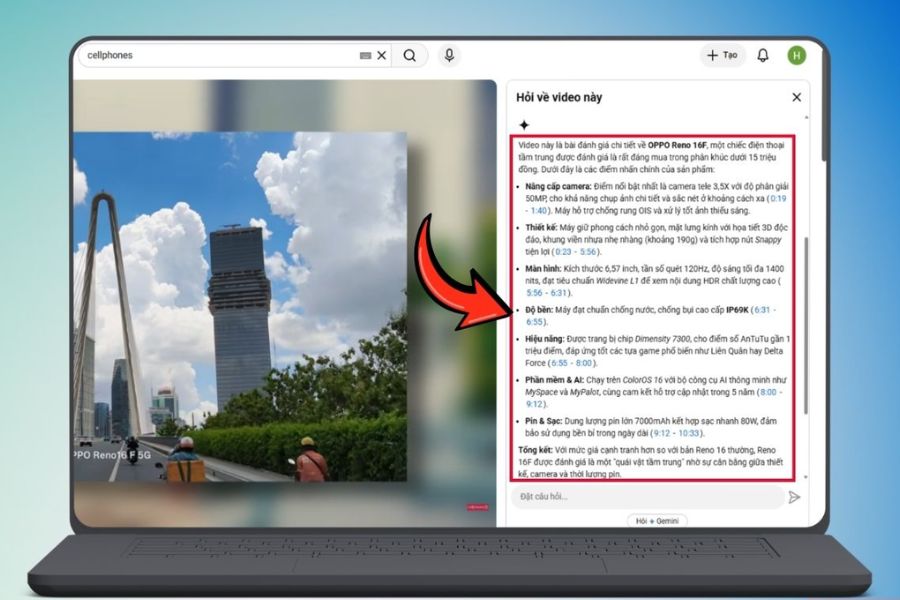
3.4 Step 4: View results and access the correct segment
After receiving a question, Gemini will analyze the accessible content and provide an answer. Depending on the case, the result may include a summary, a direct answer, or information related to the location within the video. If a timestamp is provided, you can use that time to navigate to the corresponding section and check the actual content.
This is also a step you should pay special attention to if the information is for study or work. AI can help search and synthesize information very quickly, but you shouldn't consider the answer as your only source. When you encounter important information, open the correct video segment to compare it with the original content. Combining AI with direct verification will help minimize misunderstandings or overlooking context.
4. Tips for formulating commands so Gemini correctly understands the video content.
To effectively utilize Gemini, asking the right questions is crucial. A general command will usually only produce a broad answer, while a specific request will help the AI focus on the exact information you're looking for.
You can apply a simple formula: requirement + topic + presentation style . For example: "Summarize the photo editing tutorial in the video into 5 short steps." This helps clearly define what you want Gemini to do, what aspects you are interested in, and what format you want the results to be in.
Additionally, you can ask the AI to change the presentation to suit your needs. If you're studying, ask it to summarize key points to remember. If you're researching a product, you can ask it to list the advantages, disadvantages, and related information. If you want to quickly find a specific section, ask directly about keywords or topics and request a timestamp if available.
5. Conclusion
With its ability to summarize, answer questions, find segments, and systematize information, Gemini is opening up a more flexible approach to YouTube. Instead of spending dozens of minutes watching an entire video just to find a small detail, you can ask questions directly and let the AI help find the relevant content. The key is to use Gemini as a search and information aggregation assistant , rather than relying entirely on the AI's answers. By combining clear commands with reviewing the original video, you can leverage YouTube faster, more conveniently, and save significant time each day.





















VIP Products








Best Selling Products
Freepik Premium Account
59 USD
ChatGPT Plus Account (GPT-4)
16 USD
Adobe Photoshop Copyright - Full App
120 USD
Upgrade genuine Capture One account
120 USD
Upgrade Genuine Office 365
49 USD
Plugin Retouch4me
69 USD
Windows 10 & 11 Pro Key
36 USD
Adobe Premiere Pro Account
99 USD
Upgrade Duolingo Super
29 USD
Capcut Pro 1 Year
39 USD
Copyright Adobe Lightroom Account
59 USD
Autodesk All App Account Copyright
120 USD
MidJourney Account
29 USD
Genuine Adobe Illustrator account
99 USD
Genuine Cheap Canva Pro
39 USD