Best Selling Products

Windows 10 & 11 Pro Key
36 USD

Genuine Adobe Illustrator account
99 USD

Genuine Cheap Canva Pro
39 USD

Freepik Premium Account
59 USD

Copyright Adobe Lightroom Account
59 USD

Capcut Pro 1 Year
39 USD

Upgrade genuine Capture One account
120 USD

Adobe Premiere Pro Account
99 USD

Autodesk All App Account Copyright
120 USD

Upgrade Duolingo Super
29 USD

Upgrade Genuine Office 365
49 USD

Adobe Photoshop Copyright - Full App
120 USD

Plugin Retouch4me
69 USD

MidJourney Account
29 USD

ChatGPT Plus Account (GPT-4)
16 USD
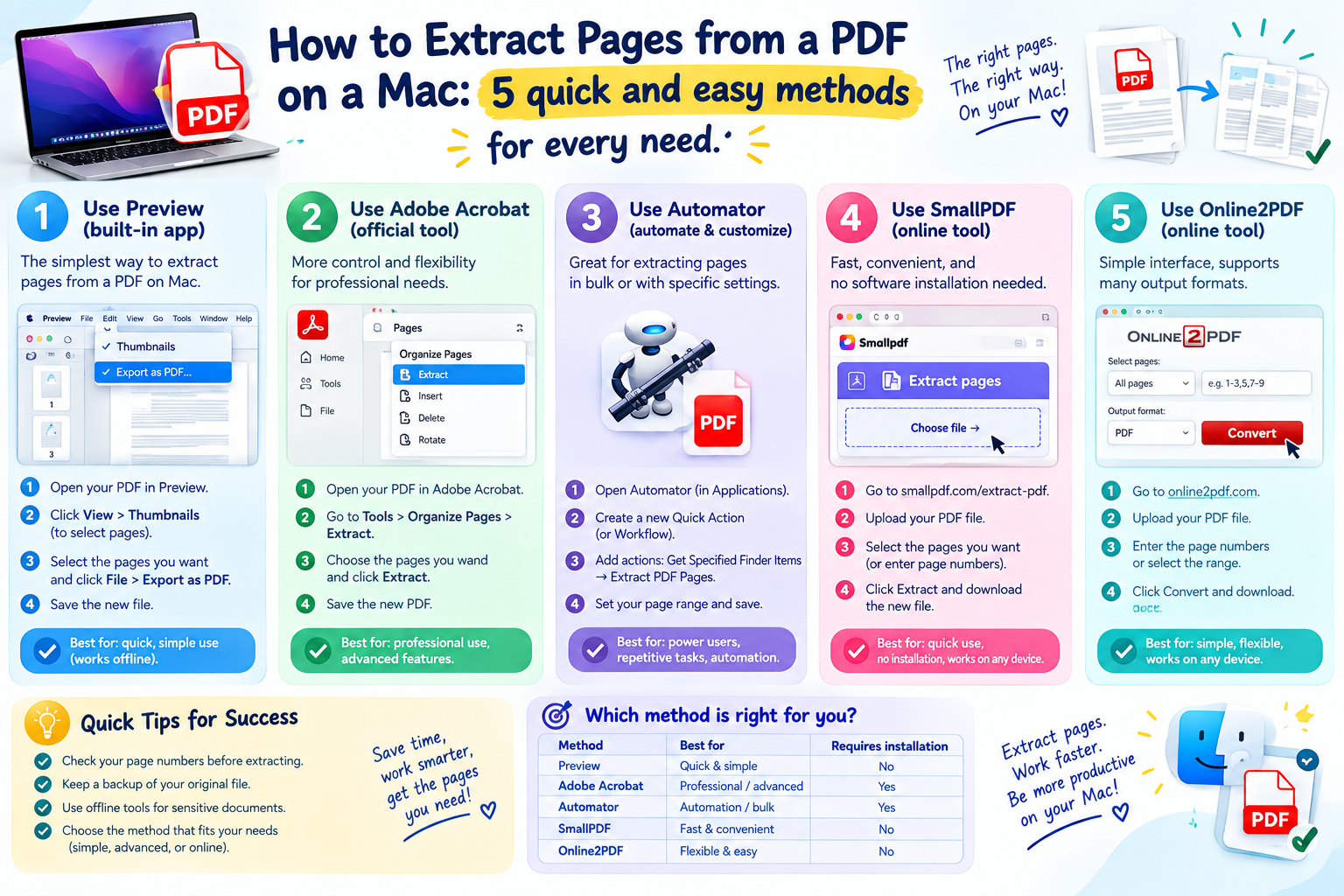
How to extract pages from a PDF on a Mac: 5 quick and easy methods for every need.
Nội dung
- 1. Nitro PDF Pro: Precise extraction with just a few clicks
- 2. Preview: A tool available on Mac that few people fully utilize.
- 3. Web browser: A quick and easy free solution, no installation required.
- 4. Automator: Automation for batch document processing
- 5. Adobe Acrobat: A professional solution for those who already have a license.
- 6. When PDF cannot be extracted
- 7. Which method is right for you?
You receive a PDF file hundreds of pages long, but only need a few pages to send to colleagues, submit as a assignment, or for archiving. Sending the entire file is cumbersome, unprofessional, and sometimes inadvertently reveals inappropriate content. Extracting only the necessary pages makes the file more compact, easier to manage, and saves storage space. The good news is that macOS offers several ways to do this, from built-in and completely free tools to specialized software. This article provides detailed instructions on five methods, along with an assessment of the advantages, limitations, and suitable users for each.
1. Nitro PDF Pro: Precise extraction with just a few clicks
If you work with PDFs frequently, a dedicated tool can save you a lot of time. Nitro PDF Pro is software designed for this task, with an intuitive interface that allows you to select, split, merge, annotate, convert, and edit PDFs all within a single application.
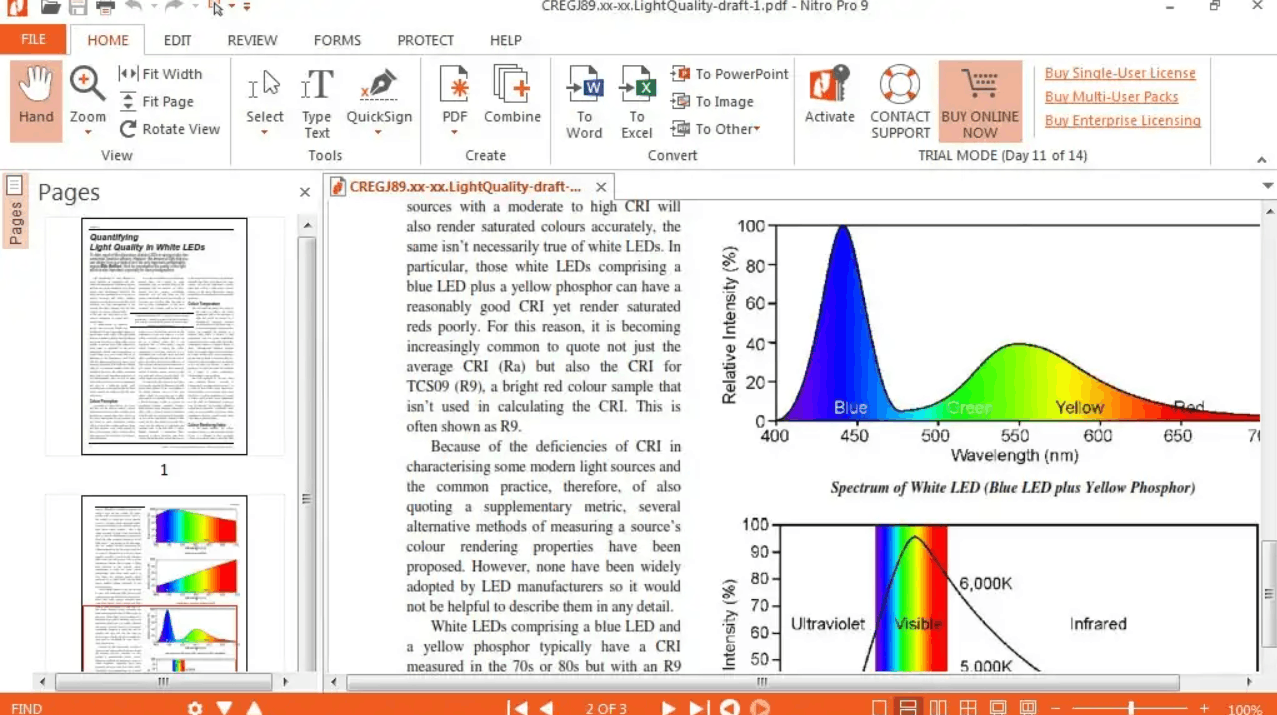
The process is very simple:
- Install and open Nitro PDF Pro on your Mac.
- Open the PDF file you want to process, then hold down the Command key and click on each page you want to extract in the thumbnail panel.
- Go to the "File" menu, select "New", and then select "From Selection".
- Save the newly created document with your desired name and location.
The strength of this method lies in its accuracy. You can select specific pages, such as page 2, page 9, and page 15, without manually entering the numbers. The layout, links, and formatting of the original document are also preserved in the new file. In addition to extraction, the software also supports splitting a document into multiple files based on page ranges or fixed page numbers, which is very convenient when you need to divide a long report into chapters.
In contrast, Nitro PDF Pro is a paid application. If you only need to split pages occasionally, the free methods below may suffice. This application is included in the Setapp subscription package, where you can try it for free for seven days to evaluate before deciding.
2. Preview: A tool available on Mac that few people fully utilize.
Preview is the default application for opening PDFs and images on macOS, but its capabilities extend far beyond document viewing. You can use this tool to create a new PDF file containing only your selected pages, without needing to install anything extra.
Steps to follow:
- Right-click on the PDF file, select "Open With", and then select "Preview".
- On the menu bar, go to "View" and select "Thumbnails" to display pages as thumbnails in the left-hand column.
- Hold down the Command key and click on the pages you want to extract.
- Go to "File", then select "Print".
- In the print dialog box, click the "PDF" button in the bottom left corner, and then select "Save as PDF".
- Name the new file and click "Save".
A small but important note: at the printing step, check the "Pages" section and select "Selected Pages in Sidebar" to ensure only the selected pages are included in the new file. If you leave it as the default, all pages will be included, and you will receive the entire document.
Alternatively, there's a faster method. After selecting the thumbnails, you can drag them directly to your Desktop or a folder, and macOS will automatically create a new PDF file containing those pages. This method is suitable for users who don't want to pay extra and only need basic extraction. The drawback is that you can only extract one group of pages at a time, so if you need to extract many parts, the process will be quite repetitive.
3. Web browser: A quick and easy free solution, no installation required.
Few people realize it, but familiar browsers like Google Chrome or Safari are also capable of extracting PDF pages thanks to their built-in printing function. This is the most convenient option when you're using someone else's computer or don't want to install additional software.
To do this with Chrome, follow these steps:
- Right-click on the PDF file, select "Open With," and then select Google Chrome. When the document opens, press Command and P to open the print window.
- In the "Pages" section, select "Custom" and then enter the desired number of pages. You can enter each page separated by commas, such as 3, 7, 12, or enter a range such as from 1 to 5.
- Make sure the "Destination" setting is set to "Save as PDF".
- Click "Save" and choose where to save the new file.
Safari has a similar process, differing only slightly in the print dialog box interface.
This method is well-suited for single, quick extractions. However, you should be aware of some limitations. Browsers treat PDFs as static documents, so links and embedded multimedia may not work in the extracted version. Text formatting may also be slightly distorted. Additionally, you have to manually import pages each time, making this method unsuitable for batch processing. Therefore, double-check the resulting file before sending it, especially for documents with complex layouts.
4. Automator: Automation for batch document processing
If your work frequently requires processing many PDF files, Automator is a macOS application that helps turn repetitive tasks into an automated process. You only need to set it up once, then drag the file to the application icon and the work is done.
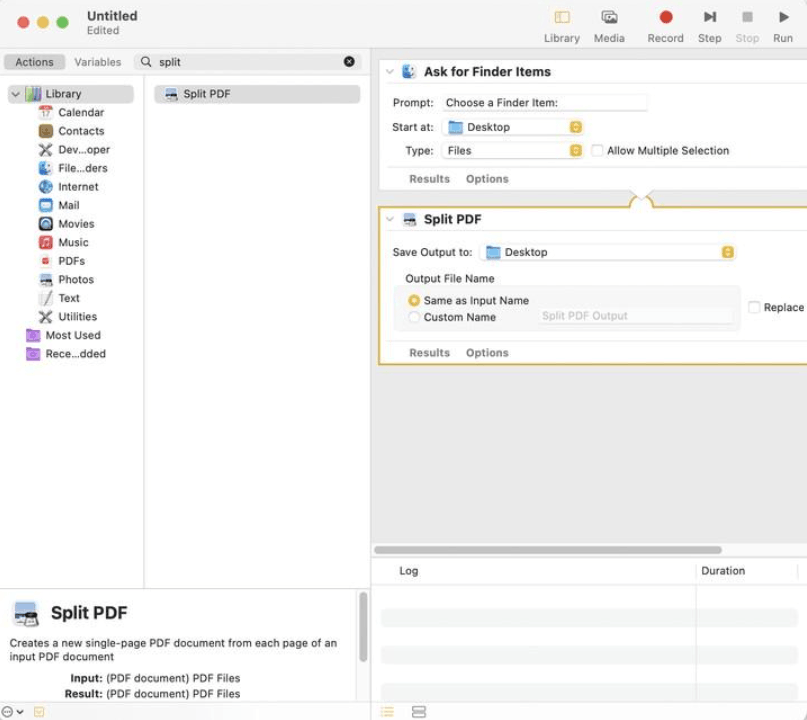
Steps to create a process:
- Open Finder, go to the "Applications" folder, and launch Automator.
- In the window that appears, select the document type "Application".
- In the left-hand library, select the "PDFs" group, then drag the "Extract Odd & Even Pages" action to the right-hand workflow area.
- Customize the action to your needs, such as choosing to extract odd-numbered pages, even-numbered pages, or both, as well as the folder to save the results.
- Save the process as an application, then drag the PDF files to that application icon for processing.
It's important to clarify the scope of this tool. The "Extract Odd & Even Pages" action is designed to separate odd and even pages, not allowing the import of an arbitrary page range. Therefore, Automator is particularly useful for tasks such as extracting double-sided scanned pages, or applying the same rule to dozens of documents simultaneously. If you need to extract precisely pages 5 to 12 of a file, the methods before or after this will be more suitable.
If you want to split a document into multiple separate files, you can combine additional actions in Automator's PDF library and experiment on a few sample files before applying them to a larger volume.
5. Adobe Acrobat: A professional solution for those who already have a license.
Adobe Acrobat is the most comprehensive PDF suite on the market, with highly flexible page management capabilities. The subscription cost is quite high, so it may not be suitable for individual users or those with limited budgets, but if you already have a license, it's a powerful and reliable extraction tool.
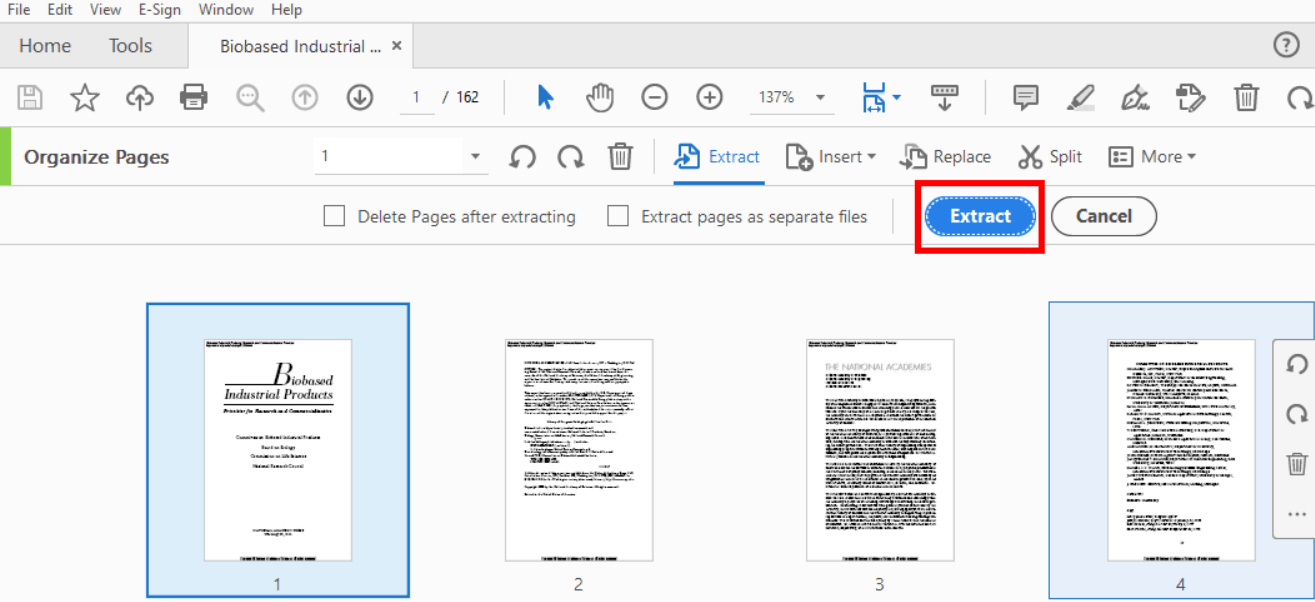
Procedure:
- Open a PDF file in Adobe Acrobat.
- Go to "View" in the menu bar, select "Show/Hide", then "Navigation Panes" and "Page Thumbnails" to display page thumbnails.
- Select the pages you want to extract. For consecutive pages, hold down the Shift key and click on the first and last pages. For discontinuous pages, hold down the Command key and click on each page individually.
- Click on the "Organize Pages" tool in the right-hand pane, or go to "Tools" and select "Organize Pages".
- On the toolbar that just appeared, click "Extract".
- In the "Extract Pages" dialog box, choose whether to keep the pages in the original file or delete them after extraction. You can also choose to save each page as a separate file.
- Click "OK". The extracted pages will open in a new window; simply go to "File" and select "Save As" to save them.
6. When PDF cannot be extracted
Sometimes you might encounter a message indicating that extracting the page is not permitted. This happens when the document owner has placed security restrictions on the file. If you have legitimate rights to the document and know the password, you can remove the restrictions by opening the file in Acrobat, going to "Tools," selecting "Protect," then "Encrypt," and then "Remove Security," and then entering the password when prompted. Once the protection is removed, return to "Organize Pages" and perform the extraction as described above. Only apply this method to documents where you have the right to use them, as these restrictions often exist for copyright or security reasons.
7. Which method is right for you?
Each method caters to a different type of user. Preview and browser-based extraction are ideal when you only need to extract occasionally and don't want to incur additional costs. Nitro PDF Pro and Adobe Acrobat are suitable for frequent work requiring accuracy and advanced features such as page range extraction or handling secure files. Automator shines when you need to apply the same rules to multiple documents.
Whichever method you choose, keep the original, give the new file a clear name, and open and check the results before sharing. It only takes a few minutes to get used to, but these steps will help you manage your documents neatly and work more efficiently every day.





















VIP Products








Best Selling Products
Windows 10 & 11 Pro Key
36 USD
Genuine Adobe Illustrator account
99 USD
Genuine Cheap Canva Pro
39 USD
Freepik Premium Account
59 USD
Copyright Adobe Lightroom Account
59 USD
Capcut Pro 1 Year
39 USD
Upgrade genuine Capture One account
120 USD
Adobe Premiere Pro Account
99 USD
Autodesk All App Account Copyright
120 USD
Upgrade Duolingo Super
29 USD
Upgrade Genuine Office 365
49 USD
Adobe Photoshop Copyright - Full App
120 USD
Plugin Retouch4me
69 USD
MidJourney Account
29 USD
ChatGPT Plus Account (GPT-4)
16 USD