Best Selling Products

MidJourney Account
29 USD

Autodesk All App Account Copyright
120 USD

Upgrade Duolingo Super
29 USD

ChatGPT Plus Account (GPT-4)
16 USD

Adobe Premiere Pro Account
99 USD

Upgrade Genuine Office 365
49 USD

Capcut Pro 1 Year
39 USD

Windows 10 & 11 Pro Key
36 USD

Copyright Adobe Lightroom Account
59 USD

Genuine Adobe Illustrator account
99 USD

Freepik Premium Account
59 USD

Plugin Retouch4me
69 USD

Genuine Cheap Canva Pro
39 USD

Upgrade genuine Capture One account
120 USD

Adobe Photoshop Copyright - Full App
120 USD
Discover how to use Notification Templates to manage your tasks effectively.
Nội dung
- 1. What is a Notation Template?
- 2. Why should you use Notification Templates to manage your tasks?
- 3. How to find a Notion Template that suits your needs
- 4. Instructions on using Notion Template to manage tasks
- Step 1: Choose a suitable template
- Step 2: Add the template to your workspace.
- Step 3: Customize the template according to your personal workflow.
- 5. Tips for using Notion Templates more effectively
- 6. Share the Notification Template to collaborate with colleagues.
- 7. Conclusion
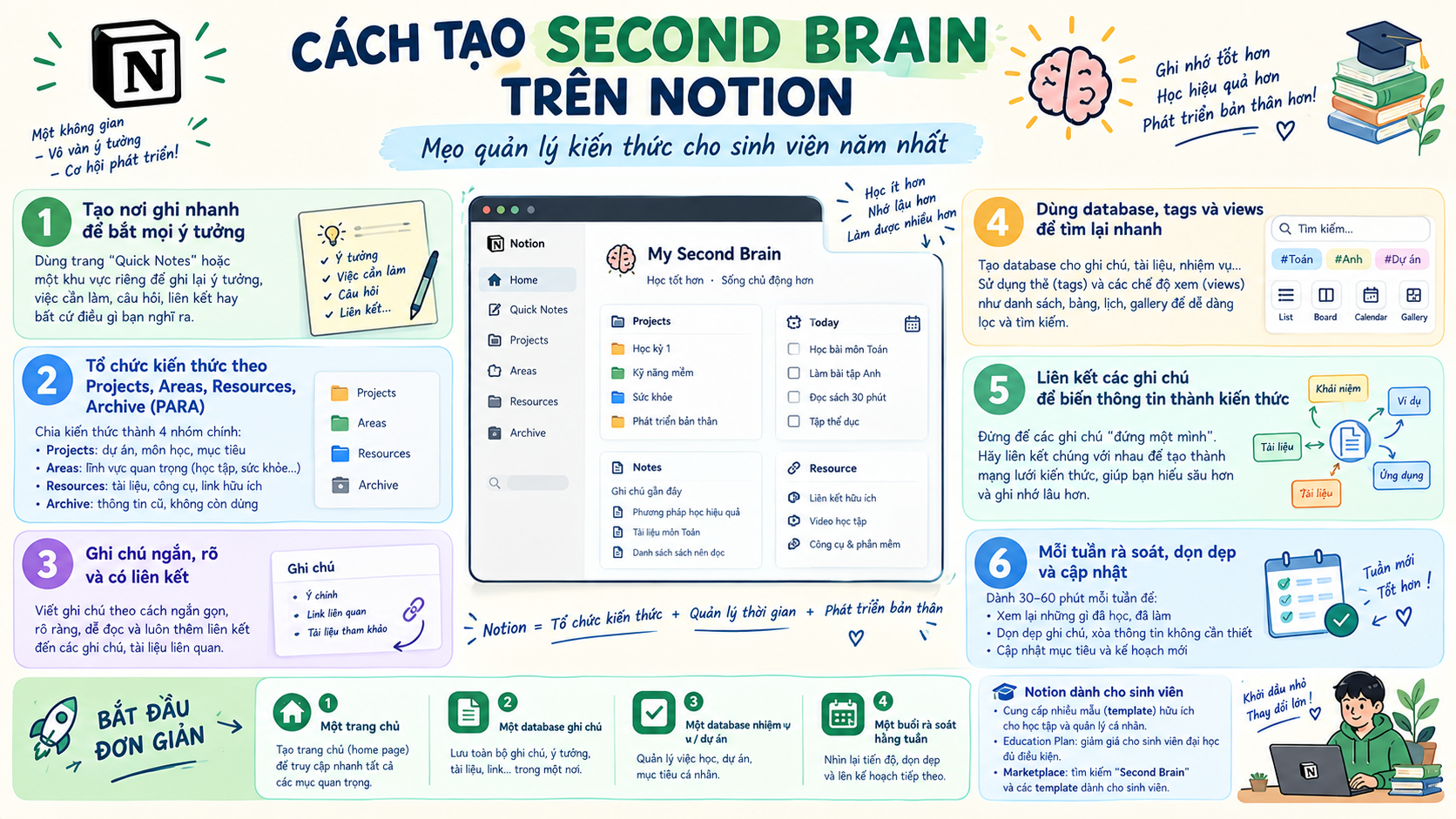
Instead of painstakingly designing each page, you can simply choose a suitable template and adjust it to your needs. Notion Templates can transform a blank Notion page into a complete task management space in just a few steps. From daily task lists, weekly plans, project schedules to progress tracking boards, everything can be neatly organized in one place. With the right selection and customization, templates can even help you build a workflow that suits you. Let''s explore them with Sadesign!
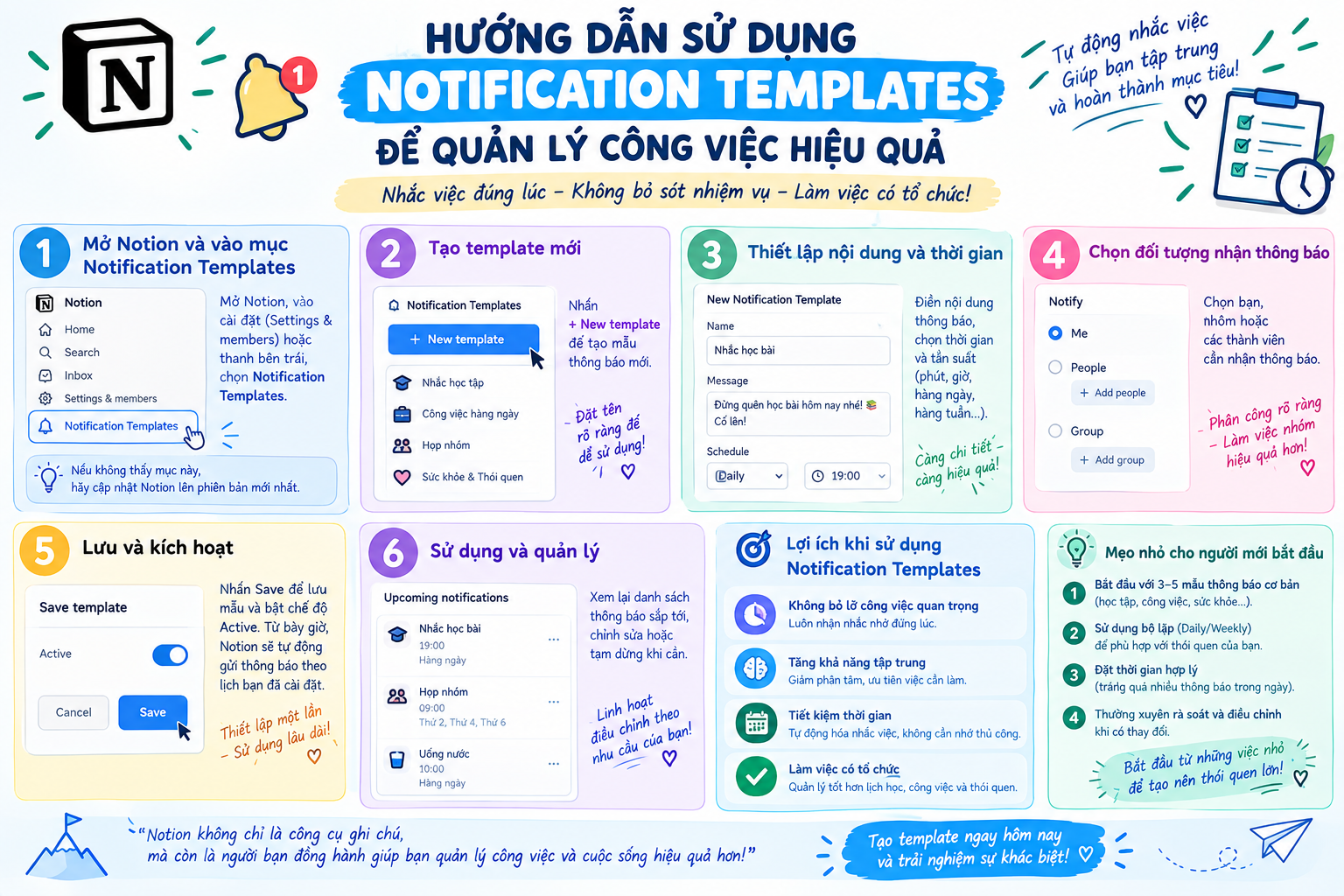
1. What is a Notation Template?
Simply put, Notion templates are pre-designed page templates within Notion that serve a specific purpose. Instead of starting with a blank page and creating headers, tables, filters, or trackers from scratch, you can use a pre-built template. Users simply copy the template to their workspace, modify the content, and begin entering their data.
The interesting thing is the diversity of the template library. You can find templates for personal task management, project planning, habit tracking, class schedule management, meeting notes, content management, or team organization. Some templates are completely free, while some more advanced ones are offered as paid options. Therefore, the important thing is not to choose the most feature-rich template, but to find one that solves the specific problem you are facing.
2. Why should you use Notification Templates to manage your tasks?
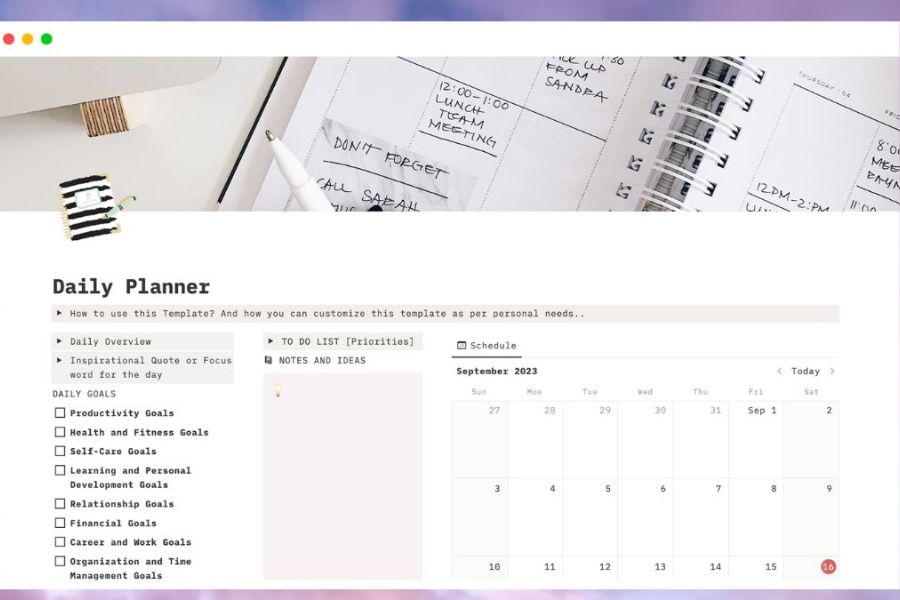
The most obvious benefit of a Notation Template is the time saved during setup . If you build a task management system yourself, you might spend hours thinking about the layout, creating the database, adding statuses, filters, and organizing items. With a ready-made template, the basic framework is already prepared. You can dedicate your time to more important tasks instead of just getting started. Additionally, templates make tasks more visually appealing. A long task list can sometimes make it difficult to prioritize. When placed in a Kanban board, calendar, or database, each task can be categorized by status, deadline, and priority level. This makes it easier to visualize the workload and reduces the likelihood of forgetting important tasks.
Some notable benefits include:
-
Save time: No need to build a management system from scratch.
-
Easy to track progress: Tasks are categorized by status such as not started, in progress, and completed.
-
Flexible editing: You can add, delete, or change elements within the template.
-
Centralized information: Multiple related data sets are managed within the same workspace.
-
Teamwork support: Templates can be shared so that multiple members can update them together.
-
Suitable for a wide range of needs: From personal tasks to project management and long-term planning.
3. How to find a Notion Template that suits your needs
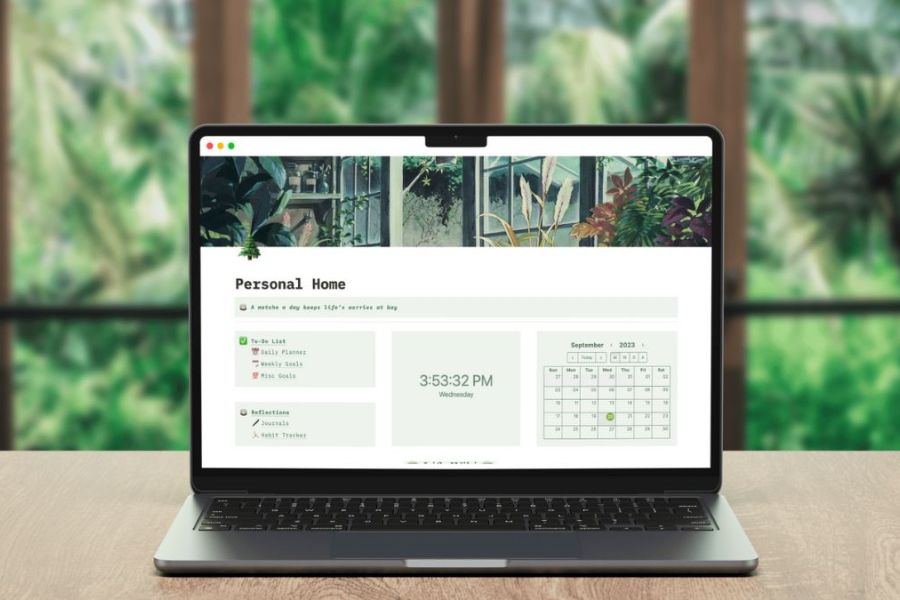
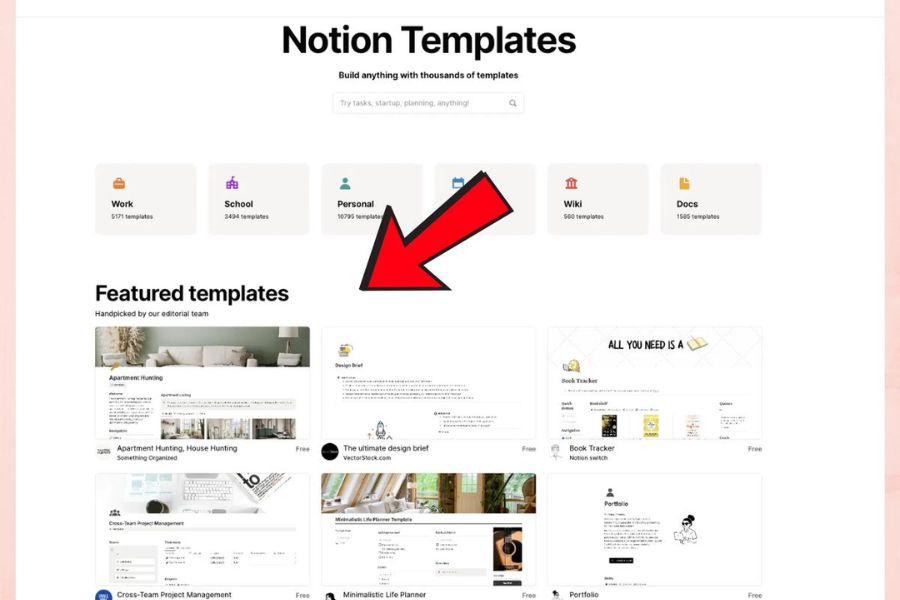
Before searching for templates, you should clearly define what problem you want to solve. If your goal is to track daily tasks, prioritize To-do List or Task Manager templates. If you frequently work on projects, templates with databases, timelines, and progress tracking will be more suitable. Defining your goals from the start helps you avoid downloading too many templates that you ultimately won't use. In Notion, you can open the Templates section to explore templates categorized by various needs. In addition to the available suggestions, the More Templates section also provides many more options. When viewing a template, pay attention to its structure, database organization, and the features you truly need, rather than just choosing based on its attractive appearance.
You can prioritize searching for templates by categories such as:
-
Manage personal tasks.
-
Project management.
-
Create a weekly or monthly plan.
-
Keep track of the work schedule.
-
Content management.
-
Note-taking and document management.
-
Teamwork management.
-
Track your personal goals.
A helpful tip is to start with a simple template . Once you're familiar with how Notion works, you can add databases, filters, or advanced features. A template that's too complex from the start can sometimes make management more complicated instead of simpler.
4. Instructions on using Notion Template to manage tasks
Step 1: Choose a suitable template
First, open Notion and access the Templates section . Here, you can view suggested templates or search for specific needs. Try using keywords like “Task Management”, “Project Management”, “To-do List”, or “Planner” if you want to find templates for your work.
Once you've found a suitable template, open it to examine its internal structure. Check what components the template contains, how tasks are categorized, and whether the layout fits your workflow. If the template includes reviews or descriptive information, you should also review those before using it.
Step 2: Add the template to your workspace.
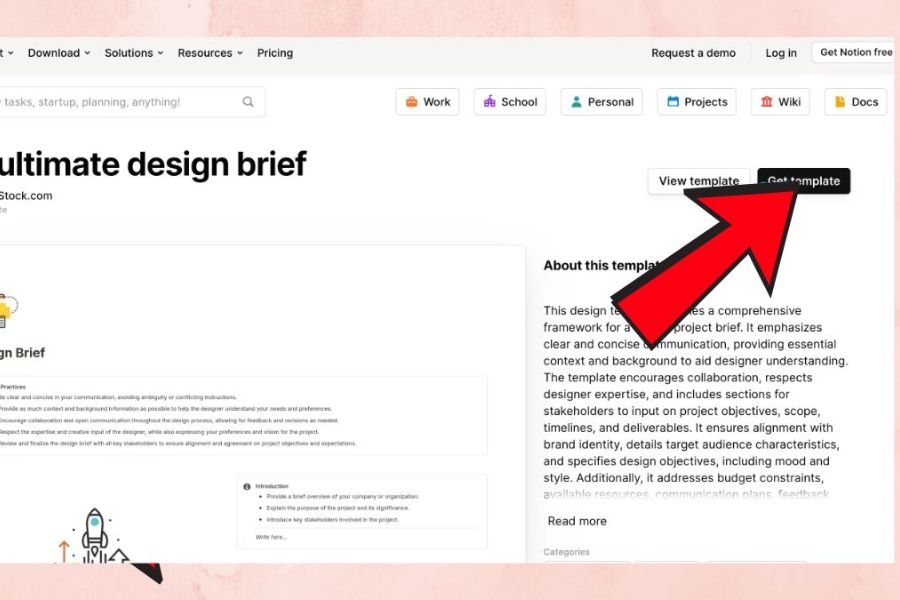
After selecting a template, you can choose Get Template or the corresponding option to use it. For templates that allow copying, select Duplicate to add a copy to your workspace. From this point on, you can edit the content without rebuilding the entire original structure.
Don't rush to import all the tasks at once. First, open each area in the template and understand how it works. Check the status columns, dates, priority levels, or filters. Once you understand the structure, customizing the template will be easier and you'll minimize errors during use.
Step 3: Customize the template according to your personal workflow.
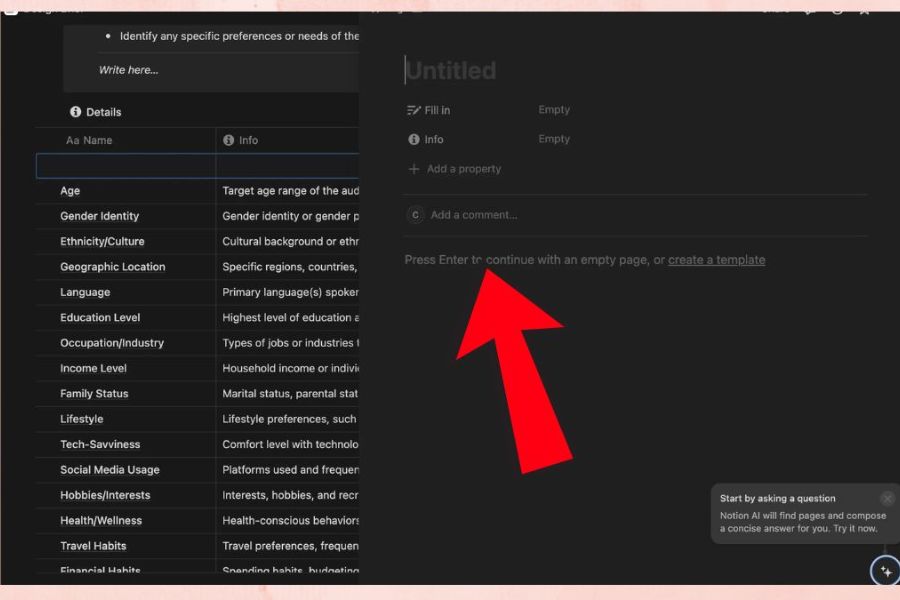
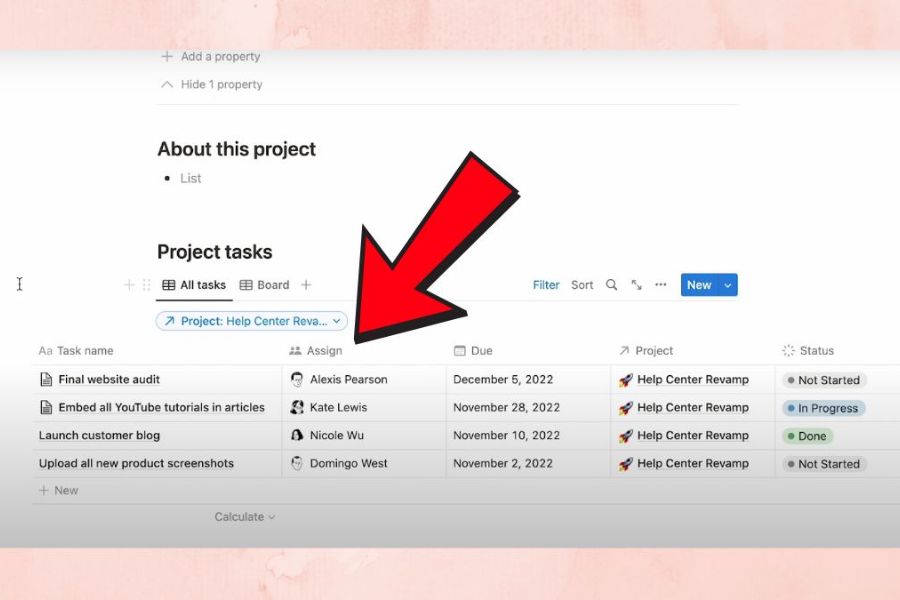
This step helps the template truly become your own tool. You can rename items, delete unnecessary fields, add new columns, or adjust how data is displayed. For example, a task table can be enhanced with fields such as responsible person, deadline, priority level, and status.
You can also customize the interface to make it more intuitive to use. Task groups can be categorized by color, status, or time. If you frequently work on multiple projects, consider creating separate filters to only display tasks that are currently in need of attention. The more optimized the template is to suit your practical needs, the more effort it will save you.
5. Tips for using Notion Templates more effectively
One common mistake is using too many templates at once. You might come across many beautiful templates and want to include them all in your workspace, but this easily makes the system complicated. Instead of having a single place to manage your work, you have to switch between different pages to find information. It's better to choose one template as the central one and develop further as needed. If a feature doesn't directly support your work, you can always remove it. The more streamlined your workspace is to meet practical needs, the easier it is to maintain in the long run.
You can try some of the following tips:
-
Don't chase after the latest interfaces: Prioritize usability over elaborately designed templates.
-
Remove unnecessary data: Keep only the databases and information fields that are truly needed.
-
Regular updates: Take time to check your work every day.
-
Set clear deadlines: Limit tasks that don't have a specific completion time.
-
Prioritize: Focus on the important things first.
-
Create filters: Display only the tasks that need to be processed at any given time.
-
Align with your workflow: Templates should serve your processes, not force you to change everything just to fit the template.
6. Share the Notification Template to collaborate with colleagues.
Notion templates are not only suitable for individual needs but can also become a shared workspace for entire teams. You can build a template containing a list of tasks, deadlines, responsible persons, and the status of each task. When all members update the data, managers can easily track progress without constantly asking each person individually. When sharing workspaces or Notion pages, pay attention to access permissions. Depending on the purpose, you can allow members to view, comment on, or edit content. For projects with many participants, agreeing on how to update status and naming conventions from the beginning is also very important. When everyone uses the same method, the template will be significantly more effective.
Overall, Notion Templates are a simple way to shorten the time it takes to build a task management system . You don't need to be a Notion expert to get started. Just identify your needs, choose a suitable template, and gradually adjust it to your workflow, and you can transform Notion into a neat and easy-to-manage workspace. Most importantly, don't try to make the template an overly complicated system. A simple template that is used regularly will be far more useful than a beautiful workspace that is quickly forgotten. Start with the tasks you need to manage each day, then gradually expand as your needs increase.
7. Conclusion
Notion Templates are a useful option for managing your work efficiently without spending too much time building a system from scratch. Simply choose the right template, customize it to your needs, and maintain a habit of regular updates, and you can easily track tasks, control progress, and manage your time more effectively. Start with a simple template, then gradually refine it to create the workspace that best suits you.





















VIP Products








Best Selling Products
MidJourney Account
29 USD
Autodesk All App Account Copyright
120 USD
Upgrade Duolingo Super
29 USD
ChatGPT Plus Account (GPT-4)
16 USD
Adobe Premiere Pro Account
99 USD
Upgrade Genuine Office 365
49 USD
Capcut Pro 1 Year
39 USD
Windows 10 & 11 Pro Key
36 USD
Copyright Adobe Lightroom Account
59 USD
Genuine Adobe Illustrator account
99 USD
Freepik Premium Account
59 USD
Plugin Retouch4me
69 USD
Genuine Cheap Canva Pro
39 USD
Upgrade genuine Capture One account
120 USD
Adobe Photoshop Copyright - Full App
120 USD