Best Selling Products

Capcut Pro 1 Year
39 USD

Genuine Cheap Canva Pro
39 USD

ChatGPT Plus Account (GPT-4)
16 USD

Genuine Adobe Illustrator account
99 USD

MidJourney Account
29 USD

Copyright Adobe Lightroom Account
59 USD

Plugin Retouch4me
69 USD

Adobe Photoshop Copyright - Full App
120 USD

Adobe Premiere Pro Account
99 USD

Upgrade Genuine Office 365
49 USD

Upgrade genuine Capture One account
120 USD

Freepik Premium Account
59 USD

Windows 10 & 11 Pro Key
36 USD

Autodesk All App Account Copyright
120 USD

Upgrade Duolingo Super
29 USD
Excel won''t copy and paste? What are the quick and effective solutions?
Nội dung
- 1. Why can't Excel copy and paste?
- 2. Check your keyboard if Excel is unable to copy and paste.
- 3. Uninstall Add-ins to fix Copy Paste errors in Excel
- 4. Scan your computer for viruses and malware.
- 5. Fix Windows errors using System File Checker
- 6. Temporarily disable security software.
- 7. Other methods when Excel still won't copy and paste
- 8. How can I minimize copy-paste errors in Excel?
- 9. Conclusion
Excel is a familiar tool for office workers, students, and anyone who frequently works with spreadsheets. With just a few simple operations like Ctrl + C and Ctrl + V, users can copy data, formulas, or formatting to another location. However, in many cases, Excel suddenly fails to copy and paste even though the previous operations worked normally. This situation can stem from the keyboard, the Excel file, add-ins, security software, or even errors in the Windows system. If you''ve tried closing and reopening Excel but the problem persists, check the causes and solutions below. The methods are arranged from simple to advanced for easy application. Let''s explore them with Sadesign!
1. Why can't Excel copy and paste?
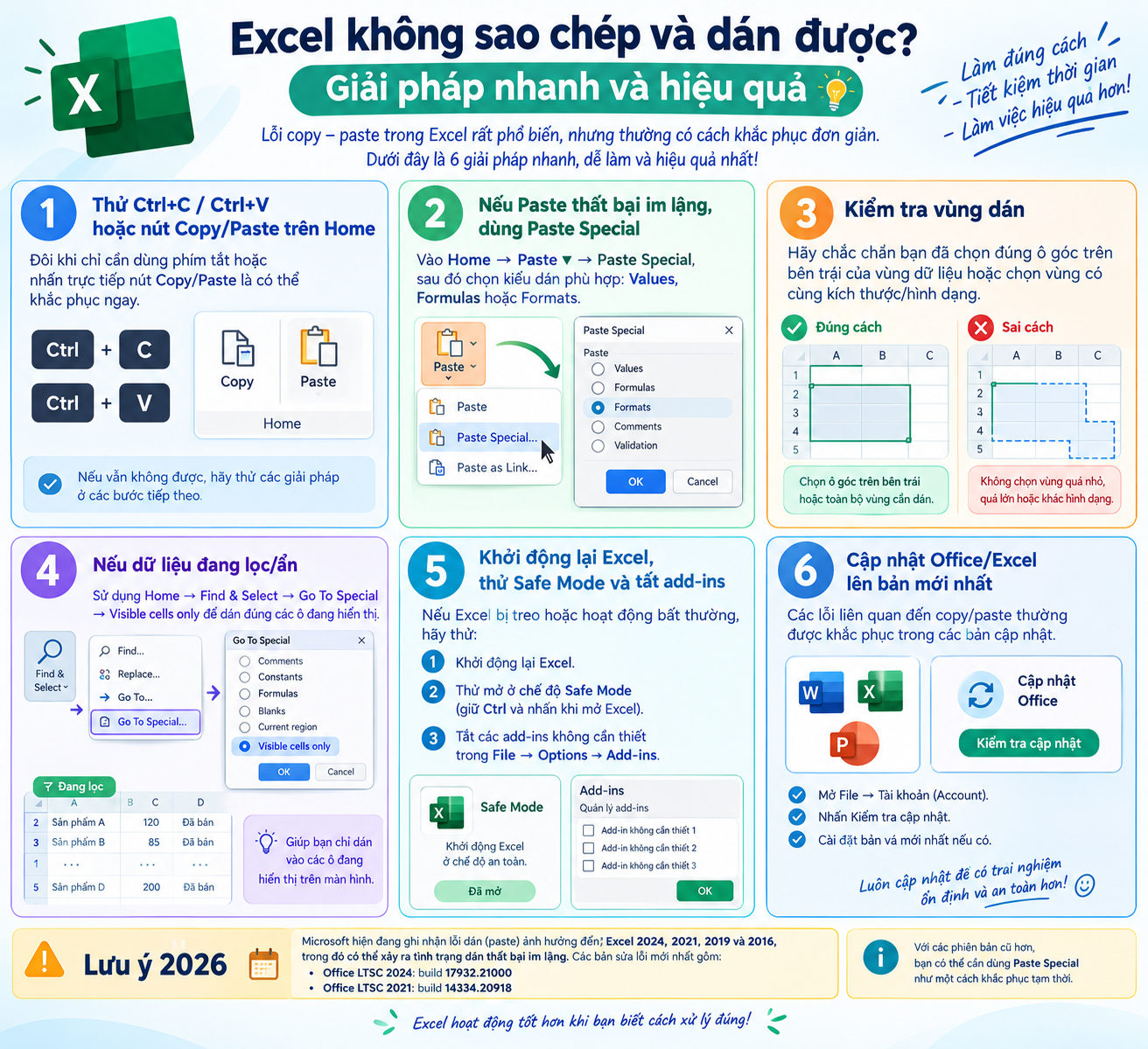
When Excel doesn't allow copying or pasting data, many people immediately think the software is malfunctioning. In reality, the copy-paste operation involves many different components on the computer. A malfunctioning keyboard shortcut, a problem with the clipboard, or a conflicting extension with Excel can all interrupt the copying process.
Identifying the correct cause will help you avoid wasting time trying too many unnecessary solutions. Some common causes include:
-
Keyboard problem: The Ctrl, C, or V keys are stuck, unresponsive, or not registering input, causing the Copy Paste shortcut to malfunction.
-
Clipboard malfunction: Windows or Excel is not properly processing temporarily saved data, resulting in unresponsive copy and paste operations.
-
Add-ins can cause conflicts: Some add-ons installed in Excel may interfere with the software's default functions.
-
Security software intervenes: Antivirus or Windows Security sometimes restricts access to files identified as unsafe.
-
Excel or Office is outdated: Outdated software versions can cause compatibility issues with Windows or other utilities.
-
Corrupted Excel file: A corrupted workbook, one containing too much data, or complex formulas can also cause Excel to malfunction.
-
Windows system errors: Corrupted system files can affect the operation of Excel and other Office applications.
2. Check your keyboard if Excel is unable to copy and paste.
This is the first step you should try because it's very quick and doesn't change any settings in Excel. If Ctrl + C or Ctrl + V isn't responding, check if your keyboard actually registers these keys.
A fairly easy indicator is that when you use the mouse to select the Copy and Paste command from the Excel menu, the operation works normally. In that case, the problem is most likely with the keyboard or keyboard shortcuts rather than Excel itself.
-
Method 1: Test the keyboard using the Keyboard Tester tool.
-
Open your computer's browser and access the Keyboard Tester tool.
-
Press the Ctrl, C, and V keys on the keyboard in sequence.
-
Observe the test interface to see if the keys you just pressed were recognized by the system.
-
If the keys are not lighting up or showing no response, the keyboard may be malfunctioning.
-
You should clean your keyboard, check for stuck keys, or try reconnecting if you're using an external keyboard.
-
-
Method 2: Try a different keyboard.
-
Connect a different keyboard to the computer.
-
Open the Excel file and select any data range.
-
Press Ctrl + C to copy and Ctrl + V to paste to another cell.
-
If the keyboard works normally, the problem is most likely with the old keyboard.
-
You can also use your mouse to select Copy and Paste to test Excel's functionality separately.
-

3. Uninstall Add-ins to fix Copy Paste errors in Excel
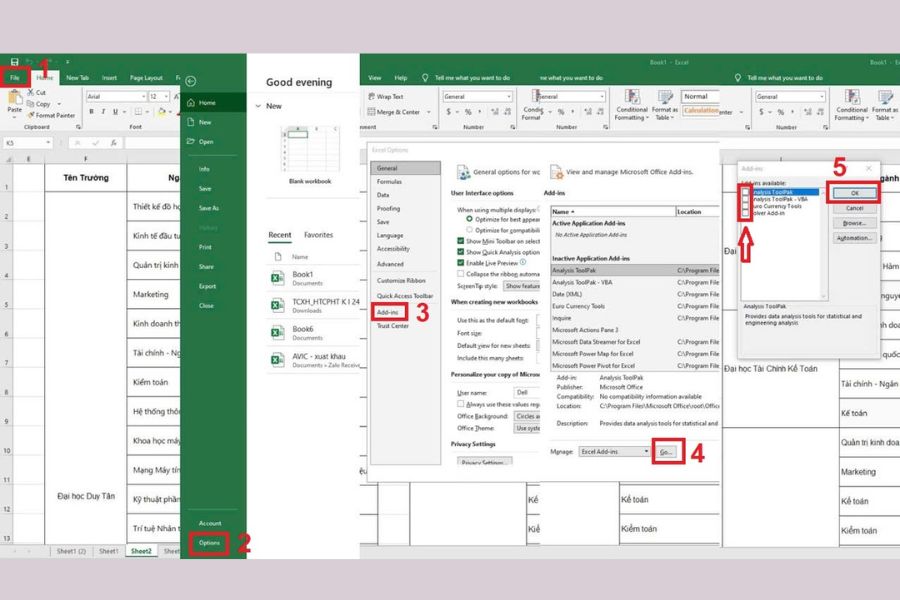
Add-ins provide many convenient features for Excel, but they can also cause the software to malfunction. In particular, if errors begin to appear after you install a new add-in, try disabling or uninstalling it to see if that resolves the issue.
You don't necessarily need to uninstall all the add-ins you're using. Turn off unnecessary add-ins first, then reopen Excel and try Copy Paste again. If the function returns to normal, you can identify the problem as being with one of the disabled add-ins.
-
Step 1: Open Excel, select File in the upper left corner.
-
Step 2: Select Options to open the Excel settings window.
-
Step 3: In the left-hand menu, select Add-ins .
-
Step 4: In the Add-ins management section, select Excel Add-ins and then click Go .
-
Step 5: Uncheck any add-ins that you suspect are causing conflicts.
-
Step 6: Press OK to save the changes.
-
Step 7: Close Excel and then reopen the software.
-
Step 8: Open the file you need and double-check the Ctrl + C and Ctrl + V operations .
If Copy Paste works again after disabling the Add-ins, you can enable each add-in individually to find the one causing the error. This method is especially useful when your computer has many Excel add-ins installed.
4. Scan your computer for viruses and malware.
In some cases, security software can restrict data copying from files deemed unsafe. Conversely, malware or viruses can also cause unusual behavior on Windows, leading to some applications not functioning properly.
If errors occur when you open an Excel file downloaded from the internet, email, or an external device, a security scan is a necessary step. Windows Security is built into Windows, so you can check your computer without installing additional software.
-
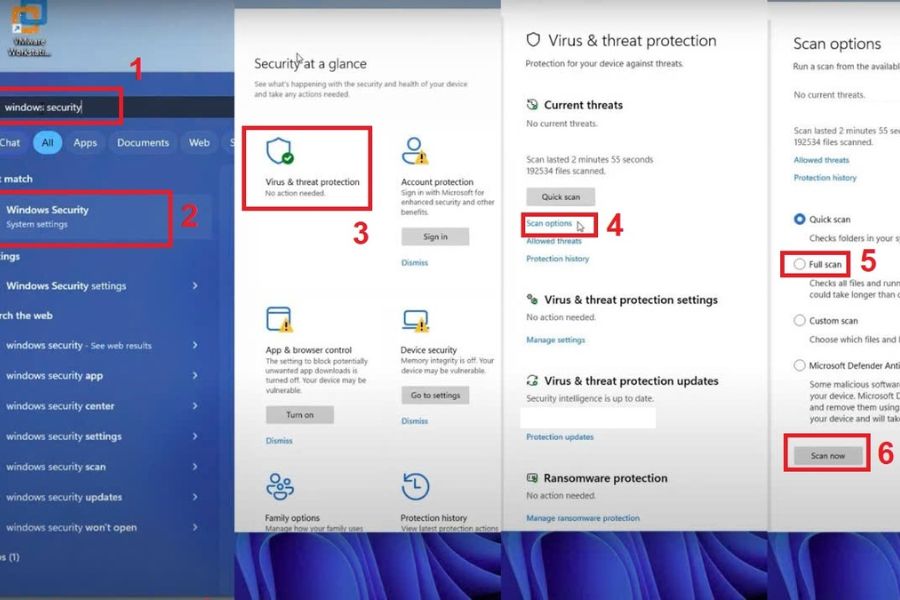
Step 1: Click Start and type " Windows Security" into the search box.
-
Step 2: Select Windows Security from the displayed results.
-
Step 3: Click Virus & threat protection .
-
Step 4: Select Scan options to view the available scanning methods.
-
Step 5: Select Full scan to check the entire system.
-
Step 6: Press Scan now to begin the scanning process.
-
Step 7: Wait for the system to complete the check and take action if any threats are detected.
-
Step 8: Restart your computer and then open Excel to check the Copy Paste function again.
You should avoid downloading and opening Excel files from unknown sources. If you frequently receive spreadsheets from many different people, keeping Windows Security running properly will help reduce the risk of security-related problems.
5. Fix Windows errors using System File Checker
If you've checked your keyboard, add-ins, and security software but Excel still won't copy and paste, the problem might be related to Windows system files. When some system components are corrupted or missing, applications installed on your computer may also malfunction.
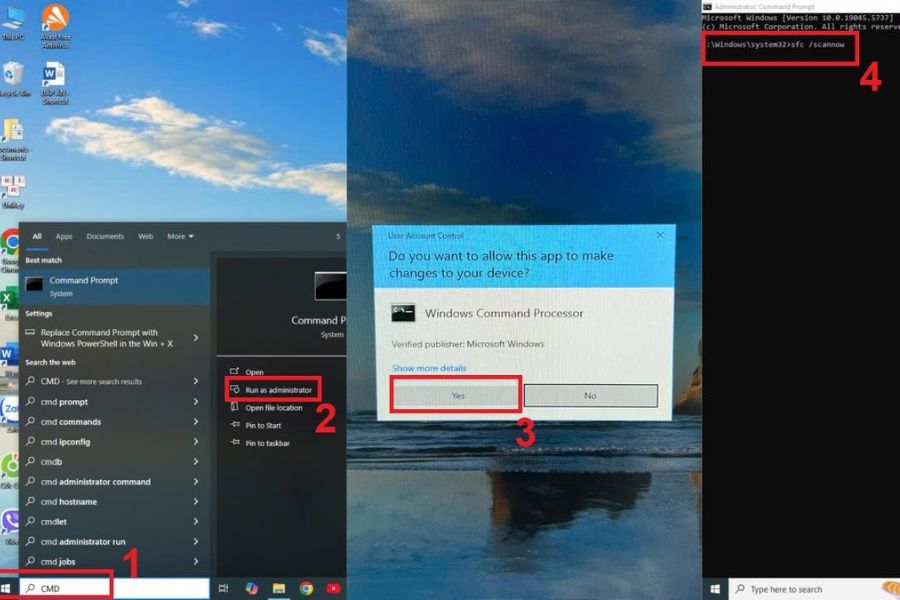
Windows includes a System File Checker (SFC) tool to check and repair corrupted system files. This process is performed through Command Prompt with administrator privileges.
-
Step 1: Press Start and then type "CMD" into the search box.
-
Step 2: Find Command Prompt in the list of results.
-
Step 3: Right-click on Command Prompt and select Run as administrator .
-
Step 4: When the permission confirmation window appears, select Yes .
-
Step 5: Enter the command sfc /scannow into the Command Prompt window.
-
Step 6: Press Enter to start the system check.
-
Step 7: Wait for the scan to complete. Do not close the Command Prompt window while the system is processing.
-
Step 8: Restart your computer after the process is complete and try the Copy Paste operation in Excel again.
SFC can help detect and repair some corrupted Windows system files. However, if the system still reports errors or the problem persists, you should also check Windows Update and the status of your Microsoft Office installation.
6. Temporarily disable security software.
Some security software can interfere with the operation of files downloaded from the internet or external sources. If you suspect Windows Security is affecting Excel, you can temporarily check by disabling real-time protection.
Note that this should only be a short-term check. After identifying the cause, you should re-enable security features to ensure your computer remains protected.
-
Step 1: Press Start and then select Settings .
-
Step 2: Select Privacy & Security .
-
Step 3: Click Windows Security .
-
Step 4: Select Virus & threat protection .
-
Step 5: Find the Virus & threat protection settings section and select Manage settings .
-
Step 6: Find the Real-time protection option .
-
Step 7: Temporarily switch this feature to the off state and confirm when prompted by the system.
-
Step 8: Reopen Excel and try copying and pasting the file that is causing the error.
-
Step 9: If the issue is identified as related to security software, re-enable Real-time protection after testing.
If Copy Paste still doesn't work, you shouldn't leave the protection feature turned off for too long. Try other methods such as updating Office, checking your Excel file, or fixing system errors.
7. Other methods when Excel still won't copy and paste
Not all problems stem from the keyboard or Windows. A workbook containing too much data, complex formulas, or large objects can also cause Excel to become slow to respond, or even temporarily unable to perform copy and paste operations.
If the error only appears in a specific file while other Excel files work normally, you should focus on checking that particular workbook. Conversely, if all Excel files are experiencing errors, the problem may lie with the software or the system.
-
Update Excel: Check the version of Microsoft Office you are using and install the appropriate updates. New versions may include bug fixes and compatibility improvements.
-
Try a different Excel file: Create a new workbook and enter some simple data to test the Copy Paste function. If the new file works correctly, the original file may be the problem.
-
Reduce the amount of data to be copied: Avoid copying and pasting a large area of data at once, especially when the spreadsheet contains many complex formulas.
-
Close unnecessary applications: Too many programs running simultaneously can drain your computer's resources and slow down Excel's responsiveness.
-
Delete unused files: Cleaning up unnecessary data on your computer can help free up storage space and reduce strain on the system.
-
Restart Excel: Completely close Excel and then reopen it. If the software is temporarily frozen, this can sometimes bring everything back to normal.
-
Restart your computer: This is a simple but useful solution when the Clipboard or a Windows process is malfunctioning.
-
Try Copy & Paste using the mouse: If the keyboard shortcut doesn't work but the Copy and Paste commands in the menu still work, you should check your keyboard or shortcut settings.

8. How can I minimize copy-paste errors in Excel?
Copy and paste is a frequently used operation when working with spreadsheets, so even a small error can disrupt your work. Instead of only trying to fix problems when they arise, you should keep Excel and Windows stable and limit factors that can overload the software.
Especially with large Excel files containing thousands of rows of data, numerous formulas, and add-ins, proper file management will make the workflow smoother. You can apply some simple habits below:
-
Regularly update Microsoft Office and Windows to improve compatibility and minimize errors.
-
Avoid installing too many add-ins if you don't really need them. Add-ins you don't use frequently can be disabled.
-
Break down large spreadsheets when the data is too heavy instead of putting all the information into a single workbook.
-
Avoid copying multiple complex formulas at once if your computer has low specifications.
-
Check the file before opening it , especially spreadsheets sent from unfamiliar sources.
-
Maintain your security software to ensure it's functioning properly and perform regular scans to detect potential threats.
-
Back up important Excel files to avoid data loss if the workbook malfunctions or cannot be opened.
-
Check your keyboard if shortcuts suddenly stop working , especially if Ctrl + C and Ctrl + V are malfunctioning but other functions are working normally.
9. Conclusion
Excel copy-paste errors can occur for many reasons, from simple issues like a stuck keyboard to conflicting add-ins, security software interference, or Windows system errors. Therefore, instead of rushing to reinstall Excel, you should check each cause one by one to find the correct solution. In typical cases, start by checking your keyboard and trying a different Excel file. If the error persists, you can disable add-ins, scan for viruses, run SFC, or update Office. Taking these steps will help you quickly restore copy-paste functionality without affecting your existing data.





















VIP Products








Best Selling Products
Capcut Pro 1 Year
39 USD
Genuine Cheap Canva Pro
39 USD
ChatGPT Plus Account (GPT-4)
16 USD
Genuine Adobe Illustrator account
99 USD
MidJourney Account
29 USD
Copyright Adobe Lightroom Account
59 USD
Plugin Retouch4me
69 USD
Adobe Photoshop Copyright - Full App
120 USD
Adobe Premiere Pro Account
99 USD
Upgrade Genuine Office 365
49 USD
Upgrade genuine Capture One account
120 USD
Freepik Premium Account
59 USD
Windows 10 & 11 Pro Key
36 USD
Autodesk All App Account Copyright
120 USD
Upgrade Duolingo Super
29 USD