Best Selling Products

Windows 10 & 11 Pro Key
36 USD

Adobe Premiere Pro Account
99 USD

ChatGPT Plus Account (GPT-4)
16 USD

Upgrade Genuine Office 365
49 USD

MidJourney Account
29 USD

Adobe Photoshop Copyright - Full App
120 USD

Genuine Adobe Illustrator account
99 USD

Upgrade genuine Capture One account
120 USD

Capcut Pro 1 Year
39 USD

Copyright Adobe Lightroom Account
59 USD

Upgrade Duolingo Super
29 USD

Genuine Cheap Canva Pro
39 USD

Plugin Retouch4me
69 USD

Freepik Premium Account
59 USD

Autodesk All App Account Copyright
120 USD
Instructions on how to easily turn off the Gemini watermark on photos and videos.
Nội dung
- 1. What is Media Watermark on Gemini?
- 2. What changes does disabling the Gemini watermark bring?
- 3. Conditions for disabling watermarks on Gemini
- 4. Instructions on how to turn off watermarks in photos and videos (Gemini).
- 4.1. Step 1: Open Gemini and log in to your account.
- 4.2. Step 2: Open Gemini's Settings
- 4.3. Step 3: Find the Media Watermark section
- 4.4. Step 4: Turn Media Watermark to Off
- 4.5. Step 5: Create new content and test the results
- 5. Why do old Gemini photos and videos still have watermarks?
- 6. Important notes when disabling Media Watermark
- 7. Conclusion
Gemini watermarks appearing on AI images or videos can sometimes make the product look less polished when used for social media posts, presentation slides, or creative content. If you''re using Gemini and want to control this watermark, Google has provided a Media Watermark option that users can turn on or off as needed. In this article, let''s explore what Media Watermark is, the changes when this feature is turned off, and how to do it directly on your phone or laptop. The steps are relatively simple; you just need to access the correct settings for your Gemini account.
1. What is Media Watermark on Gemini?
Media Watermark is an option related to identifying marks displayed on certain content created by Gemini. When this feature is enabled, images, videos, or other types of content can display an identifying mark that lets viewers know the product was created or supported by AI. This is part of a mechanism to help AI-generated content be more clearly traceable when shared.
It's worth noting that Media Watermarks primarily involve visible identifiers . Therefore, disabling this option doesn't mean removing all AI source information within the file. Gemini may still retain other identification technologies like SynthID or C2PA source data depending on the content type.

2. What changes does disabling the Gemini watermark bring?
When Media Watermark is switched to Off, new content created under supported conditions will no longer display the watermark directly. This is especially useful if you want images with a seamless layout, without being interrupted by identifying details when incorporating them into designs, articles, or personal content. However, you need to clearly distinguish between visible watermarks and hidden identifying marks . Turning off Media Watermark does not mean Gemini removes all information indicating that the content was created using AI. Some mechanisms, such as SynthID, may still be maintained to support content origin identification.
Here are some things you should know before turning it off:
-
The watermark displayed is primarily controlled for new content created after the settings are changed.
-
Previously created photos or videos may retain watermarks , and disabling the feature will not automatically re-edit old files.
-
Media watermarks can be associated with various types of content created by Gemini, depending on the feature and account.
-
SynthID can be further embedded in content as a subtle identifier that is difficult to see with the naked eye.
-
C2PA data can continue to be maintained to provide information about the origin and creation process of content.
-
Features may depend on your Gemini plan, account, region, and service version .
3. Conditions for disabling watermarks on Gemini
Before searching for Media Watermark in the settings, you should check the Gemini account you're using. According to the information provided, this option is currently tied to the Ultra plan , so users with free accounts or certain other plans may not see the corresponding option. Besides the service plan, Google may also roll out the feature on an account-by-account and regional basis. This means that even if your account meets the requirements, the Media Watermark might not appear. The location or name of the option may also change when Gemini is updated.
If you don't see this item, you can check the following:
-
Is the Google account currently logged in the correct Gemini account?
-
Does the current service package support Media Watermark?
-
Have you updated your Gemini app or browser to the latest version?
-
Has Google already rolled out this feature to your account and region?
-
Try logging out, logging back in, and then checking the Settings.
4. Instructions on how to turn off watermarks in photos and videos (Gemini).
The process is quite quick and doesn't require you to use any external photo or video editing software. Simply open Gemini, access your account settings, and find the Media Watermark option. The steps below can be performed on a phone or laptop. The actual interface may vary slightly depending on the device, Gemini version, and account being used.
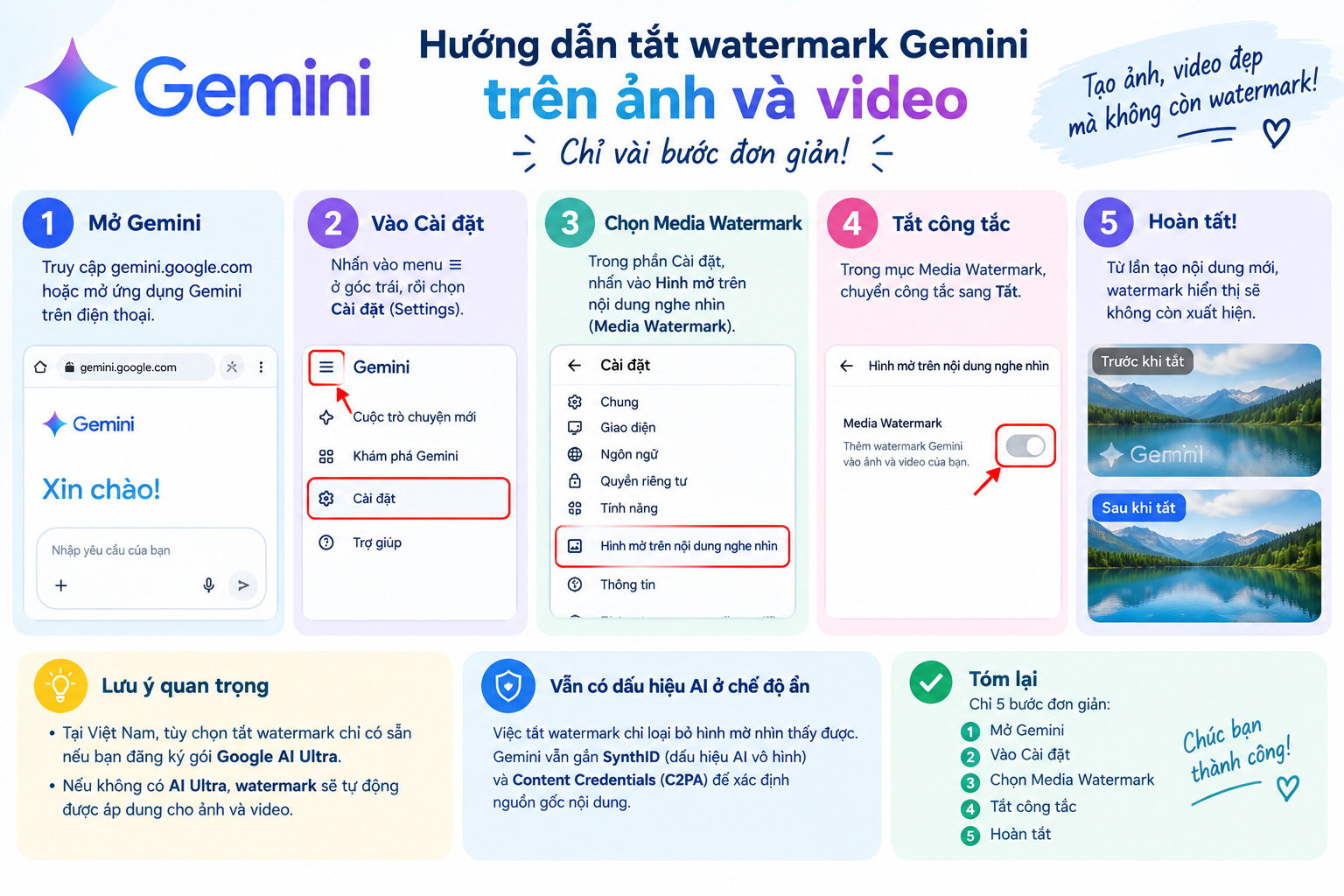
4.1. Step 1: Open Gemini and log in to your account.
First, open Gemini on your phone or laptop and log in using the Google account you use to create photos and videos. If you're already logged in, simply check the account icon on the main interface to make sure you're using the correct account.
This is a crucial step because Media Watermark is managed per account and depends on the support capabilities of each service plan. If you are using multiple Google accounts simultaneously, switch to the correct account with access to the feature before proceeding with the next steps.
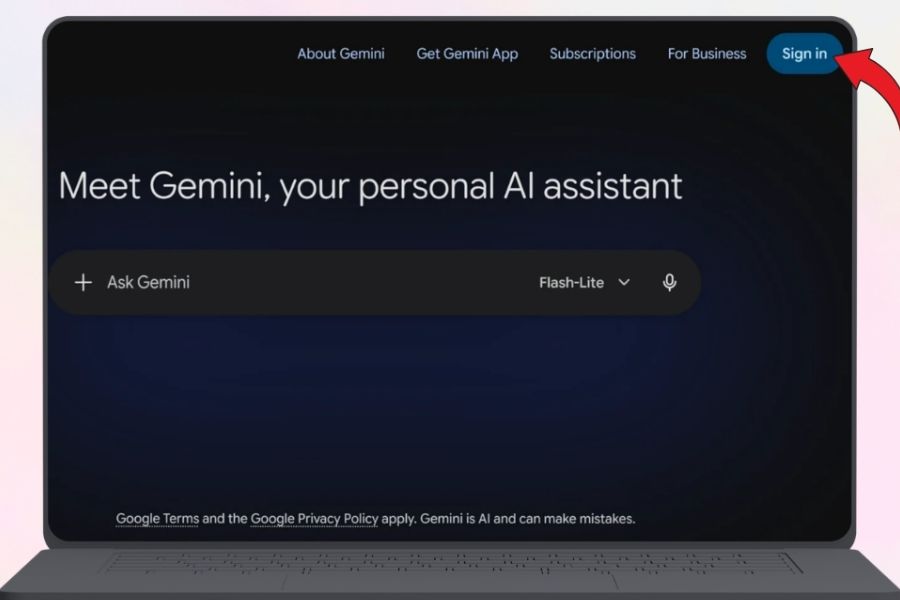
4.2. Step 2: Open Gemini's Settings
After accessing the Gemini interface, find your profile picture or account icon . On a computer, this icon is usually located in the corner of the interface; on a phone, its location may vary depending on the application version.
Tap the account icon, then select Settings to open the settings area. This is where Gemini focuses on options related to your account, user experience, and supported features. You should work directly within the settings instead of trying to remove the watermark using an external application.

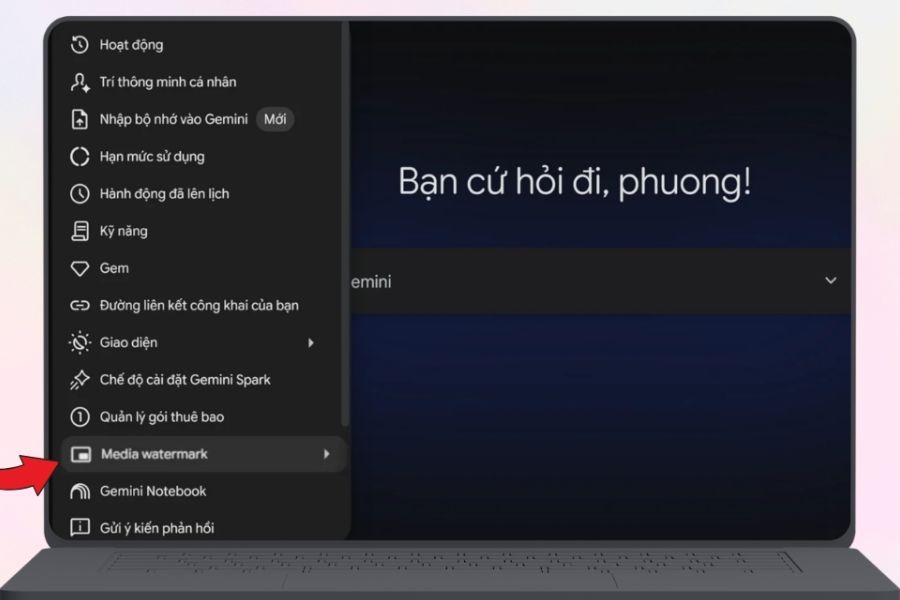
4.3. Step 3: Find the Media Watermark section
In the Settings page, scroll down to find the option called Media Watermark . If your account is supported, this will appear in the settings list so you can manage the watermark status on content created with Gemini.
Please read the option name carefully before making any changes. Media Watermark relates to the display identifier, so it's different from the AI source recognition technologies integrated into the file. If you can't find this item, you should check your service plan, update Gemini, or try logging in with a different supported account.
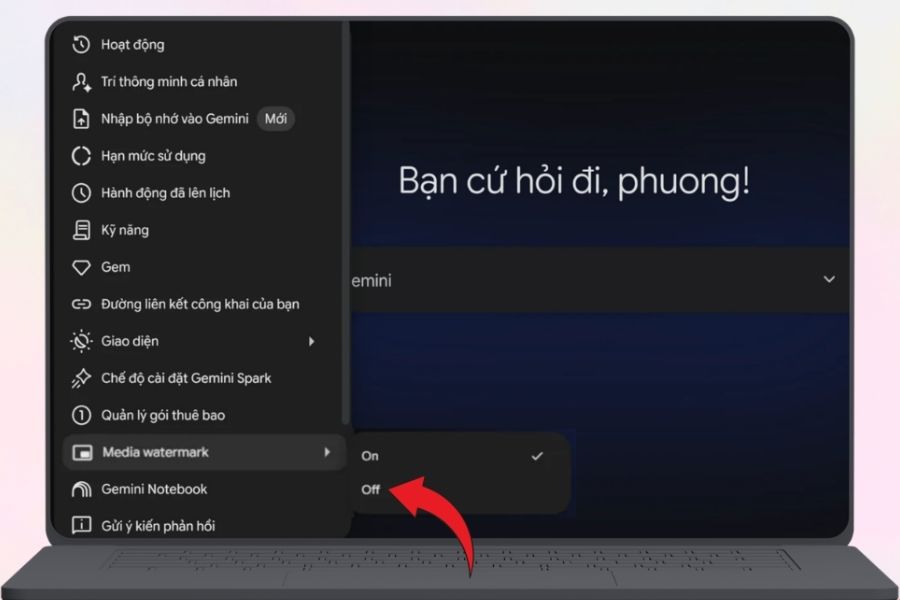
4.4. Step 4: Turn Media Watermark to Off
Once you've found Media Watermark , tap the switch next to it to change it from On to Off . After making the change, check the interface again to ensure the option has been successfully turned off.
Typically, you don't need any additional software to do this. After disabling Media Watermark, create a new image or video using Gemini to test. Note that changing the settings doesn't necessarily make the watermark disappear from previously created content.
4.5. Step 5: Create new content and test the results
After disabling the Media Watermark, return to the content creation interface and ask Gemini to create a new image or video. Use similar content to a previous product if you want to easily observe the differences between the two results.
If the new content no longer displays the watermark, the setup process is complete. If the watermark still appears, you can try closing and reopening Gemini, updating the app or browser, and checking the Media Watermark status in Settings again.
5. Why do old Gemini photos and videos still have watermarks?
One of the common problems after disabling media watermarks is that users may still see the watermark when reopening old photos or videos. This doesn't necessarily mean the watermark removal attempt failed.
Changing the Media Watermark primarily affects content created after you change the settings . Files previously created by Gemini may have already contained a watermark from the moment they were exported, so switching the toggle to Off will not automatically revert to editing all the old content.
If you need a new version without a watermark, the simplest way is to recreate the content after the Media Watermark has been turned off. For important images or videos, you should check the results immediately after creation to avoid having to redo it multiple times.
6. Important notes when disabling Media Watermark
Before using images or videos without watermarks, you should check the intended use and the publishing platform's regulations. For social media content, advertisements, commercial materials, or product descriptions, some platforms may require transparent attribution information. You should also avoid attempting to remove or manipulate hidden attribution information simply to make your content look like a handcrafted product. Disabling visible watermarks and removing attribution data are two completely different issues. Understanding this will help you use Gemini conveniently while maintaining the necessary transparency.
Some important points to note include:
-
Not all accounts have Media Watermarks , especially if the service plan or region is not supported.
-
Older content may still have a watermark , even if you've switched the option to Off.
-
You should create new content after turning it off to accurately test the results.
-
If the watermark still appears, try updating your app or browser and then check again.
-
Turning off the watermark display does not mean deleting SynthID or C2PA .
-
When using AI content for commercial purposes, you should also check the terms of use and require attribution of the source where it was published.
7. Conclusion
If your goal is a cleaner display, Media Watermarks can be a useful option when supported. Disabling visible watermarks gives you more control over how images or videos are presented, especially when incorporating them into designs, posts, or presentations. However, remember that visible watermarks are only one part of the AI content recognition system. Disabling Media Watermarks doesn't remove hidden watermarks or source information that may be retained in the file. Therefore, think of this as hiding visible watermarks , rather than completely deleting AI-related information.





















VIP Products








Best Selling Products
Windows 10 & 11 Pro Key
36 USD
Adobe Premiere Pro Account
99 USD
ChatGPT Plus Account (GPT-4)
16 USD
Upgrade Genuine Office 365
49 USD
MidJourney Account
29 USD
Adobe Photoshop Copyright - Full App
120 USD
Genuine Adobe Illustrator account
99 USD
Upgrade genuine Capture One account
120 USD
Capcut Pro 1 Year
39 USD
Copyright Adobe Lightroom Account
59 USD
Upgrade Duolingo Super
29 USD
Genuine Cheap Canva Pro
39 USD
Plugin Retouch4me
69 USD
Freepik Premium Account
59 USD
Autodesk All App Account Copyright
120 USD