Best Selling Products

ChatGPT Plus Account (GPT-4)
16 USD
Genuine Adobe Illustrator account
99 USD

Freepik Premium Account
59 USD
Autodesk All App Account Copyright
120 USD

MidJourney Account
29 USD
Upgrade Duolingo Super
29 USD
Upgrade Genuine Office 365
49 USD
Adobe Photoshop Copyright - Full App
120 USD
Copyright Adobe Lightroom Account
59 USD
Upgrade genuine Capture One account
120 USD
Windows 10 & 11 Pro Key
36 USD
Plugin Retouch4me
69 USD
Genuine Cheap Canva Pro
39 USD
Adobe Premiere Pro Account
99 USD

Capcut Pro 1 Year
39 USD
DPI and PPI: How They Differ and How They Affect Image Quality
Nội dung
In graphic design, photography, and printing, DPI and PPI are two terms that appear so often that many people automatically treat them as the same thing. In reality, the two concepts describe two completely different aspects of resolution, and confusing them is a common cause of printed images that come out blurry, grainy, or not at the intended size. This article will help you understand the nature of each concept, how each is measured, how they relate to digital images, and how to choose suitable parameters for each purpose.
1. Definition of DPI
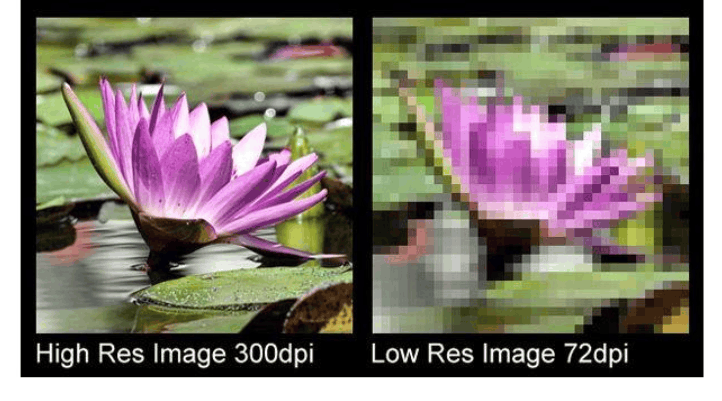
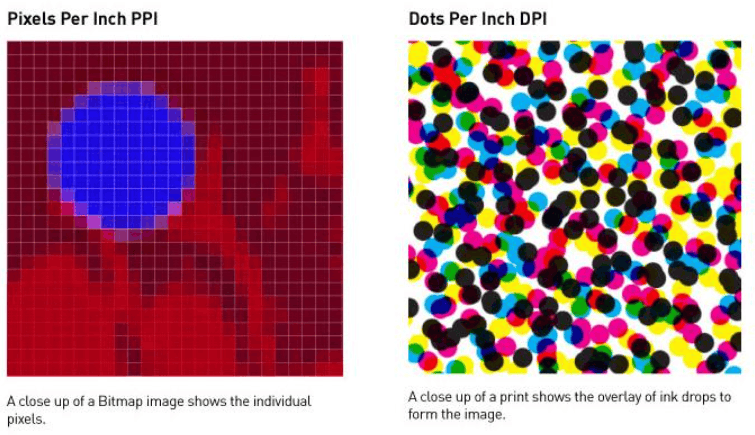
DPI stands for dots per inch, meaning the number of dots per inch. It is a measure of the density of ink dots that a printer or scanner can produce or capture within one linear inch. In other words, DPI tells you how many tiny ink dots a device can place along a one-inch length of paper.
In printing, the higher the DPI, the denser and smaller the ink dots are, so lines, outlines, and tonal transitions are reproduced more smoothly. A 300 DPI print usually gives a noticeably sharper and more detailed image than a 72 DPI print, because the human eye has difficulty distinguishing individual dots at high density and perceives them as a continuous area of color. This is also why quality publications such as magazines, business cards, and art prints are usually printed at 300 DPI or higher.
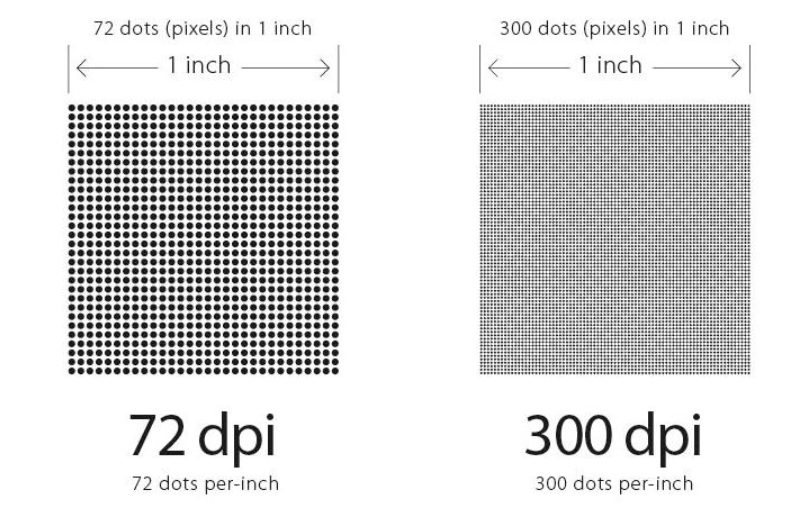
For scanners, DPI represents the level of detail the device captures from the original. Scanning a photo at 600 DPI means that for every inch of the photo, the scanner samples 600 points in each direction, so you can enlarge the scan further while still keeping it clear.
How to measure DPI
DPI is determined by counting the number of dots that fit within a one-inch length. This value is usually a specification published by the printer or scanner manufacturer, for example 600 DPI, 1200 DPI, or 2400 DPI. Note that a printer's DPI is the capability of the device, while the actual quality of a print also depends on the type of paper, type of ink, printing technology, and the quality of the original image file. Even a printer with a very high DPI cannot turn an image file with too few pixels into a sharp print.
2. Definition of PPI
PPI stands for pixels per inch, meaning the number of pixels per inch. It is a measure of the pixel density of a screen or of a digital image when displayed at a certain physical size. A pixel is the smallest unit of a digital image, each carrying a specific color value, and millions of pixels combined create the complete image you see.
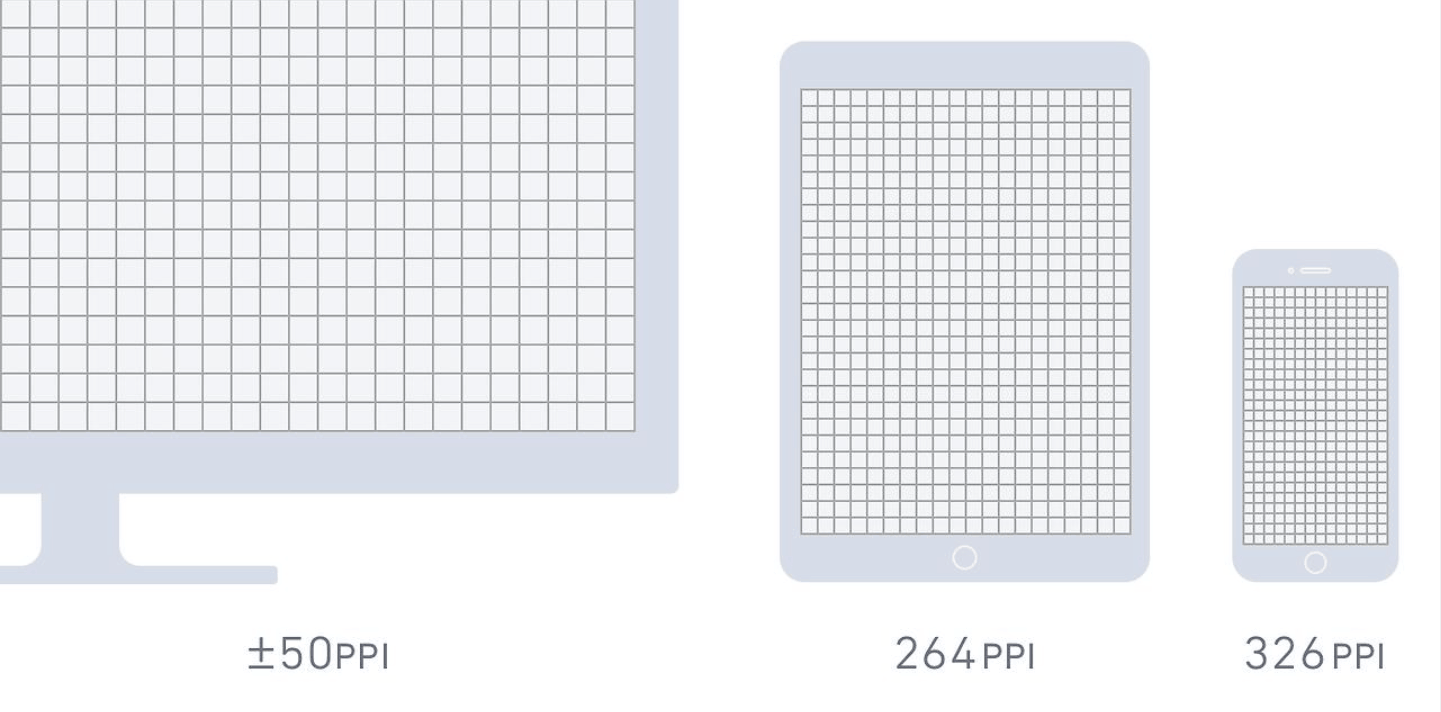
PPI is especially important for smartphones, tablets, computer monitors, and TVs, where the sharpness of text and images directly affects the user experience. A high-PPI screen has very small pixels that are hard to notice with the naked eye, so text looks smoother and images are richer in detail. Conversely, a low-PPI screen easily reveals individual pixels, creating a jagged or grainy feel when viewed up close.
How to measure PPI
To calculate PPI accurately, you need to know the physical size of the screen or image, because PPI is the ratio between the number of pixels and the actual length in inches. For a screen, the standard method is to divide the number of pixels along the diagonal by the length of the screen's diagonal. The number of pixels along the diagonal is calculated as the square root of the sum of the squares of the width and height in pixels.
Take a 15-inch screen with a resolution of 1920 x 1080 as an example. The screen's diagonal in pixels is the square root of (1920 squared plus 1080 squared), or about 2203 pixels. Divided by 15 inches, we get about 147 PPI. For a 6-inch phone with a resolution of 2400 x 1080, the diagonal is about 2632 pixels, corresponding to nearly 439 PPI, much higher than a computer monitor, which is why text on modern phones looks so smooth.
The relationship between PPI, screen size, and resolution needs to be considered together. Two screens with the same resolution but different sizes will have different PPI, because a larger screen has to spread the same number of pixels over a wider area. Therefore, a smaller screen with the same resolution always has a higher pixel density.
3. Understanding the difference between DPI and PPI
The core difference lies in what each metric describes. DPI refers to the physical ink dots a printer creates on paper, while PPI refers to the digital pixels in an image file or on a screen. One belongs to the physical world of ink and paper, the other to the digital world of data and light.
To understand this better, it is necessary to distinguish between an image's technical specifications and its actual quality. Technical specifications such as resolution, color space, and file format tell you the basic properties of an image. Resolution determines the total number of pixels, which in turn affects size and level of detail. Color space determines the range and accuracy of colors that can be displayed or printed. File format dictates how image data is compressed and stored, ensuring compatibility with many software programs and devices.
However, these specifications do not guarantee the final image quality. Image quality also depends on many other factors. Poor lenses or optics can cause blur and distortion even when the file specifications are very high. Noise, meaning random variation in brightness or color, creates unwanted grain. Color or edge misregistration causes color layers to fail to line up when printed. And pixelation occurs when an image is enlarged too much relative to its original resolution, losing sharpness and detail.
Photographers, graphic designers, and people who work with images, when they understand this boundary clearly, will make more accurate decisions, both ensuring the specifications meet requirements and preserving the highest visual quality.
4. Learning about digital images
Digital images are present in everyday life, from photos taken with a phone to graphics on websites and social media. In essence, a digital image is a grid of many rows and columns of pixels, each pixel storing a color value. The number of pixels across the width and height forms the image's resolution, for example 4000 x 3000 pixels, equivalent to about 12 megapixels.
Besides resolution, there are three fundamental factors to understand when working with digital images. The first is file format, such as JPEG, PNG, WEBP, or TIFF, each with its own compression method and characteristics. JPEG suits photographs thanks to its small file size, PNG keeps lines crisp for graphics and supports transparent backgrounds, and TIFF is often used when high quality is needed for printing. The second is color space, for example sRGB for screens and the web, or CMYK for printing, which determines how colors are represented and reproduced. The third is compression technique, including lossless and lossy compression, which affects both file size and the integrity of the image.
Understanding these fundamentals helps you not only enjoy the beauty of digital images but also work with them more effectively, whether you are a photographer, a designer, or simply someone who wants to reprint memorable photos in the best possible quality.
5. The relationship between DPI, PPI, and digital images
Although they are often used interchangeably, DPI and PPI play two different roles in the life cycle of a photo. PPI is tied to the image file and the screen, representing pixel density when the image is displayed or intended to be printed at a certain size. DPI is tied to the device that outputs to paper, representing the density of ink dots the printer uses to reproduce those pixels.
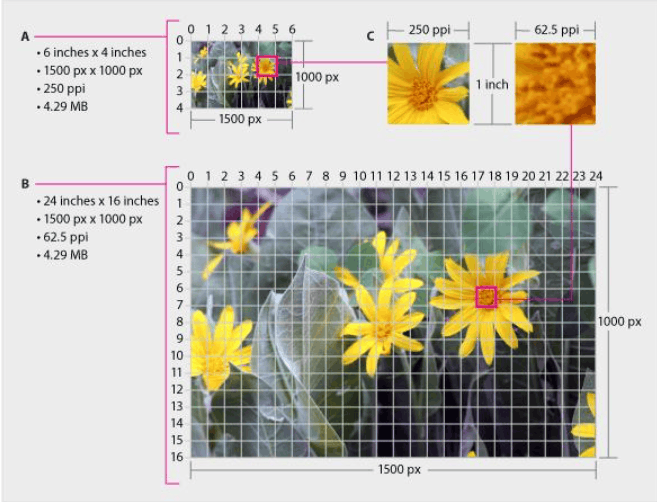
For screens, PPI is the metric that determines sharpness, especially when the viewer is at a close distance. For printing, the printer's DPI determines how fine the detail is on paper, but the final quality is only achieved when the image file has enough pixels for the desired print size. If an image has too few pixels, no matter how powerful the printer is, it can only reproduce that lack of information, and the result is a blurry or grainy print.
In practice, these two metrics are linked through a simple calculation. The number of pixels required equals the print size in inches multiplied by the desired density. For example, to print a photo 10 inches wide and 10 inches tall at 300 PPI, the image file needs to be 3000 x 3000 pixels. To print at A4 size at 300 PPI, you need about 2480 x 3508 pixels. This ratio is roughly one pixel per ink dot at the basic level, but in reality many printers use multiple small ink dots to simulate one pixel, so a printer's DPI is often much higher than an image's PPI.
Therefore, the two terms cannot be interchanged. An image file's PPI can affect the print result, while a printer's DPI does not change the number of pixels already in the file. Confusing the two concepts can lead to wrong assumptions about quality and output results.
6. Conclusion
DPI and PPI differ by only one letter but belong to two different worlds. DPI reflects the ability to reproduce detail with ink on paper, while PPI reflects pixel density on screens and in digital image files. When you understand the relationship between them correctly, you will know what image file size to prepare for each purpose, avoid grainy prints, and make the most of your display device's quality. Always start from the final intended use, then work backward to calculate the number of pixels needed, and your images will always reach the quality you want.








VIP Products


Best Selling Products
ChatGPT Plus Account (GPT-4)
16 USD
Genuine Adobe Illustrator account
99 USD
Freepik Premium Account
59 USD
Autodesk All App Account Copyright
120 USD
MidJourney Account
29 USD
Upgrade Duolingo Super
29 USD
Upgrade Genuine Office 365
49 USD
Adobe Photoshop Copyright - Full App
120 USD
Copyright Adobe Lightroom Account
59 USD
Upgrade genuine Capture One account
120 USD
Windows 10 & 11 Pro Key
36 USD
Plugin Retouch4me
69 USD
Genuine Cheap Canva Pro
39 USD
Adobe Premiere Pro Account
99 USD
Capcut Pro 1 Year
39 USD