Best Selling Products

Plugin Retouch4me
69 USD

Adobe Premiere Pro Account
99 USD

Capcut Pro 1 Year
39 USD

Upgrade Duolingo Super
29 USD

Copyright Adobe Lightroom Account
59 USD

MidJourney Account
29 USD

Genuine Adobe Illustrator account
99 USD

Upgrade genuine Capture One account
120 USD

Upgrade Genuine Office 365
49 USD

Windows 10 & 11 Pro Key
36 USD

Adobe Photoshop Copyright - Full App
120 USD

Autodesk All App Account Copyright
120 USD

Genuine Cheap Canva Pro
39 USD

Freepik Premium Account
59 USD

ChatGPT Plus Account (GPT-4)
16 USD
ElevenLabs AI User Guide: Creating Speech from Text is Extremely Easy
Nội dung
- 1. What is ElevenLabs AI?
- 2. Notable features of ElevenLabs AI
- 2.1. Converting text to natural speech
- 2.2. Selecting and customizing the voice
- 2.3. Multi-language support
- 3. How to register for an ElevenLabs AI account
- 4. How to use ElevenLabs AI to create speech from text
- 4.1. Enter the text you want to convert to speech.
- 4.2. Choose the appropriate voice
- 4.3. Adjusting your voice delivery
- 4.4. Create and listen to a sample audio clip.
- 5. Tips for writing text that ElevenLabs can read more naturally.
- 6. How to use ElevenLabs AI on your phone
- 7. Is ElevenLabs AI free?
- 8. Conclusion
Want to turn a piece of text into a natural-sounding voiceover but don''t want to spend hours recording yourself? ElevenLabs AI can help you solve this with just a few simple steps. Instead of preparing microphones, a studio, or complex audio editing, you simply input your content, choose a suitable voiceover, and let the AI handle the rest. This tool is particularly popular among content creators due to its ability to create nuanced voiceovers suitable for videos, podcasts, audiobooks, lectures, and many other audio content. In this article, let''s explore how to use ElevenLabs AI from A to Z, from account registration and voice selection to text-to-speech conversion and some tips to make the AI voice sound more natural.
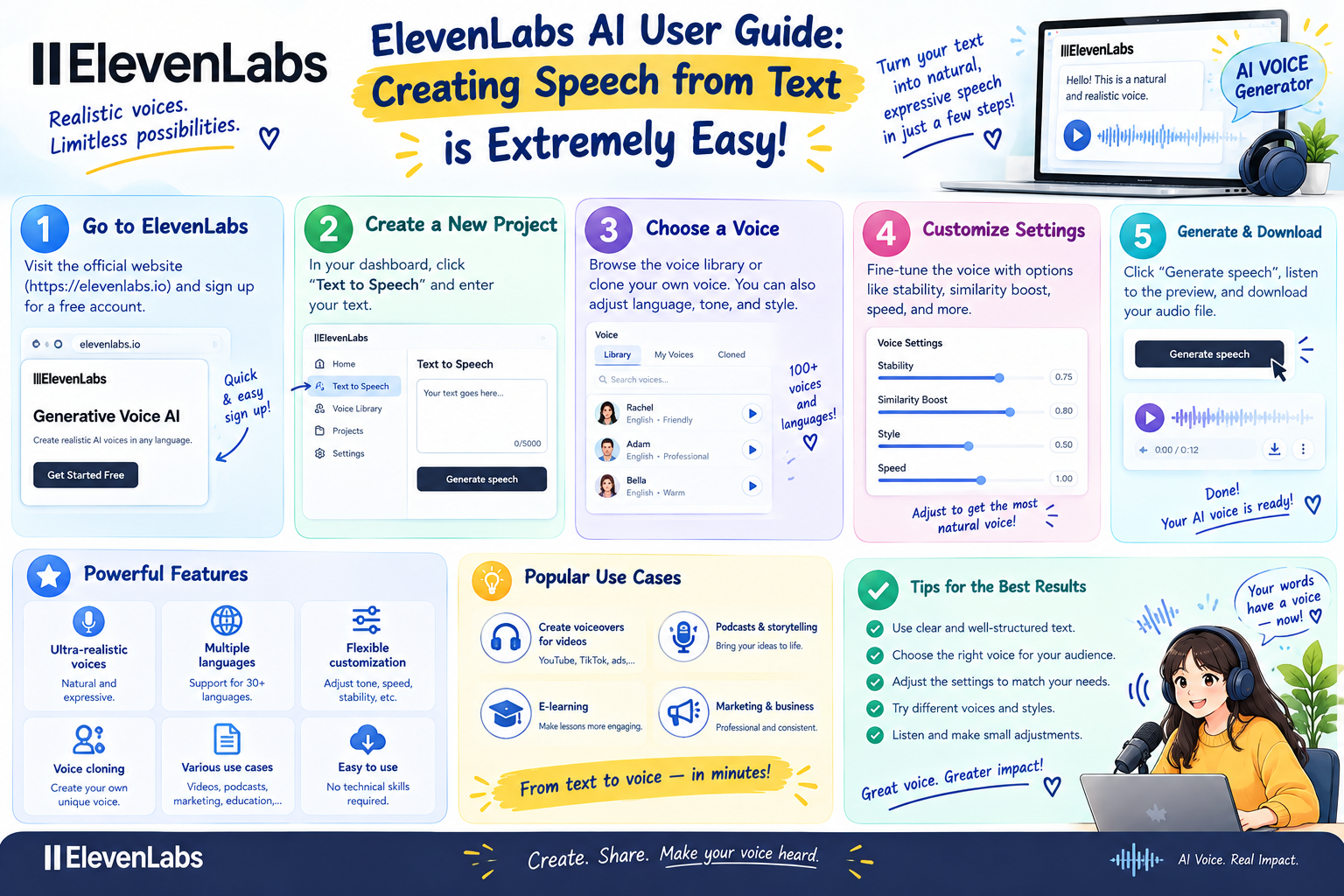
1. What is ElevenLabs AI?
ElevenLabs AI is an artificial intelligence-based tool for creating speech from text. Instead of simply reading words mechanically, AI can generate audio with rhythm, intonation, and sentence stress that better suits the content. This is why ElevenLabs is gaining attention in the field of audio content production. With this tool, you can turn a pre-written script into an audio file without directly recording your voice. This is especially convenient for creating short videos, YouTube videos, podcasts, audiobooks, or educational content.
Some of the highlights of ElevenLabs AI include:
-
Convert text to speech using AI.
-
Offers a wide selection of voice options and performance styles.
-
Supports multiple languages.
-
Allows customization of how voice is expressed.
-
It can be used for many different types of content.
-
It helps creators save time on recording and post-production.
2. Notable features of ElevenLabs AI
Before you begin, you should know what ElevenLabs can do. Understanding each feature will help you choose the right tool instead of simply typing text and creating audio.
Affordable ElevenLabs AI Upgrade
2.1. Converting text to natural speech
This is the most commonly used feature. You simply prepare the content you want to read, enter it into the text input area, and choose a suitable voice. The AI will process the content to create a corresponding audio clip.
This feature is suitable for many situations, such as:
-
Read voiceovers for TikTok, Reels, or YouTube videos.
-
Create podcast content.
-
Make audiobooks.
-
Create online lectures.
-
Read the product description.
-
Create an introduction for your video.
The key point is that the quality of the input text directly affects the output voice . A script with short sentences, clear punctuation, and natural expression will generally produce a more palatable result.
2.2. Selecting and customizing the voice
ElevenLabs offers a variety of voice options so users can find a style that suits their content. A storytelling video might need a deep, slow voice, while a short video might be better suited to a faster, more energetic reading style.
When choosing a voice, you should consider:
-
Gender and voice type.
-
Low or high pitch.
-
Reading speed.
-
It feels appropriate to the content.
-
The target audience.
-
The style of the video or brand.
2.3. Multi-language support
If you frequently produce content for multiple audience groups, ElevenLabs' multilingual support will be quite useful. You can create content in different languages without having to record each version yourself.
However, when creating multilingual content, you should still double-check the pronunciation of proper names, place names, technical terms, and words that are easily confused with others.
3. How to register for an ElevenLabs AI account
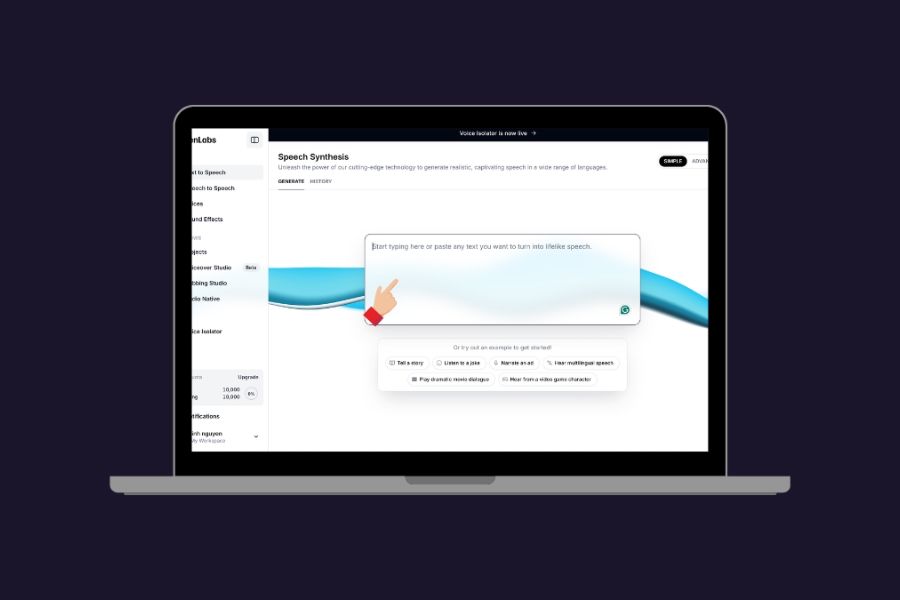
To begin creating voices, you first need to register an ElevenLabs account. This process is relatively simple and can be done directly on the website.
Steps to follow:
-
Step 1: Access the ElevenLabs website.
-
Step 2: Choose Log in or register an account.
-
Step 3: Log in using your Google account or email, as provided.
-
Step 4: Complete the verification steps if required by the system.
-
Step 5: After successfully logging in, access the voice creation interface.
Once completed, you can begin exploring ElevenLabs' features. If it's your first time using it, try a short text first to familiarize yourself with the interface and voice selection.
4. How to use ElevenLabs AI to create speech from text
This is the most important part if your goal is to convert text to speech using ElevenLabs AI . The process is generally quite intuitive, but for a natural-sounding audio experience, you should pay attention to both the content and the voice settings.
4.1. Enter the text you want to convert to speech.
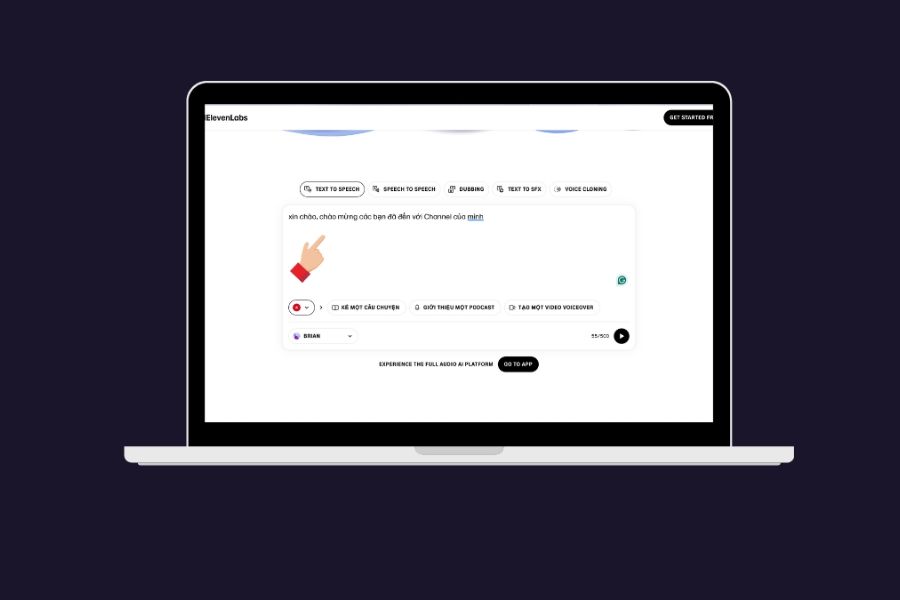
After logging in, access the voice creation area and find the text input box. This is where you enter the content you want the AI to read aloud.
You can import a short snippet to test it out first instead of providing the entire script right from the start.
When preparing your document, please note:
-
Write relatively clear sentences.
-
Use periods and commas appropriately.
-
Divide the long segment into smaller parts.
-
Check for spelling errors before creating.
-
Write numbers, symbols, and proper names in a way that is easy to pronounce.
-
Avoid sentences that are too long or contain too many ideas.
For example, instead of writing one long, continuous paragraph, you could break it down into individual sentences:
"Looking for a way to create speech using AI? ElevenLabs can help you turn text into audio with just a few taps."
This writing style helps to create clearer pauses in the spoken text.
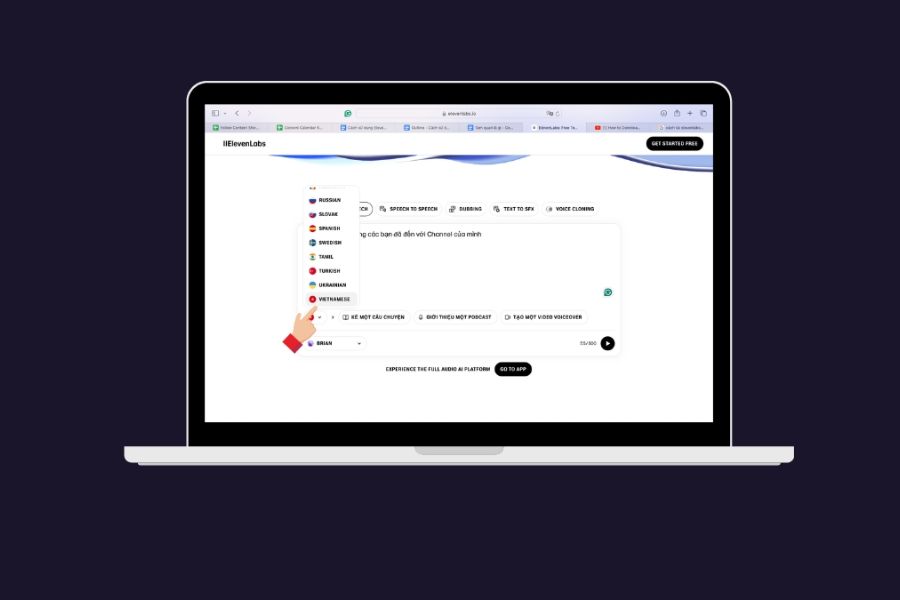
4.2. Choose the appropriate voice
After entering the text, the next step is to choose a voice to read aloud. This is a stage where you should take the time to experiment, because the same content will create a completely different feeling depending on the voice.
You can prioritize the following voice types:
-
Keep it light and gentle for sharing content and storytelling.
-
Clearly, this is a tutorial video.
-
Energy for short videos.
-
Slow and deliberate pace is key for storytelling.
-
Natural fit for podcasts or audiobooks.
If you're unsure which voice to choose, try the same passage with a few different options and compare them. Simply changing the voice can sometimes make a significant difference to the overall feel of the video.
4.3. Adjusting your voice delivery
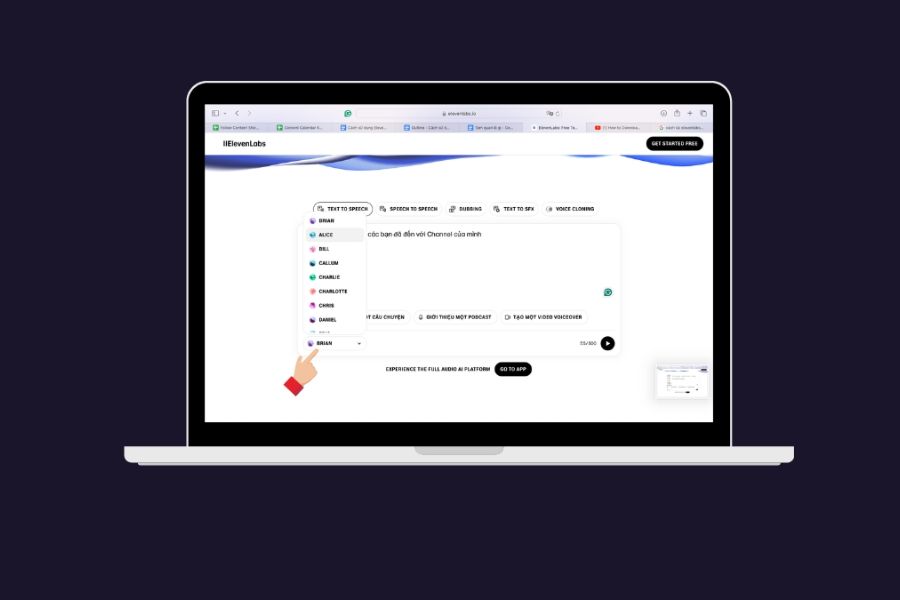
After selecting a voice, you can fine-tune the settings provided by ElevenLabs depending on the tool and account plan you are using.
The goal isn't always to make the reading voice very fast or very loud. An appropriate reading voice should match the content.
For example:
-
Instructions should prioritize clarity of reading.
-
The narrative should have a gentle rhythm.
-
The promotional video might need a more energetic voiceover.
-
Podcasts should prioritize a sense of intimacy and ease of listening.
-
Educational videos should avoid being too fast-paced.
If your voiceover sounds unnatural, try adjusting each element individually instead of changing everything at once. This way, you can more easily identify which settings are making the difference.
4.4. Create and listen to a sample audio clip.
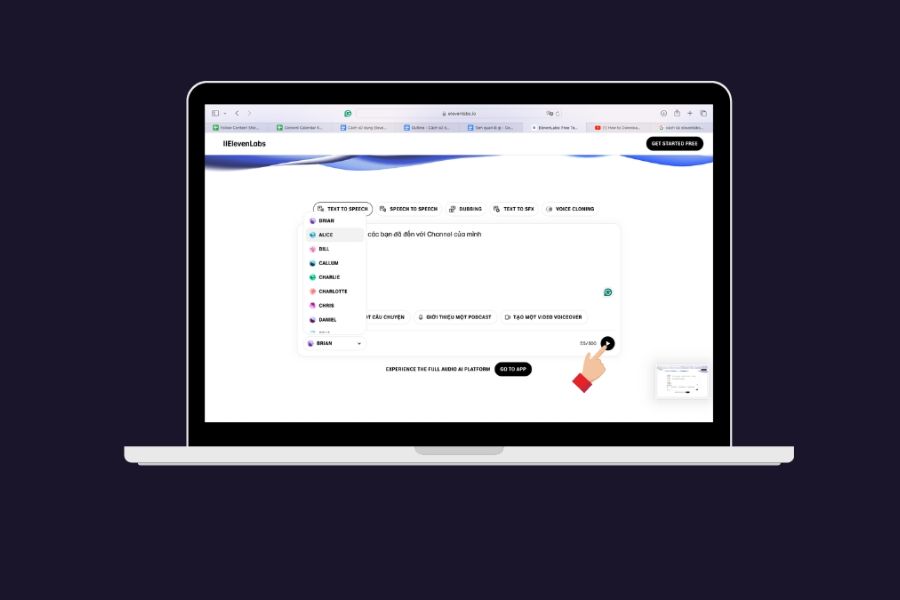
Once you've finished the content and chosen your voice, you can proceed with creating the audio. After the system processes it, listen to the entire segment you've created.
Don't use the first file right away. Check it carefully:
-
How to pronounce words.
-
Is the reading pace fast or slow?
-
Sentence break point.
-
Foreign words.
-
Proper nouns and technical terms.
-
Do the emotions match the content?
-
Are there any sentences that sound too robotic?
If you're not satisfied, you can edit the text or change the settings and recreate it.
5. Tips for writing text that ElevenLabs can read more naturally.
Many people think that a good AI tool alone will guarantee a good voiceover. In reality, the input script plays a crucial role . The same AI voice can create a completely different listening experience depending on how it's written.
To make the reading experience more natural, you can apply some of the following tips:
-
Break sentences down appropriately: Sentences that are too long can easily lead to a lack of pauses in the reading voice.
-
Use punctuation marks: Periods and commas help create natural pauses.
-
Write as if you're speaking: Instead of using overly formal sentences, prioritize expressions that are closer to conversational style.
-
Check abbreviations: Some abbreviations may be mispronounced by the AI.
-
Pay attention to proper names: Names of people, brands, and places should be checked carefully.
-
Proofreading before publication: This is a simple step, but it helps uncover many unexpected errors.
A helpful tip is to silently read the script yourself before feeding it into the AI . If you yourself find the sentences difficult to read or lack pauses, the AI voice may also struggle to reproduce that part.
6. How to use ElevenLabs AI on your phone
If you frequently create content using your phone, you can find the ElevenLabs app on your respective app store and log in to your account to use the supported features.
The basic steps include:
-
Step 1: Open the App Store on your iPhone or Google Play on your Android device.
-
Step 2: Enter the keyword ElevenLabs into the search box.
-
Step 3: Verify that the application is correct before installing.
-
Step 4: Select Get or Install .
-
Step 5: Open the application after installation.
-
Step 6: Log in to your ElevenLabs account.
-
Step 7: Access the voice creation feature and follow the on-screen instructions.
Using a phone is suitable when you need to make quick edits or want to create content on the go. However, if you have to work with a long script or need to make many edits, a computer screen is usually more convenient.
Affordable ElevenLabs AI Upgrade
7. Is ElevenLabs AI free?
ElevenLabs offers a free trial option for users to experience its voice creation features. However, free accounts often come with limitations on character count, features, or usage. Specific limits may vary depending on the service and its policies. If your needs are basic, you can start with a free plan to get acquainted. When you need to create larger amounts of content or use more advanced features, you can consider the appropriate paid plans.
Before subscribing, you should check the current package information to know exactly what it is:
-
The number of characters used.
-
Features included in each package.
-
The right to use the content created.
-
Sound generation limits.
-
Advanced features.
-
The policy is for commercial purposes.
This is especially important if you use AI voices for business, advertising, or professional content production.
8. Conclusion
Using ElevenLabs AI to create speech from text is generally not too complicated. From registering an account, entering content, choosing a voice, to creating the audio file, most operations are quite intuitive. The important thing is choosing the right voice and preparing a script with clear wording and punctuation. If you're just starting out, you should try with a short piece of text first. After a few adjustments, you'll easily find a way to write and set up that suits your content style. When combined with video editing tools, users can build a faster and more efficient content production workflow while still creating dialogue that sounds natural and easy to listen to.





















VIP Products








Best Selling Products
Plugin Retouch4me
69 USD
Adobe Premiere Pro Account
99 USD
Capcut Pro 1 Year
39 USD
Upgrade Duolingo Super
29 USD
Copyright Adobe Lightroom Account
59 USD
MidJourney Account
29 USD
Genuine Adobe Illustrator account
99 USD
Upgrade genuine Capture One account
120 USD
Upgrade Genuine Office 365
49 USD
Windows 10 & 11 Pro Key
36 USD
Adobe Photoshop Copyright - Full App
120 USD
Autodesk All App Account Copyright
120 USD
Genuine Cheap Canva Pro
39 USD
Freepik Premium Account
59 USD
ChatGPT Plus Account (GPT-4)
16 USD