Best Selling Products

Freepik Premium Account
59 USD

ChatGPT Plus Account (GPT-4)
16 USD

Adobe Premiere Pro Account
99 USD

Windows 10 & 11 Pro Key
36 USD

Genuine Adobe Illustrator account
99 USD

MidJourney Account
29 USD

Plugin Retouch4me
69 USD

Genuine Cheap Canva Pro
39 USD

Copyright Adobe Lightroom Account
59 USD

Capcut Pro 1 Year
39 USD

Upgrade Duolingo Super
29 USD

Autodesk All App Account Copyright
120 USD

Upgrade Genuine Office 365
49 USD

Adobe Photoshop Copyright - Full App
120 USD

Upgrade genuine Capture One account
120 USD
Essential Secrets to Achieving White Balance
Nội dung
- 1. Information about white balance in photography
- 2. The operating principles of White Balance and its basic modes
- 2.1. How does white balance work?
- 2.2. White balance basis in different modes
- 2.3. Some tips when using White Balance
- 3. Guide to correcting white balance in post-processing and fixing color inaccuracies in photos.
- 3.1. Adjust White Balance in Lightroom or Camera Raw
- 3.2. Recovering JPEG images with incorrect white balance
- 3.3. When should the WB offset be kept unchanged?
- 4. Common white balance errors and how to fix them.
- 4.1. The image appears yellow due to indoor lighting.
- 4.2. Photos appear green when taken outdoors in shade or low light.
- 4.3. Multiple light sources with different temperatures
- 4.4. White balance is incorrect when shooting video.
Learn how WB works in different lighting environments, from warm indoor light to cool outdoor light, to ensure accurate color reproduction.
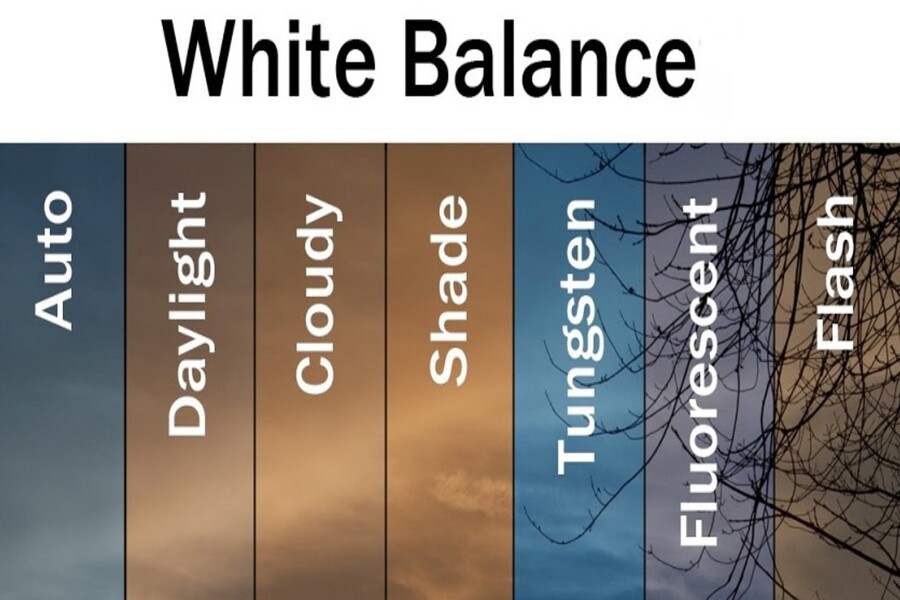
In photography and videography, white balance (WB) is a core tool for adjusting color, ensuring that whites are displayed accurately as the human eye sees them, and that other colors in the frame appear natural and neutral. Understanding and mastering WB allows photographers to create images that are not only color-accurate but also rich in emotion, style, and artistic value. This article will explain white balance in detail, from its operating principles and basic modes to post-processing adjustments and handling common errors, while also providing advanced tips to help you professionally control color.
1. Information about white balance in photography
White balance is a function in cameras and post-processing software that adjusts the colors of an image so that white is accurately displayed in all lighting conditions. When white is reproduced correctly, the other colors in the image appear true to life, without being off-tone, and create a natural, harmonious feel. White balance is not only a technical tool but also a crucial creative tool in photography.
In reality, image tone can be off depending on the lighting: incandescent lights will give the image a warm yellow tint, while LED lights or a gray environment will create a cool blue effect. White balance compensates for this, bringing the image back to a neutral state. For example, when shooting under yellow light, the camera will add a slight blue tint to prevent skin tones and whites from appearing "overexposed" to orange. Conversely, when shooting under cool blue light, WB will add a warm tone to avoid a cold image, resulting in a natural and harmonious picture.
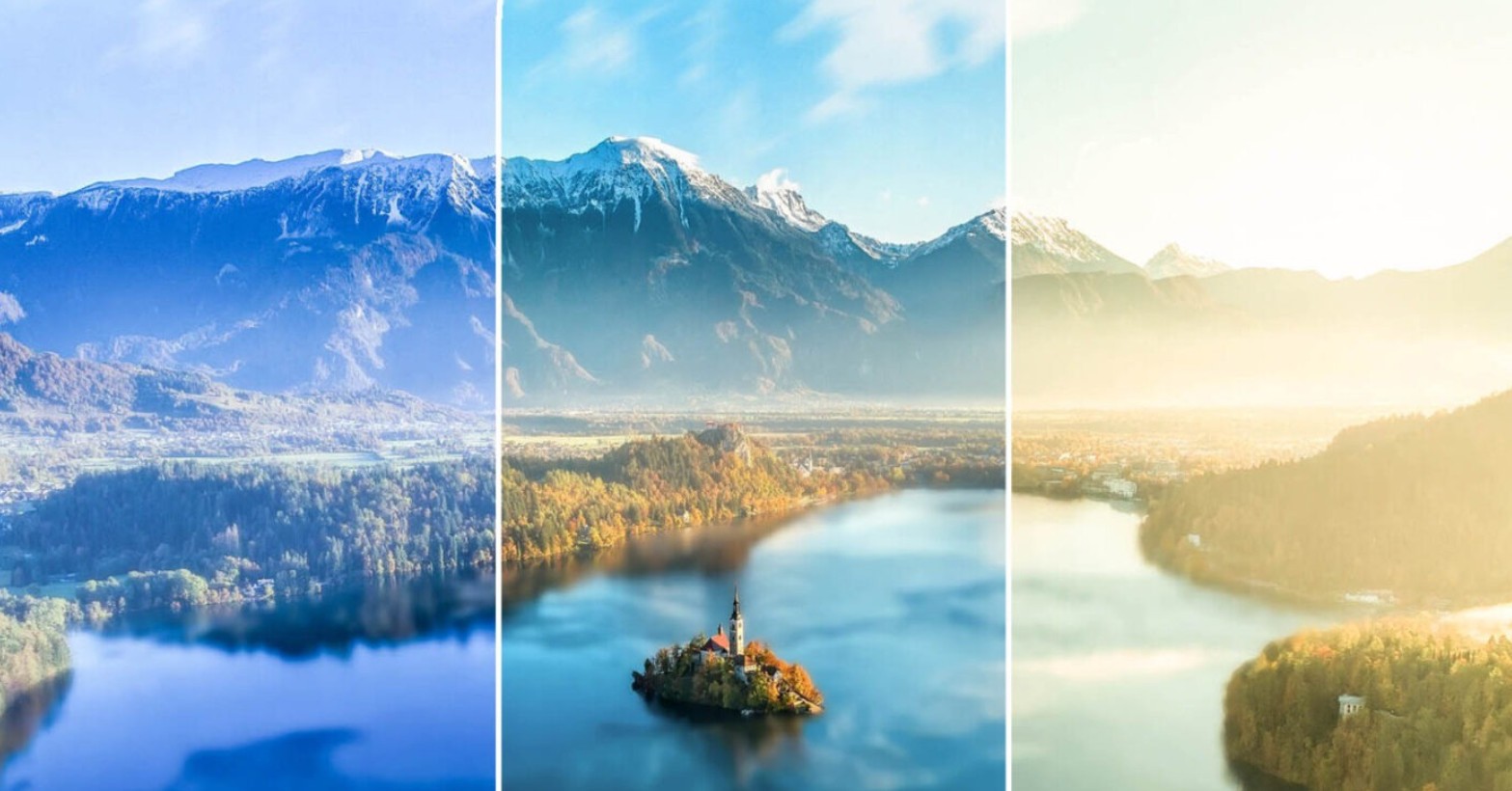
White balance isn't just a technical function. It's also a creative tool that helps photographers create their own mood, story, and style. A photo with slightly warm white balance will evoke a romantic, ethereal feeling, while a cool white balance will create a modern, sophisticated style or a sense of solitude and tranquility. Overall, white balance ensures accurate whites, precise colors, natural and professional images and videos, and can be used to develop a unique color style. Controlling white balance is a core step in helping photographers master color, minimize post-processing, and ensure high-quality output.
2. The operating principles of White Balance and its basic modes
2.1. How does white balance work?
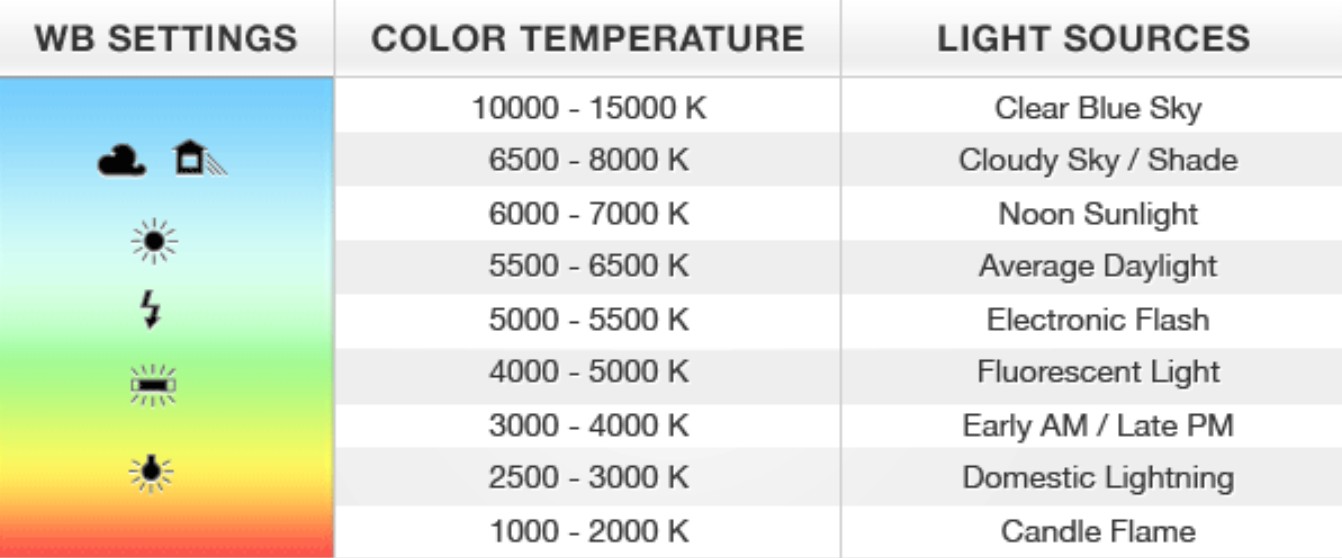
White balance is based on the principle of color temperature, measured in Kelvin (K), which describes the color of light in an environment. Low color temperatures produce warm, medium light close to daylight, while high color temperatures produce cool, bluish light.
Low color temperatures (2000K–3500K) are found in warm light sources such as incandescent lamps and candles, creating yellow or orange hues.
• Medium color temperature (5000K–5500K) is close to daylight, offering neutral, natural colors.
High color temperatures (6000K–9000K) produce a cool, bluish light, often seen in shadows, white LEDs, or dim afternoon light.
The human eye is capable of self-adjusting to accurately perceive colors in various environments, but cameras need white balance (WB) to balance and bring colors to a neutral state. Without WB, photos can suffer from severe color distortion, affecting skin tones, the sky, the sea, or objects in the scene.
For example, when shooting in a room with warm yellow lighting, the image will have a yellowish tint. White balance (WB) will automatically add blue tones to balance it, helping skin tones and other colors to be displayed accurately. When shooting outdoors on cloudy days, the cold blue light can make the image look lifeless; WB will compensate with warm tones to make the image more natural. Thanks to WB, the photograph achieves color fidelity, accurately reflecting the scene and the emotions the photographer wants to convey.
2.2. White balance basis in different modes
In cameras, white balance (WB) is typically set to three main modes: automatic, preset, and custom.
Auto White Balance (AWB) is a camera mode that automatically analyzes lighting conditions and adjusts colors to produce a more natural look. AWB is convenient for beginners, but it can sometimes be less effective in scenes with complex lighting, multiple light sources, or extremely bright light.
White Balance Presets are pre-set white balance modes corresponding to common lighting conditions such as daylight, sun, clouds, tungsten (yellow), fluorescent, or shade. Using presets saves time and ensures relatively accurate colors. For example, when shooting outdoors on a cloudy day, selecting the "Cloudy" preset helps to compensate for warmer light, making the photo feel more natural and vibrant.
Custom white balance (WB) allows users to capture a neutral white or gray image, which the camera then calculates and applies to the entire frame. Some cameras even allow direct input of color temperature in Kelvin, giving photographers precise control over color accuracy. This mode is particularly useful when professional color accuracy is required, for example in product photography, architecture, or video recording, where inaccurate colors can ruin composition and emotion.
2.3. Some tips when using White Balance
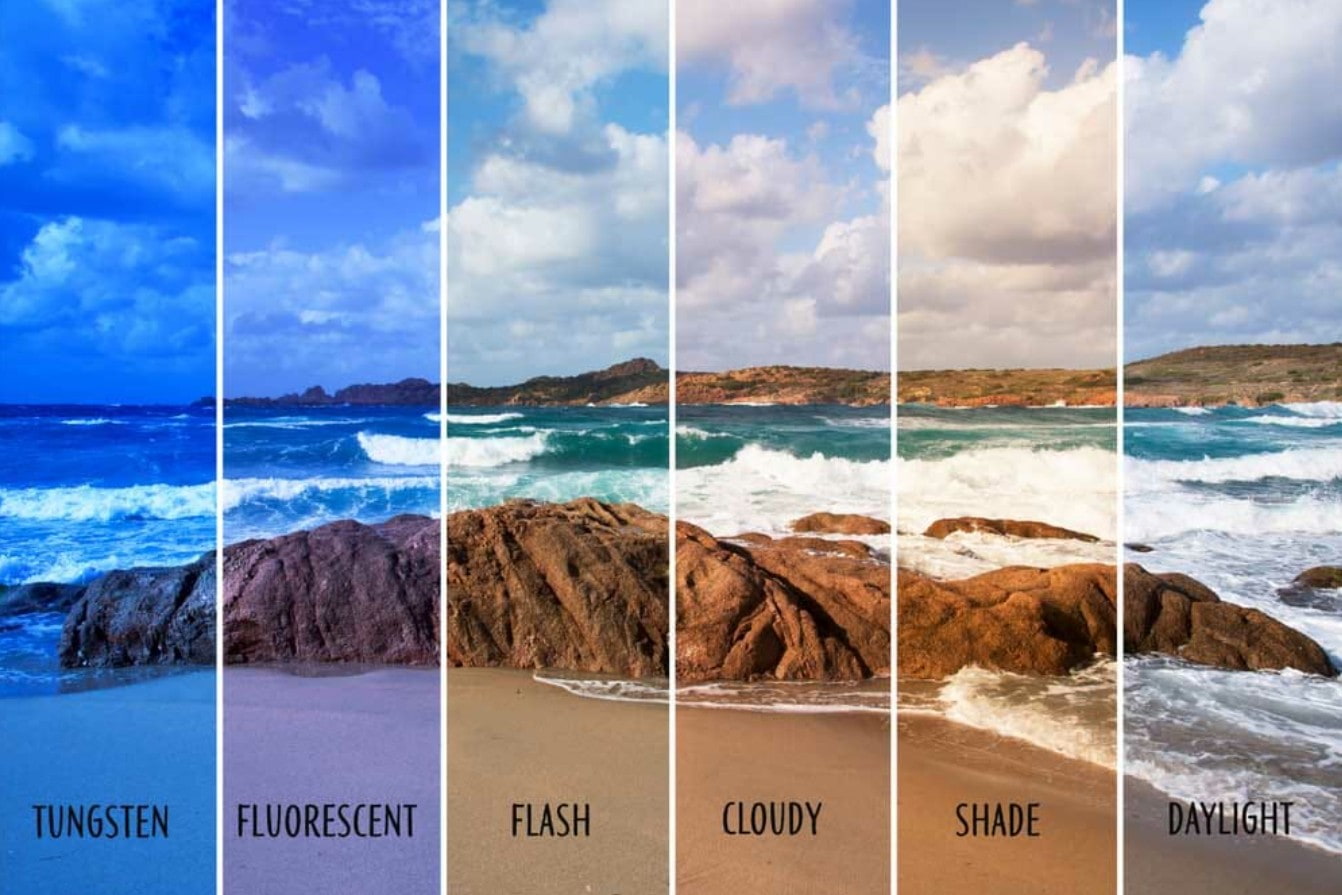
To effectively manage the budget, there are several practical principles and tips:
Always shoot in RAW format to easily adjust white balance in post-processing without compromising quality.
In stable lighting conditions, preset mode or custom white balance (WB) usually yields better results than automatic white balance (AWB).
Use a gray card or a dedicated white balance chart to establish color accuracy, especially useful when working with complex lighting or when high color accuracy is required.
When shooting video, always manually set the white balance before recording to avoid the auto mode constantly changing colors, which can make post-production difficult.
Understanding and correctly applying white balance (WB) settings will not only help photographers achieve accurate colors but also save time in post-processing, while increasing creativity in choosing tones that suit their artistic vision.
3. Guide to correcting white balance in post-processing and fixing color inaccuracies in photos.
Even when the white balance is set correctly at the time of shooting, there are still many cases where the image is color-shifted due to sudden changes in lighting or improper camera processing. Post-processing is a crucial step in restoring accurate colors and producing a natural, vibrant image.
3.1. Adjust White Balance in Lightroom or Camera Raw
With RAW images, adjusting the white balance hardly reduces the quality:
Open the image in Lightroom or Adobe Camera Raw.
Use the Eyedropper tool to click on the neutral area (gray or white) to automatically balance the colors.
Alternatively , adjust manually via the Temp and Tint sliders, where Temp adjusts from yellow to blue, and Tint adjusts from green to pink.
Combining the two sliders helps restore the natural tones of skin, sky, sea, or object surfaces, ensuring the image is both color-accurate and retains its emotional impact.
3.2. Recovering JPEG images with incorrect white balance
With JPEG images, the color data is compressed, making white balance adjustment more difficult, but it's still possible to improve it:
Use the White Balance tool in Photoshop or Lightroom, adjusting it moderately to avoid reducing quality.
Create additional adjustment layers such as Color Balance or Curves to adjust color in specific areas.
In the video , use DaVinci Resolve or Premiere Pro to adjust the white balance via the Color tab, fine-tune midtones and highlights.
3.3. When should the WB offset be kept unchanged?
Not every photo with a yellow or blue tint is a mistake. In many cases, a slight white balance deviation can create an artistic effect.
Sunset : Keep the golden hues to create a warm, romantic atmosphere in the photo.
Winter landscape : maintaining a cool blue light creates a feeling of coldness and tranquility.
Wedding photos : Warm tones enhance emotional depth and create a romantic atmosphere.
The key is for the photographer to understand the purpose of the photograph and adjust the white balance to match the emotion they want to convey, rather than mechanically following technical rules.
4. Common white balance errors and how to fix them.
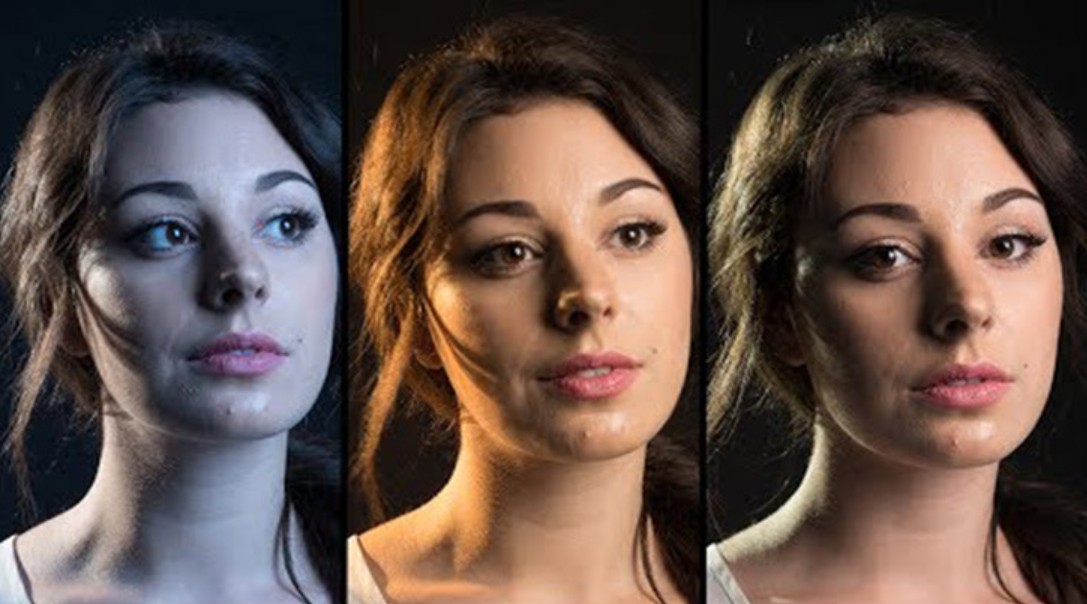
4.1. The image appears yellow due to indoor lighting.
Incandescent or fluorescent lights often cast a yellow or orange hue across the entire frame, especially noticeable on skin.
Solution: Switch to Tungsten White Balance mode or lower the color temperature to around 2800–3200K.
For RAW images: adjust the color temperature in post-processing to restore natural colors.
4.2. Photos appear green when taken outdoors in shade or low light.
Low light or shadows can cause the camera's automatic color compensation to be incorrect, resulting in cold, lifeless photos.
Solution: Increase the color temperature to 5500–7000K or select the WB Shade or Cloudy mode.
With RAW images: increase the warm tone to restore a natural feel and enhance emotional depth.
4.3. Multiple light sources with different temperatures
With both natural and artificial light, colors can appear patchy and inconsistent.
Solution: Limit the light source or use color-filtering gels to standardize the light temperature.
With RAW images: Shooting in RAW makes it easier to adjust the white balance in individual areas during post-processing.
4.4. White balance is incorrect when shooting video.
In the video, the WB Auto setting can change constantly as the lighting changes, making it difficult to control the color.
Solution: Manually set the white balance using a white card and fix the Kelvin value before shooting, ensuring color stability throughout the shot.
White balance is a crucial factor in determining the color and mood of a photograph or video. Understanding the principles of white balance, basic modes, post-processing editing techniques, and common error handling will help photographers create realistic, vibrant, and professional images.





















VIP Products








Best Selling Products
Freepik Premium Account
59 USD
ChatGPT Plus Account (GPT-4)
16 USD
Adobe Premiere Pro Account
99 USD
Windows 10 & 11 Pro Key
36 USD
Genuine Adobe Illustrator account
99 USD
MidJourney Account
29 USD
Plugin Retouch4me
69 USD
Genuine Cheap Canva Pro
39 USD
Copyright Adobe Lightroom Account
59 USD
Capcut Pro 1 Year
39 USD
Upgrade Duolingo Super
29 USD
Autodesk All App Account Copyright
120 USD
Upgrade Genuine Office 365
49 USD
Adobe Photoshop Copyright - Full App
120 USD
Upgrade genuine Capture One account
120 USD