Best Selling Products

Freepik Premium Account
59 USD

Copyright Adobe Lightroom Account
59 USD

MidJourney Account
29 USD

Autodesk All App Account Copyright
120 USD

Genuine Adobe Illustrator account
99 USD

Capcut Pro 1 Year
39 USD

Adobe Premiere Pro Account
99 USD

Upgrade genuine Capture One account
120 USD

Windows 10 & 11 Pro Key
36 USD

Plugin Retouch4me
69 USD

ChatGPT Plus Account (GPT-4)
16 USD

Upgrade Genuine Office 365
49 USD

Genuine Cheap Canva Pro
39 USD

Adobe Photoshop Copyright - Full App
120 USD

Upgrade Duolingo Super
29 USD
Google Drive files "vanished"? Here's a super simple way to recover them.
Nội dung
- 1. Common reasons for file loss on Google Drive
- 2. Instructions on recovering files using official Google tools.
- 3. Use the command-line interface for advanced recovery.
- 4. Troubleshooting during recovery and how to submit feedback.
- 5. Preventing future data loss on Google Drive
- 6. Important notes before and after data recovery
Data loss incidents on Google Drive are causing concern among many users as important files suddenly disappear. This article provides detailed instructions from Google to help you recover deleted files safely and effectively.

1. Common reasons for file loss on Google Drive
Before diving into the recovery instructions, it's essential to understand the possible reasons why files might be deleted or disappear from Google Drive. This will not only help you handle the situation correctly but also prevent repeating the same mistakes in the future.
One of the most common causes is synchronization errors between the device and the cloud system. When using Google Drive for Desktop on a computer, data is continuously synchronized between the local drive and the server. If this process is interrupted or an error occurs, files may be deleted or not display correctly.
Additionally, accidental deletion of files or folders by users is also a common cause. In many cases, users don't realize they have deleted or overwritten data.
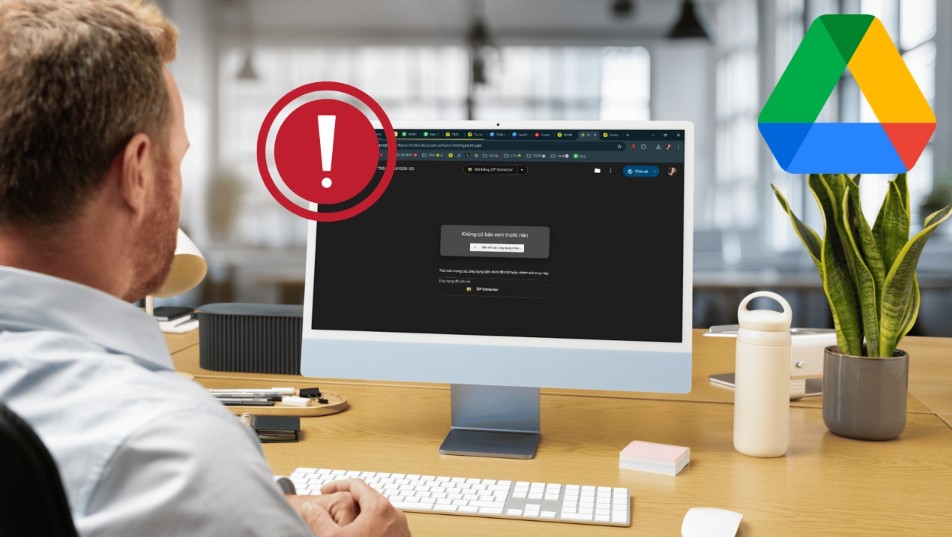
Another factor is system errors or software updates. Sometimes, older software versions can cause data conflicts or display errors. Therefore, Google always recommends users update to the latest version to ensure stability.
Security-related factors, such as unauthorized account access or hacking, cannot be ignored. In such cases, data could be deleted or altered without the user's knowledge.
Finally, storage capacity issues or local drive failures can also affect the ability to synchronize and store data.
2. Instructions on recovering files using official Google tools.
After confirming the issue, Google released specific instructions to help users recover lost files. This is the official and recommended first method.
First, users need to ensure that the Google Drive application on their computer is updated to the latest version. Google requires a minimum version of 85.0.13.0 on both Windows and macOS platforms. Updating ensures that you are using the latest data recovery tool with the necessary patches.
After updating, users should follow these steps:
Open the Google Drive application on your computer and find the application icon in the system tray. Next, press and hold the Shift key on your keyboard, then click the Drive icon to open the advanced menu.
In this menu, select Settings. When the settings interface appears, you will see the option “Recover from backups”. This is the data recovery tool provided by Google.

When this feature is activated, the system will begin scanning and searching for local backups. If available data is found, the tool will proceed to restore files that have not been synced or have been deleted.
During this process, users may receive several different notifications. If the backup is not found, the system will display a corresponding message. Conversely, if the data is found, the recovery process will be performed, and a completion message will appear at the end.
Another scenario is a "low disk space" notification. In this case, users need to free up more storage space before continuing.
3. Use the command-line interface for advanced recovery.
In some cases, users need to restore data to a specific location or from custom backup folders. For these needs, Google provides the option to use the command-line interface.
This method is suitable for users with technical or system administration knowledge. Through the command line, you can specify a particular path to recover data, instead of using the default location.
For example, if you've set up your Google Drive sync folder on a different drive or a custom folder, the command-line tool will allow you to directly access those backups.
Additionally, using the command line gives you better control over the recovery process, especially in complex work environments or enterprises.
However, it's important to note that incorrect operation in the command-line environment can lead to data loss or unintended overwriting. Therefore, before proceeding, you should back up your existing data and carefully read the instructions from Google.
4. Troubleshooting during recovery and how to submit feedback.
The recovery process doesn't always go smoothly. In some cases, users may encounter errors or be unable to recover their data as intended.
If you've used the recovery tool and it hasn't worked, Google recommends sending feedback directly through the Google Drive application on your computer. When sending feedback, you need to attach your diagnostic log so that the technical team can analyze it and provide better support.
An important detail is that you should add the hashtag #DFD84 to your response. This is an identifier that helps Google categorize and process cases related to the recent data loss incident.
Providing complete information, including when the incident occurred, the equipment used, and the steps taken, will help make the support process faster and more efficient.
Additionally, while the issue is being processed, users should avoid making major changes to Google Drive, as this may reduce the chances of recovering the data.
5. Preventing future data loss on Google Drive
Although Google has fixed the issue and provided a recovery tool, proactive prevention remains the most important factor.
First, users should maintain a habit of backing up their data regularly. They shouldn't rely entirely on a single platform, even Google Drive. Using external hard drives or other storage services will help increase security.
Secondly, always update your software to the latest version. Updates not only add features but also patch security vulnerabilities and improve performance.
Additionally, check the synchronization settings to ensure that data is stored correctly. Avoid changing the folder structure or storage location without understanding the impact.
Users should also enable two-factor authentication to protect their accounts from unauthorized access. This is one of the most effective security measures available today.
Finally, regularly check your Google Drive trash, as deleted files can still be recovered for a certain period of time before being permanently deleted.
6. Important notes before and after data recovery
First and foremost, one of the most important recommendations is to avoid making major changes to Google Drive when data loss is detected. Deleting, moving, or editing files at this time can overwrite local backups, significantly reducing the chances of recovery. This is why Google has previously recommended that users "freeze" the system until recovery is possible.
Additionally, ensure your device is functioning properly, especially your hard drive. If the drive experiences physical failure or is nearly full, the recovery process may be interrupted or fail. In case you receive a "not enough space" warning, prioritize freeing up space before running the tool again.
After the recovery is complete, users will see a folder named "Google Drive Recovery" appear on the screen. This is where the unsynchronized files or those recovered from the backup are stored. However, not all data is automatically organized as originally intended, so you need to carefully check each file, reorganize it, and move it to the desired location.
Another important point is to check the data integrity. Some files may be recoverable but corrupted or unopenable due to a previous synchronization interruption. In this case, you should try opening them with compatible software or find a previous version if available.
Losing data on Google Drive is an undesirable but entirely possible experience, even with large and reputable platforms. However, with tools and guidance from Google, users have a good chance of recovering their data if they act correctly and promptly. Hopefully, this article has provided you with a comprehensive overview and detailed instructions on how to handle file loss issues on Google Drive.





















VIP Products








Best Selling Products
Freepik Premium Account
59 USD
Copyright Adobe Lightroom Account
59 USD
MidJourney Account
29 USD
Autodesk All App Account Copyright
120 USD
Genuine Adobe Illustrator account
99 USD
Capcut Pro 1 Year
39 USD
Adobe Premiere Pro Account
99 USD
Upgrade genuine Capture One account
120 USD
Windows 10 & 11 Pro Key
36 USD
Plugin Retouch4me
69 USD
ChatGPT Plus Account (GPT-4)
16 USD
Upgrade Genuine Office 365
49 USD
Genuine Cheap Canva Pro
39 USD
Adobe Photoshop Copyright - Full App
120 USD
Upgrade Duolingo Super
29 USD