Best Selling Products

Genuine Cheap Canva Pro
39 USD

ChatGPT Plus Account (GPT-4)
16 USD

Capcut Pro 1 Year
39 USD

Upgrade Duolingo Super
29 USD

Plugin Retouch4me
69 USD

Freepik Premium Account
59 USD

Adobe Photoshop Copyright - Full App
120 USD

Genuine Adobe Illustrator account
99 USD

Upgrade genuine Capture One account
120 USD

Upgrade Genuine Office 365
49 USD

Windows 10 & 11 Pro Key
36 USD

Copyright Adobe Lightroom Account
59 USD

MidJourney Account
29 USD

Autodesk All App Account Copyright
120 USD

Adobe Premiere Pro Account
99 USD
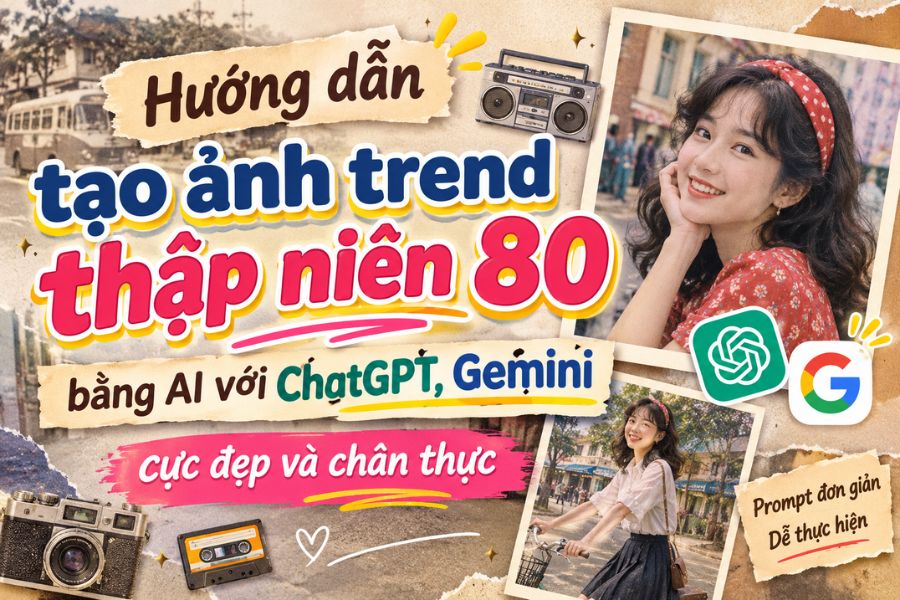
Guide to creating stunning and realistic 80s-themed photos using AI with ChatGPT and Gemini.
Nội dung
- 1. Key features of 1980s-style photography
- 2. How to create 80s-themed images using AI with ChatGPT
- 3. How to create 80s retro photos using Gemini
- 4. Here are 3 prompts to create beautiful and unique 80s-style trend photos.
- 4.1. Yearbook photo style of the 1980s
- This style is perfect for those who love the gentle, nostalgic beauty of old-fashioned yearbook photos. Softly curled hair, a vintage shirt, and a gray-blue background will create the feeling of a yearbook photo that has been preserved for many years.
- 4.2. A distinctive retro fashion style
- If you want a striking and trendy photo, you can try the 1980s fashion model concept. Padded blazers, high-waisted jeans, and vintage sunglasses are characteristic details that give the overall look a unique personality. Combined with studio lighting and warm colors, the picture will feel like a classic fashion magazine cover.
- 4.3. 80s Neon Style
- Unlike the warm, subdued feel of traditional film photography, the neon concept creates an impression with its vibrant blue-violet and pink light and a cityscape at night. This is an interesting option if you want a striking portrait with a cinematic feel and a modern retro vibe.
- 5. Tips for creating natural-looking 80s-themed photos using AI, without appearing fake.
- 6. Conclusion
The trend of transforming modern portraits into 80s-style images is gaining attention thanks to its nostalgic, unique, and distinctive beauty. With just an existing photo and a few simple commands, you can have a completely new look with voluminous curly hair, vintage clothing, and the characteristic film colors of the 1980s. No professional design or photo editing skills are needed; ChatGPT and Gemini can help you create impressive images. Let''s explore how to do it and the easy-to-use prompts below!
1. Key features of 1980s-style photography
80s-style photos possess a unique beauty thanks to the combination of striking fashion, nostalgic colors, and film camera effects. Seemingly simple details like voluminous curls, padded-shoulder blazers, or slightly yellowish tones are enough to create the feeling of a portrait taken decades ago.
Some common characteristics of this style include:
-
Hairstyle: Large curls, voluminous hair, curled bangs, or layered haircut.
-
Outfit: Padded blazer, denim jacket, patterned shirt, vintage dress, and high-waisted jeans.
-
Colors: Warm yellow tones, browns, earthy oranges, pastel pinks, or neon blue-purples.
-
Visual effects: Film grain, soft lighting, moderate contrast, and a slightly yellowish tint to the image.
-
Setting: A classic studio, a vintage living room, or a street with a 1980s vibe.
Depending on your preferences, you can choose studio portrait style, graduation photos, retro fashion, or neon to create images that reflect your personal style.
2. How to create 80s-themed images using AI with ChatGPT
ChatGPT is a useful tool if you want to transform an existing portrait photo into an 80s-style image. Instead of manually editing every detail using software, you simply upload the photo and describe your desired look. The AI will use the reference image and commands to create a new version with retro-style hair, clothing, and colors.
Step 1: Access ChatGPT and upload your portrait photo.
First, open ChatGPT on your browser or mobile app and log in to your account. In the chat window, tap the plus icon, select the "add photo" option, and upload the portrait you want to edit from your device. You should choose a photo with a clear face, good lighting, and not too many accessories obscuring the view. A good quality input photo will provide the AI with more information to refer to when recreating the appearance.

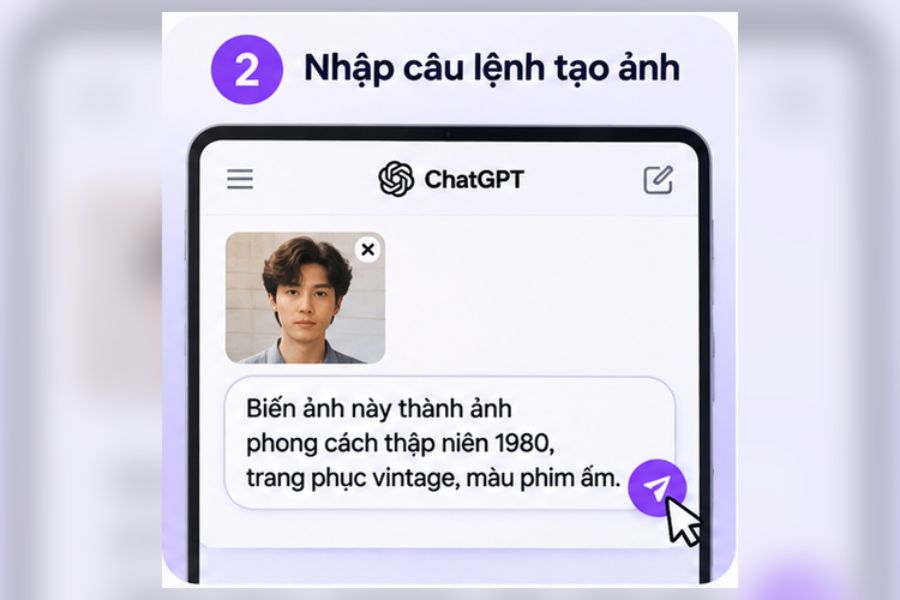
Step 2: Enter the prompt to create an 80s-style image.
After successfully uploading the image, enter a command describing the desired style. This is a crucial step because the prompt will guide the AI regarding hairstyle, clothing, lighting, and background. You should describe it as specifically as possible, and request that identifying facial features be preserved so that the converted image still resembles the original.
You can use the following prompt:
Prompt suggests:
Transform the uploaded portrait into a studio photo styled after the 1980s. Preserve the subject's facial features, eye shape, nose, mouth, and natural expression. Create a voluminous curly hairstyle, vintage 80s clothing, and combine it with soft studio lighting and a classic background. Use warm film tones, subtle film grain effects, and a realistic image quality as if taken with an analog camera from 1985. Avoid distorting the face and excessive skin retouching.
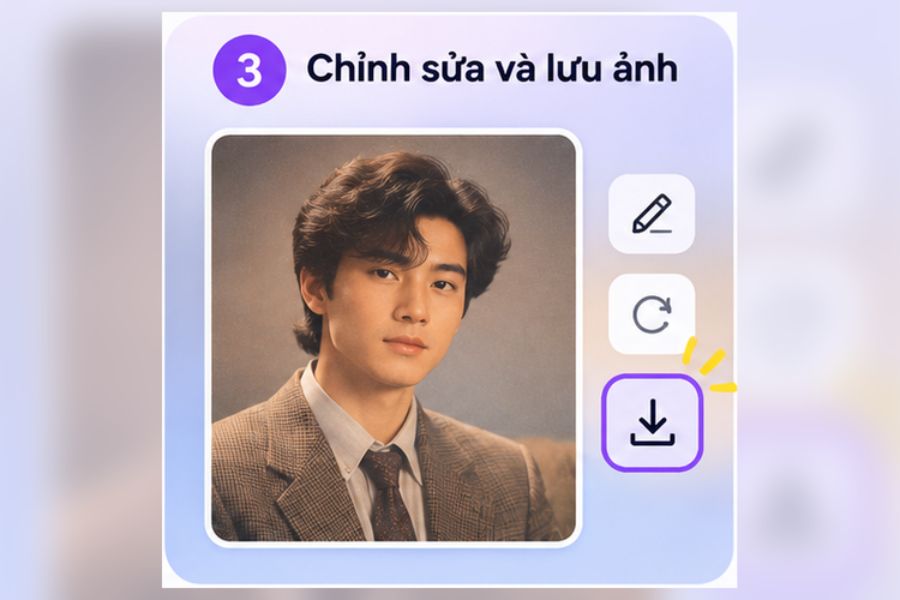
Step 3: Review, edit, and save the image.
Once ChatGPT has finished creating the image, check the face, hairstyle, clothing, and overall color scheme. If the result isn't to your liking, you can continue entering editing requests such as reducing skin smoothing effects, changing the shirt color, making the curly hair more voluminous, or adjusting the background. After you have a satisfactory version, open the image and select the download option to save it to your phone or computer. You can also try different commands to create a retro photo set with diverse styles.
3. How to create 80s retro photos using Gemini
Besides ChatGPT, Gemini is also a worthwhile option if you want to create images in a vintage style. Google's AI tool supports creating and editing images through text commands, making it easy for users to change the appearance of a character from a reference photo. Just prepare a portrait and describe your desired concept, and you can start creating images in the 80s style.
Step 1: Access Gemini and add a portrait photo.
First, access Gemini on your browser or open the Gemini app on your phone. Log in with your Google account, then tap the add file or image icon in the input field. Select the portrait photo you want to convert from your device's library and wait for the image to finish uploading. For best results, prioritize photos that clearly show your face, are well-lit, and avoid using too many filters that alter natural features.

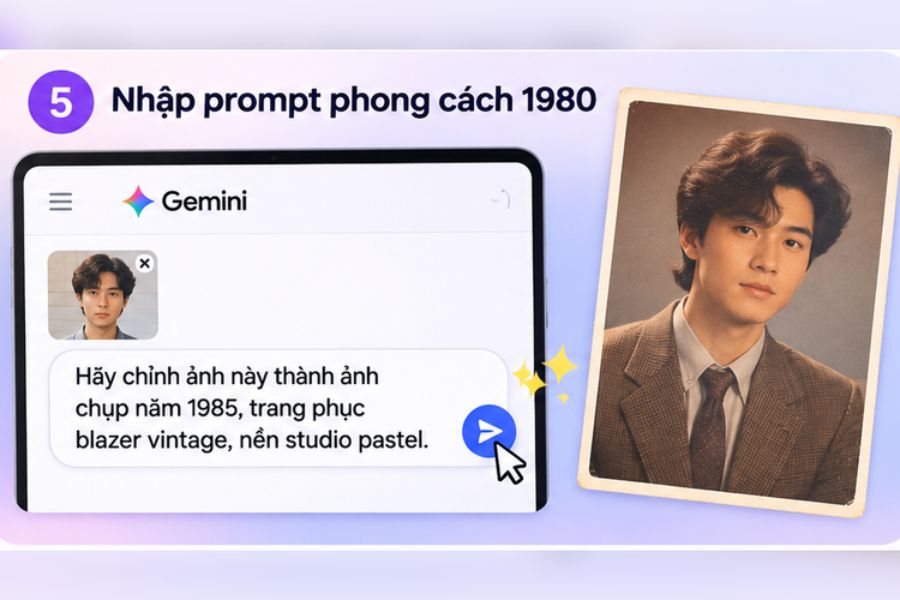
Step 2: Enter the 1980 style prompt.
Once the image is uploaded, enter a statement describing the 80s style you want to recreate. Instead of just asking for a retro photo, you should specify the hairstyle, clothing, colors, and background so Gemini understands your vision correctly. For example, you could choose lightly curled hair, a vintage blazer, a pastel background, and a film camera effect to create a nostalgic yet natural feel.
Prompt suggests:
Transform this portrait into a photograph taken in 1985. Maintain the subject's features, proportions, and distinctive facial characteristics. Change the hairstyle to soft, wavy curls, and the vintage blazer with prominent shoulders. Use a pastel studio background, soft lighting, a slightly yellowish analog film tone, and natural film grain effects. The image should have a nostalgic, authentic feel, like a photograph taken with a film camera from the past, without altering the subject's identity.
Step 3: Adjust the results and download the image to your computer.
After Gemini finishes creating the image, check if the face, clothing, and color effects are suitable. If the image is not satisfactory, you can continue chatting to suggest that the AI change details, such as keeping the expression the same, reducing skin smoothing, or adjusting the lighting to be more natural. Once you are satisfied with the result, tap on the image and select the download function to save it to your device.
4. Here are 3 prompts to create beautiful and unique 80s-style trend photos.
If you're already familiar with creating 80s-style photos using AI, you can try adding more concepts instead of just using the studio portrait style. Each command will bring a unique touch, making the photo set richer and showcasing the subject's personality.
4.1. Yearbook photo style of the 1980s
This style is perfect for those who love the gentle, nostalgic beauty of old-fashioned yearbook photos. Softly curled hair, a vintage shirt, and a gray-blue background will create the feeling of a yearbook photo that has been preserved for many years.
Prompt:
Create a 1987-style yearbook portrait from a reference photo. Keep the subject's face and expression, style with soft curls, a vintage shirt, a gray-blue studio background, soft lighting, and an old film effect. The composition should be chest-up, with nostalgic, authentic colors, just like a yearbook photo preserved over many years.
Copy prompt
4.2. A distinctive retro fashion style
If you want a striking and trendy photo, you can try the 1980s fashion model concept. Padded blazers, high-waisted jeans, and vintage sunglasses are characteristic details that give the overall look a unique personality. Combined with studio lighting and warm colors, the picture will feel like a classic fashion magazine cover.
Prompt:
Transform the subject in the reference photo into a 1980s fashion model. Maintain the facial features, create a trendy voluminous hairstyle, wear a padded-shoulder blazer, high-waisted jeans, and vintage sunglasses. The setting is a classic fashion studio, with professional lighting, warm colors, and a composition reminiscent of a 1985 fashion magazine photo. The resulting image is sharp, natural, and full of personality.
Copy prompt
4.3. 80s Neon Style
Unlike the warm, subdued feel of traditional film photography, the neon concept creates an impression with its vibrant blue-violet and pink light and a cityscape at night. This is an interesting option if you want a striking portrait with a cinematic feel and a modern retro vibe.
Prompt:
Create a 1980s neon-style portrait from a reference photo. Preserve the subject's face and facial proportions. Features include retro-style clothing, blue-violet and pink neon lighting, and a nighttime cityscape with glowing signs. The effect is analog film camera-like, with minimal noise, cinematic colors, and beautiful contrast. The image is realistic and does not distort the face.
Copy prompt
You can also change the color of the clothing, hairstyle, gender of the character, or the camera angle to create more unique versions. Don't be afraid to experiment with different commands because sometimes just a small change in the context can make a difference to the entire picture.
5. Tips for creating natural-looking 80s-themed photos using AI, without appearing fake.
To prevent the resulting image from looking too artificial, you need to pay attention to everything from the quality of the input image to how you construct the commands. A beautiful image doesn't necessarily need a lot of effects; what's important is the harmony between the face, clothing, lighting, and background.
Here are some tips you should apply:
-
Choose clear, original photos: Prioritize well-lit portraits with unobstructed faces and good resolution. Avoid blurry, backlit photos or those that have undergone extensive color correction.
-
Clearly specify the details you want to preserve: Ask the AI to retain the shape of the eyes, nose, mouth, facial expression, and proportions. This will help the result be closer to the original appearance.
-
Adjust the effects moderately: Film grain, old yellow tones, or neon lighting should only appear in reasonable amounts. Overusing effects can cause the image to lose detail and look unnatural.
-
Provide a specific outfit description: Instead of just asking for a vintage photo, specify details like a padded-shoulder blazer, voluminous curly hair, oversized sunglasses, or a classic dress so the AI can easily visualize it.
-
Adjusting individual details: If the result isn't to your liking, ask for changes to specific hairstyles, colors, or backgrounds instead of recreating the entire image. This gives you better control over the outcome.
Additionally, you should carefully check the face, hands, accessories, and small details on the clothing after the AI is complete. If you want to post the photo on social media, prioritize a balanced composition, clear facial features, and harmonious colors so that the picture has both a classic feel and its own unique appeal.
6. Conclusion
With ChatGPT and Gemini, creating 80s-themed photos using AI is simpler and easier than ever. Just prepare a clear portrait photo, combine it with the appropriate prompt, and you can experiment with various styles from nostalgic yearbook photos and vintage fashion to edgy neon looks. Feel free to change hairstyles, outfits, and backgrounds to find your favorite concept. Don't hesitate to try these commands to transform familiar photos into unique, personalized retro images!





















VIP Products








Best Selling Products
Genuine Cheap Canva Pro
39 USD
ChatGPT Plus Account (GPT-4)
16 USD
Capcut Pro 1 Year
39 USD
Upgrade Duolingo Super
29 USD
Plugin Retouch4me
69 USD
Freepik Premium Account
59 USD
Adobe Photoshop Copyright - Full App
120 USD
Genuine Adobe Illustrator account
99 USD
Upgrade genuine Capture One account
120 USD
Upgrade Genuine Office 365
49 USD
Windows 10 & 11 Pro Key
36 USD
Copyright Adobe Lightroom Account
59 USD
MidJourney Account
29 USD
Autodesk All App Account Copyright
120 USD
Adobe Premiere Pro Account
99 USD