Best Selling Products

Windows 10 & 11 Pro Key
36 USD

Freepik Premium Account
59 USD

Autodesk All App Account Copyright
120 USD

Capcut Pro 1 Year
39 USD

Plugin Retouch4me
69 USD

Genuine Adobe Illustrator account
99 USD

Adobe Photoshop Copyright - Full App
120 USD

Genuine Cheap Canva Pro
39 USD

Upgrade Genuine Office 365
49 USD

Copyright Adobe Lightroom Account
59 USD

Upgrade genuine Capture One account
120 USD

Adobe Premiere Pro Account
99 USD

Upgrade Duolingo Super
29 USD

ChatGPT Plus Account (GPT-4)
16 USD

MidJourney Account
29 USD
Prompt for image sharpening using ChatGPT: A set of commands to restore images to their natural clarity and quality.
Nội dung
- 1. What image quality issues can ChatGPT improve?
- 2. Steps to clarify images using ChatGPT for beginners
- 3. A compilation of 12 ChatGPT image sharpening prompts to suit various needs.
- 3.1. Commands to improve the clarity of portrait photos
- 3.2. Commands for processing dark and noisy images
- 3.3. Commands to improve product image quality
- 3.4. Commands for clarifying document images and text
- 4. Tips for writing prompts that make edited photos look more natural.
- 5. Mistakes to avoid when using ChatGPT to sharpen images
- 6. Conclusion
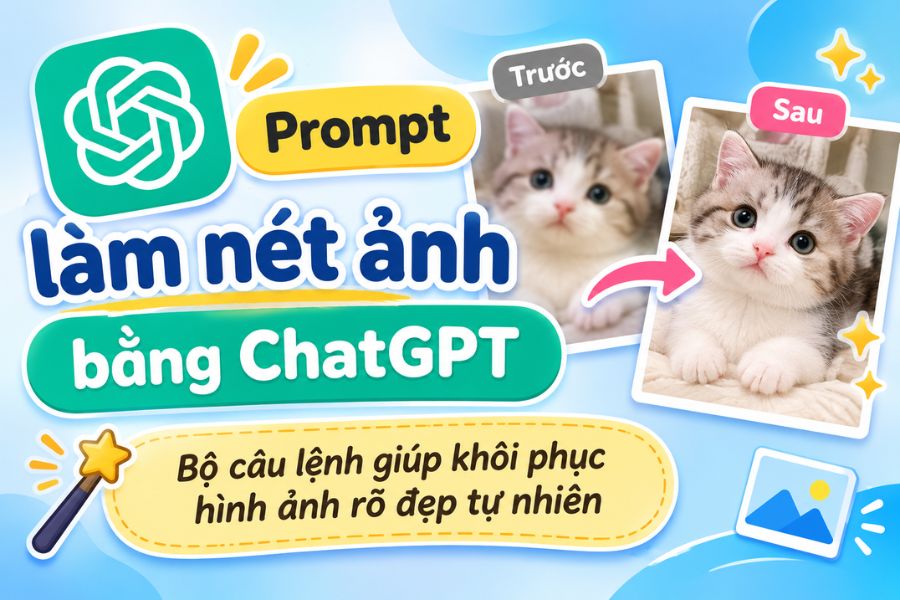
A beautiful photo can sometimes lose quality due to shaky hands, poor lighting, low resolution, or multiple storage cycles, resulting in blurry and detail-deficient images. Instead of spending time learning professional editing software, you can use ChatGPT to help improve your images with simple commands. With ChatGPT''s image sharpening prompt, users can ask the AI to process blurry areas, reduce noise, increase clarity, and balance lighting as desired. This article from Sadesign will summarize easy-to-use prompt templates, how to use them, and tips on writing commands to make your edited images look more natural.
1. What image quality issues can ChatGPT improve?
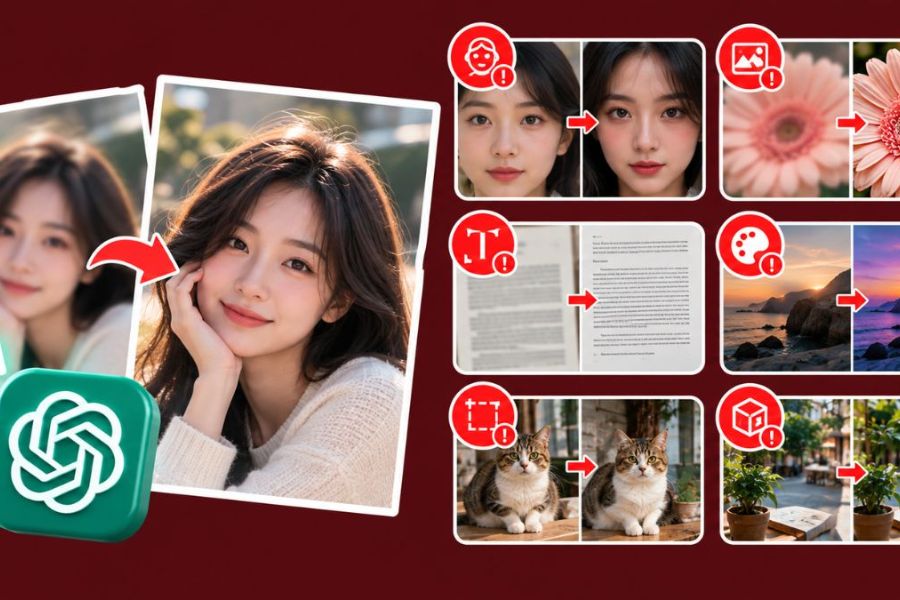
ChatGPT Images offers a convenient way to edit photos through natural language commands. Instead of manually adjusting each technical parameter, you simply upload your image and describe any areas you're unhappy with. AI can assist in improving sharpness, lighting, color, and certain details in the image as requested. However, the results depend on the quality of the original image. For photos with slight blurring, underexposure, or noise, improvements are usually easier to achieve than for photos that have lost almost all detail.
Some issues you can ask ChatGPT to handle include:
-
Blurred image: Clarify the outlines, subject, and important details.
-
Image noise: Reduced levels of fine particles that appear due to shooting in low-light environments.
-
Low-light photos: Improve brightness, dark areas, and contrast.
-
Low-resolution images: Support for clearer image reconstruction, depending on the original data.
-
Image with lost detail: Improve hard-to-see areas, reduce the appearance of blurring or smearing.
An important note is that AI can add context-based detail when processing low-quality images. This means the results may not always accurately reflect the original image. You should carefully check important details, especially faces, handwriting, logos, and information on documents.
2. Steps to clarify images using ChatGPT for beginners
The process of editing images using ChatGPT is quite simple, even if you've never used AI tools before. The important thing is to prepare the image properly and clearly describe your desired result to minimize unnecessary changes.
Step 1: Prepare and upload the image to be edited.
Access ChatGPT, open a new chat, and select the attachment icon to upload images. It's best to use original, high-quality image files and avoid using screenshots or images that have been compressed multiple times.
Step 2: Enter the command to sharpen the image.
After successfully uploading the image, enter a prompt describing the image's condition and any details that need improvement. For example, you can request clearer facial features, noise reduction, increased sharpness, or lighting adjustments. Don't forget to specify elements that need to be preserved, such as color, composition, and identifying characteristics.
Step 3: Check and refine the results
Once ChatGPT has finished editing, carefully examine the new image and compare it to the original. If any areas are still unclear, you can provide further specific requests for the AI to make additional adjustments. After you are satisfied, save the image to your device for use.
3. A compilation of 12 ChatGPT image sharpening prompts to suit various needs.
Not all photos present the same challenges. Portrait photos need to preserve facial features, product photos need to maintain the design, while older photos need to minimize details that AI can automatically recreate. Therefore, choosing the right commands will give you better control over the results.
3.1. Commands to improve the clarity of portrait photos
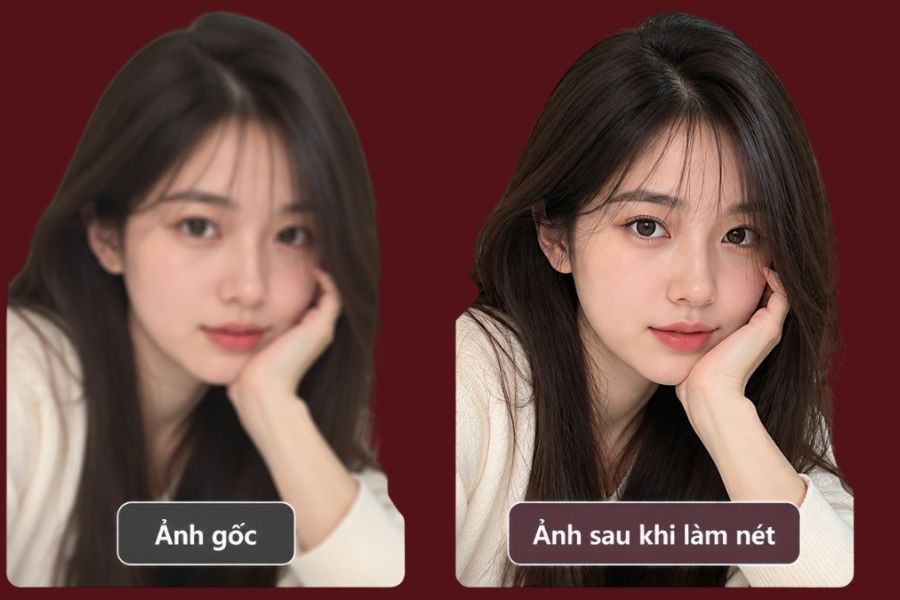
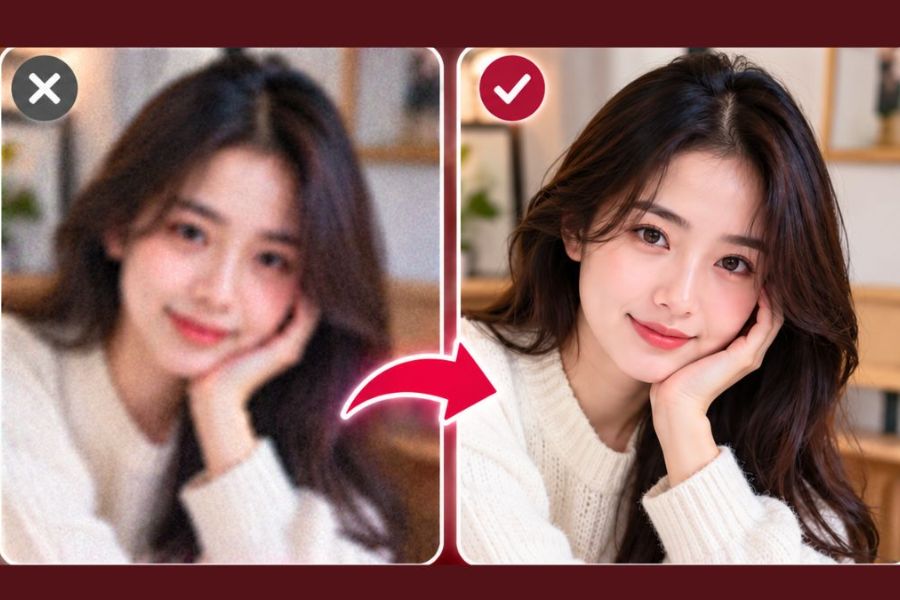
When photographing people, the most important thing is to preserve identifying features. Prompts should focus on the eyes, hair, eyebrows, and facial features, while avoiding excessive editing that would make the subject look different from the original photo.
-
Prompt 1: "Improve the sharpness of this portrait photo. Clarify the eyes, hair, eyebrows, and facial features. Reduce slight blurring while preserving identity, expression, and skin tone."
-
Prompt 2: "Increase the detail of the face, especially the eyes and hair. Maintain the facial proportions, age, clothing, and background. Do not alter the character's appearance."
-
Prompt 3: "Create a sharper version from the original portrait photo. Improve detail while maintaining natural skin texture, without over-smoothing or altering identifying features."
3.2. Commands for processing dark and noisy images
Photos taken indoors, outdoors at night, or in low-light environments often have a lot of noise and unclear subjects. In this case, you should combine increasing brightness, reducing noise, and improving contrast to create a more harmonious image.
-
Prompt 4: "Adjust this image to make it brighter and clearer. Reduce noise, improve detail in dark areas, and maintain natural colors. Avoid overexposing areas with strong light."
-
Prompt 5: "Improve night photography quality, reduce noise, increase subject clarity, and balance overall lighting. Preserve the original background, lighting colors, and atmosphere."
-
Prompt 6: "Clear the details in the underexposed photo, prioritizing faces and main subjects. Reduce color noise, do not change the composition or add details not present in the original image."
3.3. Commands to improve product image quality
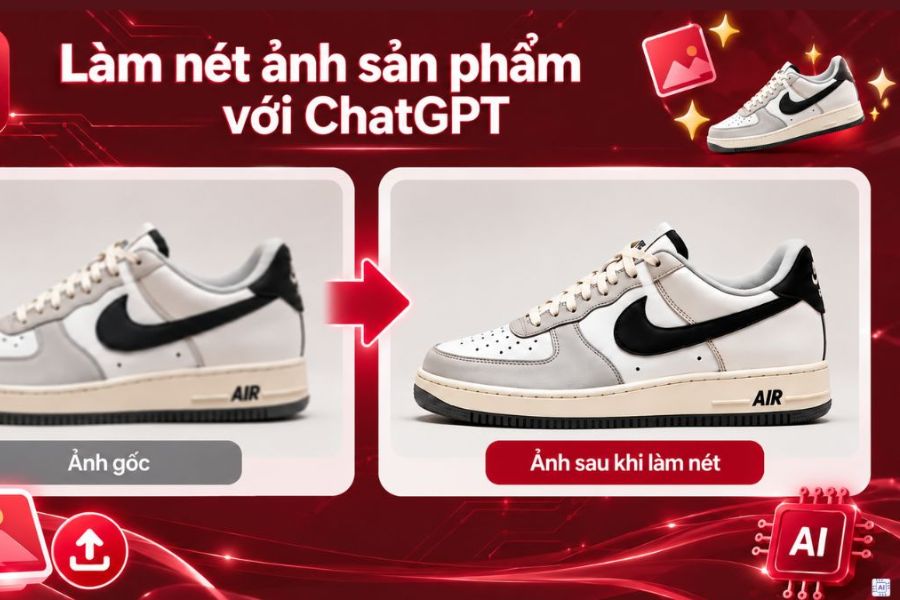
Product images are commonly used in business activities, for listing on e-commerce platforms or showcasing goods on social media. Therefore, image enhancement requires attention to the accuracy of the shape, color, material, and logo. You should instruct the AI to only improve the display quality, not to redesign the product itself.
-
Prompt 7: "Clear this product image, increase sharpness at the edges and surfaces. Maintain the original size, shape, color, material, and design."
-
Prompt 8: "Improve image quality to make the product look clearer. Reduce noise, increase detail, and balance contrast. Keep the logo, branding, and all text content intact."
-
Prompt 9: "Create a sharper version of the product image, highlighting fine details and surface textures. Do not add accessories, change colors, or edit the design yourself."
3.4. Commands for clarifying document images and text
Document photos can sometimes be blurry due to shaky hands, uneven lighting, or inappropriate angles. When using ChatGPT, prioritize improving the contrast between text and background, and ensure the original content is preserved. Avoid using AI-generated images to replace the original in cases where accurate information verification is required.
-
Prompt 10: "Clear this document image, increase the contrast between text and background, reduce shadows, and improve lighting. Keep the text content unchanged; do not arbitrarily edit the text or change the numbers."
-
Prompt 11: "Improve the readability of the image by sharpening the text and reducing blur. Preserve the original layout, symbols, punctuation, and content."
-
Prompt 12: "Increase the clarity of this document image, reduce noise, and improve contrast. Do not speculate or recreate unidentifiable characters from the original image."
4. Tips for writing prompts that make edited photos look more natural.
A good command doesn't necessarily have to be long, but it needs to clearly state the editing goal. If you only enter a general request like "improve image quality" or "increase sharpness," the AI may not understand the priority areas. Instead, you should specifically describe the image flaws, the level of editing needed, and the elements that need to be preserved.
The following formula can be applied:
Request for revisions + priority areas + issues to fix + details to retain + unwanted changes.
For example, instead of writing "Sharpen this photo," you could type: "Clear the face, focus on the eyes and hair, reduce minor noise, and increase sharpness. Keep the expression, skin tone, clothing, and background unchanged. Do not alter the identity or add new details."
In addition, you should keep the following points in mind:
-
Accurately describe image errors: Clearly distinguish between blurry, grainy, underexposed, or out-of-contrast images so that AI can process them appropriately.
-
Specify the area needing improvement: Clearly state the location, such as the face, eyes, hair, lettering, or product surface.
-
Determine the level of editing required: This may involve slight sharpening, moderate detail enhancement, or natural noise reduction to avoid an overly sharp image.
-
Protect important details: Instruct the AI to preserve the faces, logos, colors, layout, and text content.
-
Break down the request: If the image has many errors, fix each problem in stages instead of requesting all of them be processed at once.
-
Always compare the AI-recreated image to the original: Check the details to detect discrepancies before using it.
5. Mistakes to avoid when using ChatGPT to sharpen images
While ChatGPT can support quick editing, it doesn't always produce perfectly accurate results. Some commands may be vague or require too much editing, potentially altering images unintentionally. Understanding these limitations will help you use the tool more effectively.
-
The request is too general: Simply writing "make the image look better" makes it difficult for the AI to prioritize the issue. Please describe the specific area and error that needs addressing more clearly.
-
Over-editing: Increasing sharpness too much can create a false edge, making facial skin or object surfaces look unnatural.
-
No requirement to preserve details: If image preservation is ignored, AI can alter the original colors, faces, or design.
-
Using a very poor-quality original image: Images with severe pixelation or significant data loss will be difficult to fully recover.
-
Don't place absolute trust in the reconstructed text: With paper documents, you need to check every character because AI can generate inaccurate content.
6. Conclusion
Using ChatGPT's image sharpening prompt is a simple way to improve image quality without needing to be proficient in professional editing software. With just a clearly described command, you can ask the AI to reduce noise, increase sharpness, improve lighting, and clarify important details. Choose the appropriate prompt for each type of image, and always emphasize elements that need to be preserved to minimize distortion. Hopefully, the command examples and tips in this article will help you easily create clear, natural-looking photos that meet your needs.





















VIP Products








Best Selling Products
Windows 10 & 11 Pro Key
36 USD
Freepik Premium Account
59 USD
Autodesk All App Account Copyright
120 USD
Capcut Pro 1 Year
39 USD
Plugin Retouch4me
69 USD
Genuine Adobe Illustrator account
99 USD
Adobe Photoshop Copyright - Full App
120 USD
Genuine Cheap Canva Pro
39 USD
Upgrade Genuine Office 365
49 USD
Copyright Adobe Lightroom Account
59 USD
Upgrade genuine Capture One account
120 USD
Adobe Premiere Pro Account
99 USD
Upgrade Duolingo Super
29 USD
ChatGPT Plus Account (GPT-4)
16 USD
MidJourney Account
29 USD