Best Selling Products

Windows 10 & 11 Pro Key
36 USD

Upgrade genuine Capture One account
120 USD

Freepik Premium Account
59 USD

Capcut Pro 1 Year
39 USD

Copyright Adobe Lightroom Account
59 USD

Genuine Adobe Illustrator account
99 USD

Upgrade Duolingo Super
29 USD

Plugin Retouch4me
69 USD

Genuine Cheap Canva Pro
39 USD

MidJourney Account
29 USD

Upgrade Genuine Office 365
49 USD

Autodesk All App Account Copyright
120 USD

Adobe Premiere Pro Account
99 USD

ChatGPT Plus Account (GPT-4)
16 USD

Adobe Photoshop Copyright - Full App
120 USD
Guide to Instantly Turn Text into Beautiful Images with Canva AI
Nội dung
- 1. What is Canva AI? Who should use it?
- 2. The standout benefits of Canva AI compared to traditional design methods
- 3. The text-to-image utility in Canva AI
- 4. Steps to create images from text with Canva AI
- 4.1 Step 1: Access Canva AI’s image creation tool
- 4.2 Step 2: Enter the image description you want to create
- 4.3 Step 3: Choose the right image style and layout
- 4.4 Step 4: Generate the image and select your favorite version
- 5. Tips for writing prompts to generate more accurate and beautiful images
- 5.1 Clearly describe the main subject of the image
- 5.2 Add surrounding context and environment
- 5.3 How to specify image styles (minimal, modern, vintage...)
- 5.4 Pay attention to color and lighting
- 5.5 Common prompt-writing mistakes and how to fix them
- 6. Real-world applications: Where can Canva AI-generated images be used?
- 6.1 Designing images for blog posts
- 6.2 Creating visuals for websites
- 6.3 Making social media graphics
- 6.4 Applications in advertising and online sales
- 6.5 Designing presentation slides and study materials
- 7. Advantages and limitations of Canva AI
- 8. Should you upgrade to Canva Pro?
- 9. Conclusion
Do you believe that with just a few lines of text, a beautiful image exactly as you imagined can instantly appear before your eyes?
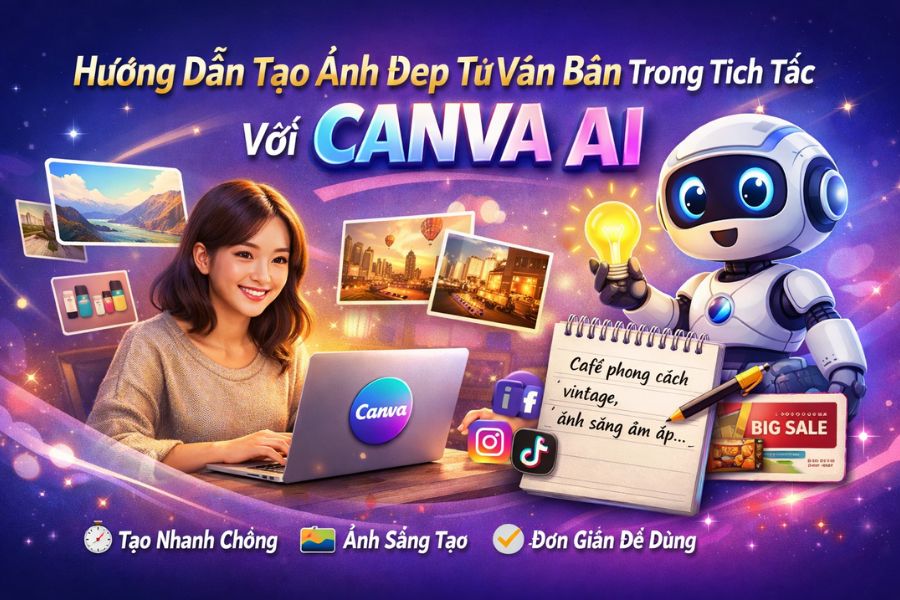
1. What is Canva AI? Who should use it?
Canva AI is artificial intelligence technology integrated into the Canva design platform, allowing users to create visuals, layouts, and visual content from just a few lines of text. Instead of designing everything from scratch, you simply describe your idea, and Canva AI will quickly “understand” and transform it into polished, eye-catching visuals in seconds.
The biggest strength of Canva AI lies in its simplicity and user-friendliness. You don’t need any design background or have to memorize complex tools to create professional-looking visuals. Every feature is optimized so anyone can use it, even complete beginners.
That’s why Canva AI is especially suitable for content creators who need quick visuals for articles, marketers launching campaigns, online shop owners designing product graphics, students preparing presentations, or teachers creating engaging educational materials. As long as you have an idea, Canva AI helps bring it to life effortlessly.
2. The standout benefits of Canva AI compared to traditional design methods
Compared to manual design, Canva AI drastically reduces creation time to just a few minutes. Instead of brainstorming layouts, adjusting details, and fine-tuning every element, you simply input your description and let the system handle the rest. This is especially useful in fast-paced work environments where speed matters.
Canva AI also significantly lowers skill and cost barriers. You don’t need Photoshop, Illustrator, or a professional designer to create beautiful, consistent visuals. This empowers individuals and small businesses to create content independently without relying heavily on outside resources.
More importantly, Canva AI sparks creativity. When every idea can quickly be visualized, it becomes easier to experiment with different styles, refine concepts, and perfect your content more flexibly. This is a major advantage traditional design methods struggle to match within the same timeframe.
(1).jpg)
3. The text-to-image utility in Canva AI
Canva now integrates AI to provide users with intelligent and modern design tools. Among its standout features is text-to-image generation, allowing you to transform written ideas into visuals in just seconds. No advanced design skills are required—simply type your description, and Canva AI automatically generates matching visuals.
What makes this feature exciting is its ability to “understand” context and generate entirely unique images. Every generation produces different variations in style and composition, giving you multiple options to choose from for blog posts, social media, or advertisements.
If you’re not fully satisfied, you can instantly regenerate new versions with one click. This makes experimenting with multiple designs fast and efficient, helping you quickly find the perfect visual while maintaining freshness in every project.
Upgrade Canva at an affordable price
4. Steps to create images from text with Canva AI
4.1 Step 1: Access Canva AI’s image creation tool
First, go to https://www.canva.com/vi_vn/tao-anh-ai/ to directly access Canva’s AI image generator. This saves time searching through Canva’s interface. After logging in, the workspace dedicated to the AI tool will appear.
Here, simply click the “Generate Image with AI” button to begin. The interface is intuitive and beginner-friendly. With just one click, you’re ready to turn text into vivid visuals..jpg)
4.2 Step 2: Enter the image description you want to create
Inside the tool, you’ll see the “Describe what you want to create” box. This is the most important step because your input determines the final result. Be as specific as possible about subject, colors, style, or mood so Canva AI can better understand your vision.
For example, instead of typing “coffee shop,” try “a vintage-style coffee shop with warm lighting and a peaceful atmosphere.” Detailed prompts help generate results closer to your expectations and reduce the need for repeated adjustments.
(1).jpg)
4.3 Step 3: Choose the right image style and layout
After entering your description, you can customize the “Style” section to define whether the image should look modern, artistic, minimalist, or illustrated. This ensures your visual aligns with its purpose, whether for blogs, social media, or advertising.
Canva AI also lets you choose square, landscape, or portrait layouts under “Layout.” Selecting the correct dimensions from the start helps optimize your visuals for specific platforms and avoids extra cropping later.
.jpg)
4.4 Step 4: Generate the image and select your favorite version
Once everything is ready, click “Generate Image.” Canva AI will process your request and create visuals based on your prompt within seconds.
Usually, several variations will appear for easy comparison. If none feel perfect, you can regenerate as many times as needed until you find the best match. This flexibility makes text-to-image creation faster and more effective than ever.
.jpg)
5. Tips for writing prompts to generate more accurate and beautiful images
5.1 Clearly describe the main subject of the image
When writing prompts, clearly define the main subject—whether it’s a person, object, landscape, or specific setting. This helps Canva AI focus on the right element.
Instead of saying “a beautiful image,” try “a young woman working on a laptop in a coffee shop.” Clear descriptions generate more practical, usable visuals.
5.2 Add surrounding context and environment
Context adds depth and realism. Include whether the scene is indoors, outdoors, urban, office-based, or nature-inspired.
For example, instead of “desk setup,” describe “a desk setup in a cozy bedroom with sunlight coming through the window.” These details make visuals more immersive and emotionally engaging.
5.3 How to specify image styles (minimal, modern, vintage...)
Style defines the visual identity of your image. Include keywords like minimalist, modern, vintage, artistic, or illustration to guide Canva AI.
This ensures brand consistency and creates results that need fewer edits.
5.4 Pay attention to color and lighting
Color and lighting strongly influence viewer emotions. Mention warm tones, cool tones, pastel palettes, or vibrant colors to shape the mood.
Describing lighting—such as “natural daylight,” “soft evening light,” or “golden sunset glow”—makes images feel more polished and professional.
5.5 Common prompt-writing mistakes and how to fix them
A common mistake is being too vague, which leads to weak results. Add more detail about subject, environment, and style to improve output.
Another issue is overloading prompts with too many ideas, making images cluttered. Focus on the most important elements first, then refine gradually.
.jpg)
6. Real-world applications: Where can Canva AI-generated images be used?
6.1 Designing images for blog posts
AI-generated visuals are perfect for blog illustrations, making articles more engaging and improving reader retention, which supports SEO performance.
You can use them as featured images, section visuals, or summary graphics to make blogs look more professional.
6.2 Creating visuals for websites
Website visuals create first impressions. Canva AI quickly generates banners, hero images, or custom illustrations tailored to your pages.
Custom visuals also help your website stand out instead of relying on generic stock photos.
6.3 Making social media graphics
Canva AI is especially useful for Facebook, Instagram, and TikTok visuals. It quickly generates correctly sized, stylish graphics ready to post.
Consistent, eye-catching visuals help increase engagement and strengthen personal or business branding.
6.4 Applications in advertising and online sales
In advertising, visuals determine whether viewers stop scrolling. Canva AI creates product images, promo banners, and campaign graphics quickly.
For online shop owners, this reduces design costs while maintaining professional-quality promotional materials.
6.5 Designing presentation slides and study materials
Canva AI is also a powerful tool for presentations and educational resources. Visual aids improve clarity and audience engagement.
For teachers and students, it saves preparation time while making lessons and presentations more visually effective.
7. Advantages and limitations of Canva AI
One of Canva AI’s biggest strengths is speed and convenience. In just seconds, users can create complete visuals much faster than traditional design methods. Its intuitive interface makes it accessible even for beginners.
It also reduces barriers related to design knowledge and budget. You don’t need Photoshop or expensive designers to experiment with ideas quickly.
However, results depend heavily on prompt quality. Vague prompts often lead to inaccurate visuals, while some details may still need manual refinement.
For best results, combine Canva AI with manual editing. Fine-tune colors, layouts, typography, and details afterward to ensure a more polished and personalized final product.
8. Should you upgrade to Canva Pro?
The answer is yes, especially if you regularly create content or use Canva AI for work, study, or business. Canva Pro unlocks millions of premium templates, images, videos, fonts, automatic background removal, one-click resizing, and high-quality exports.
If you’re looking for a reliable and cost-effective Canva Pro upgrade solution, Appvip is worth considering. Here, you can upgrade quickly and securely with dedicated support and affordable pricing for both individuals and businesses. Investing in Canva Pro through Appvip helps you unlock Canva AI’s full potential and elevate your content quality long-term.
9. Conclusion
Canva AI has transformed text-to-image creation into an inspiring and effortless experience. By learning how to use this tool effectively, you can save time, expand your creativity, and turn every idea into vivid visuals that make your content stand out and leave a lasting impression on your audience.





















VIP Products








Best Selling Products
Windows 10 & 11 Pro Key
36 USD
Upgrade genuine Capture One account
120 USD
Freepik Premium Account
59 USD
Capcut Pro 1 Year
39 USD
Copyright Adobe Lightroom Account
59 USD
Genuine Adobe Illustrator account
99 USD
Upgrade Duolingo Super
29 USD
Plugin Retouch4me
69 USD
Genuine Cheap Canva Pro
39 USD
MidJourney Account
29 USD
Upgrade Genuine Office 365
49 USD
Autodesk All App Account Copyright
120 USD
Adobe Premiere Pro Account
99 USD
ChatGPT Plus Account (GPT-4)
16 USD
Adobe Photoshop Copyright - Full App
120 USD