Best Selling Products

Autodesk All App Account Copyright
120 USD

Genuine Adobe Illustrator account
99 USD

MidJourney Account
29 USD

Upgrade Genuine Office 365
49 USD

Windows 10 & 11 Pro Key
36 USD

Copyright Adobe Lightroom Account
59 USD

Genuine Cheap Canva Pro
39 USD

ChatGPT Plus Account (GPT-4)
16 USD

Plugin Retouch4me
69 USD

Adobe Photoshop Copyright - Full App
120 USD

Upgrade Duolingo Super
29 USD

Freepik Premium Account
59 USD

Capcut Pro 1 Year
39 USD

Upgrade genuine Capture One account
120 USD

Adobe Premiere Pro Account
99 USD
How Often Should You Restart Your Computer? The Best Frequency for Smooth PC Operation
Nội dung
- 1. Why do computers need to be restarted periodically?
- 2. Memory leaks cause computers to slow down over time.
- 3. Signs that indicate you should restart your computer immediately.
- 4. Can Sleep mode replace a restart?
- 5. How often should I restart my computer?
- 6. Why do many people recommend restarting every week?
- 7. Should you restart your computer every day?
- 8. When should you completely shut down your computer instead of just putting it to sleep?
- 9. Restarting helps enhance system security.
- 10. Conclusion
Many people frequently use Sleep mode and forget to restart their computers periodically. However, this simple action can help free up RAM, fix software errors, improve performance, and support the installation of important security updates.

1. Why do computers need to be restarted periodically?
Many people believe that modern computers are powerful enough to run continuously without needing to be restarted. In reality, no matter how powerful the hardware is, operating systems and software still face certain limitations in resource management.
Every time an application is opened, the system allocates RAM for the program to run. When the application is closed, this memory should ideally be completely freed. However, not all software does this perfectly.
After hours or days of use, temporary data, background processes, and unreleased memory will gradually accumulate. This is why computers begin to show signs of slowing down even when the hardware configuration is perfectly normal.

Restarting the operating system closes all running programs, cleans up RAM, and restarts system services from scratch. This process is similar to cleaning a room that has been used for a long time, making everything neater and more efficient.
In addition to performance benefits, restarting also helps complete operating system updates, hardware driver updates, and important security patches. Constantly delaying restarts may prevent many updates from being fully applied, reducing system stability and security.
2. Memory leaks cause computers to slow down over time.
One of the most common reasons why computers become inefficient after a long period without restarting is memory leakage.
Memory leaks occur when a program uses RAM but doesn't completely release that resource after its task is finished. Over time, this "forgotten" memory will accumulate.
Initially, users hardly notice any difference. However, after a few days or weeks of continuous use, the signs begin to appear more clearly.
The computer takes a long time to open applications.
The web browser is slow to respond.
Office software programs are not running smoothly.
The video is choppy or the frame rate is unusually low.
The system is experiencing temporary freezes.
Although Windows, macOS, and Linux are now equipped with very advanced memory management mechanisms, memory leaks can still occur in many third-party software programs.

Restarting is the simplest and most effective solution to this problem. When the system reboots, all currently used memory will be completely cleaned and reallocated from scratch after the start.
This is why many tech experts consider periodic restarts as a form of "soft maintenance" for computers.
3. Signs that indicate you should restart your computer immediately.
Users don't always need to wait for a fixed schedule to restart. In many cases, the system will give signals indicating that it's time to reboot.
The first sign is that your computer becomes unusually slow even when not running demanding applications. If opening File Explorer, a web browser, or office software takes longer than before, it's very likely that your system memory is overloaded.
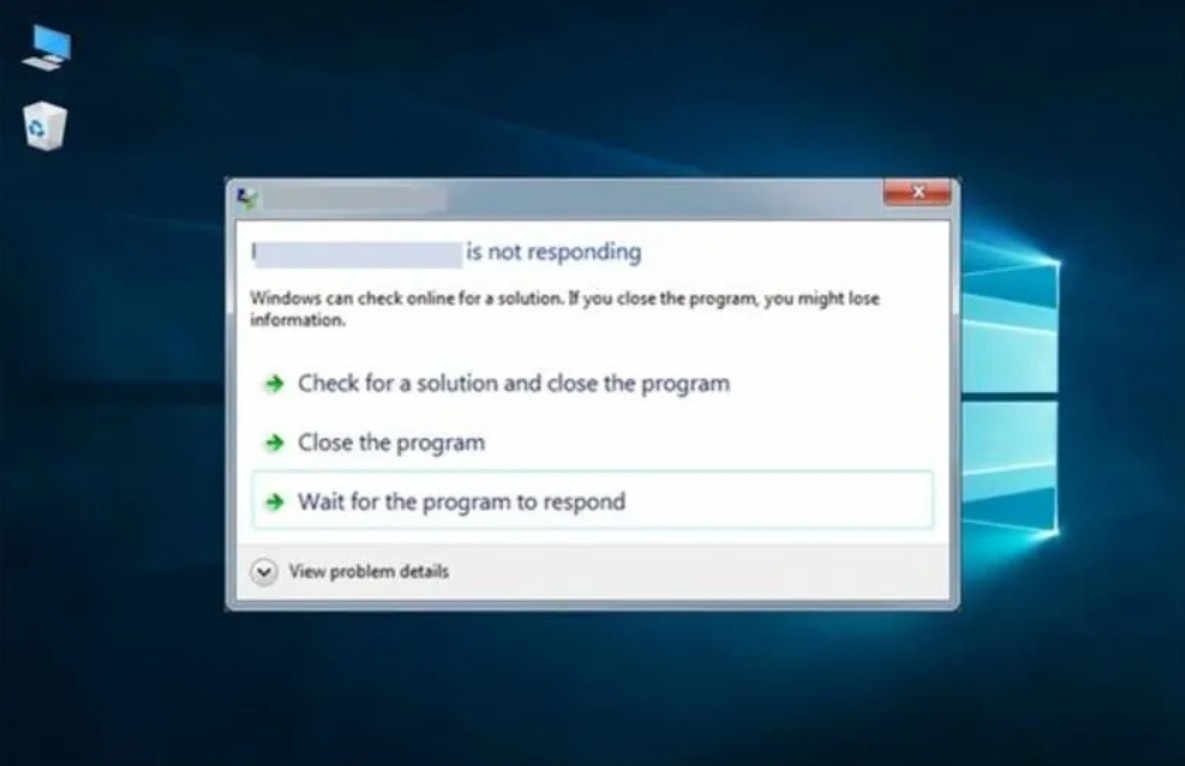
Another sign is that the application is frequently unresponsive. You click the mouse, but the program doesn't execute the command or displays a "Not Responding" message.
Network connectivity is also an important factor to consider. Sometimes, unstable Wi-Fi or Ethernet performance isn't due to the router but rather to faulty network services on the computer. Restarting the computer can help restore normal operation.
Additionally, if the cooling fan is running continuously at high speed even when not running heavy tasks, the cause could be a faulty background process consuming excessive CPU resources.
In such situations, restarting is often the first and most effective solution before considering more complex approaches.
4. Can Sleep mode replace a restart?
Nowadays, most laptop users utilize Sleep mode instead of completely shutting down their computers. Simply closing the lid and reopening it a few seconds later allows them to resume work.
However, Sleep and Restart are two completely different concepts.
When a computer goes into sleep mode, the operating system retains its current working state in RAM. Programs, windows, and processes remain active.
The advantage of this method is that it saves startup time and allows users to resume work immediately.
However, the downside is that any software errors, system conflicts, or temporary data will still be retained.
Meanwhile, a restart will completely close all processes and reload the operating system from scratch. This is a true refresh process that Sleep mode cannot replace.

In other words, Sleep saves time, while Restart helps maintain the health of the system.
Therefore, even if you frequently use sleep mode, you should still maintain the habit of restarting your computer periodically to ensure it always runs smoothly.
5. How often should I restart my computer?
This is a question that many people are interested in and is also a hotly debated topic on technology forums.
In reality, there is no hard and fast rule that applies to all users. The appropriate frequency depends on the intensity of computer use, the type of work, and the system configuration.
However, most tech experts agree that restarting at least once a week is a reasonable option for most users.
This amount of time is sufficient to clear the memory, free up system resources, and help the computer run more smoothly.
For those who frequently work with demanding software such as video editing, 3D rendering, programming, or large-scale data processing, restarting their computers every few days can be more efficient.
Conversely, if you only use your computer for basic tasks such as browsing the web, watching movies, or light office work, a once-a-week schedule is perfectly suitable.
The most important thing is that you shouldn't leave your computer running continuously for months without rebooting it.
6. Why do many people recommend restarting every week?
On tech forums like Reddit, many experienced users share the opinion that restarting weekly is the ideal frequency.
The first reason is to free up RAM that applications have consumed during use.
Secondly, refresh hardware connections and network services. After days of continuous operation, some device drivers may develop minor errors that affect overall performance.
Thirdly, it supports the installation of critical updates. Many security patches are only fully activated after the system is restarted.
Furthermore, maintaining a fixed restart schedule allows users to proactively control the system instead of waiting until the computer malfunctions before taking action.
A simple restart over the weekend usually only takes a few minutes, but it can save hours of troubleshooting in the future.
7. Should you restart your computer every day?
Some users, especially office workers or gamers, have a habit of restarting their computers at the end of each workday.
This isn't mandatory, but it's definitely beneficial.
If you use your computer continuously from morning to night with many different software programs, restarting it at the end of the day helps to completely refresh the system before starting the next workday.
For office desktop computers, this is a fairly common method to ensure stable performance and help updates be installed correctly.
However, for the average user, restarting daily usually doesn't make a significant difference compared to a weekly schedule.
Therefore, this should be considered an optional feature, not a mandatory requirement.
8. When should you completely shut down your computer instead of just putting it to sleep?
If you plan not to use your computer for several consecutive days, shutting it down completely is a more sensible option than putting it in sleep mode.

Laptops still consume a certain amount of power when in sleep mode. Although the consumption is quite low, if this continues for several days, the battery will still drain significantly.
Additionally, completely shutting down the device helps reduce heat buildup and minimize wear and tear on electronic components during prolonged periods of disuse.
For long weekend getaways or extended business trips, turning off the engine completely is the best option.
When you return to work, you will start with a clean, stable, and completely refreshed system.
9. Restarting helps enhance system security.
Besides performance, security is also a significant benefit of regular restarts.
Security updates from Microsoft, Apple, or other software developers often require a reboot to complete the installation.
If the delay is too long, the system may continue to have vulnerabilities that have been discovered but not fully patched.
Additionally, restarting helps eliminate some suspicious processes or unnecessary background software that are running in memory.
While rebooting isn't a foolproof solution against malware, it provides an additional layer of protection that helps the system maintain a more secure state.
10. Conclusion
There are no absolute rules about when to restart a computer. However, practical experience shows that this is one of the simplest and most effective ways to maintain system performance, stability, and security.
For most users, restarting at least once a week is ideal. Those who frequently use demanding applications or work long hours each day may need to do it more often.
Instead of waiting until your computer becomes sluggish, applications freeze, or the system malfunctions, proactively make it a habit to reboot periodically. Just a few minutes of restarting can help your computer run more smoothly, extend its lifespan, and significantly reduce the risk of problems during use.
Sometimes, the most effective solution for a slow computer isn't a hardware upgrade or a system reinstall. It's simply a well-timed restart.





















VIP Products








Best Selling Products
Autodesk All App Account Copyright
120 USD
Genuine Adobe Illustrator account
99 USD
MidJourney Account
29 USD
Upgrade Genuine Office 365
49 USD
Windows 10 & 11 Pro Key
36 USD
Copyright Adobe Lightroom Account
59 USD
Genuine Cheap Canva Pro
39 USD
ChatGPT Plus Account (GPT-4)
16 USD
Plugin Retouch4me
69 USD
Adobe Photoshop Copyright - Full App
120 USD
Upgrade Duolingo Super
29 USD
Freepik Premium Account
59 USD
Capcut Pro 1 Year
39 USD
Upgrade genuine Capture One account
120 USD
Adobe Premiere Pro Account
99 USD