Best Selling Products

Freepik Premium Account
59 USD

Copyright Adobe Lightroom Account
59 USD

Adobe Photoshop Copyright - Full App
120 USD

Adobe Premiere Pro Account
99 USD

Upgrade Genuine Office 365
49 USD

Windows 10 & 11 Pro Key
36 USD

Autodesk All App Account Copyright
120 USD

Capcut Pro 1 Year
39 USD

ChatGPT Plus Account (GPT-4)
16 USD

Genuine Adobe Illustrator account
99 USD

Upgrade genuine Capture One account
120 USD

Plugin Retouch4me
69 USD

Upgrade Duolingo Super
29 USD

MidJourney Account
29 USD

Genuine Cheap Canva Pro
39 USD
How to Speed Up Your Windows 11 Laptop: 3 Settings You Should Disable Immediately After Unboxing
Nội dung
- 1. Clean up applications that start with Windows.
- 1.1. What is a startup?
- 1.2. How to check Startup
- 1.3. Applications you should consider turning off
- 1.4. Benefits after cleaning up a startup
- 2. Prevent background software from silently consuming resources.
- 2.1. The harmful effects of background applications
- 2.2. How to control background applications
- 2.3. Which applications should be allowed to run in the background?
- 2.4. Applications that should be avoided from running in the background.
- 2.5. Achieved Results
- 3. Turn off unnecessary visual effects.
- 3.1. What are Transparency Effects?
- 3.2. Why should you turn it off?
- 3.3. How to turn off transparency effects
- 3.4. Should I turn off other effects as well?
- 4. Why can a new laptop still run slowly?
- 5. Restart after tweaking for maximum effectiveness.
- 6. Conclusion
How to Speed Up Your Windows 11 Laptop: 3 Settings You Should Disable Immediately After Unboxing
1. Clean up applications that start with Windows.
One of the biggest reasons why new laptops start up slowly is the number of applications set to run with the operating system.
Many people only see the desktop appear for a few seconds and think the computer is ready to start. However, in reality, as soon as Windows finishes loading the interface, a host of other programs continue to silently start in the background.
Data synchronization applications, manufacturer's support software, driver update tools, peripheral device control utilities, AI services, Microsoft Teams, OneDrive, and many other programs all compete for system resources from the very first seconds.
This forces the CPU to handle multiple tasks simultaneously, quickly fills up the RAM, and causes the SSD to constantly read and write data.
As a result, users find their laptops to be slow to respond in the first few minutes after turning them on.
1.1. What is a startup?
Startup is a list of programs that are allowed to automatically launch every time Windows starts up.
Many computer manufacturers often add a range of applications to promote their software ecosystem. Meanwhile, Microsoft also integrates services such as OneDrive, Teams, and Copilot.
Each program may consume only a small amount of resources, but when dozens of applications are combined, the impact on performance is significant.
1.2. How to check Startup
Users can access:
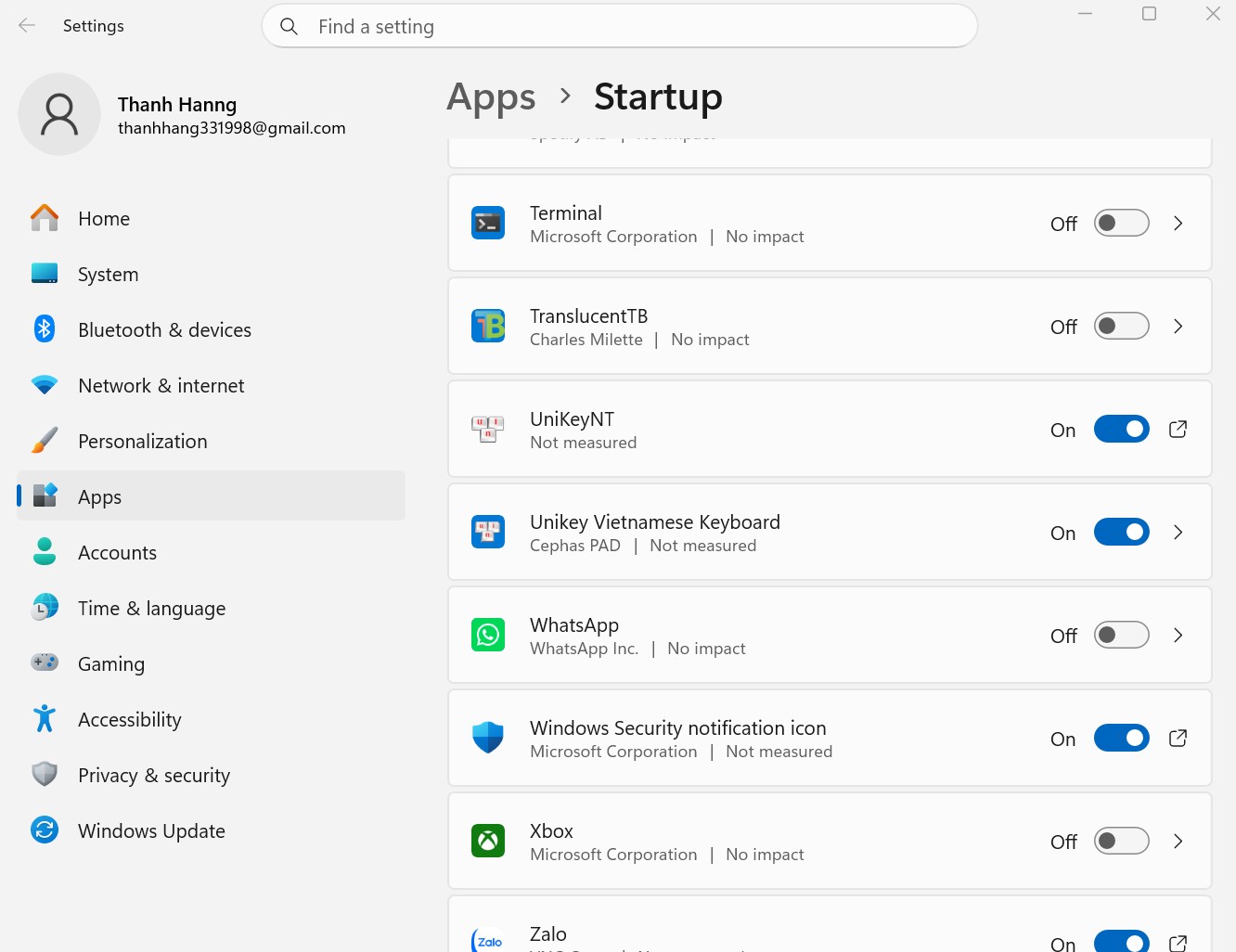
Settings → Apps → Startup
Here, Windows will display all the applications that are set to start with the system.
Next to each application, the system also displays its impact level on startup performance, such as Low Impact, Medium Impact, or High Impact.
This is a very useful tool for identifying which programs are slowing down your computer.
1.3. Applications you should consider turning off
Most users don't need apps like Teams, OneDrive, Spotify, Discord, Adobe Creative Cloud, Steam, or manufacturer-provided utility software to automatically launch.
Disabling Startup does not mean uninstalling the application.
They remain on the device and will function normally when you manually turn them on.
The difference is that Windows no longer has to load them every time it starts up.
1.4. Benefits after cleaning up a startup
After removing unnecessary applications from Startup, users often notice a significant change.
Startup time has been shortened.
The amount of free RAM has increased significantly.
The CPU operates more smoothly.
SSDs reduce the number of unnecessary read and write operations.
The cooling fan rarely needs to operate at high intensity.
This is considered the most important optimization step for any Windows 11 laptop.
2. Prevent background software from silently consuming resources.
After dealing with startup issues, the next step is to control background applications. These are the silent culprits that cause many powerful laptops to perform poorly. Many people mistakenly believe that closing an application window completely stops the program from running.
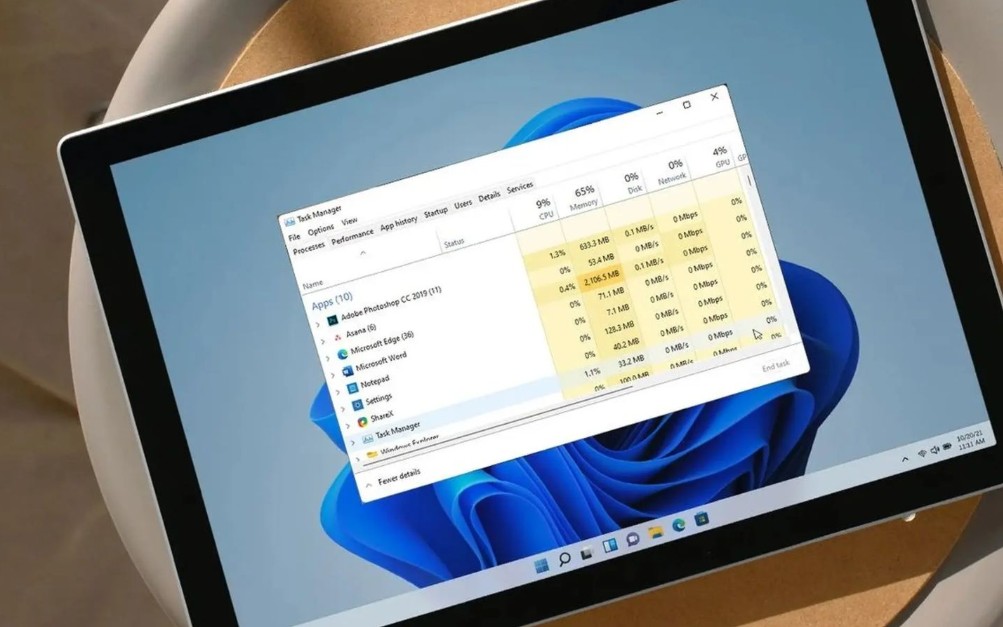
In fact, many applications continue to run in the background even when they are no longer displayed on the screen. Windows 11 by default allows quite a few software programs to continue running in the background to synchronize data, check for updates, or send notifications. This increases convenience but also consumes a significant amount of system resources.
2.1. The harmful effects of background applications
Each background application uses a portion of RAM. Many programs also frequently wake up the CPU to perform automated tasks. Some applications constantly connect to the internet to check for updates or synchronize data. As a result, the battery drains faster, the device temperature rises higher than normal, system responsiveness decreases, and overall performance is affected even when the user is not directly using those applications.
2.2. How to control background applications
Users can access:
Settings → Apps → Installed Apps
Here, find the apps you don't really need.
Tap the three-dot icon next to the app.
Select Advanced Options.
In the Background App Permissions section, change the setting from Power Optimized to Never.
This action will prevent the application from continuing to run after it has been closed.
2.3. Which applications should be allowed to run in the background?
Not all apps should be disabled.
Communication software such as Outlook, Slack, or Microsoft Teams may need to run in the background to receive real-time notifications.
Security tools or antivirus software should also be kept running continuously to protect the system.
2.4. Applications that should be avoided from running in the background.
Photo editors.
The manufacturer's device management application.
Entertainment software.
Tools for promoting services.
AI applications are rarely used.
The manufacturer provides all the necessary features and accessories.
These programs don't usually need to run continuously.
2.5. Achieved Results
By controlling background processes, laptops will have more resources available for truly important tasks.
Users often notice improved battery life.
The system responds faster.
Lower operating temperature.
Multitasking capabilities have also become significantly smoother.
3. Turn off unnecessary visual effects.
Windows 11 is designed with a modern interface language, strongly focusing on aesthetics. Motion effects, shadows, transparency, and blurring appear in almost every area of the operating system. These make Windows 11 look more visually appealing than previous versions.
3.1. What are Transparency Effects?
Transparency effects are transparent effects applied to the Taskbar, Start Menu, system windows, and many other interface elements. To create this effect, the GPU must continuously process the images behind open windows. The system needs to calculate the transparency in real time. This increases the workload on the graphics processor.
3.2. Why should you turn it off?
For laptops with powerful graphics cards, the impact may not be very noticeable. However, on ultrabooks, office laptops, or devices using integrated GPUs, this effect still creates a certain burden. Turning off Transparency Effects will provide users with more benefits than they might expect.
The interface is more responsive.
Electricity consumption decreased.
The battery lasts longer.
Lower operating temperature.
The text is displayed more sharply.
This is why many tech experts always disable this effect right after installing Windows.
3.3. How to turn off transparency effects
Access:
Settings → Accessibility → Visual Effects
Then turn off the Transparency Effects option.
The changes occurred instantly without needing to restart the computer.
Users retain the modern interface of Windows 11, but the system runs significantly more smoothly.
3.4. Should I turn off other effects as well?
In addition to Transparency Effects, Windows offers many other motion effects.
If maximum performance is a priority, users can reduce or disable animation effects.
This is especially useful for low-configuration computers or laptops that have been used for many years.
However, for most newer laptops, simply disabling Transparency Effects is enough to provide a noticeable improvement.
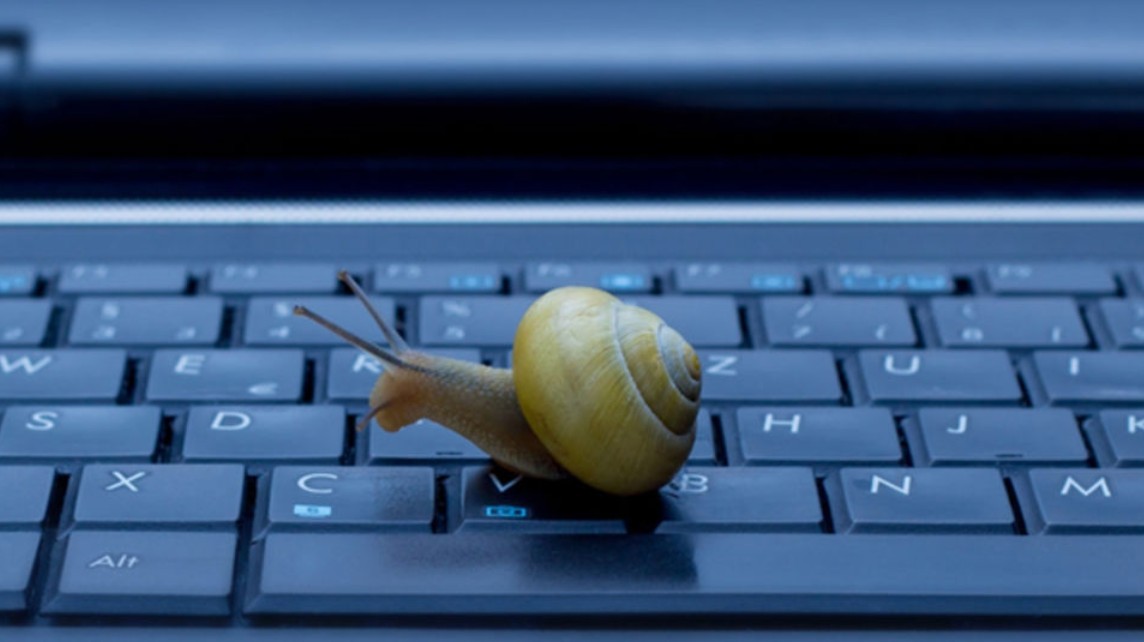
4. Why can a new laptop still run slowly?
Many people are surprised that a laptop with a modern processor and 16 GB of RAM still doesn't perform as expected. The reason is that actual performance doesn't depend solely on the hardware.
Windows 11 is integrating more and more features.
Manufacturers also pre-install a lot of their own software.
Every program wants to occupy a portion of the system resources.
When everything is running simultaneously, the actual performance degrades significantly.
This is like a wide road with too many vehicles sharing it at the same time.
No matter how good the infrastructure is, traffic congestion can still occur.
Therefore, software optimization is an essential step in unlocking the full potential of the hardware.
5. Restart after tweaking for maximum effectiveness.
After making the three changes mentioned above, users should perform a system restart.
Rebooting allows Windows to reload necessary services with the new configuration.
Processes that are no longer allowed to run in the background will be completely removed from memory.
The operating system also has the opportunity to rearrange resources more optimally.
Many users have noticed that their laptops are more responsive right after the first startup.
The app opening speed has been improved.
The fan operates more quietly.
The available RAM capacity has increased.
The battery lasts longer during typical tasks.
6. Conclusion
With just three simple tweaks—cleaning up startup files, preventing background apps from running, and disabling unnecessary visual effects—users can significantly free up RAM, CPU, and GPU resources. These are small changes, but they have a huge impact on responsiveness, multitasking capabilities, and battery life.
If you've just bought a new laptop, don't rush to judge its performance right out of the box. Take a few minutes to make these basic adjustments and restart your system. You'll be surprised to see your laptop running faster, smoother, and utilizing its hardware to its fullest potential.





















VIP Products








Best Selling Products
Freepik Premium Account
59 USD
Copyright Adobe Lightroom Account
59 USD
Adobe Photoshop Copyright - Full App
120 USD
Adobe Premiere Pro Account
99 USD
Upgrade Genuine Office 365
49 USD
Windows 10 & 11 Pro Key
36 USD
Autodesk All App Account Copyright
120 USD
Capcut Pro 1 Year
39 USD
ChatGPT Plus Account (GPT-4)
16 USD
Genuine Adobe Illustrator account
99 USD
Upgrade genuine Capture One account
120 USD
Plugin Retouch4me
69 USD
Upgrade Duolingo Super
29 USD
MidJourney Account
29 USD
Genuine Cheap Canva Pro
39 USD