Best Selling Products

Autodesk All App Account Copyright
120 USD

Genuine Cheap Canva Pro
39 USD

Copyright Adobe Lightroom Account
59 USD

Capcut Pro 1 Year
39 USD

Windows 10 & 11 Pro Key
36 USD

Adobe Premiere Pro Account
99 USD

Upgrade Duolingo Super
29 USD

ChatGPT Plus Account (GPT-4)
16 USD

Adobe Photoshop Copyright - Full App
120 USD

Genuine Adobe Illustrator account
99 USD

Freepik Premium Account
59 USD

Upgrade genuine Capture One account
120 USD

Upgrade Genuine Office 365
49 USD

MidJourney Account
29 USD

Plugin Retouch4me
69 USD
How to create a 3D tilt effect in Canva using Skew Image - extremely easy and visually appealing.
Nội dung
- 1. What is 3D tilting in Canva?
- 2. Benefits of creating 3D tilted images in Canva
- 3. Instructions on how to create a 3D tilted image in Canva using Skew Image
- Step 1: Access Canva and open a new design.
- Step 2: Open the Apps section in Canva.
- Step 3: Find and open the Skew Image app.
- Step 4: Select the image and adjust the tilt angle.
- Step 5: Adjust size and finalize layout
- Step 6: Export and save the completed image.
- 4. Common mistakes when creating 3D tilted images in Canva
- 5. Tips for designing beautiful and professional 3D tilted images.
- 6. Conclusion
In graphic design, images with unique tilted angles often create a more vibrant and engaging feel compared to conventional flat presentations. Instead of using images in a familiar layout, you can transform them with a 3D tilt effect to create depth, highlight the subject, and make the overall design more professional. Especially with the Skew Image application on Canva, creating this effect becomes simple even if you don''t have much photo editing experience. Let''s explore the detailed steps in the article below!
1. What is 3D tilting in Canva?
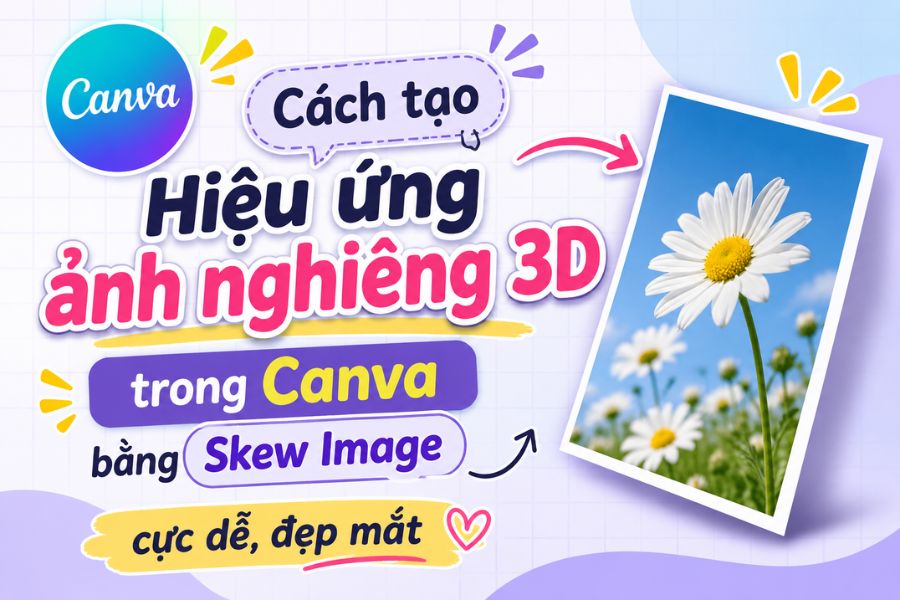
3D tilting is a perspective transformation effect that makes a two-dimensional image appear to be tilted in a three-dimensional space. Instead of maintaining a direct viewing angle, the image is adjusted horizontally or vertically to create a sense of depth, sharpness, and dimensionality. For example, a phone photo with a tilting effect will look like it's slightly rotated to one side, making the design more visually appealing.
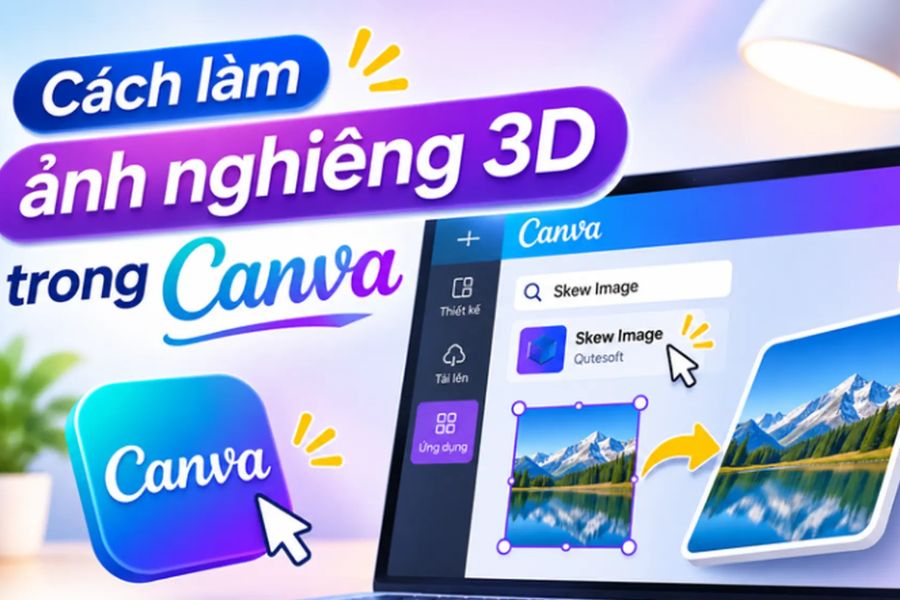
In Canva, the Skew Image feature allows users to adjust the tilt of images without needing complex manipulations in professional graphic design software. However, it's important to distinguish that this is a perspective effect on 2D images, not a true 3D model capable of freely rotating in space.
2. Benefits of creating 3D tilted images in Canva
The 3D tilt effect is quite commonly used in banner, poster, advertising image, and social media content design. With just a few minor adjustments, you can create a new look for your images without adding too many decorative details.
Create depth and enhance aesthetics.
An image positioned at a suitable angle will create a clearer sense of space compared to a frontal presentation. When combined with appropriate shadows, background colors, and decorative details, the subject will stand out, giving the overall design a focal point and a more professional look.
Highlight the advertising image.
For product showcase designs, the tilt effect makes images stand out and easily attract attention. You can apply it to various types of content such as:
-
Banner advertising phones, laptops, and technology devices.
-
Posters showcasing cosmetics, fashion, or accessories.
-
Thumbnail videos for TikTok, YouTube, and Facebook.
-
The image simulates the interface of a website, application, or phone screen.
Easy to do, saves time.
You don't need to be proficient in complex perspective editing techniques to create this effect. Canva integrates the Skew Image application directly into the designer, allowing you to adjust images and further refine the layout on the same interface. This makes the content creation process faster and more convenient.
3. Instructions on how to create a 3D tilted image in Canva using Skew Image
To create a 3D tilt effect, you need a high-quality image and access the Skew Image application in Canva. The steps below are guided on a computer, making it easy for you to follow along.
Step 1: Access Canva and open a new design.
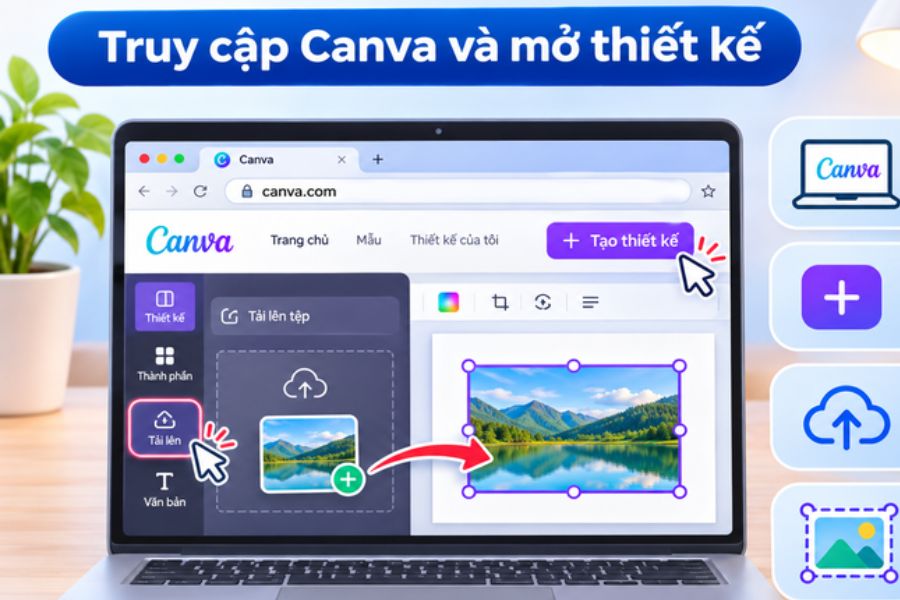
First, open your browser on your computer and go to Canva to log in to your account. On the main interface, you can create a new design with your desired size or open a previously completed project. If you want to create an advertising image, you can choose the size for a social media post, poster, or banner depending on your purpose.
After opening the editor, prepare the image you want to tilt by uploading a photo from your computer or selecting one from the Canva library. Prioritize clear photos with unobstructed subjects and relatively simple compositions for a more natural-looking result after editing.
Step 2: Open the Apps section in Canva.
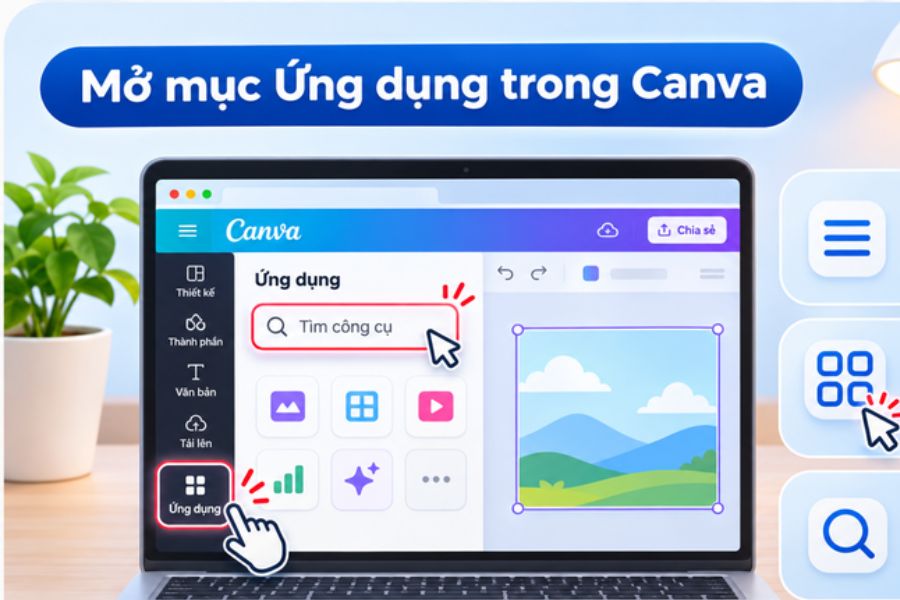
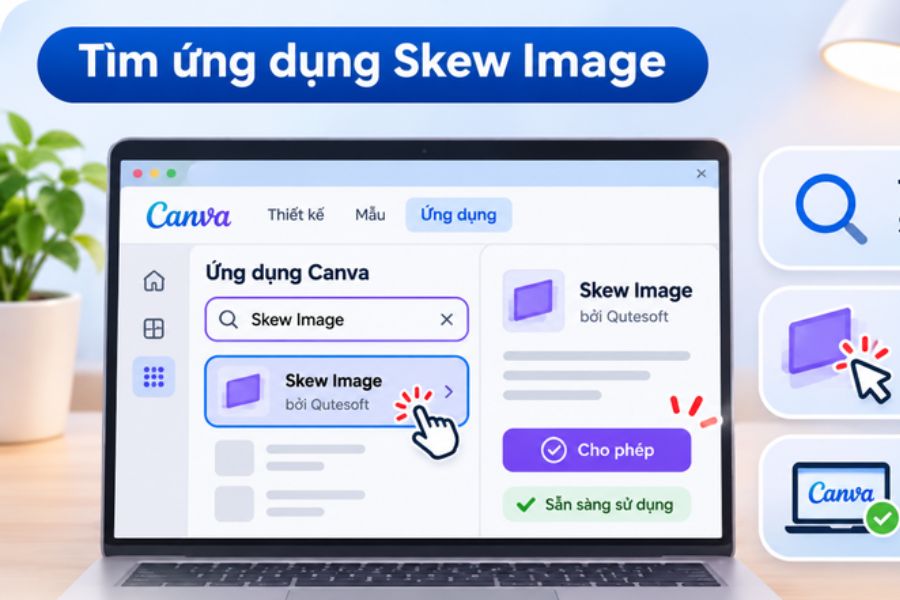
Once you've added images to your design page, you need to access the application area to find tools to help create effects. In the toolbar on the left side of the screen, select the "Apps" section. This is where Canva gathers many extensions, allowing users to add editing and creative features beyond the default tools.
In the application interface, you will see a search bar where you can enter the name of the tool you want to use. Be careful to select the correct application and avoid confusing it with regular image rotation features, because the rotation only changes the orientation of the entire image and does not create a perspective distortion effect.
Step 3: Find and open the Skew Image app.
In the search bar under Apps, type "Skew Image" to find the appropriate tool. When the results appear, select the Skew Image application by Qutesoft and open the tool in the Canva editor. If this is your first time using it, you may need to confirm some access permissions as requested by the application.
Skew Image is designed to support changing the image tilt angle in both horizontal and vertical directions. This allows you to create various perspective styles depending on your design ideas. Before proceeding, please check the correct application name to avoid mistakenly selecting similar utilities.
Step 4: Select the image and adjust the tilt angle.
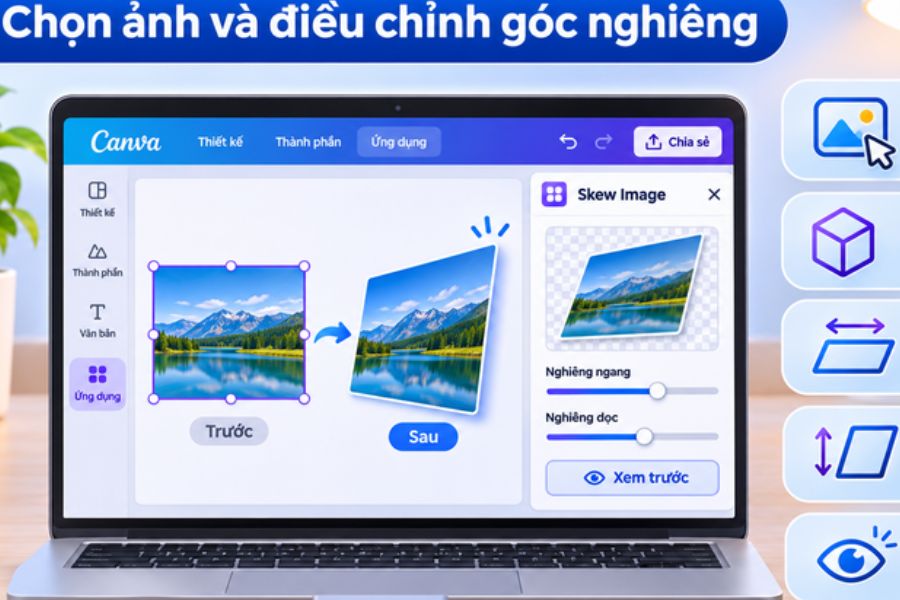
This is the most important step that determines whether the edited image will look good or not. When opening Skew Image, follow the instructions displayed on the interface to select or import the image you want to process into the application. Then, use the adjustment sliders to change the horizontal and vertical tilt.
You should start with a slight tilt, then gradually increase it to observe the changes in the image. If you want to create the feeling that the phone is rotating to the side, adjust the perspective to suit your desired viewing angle. During the process, remember to check the subject's shape to avoid the image being stretched or disproportionate.
Some things to keep in mind when adjusting the effects:
-
Tilt the image slightly to create the illusion that it is rotating to the left or right.
-
Adjust the vertical tilt to create a more immersive viewing angle.
-
Avoid increasing the parameters too much, as this can distort the subject.
-
Prioritize an angle that suits the content and overall layout.
Step 5: Adjust size and finalize layout
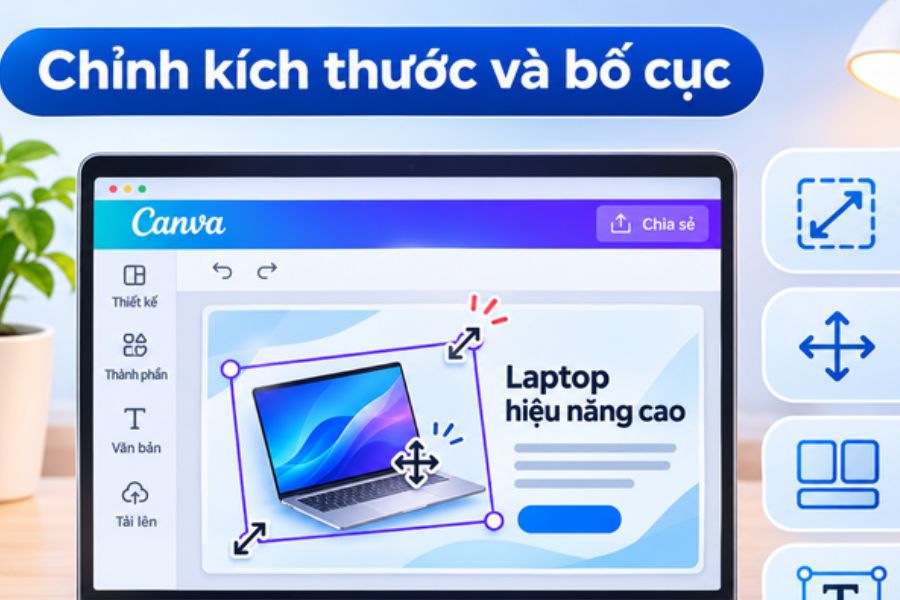
Once you've achieved the desired effect, position the image appropriately on the design page. You can drag the corners to resize it, move the image left or right, and adjust its distance from surrounding elements. If the image is used as the main subject, leave enough space for the tilt effect to be clearly visible.
To add more depth to your design, you can incorporate decorative elements such as shadows, gradient backgrounds, or simple shapes. For example, when designing a banner to introduce a phone, place the phone image at an angle on one side and position the headline and key information on the other. This arrangement creates balance and helps viewers quickly notice the main content.
Step 6: Export and save the completed image.
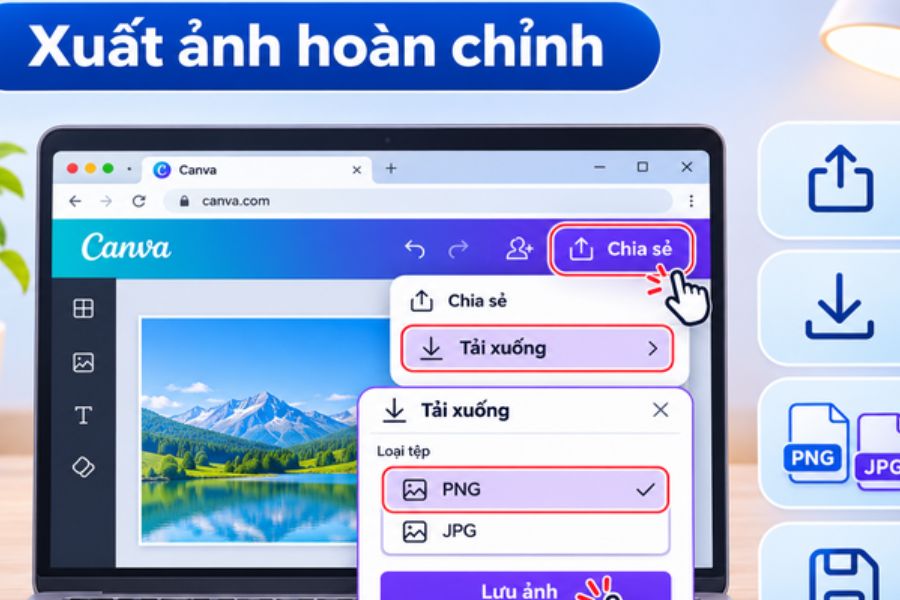
Once you're satisfied with the result, you can download the design to your computer for various purposes. In the upper right corner of the Canva interface, select Share, then click Download. Next, choose the file format and image quality you prefer before confirming the download.
Canva supports many image export formats, with PNG and JPG being two popular choices. You can refer to the following guide on how to choose:
-
PNG: Suitable for designs with lots of text, icons, or small details that need to maintain sharpness. This format also supports transparent backgrounds when set up appropriately.
-
JPG: Suitable when you need small-sized images for uploading to websites or social media.
-
PDF: This option is available if you wish to save the design for printing or sharing as a document.
After downloading, open the file to check the quality, color, and layout. If you find that the image is cropped or not sharp enough, you can return to Canva to edit it before publishing.
4. Common mistakes when creating 3D tilted images in Canva
Although creating 3D tilted images in Canva is quite simple, users sometimes encounter problems during the process. Identifying the cause will help you resolve the issue quickly and minimize the impact on design quality.
-
Skew Image app not found: Check keyword spelling, try searching in the Canva Apps Marketplace, or reload the Canva interface.
-
The image is excessively distorted: This is often caused by adjusting the tilt too much. Try reducing the settings and retesting with the original image.
-
The edited image is blurry: Use the original high-resolution image and avoid enlarging the image beyond its original size.
-
The composition looks unnatural: Recheck the tilt, the position of the subject, and the distance between the elements to create balance.
-
The app is unresponsive: Try reloading the Canva page, check your internet connection, or open the editor in a different browser.
If you've tried the above methods but the problem persists, you can check your browser compatibility and update to the latest version. Also, make sure the application is working properly on Canva before continuing your design.
5. Tips for designing beautiful and professional 3D tilted images.
Besides mastering the techniques, the way you choose images and combine design elements also greatly affects the final result. The following tips will help you utilize the tilt effect more effectively.
-
Choose appropriate images: Prioritize photos with clear subjects, good lighting, and minimal unnecessary details to make the perspective effect easily recognizable.
-
Adjust the tilt angle appropriately: Avoid overusing the effect as it may make the image difficult to see or cause it to lose its original shape.
-
Use shadows effectively: Subtle shadows help the subject feel detached from the background, creating a clearer sense of space.
-
Harmonious color scheme: Choose a background color with appropriate contrast to the subject so that the tilted image becomes the focal point.
-
Organize the content logically: Avoid placing too much text or graphics around images, as this can make the design look cluttered.
-
Check across multiple sizes: If using images for social media, preview them on both computer and phone screens to ensure the content is easy to view.
6. Conclusion
Creating a 3D skew effect in Canva using Skew Image is a simple method to make images more vibrant, have depth, and be more appealing. With just a few steps—searching for the application, selecting an image, and adjusting the skew angle—you can create unique designs without needing advanced graphic design software. Hopefully, this guide will help you easily apply this effect to banners, posters, thumbnails, and other creative content to enhance the aesthetics of your designs.





















VIP Products








Best Selling Products
Autodesk All App Account Copyright
120 USD
Genuine Cheap Canva Pro
39 USD
Copyright Adobe Lightroom Account
59 USD
Capcut Pro 1 Year
39 USD
Windows 10 & 11 Pro Key
36 USD
Adobe Premiere Pro Account
99 USD
Upgrade Duolingo Super
29 USD
ChatGPT Plus Account (GPT-4)
16 USD
Adobe Photoshop Copyright - Full App
120 USD
Genuine Adobe Illustrator account
99 USD
Freepik Premium Account
59 USD
Upgrade genuine Capture One account
120 USD
Upgrade Genuine Office 365
49 USD
MidJourney Account
29 USD
Plugin Retouch4me
69 USD