Best Selling Products

Upgrade Duolingo Super
29 USD

Freepik Premium Account
59 USD

ChatGPT Plus Account (GPT-4)
16 USD

Capcut Pro 1 Year
39 USD

Upgrade genuine Capture One account
120 USD

Copyright Adobe Lightroom Account
59 USD

Adobe Photoshop Copyright - Full App
120 USD

Windows 10 & 11 Pro Key
36 USD

Autodesk All App Account Copyright
120 USD

Plugin Retouch4me
69 USD

Genuine Cheap Canva Pro
39 USD

Genuine Adobe Illustrator account
99 USD

MidJourney Account
29 USD

Upgrade Genuine Office 365
49 USD

Adobe Premiere Pro Account
99 USD
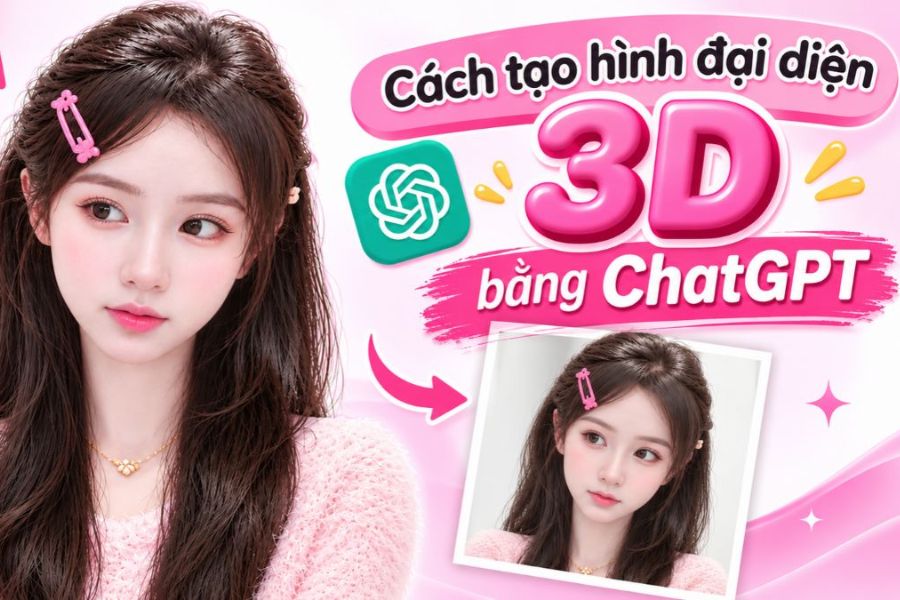
How to create beautiful and unique 3D avatars using ChatGPT, with detailed and easy-to-follow instructions.
Nội dung
- 1. What is creating a 3D avatar using ChatGPT?
- 2. What do I need to prepare before creating a 3D avatar using ChatGPT?
- 3. Detailed instructions on how to create a 3D avatar using ChatGPT
- 4. Compilation of prompts for creating beautiful and unique 3D avatars using ChatGPT.
- 4.1. Prompt to create adorable Chibi-style 3D avatars
- 4.2. Prompt to create 3D avatars like toy models
- 4.3. Prompt for creating 3D avatars in Pixar animation style.
- 4.4. Prompt to create a luxurious 3D avatar
- 5. Tips to create beautiful 3D avatars using ChatGPT that look more like the original photos.
- 6. Frequently Asked Questions when creating 3D avatars using ChatGPT
- 7. Conclusion
Want a unique, eye-catching 3D avatar that reflects your personality, but don''t know where to start? With ChatGPT, transforming an ordinary photo into a vibrant 3D character has become much simpler. Just prepare a suitable photo and enter a command describing your idea, and you can create an avatar in an adorable, realistic cartoon style, or even a miniature toy model. Let Sadesign guide you through the detailed steps to create a 3D avatar using ChatGPT and some interesting prompts to get started!
1. What is creating a 3D avatar using ChatGPT?
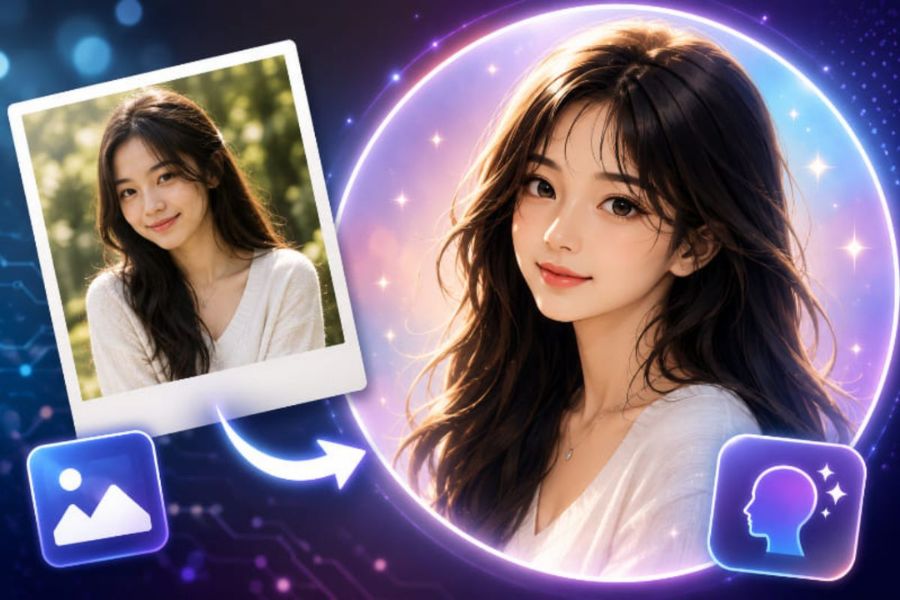
Creating a 3D avatar using ChatGPT is a method that utilizes AI technology to transform existing ideas or images into a three-dimensional, graphic-styled avatar. Instead of designing each detail yourself using specialized software, you simply provide a reference image or a written description. ChatGPT will then create an image based on your requirements, incorporating the desired appearance, clothing, expression, and background. The appeal of this method lies in its unlimited creative possibilities. You can experiment with various styles to find the avatar that best suits your personal preferences.
Some popular 3D avatar styles include:
-
Pixar animation style: Characters have lively eyes, soft features, adorable expressions, and eye-catching colors.
-
Chibi style: Featuring a large head and small body, giving a youthful and adorable feel.
-
Toy model style: The character looks like a 3D toy placed in a display box.
-
Semi-realistic style: Retaining natural facial features while incorporating 3D lighting and texture effects.
-
Clay style: The character has a soft surface, giving the feeling of being handcrafted from clay.
2. What do I need to prepare before creating a 3D avatar using ChatGPT?
Before you begin, you should define the image you want to create so that the commands are more clearly directed. A good quality reference image along with specific descriptions will help the AI understand your wishes correctly and produce results closer to your initial idea.
Here are some things you should prepare:
-
Clear portrait photos: Prioritize photos with a bright face, not obscured by hair, a mask, or oversized accessories.
-
Design style: Decide whether you want a cartoon avatar, Chibi, realistic 3D, or toy-like character.
-
Physical characteristics: Describe hairstyle, hair color, clothing, skin color, facial expressions, and other key identifying features.
-
Image composition: Choose a portrait, half-body, or full-body photo depending on the purpose.
-
Background and lighting: You can choose a minimalist white background, a pastel background, or a space designed according to a specific theme.
Upgrade ChatGPT at a low cost.
3. Detailed instructions on how to create a 3D avatar using ChatGPT
Once you've prepared your image and ideas, you can start creating your avatar right on ChatGPT. The process is quite simple and doesn't require any design experience or professional image editing skills.
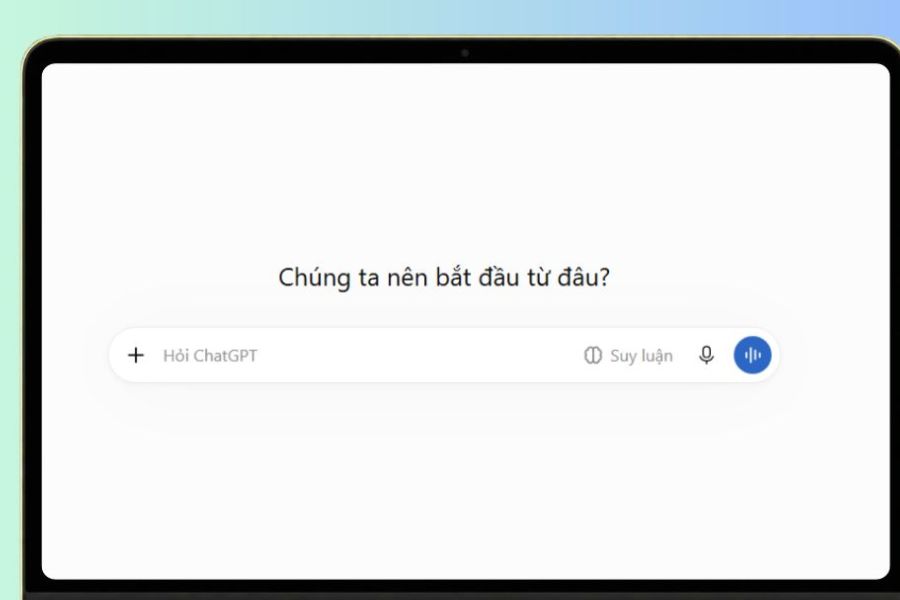
Step 1: Access ChatGPT
First, open the ChatGPT app on your phone or access the ChatGPT website using your browser. Log in to your personal account to use the image creation feature. On the main interface, start a new conversation so that the avatar creation process is convenient and not affected by previous requests.
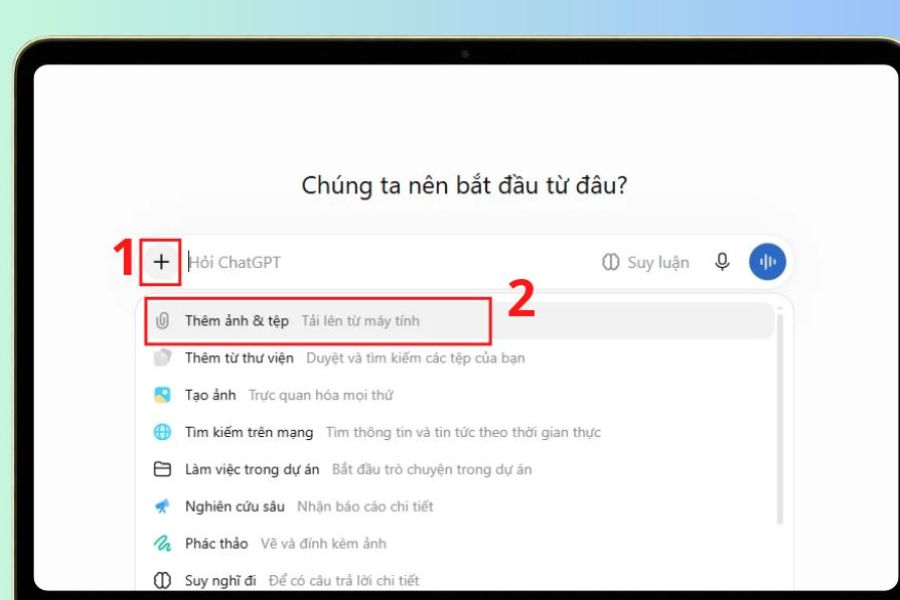
Step 2: Click the plus icon and upload the image.
Next, in the message input box, select the plus icon and then click on "Add photos & files" to upload the portrait photo you want to convert. Choose a photo with a clear, well-lit face and no missing important details. This will be the reference image for ChatGPT to identify the physical features, thereby creating a 3D avatar that closely resembles the original character.
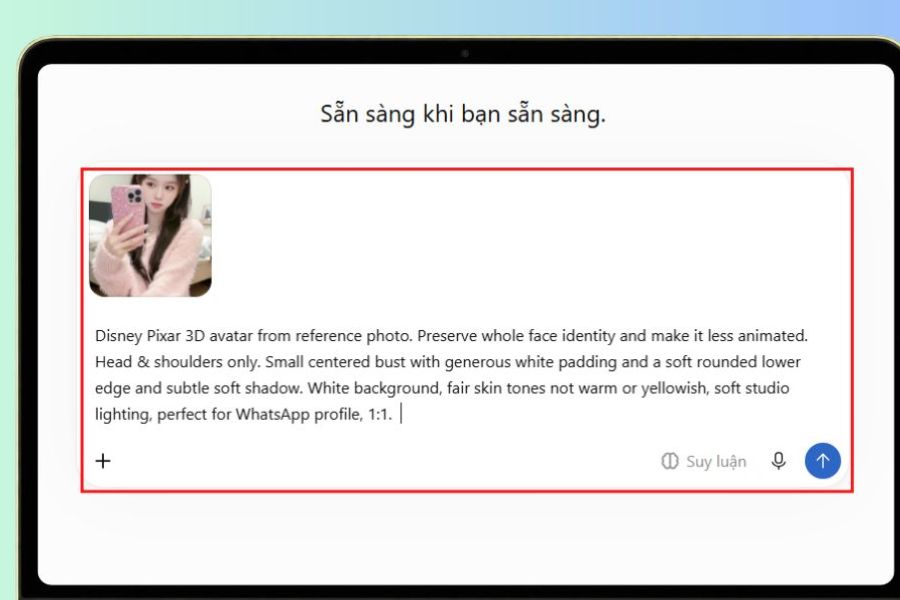
Step 3: Write the descriptive command and send the request.
After successfully uploading the image, enter the prompt describing your desired avatar style into the chat box. The more specific the command regarding face, clothing, lighting, colors, and composition, the clearer the result will be. You can use the English prompt below to create a 3D avatar in the Disney Pixar cartoon style:
Sample prompt:
"Create a beautiful Disney Pixar-style 3D avatar based on the uploaded reference photo. Preserve the person's facial identity, hairstyle, skin tone and distinctive facial features as accurately as possible. Create a cute and elegant head-and-shoulders portrait with natural facial proportions, expressive eyes and a gentle smile. Use soft studio lighting, smooth realistic 3D textures, a clean pure white background and subtle shadows. Keep the character centered with generous white space around the head. High-quality 3D rendering, square 1:1 composition, perfect for a social media profile picture."
After entering your command, press send and wait for ChatGPT to process the image. If you want to change the style, you can request the system to adjust the color, expression, or clothing directly in the chat.
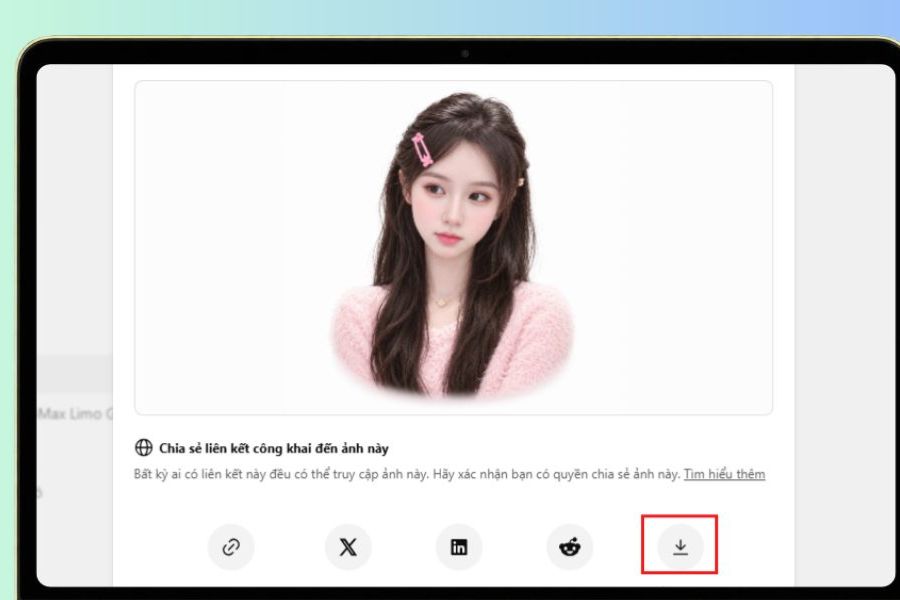
Step 4: View the results and download the avatar to your device.
Once the image is created, check the overall face, hairstyle, clothing, and composition to see if it meets your expectations. If you're not completely satisfied, you can continue to enter editing requests such as making the face look more natural, changing the background color, or increasing the realism of the 3D effect. When you have a suitable version, tap on the image and select the download button to save it to your device. Then, you can use the new avatar as your profile picture on Facebook, TikTok, Zalo, or other social media accounts.
4. Compilation of prompts for creating beautiful and unique 3D avatars using ChatGPT.
Besides the familiar Pixar style, you can also experiment with many different ideas to create a unique avatar. Below are some easy-to-use sample prompts; simply upload the reference images and change the details to your liking.
4.1. Prompt to create adorable Chibi-style 3D avatars
If you love small, cute characters, the Chibi style is a great choice. This prompt focuses on a large head, sparkling eyes, and a cheerful expression.
Prompt:
"Create an adorable 3D Chibi avatar based on the uploaded photo. Preserve the person's recognizable facial features, hairstyle and skin tone. Give the character a cute oversized head, a small body, sparkling eyes and a sweet smile. Dress the character in a stylish pastel outfit. Use soft lighting, smooth 3D textures, a pastel pink background and a charming cartoon aesthetic. Square 1:1 composition."
4.2. Prompt to create 3D avatars like toy models
Want your avatar to look like a bespoke toy character? Try the 3D collectible figure style with sharp details, glossy plastic material, and eye-catching display box.
Prompt:
"Turn the person in the uploaded reference photo into a premium 3D collectible toy figure. Preserve the person's facial identity, hairstyle and distinctive appearance. Create a full-body miniature character wearing fashionable clothes, standing inside a transparent display box. Add cute accessories, realistic plastic textures, professional product photography lighting and a clean pastel background. High-quality 3D render, square composition."
4.3. Prompt for creating 3D avatars in Pixar animation style.
This is a suitable choice if you like images with depth, bright colors, and lively expressions. The characters retain their basic identifying features but are rendered softly in a 3D animation style.
Prompt:
"Transform the uploaded portrait into a charming Pixar-inspired 3D character. Maintain the person's original facial identity, hairstyle, eye shape and skin tone. Create a warm friendly smile, expressive eyes and natural facial proportions. Use detailed 3D textures, cinematic soft lighting, beautiful colors and a simple blurred background. Professional 3D character portrait, square 1:1."
4.4. Prompt to create a luxurious 3D avatar
If you want to use an avatar in a professional environment, you can choose a semi-realistic 3D style with elegant attire and a minimalist background.
Prompt:
"Create an elegant semi-realistic 3D avatar based on the uploaded reference photo. Preserve the person's facial identity and natural appearance. Dress the character in a sophisticated modern outfit with a confident and friendly expression. Use refined 3D details, realistic skin textures, soft professional studio lighting and a luxurious neutral background. Head-and-shoulders portrait, premium quality, square 1:1."
Upgrade ChatGPT at a low cost.
5. Tips to create beautiful 3D avatars using ChatGPT that look more like the original photos.
To create an avatar that is both aesthetically pleasing and retains the character's unique features, you should pay attention to how you select reference images and phrase the prompt. A few small adjustments can sometimes make a significant difference in image quality.
-
Use high-quality original images: Clear, well-lit photos with appropriate resolution will help the AI better recognize facial features.
-
Clearly describe your identifying features: You should mention your hairstyle, eye shape, facial features, and any unique characteristics you don't want to change.
-
Avoid incorporating too many styles into one prompt: Choose one main direction to ensure image consistency and prevent an unnatural, mixed result.
-
Pay attention to the aspect ratio: If using it as a social media avatar, a 1:1 square aspect ratio is usually the convenient choice.
-
Adjust every detail: If the result isn't right, ask for changes to individual elements like clothing, lighting, or background instead of rewriting the entire command.
-
Check your images before posting: Make sure the face, hands, accessories, and small details are free from any unusual flaws.
6. Frequently Asked Questions when creating 3D avatars using ChatGPT
Is there a fee for creating a 3D avatar using ChatGPT?
ChatGPT may offer image creation features in some account packages. However, the number of uses and image creation limits may vary depending on the service package, the time, and system availability. You should check your account directly for specific limits.
Is it possible to create 3D avatars using ChatGPT on a phone?
Yes. You can use ChatGPT on your phone via the app or web browser. Simply upload an image, enter the prompt, and wait for the system to process it to create your avatar right on your device.
How can I make my 3D avatar look as realistic as possible?
You should use a clear portrait photo and include a requirement in the prompt to preserve facial features, hairstyle, skin tone, and facial proportions. Additionally, prioritize a semi-realistic style if you want the subject's appearance to closely resemble the original photo.
Is it possible to edit the avatar after it's created?
Yes. You can continue chatting with ChatGPT to request changes to the costume, expression, background color, lighting, or any other details that don't fit. It's not necessary to repeat the entire process from the beginning.
7. Conclusion
Creating 3D avatars using ChatGPT is a fun way to get a beautiful profile picture without needing professional design software. With just a reference image and a suitable prompt, you can experiment with various styles, from adorable Chibi and Pixar cartoons to unique toy models. Choose your favorite idea, customize the commands, and create a personalized avatar to refresh your profile!





















VIP Products








Best Selling Products
Upgrade Duolingo Super
29 USD
Freepik Premium Account
59 USD
ChatGPT Plus Account (GPT-4)
16 USD
Capcut Pro 1 Year
39 USD
Upgrade genuine Capture One account
120 USD
Copyright Adobe Lightroom Account
59 USD
Adobe Photoshop Copyright - Full App
120 USD
Windows 10 & 11 Pro Key
36 USD
Autodesk All App Account Copyright
120 USD
Plugin Retouch4me
69 USD
Genuine Cheap Canva Pro
39 USD
Genuine Adobe Illustrator account
99 USD
MidJourney Account
29 USD
Upgrade Genuine Office 365
49 USD
Adobe Premiere Pro Account
99 USD