Best Selling Products

Upgrade Genuine Office 365
49 USD

Freepik Premium Account
59 USD

ChatGPT Plus Account (GPT-4)
16 USD

Upgrade genuine Capture One account
120 USD

MidJourney Account
29 USD

Upgrade Duolingo Super
29 USD

Plugin Retouch4me
69 USD

Adobe Photoshop Copyright - Full App
120 USD

Windows 10 & 11 Pro Key
36 USD

Adobe Premiere Pro Account
99 USD

Genuine Adobe Illustrator account
99 USD

Autodesk All App Account Copyright
120 USD

Genuine Cheap Canva Pro
39 USD

Copyright Adobe Lightroom Account
59 USD

Capcut Pro 1 Year
39 USD
How to create super cute lip-syncing animal videos using CapCut AI - anyone can do it!
Nội dung
- 1. How to create lip-syncing animal videos using CapCut AI
- Step 1: Download the video and audio to your computer.
- Step 2: Create a new project in CapCut
- Step 3: Adjust the image length to match the song.
- Step 4: Add the song and lip-sync using AI.
- Step 5: Export the video and save it to your computer.
- 2. Tips to make AI-powered animal lip-syncing videos more adorable and natural.
- 3. Some common mistakes when creating lip-syncing animal videos using CapCut AI
- 4. Reliable and affordable CapCut Pro upgrade service at Sadesign
- 5. Conclusion
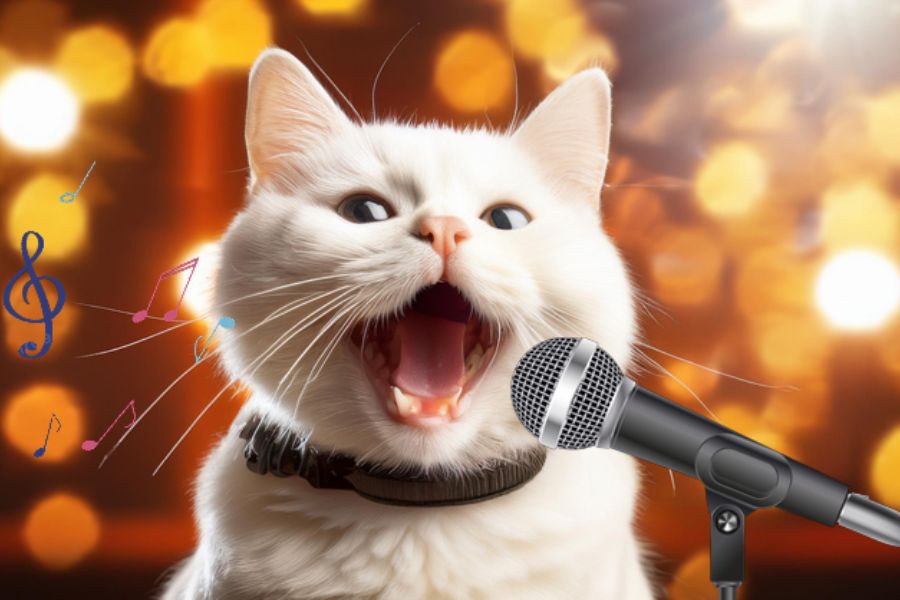
Videos of animals lip-syncing with funny expressions and mouth movements synchronized with the lyrics are becoming a popular form of entertainment on social media. With just a photo of a cat, dog, or any other animal, you can create an incredibly funny clip thanks to artificial intelligence (AI). No professional editing skills are needed; you can transform still images into lively videos with just a few taps on your phone. In this article, let''s explore with Sadesign how to create lip-syncing animal videos using CapCut AI in 5 simple steps. Besides instructions, the article also shares some tips on choosing images and sounds to make the finished video look more natural, adorable, and engaging.
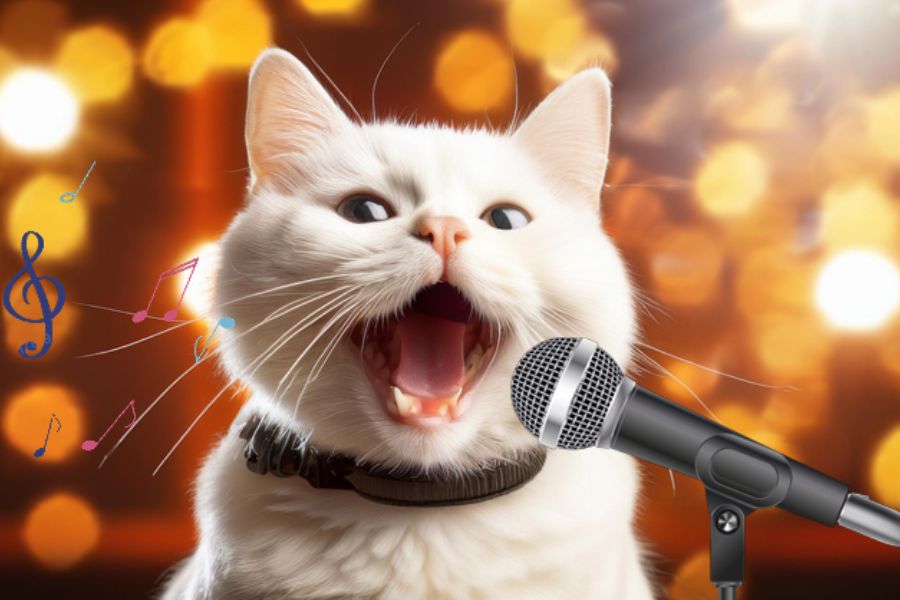
1. How to create lip-syncing animal videos using CapCut AI
To create lip-syncing animal videos, you'll need a clear image of the animal's face, your favorite audio clip, and the CapCut app on your phone. Once you've prepared everything, you can use the lip-syncing feature to have the AI analyze the audio and then create mouth movements that match the song. Here are the detailed instructions:
Step 1: Download the video and audio to your computer.
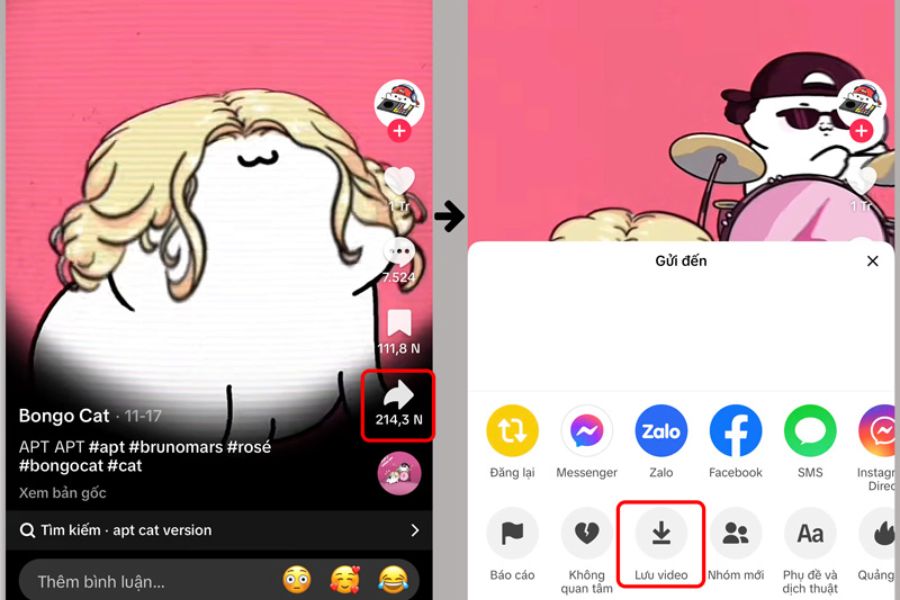
First, choose a piece of music or song you want to use for your video. Prioritize sounds with catchy melodies, clear lyrics, or trending TikTok tracks for a better entertainment effect. You can use an existing MP3 file or extract audio from a video saved on your phone. If you want to download a video containing the song from TikTok, open your favorite video, tap Share , and then select Download if the uploader allows it. Afterwards, check your phone's library to ensure the video has been successfully saved and is ready to use in CapCut.
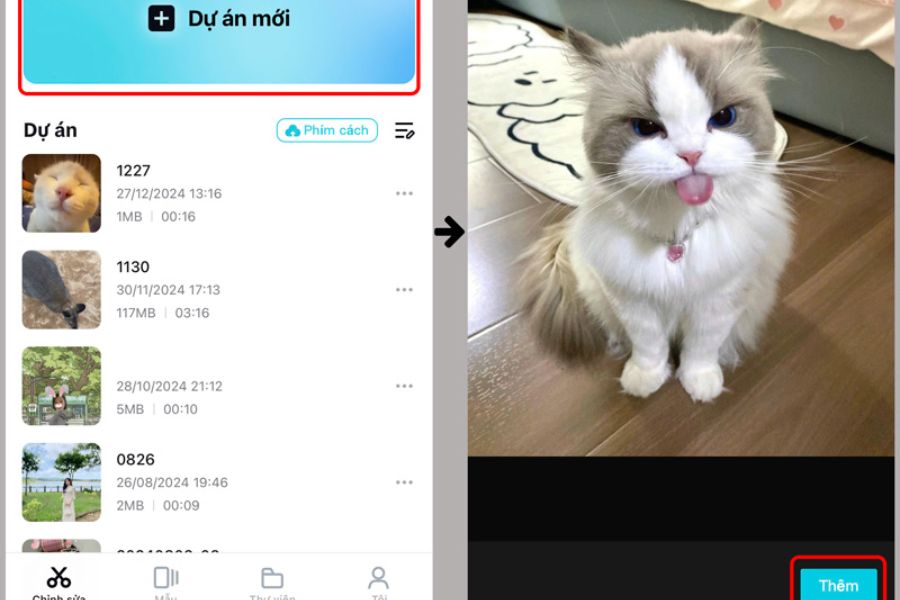
Step 2: Create a new project in CapCut
Next, open the CapCut app on your phone. If you haven't installed it yet, download it from Google Play or the App Store. On the main interface, select "New Project" to start editing. Then, access your photo library, select the animal image you want to create a lip-sync video with, and press "Add" to add the image to the project. You should choose photos with clear faces, taken from the front, with the mouth not obscured, and of good quality. These images will help the AI recognize the subject more easily, thereby creating appropriate lip-sync movements.
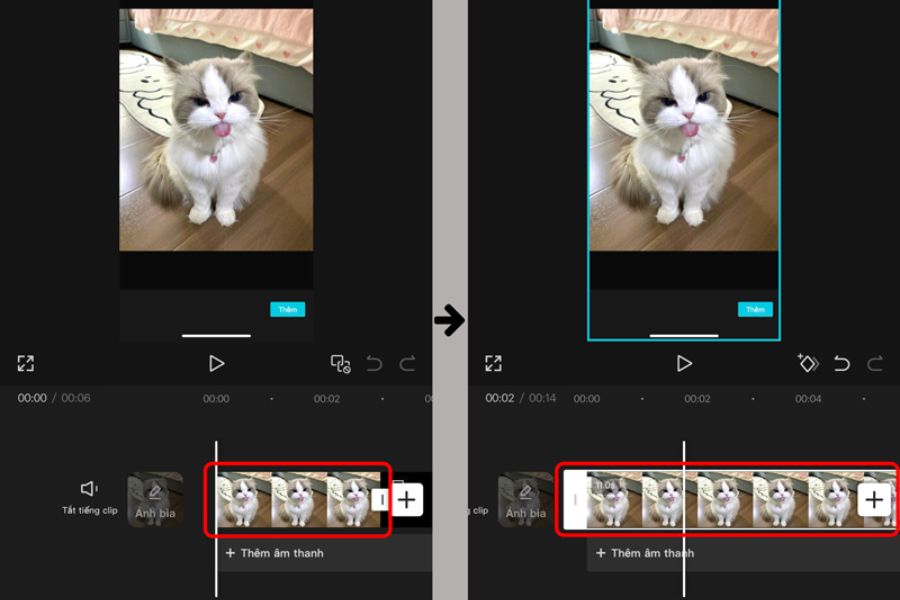
Step 3: Adjust the image length to match the song.
After adding the image, you'll see it appear on CapCut's timeline. Tap the image to display the editing toolbar at the bottom of the screen, then press and hold the edge of the image segment and drag to lengthen or shorten it depending on the song's duration. You should adjust it so that the image appears throughout the audio segment, avoiding the image ending before the music finishes. For example, if using a 15-second music segment, adjust the image duration accordingly so the video doesn't cut off. Once complete, check the timeline again to ensure everything is properly arranged before moving on to the next step.
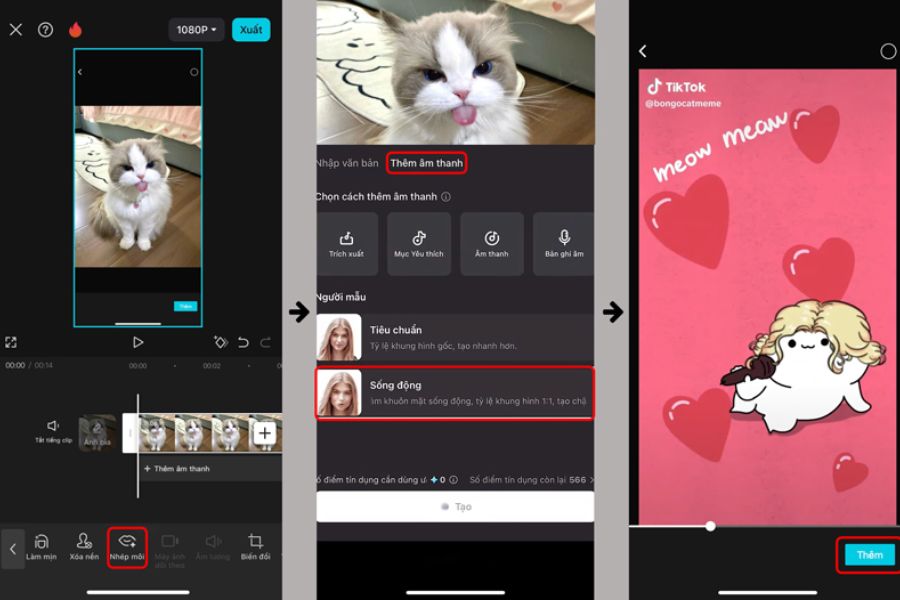
Step 4: Add the song and lip-sync using AI.
This is the most important step to make the animal's mouth movements look like it's actually singing. Select the image on your Timeline, find and choose the Lip Sync feature on the toolbar. Next, select Extract to get the audio from the previously downloaded video or press Add audio if you want to use a different song. After selecting the music, you can choose Standard or Live mode according to your preference. Once you've finished setting up, press Create and then select Confirm for CapCut AI to automatically analyze the audio and create lip-sync movements for the character. Wait a few moments for the application to process; completion time may vary depending on the length of the audio and the device used.
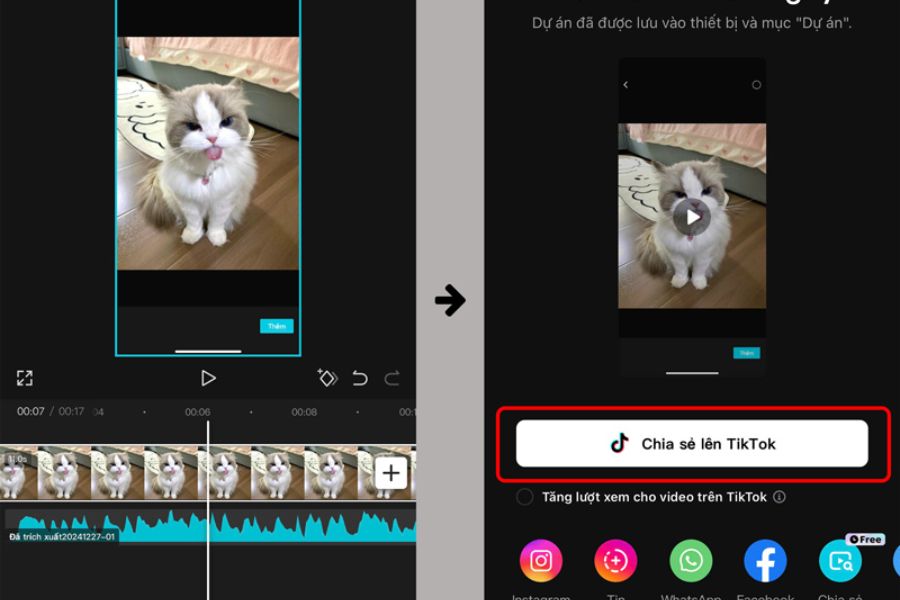
Step 5: Export the video and save it to your computer.
Once CapCut has finished creating the video, play it back to check your mouth movements, audio, and duration. If everything is satisfactory, tap Export in the upper right corner of the screen to save your finished product. Before exporting, you can choose a resolution of 720p or 1080p depending on your needs. If you want to post the video to TikTok, Instagram Reels, or YouTube Shorts, a 9:16 aspect ratio is a suitable choice. Finally, tap Export and wait for the application to process. The finished video will be saved to your phone's library, and you can immediately share it with friends or upload it to social media.
2. Tips to make AI-powered animal lip-syncing videos more adorable and natural.
To make your video engaging, in addition to following the steps correctly, you should also pay attention to your choice of images, sounds, and effects. A funny photo of your pet combined with a suitable song can sometimes create a more interesting final product than overly elaborate videos. Here are some tips you can apply:
-
Choose a frontal photo: Images with clear faces help the AI recognize the subject more easily.
-
Use high-quality photos: Avoid blurry, underexposed images or photos where the mouth is obscured.
-
Choose appropriate music: Upbeat songs with clear lyrics will make the video more lively.
-
Try different lip-syncing modes: Compare the options to find the effect that best suits the image.
-
Add humorous commentary: A few short lines of dialogue or emojis can make the video more interesting.
-
Keep videos concise: Clips with clear content and a clear focus from the start are more likely to attract viewers.
You can also try many creative ideas such as a cat singing a sad love song, a dog performing an upbeat song, or a rabbit transforming into a singer. The unexpected combination of the adorable appearance of animals and familiar songs will create a unique highlight for the video.
3. Some common mistakes when creating lip-syncing animal videos using CapCut AI
During use, you may sometimes encounter situations where the AI fails to recognize faces, mouth movements don't match the audio, or the video cannot be successfully generated. These problems can stem from image quality, audio format, internet connection, or the version of the application being used.
You can try some of the following solutions:
-
Face not recognized: Try replacing it with a clear, unobstructed, frontal image.
-
The mouth movements are unnatural: Try a different image or change the lip-syncing mode.
-
Audio mismatch: Check the music track and adjust the video duration.
-
Unable to create video: Check your internet connection and device storage, and try again.
-
Lip-syncing feature not found: Update CapCut to the latest version and check available AI tools.
Additionally, AI features on CapCut may vary depending on the app version, region, or account. Some features may also require AI usage or a paid plan. Therefore, if you cannot find the corresponding tool, please check the version of CapCut you have installed.
4. Reliable and affordable CapCut Pro upgrade service at Sadesign
If you frequently use CapCut to create videos, especially its editing features and AI tools, upgrading to CapCut Pro will give you more useful options in your content creation process. The Pro version provides access to many effects, filters, design templates, and advanced editing tools, making your videos more professional and eye-catching. This is also a suitable choice for those who frequently create TikTok videos, Reels videos, or social media content. If you are looking for a place to upgrade to CapCut Pro at a reasonable cost, you can check out Sadesign . This provider offers CapCut account upgrade services at affordable prices, with dedicated support and a convenient registration process. When choosing to upgrade at Sadesign, you also receive support during use, saving you time in learning and resolving any issues that may arise.
Some advantages of choosing to upgrade to CapCut Pro at Sadesign:
-
Reasonable cost: There are many upgrade options at prices that suit different needs.
-
Dedicated support: Receive guidance and assistance when encountering difficulties during the upgrade process.
-
Convenient payment: The payment process is simple and easy to follow.
-
Save time: No need to spend time figuring out complicated registration steps.
For those who frequently create videos using CapCut, choosing a suitable upgrade service will make the process more convenient. You can check out Sadesign's service to experience more useful features, unleash your creativity to create unique videos, and keep up with the latest content trends.
5. Conclusion
Creating lip-syncing animal videos using CapCut AI isn't as complicated as many people think. With just a picture of your pet, your favorite music, and a few simple steps, you can transform a still image into a video with incredibly funny mouth movements. Hopefully, this guide will help you easily create unique and adorable clips to capture fun moments or share with friends on social media. Try different images, songs, and styles to create videos with your own unique touch!





















VIP Products








Best Selling Products
Upgrade Genuine Office 365
49 USD
Freepik Premium Account
59 USD
ChatGPT Plus Account (GPT-4)
16 USD
Upgrade genuine Capture One account
120 USD
MidJourney Account
29 USD
Upgrade Duolingo Super
29 USD
Plugin Retouch4me
69 USD
Adobe Photoshop Copyright - Full App
120 USD
Windows 10 & 11 Pro Key
36 USD
Adobe Premiere Pro Account
99 USD
Genuine Adobe Illustrator account
99 USD
Autodesk All App Account Copyright
120 USD
Genuine Cheap Canva Pro
39 USD
Copyright Adobe Lightroom Account
59 USD
Capcut Pro 1 Year
39 USD